

A Template Kit gives you a full website design in one import. Header, footer, home, about, pricing, contact, all of it arrives already styled and ready to edit. With Master Addons Template Kits you pick a kit, click import, and the whole set lands in your WordPress site in about a minute.
Below we’ll import a kit end to end, then wire up the navigation menu and header so the front end looks like the demo. The example uses the Clowdify kit, but the steps are the same for any kit you pick.
Before You Start #
- WordPress with Elementor (free or Pro) installed and active
- Master Addons for Elementor installed and active (installation guide)
- Administrator access to your WordPress dashboard
Do one thing first: turn off Elementor’s default fonts and colors before you import. That lets the kit’s own typography and colors come through like the demo. It’s a one-minute change and it saves you a re-import later.
Step 1: Open the Template Kits Library #
In your WordPress dashboard, go to Master Addons > Template Kits. The library opens with a preview thumbnail for every kit. Browse until one fits the site you’re building.
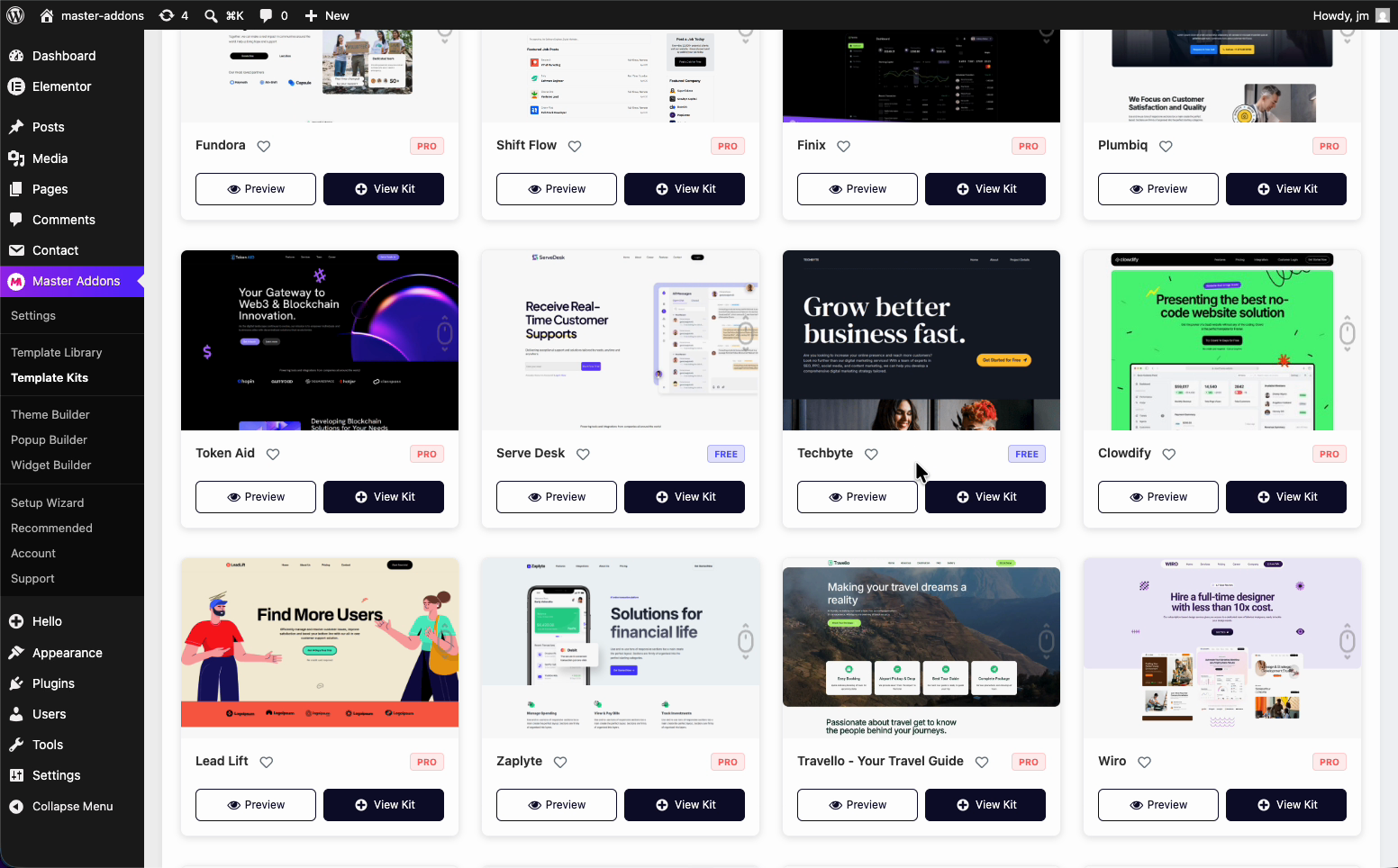
Step 2: Open a Kit and Click Import #
Click into the kit you want (here, Clowdify). You’ll see every template the kit ships with, from the global style and header down to the home, pricing, and contact pages. Hit Import to bring in the full kit.
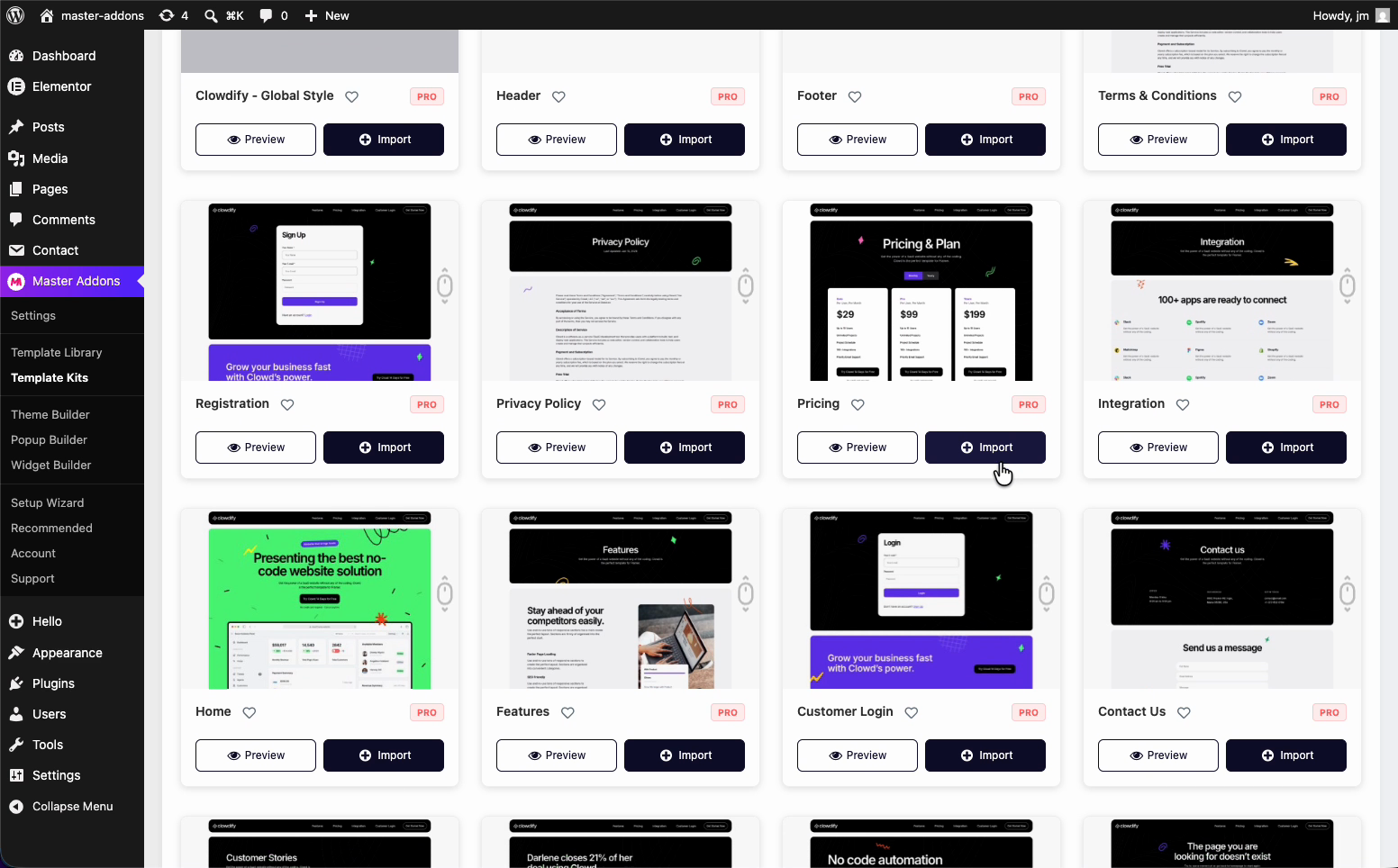
Worth knowing: this imports the whole kit, every template at once, not a single page. That’s what you want when you’re setting up a full site.
Step 3: Wait for the Import to Finish #
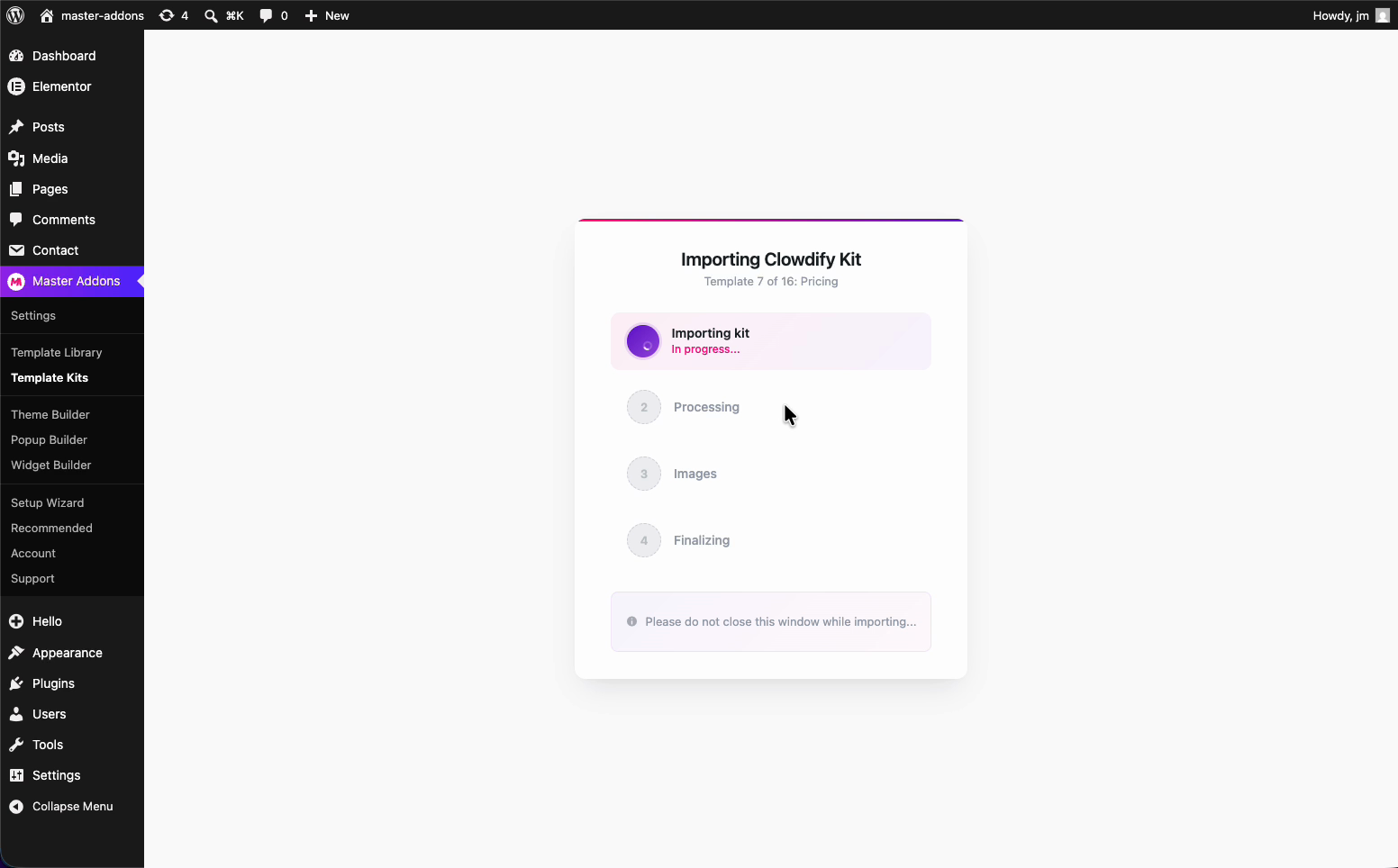
A progress window opens and runs through four stages: Importing kit, Processing, Images, and Finalizing. Leave the tab open while it works. Kits with a lot of images take a little longer on the Images step.
Step 4: Import Complete #
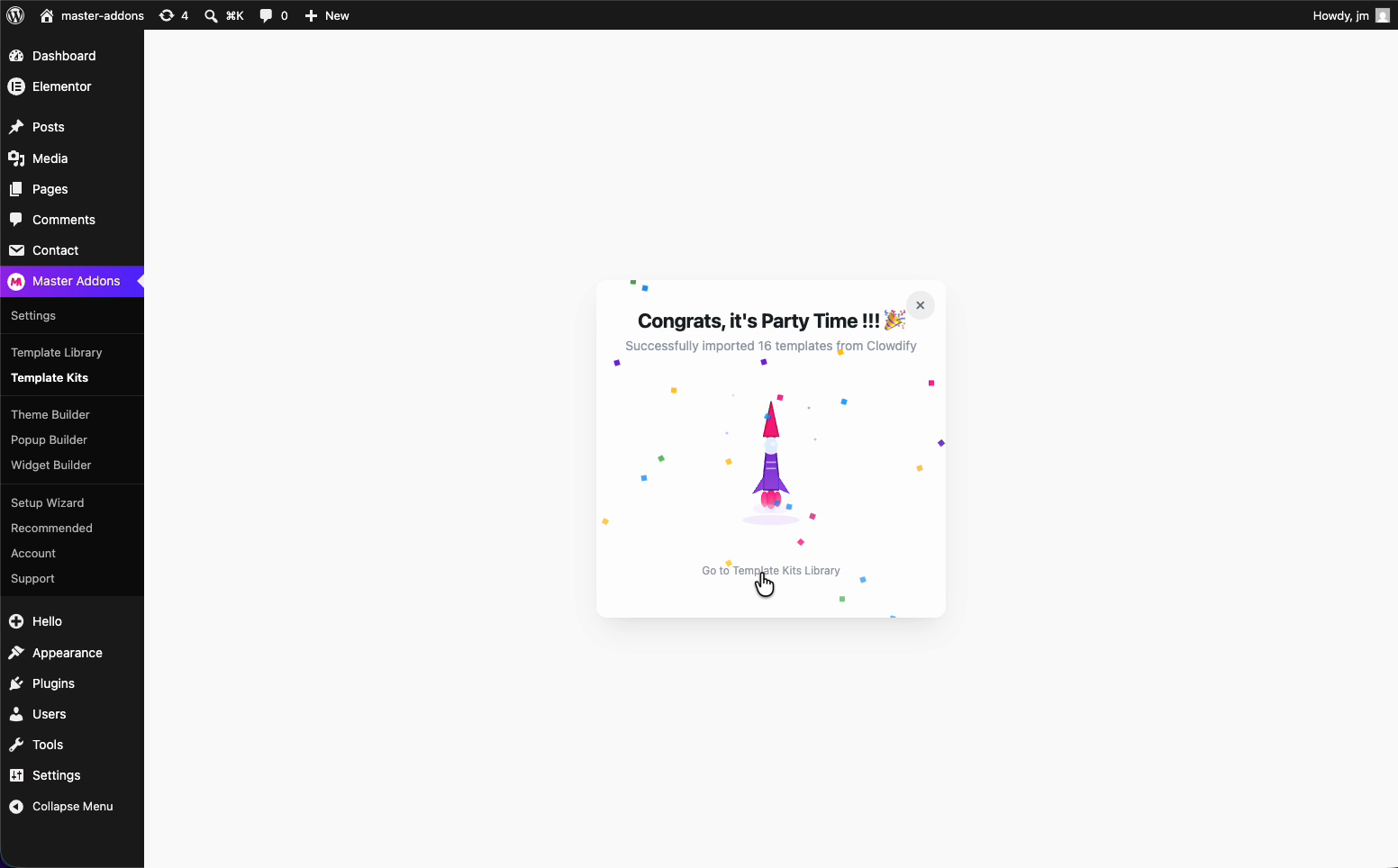
When it finishes you get a success message with the template count (16 for Clowdify). Every page is now sitting under Pages in your dashboard, fully styled and editable in Elementor.
Step 5: Set Up Your Navigation Menu #
The pages are in, but nothing links them together yet. Go to Appearance > Menus, create a new menu, and add the pages you want in your header: Home, About, Case Studies, Contact Us, whatever the site needs.
Imported pages arrive with the kit name in front of them, so the About page comes in tagged with the kit. Rename each menu item to a clean label like Home, About Us, or Contact so the navigation reads the way visitors expect. Change the label on the menu item, not on the page itself.
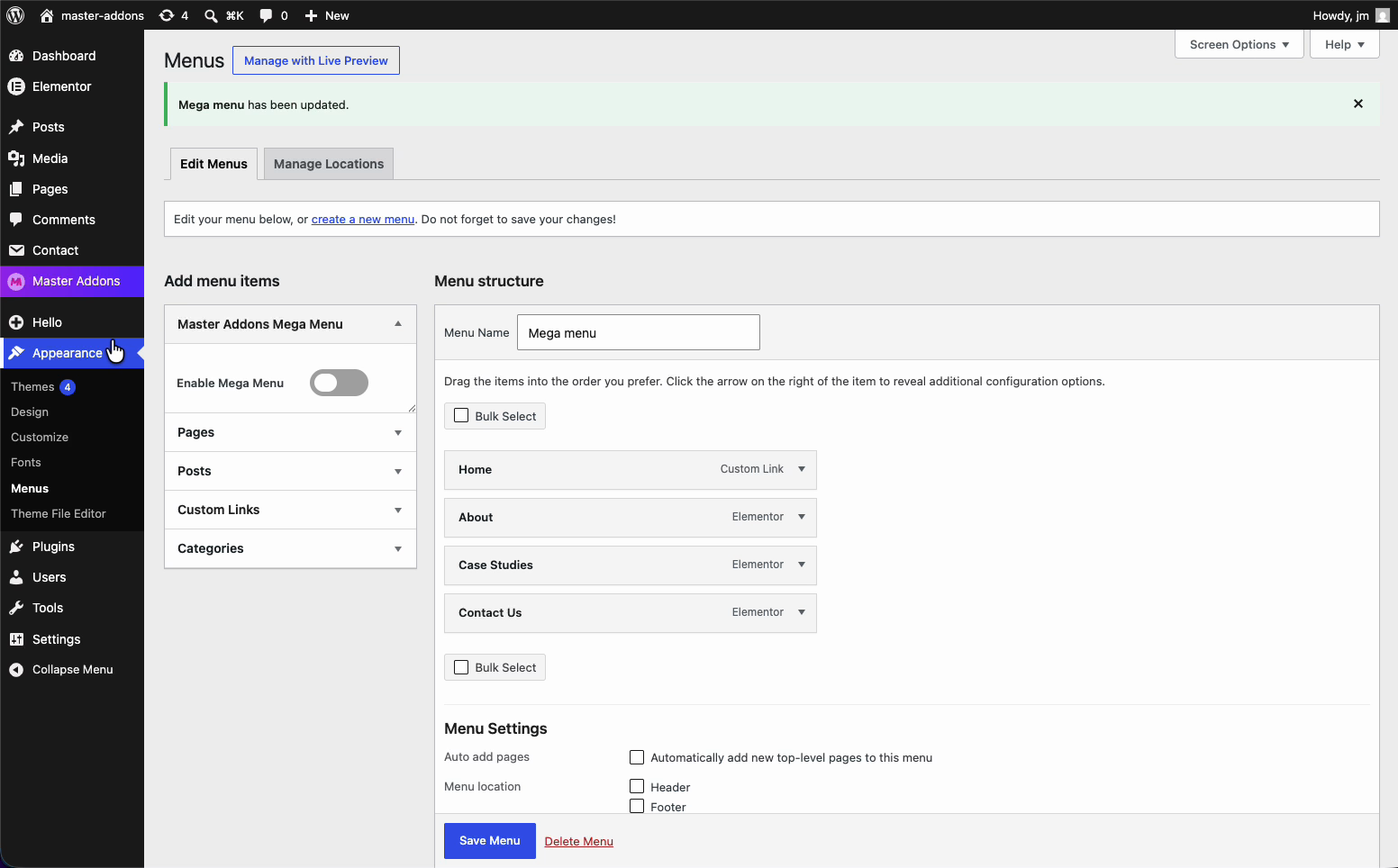
Under Menu Settings, assign the menu to your Header location (add Footer too if you want it there), then click Save Menu.
Step 6: Add the Header with Master Addons Theme Builder #
Your menu exists, but a WordPress menu alone won’t put the kit’s header across the site. That’s what the Master Addons Theme Builder handles. Go to Master Addons > Theme Builder and you’ll find your header template listed there, named and set to display on the whole site.
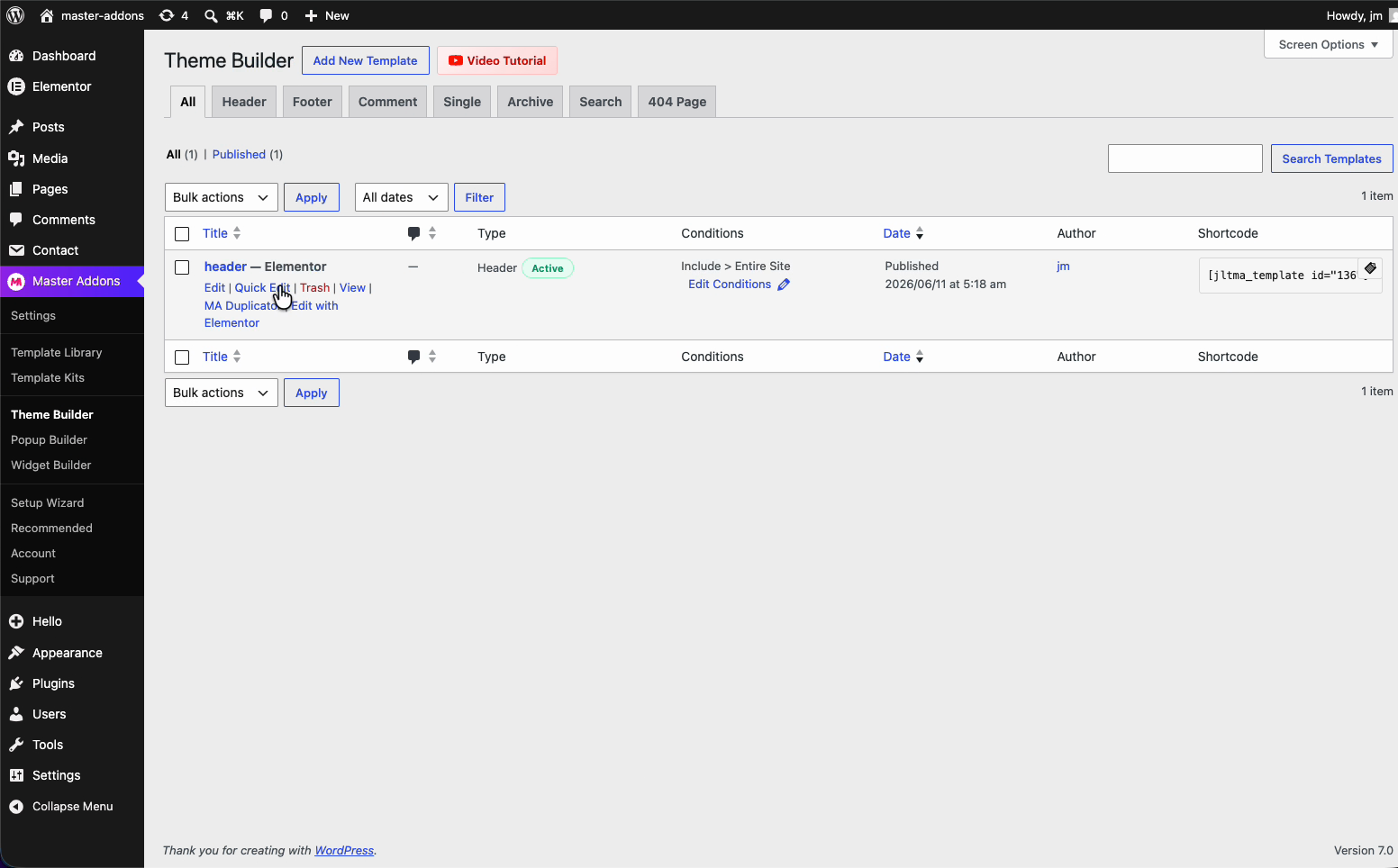
Open the header template in Elementor. Inside it you’ll find the Master Addons Navigation Menu widget. Click it, then under Select Menu pick the menu you just built. Leave the Layout on Horizontal so the links sit in a row, and the header preview updates to show Home, About, Case Studies, and Contact Us across the top.
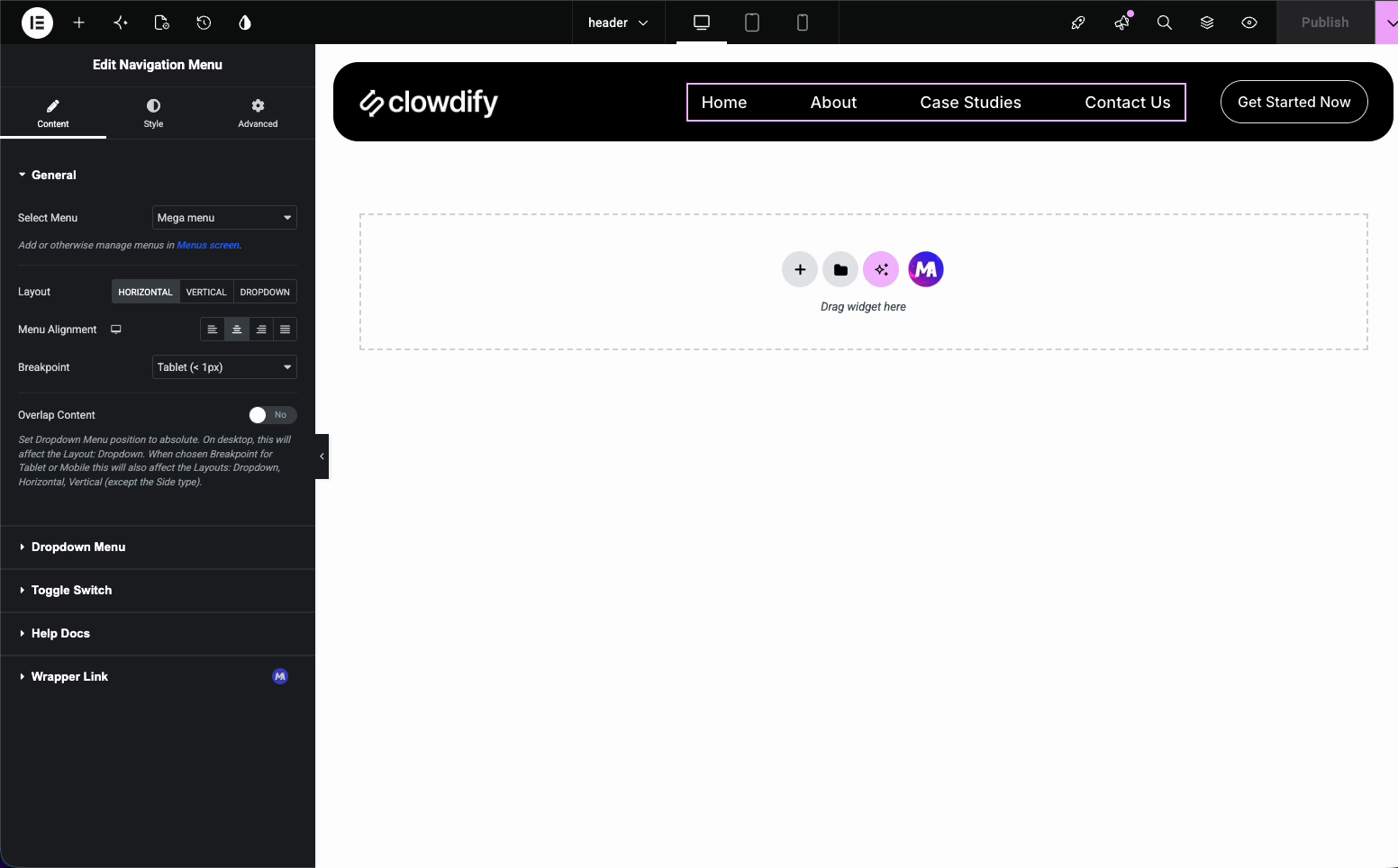
Hit Publish and set the display condition to your entire site so the header shows everywhere. The kit’s header is now live and pointing at the right pages.
Step 7: Check the Front End #
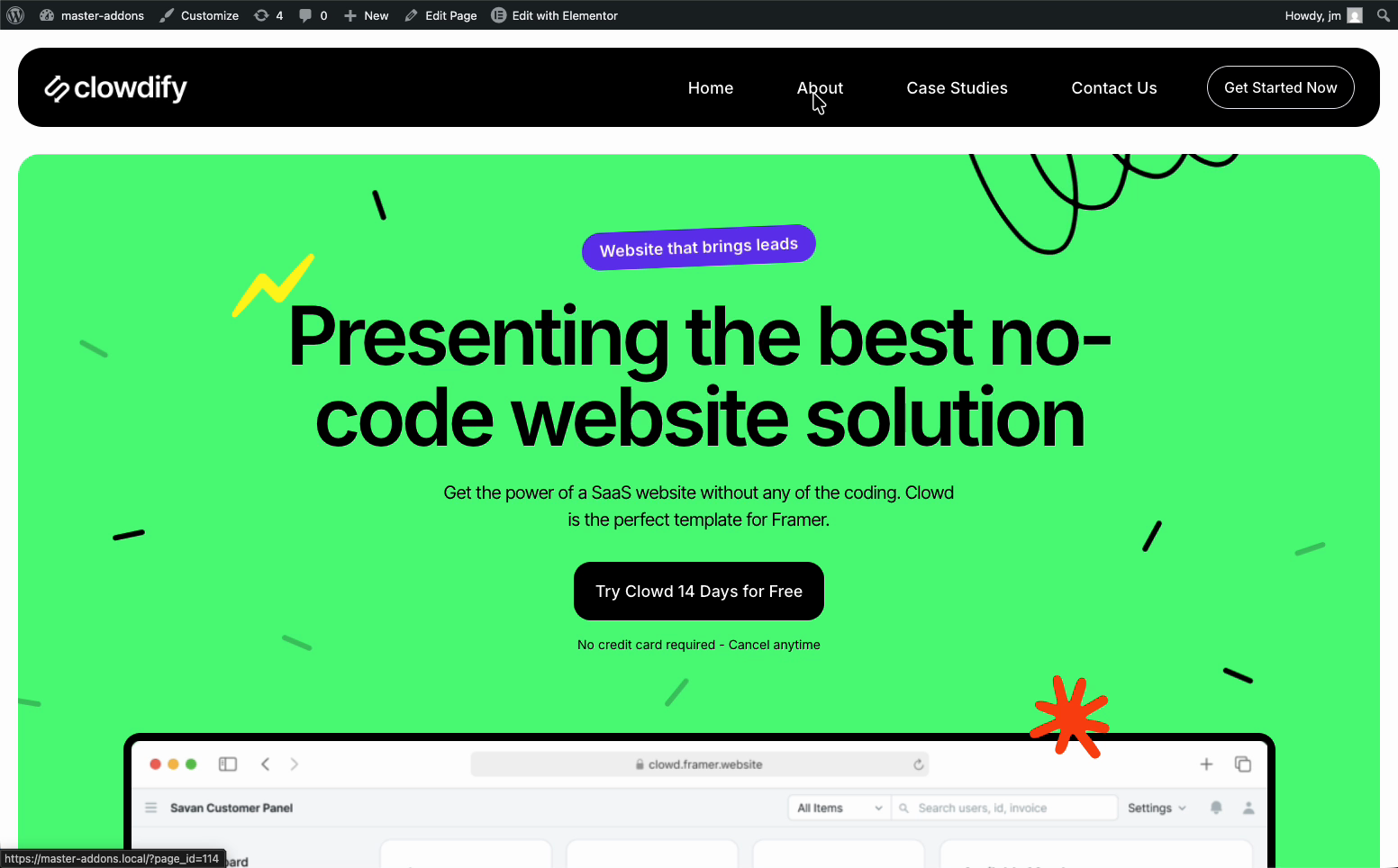
Open your site. The styled header sits at the top, and the homepage loads with the full kit design, the same one you picked from the library. From here you can edit any page in Elementor, swap the text and images, and make the kit your own.
Troubleshooting #
- Colors or fonts don’t match the demo? Disable Elementor’s default colors and fonts under Elementor > Settings > General, then re-import the kit so it builds on clean defaults.
- Import stops partway? Don’t close the tab mid-import. If it fails, reload and run it again. Bigger kits just need more time on the Images step.
- Don’t see the Master Addons menu? Check that both Elementor and Master Addons are active. The installation guide covers setup.
- Want more kits and templates? The full set is unlocked in Pro. Here’s how to upgrade from free to Pro.
Frequently Asked Questions #
How do I import a full Template Kit in Master Addons?
Go to Master Addons > Template Kits in your WordPress dashboard, click into the kit you want (such as Clowdify), and press the Import button. This imports the entire kit at once, including the global style, header, and every page like home, pricing, and contact. The import runs through four stages and the pages then appear under Pages, fully styled.
Why should I disable Elementor default fonts and colors before importing?
Each kit carries its own typography and color palette, but Elementor’s default fonts and colors override them when left on. Turning them off under Elementor > Settings > General lets the kit’s styles come through so the front end matches the demo. Doing this before importing saves you from having to re-import later.
Does importing a kit set up the navigation menu automatically?
No, the pages import but nothing links them together yet. You create a menu under Appearance > Menus, add the imported pages, rename the items to clean labels like Home and About Us, and assign the menu to the Header location. Then you save the menu before wiring it into the header.
Where do I connect the imported menu to the kit’s header?
Open the header template under Master Addons > Theme Builder in Elementor, then click the Master Addons Navigation Menu widget. Under Select Menu, pick the menu you built and leave the Layout set to Horizontal. After publishing with a display condition for the entire site, the header shows your menu everywhere.
What should I do if the kit import stops partway through?
Do not close the tab while the import is running, since that interrupts the process. If it fails, reload the page and run the import again. Larger kits with many images simply need more time on the Images step, so give it a moment before assuming it stalled.


