
Elementor Off-Canvas Widget for Slide-Out Panels and Menus (Pro)
Off-Canvas Content is a Master Addons Pro widget that places a button on the page and opens a panel when a visitor clicks it. The panel shows a saved Elementor template, so you can put a menu, a contact form, filters or a promo inside it and reuse the same template on other pages. Choose where the panel appears, how it animates and how the button looks. Visitors close it with the close icon, by clicking the overlay or by pressing Esc.
Free Elementor has no off-canvas widget. Elementor Pro added one in version 3.22, and it needs the Flexbox Containers and Nested Elements features switched on. This widget is the Master Addons Pro option: it opens any saved template, from any side, behind a button you style once.
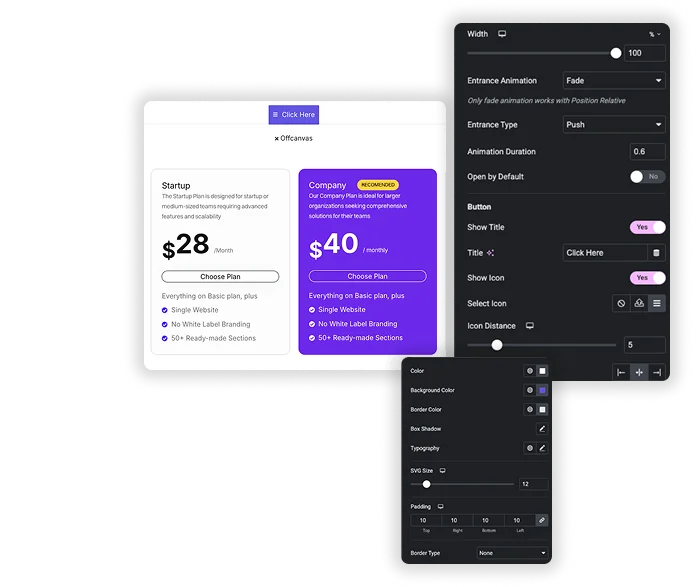
How to Add an Off-Canvas Panel in Elementor
You need Elementor and an active Master Addons Pro license.
- Go to Templates, Saved Templates, create a template, build the panel content and publish it.
- Edit the page, search for Off-Canvas Content and drag it where the button should appear.
- In Select Template, choose the template you saved.
- Pick a Position and set the Width or Height.
- Choose an Entrance Animation and duration.
- Set the button Title or icon, then style the button, header and container in the Style tab.
See the Off-Canvas Content settings guide for every option.
Off-Canvas Content at a glance
| Setting | What it does |
|---|---|
| Content source | A saved Elementor template: page, section or container (the dropdown lists every library item except kits) |
| Positions | Right, Left, Top, Bottom, Middle, Relative (a dropdown under the button) |
| Entrance animation | Fade, Slide or Grow; Relative supports Fade only |
| Entrance type | Cover slides the panel over the page; Push moves the page across. Push is offered for Top, Left and Right |
| Size | Width in px, % or vw for Left, Right, Middle and Relative; Height in px, % or vh for Top, Bottom, Middle and Relative; both per device |
| Closes with | The close icon, a click on the overlay, or the Esc key; Enter or Space on the focused close icon also works |
| Extras | Open by Default, Animation Duration in seconds, header title with Reverse Header, page scroll lock while open, a styleable trigger button with text, icon or both |
| Opens from | The widget’s own button only (no CSS selector or external trigger) |
| Needs | Elementor (free or Pro) plus Master Addons Pro |
Panel Position, Size and Animation
Position offers Right, Left, Top, Bottom, Middle and Relative. Left, Right and Middle panels get a Width in px, % or vw, and Top, Bottom and Middle panels get a Height in px, % or vh, each adjustable per device. Entrance Animation is Fade, Slide or Grow, and only Fade works with Relative. Left, Right and Top panels also have an Entrance Type of Cover or Push. Set the Animation Duration in seconds, and turn on Open by Default if the panel should start open.
Cover and Push are the two Entrance Types. With Cover the panel slides over the page and the overlay dims what is behind it. With Push the whole page moves across by the width of the panel, so the content stays visible beside the menu. Push is available for Top, Left and Right panels; Bottom, Middle and Relative always cover.
- A left or right panel with your site menu for smaller screens.
- A top panel for a short announcement or search form.
- A middle panel as a simple modal for a signup form.
Trigger Button, Header and Container Styling
The trigger button can show a Title, an icon or both, with Icon Distance and Align settings. Style its Color, Background Color and Border Color for Normal and Hover, plus Box Shadow, Typography, SVG Size, Padding, Border Type and Border Radius. Inside the panel, the Header section styles the close icon and the optional header title, and Reverse Header swaps their places. The Container section sets the panel background, border, padding, overlay color and scrollbar color and width.
- An icon-only hamburger button in a header.
- A “Contact us” text button that opens a form.
- A branded overlay color that dims the page behind the panel.
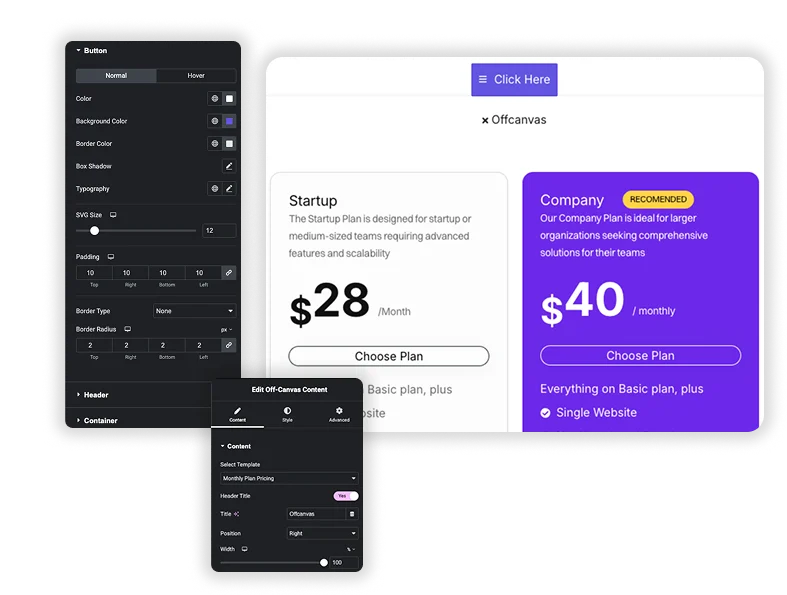
Elementor Pro Off-Canvas vs Master Addons Off-Canvas Content
An off-canvas menu is the most common use. This widget does not build the menu itself, so you place a menu widget in a template first. If you only need the menu, the Master Addons Nav Menu widget also has a Hamburger layout with an off-canvas type in Pro, which skips the template step. Use Off-Canvas Content when the panel should hold more than a menu, such as a logo, contact details and social links.
| Feature | Elementor Pro Off-Canvas | Master Addons Off-Canvas Content |
|---|---|---|
| Price | Needs Elementor Pro | Needs Master Addons Pro |
| Panel content | Built inside the widget in Editing Mode | A saved Elementor template you can reuse |
| How it opens | Any button or link using the Off-Canvas action | The widget’s own trigger button |
| Position | Horizontal and vertical Start, Center or End | Right, Left, Top, Bottom, Middle or Relative |
| Animation | Entrance and exit animations | Fade, Slide or Grow, with Cover or Push |
| Closing | Overlay and Esc, each can be turned off; can lock page scroll | Close icon, overlay click or Esc |
| Built-in header | No | Header title and close icon |
| Open by default | Not a widget setting | Yes |
Elementor Pro wins when any link on the page should open the panel or when you want exit animations. Master Addons fits when one template should appear behind a ready-made button on many pages. For a search panel, also see the Search widget.
How to Build an Off-Canvas Menu in Elementor
An off-canvas menu is the most common use. The widget does not build the menu itself, so you place a menu widget in a template first.
- Create a saved template and add a menu widget, such as the free Master Addons Nav Menu set to a vertical layout.
- Publish the template.
- In your header, add Off-Canvas Content and select that template.
- Set Position to Left or Right, Width to around 320px and Entrance Animation to Slide.
- Turn off Show Title, turn on Show Icon and pick a bars icon so the button looks like a hamburger.
- Use Elementor’s responsive visibility to show this button only on tablet and mobile if the desktop header keeps its normal menu.
Related widgets: Nav Menu for the menu inside the panel, the Mega Menu extension for large header menus, Popup Builder for timed or exit-intent layers, Tabs for switching content in place, and Display Conditions to show the trigger on chosen pages only.
Full-screen menu in Elementor
A full-screen menu is the Middle position with the Width set to 100vw and the Height to 100vh. Put a template with a large vertical menu inside it, pick the Fade entrance so the layer appears in place, and give the container a solid background so nothing shows through. The close icon sits in the panel header, and the Esc key closes the layer as well.
One detail from the stylesheet: panels are capped at 90% of the viewport, so a 100vw by 100vh panel leaves a margin all round. Add this rule in the page’s Custom CSS to remove the cap:
.jltma-offcanvas-wrap .jltma-offcanvas-content { max-width: 100% !important; max-height: 100% !important; }
The step-by-step with screenshots is in how to build a full-screen menu in Elementor.
Slide-out side menu (sidebar navigation)
For a side menu, set Position to Left or Right and the Width in px, around 320 px for a menu and 400 px for a panel with contact details. Choose Push when the page should move aside and stay readable, or Cover when the panel should sit on top. The template can hold the Nav Menu widget in its vertical layout, a logo, a few contact lines and a button.
A sidebar that stays visible all the time is a different job. Build that with a two-column container layout and keep this widget for the panel that slides in on request. The Elementor side menu guide covers both.
Off-canvas panel examples
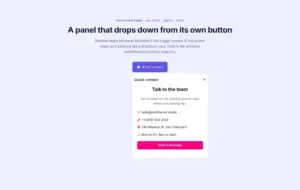
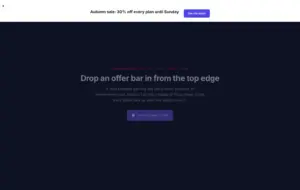
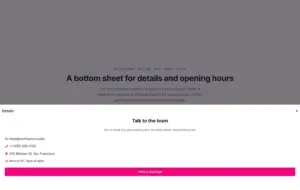
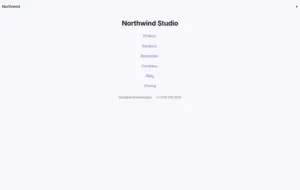
Open each demo below to see the panel move: a right-hand contact panel, a left-hand menu that pushes the page across, a dropdown panel that uses the Relative position, an announcement bar from the top edge, a bottom sheet with opening hours, and a full-screen menu built from the Middle position.
Frequently Asked Questions For Off-Canvas Content
Is the Off-Canvas Content widget free?
No. Off-Canvas Content is part of Master Addons Pro. The free plugin does not include it.
How do I add content to the off-canvas panel?
Build the content as a saved Elementor template first, such as a menu, form or promo. Then pick that template in the widget’s Select Template dropdown. You can reuse one template in several panels.
Should I use an off-canvas panel or a popup?
Use an off-canvas panel for navigation and for content a visitor asks for by clicking, such as a menu, filters or contact details. Use a popup for timed or exit-intent messages and for forms that should interrupt. Both lock page scroll while open.
How do I change the animation speed?
Set Animation Duration in the Content tab. The value is in seconds, with 0.6 as the default and a range from 0 to 15. Lower values open the panel faster. The setting applies to every entrance animation and to both Cover and Push.
Why does my off-canvas panel not open?
Check three things. Select Template must point at a published template, otherwise the panel prints a notice instead of content. The trigger must be the widget’s own button, because no other element can open it. And Open by Default should be off unless you want it open on load.
Can I build an off-canvas menu with it?
Yes. Put a menu widget such as the Master Addons Nav Menu in a saved template, select it in Off-Canvas Content, set Position to Left or Right and use a bars icon for the button. For a menu alone, the Nav Menu Hamburger layout in Pro has its own off-canvas type.
Does the panel content slow down my page?
The template is rendered into the page when it loads, then hidden until the button is clicked. A panel with a few widgets adds little weight, but heavy sliders or videos inside it load with the page, so keep panel templates light.
Can I open the panel from my own header icon?
No. The panel opens only from the button the widget renders, so an existing icon or menu link cannot trigger it. For a header menu that opens from a hamburger icon, use the Nav Menu widget’s Hamburger layout with the Offcanvas type instead.
Is there a free off-canvas widget for Elementor?
Elementor’s free plugin has none. Elementor Pro includes an Off-Canvas widget from version 3.22 when Flexbox Containers and Nested Elements are on. Off-Canvas Content is part of Master Addons Pro and opens any saved template, which the Pro widget does not do.
Trending Elementor Widgets & Extensions
Build sophisticated websites in less time.

Glassmorphism

Container Extras

Patterns
![Master Addons Post/Page Duplicator extension for Elementor: MA Duplicator row link in the WordPress Pages list creating a Landing Page - [Duplicated #128] draft](https://d1asvmc6qcowgk.cloudfront.net/wp-content/uploads/2026/09/15102930/post-page-duplicator-768x403.webp)
Post/Page Duplicator
