

Timing a popup by page percentage is fine until you need it to land on one exact spot. Maybe you want it the instant someone reaches your pricing block, a testimonial row, or a call-to-action band, not a vague 40% down the page. The Master Addons Popup Builder handles that with the On Scroll to Element trigger. You give the popup a CSS ID with a #, then put that same ID, without the #, on the element you want to act as the trigger.
Here’s the full setup in the Master Addons Popup Builder, which comes free with Master Addons for Elementor. If a percentage-based trigger is all you need, the popup trigger options guide covers that one.
Before You Start #
- A popup already built in the Master Addons Popup Builder (see the popup settings guide to create one)
- A page with the element you want to use as the scroll trigger
- Elementor installed and active
- Master Addons for Elementor installed and active (installation guide)
Step 1: Set the Popup to Open On Scroll to Element #
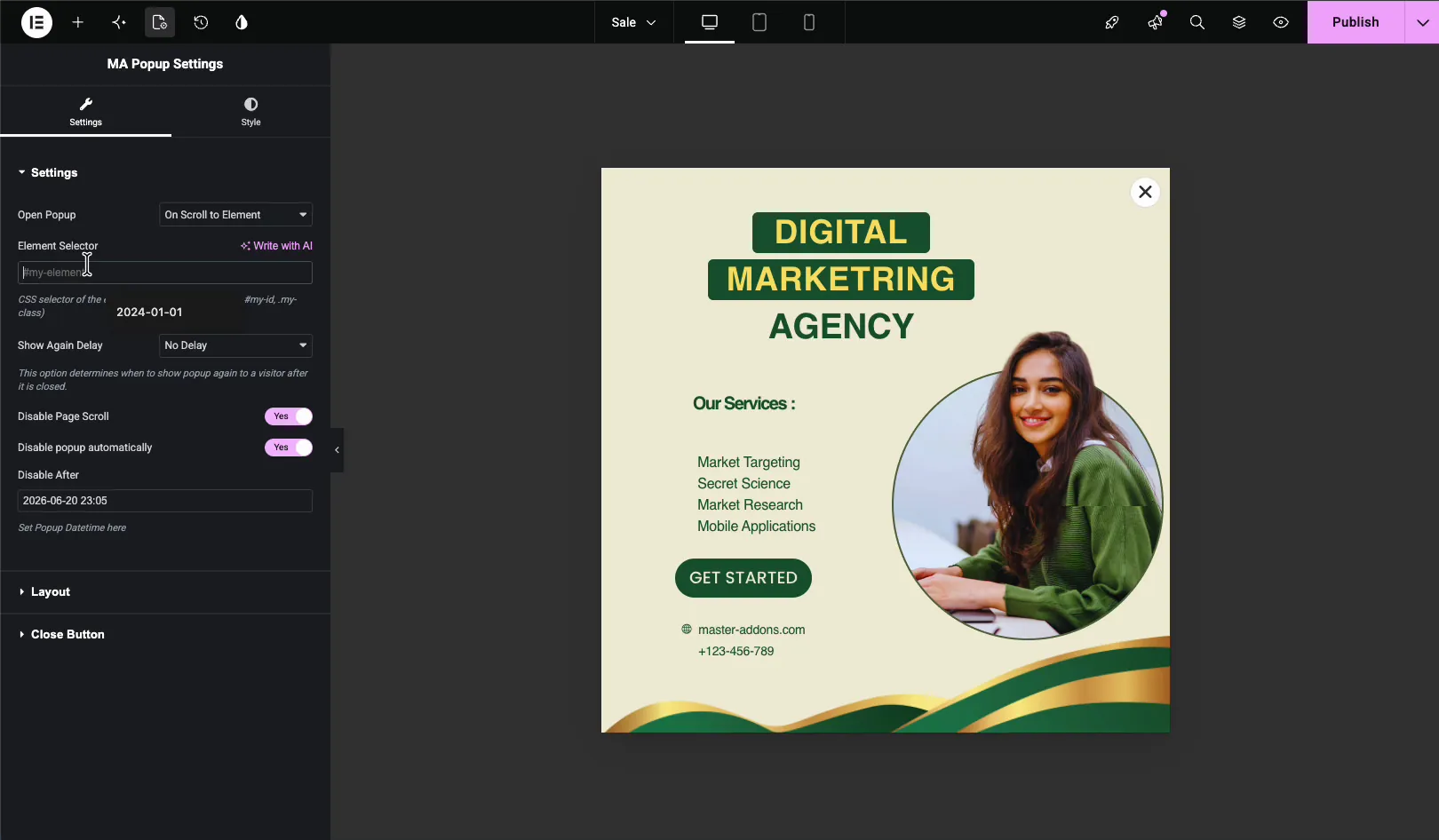
Open your popup in Elementor and go to the MA Popup Settings panel. Under Settings, switch Open Popup to On Scroll to Element. A new field shows up: Element Selector.
The hint under the field spells out what it wants, a CSS selector for the element that triggers the popup on scroll, like #my-id or .my-class.
Step 2: Enter a CSS ID Selector (with the # sign) #
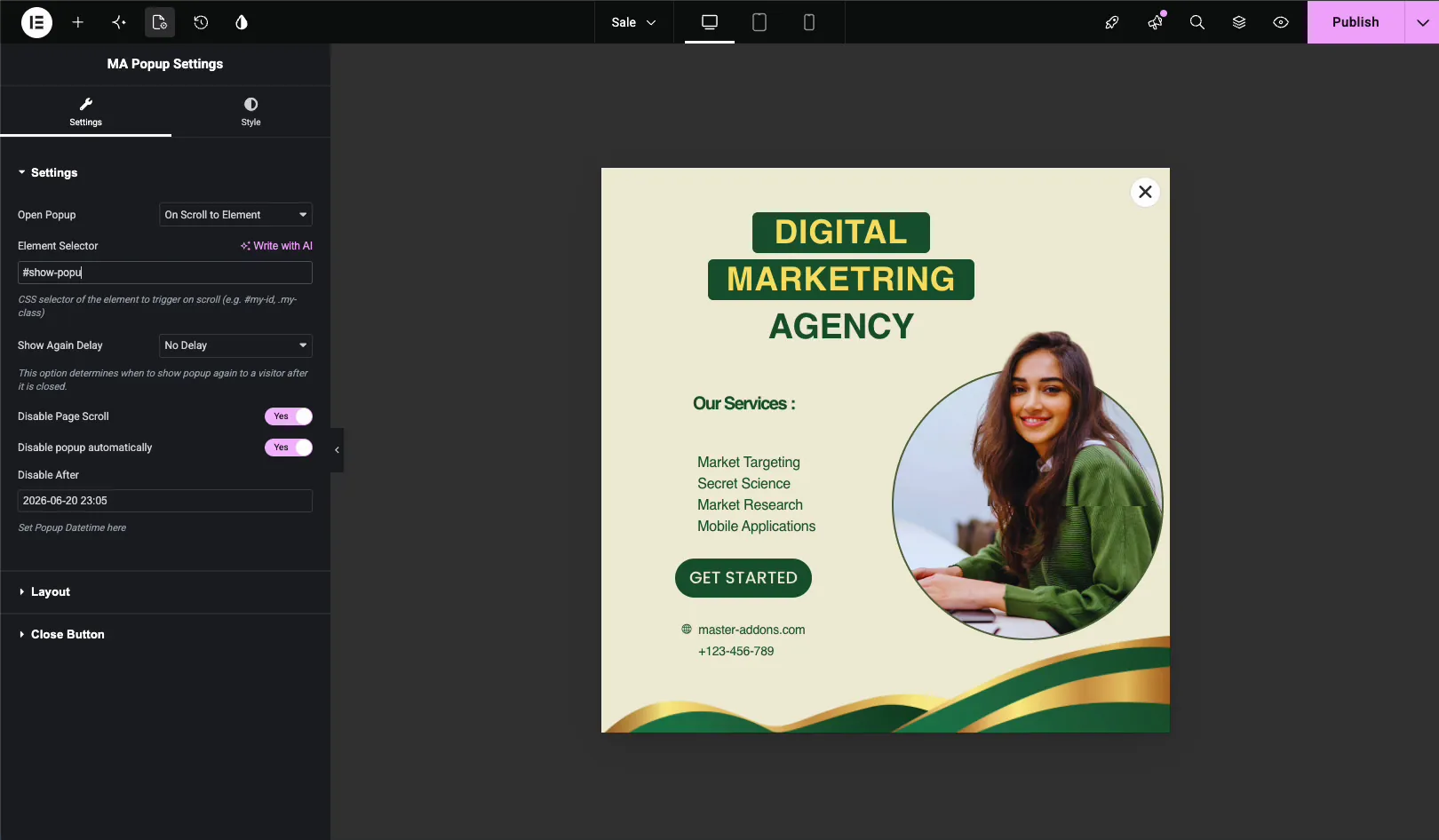
In the Element Selector field, type a CSS ID that starts with #. Here it’s #show-popup. Keep the name short and unique so you can reuse it on the page without clashing into anything else.
The # is doing real work: it tells the popup to watch for an element whose ID is show-popup. Publish (or update) the popup to save it.
Step 3: Add the Same ID to Your Target Element (without the # sign) #
Now open the page where the popup should fire and edit it in Elementor. Click the element you want as the trigger, here it’s the section block on the page, and open its Advanced tab.
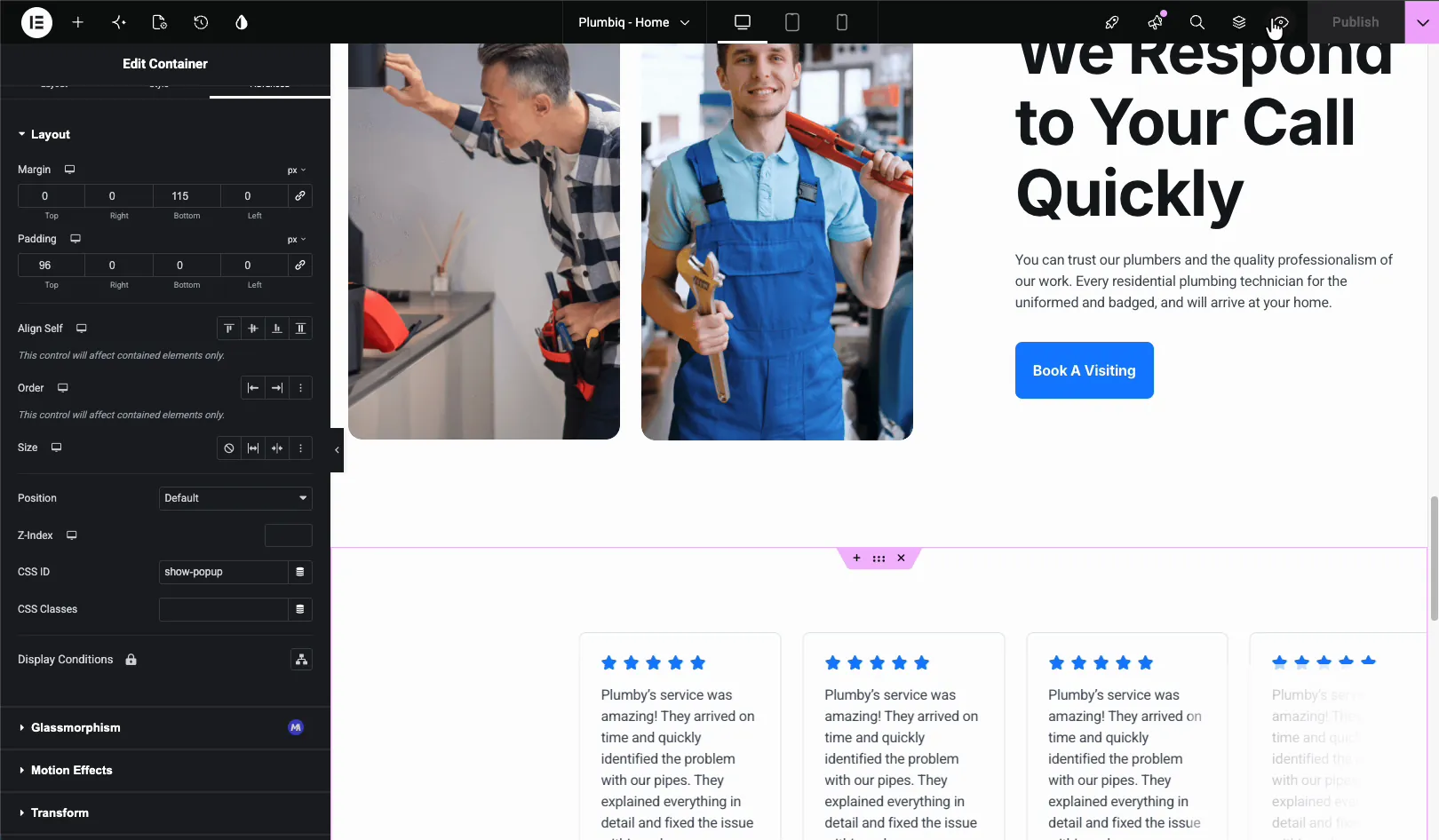
Find the CSS ID field in the Advanced tab and type the same name you used in the popup, but without the #, so just show-popup. That one small difference is the whole trick:
- Popup Element Selector:
#show-popup(with the hash) - Element’s CSS ID:
show-popup(no hash)
The # is part of the CSS selector, not part of the ID, which is why it belongs in the popup field but never in the element’s CSS ID field. Update the page to save. One thing to watch: don’t reuse an ID that’s already wired to an anchor link or custom CSS elsewhere, or you’ll get surprises.
Step 4: Preview and Scroll to the Element #
Open the page on the front end and start scrolling. Nothing at the top. The second the element carrying the show-popup ID scrolls into view, the popup opens over the page.
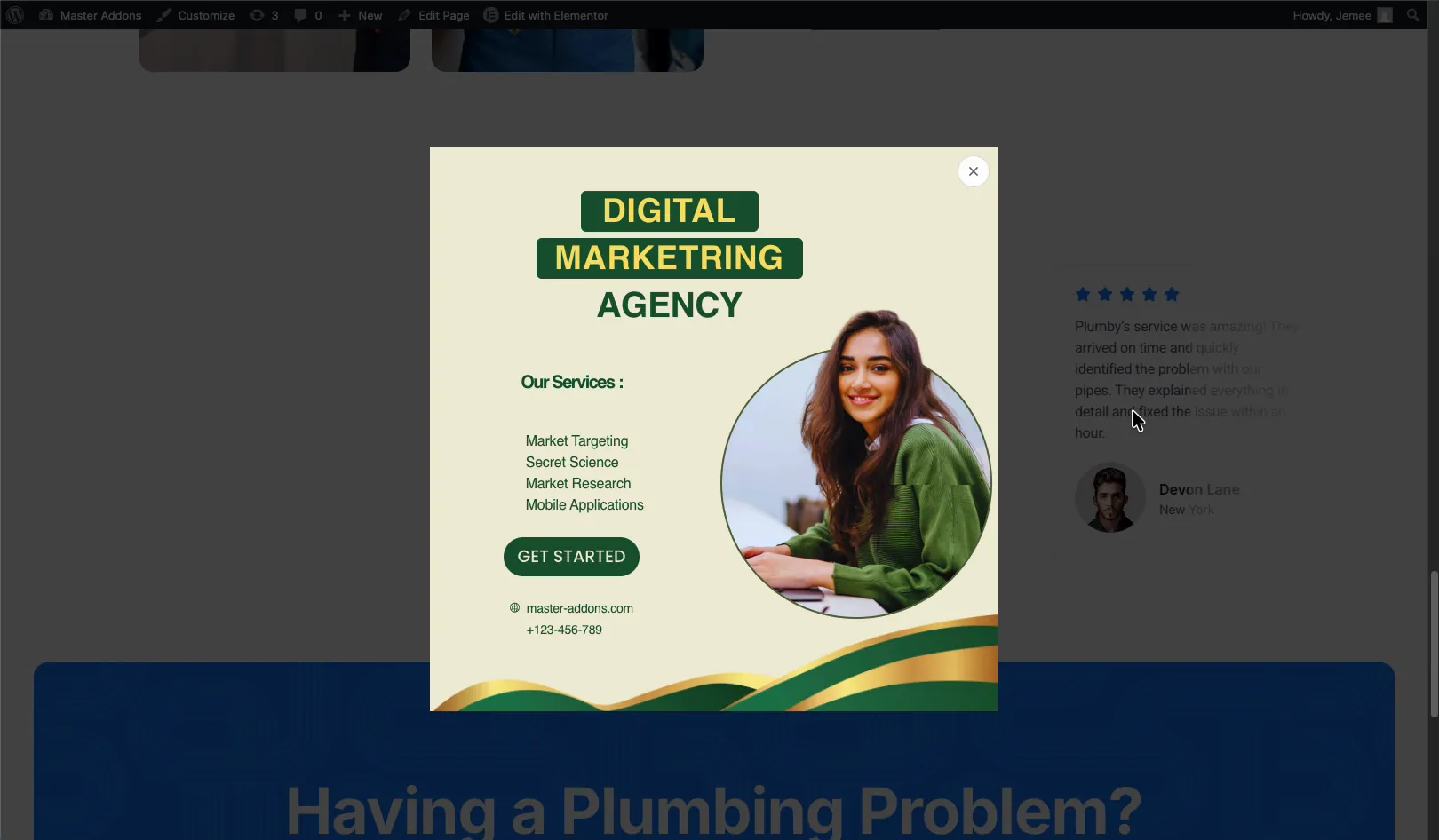
Want several scroll points to trigger the same popup? Give each element the same CSS ID, show-popup, and any one of them will set it off.
Troubleshooting #
- Popup never opens? Check the hash. The popup’s Element Selector needs
#show-popup, and the element’s CSS ID needsshow-popupwith no hash. - Used the # in the CSS ID field? Take it out. The Elementor CSS ID field wants the plain name only.
- Two elements with the same ID acting up? That’s fine for triggering, but don’t reuse an ID that’s already handling CSS or anchor links on the page.
- Popup not showing at all? Make sure the popup’s Activation is on and its display conditions include the page with the trigger element.
Frequently Asked Questions #
How do I open a popup when scrolling to a specific element in Elementor?
Set the popup’s Open Popup option to On Scroll to Element and enter a CSS ID like #show-popup in the Element Selector field. Then add the same ID, without the #, to the target element’s CSS ID field in Elementor’s Advanced tab.
Why do I add the # in the popup but not on the element?
The Element Selector field expects a CSS selector, and # marks an ID selector. The Elementor CSS ID field expects only the ID name. So you use #show-popup in the popup and show-popup on the element.
Can I trigger the popup from more than one element?
Yes. Give each element the same CSS ID, and the popup fires when the visitor scrolls to any of them. This is handy when you have several sections that should all trigger the same offer.
What’s the difference between On Scroll and On Scroll to Element?
On Scroll fires after a visitor scrolls a set percentage of the page. On Scroll to Element fires when one specific element comes into view, which is more precise when you want the popup tied to an exact section.
Do I need Elementor Pro for this?
No. The Master Addons Popup Builder works with the free version of Elementor, so the On Scroll to Element trigger and CSS ID method work without Elementor Pro.


