

The Text Shadow field adds Elementor’s text shadow control to a custom widget built with the Master Addons Widget Builder. Editors get a color, a blur setting and two offsets, and the shadow is applied to whatever text your CSS selector points at. Use it when a heading has to stay readable on top of a photo.
Text Shadow is a Pro field. The free plugin includes a limited Widget Builder, and the full set of fields comes with Master Addons Pro.
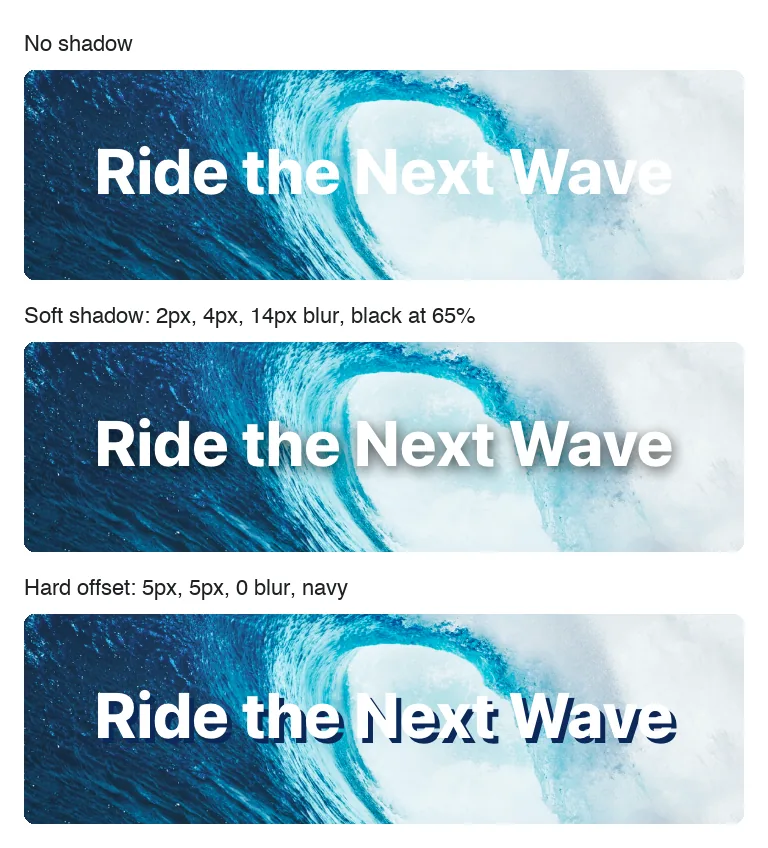
What the Text Shadow field does #
- It adds one control to your widget’s panel in Elementor: your label plus a pencil icon that opens the shadow settings.
- Those settings are Color (with opacity), Blur, Horizontal and Vertical.
- Elementor writes the
text-shadowCSS to the element set in the field’s Selector option, so you don’t place a token in your HTML or CSS.
If you haven’t built a widget yet, read the Widget Builder overview first and come back with a widget open.
Before you start #
- WordPress with Elementor installed and active.
- Master Addons for Elementor and Master Addons Pro, both active. The installation guide covers setup.
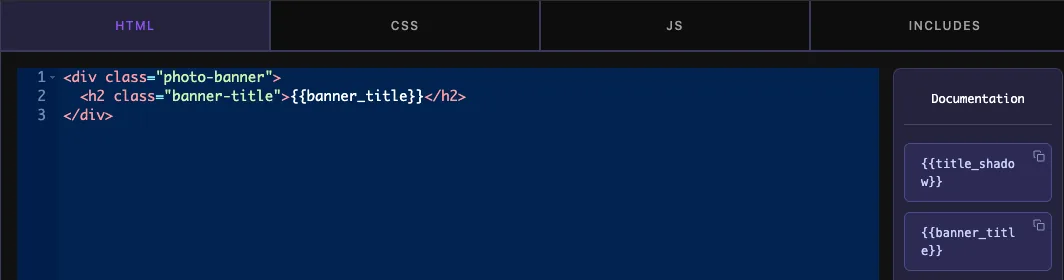
- A widget open in the Widget Builder. The example in this guide is a “Photo Banner” widget: a background photo with an H2 heading on top that has the class
banner-title, filled from a Text field namedbanner_title.
How to add a Text Shadow field #
- Go to Master Addons > Widget Builder and open your widget.
- Click the Style tab above the sections area and add a section if the tab is empty. Give the section a clear title, such as “Banner Title”.
- Type
shadowin the field search box on the left. Box Shadow and Text Shadow come up. - Drag Text Shadow into the section. Its settings open in the left sidebar.
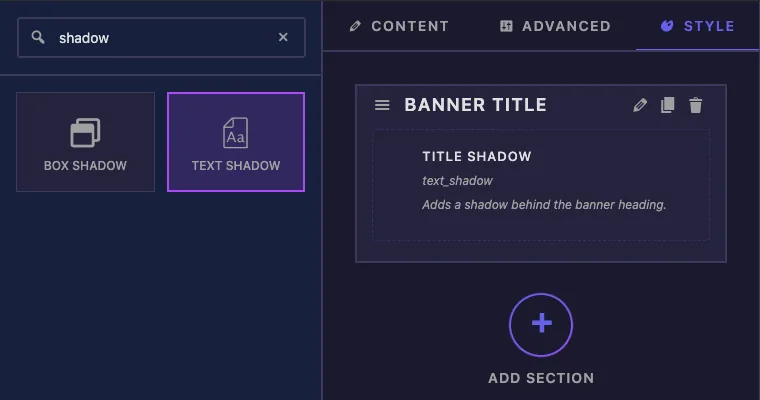
You can also drop the field into a Content or Advanced section, and the control then shows up in that Elementor tab. Editors usually look for shadows under Style, though.
Text Shadow field options explained #
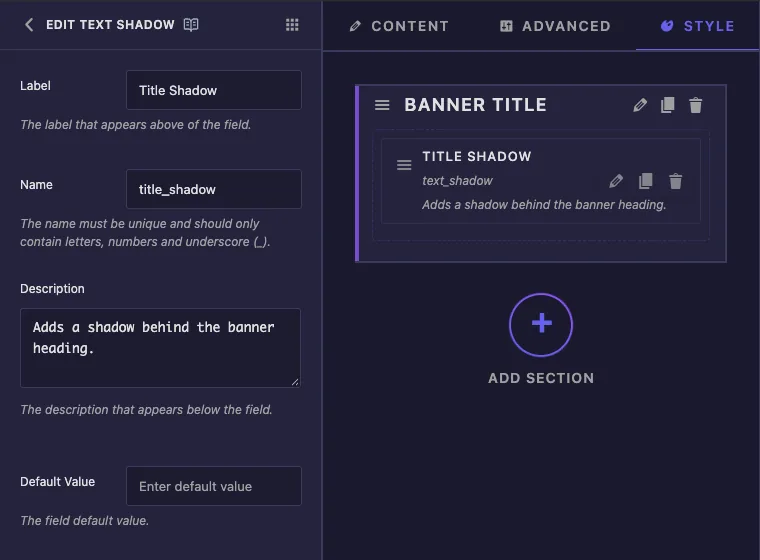
- Label is the text next to the control in Elementor. The example uses “Title Shadow”.
- Name is the field’s unique ID (letters, numbers and underscores only). Elementor saves the editor’s values under this name, so set it once and leave it alone.
- Description is a note for you inside the builder. Elementor doesn’t display it under this control.
- Default Value isn’t used by this field. A new shadow always starts from Elementor’s own defaults, listed further down.
Scroll down in the sidebar to reach the common settings and the Selector.
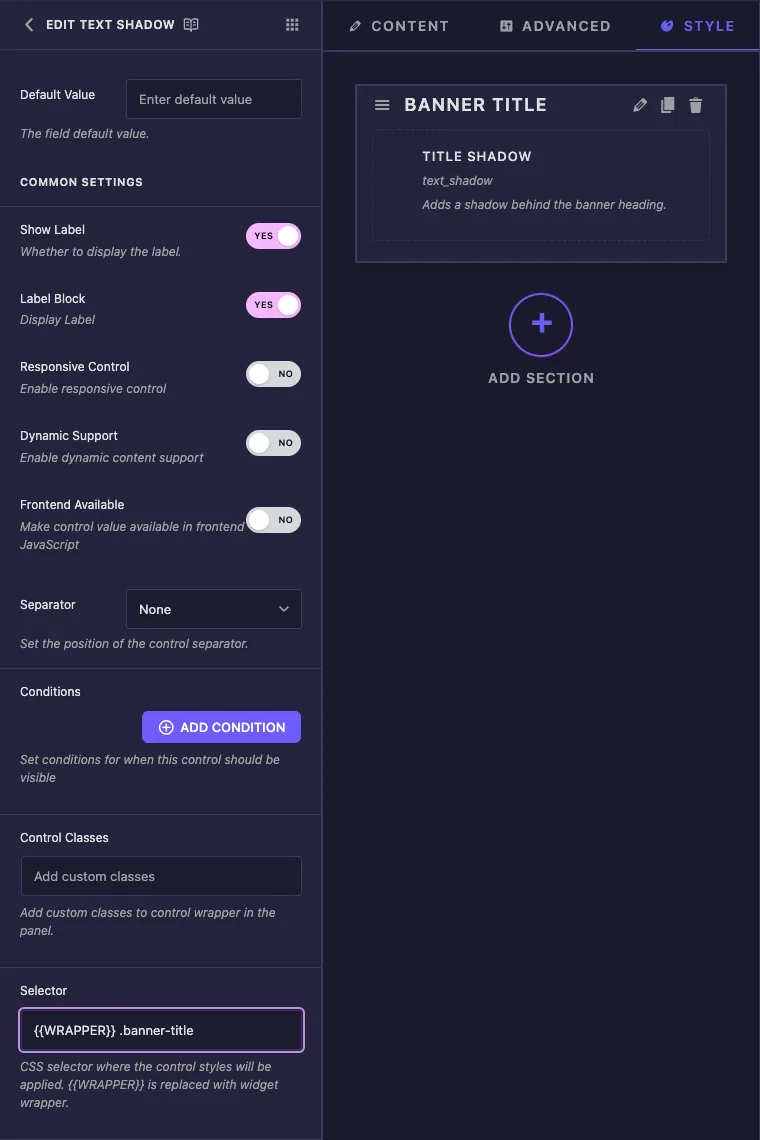
- Show Label hides or shows the label in the panel.
- Separator draws a divider line before or after the control.
- Conditions show the control only when another field has a certain value, for example a “Show shadow” switcher. See Conditions.
- Selector is the CSS selector that receives the shadow. The field does nothing useful without it, so it has its own section below.
Label Block, Responsive Control, Dynamic Support, Frontend Available and Control Classes also appear in the list. A text shadow control doesn’t use them, and changing them has no effect on this field.
Set the Selector #
The Selector tells Elementor which element gets the shadow. For the banner heading, enter:
{{WRAPPER}} .banner-title
{{WRAPPER}}is replaced with the unique class of this widget on the page, which keeps the shadow inside this one widget..banner-titleis the class on the heading in your widget’s HTML.
The field uses your selector exactly as typed. Without {{WRAPPER}}, the rule becomes .banner-title { text-shadow: ... } for the whole page, and every element with that class picks it up, including headings in other widgets. If you leave the Selector empty, the shadow goes to {{WRAPPER}} .elementor-widget-container, which covers all the text in the widget.
One control can style several elements. Separate the selectors with commas and start each one with {{WRAPPER}}, for example {{WRAPPER}} .banner-title, {{WRAPPER}} .banner-subtitle.
The Documentation panel beside the code editor lists a {{title_shadow}} token for this field. Leave it out of your HTML and CSS. A shadow is stored as numbers and a color, so the token has no text to print, and the Selector already handles the output.
Click Save Settings when you’re done.
Use the Text Shadow control in Elementor #
Add the widget to a page, or reload the editor if the page was already open. Select the widget and open the Style tab. The control sits in the section you created, showing your label and a pencil icon.
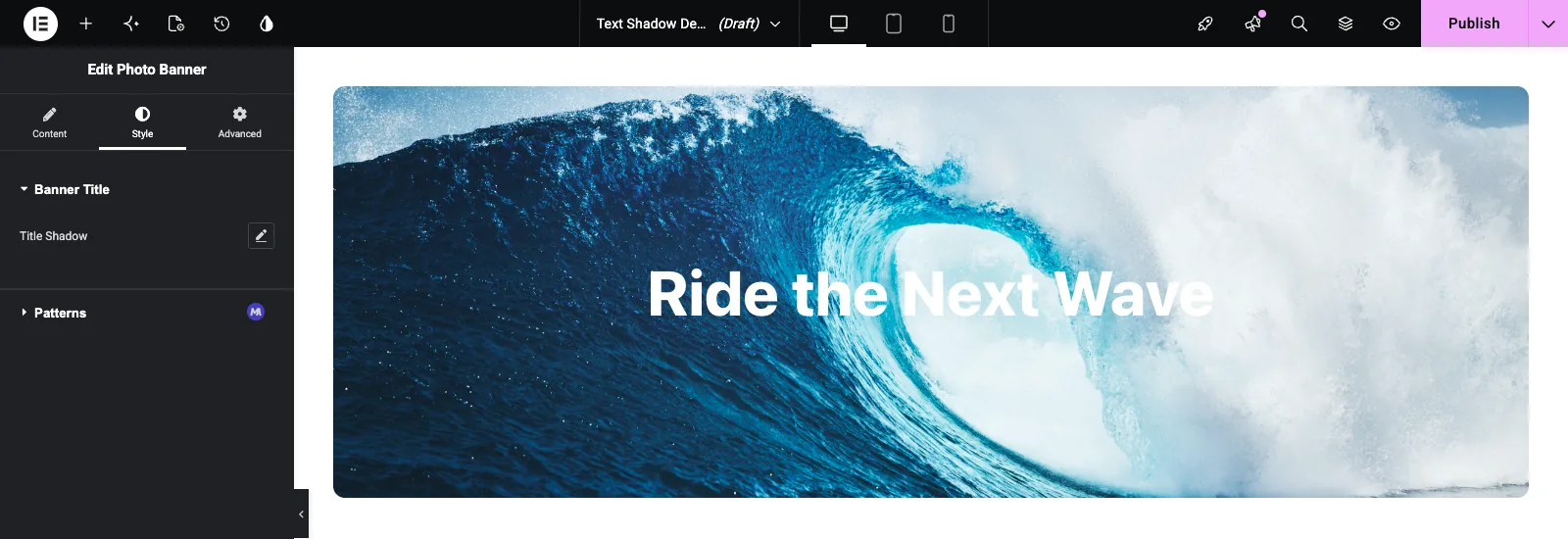
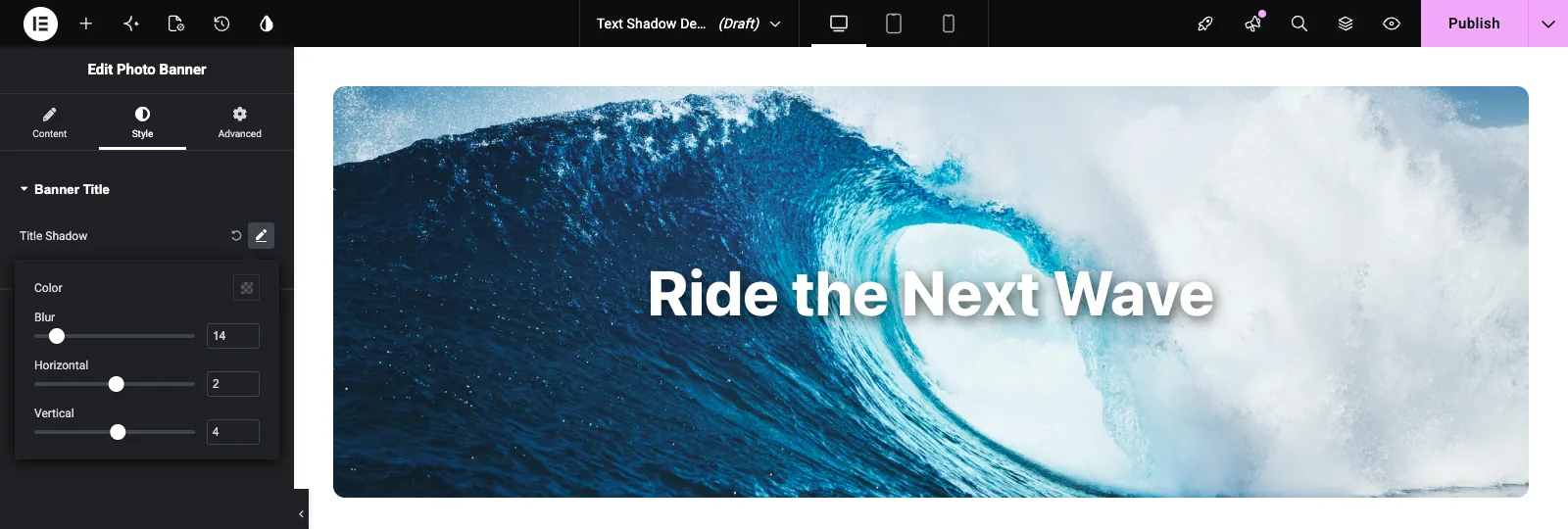
Click the pencil to open the popover. That switches the shadow on with Elementor’s starting values: Blur 10, Horizontal 0, Vertical 0 and black at 30% opacity. The canvas updates while you drag the sliders.
- Blur runs from 0 to 100 px. At 0 you get a sharp copy of the letters, and higher values soften it into a glow.
- Horizontal and Vertical run from -100 to 100 px and move the shadow left or right and up or down.
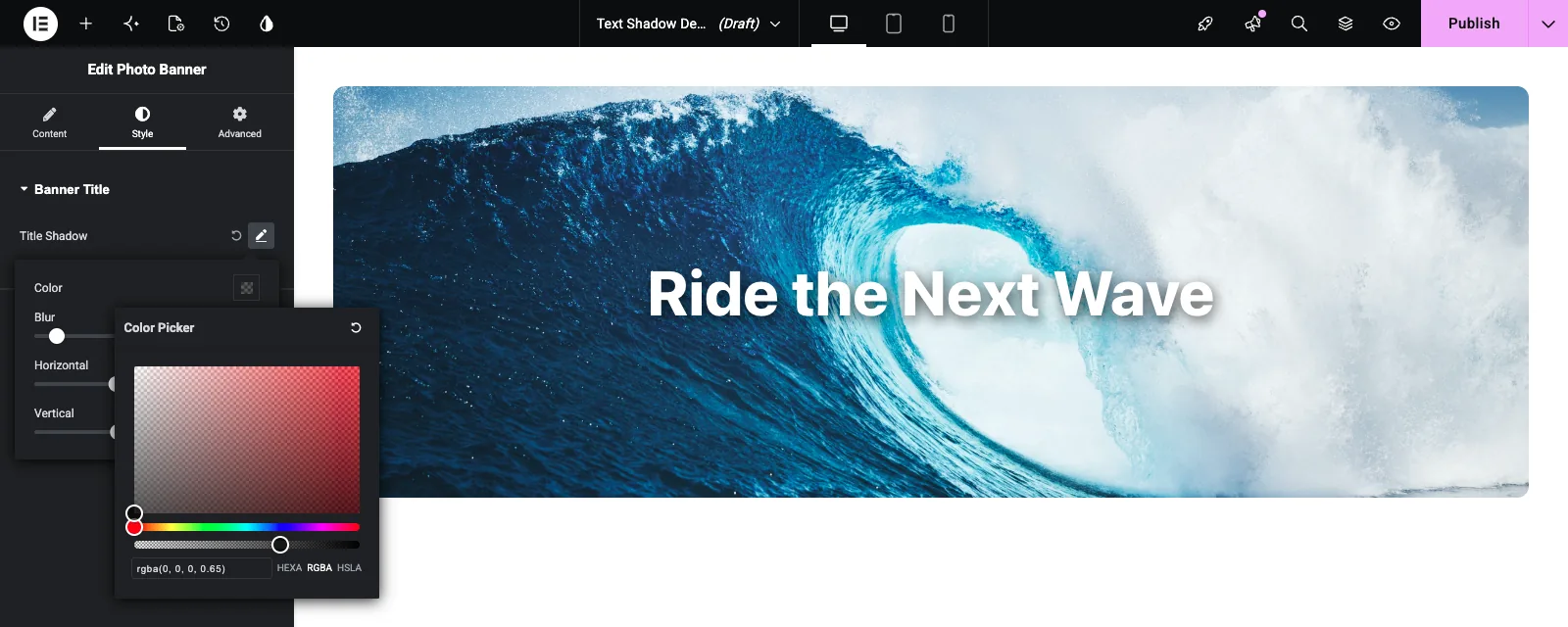
Click the Color swatch to choose the shadow color. The picker has an opacity slider and accepts HEXA, RGBA or HSLA values, so you can type a value such as rgba(0, 0, 0, 0.65) directly.
To remove the shadow, click the circular reset arrow next to the pencil.
Common use cases #
- Headings on hero and banner photos with bright areas behind the text.
- Text on video backgrounds, where a soft shadow keeps the words readable as the frame changes.
- Retro display type, such as a hard offset with zero blur on large numbers or sale badges.
- A glow on dark backgrounds, made with a light shadow color, a large blur and no offset.
Tips for working with the Text Shadow field #
- Start every selector with
{{WRAPPER}}. Otherwise the shadow can leak into other widgets on the page. - Put the field next to a Typography field that uses the same selector, so the heading’s font and shadow settings sit in one section.
- Pick a semi-transparent color. Black at 40 to 70% opacity looks natural, and solid black tends to look heavy.
- Check the shadow against the brightest image the widget is likely to get. A shadow that works on a dark photo can disappear on a light one.
- If the design needs a shadow before anyone touches the control, add a
text-shadowrule for.banner-titlein the CSS tab. The control’s value replaces it once an editor sets one. - For cards, buttons and containers, use the Box Shadow field instead. Text Shadow follows the shape of the letters.
Frequently Asked Questions #
Is the Text Shadow field free?
No. Text Shadow is one of the Pro fields in the Widget Builder, so Master Addons Pro has to be active before you can add it to a widget.
Why doesn’t my text shadow show up?
Check the Selector first. It has to match an element in your widget’s HTML, for example {{WRAPPER}} .banner-title for a heading with the class banner-title. Then save the widget and reload the Elementor editor.
Can I use the {{title_shadow}} token in my CSS?
No. The token prints nothing useful for this field. Set the Selector option and Elementor writes the text-shadow rule for you.
Why is the shadow showing on headings in other widgets?
The Selector is missing {{WRAPPER}}, so it matches that class across the whole page. Add {{WRAPPER}} in front of the class and save.
What’s the difference between Text Shadow and Box Shadow?
Text Shadow draws around the letters and has no spread or inset settings. Box Shadow draws around the element’s rectangle. Use Text Shadow for headings and labels, and Box Shadow for cards and buttons.
Wrapping up #
Drop the Text Shadow field into a Style section, give it a label and a name, and set the Selector to {{WRAPPER}} plus the class of your text. Editors then get Color, Blur and offset controls in Elementor, and the shadow stays inside that widget. Pair it with the Typography field for the rest of the heading’s styling, and check pricing for what each plan includes.


