Elementor Countdown Timer Widget for Sales, Launches and Events
Countdown Timer is a Master Addons widget that counts down to a date and time you pick, with no Elementor Pro needed. Show any mix of years, months, days, hours, minutes and seconds, rename the labels, and choose from four layouts and the Default and Card presets. Master Addons Pro adds eight more presets, such as Flip, Circle and Neon, plus a repeating countdown. Use it for sales, product launches, webinars and coming soon pages.

How to add a countdown timer in Elementor
The widget drops in with a working timer, so you only need to change what differs.
- Search the Elementor widget panel for “Countdown Timer” and drag the Master Addons widget onto the page.
- In the Timer section, pick the end date and time.
- In Countdown Settings, choose a layout and style preset, set a separator and turn off the units you don’t need.
- Rename the labels if you want shorter or translated text.
- Style the numbers, labels and separators in the Style tab, then publish.
Building a launch page? Our guide to an Elementor coming soon page puts the timer to work.
Countdown Timer pairs with a few other Master Addons widgets: Business Hours for opening times, Current Time for a live clock, Popup Builder for a timed offer in a popup, Progress Bars for seats or stock left, and Display Conditions to swap the section once the deadline has passed.
Countdown Timer at a glance
The table lists what the widget does today, read from the plugin source in version 3.2.6.
| Item | Countdown Timer |
|---|---|
| Timer type | Fixed end date and time. Master Addons Pro adds a repeating cycle |
| Evergreen per visitor | No |
| When it reaches zero | The numbers stop at 0 and stay on the page. No redirect, hide or message |
| Layouts | 4: Block, Inline, Block Table, Inline Table |
| Style presets | 10: Default and Card included; Flip, Circle, Gradient, Neon, Glassmorphism, Minimal, Outline and Neumorphic with Pro |
| Time units | Years, months, days, hours, minutes, seconds. Each one can be hidden and given its own label |
| Styling | A background per unit, number colour and shadow, separator, label, box border and shadow, and the container’s width, alignment and spacing |
| Time zone | The end time is read on each visitor’s own clock |
| WooCommerce sale timer | No |
| Needs | Elementor and Master Addons. Pro for the eight extra presets and the repeat cycle |
Time units, layouts and style presets
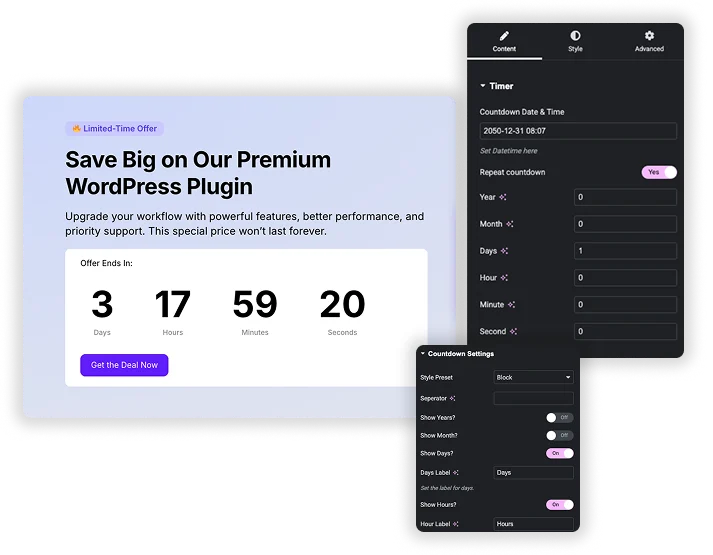
Turn each unit on or off, from years down to seconds, and give it your own label, like “Hrs” instead of “Hours”. Pick one of four layouts: Block, Inline, Block Table or Inline Table. Then choose a Style Preset. Default and Card come with the widget, and Pro adds Flip, Circle, Gradient, Neon, Glassmorphism, Minimal, Outline and Neumorphic.
- Show only the units you need, such as days, hours and minutes for a sale.
- Four layouts: Block, Inline, Block Table and Inline Table.
- Default and Card presets included, eight more with Pro.
Style each time unit separately
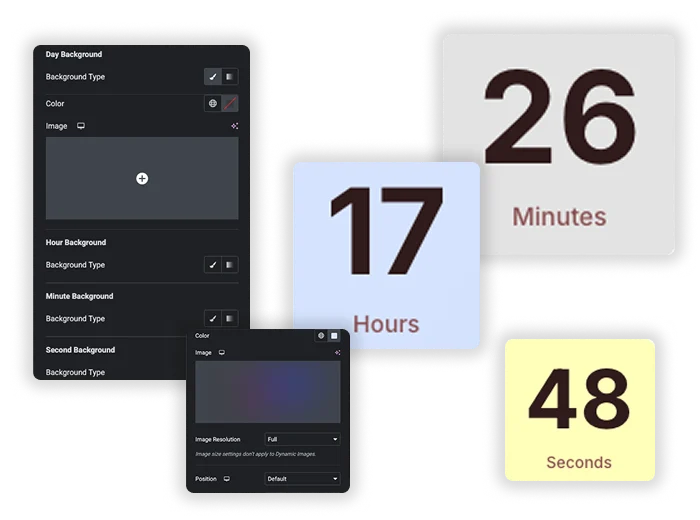
Every unit, from years to seconds, can have its own background, so the days can stand out in a different color from the hours and minutes. The numbers share one color, hover color and text shadow setting, and the Box Style section adds a background, border, radius and shadow around each unit.
- A separate background for years, months, days, hours, minutes and seconds.
- Number color, hover color and text shadow.
- Box background, border, border radius and box shadow.
Container, separator and label styling
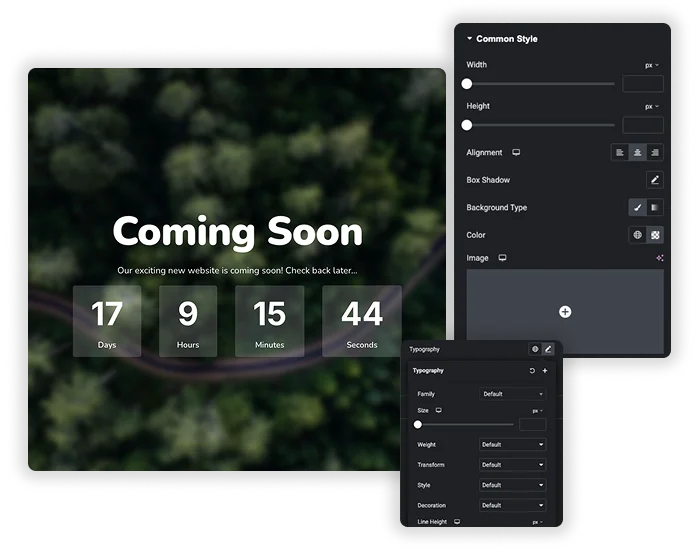
Common Style sets the width, height, alignment, background, box shadow, border radius, margin and padding of the timer. The separator, which can be a colon, a slash or any character you type, and the labels each get their own colors and text shadow, plus padding and margin controls.
- Width, height and alignment for the whole timer.
- Separator and label colors with hover states and text shadow.
- Margin and padding at each level for balanced spacing.
Elementor Pro Countdown vs Master Addons Countdown Timer
Elementor’s own Countdown widget is only in Elementor Pro. Here is how the two compare.
| Elementor Pro Countdown | Master Addons Countdown Timer | |
|---|---|---|
| Price | Elementor Pro | Master Addons; extra presets and repeat in Pro |
| Timer type | Due date or evergreen per visitor | Due date, or a repeating cycle with Pro |
| Units | Days, hours, minutes, seconds | Years, months, days, hours, minutes, seconds |
| When time runs out | Redirect, hide or show a message | Stops at zero |
| Layouts and presets | Block or inline | 4 layouts and 10 presets (8 in Pro) |
| Per-unit backgrounds | No | Yes |
Need an evergreen timer or a redirect when it ends? Elementor Pro handles that. For a timer with years and months and more styling options, use Master Addons. For opening times instead of deadlines, try the Business Hours widget.
Fixed date, recurring or evergreen: which timer is this?
Countdown Timer is a fixed-date timer. You set one end date and time in the Timer section and every visitor counts down to that moment, which is what a sale deadline, a launch, a webinar or an event needs. At zero the numbers stop and the timer stays on the page.
A recurring timer restarts after a set interval. Master Addons Pro adds this as Repeat countdown: pick a cycle in years, months, days, hours or minutes and the timer starts again each time it ends, until the main end date. The cycle is worked out on the server and stored once, so every visitor sees the same countdown. That suits a daily deal that resets at the same moment for everyone.
An evergreen timer gives each visitor their own deadline, usually counted from their first visit and stored in a cookie or local storage. Countdown Timer does not do this. If your offer needs a per-visitor deadline, the Elementor Pro Countdown widget has an Evergreen mode, and dedicated plugins such as HurryTimer are built around it.
Elementor countdown timer designs
Each demo below is one widget with a different preset and layout. Open one to see it count in the page.
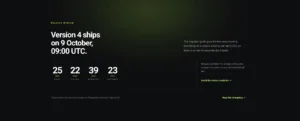
- Dark Release Panel: Minimal preset (Pro), days to seconds on a dark software launch panel.
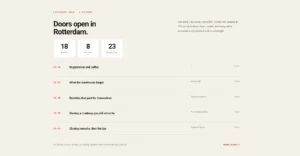
- Event Schedule Panel: Card preset, days, hours and minutes until the doors open.
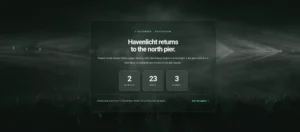
- Neon Broadcast Panel: Neon preset (Pro), glowing digits for a live stream going on air.
- Glass Festival Card: Glassmorphism preset (Pro), months, days and hours over a festival photo.
- Maintenance Status Panel: Circle preset (Pro), ring timers for a planned migration window.
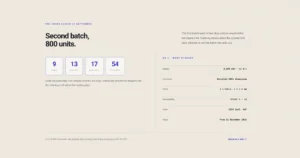
- Pre-Order Spec Panel: Outline preset (Pro), a second pre-order batch closing.
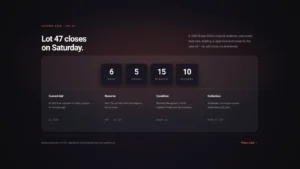
- Auction Bidding Panel: Flip preset (Pro), the closing time of an auction lot.
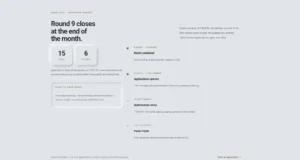
- Application Deadline Timeline: Neumorphic preset (Pro), days and hours to an application round closing.
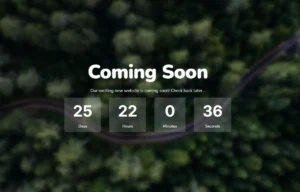
- Coming Soon: Default preset with a colon separator, the classic coming soon hero.
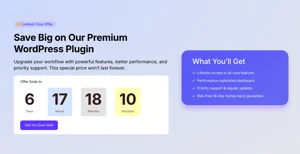
- Save Big Offer: Default preset on a sale banner next to the discount.


Frequently Asked Questions For Countdown Timer
Can I set the timer to a specific date and time?
Yes. Pick the exact end date and time in the Countdown Date & Time field. The timer reads it in each visitor’s local time zone.
What happens when the countdown reaches zero?
The numbers stop at zero and the timer stays on the page. There is no redirect, hide or message option. To change what shows after the deadline, put the timer in a container with Display Conditions set to a date range, or schedule the follow-up offer as a Popup Builder popup.
Is the timer responsive on mobile devices?
Yes. Use Elementor’s responsive mode to set smaller numbers, width and padding for tablets and phones so the timer stays readable.
How do I add a countdown timer in Elementor without Pro?
Install Master Addons, drag the Countdown Timer widget onto the page, set the end date and time in the Timer section, pick a layout and a preset, and publish. Elementor’s own Countdown widget is part of Elementor Pro, so the base plugin has none.
Why is my countdown timer not working?
Check the end date first: a date in the past shows zeros. Then clear your cache plugin so the page serves fresh markup, and look for a “delay JavaScript” setting that holds the widget script back. Inside a popup, wait for the popup to open before judging it. Pro presets need an active Pro licence, otherwise the widget falls back to Default.
Can I use this for a recurring daily countdown (like a daily deal)?
Yes, with Master Addons Pro. Turn on Repeat countdown and set the cycle length, for example one day. The timer starts a new cycle each time one ends, up to the main end date, and every visitor sees the same cycle.
Will the countdown work for visitors in different time zones?
The end time is read in each visitor’s local time zone. A deadline of 18:00 ends at 18:00 on each visitor’s own clock, so people in different time zones reach zero at different moments.
What’s the best layout for a large, prominent timer in a hero section?
Block or Block Table. They show each unit as its own box, which is easy to read from a distance. Increase the number size and padding to make the timer the focal point of the section.
Does it support an evergreen timer?
No. Countdown Timer counts to one fixed date, and Pro adds a repeating cycle that is the same for everyone. For a per-visitor evergreen deadline, use the Elementor Pro Countdown widget or a dedicated evergreen timer plugin.
Can I use it inside a popup or coming soon page?
Yes. Drop the widget into a Popup Builder popup for a timed offer, or into a Canvas page for a coming soon page. It counts the same way in both places.
Trending Elementor Widgets & Extensions
Build sophisticated websites in less time.
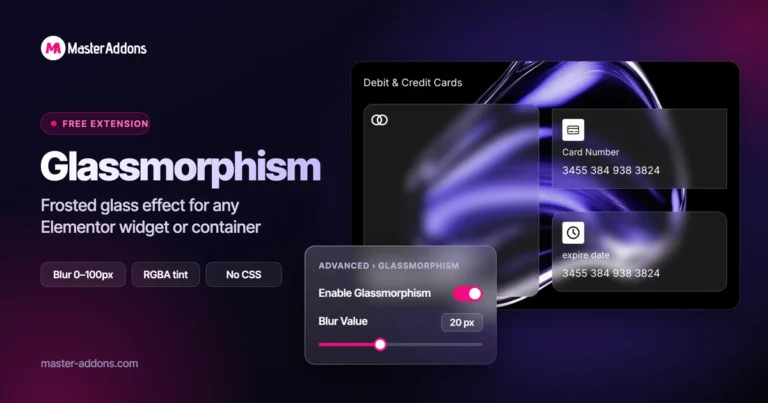
Glassmorphism
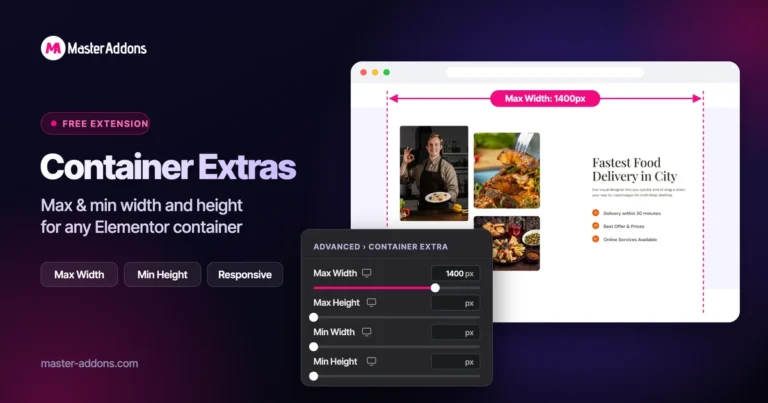
Container Extras

Patterns
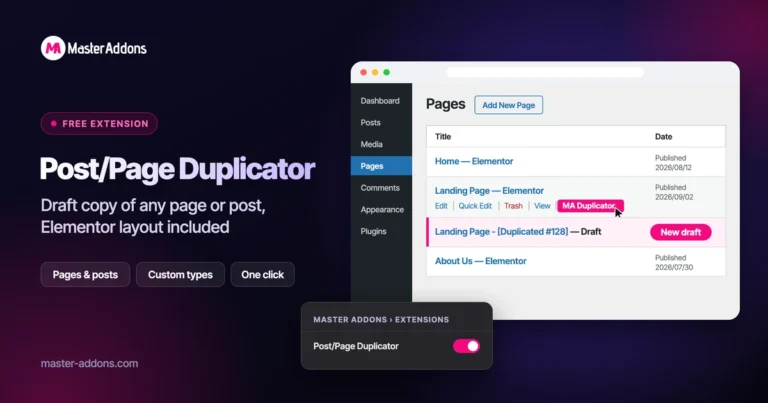
Post/Page Duplicator