
WPForms Elementor Widget to Add and Style Your Forms
The Master Addons WPForms widget places a form you built in WPForms on any Elementor page and lets you style it from the Elementor panel. Pick the form, choose whether to show its title, description, labels and placeholders, then style inputs, radio buttons, checkboxes, the submit button and error messages. Style One to Four are free, and Master Addons Pro adds Style Five to Eleven. You need the WPForms plugin installed, either the free WPForms Lite or a paid plan.

How to Add WPForms to Elementor
You need Elementor, the WPForms plugin and the free Master Addons plugin.
- Install WPForms from Plugins, Add New, then build and save your form in WPForms, Add New.
- Check that WP Forms is switched on under Master Addons, Widgets.
- Edit your page with Elementor, search for WPForms and drag the Master Addons widget into place.
- Choose your form in the Contact Form dropdown and set the title, labels and placeholder switches.
- Pick a Design Variation in the Style tab.
- Style the inputs, checkboxes, submit button and errors, then preview and send a test entry.
WPForms also adds its own basic WPForms widget to Elementor. Use the Master Addons widget when you want the style presets and detailed styling controls.
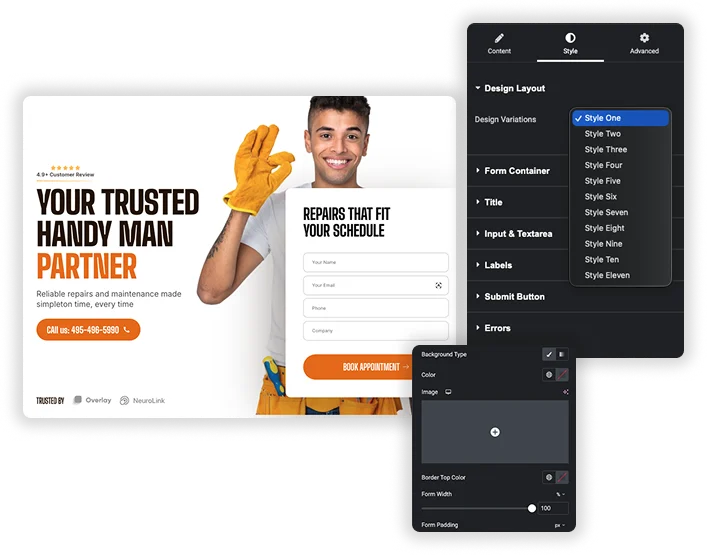
Design Variations: 4 Free, 11 with Pro
The Design Variations dropdown in the Design Layout section changes how fields, labels and the button look. Style One to Four work in the free plugin, and Pro unlocks Style Five to Eleven, including a Floating Label style. These are the same style presets the Contact Form 7 widget uses, and the demos below are built with that widget.
- Custom Title & Description: replace the WPForms title and description with your own text.
- Labels and Placeholder switches hide or show them.
- Error Messages: show or hide WPForms validation messages.
Input, Textarea and Checkbox Styling
The Input & Textarea section has Normal and Focus tabs. Set background and text color, border, border radius, text indent, input and textarea width and height, padding, spacing, typography and box shadow, then give focused fields their own border and shadow. Radio & Checkbox turns on Custom Styles with size, color, border width, border color, separate radius for checkboxes and radio buttons, and a checked color.
- Label, placeholder and field description colors and typography.
- Title and description alignment, color, typography and margin.
- Different widths for single-line inputs and the message box.
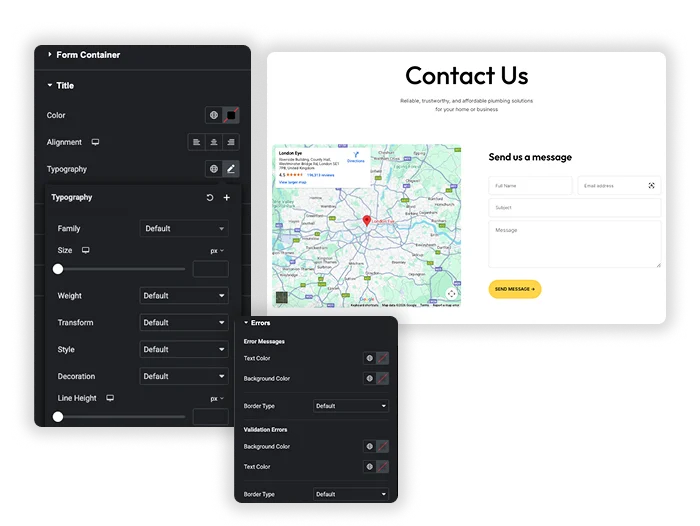
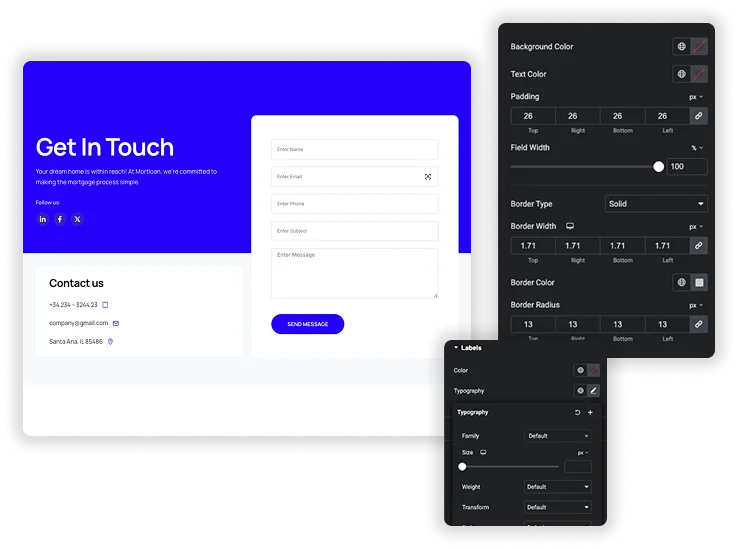
Submit Button and Error Styling
The Submit Button section sets alignment, full or custom width, background and text color, border, border radius, padding, top margin, typography and box shadow, with hover colors for background, text and border. The Errors section styles the error text color and the border color and width of fields that fail validation. Success messages keep the WPForms styling.
- A full-width button for mobile-friendly forms.
- Hover colors that match your other buttons.
- Red field borders that make missing fields obvious.
WPForms vs Elementor Forms
Elementor Pro has its own Form widget, so you do not need WPForms if you already pay for Elementor Pro. Here is how the two approaches compare.
| Feature | WPForms with Master Addons | Elementor Pro Form |
|---|---|---|
| Price | WPForms Lite is free, advanced features need a paid WPForms plan | Needs Elementor Pro |
| Where you build the form | WPForms drag-and-drop builder | Inside the Elementor Form widget |
| Styling in Elementor | Through this Master Addons widget | Built into the Form widget |
| Fields | Set by your WPForms plan | Text, email, textarea, number, date, time, file upload, step and more |
| After submit | Notifications and confirmations in WPForms, integrations in paid plans | Email, redirect, webhook, popup, submissions and email marketing actions |
| Use outside Elementor | Yes, in any editor or theme | Elementor pages only |
Choose Elementor Forms when you already have Elementor Pro and want everything in one editor. Choose WPForms when you want forms that also work outside Elementor or you prefer its form builder. Using Contact Form 7 instead? The Contact Form 7 widget offers the same style presets.





Frequently Asked Questions For WPForms
Is the WPForms widget free?
Yes. The widget is in the free Master Addons plugin with Style One to Four and all styling sections. Master Addons Pro adds Style Five to Eleven.
Do I need the WPForms plugin installed?
Yes. Install and activate WPForms, free or paid, and create your forms there first. Without it the widget shows a “WPForms is Not Activated” notice. Features such as conditional logic keep working because the widget displays your real WPForms form.
How do I add WPForms to Elementor?
Build the form in WPForms, then drag the Master Addons WPForms widget onto your Elementor page and pick the form in the Contact Form dropdown. The full steps are in the how-to section above.
How do I change the look of error messages?
Open the Errors section in the Style tab to set the error text color and the border color and width of invalid fields. In the Content tab you can also hide error messages. There is no separate success message style section.
Trending Elementor Widgets & Extensions
Build sophisticated websites in less time.

Glassmorphism

Container Extras

Patterns
![Master Addons Post/Page Duplicator extension for Elementor: MA Duplicator row link in the WordPress Pages list creating a Landing Page - [Duplicated #128] draft](https://d1asvmc6qcowgk.cloudfront.net/wp-content/uploads/2026/09/15102930/post-page-duplicator-768x403.webp)
Post/Page Duplicator
