
Free Elementor Image Widget with Hover Swap, Ribbon and Tilt
Advanced Image is a free Master Addons widget that adds extras to a single image. Swap to a second image on hover, place a Simple, Corner or Cross ribbon in any corner, open the image in a lightbox with an optional plus button, and add a tilt effect that follows the cursor or a colorized shadow. While the image loads you can show a blurred placeholder or a spinner. Style normal and hover states with border, background and box shadow.

How to Add a Hover Image Swap in Elementor
You need Elementor and the free Master Addons plugin from WordPress.org.
- Check that Advanced Image is switched on under Master Addons, Widgets.
- In the Elementor editor, search for Advanced Image and drag it onto the page.
- Choose the main image and an Image Link if needed.
- Turn on Display Hover Image and pick the second image, ideally the same size.
- Add a ribbon, lightbox, tilt or colorized shadow from the Content and Settings sections. Colorized Shadow does not work together with the hover image.
- Style the Normal and Hover states in the Style tab.
Every setting is covered in the Advanced Image widget settings. For animated title and caption overlays on an image, see Image Hover Effects.
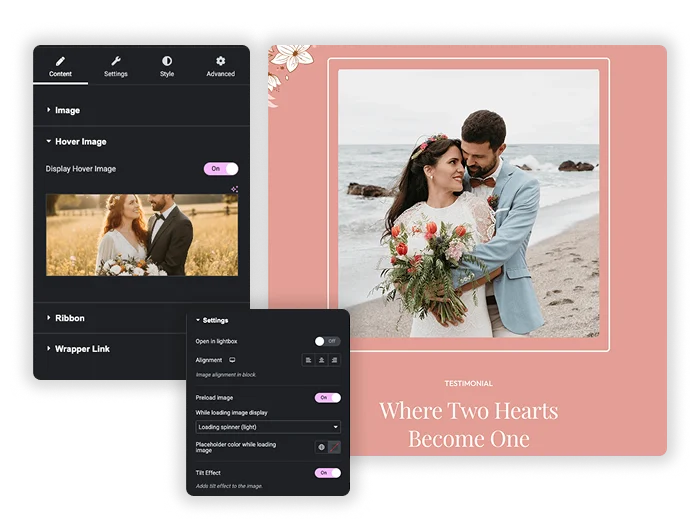
Hover Image & Smart Effects
Create instant “before-and-after” comparisons or simple hover reveals. Upload your main image, then enable Hover Image to upload a second picture. When visitors hover, the image seamlessly switches. Add a layer of sophistication with the Tilt Effect, which makes the image tilt slightly as the mouse moves over it, adding a subtle 3D feel. For extra depth, enable Colorized Shadow to place a soft, colored shadow behind the image, making it pop off the page.
- Interactive Comparisons: Perfect for showing a product before and after, or a day/night view of a property.
- Engaging Tilt Effect: Adds a modern, interactive layer that responds to cursor movement.
- Visual Depth: Use the Colorized Shadow to create separation and focus without extra design elements.
Customizable Ribbons & Labels
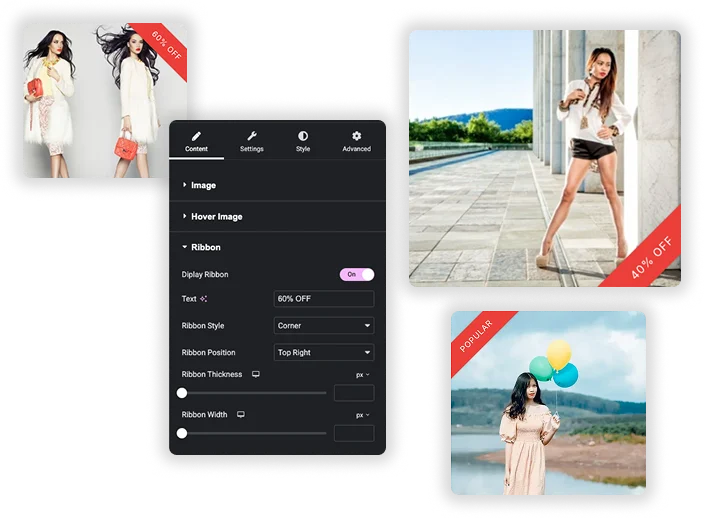
Make your images stand out with professional ribbons. Enable the Ribbon feature to add a label like “NEW DESIGN,” “BESTSELLER,” or “SOLD OUT.” Choose from different Ribbon Styles (like Corner or Cross or Simple) and set the Position (Top/Bottom, Left/Right). Fully customize the ribbon’s colors, typography, and thickness to ensure it complements your image and brand perfectly.
- Highlight Key Information: Instantly communicate status, promotion, or category directly on the image.
- Flexible Positioning: Place the ribbon in any corner to avoid covering important parts of the picture.
- Complete Style Control: Match the ribbon’s background, text color, and font to your site’s design language.
Add Link & Lightbox Integration
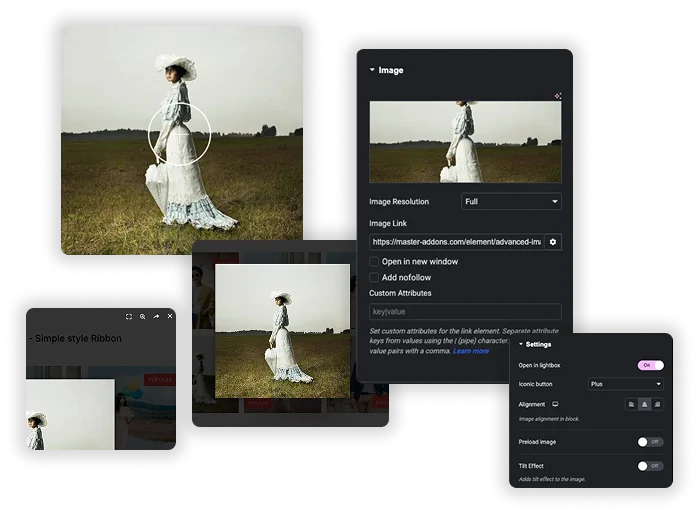
Add an Image Link to send visitors to a product or page, or turn on Open in lightbox so a click shows the image full size. The Iconic button option adds a plus icon over the image. Turn on Preload image to show a placeholder while the image loads: a blurred preview, a progress box or a blue, light or dark spinner.
- Link to a product page or open a full-size lightbox.
- Left, center or right alignment in its column.
- A loading placeholder for large images.
Detailed Styling & Sizing Control
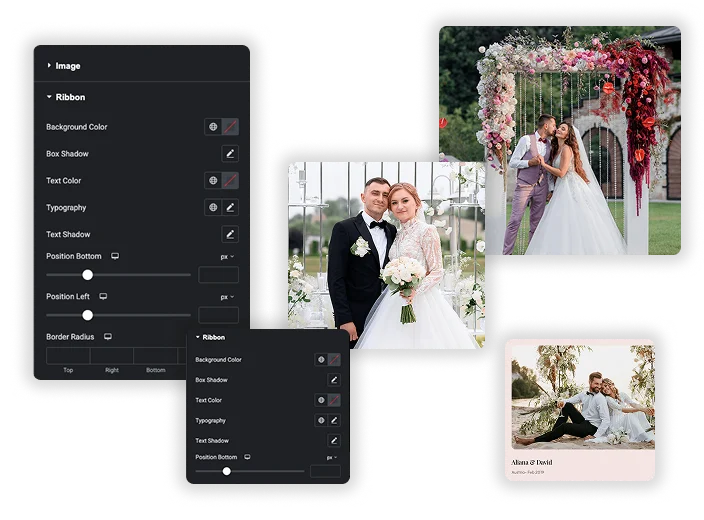
Get complete design control over your image’s presentation. Set exact Max Width and Max Height. Apply Border Radius individually to each corner for unique shapes. Style the Normal and Hover states separately with borders, backgrounds, and box shadows. This ensures your image looks perfect in every context and during every interaction.
- Responsive Sizing: Control the image’s dimensions precisely without relying on unpredictable auto-sizing.
- Custom Shapes: Create circular images, rounded rectangles, or unique asymmetric borders.
- State-Specific Styling: Add a border or shadow only on hover to visually indicate the image is interactive.




Frequently Asked Questions For Advanced Image
Is the Hover Image effect compatible with mobile touchscreens?
Yes, but it works a bit differently. On touch devices, the first tap will often trigger the hover effect (swapping the image), if you haven’t enabled the lightbox. But if you have enabled the lightbox then lightbox will get more priority and on tap the first image will open in lightbox.
Is the Advanced Image widget free?
Yes. Advanced Image is part of the free Master Addons plugin with the hover image, ribbons, lightbox, tilt, colorized shadow and all styling options.
How is this different from Elementor's basic Image widget?
Elementor’s basic widget lets you add an image, a link, a caption, and some simple styling. The Advanced Image element adds a suite of professional features: Hover Image swap, Ribbons/Labels, Tilt Effect, Colorized Shadow, separate Normal/Hover state styling, and more granular lightbox controls. It’s designed for creating more engaging, interactive image presentations.
Can I use the ribbon feature without a hover image or other effects?
Absolutely! Each feature is independent. You can have just an image with a ribbon, or just an image with a tilt effect. You can mix and match features as you like. Enable only the ones you need for your specific design goal.
What does the Preload Image setting do?
Preload image shows a placeholder while the image loads, so visitors do not see an empty space. Choose Blank, a blurred placeholder image, an in-progress box animation, or a blue, light or dark loading spinner. It is most useful for large images.
Trending Elementor Widgets & Extensions
Build sophisticated websites in less time.

Glassmorphism

Container Extras

Patterns
![Master Addons Post/Page Duplicator extension for Elementor: MA Duplicator row link in the WordPress Pages list creating a Landing Page - [Duplicated #128] draft](https://d1asvmc6qcowgk.cloudfront.net/wp-content/uploads/2026/09/15102930/post-page-duplicator-768x403.webp)
Post/Page Duplicator
