

A page where everything just sits there reads like a PDF. A page where sections ease in as you reach them feels built. The Entrance Animation extension in Master Addons for Elementor adds that motion to any element: pick an effect from a library of 70 animations, set the timing, and the element animates the moment it scrolls into view. It is part of Master Addons Pro, and the Elementor entrance animation extension page shows how it compares with Elementor’s built-in option.
Here is the effect on a real page. Each section fades in and rises as it enters the viewport:

What the Entrance Animation extension does #
Once enabled, every Elementor element gets an Entrance Animation section under the Advanced tab. Assign an animation there, and the element starts hidden, then plays its effect when the visitor scrolls to it. Sections, containers, headings, images, buttons: anything in the editor can carry its own entrance.
The animation library covers the full range of entrance styles:
- Fade In family: plain, Down, Up, Left, and Right, each with numbered variations that change the travel distance.
- Slide From Right, Left, Top, and Bottom.
- Mask From Top, Bottom, Left, and Right, which wipe the element in.
- Rotate In with Down and Up variants toward each corner.
- Zoom In and Scale Up / Scale Down families for depth.
- Flip In Up, Down, Left, and Right, plus Pulse In, Pulse Out, Shake, Bounce In, and Jack In the Box.
Before you start #
- WordPress with Elementor installed and active.
- Master Addons for Elementor installed and active. New to the plugin? Follow the installation guide first.
- An active Master Addons Pro license, since Entrance Animation is a Pro extension.
How to enable the Entrance Animation extension #
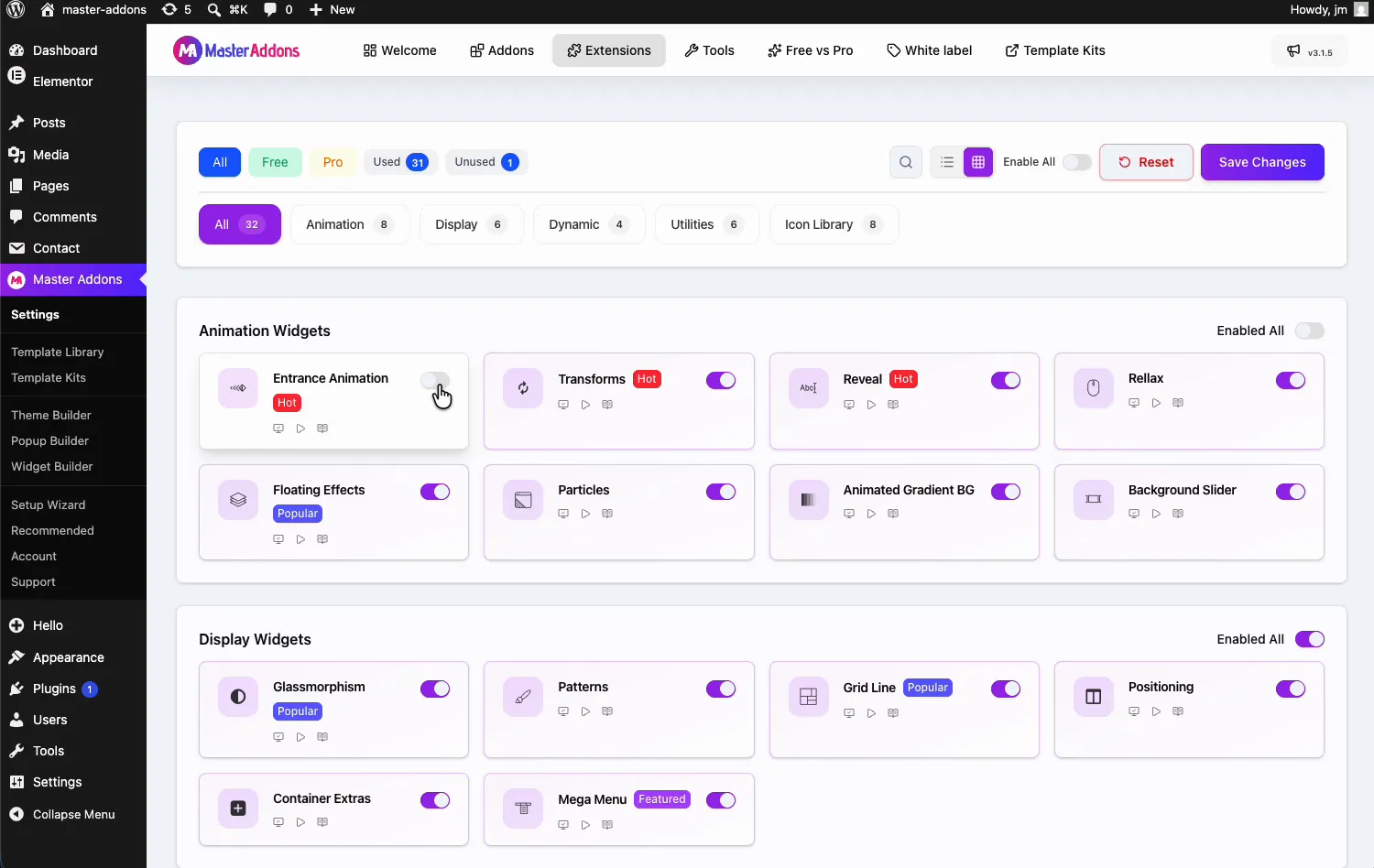
From your WordPress dashboard, go to Master Addons and open the Extensions tab. Entrance Animation leads the Animation Widgets group with a Hot badge, next to Transforms and Reveal. Click its toggle so it turns purple, then hit Save Changes and wait for the green “Settings saved successfully” notice.
Pick an animation for an element #
Select the element in the Elementor editor, open the Advanced tab, and expand the Entrance Animation section with the purple MA badge. The Animation dropdown holds the whole library. In the demo, the hero section gets a Fade In effect while the dropdown shows the Fade, Slide, Mask, Rotate, Zoom, and Scale groups scrolling past.

Pick one and the editor previews it immediately, so you can flip through options until the motion fits the content. Fade In Up is the safe default: subtle lift, no drama, works on almost anything.
Tune the timing #
Below the Animation dropdown sit four timing controls.

- Duration (ms): how long the animation runs. The demo uses an exaggerated 5000ms so the motion is easy to see; on production pages, 400 to 800ms usually feels right.
- Delay (ms): a pause before the effect starts, 400ms in the demo. Stagger delays across sibling elements and they enter one after another instead of all at once.
- Easing: the acceleration curve. Default works, but an ease-out lands more naturally for entrances.
- Repeat Count: how many times the effect plays, from 1 to 5, or infinite.
The result on the page #
Publish and scroll. Each element holds until it enters the viewport, then plays its entrance: the feature list rises into place, the service cards fade in as a row, and the team section follows when you reach it. The animation GIF at the top of this page shows the exact sequence from the demo site.
One caution from practice: animate sections, not every widget inside them. A page where fifty elements each fly in from somewhere reads as noise. One entrance per section keeps the rhythm.
Where entrance animations work well #
- Hero sections. A fade-in headline sets the tone the moment the page loads.
- Feature rows. Cards that rise in sequence, using staggered delays.
- Statistics and counters. Motion draws the eye right when the numbers scroll into view.
- Testimonials. Quotes that ease in read as moments instead of a wall of text.
- Long landing pages. Each section announcing itself keeps scroll momentum going.
Video Tutorial #
Watch the animations in motion, from enabling the extension to the finished page.
Frequently Asked Questions #
How do I add an entrance animation in Elementor?
Enable the Entrance Animation extension in the Master Addons Extensions tab, select any element in the editor, and open Entrance Animation under the Advanced tab. Pick an effect from the Animation dropdown, set the duration and delay, and the element animates when it scrolls into view.
What animations are included in the extension?
70 effects: Fade In (up, down, left, and right, with variations), Slide From and Mask From in all four directions, Rotate In toward each corner, Zoom In, Scale Up and Scale Down, Flip In, Pulse In and Pulse Out, Shake, Bounce In, and Jack In the Box. Each works on sections, containers, and individual widgets.
When does the entrance animation play?
When the element enters the viewport. Elements above the fold animate on page load, and everything further down waits for the visitor to scroll to it. The Delay setting adds a pause before the effect starts, which is how you stagger a row of cards.
Can I control the animation speed?
Yes. Duration sets the length of the effect in milliseconds, Delay postpones its start, Easing shapes the acceleration curve, and Repeat Count replays it. A duration of 400 to 800ms with a short stagger between elements covers most designs.
Is the Entrance Animation extension free?
No. Entrance Animation is part of Master Addons Pro. Elementor’s free editor has its own basic entrance animation under Advanced, Motion Effects, with a preset duration and a delay.
Wrapping up #
The Entrance Animation extension gives every Elementor element a scroll-triggered entrance: one dropdown for the effect, four fields for the timing. Keep durations under a second, stagger the delays, and animate at the section level, and the page feels deliberate instead of decorated. For motion that loops on its own instead of playing once on scroll, look at the Floating Effects extension (Pro), and the full list of Master Addons widgets and extensions has the rest.


