

Parallax is the effect where different parts of a page scroll at different speeds, so the background drifts past slower than the foreground and the section picks up a sense of depth. The Rellax extension in Master Addons Pro adds that Elementor parallax scrolling effect to widgets such as an image or a heading, using the Rellax.js library, without touching a line of JavaScript. It shows up as a section on the element’s Advanced tab, with controls for speed, movement percentage, z-index, and direction.
Here’s where Rellax lives, what each setting does, and how the effect looks once the page is live.
What the Rellax extension does #
Rellax pins a scroll-based animation to whichever element you select. As the visitor scrolls, that element moves faster or slower than the rest of the page, depending on the speed you set. Point it at a hero image and the background glides; point it at a headline and the text floats up ahead of everything around it. Since it works per element, you can mix a couple of different speeds in the same section and build a layered scroll without a dedicated parallax plugin.
Think of it as the scroll-based cousin of two other Master Addons motion tools: Floating Effects, which animates an element on its own without any scrolling, and Transforms, which handles rotate, scale, and skew.
Before you start #
- WordPress with Elementor installed and active.
- Master Addons Pro installed with an active license, since Rellax is a Pro extension. If you haven’t installed it yet, follow the installation guide.
- The Rellax extension enabled in the Master Addons options panel.
- A widget to animate, such as an image, an icon, or a Gradient Headline. Rellax moves the whole widget, not a section background image.
How to add a parallax effect in Elementor #
Select the element you want to move. Open the Advanced tab in the Elementor panel and scroll down to the Rellax section (it carries the purple Master Addons badge). Expand it and flip Enabled Rellax to Yes. That toggle is the switch for the whole effect, so nothing happens until it’s on.
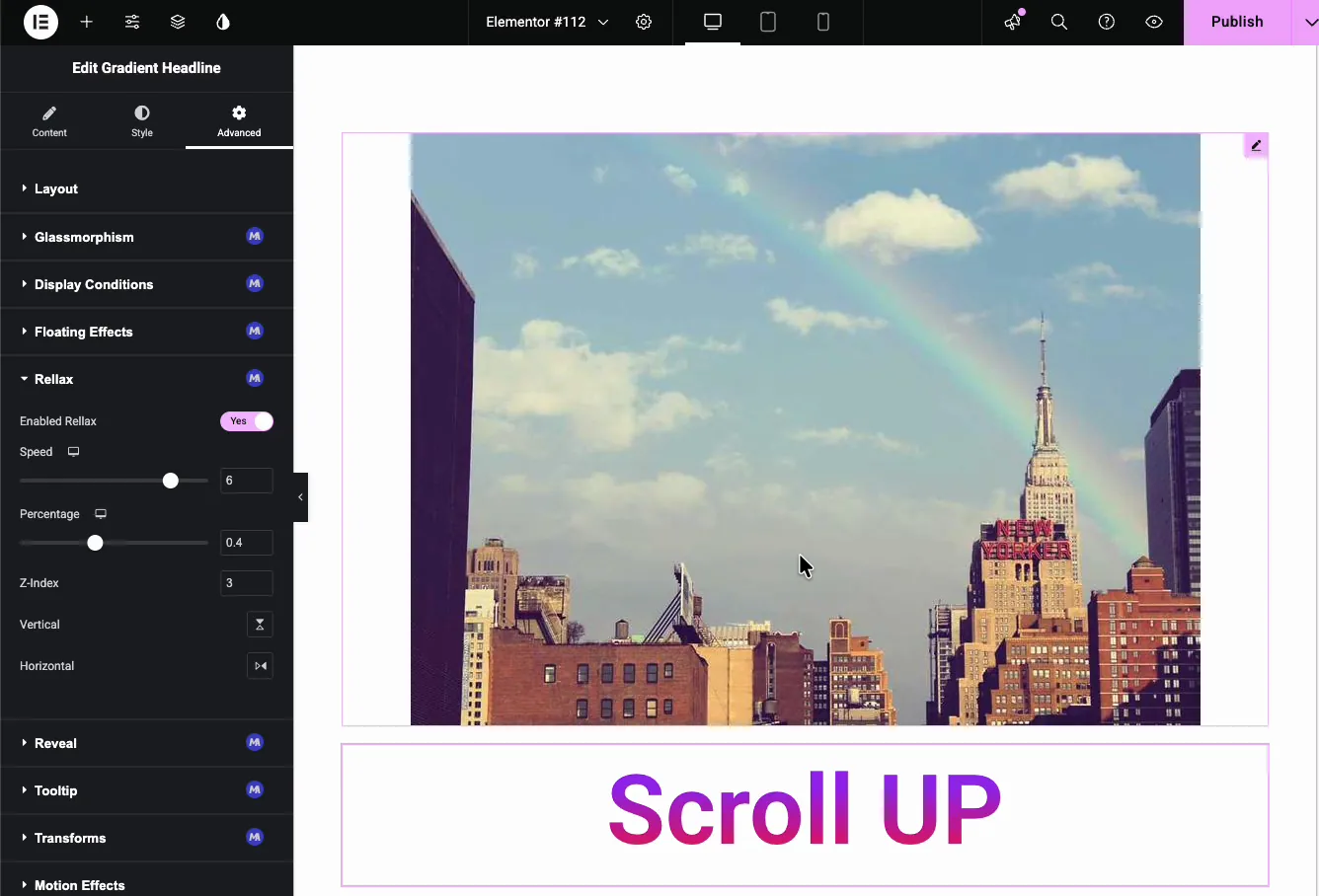
One thing that trips people up: the parallax only runs on the live page or in preview, never while you’re editing on the canvas. So don’t wait for the element to move inside the editor, hit preview to see it.
Rellax settings explained #
With Enabled Rellax on, the rest of the controls shape how the element travels:
- Speed: how fast the element moves relative to the scroll. Higher positive numbers make it move up faster as you scroll down; negative numbers push it the other way. The demo uses 6. Start around 4 to 6 and adjust from there, since big values can shove an element clean out of its section.
- Percentage: the starting point of the animation, from 0 to 1, based on where the element sits in the viewport. The demo sets it to 0.4. Nudge this when the effect kicks in too early or too late.
- Z-Index: stacking order, same idea as CSS z-index. Raise it (the demo uses 3) when a parallax element needs to sit above or below a neighbor it overlaps mid-scroll.
- Vertical: move the element up and down as the page scrolls. This is the usual parallax direction.
- Horizontal: move the element left and right instead. Handy for elements you want to slide in from the side.
Speed and Percentage both have the responsive icon next to them, so you can set different values for desktop, tablet, and mobile. That matters more than it sounds. A speed that looks great on a wide desktop can feel jarring on a phone, where the screen is short and the element covers a lot of ground in a small space. Dialing the mobile speed down is usually the fix.
See the parallax effect on the live page #
Publish the page (or open the preview) and scroll. The element you enabled Rellax on moves at its own pace while the rest of the page scrolls normally, and that speed difference is what sells the depth. Here’s the demo hero, with a parallax image scrolling against a “Scroll UP” headline:

If the movement feels too strong or too subtle, go back to the Speed control and tweak it. Parallax is one of those effects where a small number usually reads better than a big one.
Common use cases #
- Hero images: give an Image widget in a landing-page hero a slow drift so the section feels alive the moment someone scrolls.
- Floating headlines: put Rellax on a heading so it rises ahead of the content beneath it.
- Layered sections: set two or three elements to different speeds in the same section for a stacked, multi-depth scroll.
- Feature callouts: slide an icon or badge in horizontally as the visitor reaches it.
- Storytelling pages: use gentle parallax between blocks to keep a long scroll from feeling flat.
For motion that isn’t tied to scrolling, pair Rellax with Entrance Animation so elements animate in as they appear, then keep moving with parallax as the scroll continues. Browse the full widgets and extensions list to see the rest of the motion toolkit.
Video Tutorial #
Prefer to watch? This video walks through the Rellax extension end to end, from enabling it on an element to the parallax scroll on the live page:
Frequently Asked Questions #
How do I add a parallax scrolling effect in Elementor?
Select an element, open the Advanced tab, expand the Master Addons Rellax section, and set Enabled Rellax to Yes. Then set the Speed and Percentage. The element scrolls at its own pace on the live page, no code required.
Why can’t I see the parallax effect in the Elementor editor?
Rellax only runs on the front end. The element sits still while you edit on the canvas, so open the preview or view the published page to see the parallax motion.
What does the Speed setting do in Rellax?
Speed controls how fast the element moves compared to the page scroll. Higher positive values move it up faster as you scroll down, and negative values reverse the direction. Values around 4 to 6 work well for most hero sections.
Can I use a different parallax speed on mobile?
Yes. The Speed and Percentage controls are responsive, so you can set separate values for desktop, tablet, and mobile. Lowering the speed on mobile keeps the effect from feeling too aggressive on small screens.
Does the Rellax extension slow down my site?
Rellax runs a scroll-based animation per element, so the impact stays small. Apply it only to the elements that need it, rather than every block on the page, and things stay smooth.
Wrapping up #
The Rellax extension is the quickest way to add an Elementor parallax scrolling effect without a separate plugin or custom code. Enable it on any element, set the speed, percentage, z-index, and direction, and the element scrolls with real depth on the live page. For more ways to move things around the screen, take a look at Transforms and Floating Effects, and see the Rellax parallax extension page for a comparison with Elementor Pro Motion Effects.


