

Hosting resellers, agencies, and domain sellers all need the same landing page element: a search bar that tells visitors whether their dream domain is free. The Domain Search widget in Master Addons Pro puts that checker on any page: visitors type a domain, hit search, and get a live “available” or “already taken” verdict without leaving your site.
This guide covers the whole widget: the search form, the icon button, the affiliate link, styling, and the live results.
What the Domain Search widget does #
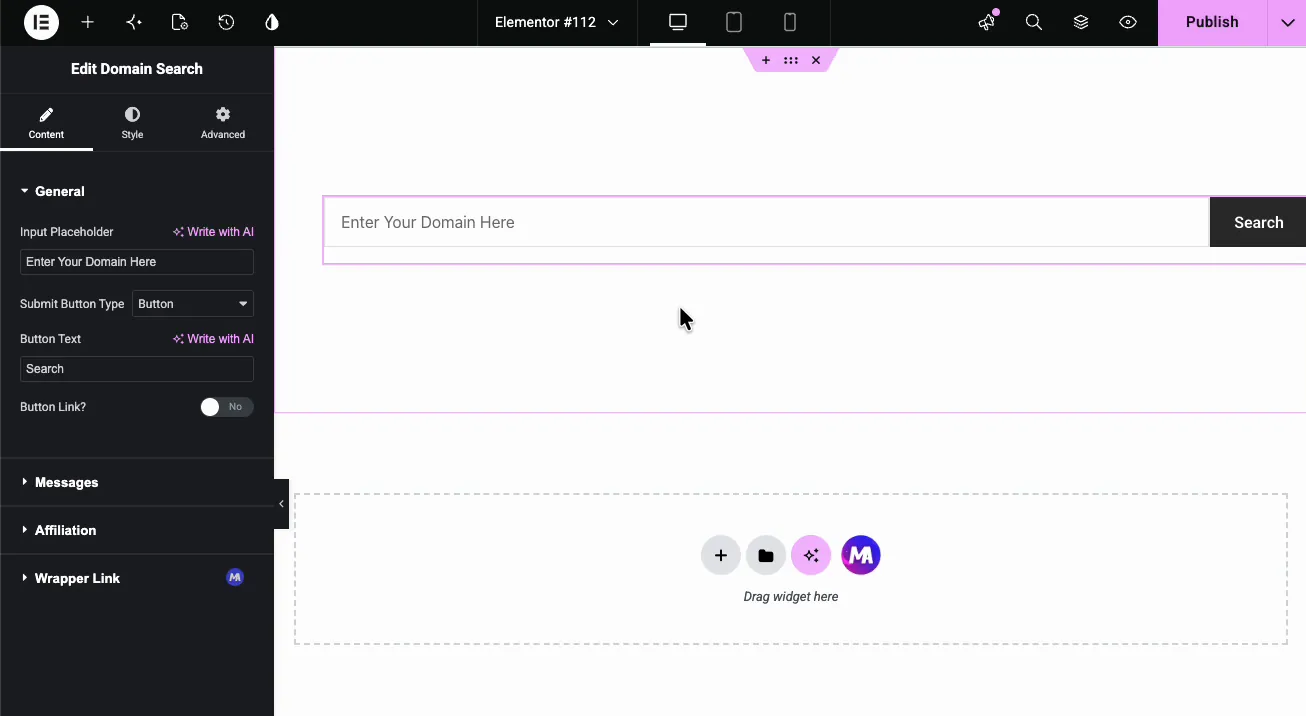
The widget renders a search form: an input field, a submit button, and a result line. When a visitor searches, it checks the domain’s availability live and prints the verdict, red for taken, green for available. An optional affiliate link turns an available result into a signup click for your hosting or registrar offer, which is the whole business model of a domain checker page.
Before you start #
- WordPress with Elementor installed and active.
- Master Addons Pro installed with an active license, since Domain Search is a Pro widget. New to the plugin? See the installation guide.
- The Domain Search widget enabled in the Master Addons option panel, under Marketing Widgets.
- If you plan to monetize results, your registrar or hosting affiliate URL ready.
How to add the Domain Search widget #
In the Elementor editor, search the Elements panel for Domain Search and drag it onto the page. The search bar appears with the default placeholder “Enter Your Domain Here” and a Search button.
Set up the search form #
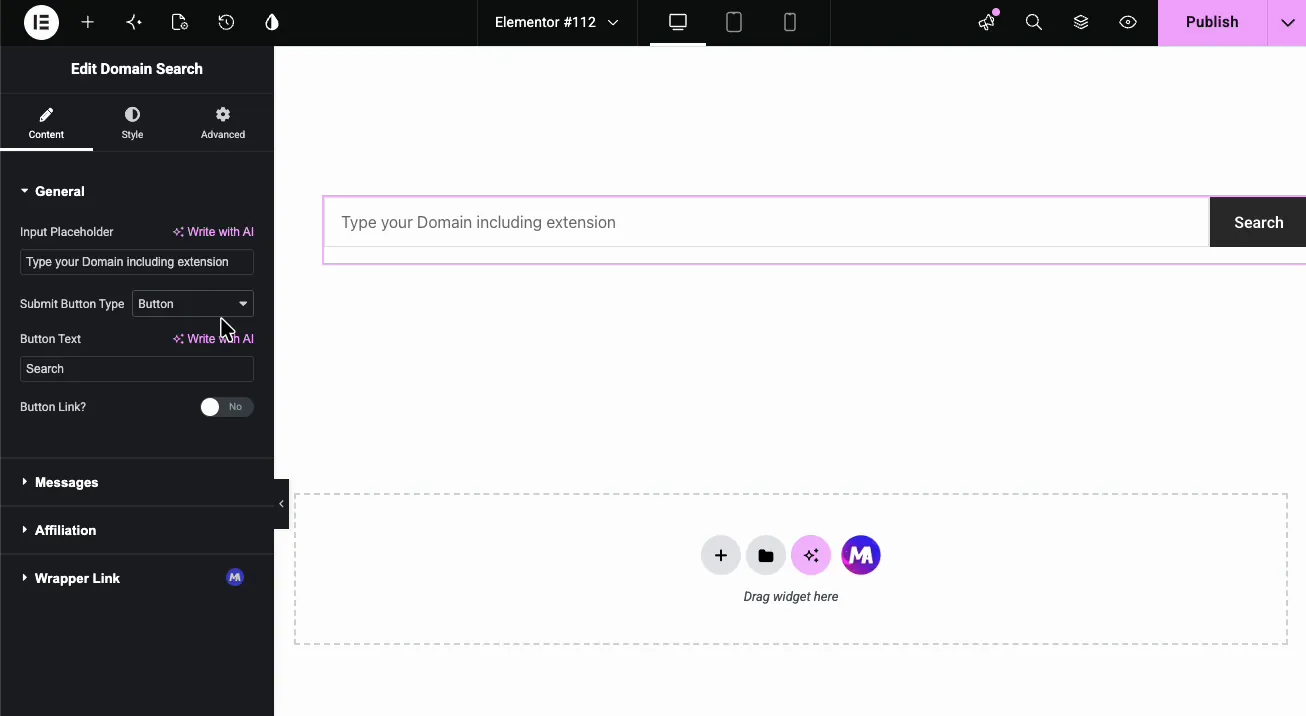
The General section covers the form itself. Input Placeholder is the hint text inside the field; the demo rewrites it to “Type your Domain including extension”, which quietly teaches visitors to search example.com instead of just example:
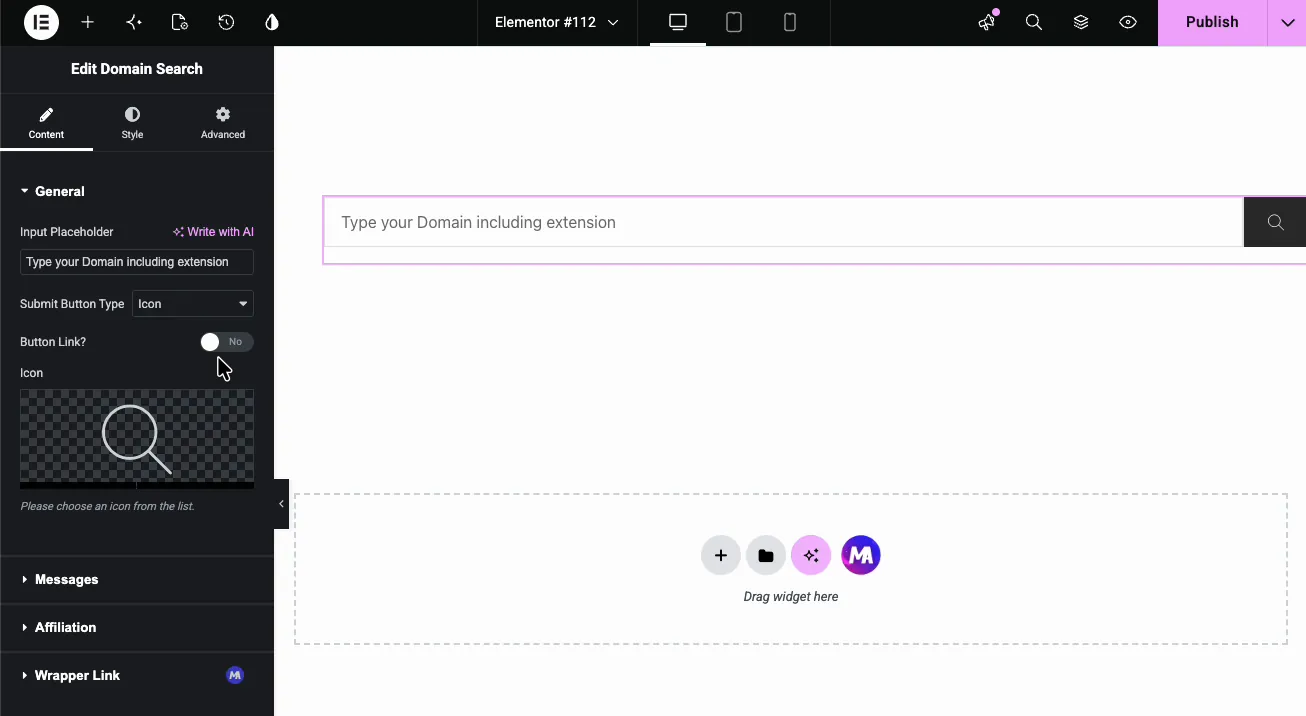
Submit Button Type chooses between a text Button with editable Button Text and an Icon. Switching to Icon opens an icon picker, and the demo goes with the classic magnifier:
Button Link? skips the live check. Set an Action URL and the button sends visitors to that address with the typed domain added, for setups where the form hands off to an external registrar page.
Customize the result messages #
The Messages section holds four texts: the Success Message for an available domain, the Error Message for a taken one, Not Found for extensions the widget has no WHOIS server for, and Not Entered Domain Name. Use %s to print the domain. The defaults, “Congratulations! … is available!” and “Sorry! … is already taken!”, work out of the box, and you can rewrite either to match your voice.
Add your affiliate link #
The Affiliation section is where the checker starts earning. Switch Show Affiliate Link? to Show, and two fields appear: Affiliate Text for the label, “Sign Up” in the demo, and Affiliate Link for your registrar or hosting URL.
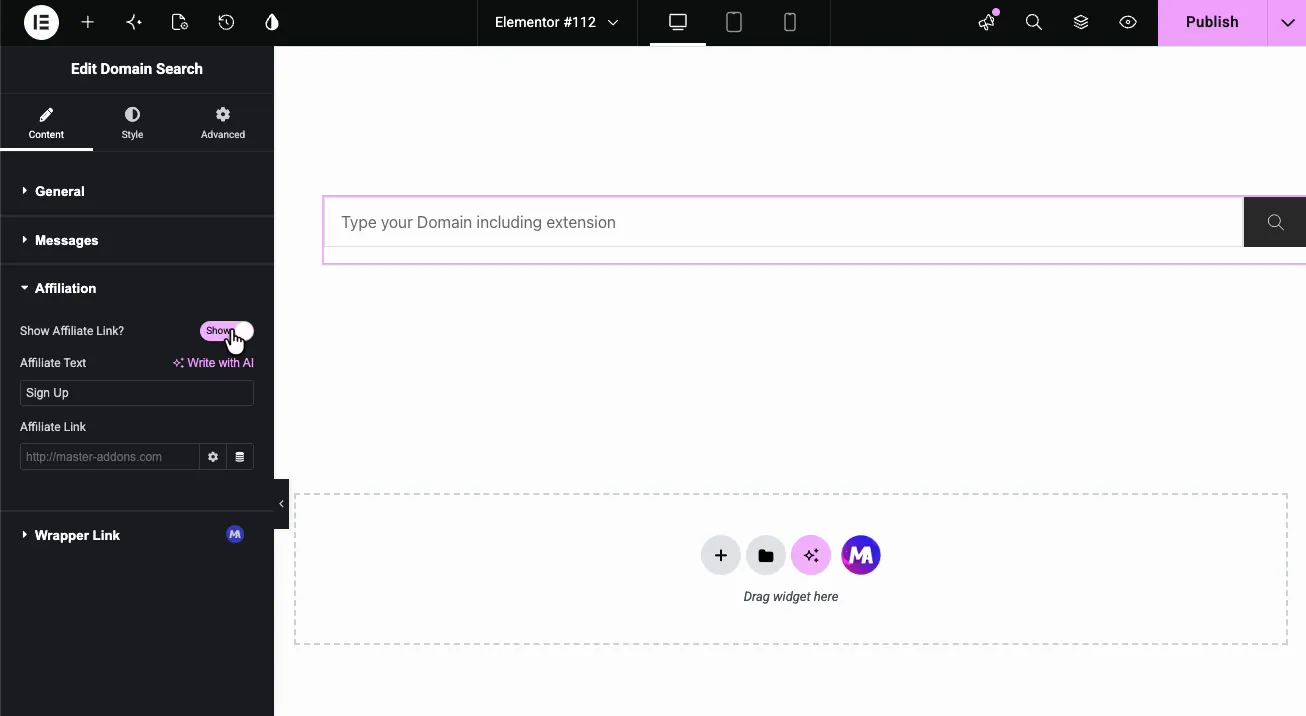
When a search comes back available, the affiliate link rides along with the result, catching visitors at the exact moment they’ve found a domain they want. Few page elements convert at a better moment than this one.
Style the button and text #
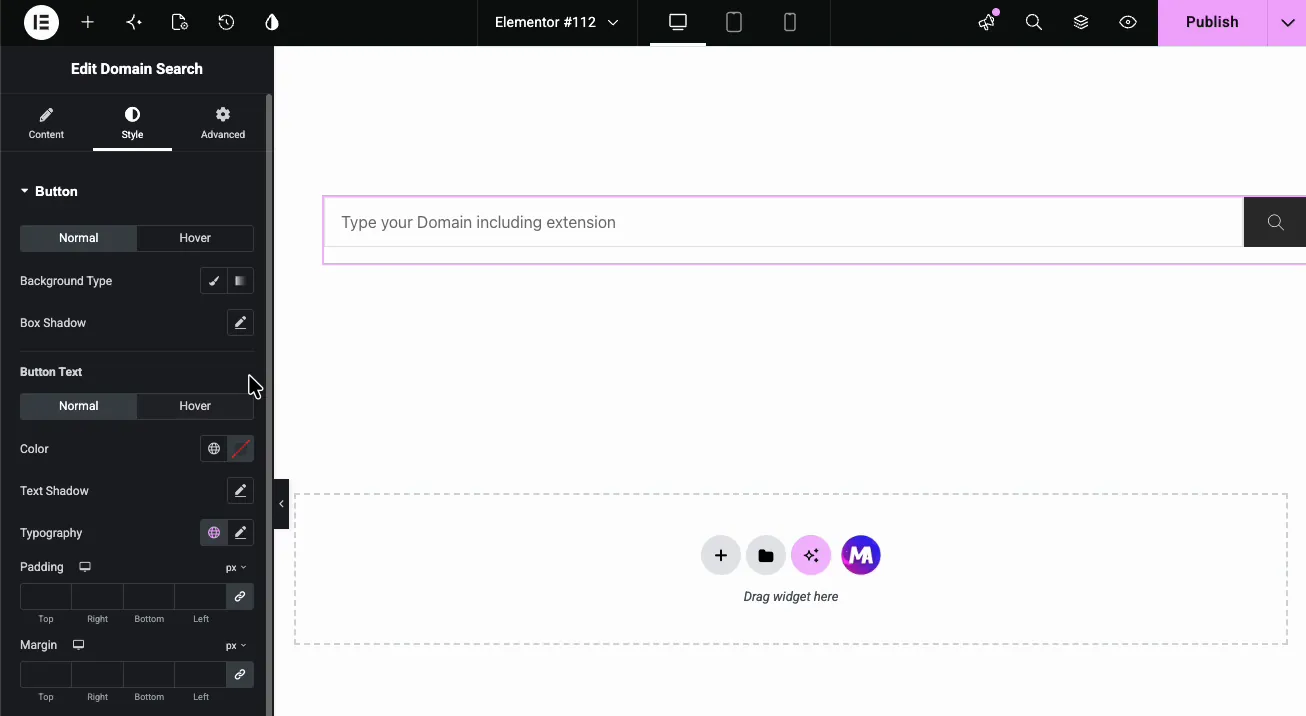
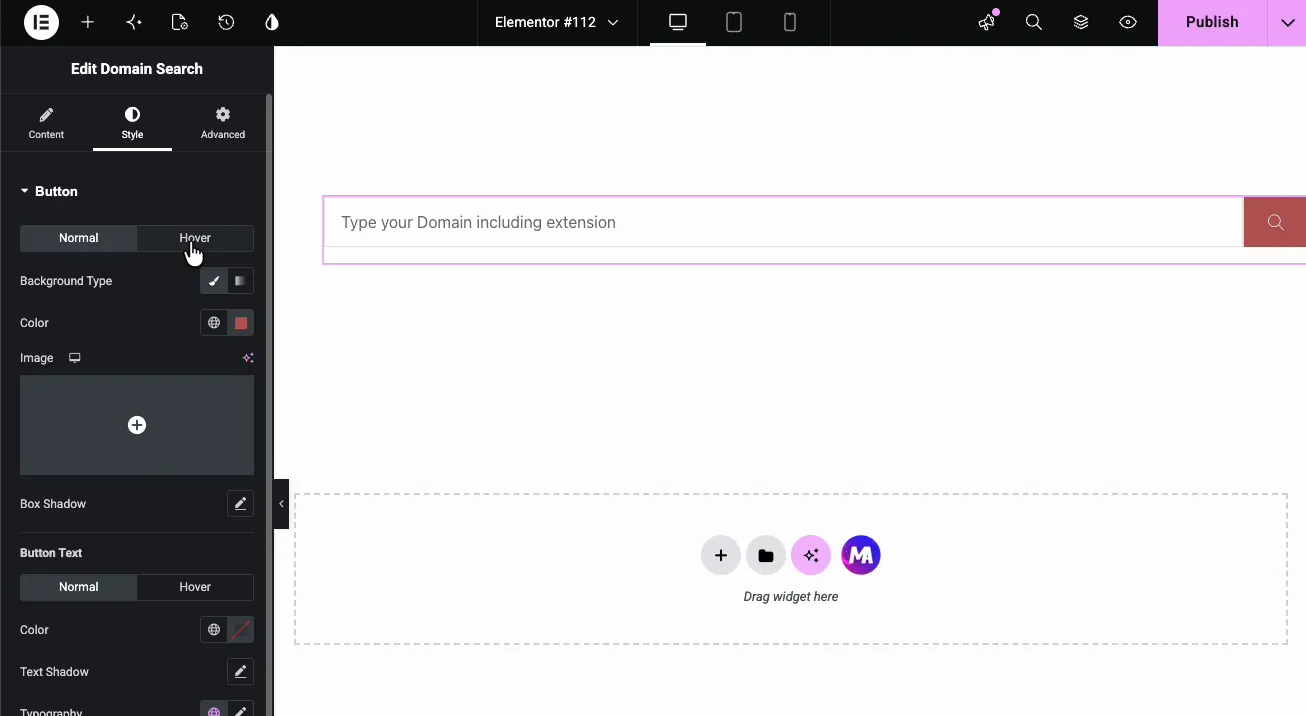
The Style tab’s Button section splits into the button surface and the button text, each with Normal and Hover states: Background Type, Box Shadow, Color, Text Shadow, Typography, Padding, and Margin.
The demo sets a red hover background, so the search button answers the cursor:
Style the loader #
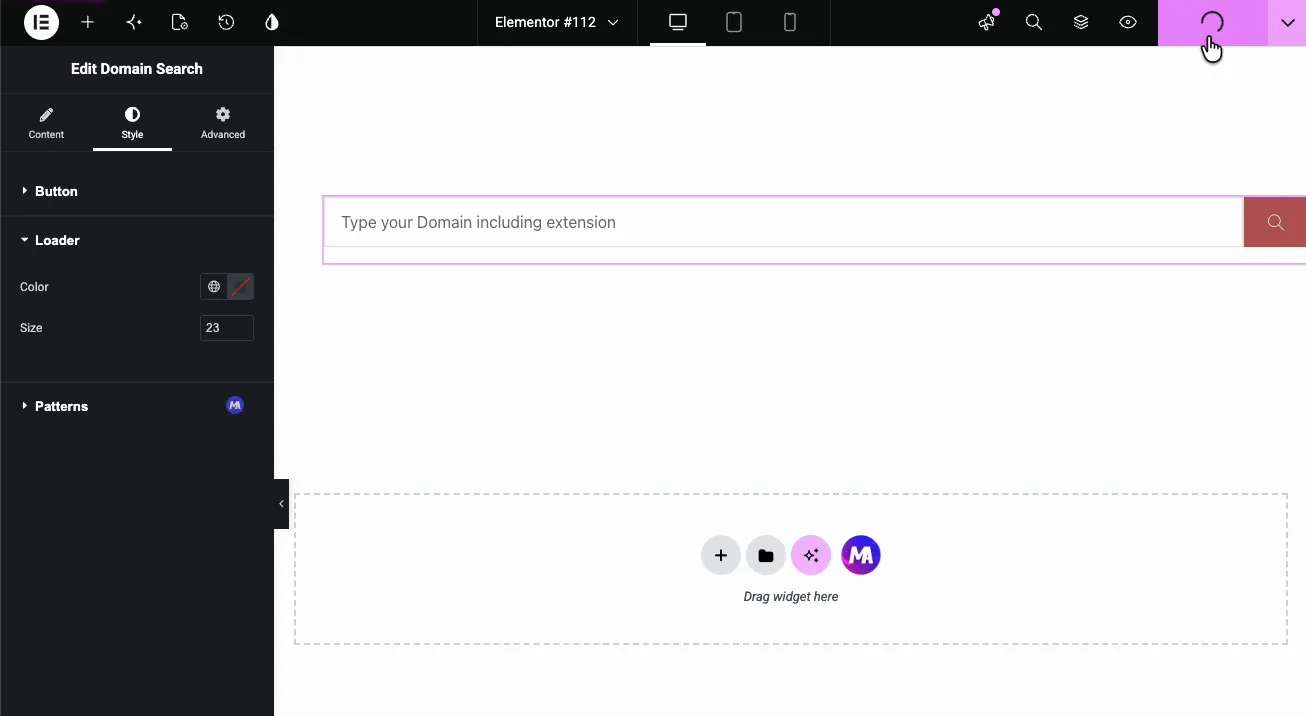
While the check runs, a small spinner shows. The Loader section sets its Color and Size, 23 pixels in the demo. A Patterns section below comes from the free Patterns extension.
The result on the page #
On the live page, a search for a registered domain comes back red:

And an unregistered one comes back green, with your affiliate link ready beside it if you enabled one:

Common use cases #
- Hosting reseller landing pages, the classic pairing: check the domain, sign up for hosting.
- Registrar affiliate sites earning on every available-domain signup.
- Agency service pages letting clients check the domain for their new project on the spot.
- Naming and branding tools where the domain check is part of picking a business name.
Tips for a better domain checker #
- Say “including extension” in the placeholder. Visitors who type just a name get confusing results; the demo’s placeholder prevents the support ticket.
- Put the affiliate link on from day one. An available result is the highest-intent moment a domain page has; don’t waste it.
- Keep the taken message friendly. “Already taken, try another” reads better than a bare error, and the Messages section makes it a ten-second edit.
- Give the button a hover state. A color shift on hover tells visitors the search is clickable, not decorative.
- Match the loader color to your palette. The spinner shows on every search; a brand-colored one looks deliberate.
Frequently Asked Questions #
What is the Domain Search widget in Master Addons?
It is an Elementor widget that adds a live domain availability checker to any page. Visitors type a domain, submit with a button or icon, and see a green available or red taken result, with an optional affiliate link attached to available results.
How does the availability check work?
Your server sends a WHOIS query to the registry server for that extension, from a built-in list of more than 360 TLDs, and prints the verdict beneath the search bar. Your host must allow outgoing connections on port 43. A registered domain returns the taken message in red; an unregistered one returns the available message in green.
Can I earn from the domain search?
Yes. In the Affiliation section, switch Show Affiliate Link to Show, set the Affiliate Text, and paste your registrar or hosting affiliate URL. The link appears with available results, exactly when visitors are ready to register.
Can I change the result messages?
Yes. The Messages section holds four texts, including the available and taken messages, so you can rewrite the default Congratulations and Sorry texts to match your site’s voice.
Can the submit button be an icon?
Yes. Set Submit Button Type to Icon and pick any icon from the Elementor library, like the classic magnifier. The Style tab styles the button surface and hover state either way.
Wrapping up #
The Domain Search widget turns a landing page into a working domain checker: a styled search form, live taken-or-available results, and an affiliate link positioned at the moment of highest intent. Browse the full set of Master Addons widgets and extensions for the rest of the marketing widgets, and see the Domain Search widget page for demos and setup steps.


