
Elementor Restrict Content Widget (Pro): Gate Content by Role, Password or Age
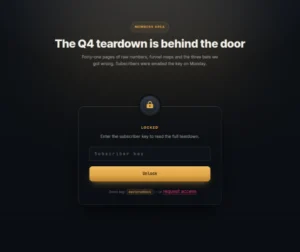
Restrict Content is a Master Addons Pro widget that puts a gate in front of part of an Elementor page. It has four modes: User Based (WordPress role), Password Based, Age Restriction and Math Captcha, and the gate can sit on the page or open in a popup. Only User Based on the On Page layout keeps the content out of the page for visitors without the right role. The password, age and captcha gates hide content in the browser, so they suit teasers, age notices and giveaways rather than private or paid material.
How to Restrict Content in Elementor
Pick the gate type first, because it decides how private the content really is.
- With Master Addons Pro active, check that Restrict Content is switched on in the Master Addons widget settings.
- Edit your page with Elementor and drag Restrict Content into a section.
- Set the first Restrict Type to On Page or Popup, and the second to User Based, Password Based, Age Restriction or Math Captcha.
- Set the rule: Select User Roles, Set Password, Minimum Age with an Age Restrict Type, or Math Type.
- In Restrict Content, choose Custom Content or an Elementor Template as the source.
- Write the Warning Message, style the gate in the Style tab, then update the page.
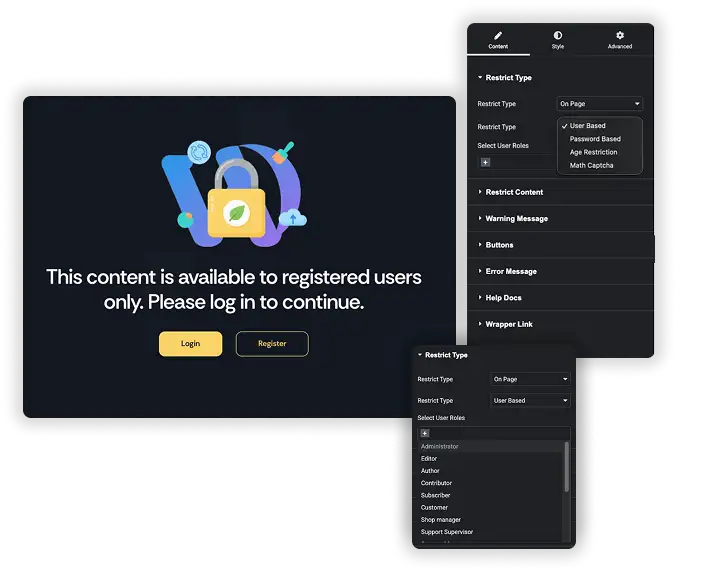
Four Gate Types and Two Layouts
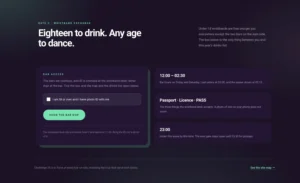
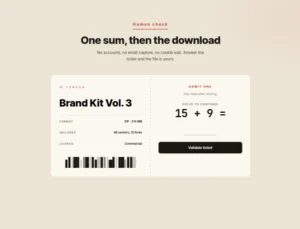
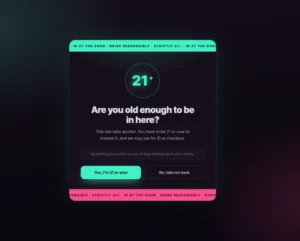
User Based checks the visitor’s WordPress role on the server, and logged-out visitors always see the warning. Password Based asks for one shared password. Age Restriction checks a Minimum Age with Select Birthday, Enter Age, Checkbox or Submit Confirm. Math Captcha asks an add, subtract or multiply question. Each gate can show On Page or in a Popup that opens on a button click or on page load, as a modal or full screen.
- For private content: User Based on the On Page layout. Visitors without the role never receive the content.
- For light gates: Password, Age and Math Captcha hide content in the browser, so the content is still in the page source.
- Remembered: once a visitor passes a password, age or captcha gate, their browser remembers it on later visits.
Protected Content and Warning Messages
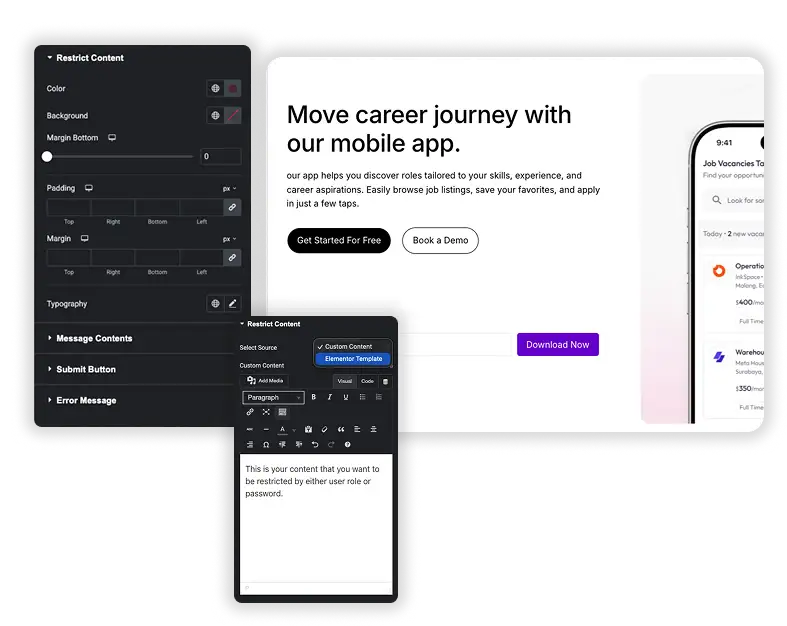
Select Source sets what sits behind the gate: Custom Content from a text editor, or an Elementor Template (a saved section, widget or page). The Warning Message can be a custom title and text, a saved template, or none, with an optional close button.
- Custom message: write your own title and text for visitors who don’t pass.
- Template message: load a designed Elementor template with images and links.
- Error text: separate messages for a wrong password, an empty birthday or a date that doesn’t exist.
Styling the Gate
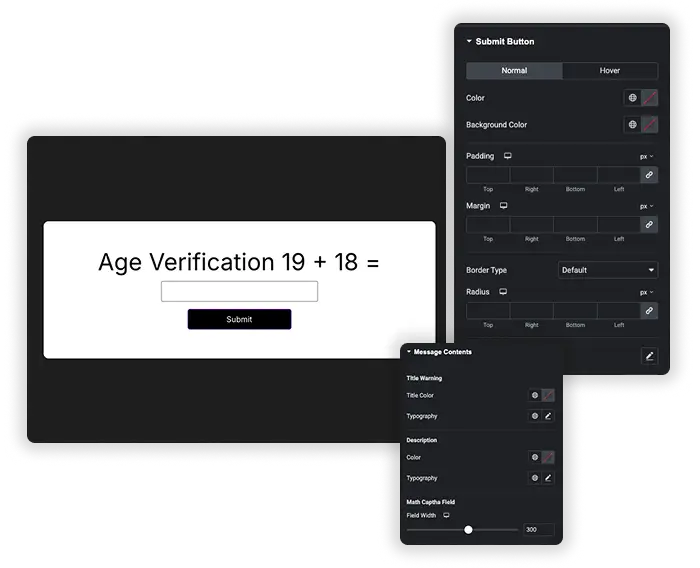
The Style tab has sections for the Restrict Content area, Popup Style, Message Contents, Password Input, Submit Button, Exit Button and Error Message. Each covers colors, typography and spacing, and the Submit Button has separate Normal and Hover tabs.
- Buttons: style the submit button and the exit button separately.
- Messages: title and description colors and typography for the warning.
- Popup: its own style section for the modal.
Members-Only Content: Restrict Content vs Display Conditions
Both come with Master Addons Pro and both can react to a user’s role, so they are easy to mix up. Display Conditions hides a whole widget or section when its rules match, with no prompt. Restrict Content shows visitors a gate or a message in place of the content.
| Feature | Restrict Content | Display Conditions |
|---|---|---|
| What visitors see | A form, button or warning message | Nothing, the element is hidden |
| Rules | User role, password, age, math captcha | Visitor, date and time, single, archive and Easy Digital Downloads conditions |
| Applies to | Content placed inside the widget | Any widget or section |
| Good for | Age notices, teasers, role-only boxes with a message | Showing different elements to different visitors |
For members-only content in Elementor, use Restrict Content in User Based mode on the On Page layout, so visitors without the role see a message and never receive the content. If you need sign-ups, payments or membership levels, pair it with a membership plugin. Our Elementor display conditions guide covers the other side in more detail.



Frequently Asked Questions For Restrict Content
What’s the difference between the “On Page” and “Popup” Restrict Types?
On Page puts the gate, or the content, right where the widget sits. Popup shows a button or opens on page load, and the gate appears in a modal or full-screen overlay. Use On Page with User Based for role-only content, because the popup layout also places the content in the page.
Is the password protection secure?
No. The Password, Age and Math Captcha gates hide content in the visitor’s browser, so the content can be found in the page source. They suit teasers, age notices and giveaways. For private or paid material, use User Based with the On Page layout, or a membership plugin.
Is Restrict Content free?
No. Restrict Content is part of Master Addons Pro.
Does the age gate store a visitor’s birthday?
The widget does not save birthdays. It only remembers, in the visitor’s browser, that they passed the gate, so they aren’t asked again on their next visit.
Trending Elementor Widgets & Extensions
Build sophisticated websites in less time.

Glassmorphism

Container Extras

Patterns
![Master Addons Post/Page Duplicator extension for Elementor: MA Duplicator row link in the WordPress Pages list creating a Landing Page - [Duplicated #128] draft](https://d1asvmc6qcowgk.cloudfront.net/wp-content/uploads/2026/09/15102930/post-page-duplicator-768x403.webp)
Post/Page Duplicator
