

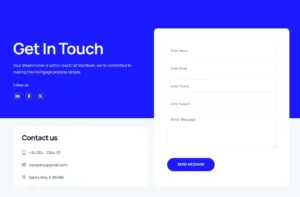
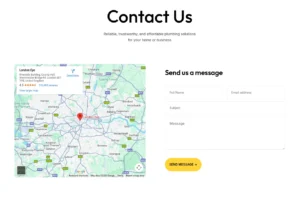


Ninja Forms Elementor Widget: Style Ninja Forms Without CSS
The Ninja Form widget in Master Addons is free. It places a form you built in the Ninja Forms plugin on an Elementor page and gives you style controls for the title, labels, fields, radio buttons and checkboxes, submit button and messages. Four design variations are free, and seven more come with Master Addons Pro. Ninja Forms still handles the fields, notifications and submissions.
How to Add Ninja Forms to Elementor
You need the free Ninja Forms plugin and at least one form built in it.
- Install and activate Ninja Forms from WordPress.org, then build your form in the Ninja Forms dashboard.
- Check that the Ninja Form widget is switched on in the Master Addons widget settings.
- Edit your page with Elementor, search the panel for Ninja Form and drag the widget in.
- Pick your form in the Contact Form dropdown and choose whether to show Labels and Placeholder text.
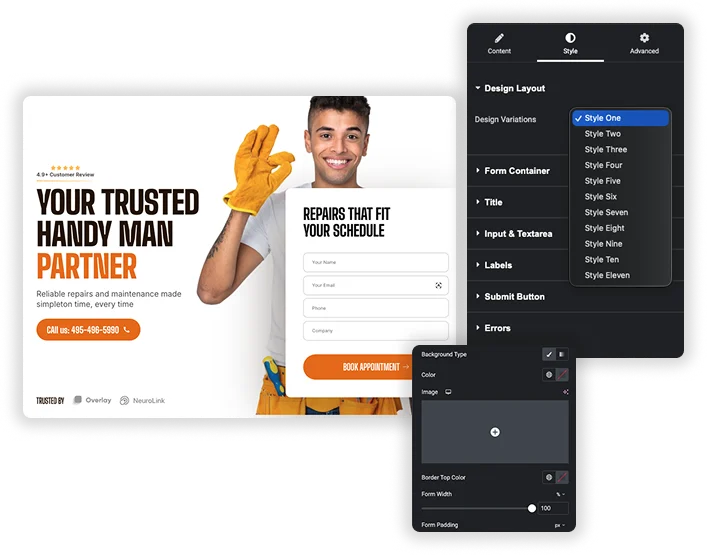
- In the Style tab, choose a Design Variation, then adjust the inputs, checkboxes, submit button and messages.
- Update the page and send a test entry to check that Ninja Forms receives it.

Design Variations: 4 Free, 7 Pro
Design Variation in the Style tab applies a ready look to the whole form. Style One to Style Four are free, and Style Five to Style Eleven need Master Addons Pro. Pick one as a starting point, then change the details in the sections below it.
- Free: Style One, Style Two, Style Three and Style Four.
- Pro: Style Five through Style Eleven.
- Content options: show or hide Labels and Placeholder text, plus Error Messages and Validation Errors.
Input, Textarea and Checkbox Styling
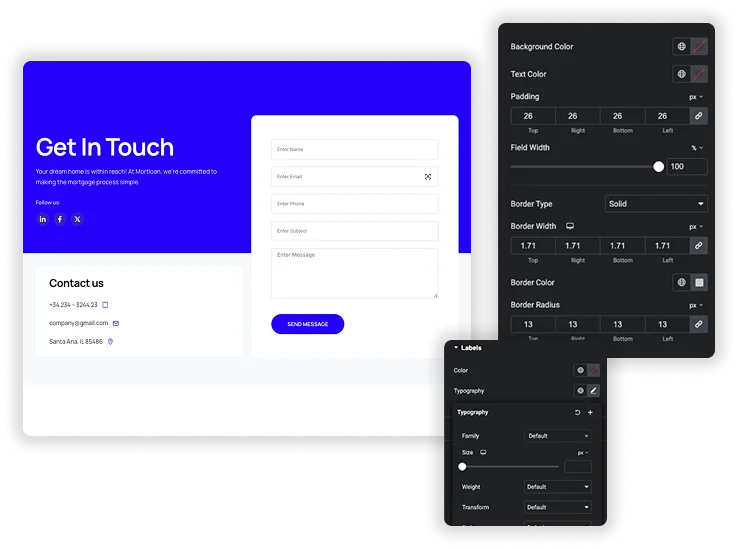
Input & Textarea has Normal and Focus tabs with background color and border, plus text color, border radius, alignment, text indent, input and textarea width and height, padding, spacing and typography. Radio & Checkbox can replace the browser defaults with custom styles: size, color, border width and border color, separate border radius for checkboxes and radio buttons, and a Checked color.
- Labels and Placeholder: text color and typography for labels, and a text color for placeholders.
- Field Description: color, typography and spacing for the help text under a field.
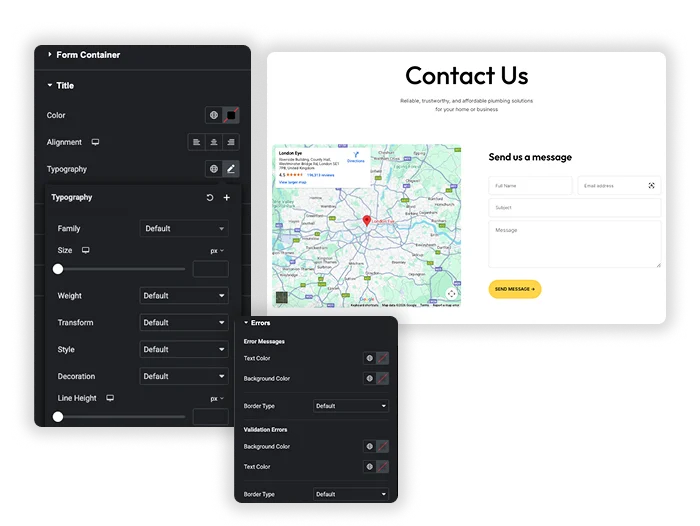
- Title & Description: alignment, color, typography and margin for the form title and description.


Submit Button and Form Messages
Submit Button sets alignment, full or custom width, background and text color, border, border radius, padding, top margin, typography and box shadow, with a Hover tab for background, text and border color. The message sections style what visitors see after they submit.
- Success Message: text color and typography.
- Required Fields Notice: color, spacing and typography.
- Errors: text color for error messages, plus description and border colors for fields that fail validation.
Elementor Shortcode Widget vs the Ninja Form Widget
Free Elementor can already show a Ninja Form: paste its shortcode into the Shortcode widget. The form works the same either way. The difference is how you style it.
| Feature | Elementor Shortcode widget | Master Addons Ninja Form widget |
|---|---|---|
| Price | Free (Elementor core) | Free, Pro for 7 more design variations |
| Adding the form | Paste a shortcode such as [ninja_form id="1"] | Pick the form from a dropdown |
| Styling | Your own CSS | Style tab controls for fields, checkboxes, button and messages |
| Preset looks | No | 4 free, 7 Pro |
| Hide labels or placeholders | CSS | Switches |
| Fields, notifications, submissions | Ninja Forms | Ninja Forms |
Both routes run the same Ninja Forms form. The widget saves you writing CSS to match the form to the rest of the page.
Other form widgets: Contact Form 7 (free), WPForms (free) and Gravity Forms (Pro).


Frequently Asked Questions For Ninja Form
Do I need the Ninja Forms plugin installed?
Yes. Install and activate the free Ninja Forms plugin and build your form there first. Without it, the widget shows a “Ninja Forms is Not Activated” notice instead of a form.
Is the Ninja Form widget free?
Yes. The widget and Style One to Style Four are free in Master Addons. Style Five to Style Eleven need Master Addons Pro.
Can I make the form responsive on mobile devices?
Yes. Many of the size and spacing controls, such as input width and height, padding, alignment and button width, take separate values for desktop, tablet and mobile.
How do I style error messages or the success notification?
Use the Success Message, Required Fields Notice and Errors sections in the Style tab. They set text color and typography for the success message, and text, description and border colors for errors. There is no background color setting for these messages.
Trending Elementor Widgets & Extensions
Build sophisticated websites in less time.

Glassmorphism

Container Extras

Patterns
![Master Addons Post/Page Duplicator extension for Elementor: MA Duplicator row link in the WordPress Pages list creating a Landing Page - [Duplicated #128] draft](https://d1asvmc6qcowgk.cloudfront.net/wp-content/uploads/2026/09/15102930/post-page-duplicator-768x403.webp)
Post/Page Duplicator



