
Elementor Team Member Carousel (Team Slider)
Your team sells the business as much as anything on the page, but a flat grid of headshots rarely lands that way. The Master Addons Elementor team slider turns those profiles into a carousel people can browse: photos, names, roles, short bios, and social links, sliding in a layout you control. Pick a style preset, add each member through a simple repeater, and you have a team members carousel up without writing any code.
The widget is free. Three of its six presets (Team Carousel, Circle Gradient and Content on Hover) are in the free plugin, and Circle Animation, Social Left on Hover and Content Drawer come with Master Addons Pro. It is more than a row of faces. Hover effects, autoplay, and per-element styling give each profile a bit of character and keep people clicking through the whole team instead of stopping at the first card. The video below shows the build. Further down you get the presets, the carousel settings, and a quick how-to.

What Is an Elementor Team Slider?
A team slider is a carousel that shows your people one card at a time instead of stacking them in a static grid. Visitors swipe or click through the profiles, and each card carries a photo, a name, a role, and usually social links. You will see it called a team members carousel or a team member slider too. Same idea either way: fit a big team into a small space and let people move through it rather than scroll past a wall of photos.
You can get close with Elementor’s core carousel and a lot of manual styling, but then the profile layout, the hover states, and the responsive behavior are all on you to build and keep working. The Master Addons widget ships those as presets, so most of the work is configuration, not design. If a fixed grid suits you better than a carousel, the team members section guide covers that instead.
| Team Slider | Team Member | |
|---|---|---|
| Layout | One widget, a sliding carousel of many members | One widget per person, placed in a grid |
| Presets | 6 (3 free, 3 Pro) | 11 (6 free, 5 Pro) |
| Best for | Larger teams, speakers, client or testimonial rows | Small teams where everyone should be visible at once |
| Navigation | Arrows, dots, fraction, progress bar, scrollbar, autoplay | None needed |
Elementor and Elementor Pro have no team member widget of their own. Pro’s Testimonial Carousel is the closest match for quotes, not for staff profiles.
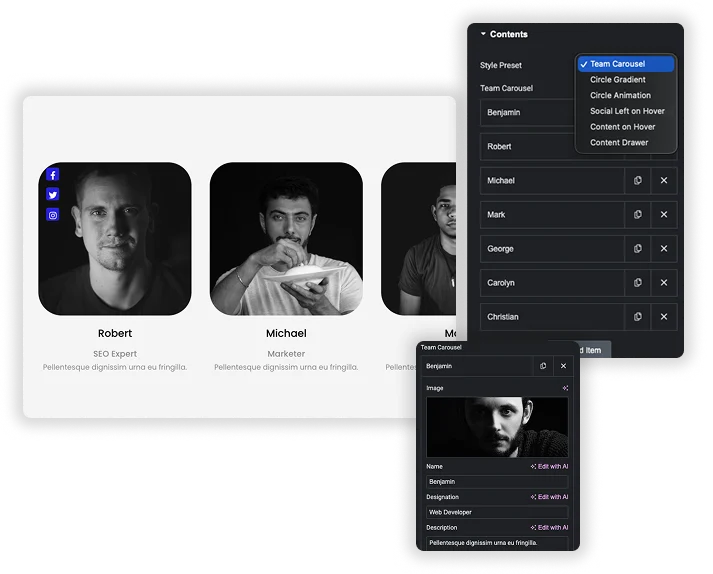
Start With a Style Preset (3 Free, 3 Pro)
You don’t have to design a card from scratch. Start from a preset like Team Carousel, Circle Gradient, or Content on Hover, each one a finished look you can adjust. Then build the team in the Content repeater: add an item per member, upload the photo, set the image resolution, and fill in the Name, Designation, and a short Description. It works like a little visual database for your team, run from one panel.
- Free presets: Team Carousel, Circle Gradient (Circle 01 to 03 backgrounds) and Content on Hover.
- Pro presets: Circle Animation, Social Left on Hover, Content Drawer, plus Circle 04 to 07 and Animation 4.
- Repeater management: add, duplicate, remove or drag members into order, each with image, name, designation, description and social links.
Carousel Controls and Navigation
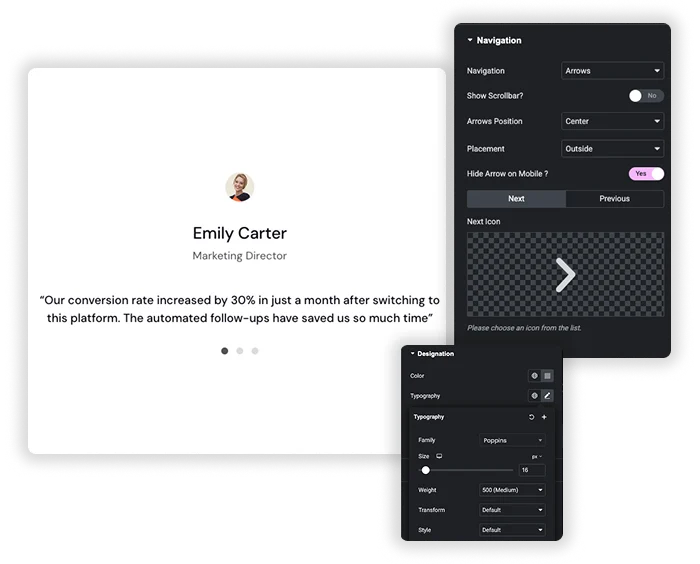
Set the carousel to behave the way you want. Turn on Autoplay and set its speed, choose how many slides scroll at a time, and switch on Loop for an endless carousel. Then decide how people move through it: arrows, dots, arrows with dots, arrows with a fraction counter, a progress bar or a scrollbar, with the arrows inside or outside the slider. Layout can be a flat Carousel or a 3D Coverflow. You can also hide the arrows on mobile, which is worth doing since they tend to crowd a phone screen anyway.
- Autoplay and loop: set autoplay speed, animation speed, loop, and slides to scroll.
- Navigation: arrows, dots, both, fraction or progress, with seven positions and custom arrow icons.
- Slides per Column: 1 to 6 cards at once, set per device.
- Mobile: hide the nav arrows on phones to keep the view open.
Style Every Element of the Slider
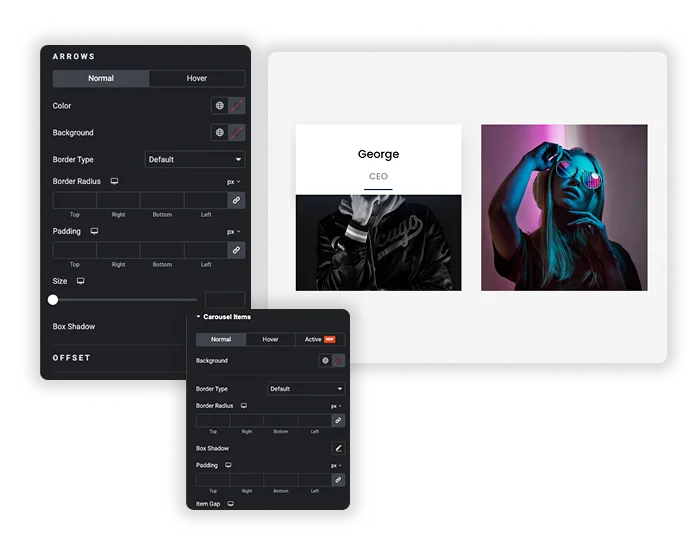
Each layer styles on its own. Set the general look first, the slider background and content alignment, then go into the detail: give the Name, Designation, and Description their own color, type, and spacing. The member card has separate backgrounds, borders, and box shadow for its Normal, Hover, and Active states, so the card actually reacts as people move through the carousel.
- Text styling: separate type, color, and spacing for the name, role, and bio.
- Card states: different styling for the card when it is Normal, Hover, or Active.
- Arrow styling: color, background, size, border, and padding for the nav arrows, normal and hover.
Social Profiles and Hover Effects
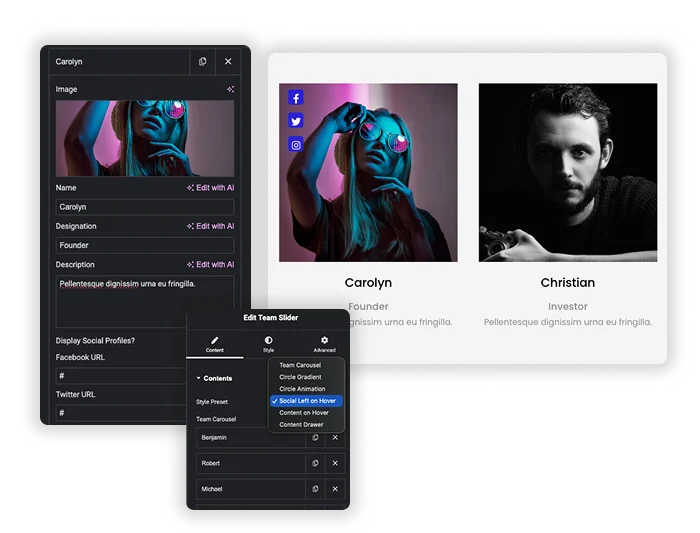
Add a member’s Facebook, Twitter, Instagram, LinkedIn, Dribbble, TikTok or YouTube URL, or an email address, and the icons show up on their card as a styled set. Content on Hover (free) and Social Left on Hover (Pro) hold the bio or the icons back until someone hovers the card, then reveal them. You can color the icons and their backgrounds separately for the normal and hover states, so the reveal looks like part of the design instead of an afterthought.
- Social links: seven networks plus email per member. Empty fields are skipped.
- Icon styling: icon color and background for Normal and Hover.
- Hover presets: Content on Hover is free, Social Left on Hover and Content Drawer need Pro.






How to Add a Team Slider in Elementor?
A working team slider takes a few minutes. No shortcodes, no separate slider plugin.
- Install and activate Master Addons, then edit a page with Elementor.
- Search the widget panel for Team Slider and drag it onto the page.
- Pick a Style Preset to set the base look.
- In the Content repeater, click + Add Item for each member and fill in the photo, name, designation, description, and social links.
- Open Carousel Settings for autoplay, loop, slides to scroll, and navigation.
- Style the text, cards, and arrows to match your brand, then publish.
One thing to check before you call it done: upload square, evenly cropped photos. Mismatched image sizes are the usual reason a team slider looks off, since one tall headshot throws the whole row out of line. Every setting is covered in the Team Members Carousel documentation.
Not Just for Teams: Clients and Testimonials
It is branded for teams, but under the hood it is a profile carousel, so it doubles as a testimonial slider or a client carousel. Drop a client logo or customer photo in the image field, the person or company in the name, their role in the designation, and the quote in the description. The same presets and controls carry over.
- Team page: photos, roles, bios, and social links for your staff.
- Testimonial slider: customer photo, name, company, and their quote.
- Client carousel: logos with a short line about each project.
- Speaker or author lineup: headshots with a bio and a link out.
If you just want a plain image carousel, the Elementor image carousel is the simpler pick.
Frequently Asked Questions For Team Slider Element
How many team members can I add to the slider?
As many as you need. Keep clicking + Add Item in the Content section to add profiles, and the carousel takes any number. A very large team adds weight to the page, though, so pick a smaller Image Resolution and compress the member photos once you are into the dozens.
Is the Elementor team slider responsive on mobile and tablet?
Yes. The slider, images, text, and navigation all adapt, and the slides per view and item gap adjust on smaller screens. For tighter control, use Elementor’s responsive mode to set different font sizes or image dimensions on tablet and mobile.
Is the Team Slider widget free?
Yes. Team Slider is in the free Master Addons plugin with three presets: Team Carousel, Circle Gradient and Content on Hover. Circle Animation, Social Left on Hover, Content Drawer and the extra circle backgrounds need Master Addons Pro. It also works as a testimonial or client carousel: put the photo or logo in Image, the name in Name and the quote in Description.
How do I change the autoplay speed?
In Carousel Settings, look for Autoplay Speed. The value is in milliseconds, so 5000 is five seconds. Lower it for quicker slides (3000 for three seconds) or raise it to slow them down (7000 for seven seconds).
Trending Elementor Widgets & Extensions
Build sophisticated websites in less time.

Glassmorphism

Container Extras

Patterns
![Master Addons Post/Page Duplicator extension for Elementor: MA Duplicator row link in the WordPress Pages list creating a Landing Page - [Duplicated #128] draft](https://d1asvmc6qcowgk.cloudfront.net/wp-content/uploads/2026/09/15102930/post-page-duplicator-768x403.webp)
Post/Page Duplicator
