
Mega Menu
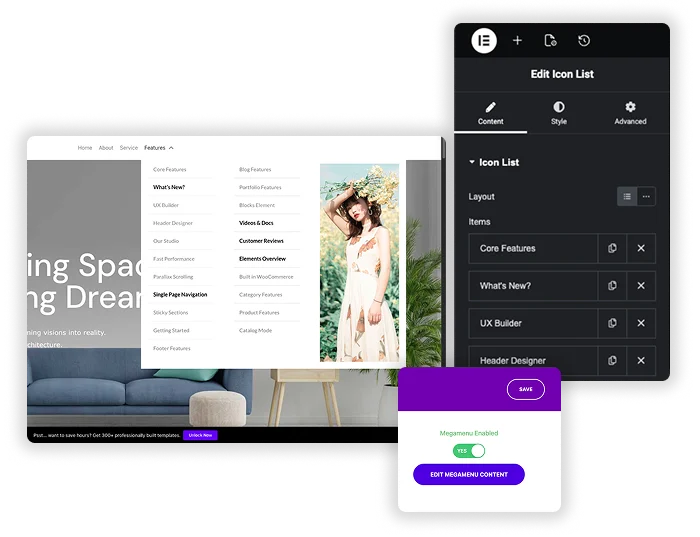
Ditch boring, basic dropdowns. The Master Addons Mega Menu extension transforms your website navigation into a powerful storytelling and conversion tool. Build stunning, multi-column menus directly inside the Elementor editor. Showcase products, embed contact forms, highlight blog categories, or feature promotional banners – all within your menu. Give visitors a reason to explore more, reduce bounce rates, and guide them exactly where you want. It’s not just a menu; it’s a mini-webpage inside your header.

Drag-and-Drop Visual Builder
Why learn a complicated new interface? Build your mega menu in the same, familiar Elementor editor you use every day. Just click “Edit Megamenu Content” on any menu item and a live editor opens. Drag in widgets like Images, Headings, Buttons, Contact Forms, or even product grids. See your changes in real-time and create a truly custom navigation experience without a single line of code.
- Full Elementor Access: Use any Elementor widget or Master Addons widget (like Dual Heading, Animated Text) in your menu.
- Real-Time Preview: Design visually with instant feedback, just like building a page.
- Unlimited Layouts: Create multiple columns, grids, or a single wide panel. The structure is completely up to you.
Flexible Content & Smart Triggers
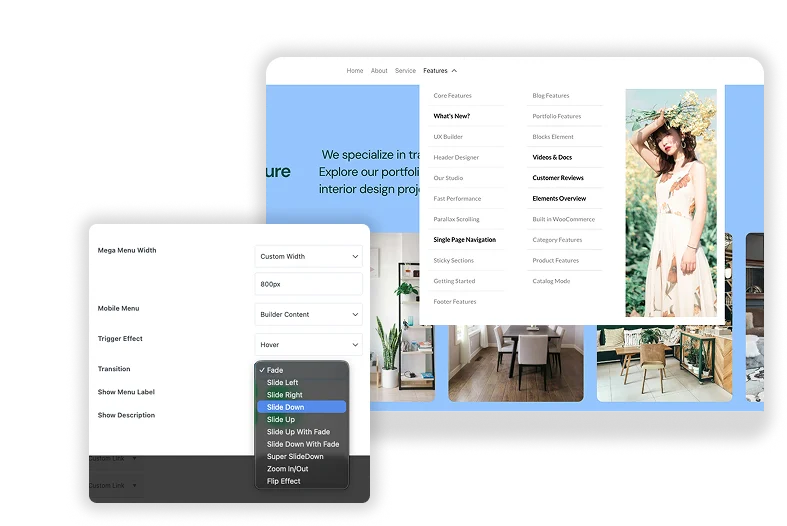
Your menu content can be static or dynamic. Choose to display recent posts, product categories, or page lists automatically. Then, fine-tune the user experience. Decide if the menu opens on Hover or Click, choose a smooth Transition effect (like Fade), and set the exact Width (Default or Full). You have complete control over how and when your mega menu appears.
- Dynamic Content Sources: Auto-populate menu sections from Pages, Posts, Categories, or Custom Links.
- Hover vs. Click: Choose the trigger that best fits your design—hover for convenience or click for intentionality on mobile.
- Visual Polish: Add smooth fade or slide animations to make the menu feel integrated and professional.

Menu Items with Icons & Badges
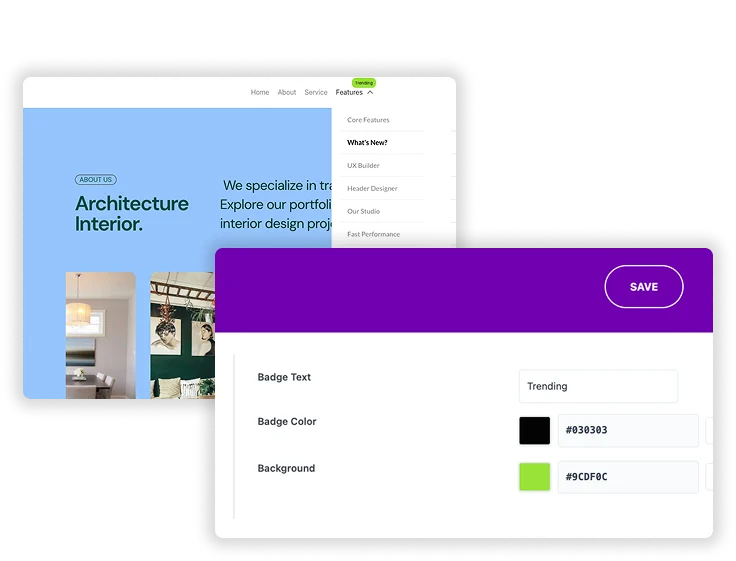
A simple text link is often not enough. Enhance your main menu items by easily adding icons next to the label or attaching a small badge (like “HOT”, “NEW”, or “SALE”). This adds visual hierarchy, draws attention to key sections, and improves the overall scannability of your navigation bar.
- Icon Library Integration: Choose from any enabled icon set (Font Awesome, etc.) directly in the menu item settings.
- Custom Badges: Add short text badges with customizable colors to highlight promotions or new content.
- Show Descriptions: Optionally display a short description under the menu label for more context.

Frequently Asked Questions For Mega Menu
How do I actually place this mega menu on my site?
You design the mega menu content in the WordPress Menus panel (Appearance > Menus), but to display it, you use the Master Addons “Nav Menu” widget. Drag this widget into your header template (built with Master Addons Theme Builder or in a regular page), select your designed menu, and it will render your mega menu on the front end.
Will a heavy mega menu with images and widgets slow down my site?
If you overload it with dozens of high-resolution images and complex scripts, it can have an impact. The key is to be smart. Optimize your images, use it to highlight key content, and avoid embedding overly heavy widgets. Used wisely, the performance impact is minimal compared to the UX benefit.
Can I have different mega menus for different pages or menu items?
Yes, absolutely! Mega Menu is enabled on a per-menu-item basis. You can turn it on for your “Services” item and design a complex menu for it, while leaving your “About” item as a simple dropdown. You have complete control for each top-level link.
Does this work with all WordPress themes?
It works best with themes that use Elementor for their header/footer, or themes that are generally “light” and don’t conflict with Elementor’s scripts. If your theme has a very rigid, custom header system, there might be styling conflicts. The ideal setup is using Master Addons Theme Builder to build your header from scratch.
Can I use templates from the Master Addons library inside my mega menu?
Yes! This is a huge time-saver. When editing the mega menu content in Elementor, you can open the Template Library and insert ready-made Mega Menus, sections, blocks, or even popup designs. Quickly build a “Featured Products” or “Newsletter Signup” section for your menu in seconds.
Trending Elementor Widgets & Extensions
Build sophisticated websites in less time.

Glassmorphism

Container Extras

Patterns

Post/Page Duplicator




