
Elementor Counter Widget: Free Multi-Column Number Counter
Counter Up is a free Master Addons widget that shows several animated number counters in one grid. Each item gets its own number, prefix, suffix, title, icon or image and card color, and the Columns setting lays the items out in 1, 2, 3, 4 or 6 columns per device. The numbers count up from zero over about two seconds. It is mostly used for stats bands such as clients served, projects delivered or years in business.

How to Add a Number Counter in Elementor
Counter Up comes with the free plugin, and one widget holds the whole stats row.
- Install Master Addons for Elementor and check that Counter Up is switched on in the Master Addons widget settings.
- Edit your page with Elementor, search the panel for Counter Up and drag it into a section.
- Open Counter Up Content. The widget starts with four sample items: Happy Clients, Projects Completed, Cups of Coffee and Awards Won.
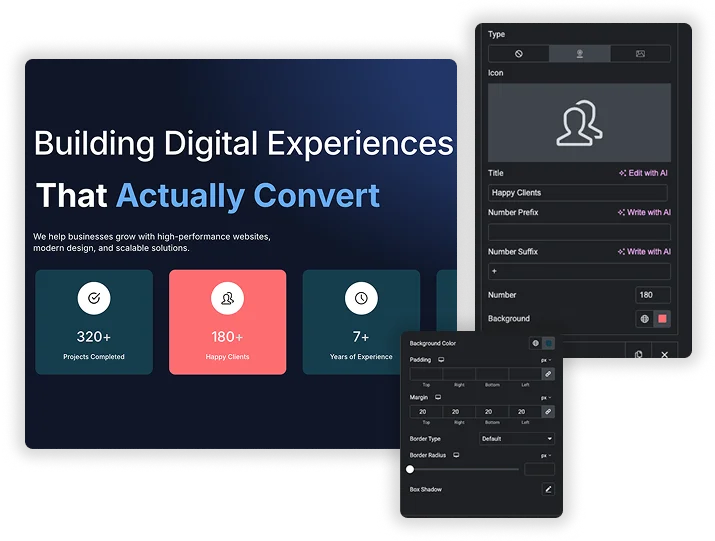
- For each item, set the Type (None, Icon or Image), Title and Number, plus any Number Prefix or Number Suffix such as $ or K+.
- Choose Columns for desktop, tablet and mobile and a Content Position for the title.
- Style the cards, icons, numbers and titles in the Style tab, then update the page.

Several Counters in One Responsive Grid
Every counter is an item in the Items list, so one widget can hold a full row of stats. Columns offers 1, 2, 3, 4 or 6 columns and can be set per device. The defaults are 4 on desktop, 2 on tablet and 1 on mobile. Content Position places the title above, below, left or right of the number.
- Items: add, duplicate or remove counters in the list. Each one keeps its own settings.
- Columns: 1, 2, 3, 4 or 6. There is no 5-column option.
- Per-item card color: the Background field colors a single card so a headline stat stands out.
How the Count-Up Animation Works
Each number counts from zero to the value you enter over about two seconds. The count runs once, when the page loads, and does not replay when visitors scroll. Counters far down a long page may already show their final value by the time someone reaches them, so the widget works best near the top of a page. Prefix and suffix text stays still while the digits move.
- Number: any value, including decimals such as 7.5.
- Prefix and suffix: free text on either side, so 120 with an M+ suffix reads 120M+.
- Fixed timing: there is no duration, start number or thousand separator setting. A suffix keeps large numbers short.
Styling Cards, Icons, Numbers and Titles
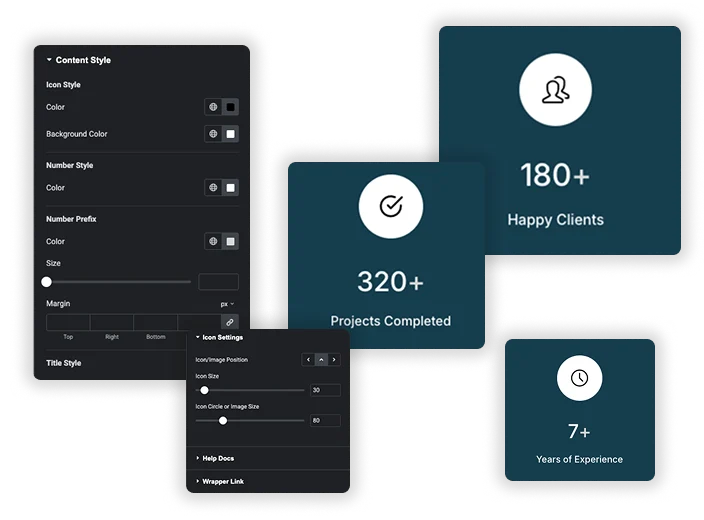
The Style tab has two sections. Counter Up Box Style sets the shared card background, padding, margin, border, border radius and box shadow. Content Style covers the icon color and circle color, number color and typography, a separate color, typography and size for the prefix, and the title color, typography and margin. The prefix settings also apply to the suffix.
- Icon Settings: Icon/Image Position (left, top or right), Icon Size, and Icon Circle or Image Size, each from 6 to 300px.
- Icons and images: choose an icon from any enabled library or upload an image for each item. Icon colors are shared by all items.
- Global styles: number and title typography use your Elementor global fonts and colors until you change them.
Elementor Counter vs Master Addons Counter Up
Free Elementor has its own Counter widget (checked on Elementor 4.2.4). It shows one number per widget, so a row of four stats means four widgets in a container. Counter Up puts the whole row in one widget.
| Feature | Elementor Counter | Master Addons Counter Up |
|---|---|---|
| Price | Free (Elementor core) | Free (Master Addons) |
| Counters per widget | One | As many items as you add |
| Layout | Arrange widgets in containers | Columns: 1, 2, 3, 4 or 6 per device |
| Icon or image | No | Per item |
| Card styling | Number and title text only | Background, border, radius, shadow, per-item color |
| Starting number | Yes | Always 0 |
| Animation duration | Yes, in ms (2000 default) | Fixed at about 2 seconds |
| Thousand separator | Yes, 5 styles | No |
| When it counts | When the number scrolls into view | Once, on page load |
| Title HTML tag | H1 to H6, div, span, p | Fixed |
| Text stroke and shadow | Yes | No |
Elementor’s Counter handles the animation better. It waits until the number is on screen, lets you set the start value and duration, and adds thousand separators. Counter Up is faster for a stats band with icons, card styling and responsive columns in a single widget, and it suits sections near the top of a page.
Related free widgets: Progress Bars, Countdown Timer and Timeline.







Frequently Asked Questions For Counter Up
Is the Counter Up widget free?
Yes. Counter Up is part of the free Master Addons plugin, and every setting described on this page works without Pro.
When does the counting animation start?
When the page loads. Each number counts from zero for about two seconds, once. It does not wait for the counter to scroll into view and does not replay, so place it where visitors see it early.
Will several counters slow down my page?
The script is small and runs a short timer for each number, so a few counters add very little. Images you add to items weigh far more than the animation, so compress them before uploading.
How many counters can sit in one row?
Set Columns to 1, 2, 3, 4 or 6. You can pick a different value for desktop, tablet and mobile, and the defaults are 4, 2 and 1.
Can the counter start from a number other than zero?
No. Counter Up always starts at 0 and has no duration setting. If you need a custom start number, the Elementor Counter widget has a Starting Number field.
Can I use dynamic tags in Counter Up?
Not in the current version. Title, Number, Number Prefix and Number Suffix are plain fields, so the values are entered by hand.
Trending Elementor Widgets & Extensions
Build sophisticated websites in less time.

Glassmorphism

Container Extras

Patterns
![Master Addons Post/Page Duplicator extension for Elementor: MA Duplicator row link in the WordPress Pages list creating a Landing Page - [Duplicated #128] draft](https://d1asvmc6qcowgk.cloudfront.net/wp-content/uploads/2026/09/15102930/post-page-duplicator-768x403.webp)
Post/Page Duplicator
