
Free Elementor Business Hours Widget for Opening Hours
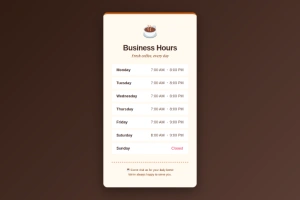
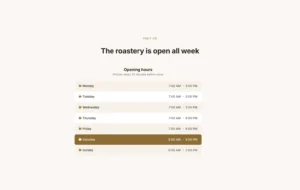
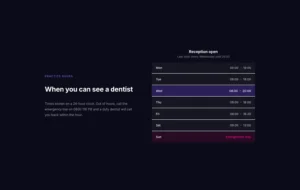
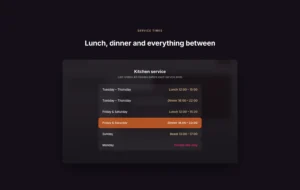
Business Hours is a free Master Addons widget that shows your opening hours as a weekly table. In Default mode you pick each day, its opening and closing time, or mark it Closed. Custom Table mode lets you type any day label and time text, such as “Monday to Friday” or a lunch break. Choose one of five Design Presets, add a title, sub title, day icons, an image and a booking button, then style rows, closed days and text. The table is fixed. It does not show a live “open now” status.

How to Add Business Hours in Elementor
You need Elementor and the free Master Addons plugin from WordPress.org.
- Check that Business Hours is switched on under Master Addons, Widgets.
- In the Elementor editor, search for Business Hours and drag it onto the page.
- Pick a Design Preset and choose Default or Custom Table in Business Timings.
- Open each row, set the day and times, or turn on Closed?.
- Turn on the title, sub title, day icon or button if you need them.
- Style the rows, closed rows and text in the Style tab.
Every setting is covered in the Business Hours widget settings guide.
Default Hours or a Custom Table
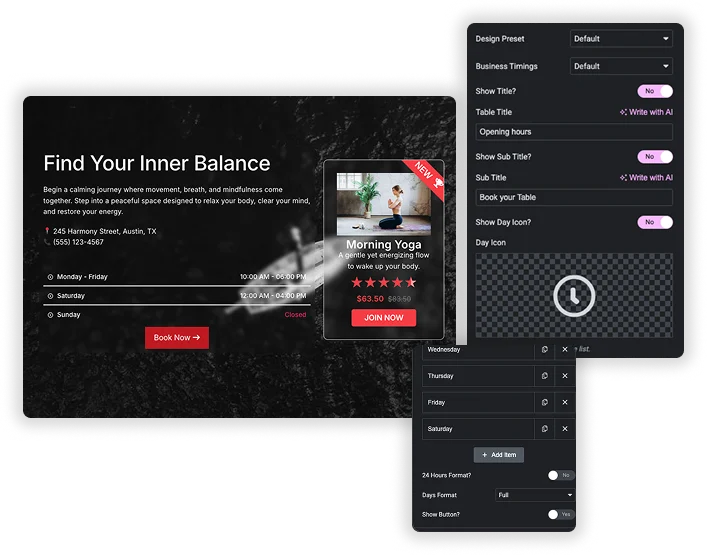
Business Timings has two modes. Default gives one row per day with a Day dropdown, Opening Hours and Closing Hours in 30 minute steps, a Closed? switch with its own Closed Text, and a manual Highlight with text and background colors. Here you can also switch on 24 Hours Format and choose Full or Short day names. Custom Table replaces the dropdowns with free text for the Day and the Custom Time, so you can group days, add split shifts or write “Open 24 hours”.
- Add, remove and reorder rows in either mode.
- Mark any row as Closed and style closed rows separately.
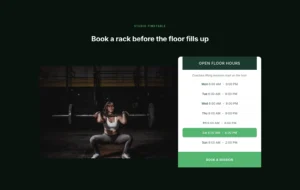
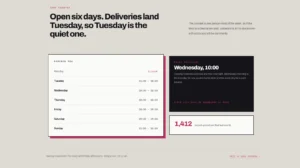
- Highlight a row, such as a holiday or late-night opening. Highlight does not follow the current date.
Design Presets, Titles and Booking Button
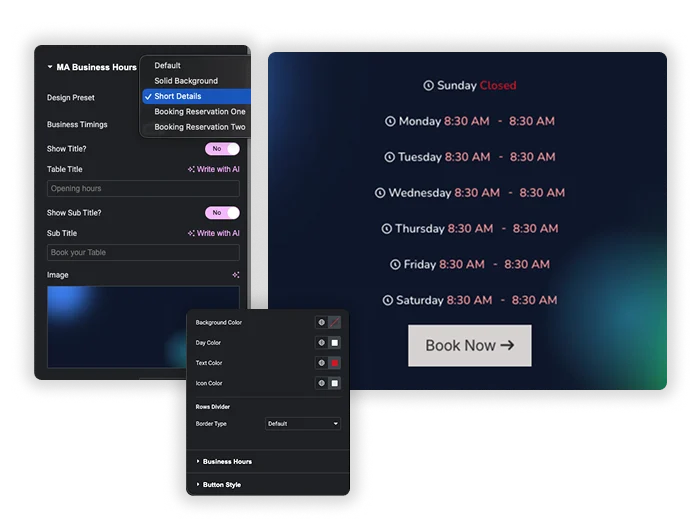
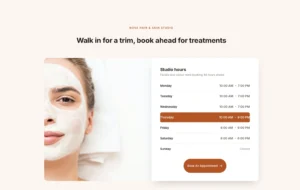
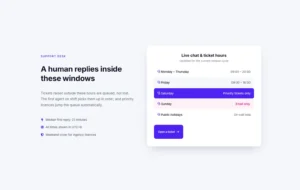
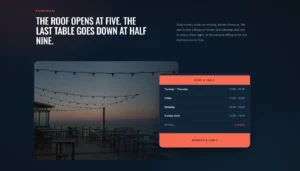
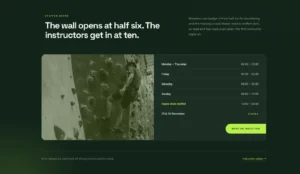
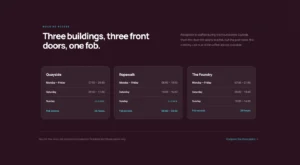
The Design Preset dropdown offers Default, Solid Background, Short Details, Booking Reservation One and Booking Reservation Two. The last three can show an Image beside or behind the hours. Turn on Show Title? and Show Sub Title? to frame the table, add a Day Icon to every row, and turn on Show Button? for a button with your own text, link and alignment.
- A “Book your Table” card for restaurants with a photo and Book Now button.
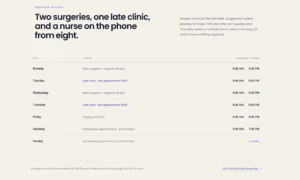
- A compact hours list for a footer or contact page.
- A button style with classic or gradient background, typography and border.
Row and Text Styling
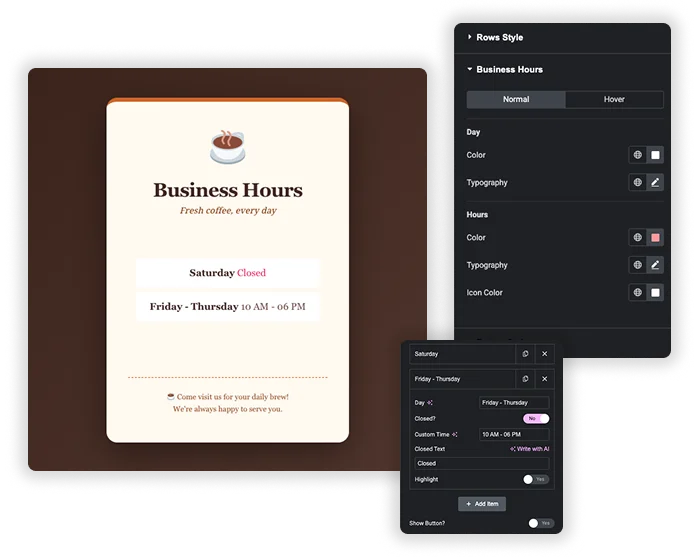
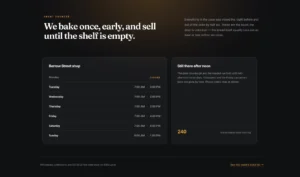
Rows Style sets row background for Normal and Hover, Striped Rows with even and odd colors, padding, margin, box shadow and a rows divider. The Closed Row options give closed days their own background, day, text and icon colors. In the Business Hours style section, set the Day and Hours colors and typography, with hover colors for both.
- Striped rows make a seven-day list easy to scan.
- Grey out closed days with the Closed Row colors.
- Day icon color and size in px.
Business Hours Widget vs a Hand-Built Hours Table
Neither free Elementor nor Elementor Pro has a business hours widget, so the usual alternative is an Icon List or a table typed into a Text Editor widget.
| Feature | Icon List or Text Editor | Master Addons Business Hours |
|---|---|---|
| Setup | Type every day and time by hand | Pick days and times from dropdowns, or type them in Custom Table |
| Closed days | Type “Closed” yourself | Closed? switch with separate closed row colors |
| 12 or 24 hour time | Retype every time | 24 Hours Format? switch |
| Split shifts and grouped days | Anything you type | Custom Table mode |
| Booking button | Add a separate Button widget | Show Button? built in |
| Ready-made designs | None | 5 Design Presets |
| Live “open now” status | No | No |
If you want an “Open now” note, add a heading with Display Conditions (Pro) set to Day of Week and Time of Day, which use your site timezone. For a limited-time offer next to the hours, see the Countdown Timer or Call to Action widgets.
Frequently Asked Questions For Business Hours
Is the Business Hours widget free?
Yes. Business Hours is part of the free Master Addons plugin with all five presets, both timing modes and the booking button.
Does it show an "open now" indicator?
No. The widget shows a fixed weekly table and does not check the current time, and Highlight is a manual setting that does not move with the date. For a live note, add a heading such as “We are open now” with Display Conditions (Pro) using Day of Week and Time of Day rules.
Can I show a lunch break or split hours?
Yes, with Custom Table. Type the day and a Custom Time such as “9:00 AM to 1:00 PM, 2:00 PM to 6:00 PM”, or add two rows for the same day. Default mode has one opening and one closing time per row.
Can I change the day names or use another language?
In Default mode the days come from a dropdown and follow your site language, with Full or Short names. For your own labels, such as “Weekdays” or names in a second language, switch Business Timings to Custom Table and type them.
What if my business is open 24 hours?
Use Custom Table and type “Open 24 hours” as the Custom Time for each day, or group all days into one row. Default mode only offers opening and closing times.
Trending Elementor Widgets & Extensions
Build sophisticated websites in less time.

Glassmorphism

Container Extras

Patterns
![Master Addons Post/Page Duplicator extension for Elementor: MA Duplicator row link in the WordPress Pages list creating a Landing Page - [Duplicated #128] draft](https://d1asvmc6qcowgk.cloudfront.net/wp-content/uploads/2026/09/15102930/post-page-duplicator-768x403.webp)
Post/Page Duplicator
