










Dual Heading
Why settle for one tone when your headline can speak in two voices? A single flat title struggles to capture nuance, contrast, or energy. Master Addons Dual Heading Element breaks the structure. It lets you build headlines from two independently styled text parts. Make one word bold and colorful, the next subtle and refined. Add an icon for flair and a description for context. With separate controls for each segment, you can create visual hierarchy, emphasize key phrases, and design headlines that are impossible to ignore.

Independent Dual Content & Structure
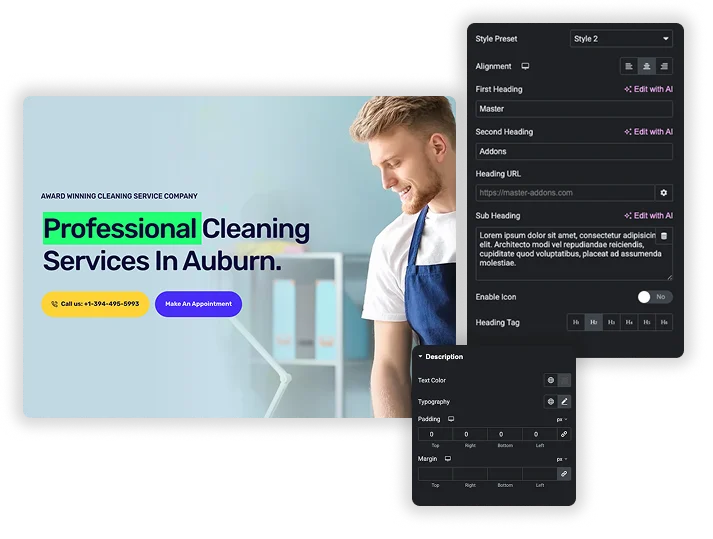
Start by writing your headline’s two components. Input your First Heading (like “CREATE”) and your Second Heading (like “IMPACT”). You can link either part to a URL, turning it into a clickable call-to-action. Below, add a Description paragraph for supporting context. Choose the semantic Heading Tag (H1 to H6) for SEO and structure. This simple yet powerful separation is the foundation for headlines that are both informative and strategically layered.
- Two-Part Text Input: Separate fields for First Heading and Second Heading to build contrasting or complementary phrases.
- Action-Oriented Links: Add a Heading URL to either heading part, making keywords into clickable links.
- Supporting Context: Include a full Description or subheading below the main dual headline.
Typography & Backgrounds
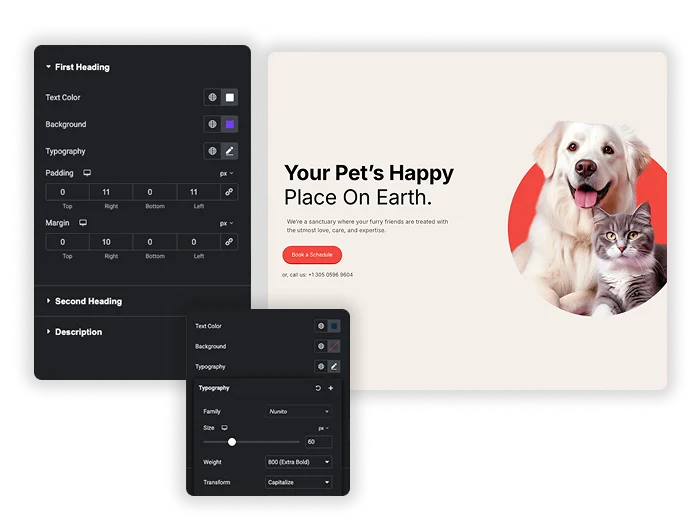
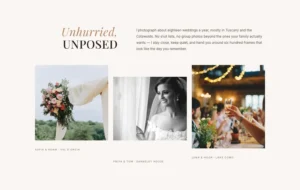
This is where the magic happens. Style the First Heading and Second Heading completely independently. Give each its own Text Color, Typography (font, size, weight), and even a unique Background color or gradient. Adjust the Padding and Margin around each text block to create space or overlap them for creative effects. Complete Typography Separation: Apply different fonts, sizes, and weights to the First and Second Headings.
- Individual Backgrounds: Add colored or gradient backgrounds behind each heading part for a badge-like effect.
- Spacing Control: Use Padding and Margin controls to position the two headings in relation to each other.
- Unlimited Color Schemes: Use contrasting or complementary colors to make your headline dynamic.


Frequently Asked Questions For Dual Heading
What's the best way to use the two headings?
Yes, but use it wisely. You should set the Heading Tag based on the importance of this headline on the page (likely H1 or H2). Search engines will read the text from both parts as a single headline unit. Avoid keyword stuffing; use it for natural, compelling titles.
Can I make the two headings overlap or stack in a specific way?
The element is fully responsive. The two headings, description, and icon will stack or scale appropriately. The independent typography controls mean you can also use Elementor’s responsive mode to make specific adjustments for mobile, like reducing the font size difference between the two headings for a more balanced look on small screens.
Is this element good for SEO?
Yes, but use it wisely. You should set the Heading Tag based on the importance of this headline on the page (likely H1 or H2). Search engines will read the text from both parts as a single headline unit. Avoid keyword stuffing; use it for natural, compelling titles.
How does it look on mobile?
The element is fully responsive. The two headings, description, and icon will stack or scale appropriately. The independent typography controls mean you can also use Elementor’s responsive mode to make specific adjustments for mobile, like reducing the font size difference between the two headings for a more balanced look on small screens.
What if I only want to use one heading?
You can simply leave the Second Heading field blank. The element will then display just the First Heading and the Description, functioning like a single-heading widget with all the same styling power.
Trending Elementor Widgets & Extensions
Build sophisticated websites in less time.

Glassmorphism

Container Extras

Patterns

Post/Page Duplicator




