

Changelogs

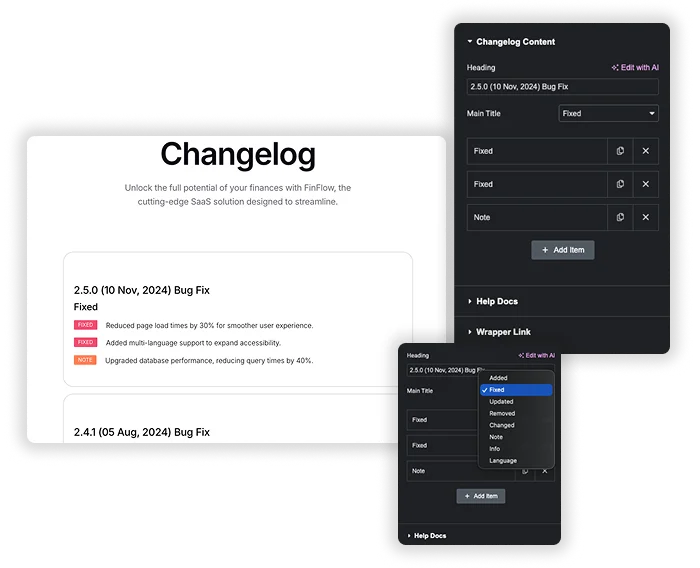
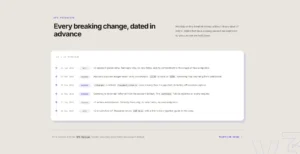
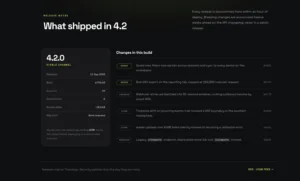
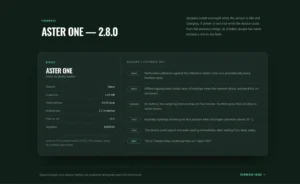
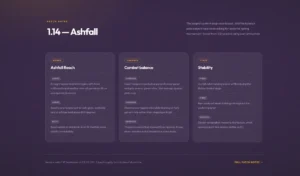
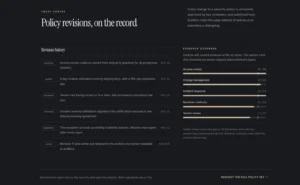
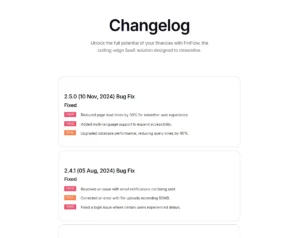
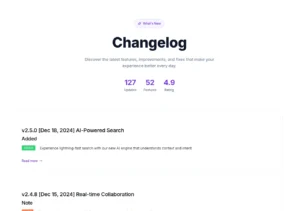
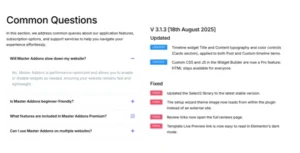
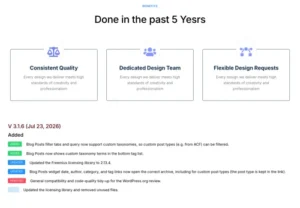
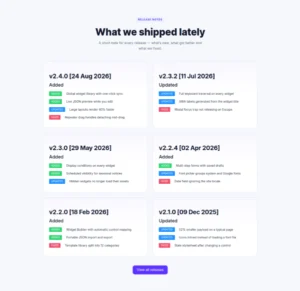
Keep your users, clients, or customers in the loop with a professional and organized changelog, built directly in Elementor. This element lets you neatly document every update, new feature, bug fix, or important note for your product, theme, or plugin. Simply add your version number, date, and then list out changes by category like “Added,” “Fixed,” or “Updated.” It’s the perfect way to build transparency, show ongoing development, and help everyone see what’s new at a glance, which is great for building trust and reducing support questions.

Structured & Categorized Update Logging

Structured & Categorized Update Logging

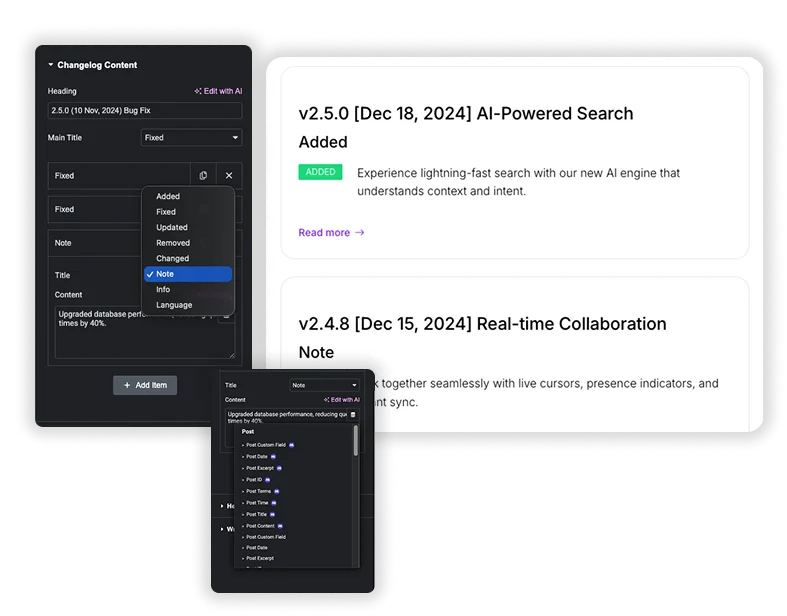
Create clear, scannable logs by organizing entries under version headings with dates. For each update, assign a specific category label – such as Added, Fixed, Updated, Removed, or Note – to instantly communicate the nature of the change to your readers.

  • Clearly communicate new features under “Added” and resolved issues under “Fixed.”
  • Provide a quick, at-a-glance history of your project’s evolution.
  • Help users quickly find the specific updates that are relevant to them.

Flexible Content for Detailed Entries

Each change item includes dedicated fields for a title and descriptive content, allowing you to provide concise or detailed explanations. This structure ensures you can give context, link to documentation, or list multiple related fixes under a single version.

  • Use the title for a brief summary and the content for deeper explanation or links.
  • List multiple bullet points within a single category for comprehensive release notes.
  • Keep a running, well-documented history that is easy to maintain over time.
Flexible Content for Detailed Entries
Template Viewer
Facebook
Twitter
WhatsApp
Copy Link
Buy Now
Changelogs
Changelogs
Changelog with Counter-Up

Frequently Asked Questions For Changelogs

Learn the most asked queries users have about Changelogs and find answers in one place.
How do I add a new version entry to the changelog?

In the content area, click the “Add Item” button. This will create a new section where you can input the version heading (e.g., “1.2.0 [March 2025]”) and then start listing the individual changes within it.

Yes. You would simply edit the page in Elementor, find the Changelog widget, and add a new item at the top for your latest version. The list is manually managed, giving you full control over the order and content.

What’s the best use case for this element?

It’s ideal for software product pages, theme or plugin documentation sites, SaaS company blogs, or any project that undergoes public updates. It informs users systematically, demonstrates active development, and serves as a historical record.

Trending Elementor Widgets & Extensions

Build sophisticated websites in less time.

Glassmorphism element for Elementor by Master Addons

Glassmorphism

Home Glassmorphism is the design trend that gives your website a soft, translucent, modern look...
View Details
Extend Beyond the Max Width

Container Extras

Home Tired of your stunning designs being confined to rigid container limits? Container Extras by...
View Details
Pattern extension

Patterns

Home Transform flat, static containers into visually engaging design elements with the Master Addons Patterns...
View Details
Exact Replicas in a Single Action

Post/Page Duplicator

Home Streamline your workflow and eliminate repetitive setup with the Master Addons Post/Page Duplicator. This...
View Details
Reading progress bar extension

Reading Progress Bar

Home Ever start reading a long article and wonder how much is left? So do...
View Details


