

A news ticker keeps a busy homepage from turning into a wall of announcements. Instead of stacking every update, you run the latest titles across a single bar. The News Ticker widget in Master Addons for Elementor builds that bar for you. It’s a Pro widget with two content sources (your own posts or an RSS feed), three scroll types, and styling for the label, content, thumbnails and arrows.
Here’s how to set up an Elementor news ticker, from the widget panel through to the live page.
What the News Ticker widget does #
The widget renders a compact announcement bar. A colored label on the left, the rotating content in the middle, optional arrows on the right. Items come from your WordPress posts (or any other public post type) or from an RSS feed. The bar can slide horizontally like a classic breaking news ticker, roll vertically, or scroll nonstop like a marquee.
Before you start #
- WordPress with Elementor installed and active.
- Master Addons for Elementor installed and active. If you haven’t installed it yet, follow the installation guide.
- A Master Addons Pro license, since News Ticker is a Pro widget, with the widget turned on in the Master Addons dashboard.
- Optional: an RSS feed URL or some published posts, if you want to use those as the source.
Add the widget to your page #
Open the Elementor editor and search the widgets panel for “News Ticker.” Drag the Master Addons News Ticker widget into the section where you want the bar. It drops in with a red “BREAKING NEWS” label and a single rotating item so you can see it working right away.
Choose the ticker source #
In the Content tab, the News Ticker Type dropdown decides where the items come from:
- Content: pulls posts from your own site. Set the post type, categories, tags, number of posts and order in the Post Query section.
- RSS Feed: paste an RSS feed URL and the widget pulls the latest items automatically.
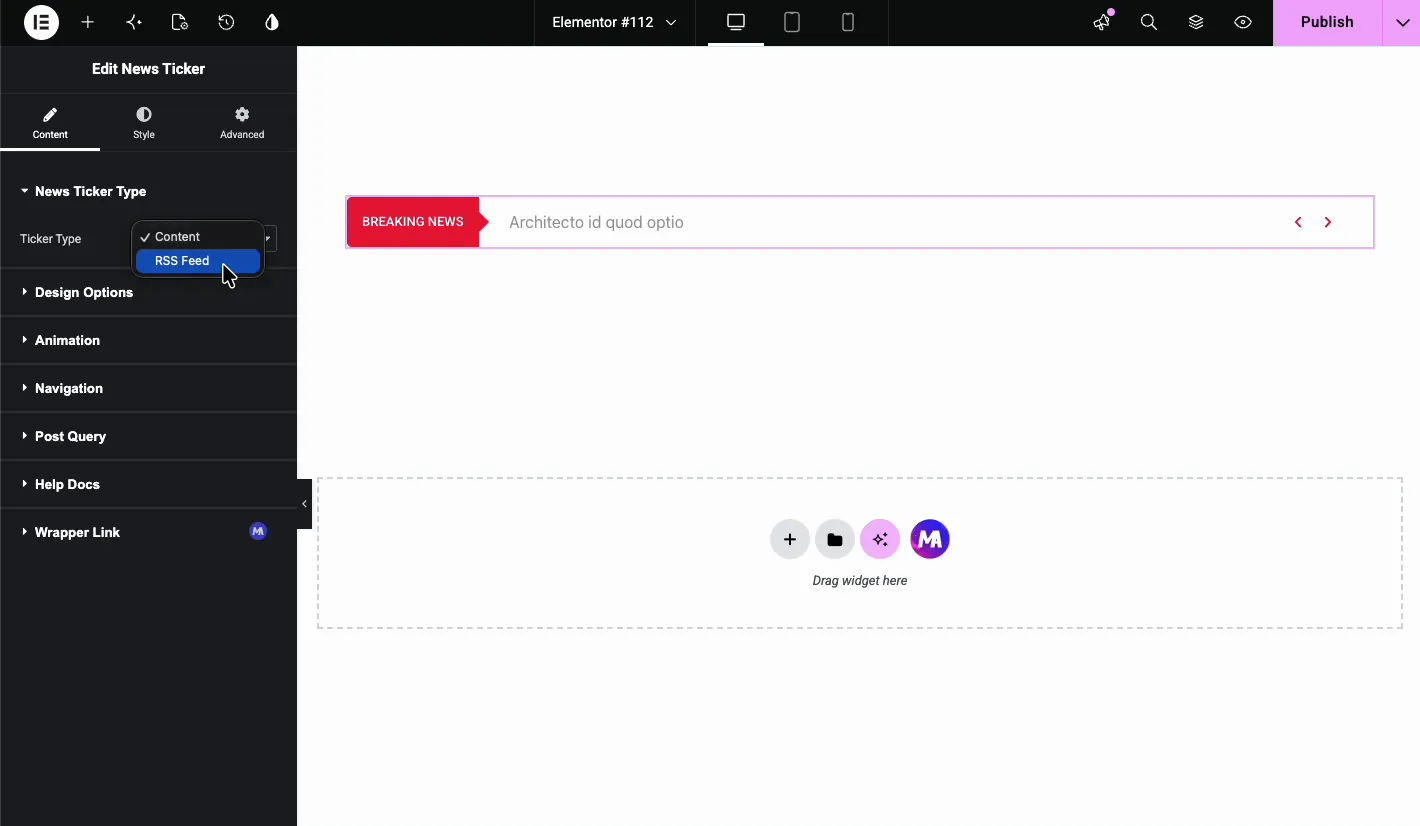
The demo uses Content, so the ticker picks up new posts without anyone touching it. If you’re pulling in outside headlines, RSS Feed is the quicker setup. One heads-up on RSS: if the feed goes down or changes its structure, the ticker can come up empty, so it’s worth checking after you point it at a new source.
Design options #
The Design Options section controls what the ticker looks like and what each item shows:
- Show Label? toggle the left label on or off.
- Label: the label text. The demo switches “BREAKING NEWS” to “LATEST NEWS.”
- News Type: show the Title or the Excerpt for each item.
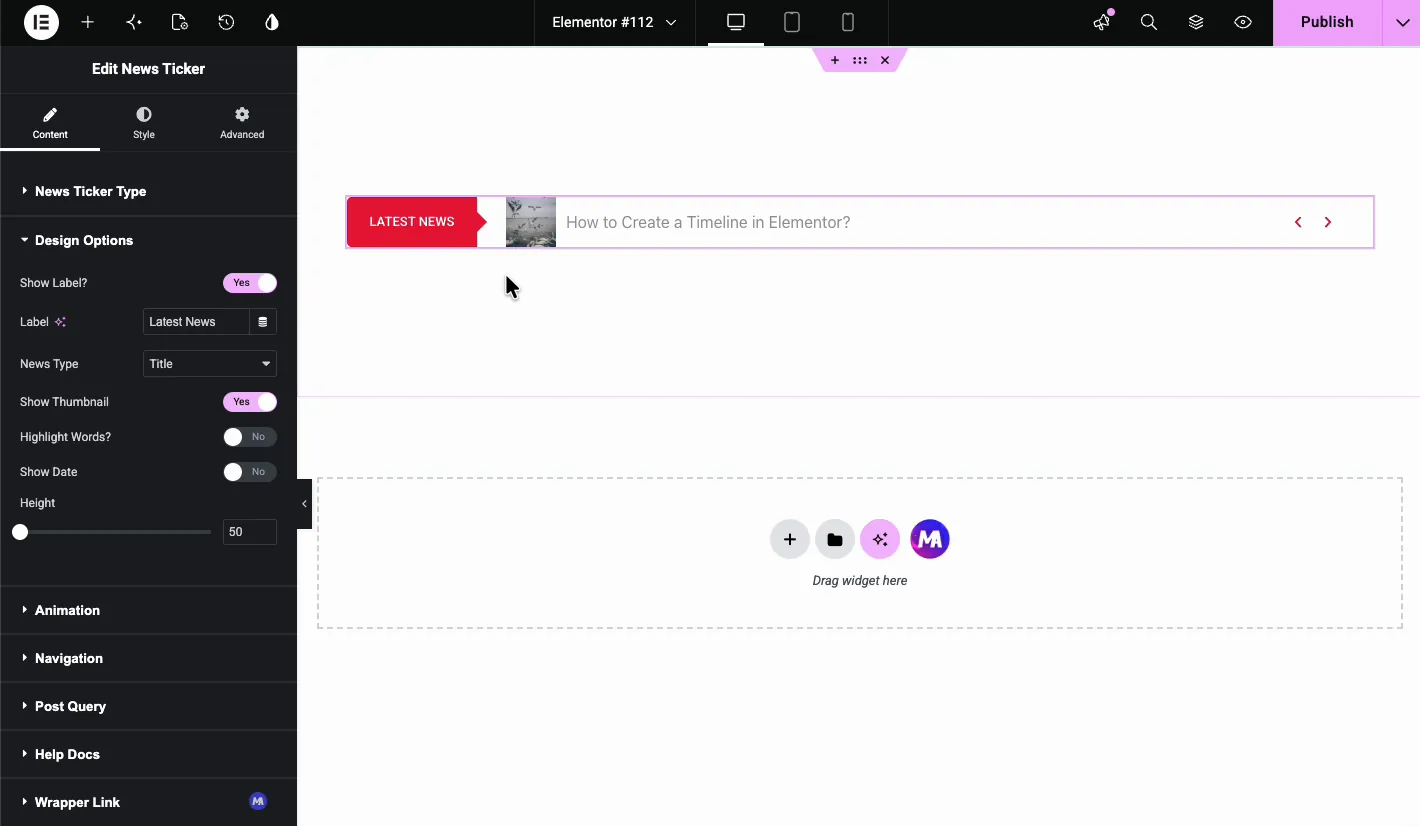
- Show Thumbnail: add a small image next to each title.
- Highlight Words? styles the first few words of each item. Set the count in Words to Highlight, then colour them under Style > Content > Highlight.
- Show Date: put the publish date next to the title. It only appears when News Type is Title.
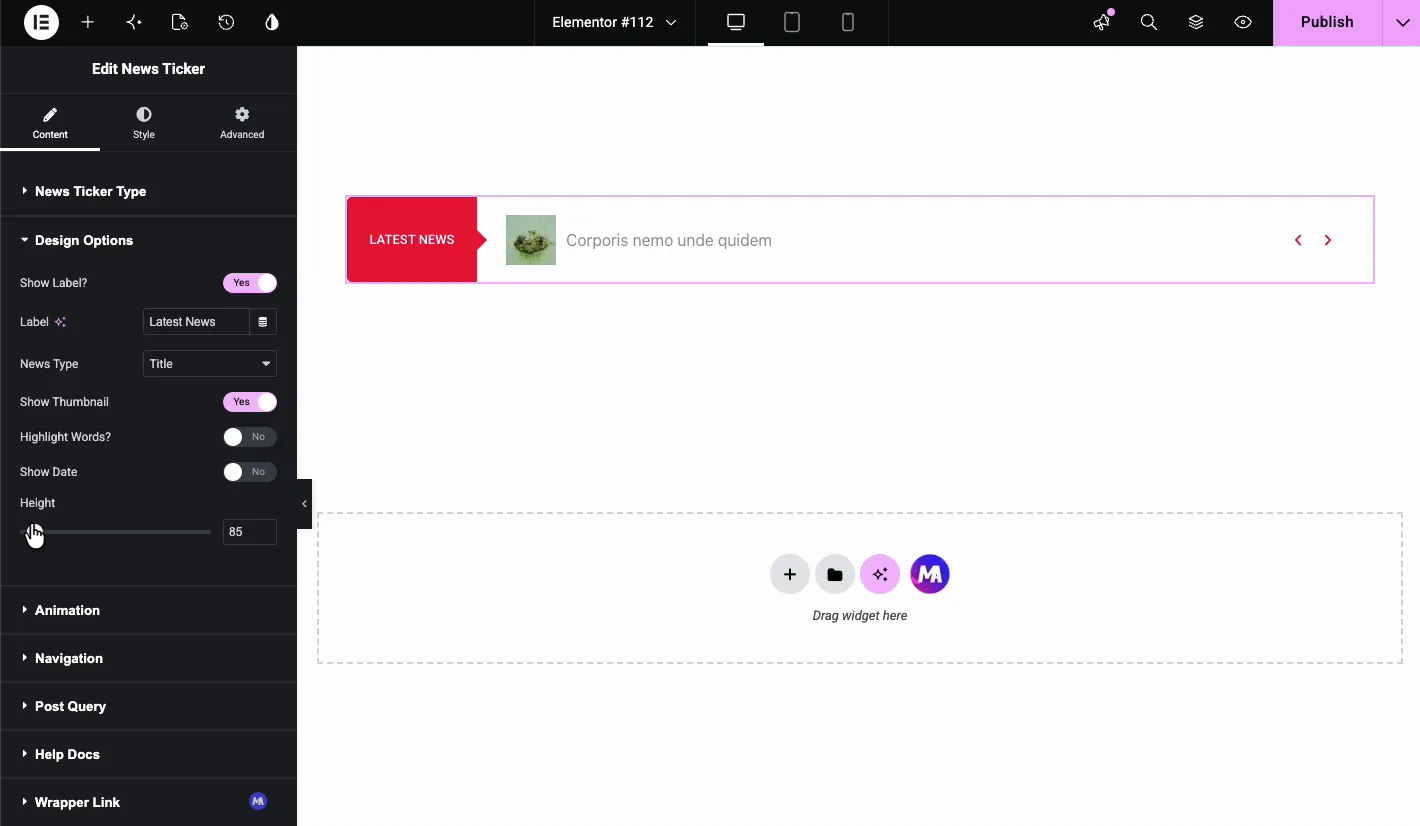
- Height: the bar height in pixels. The demo takes this from 50 to 85.
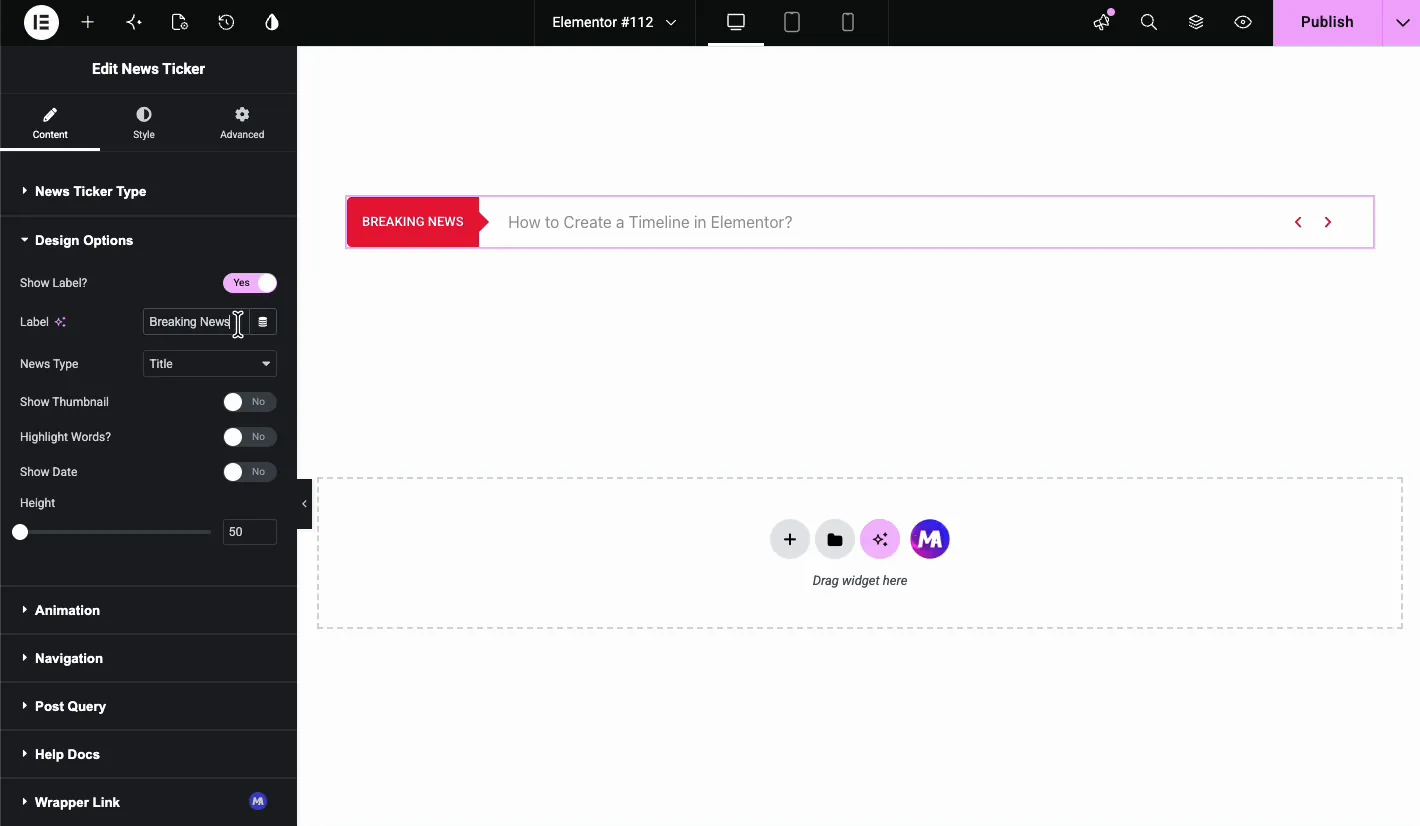
Turning on the thumbnail drops a small image beside each item. It makes the bar more visual, which helps on media-heavy sites where a plain text bar tends to get ignored.
Use the Height slider to size the bar. Bump it up once you turn on thumbnails, otherwise the image and text get cramped inside the ticker.
Animation settings #
The Animation section controls how the ticker moves:
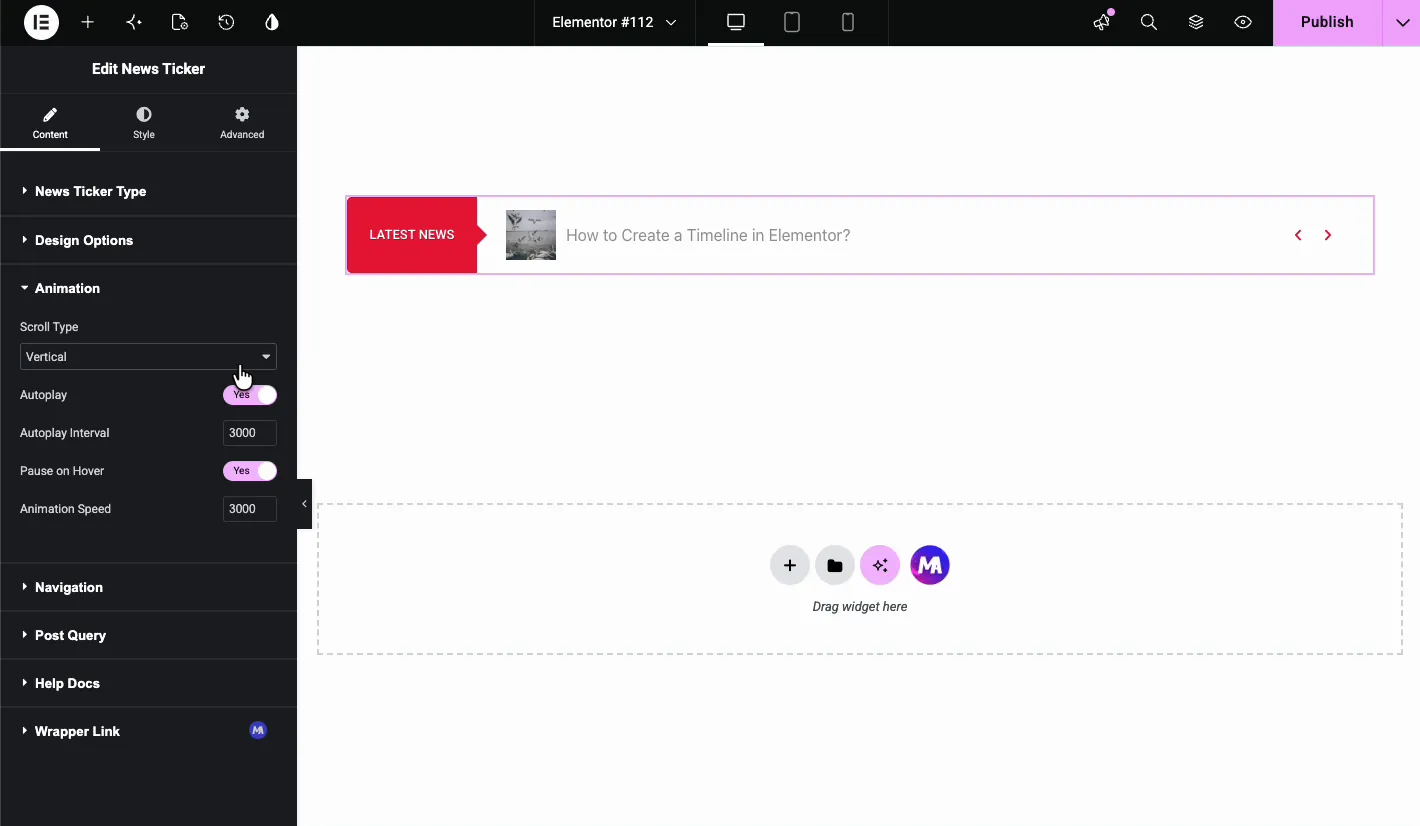
- Scroll Type: Horizontal, Vertical or Horizontal Scroll. Horizontal slides one item in at a time, the classic news ticker for website look. Vertical rolls items upward, and Horizontal Scroll moves them nonstop like a marquee.
- Autoplay: start rotating on load.
- Autoplay Interval: time between items, 3000 milliseconds out of the box.
- Pause on Hover: freeze the ticker while a visitor hovers over it.
- Animation Speed: how long each transition takes, also 3000 milliseconds by default.
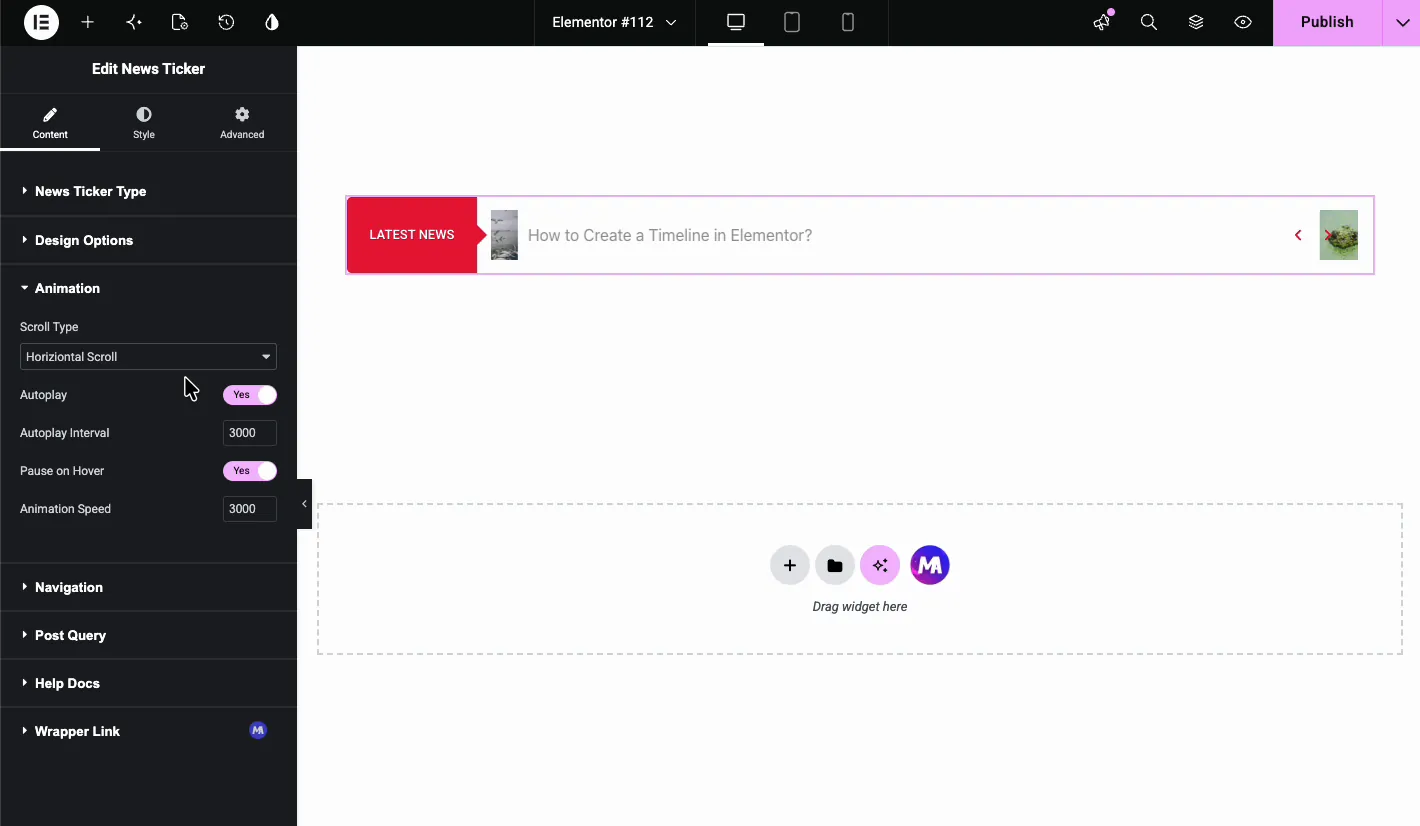
A horizontal news ticker in Elementor works best as a top-of-page announcement bar. Switch to Vertical when the ticker lives in a sidebar or a narrow column, where a horizontal scroll would just run out of room.
Navigation arrows #
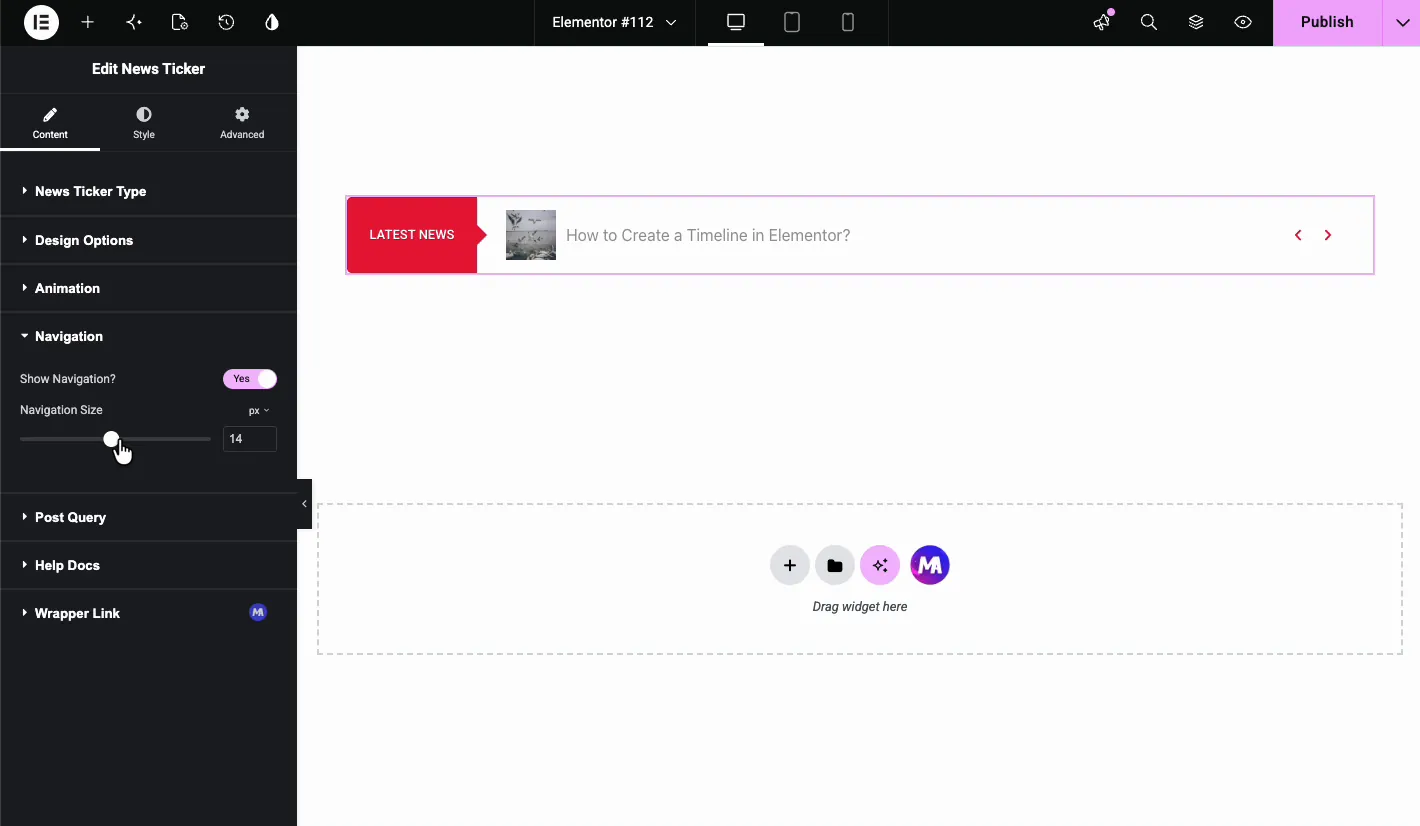
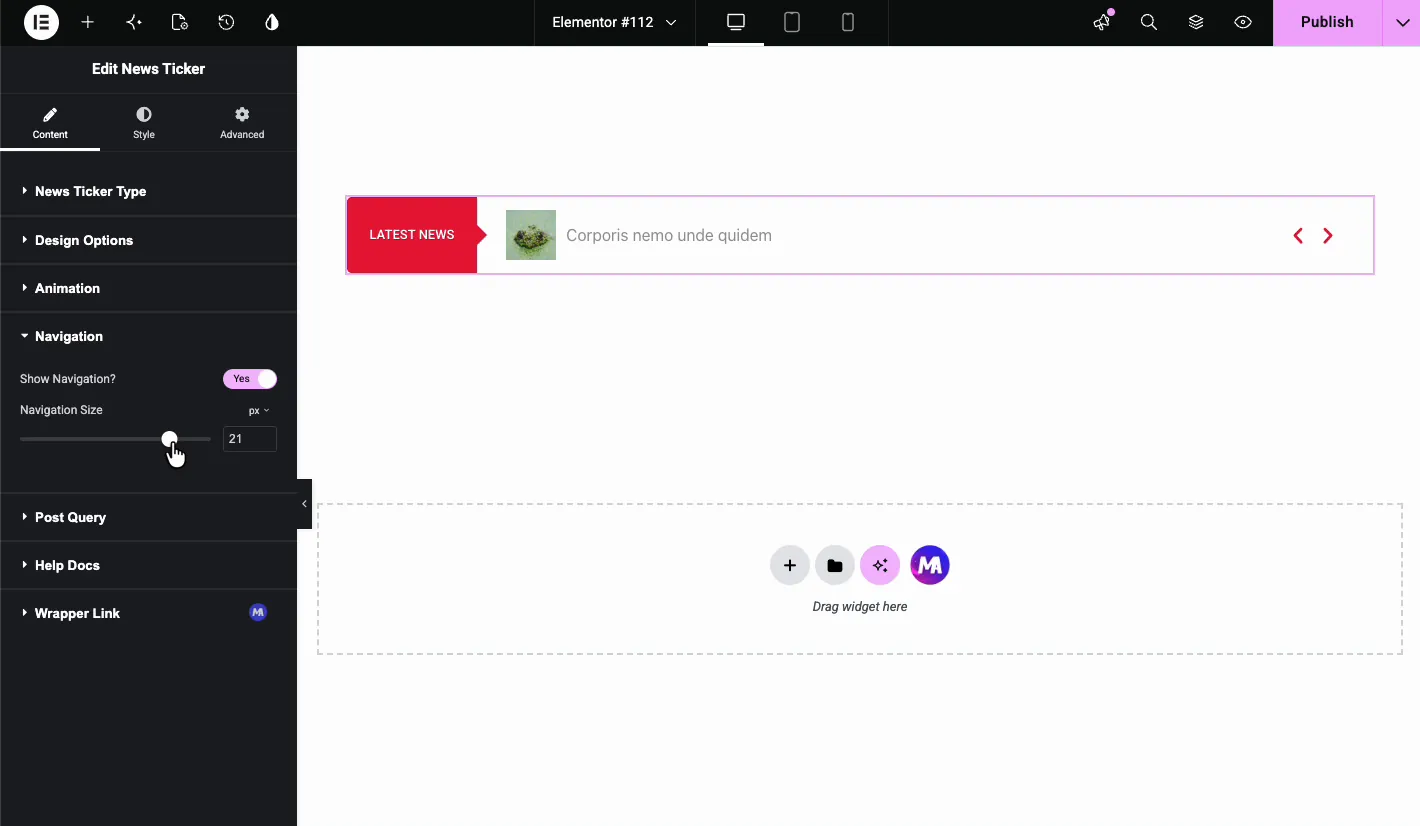
The Navigation section adds previous and next arrows on the right side of the bar. Toggle Show Navigation? on or off and set the Navigation Size in pixels. The demo bumps the size from 14 to 21 so the arrows are easier to hit, which matters on touchscreens where a 14px target is fiddly.
Arrows hand manual control to the visitor, handy when the ticker holds links someone might want to scroll back to.
Style the label #
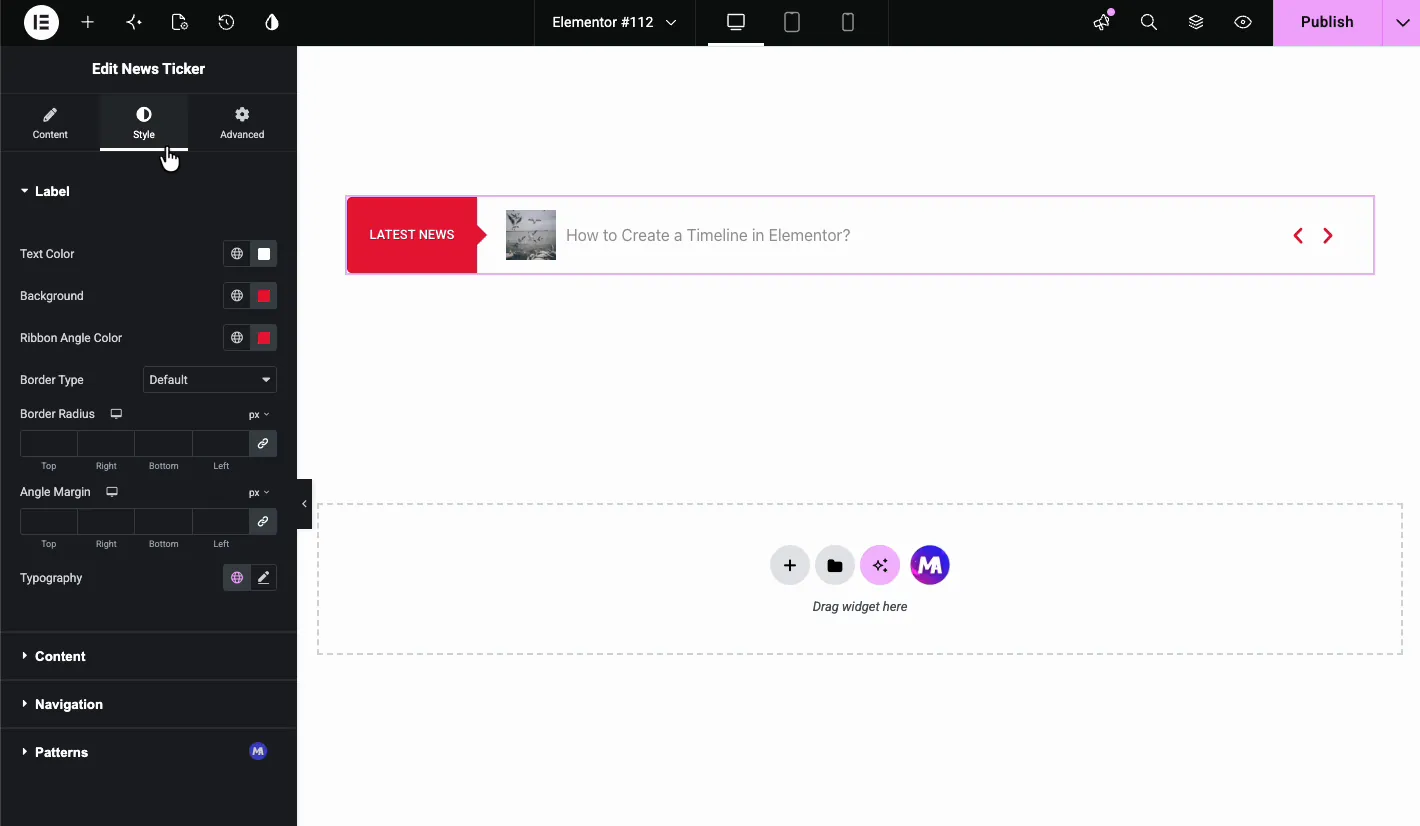
In the Style tab, the Label section styles the left badge:
- Text Color: label text color.
- Background: label background color.
- Ribbon Angle Color: the little triangular accent that joins the label to the content area.
- Border Type and Border Radius: outline and corner rounding for the label.
- Angle Margin: spacing around the ribbon angle.
- Typography: font, size, weight, and line height for the label text.
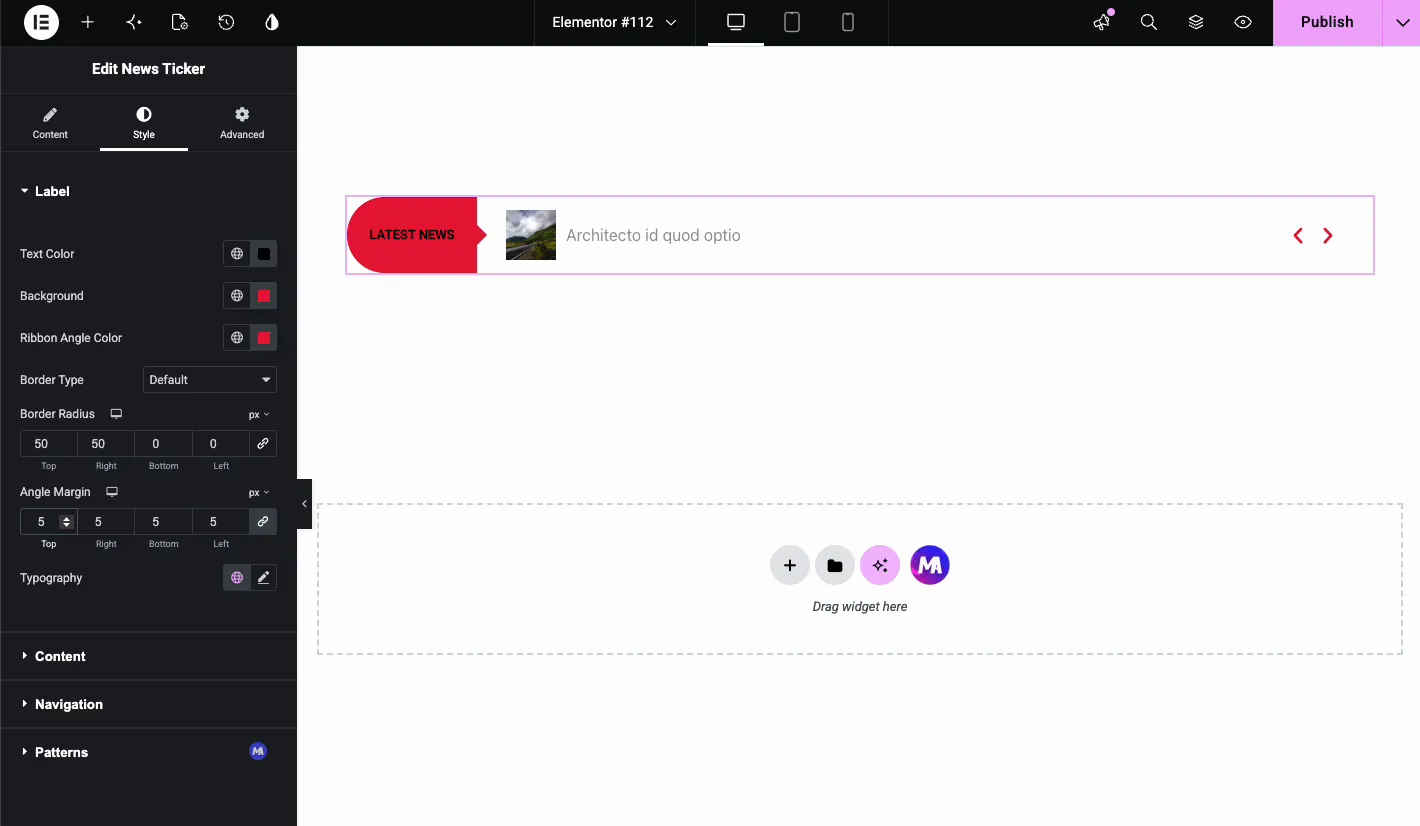
The demo rounds the top-left and bottom-left corners into a pill shape by setting the left-side border radius to 50 pixels.
Style the content and thumbnail #
The Content section styles the rotating titles. You get text color, hover color, background, border type, and typography. The Thumbnail section handles the image width and shape, with Square and Rounded options.
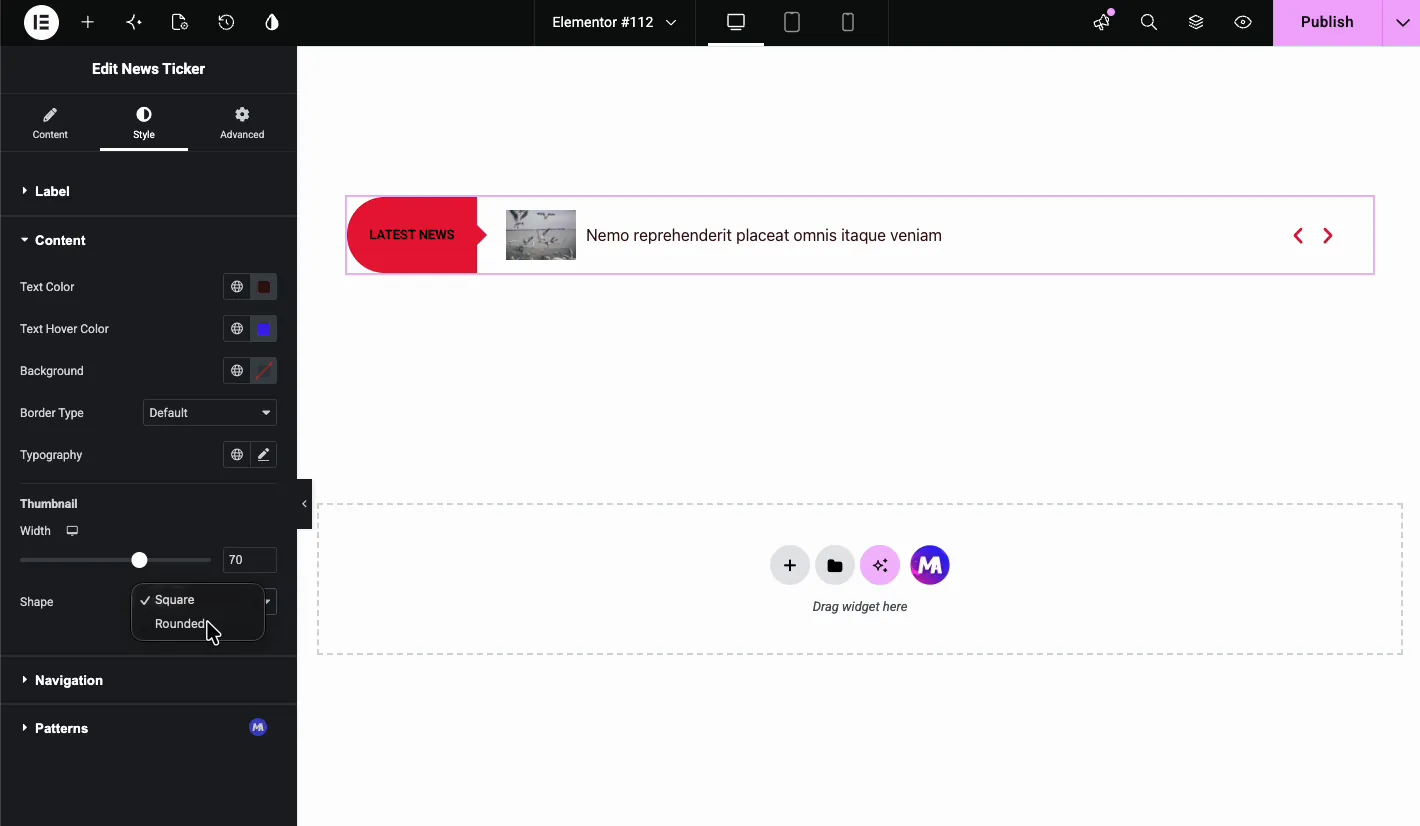
Give the hover color some contrast so visitors can tell each title is clickable. The shape option lets the thumbnail match whatever image style the rest of your site already uses.
Style the navigation arrows #
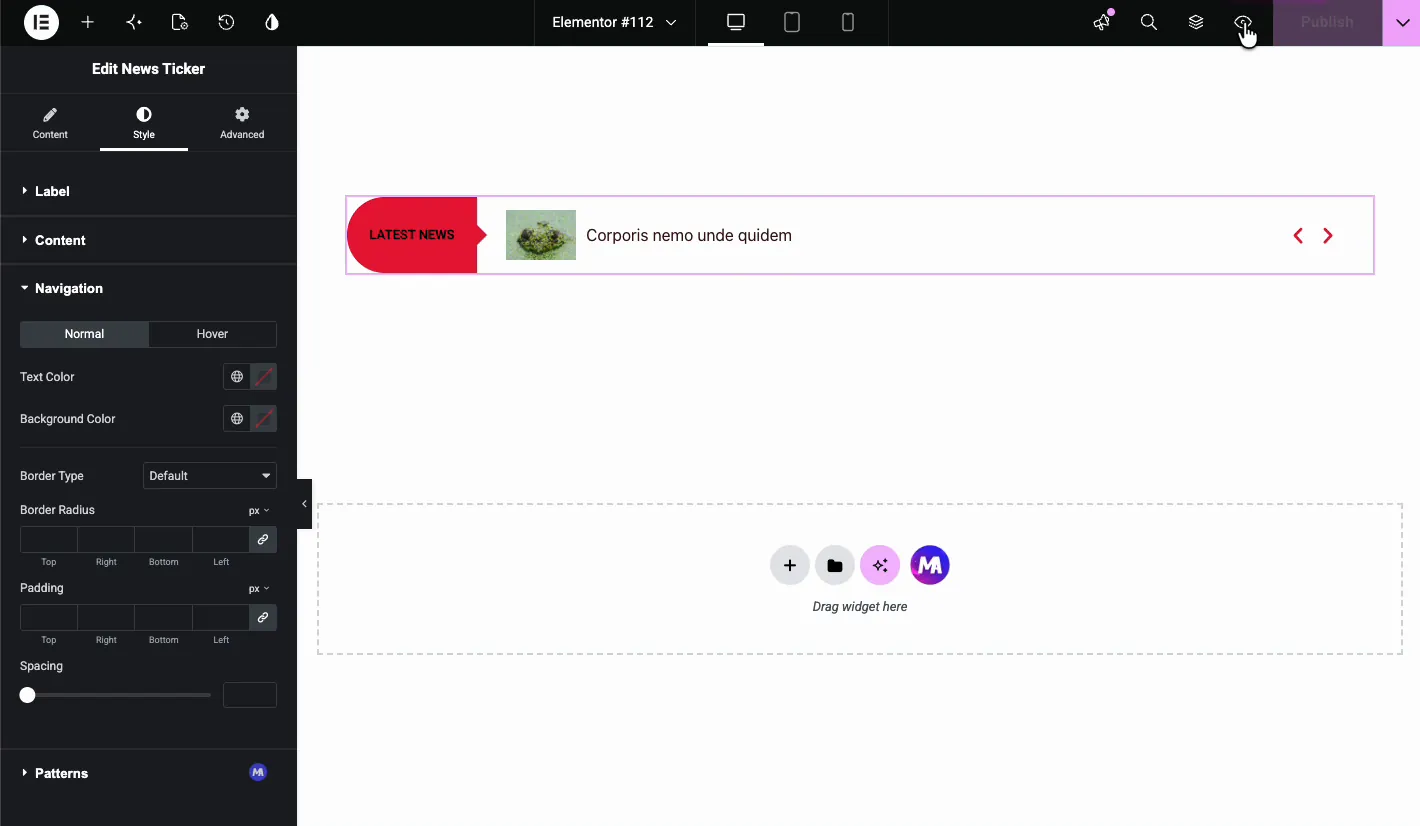
The Navigation style section has Normal and Hover tabs. Set text color, background color, border type, border radius, padding, and spacing for the arrow buttons. Depending on what you pick, the arrows either blend into the ticker or stand out as obvious controls.
The result on the live page #
On the front end, the ticker shows up as a clean bar: label, thumbnail, rotating title, and arrows. It starts animating on its own and pauses on hover if you left that option on.

Common use cases #
- Breaking news bars: run urgent updates across the top of a news or magazine site.
- Announcement tickers: surface sales, events, or launches without eating up hero space.
- Recent posts: use the Content type to show the latest blog titles on any page.
- RSS aggregators: pull headlines from outside sources onto a community or industry hub.
- Sidebar tickers: switch to Vertical scroll and drop the widget into a narrow column.
For a fuller blog layout, pair this with the Blog widget. For dated announcements, take a look at the Timeline widget.
Video Tutorial #
Prefer to watch? This video walks through the News Ticker widget from the first drag to the finished bar on the live page:
Frequently Asked Questions #
Can I add a news ticker in Elementor without coding?
Yes. Drag the Master Addons News Ticker widget into your layout, pick a source, and set the design and animation from the Elementor panel. No custom code involved.
What content sources does the News Ticker widget support?
Two: Content, which pulls posts, products or other post types from your own site, and RSS Feed, which shows items from an external feed URL.
Can the ticker scroll vertically?
Yes. In the Animation section, set Scroll Type to Vertical. It fits sidebars or narrow columns where a horizontal bar would run out of space.
How do I show post thumbnails in the ticker?
Turn on Show Thumbnail in the Design Options section. Then head to the Style tab to set the thumbnail width and pick Square or Rounded.
Can visitors pause the ticker?
Yes. Turn on Pause on Hover in the Animation section. Visitors can also step through items with the navigation arrows if Show Navigation is on.
Wrapping up #
The News Ticker widget is a quick way to add motion and fresh content to an Elementor page. With two content sources, three scroll types and styling for every part of the bar, it covers anything from breaking news to your latest blog headlines. Browse the full set of Master Addons widgets and extensions to see what else ships with the plugin, and see the News Ticker widget page for a demo. News Ticker needs Pro, so check the pricing page for plans.


