Elementor News Ticker Widget: Posts and RSS Breaking News Bar
News Ticker is a Pro widget in Master Addons that adds a scrolling news bar to any Elementor page. Elementor and Elementor Pro have no news ticker widget of their own. This one is part of Master Addons Pro. Show your latest posts, products or other post types, or paste an RSS feed URL to run headlines from another site. Add a “Breaking News” label, choose horizontal, vertical or continuous scrolling, and style the label, text, thumbnails and arrows from the Elementor panel.

Your own posts or an RSS feed
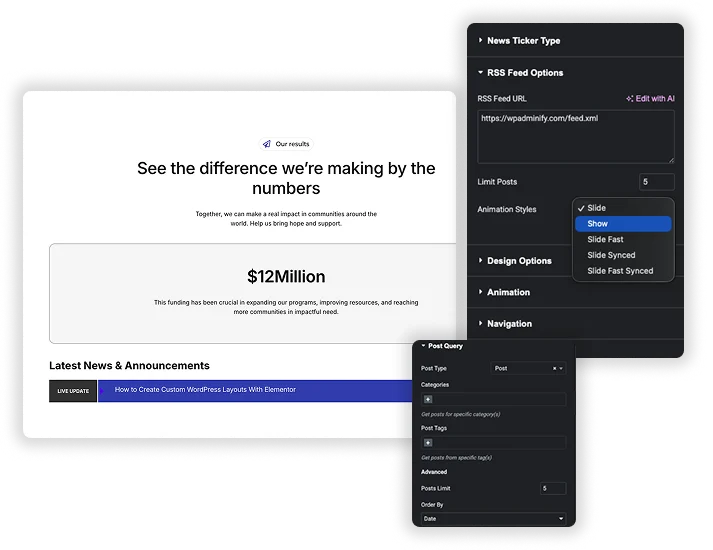
Ticker Type decides where the headlines come from. Content pulls from your own site: pick a post type, filter blog posts by category or tag, then set how many items to show and in what order. RSS Feed takes a feed URL and a limit of up to 30 items, so the bar can show headlines from a news site or a partner blog.
- Content source: posts, products or any other public post type, with category and tag filters for blog posts.
- Sorting by date, title, last modified, comment count, random order and more.
- RSS Feed source: paste a feed URL and choose how many items to show.
Breaking news label, thumbnails and dates
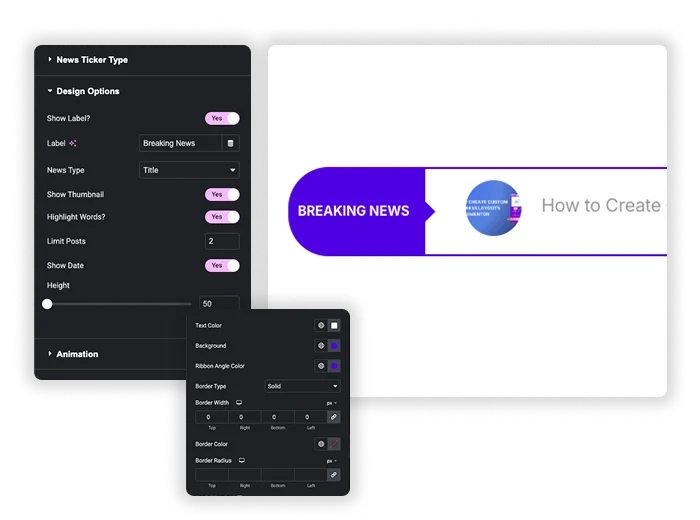
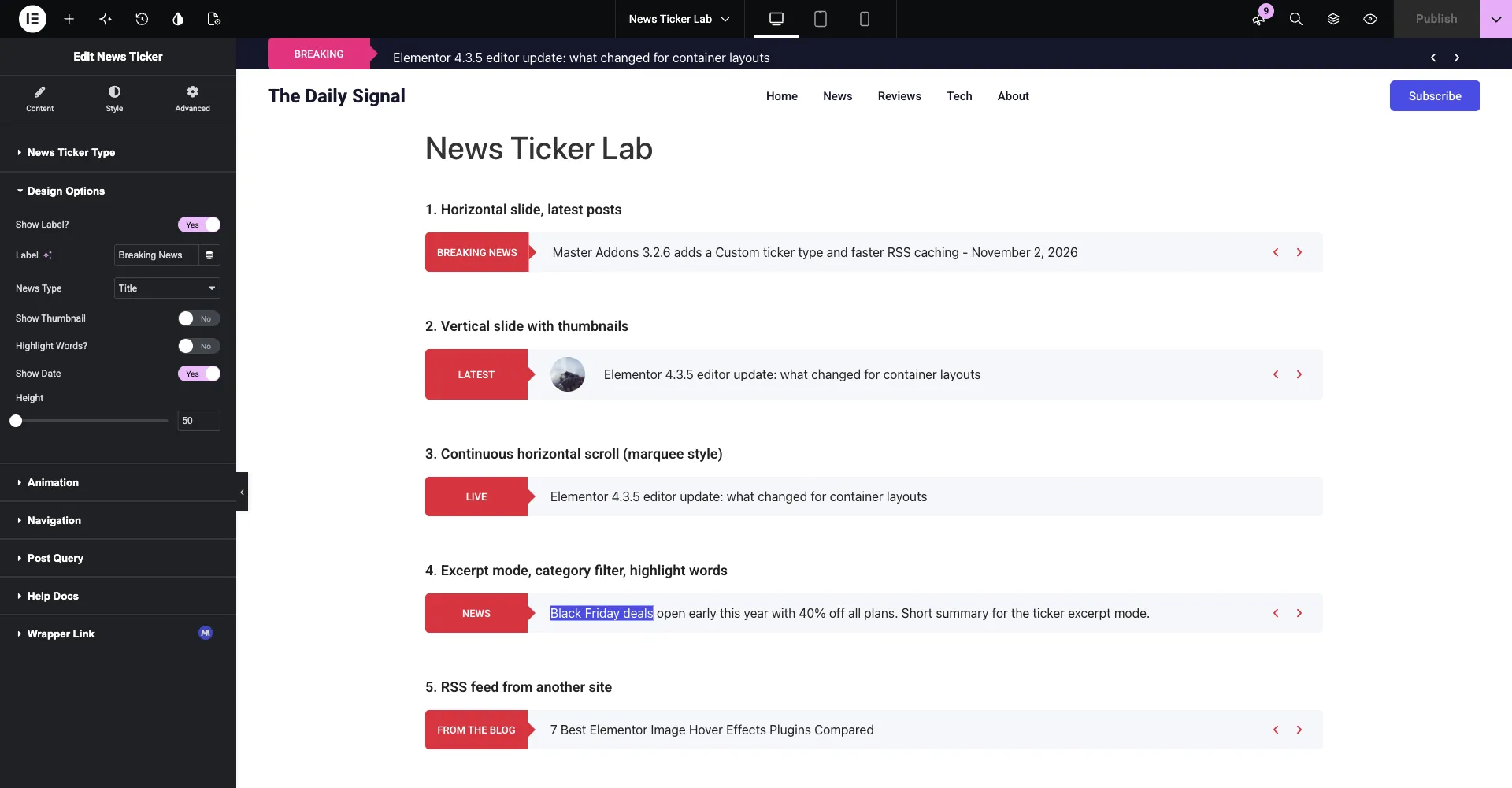
Keep the label and change its text from “Breaking News” to whatever fits, like “Latest” or “Offers”. Each item can show the post title or the excerpt, plus a thumbnail. Titles can also show the publish date. The Height slider sets the bar anywhere from 50 to 500px. In the Style tab, the label gets its own colors, typography, border radius and a ribbon angle that joins it to the scrolling area.
- Label: text, colors, typography, border radius and ribbon angle color.
- Items: title or excerpt, optional date, text and hover colors.
- Thumbnails: set the width and choose a Square or Rounded shape.
Scrolling news ticker: horizontal, vertical or continuous
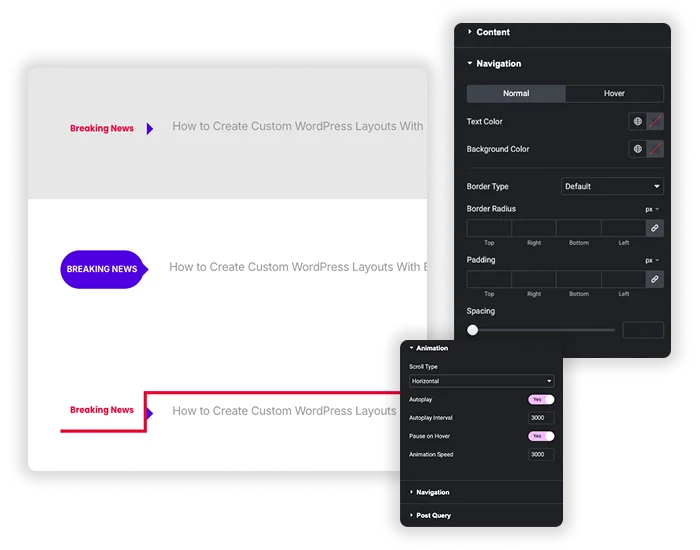
Scroll Type has three modes. Horizontal slides one headline in at a time, Vertical rolls them upward, and Horizontal Scroll runs them nonstop like a marquee. Turn on Autoplay, set the interval and animation speed in milliseconds, and let visitors pause the bar by hovering over it. Previous and next arrows let people step through items themselves, with separate styling for the normal and hover states.
- Three scroll types: Horizontal, Vertical and continuous Horizontal Scroll.
- Autoplay with interval, animation speed and Pause on Hover.
- Arrow navigation with size, color, border, radius and padding controls.
How to add a news ticker in Elementor
A post ticker takes a few minutes. These steps use your own blog posts as the source. The RSS version is further down the page.
- In the Elementor editor, search the panel for News Ticker and drop the widget where the bar should sit, for example a full-width container under the header.
- Leave Ticker Type on Content. Open Post Query, keep Post Type on Post and pick the categories or tags the bar should pull from. Set Posts Limit, Order By and Order.
- In Design Options, keep Show Label on and change the text if Breaking News is not the label you want. Pick Title or Excerpt, then turn on Show Thumbnail and Show Date if you need them.
- Under Animation, choose Horizontal, Vertical or Horizontal Scroll, set the Autoplay Interval and keep Pause on Hover on so people can read a headline before it moves.
- Open the Style tab to colour the label, text and arrows, then publish. The bar picks up each new post on its own.
The ticker pairs well with the Blog widget for the post grid under it, Logo Slider for partner logos, Timeline for dated updates, Image Carousel for featured stories and Table of Contents on the long reads the headlines link to.
Add an RSS news ticker in WordPress without jQuery code
Most RSS ticker tutorials start with a jQuery plugin, a feed parser and your own CSS. On an Elementor site, the News Ticker widget does the same job from the panel.
- Turn on News Ticker in the Master Addons dashboard. It needs an active Pro license.
- Drag the News Ticker widget under your header menu or into the section where the bar should sit.
- Open News Ticker Type and set Ticker Type to RSS Feed.
- Paste the feed URL, for example https://example.com/feed/, and set Limit Posts.
- In Design Options, change the label text.
- Choose a Scroll Type in the Animation section, then publish.
Want headlines from your own blog instead? Leave Ticker Type on Content and pick categories under Post Query. For a full blog layout next to the ticker, use the free Blog widget, or show dated events with Timeline.
What the News Ticker widget can and cannot do
Elementor tickers differ mostly in where the headlines come from. Check this list against any other widget before you buy.
| Feature | News Ticker |
|---|---|
| Latest posts | Yes |
| Any post type (products, custom post types) | Yes |
| Category and tag filter (blog posts) | Yes |
| RSS feed URL | Yes |
| Manual text items | No |
| Title or excerpt | Yes |
| Thumbnail | Yes |
| Date (title mode) | Yes |
| Horizontal, vertical or continuous scroll | Yes |
| Pause on hover | Yes |
| Arrows | Yes |
| Typing effect | No |
Typed headlines are not in the widget today. For a fixed announcement, put a Text Editor widget in the same bar, or publish the notice as a post in a category the ticker pulls from.
Where to put a news ticker: header bar, hero or sidebar
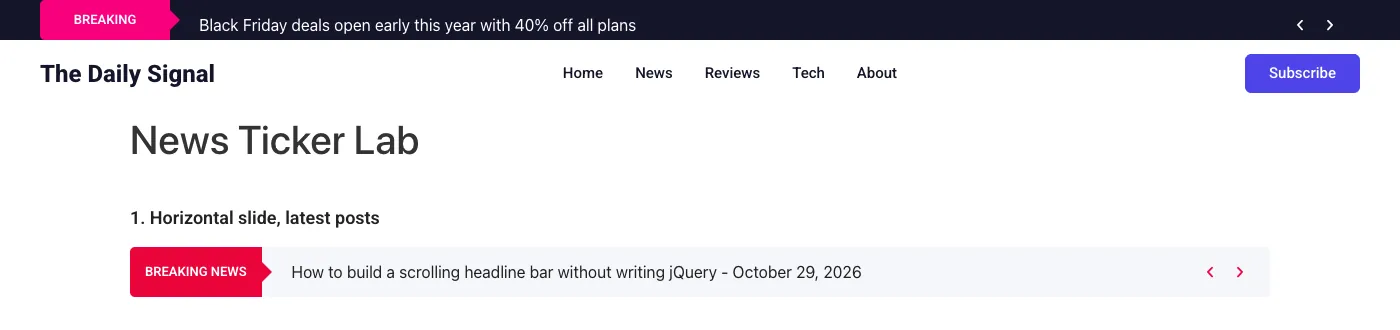
The usual spot is a slim bar above the main menu. Build a header template in the Theme Builder, add a full-width container at the top, drop the News Ticker in, and the bar shows on every page the template covers. If you start from one of the Elementor header templates, the top bar is already there.
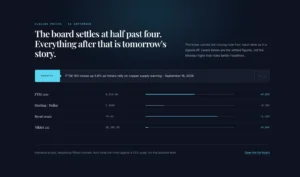
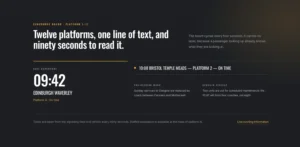
A hero works for a news or magazine home page. A horizontal ticker under the headline keeps the newest posts in view without pushing the page down. In a sidebar or a narrow column, switch Scroll Type to Vertical so the headlines roll upward one at a time, like the live example below.



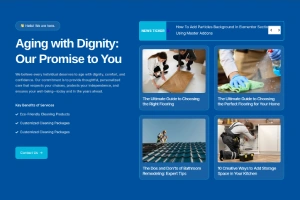
Frequently Asked Questions For News Ticker
Can the ticker show my latest WooCommerce products?
Yes. Keep Ticker Type on Content, open Post Query and set Post Type to Product. The ticker then shows your newest products by title, with thumbnails if you turn them on. The Categories and Tags filters use blog categories and tags, so leave them empty for products.
Does the RSS feed ticker update on its own?
Yes. The widget reads the feed URL you entered, so new items in the feed appear in the ticker. If your site uses page caching, visitors see the new headlines once the cache refreshes.
Does Elementor have a news ticker widget?
No. Elementor and Elementor Pro do not include one. The closest core options are a Loop Carousel or scrolling text with motion effects, and neither reads your posts or a feed. The News Ticker widget comes with Master Addons Pro and works in any Elementor page or header template.
Can I type my own headlines into the ticker?
Not at the moment. The ticker reads posts, products or other post types from your site, or an RSS feed. For a fixed announcement, add a Text Editor widget to the same bar, or publish the announcement as a post in a category the ticker pulls from.
Is the ticker responsive on phones?
Yes. The bar takes the width of its container. Preview it in Elementor’s mobile view and adjust the label and text typography for small screens. The Vertical scroll type also works well in narrow spots like a sidebar.
Is the News Ticker widget free?
No, News Ticker is part of Master Addons Pro. If you only need logos or images that scroll nonstop, the free Logo Slider can do that with autoplay. Our Elementor marquee guide compares both options.
Can I show an RSS feed from another site?
Yes. Set Ticker Type to RSS Feed and paste the feed URL, for example a news site or a partner blog. Limit Posts caps how many items show, up to 30, and the feed is read on the server, so visitors never wait on the other site.
Can I put the ticker in the header?
Yes. Open the Theme Builder, create or edit a header template and drop the News Ticker into a full-width container above the menu. The header builder is free in Master Addons. The ticker widget itself needs Pro.
Trending Elementor Widgets & Extensions
Build sophisticated websites in less time.
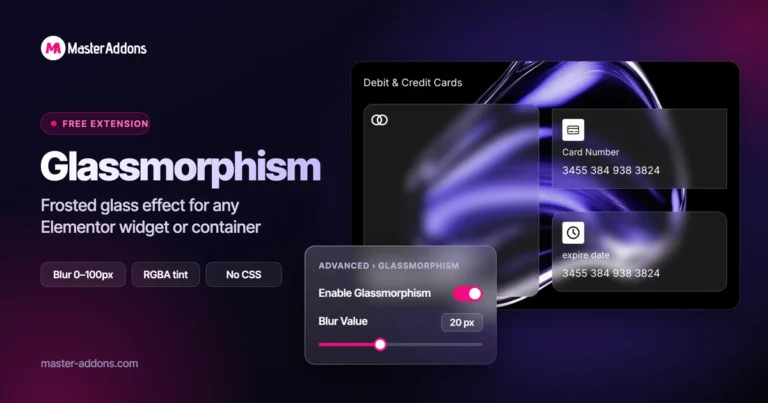
Glassmorphism
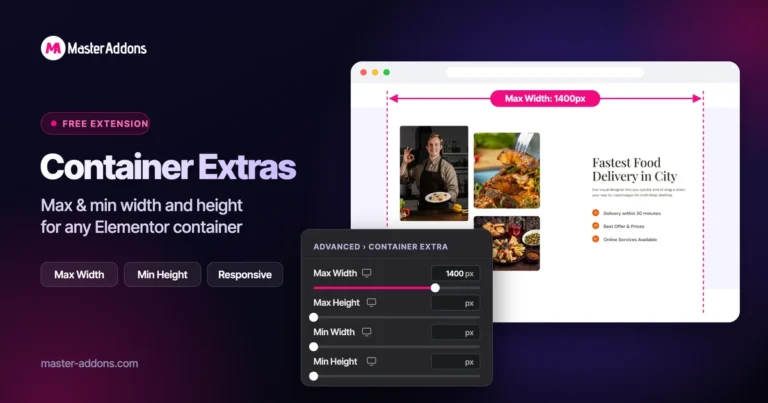
Container Extras

Patterns
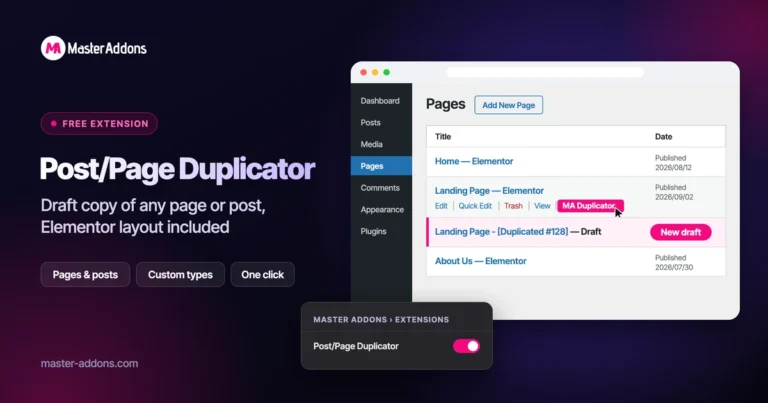
Post/Page Duplicator