

A moving word in a headline pulls the eye where a static line does not. The free Animated Headline widget in Master Addons for Elementor splits your heading into a fixed part and an animated part, then cycles the animated part through a list of words with effects like rotate and loading bar, plus typing, slide and clip in Pro.
You write the first heading, add the words that rotate, pick an animation preset, then style both parts. This guide walks through every setting in the widget.
What the Animated Headline widget does #
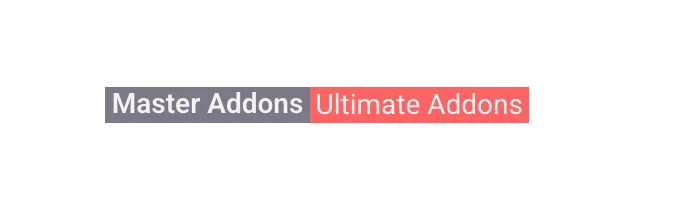
The widget builds one heading from two pieces. The First Heading stays put, and the Second Heading rotates through a list of words with the animation you choose. So “Master Addons” can sit next to a word that changes from Ultimate Addons to Unique Design to Unlimited Variations on a loop.
It has three tabs. Content holds the text, the word list, the preset, and the timing. Style colors and sizes each heading. Advanced carries the usual Elementor spacing and visibility options.
Before you start #
- WordPress with Elementor installed and active.
- Master Addons for Elementor installed and active. New to the plugin? See the installation guide.
- Your fixed heading text and the list of words you want to rotate through.
How to add the Animated Headline widget #
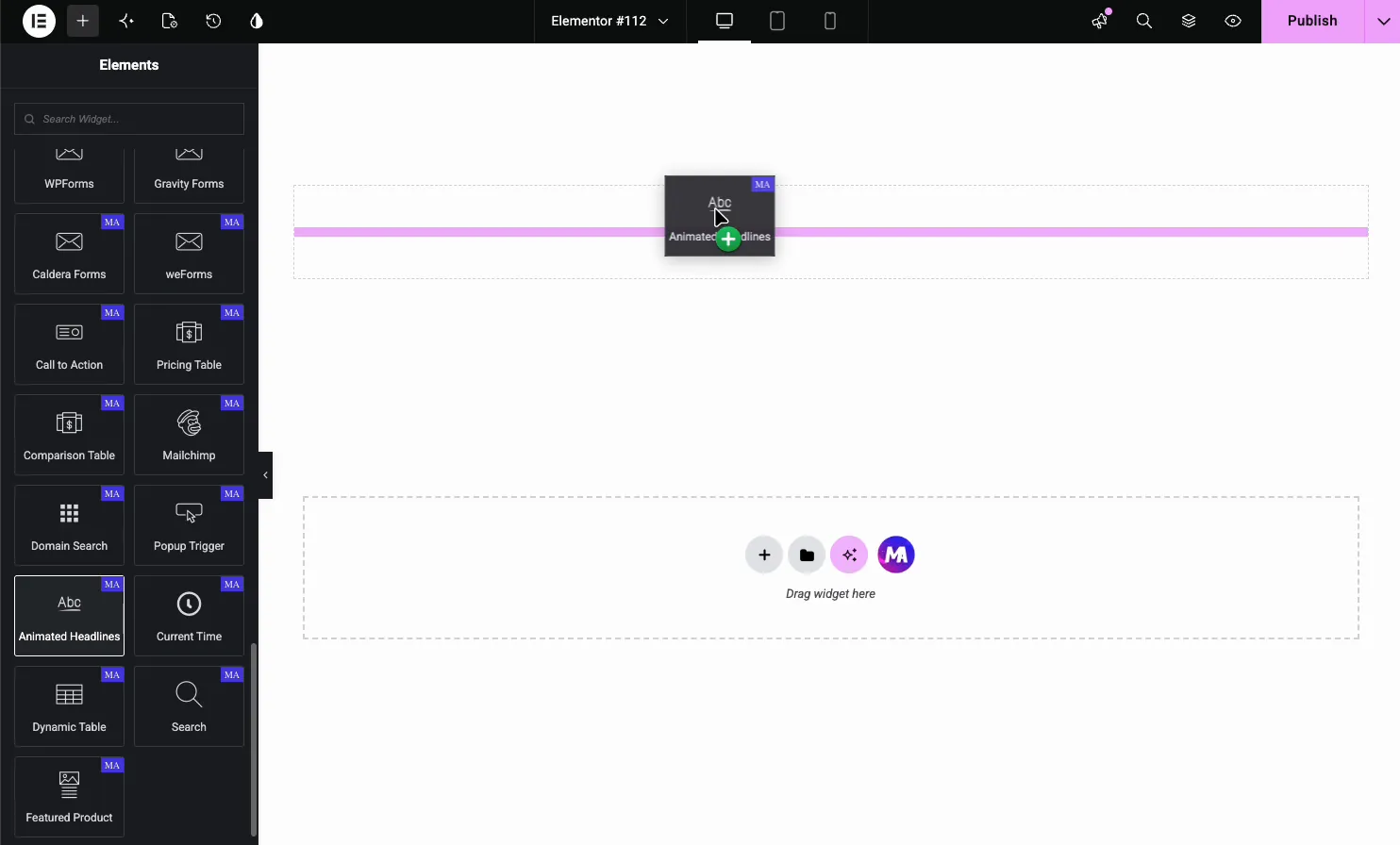
In the Elementor editor, open the Elements panel and search for Animated Headlines, or scroll to the Master Addons section (the widgets carry a purple MA badge). Drag it onto your page and it loads with a sample headline ready to edit.
Set the headings and word list #
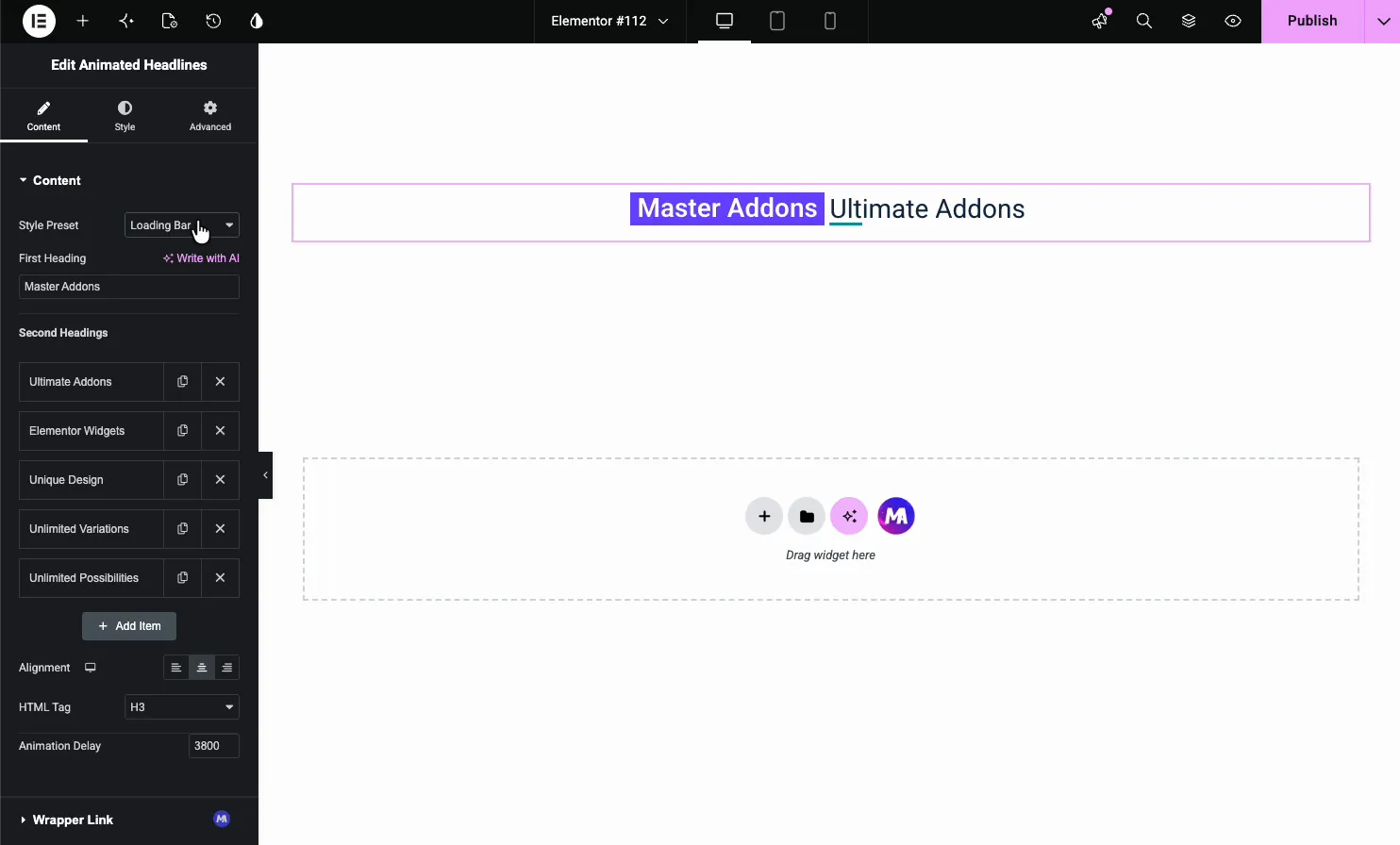
Open the Content tab. The First Heading is the static text, and Second Headings is the repeater of words that rotate.
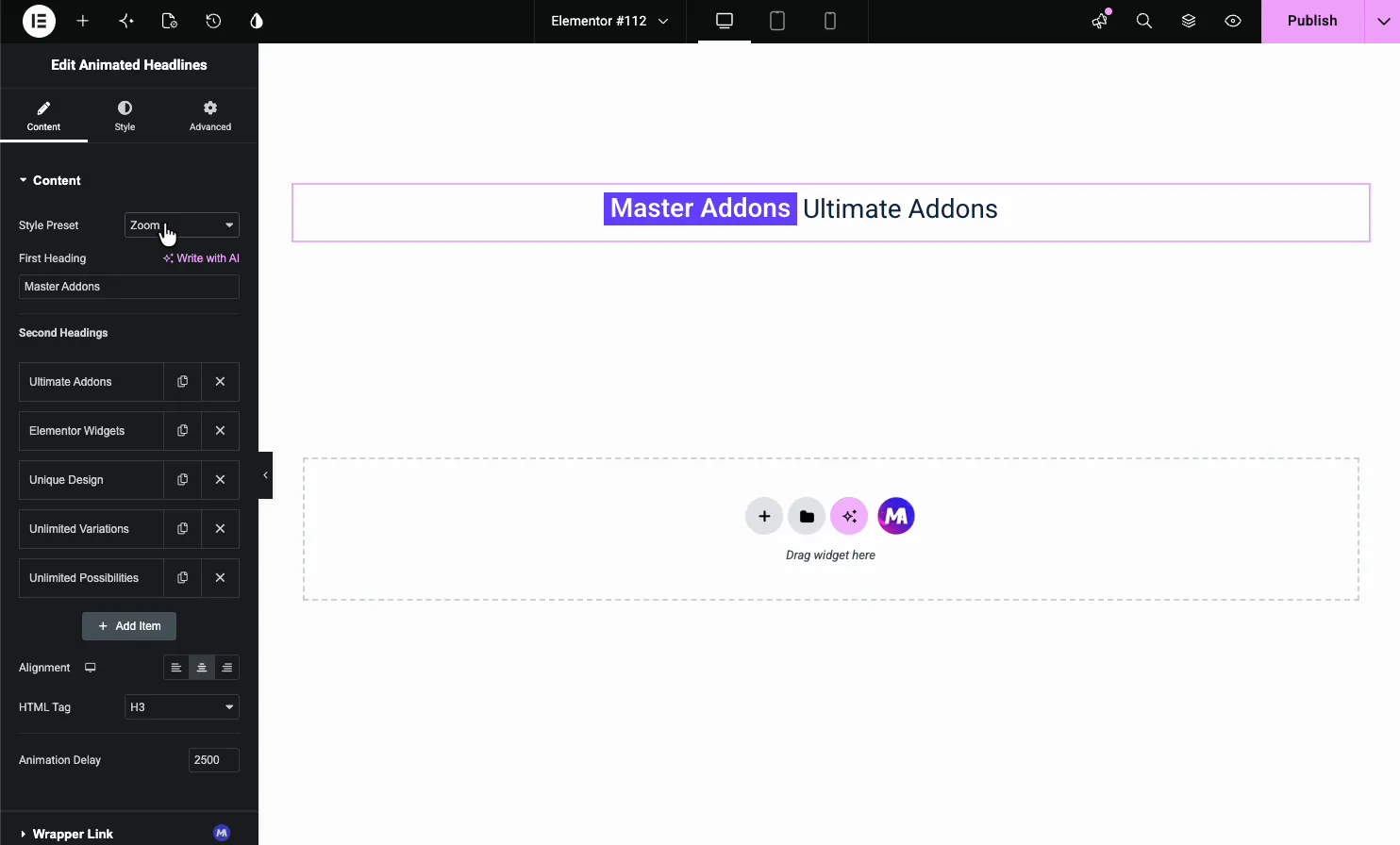
- Style Preset: the animation used for the rotating word.
- First Heading: the fixed part of the line, with a Write with AI option.
- Second Headings: one item per rotating word. Use Add Item to add words, the copy icon to duplicate, and the X to remove.
- Alignment and HTML Tag: align the headline and set its tag (H1 to H6, div, span or p).
- Animation Delay: how long each word shows before the next, in milliseconds (2500 by default, 3800 for Loading Bar). Rotate 2, Typing and Clip add extra letter or reveal timing fields.
Pick an animation preset #
The Style Preset dropdown sets how the rotating word enters and leaves. Four presets are free and six need Master Addons Pro. In the free version the Pro presets are marked (Pro) and stay static if you pick them.
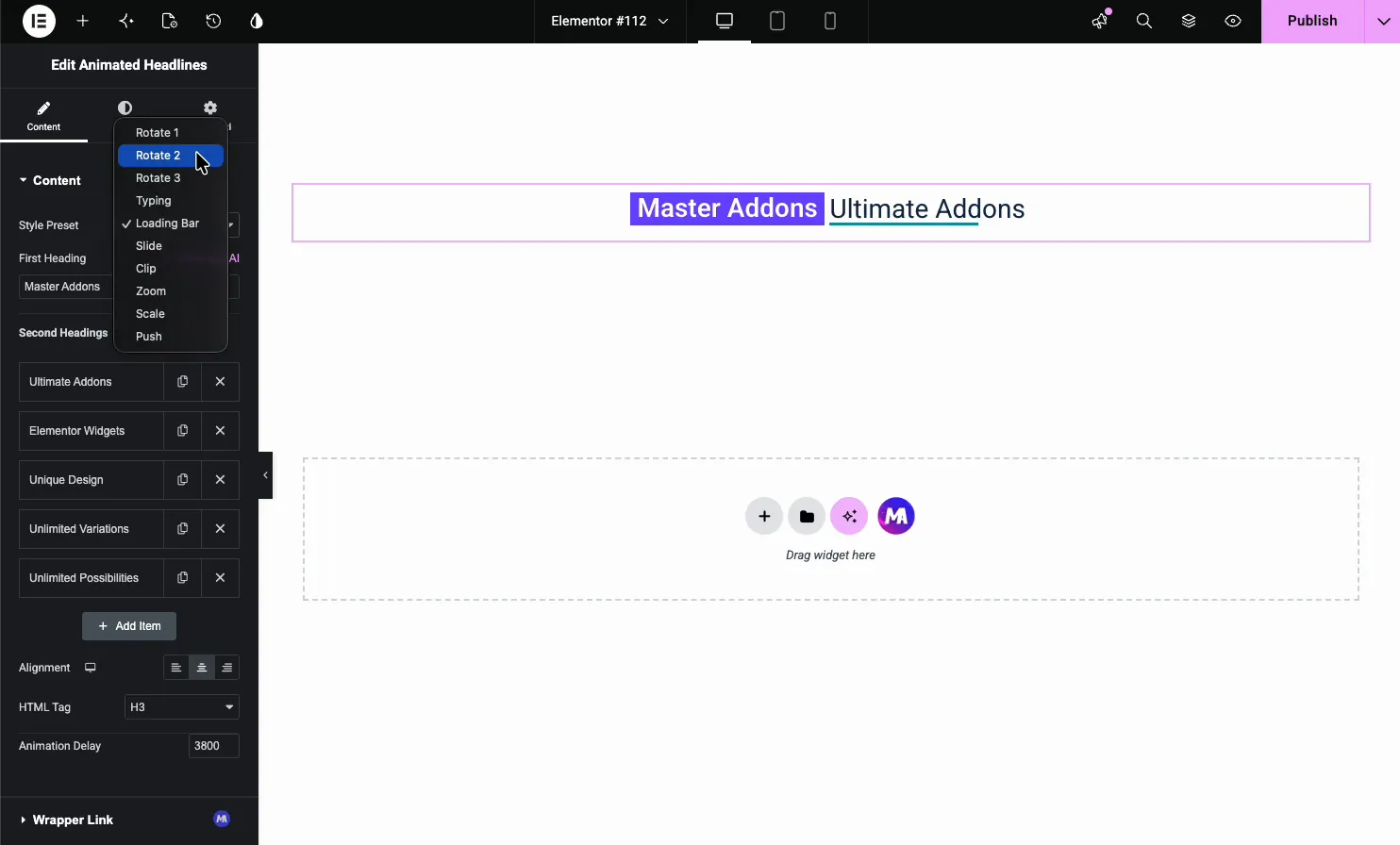
- Rotate 1, 2, 3 (free): flip or spin the word into place.
- Typing (Pro): type the word out character by character, like a typewriter.
- Loading Bar (free), Slide and Clip (Pro): reveal the word with a bar, a slide, or a moving edge.
- Zoom, Scale, Push (Pro): scale or push the word in and out.
The Loading Bar preset, for example, wipes each word in behind a moving bar before the next one loads.
Style the first heading #
The Style tab splits into First Heading, Second Heading, and Patterns (a Pro option). Open First Heading to style the fixed text.
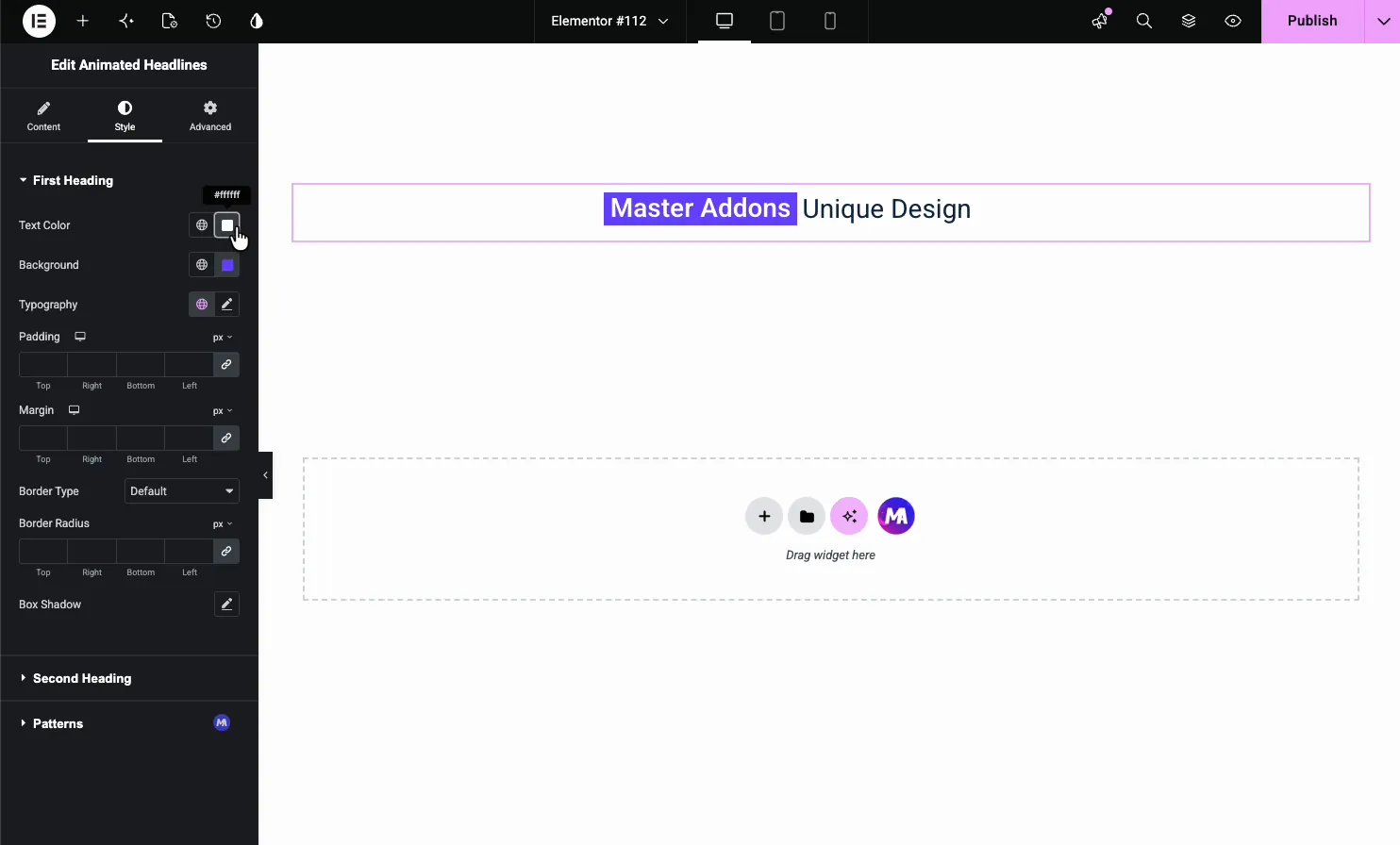
- Text Color and Background: the fixed word color and an optional highlight behind it.
- Typography: font, size, and weight.
- Padding, Margin, Border, Box Shadow: the box around the text.
Style the animated word #
Open Second Heading to style the rotating word on its own. Give it a contrasting color or a highlight background and the animation stands out instead of blending into the fixed text.
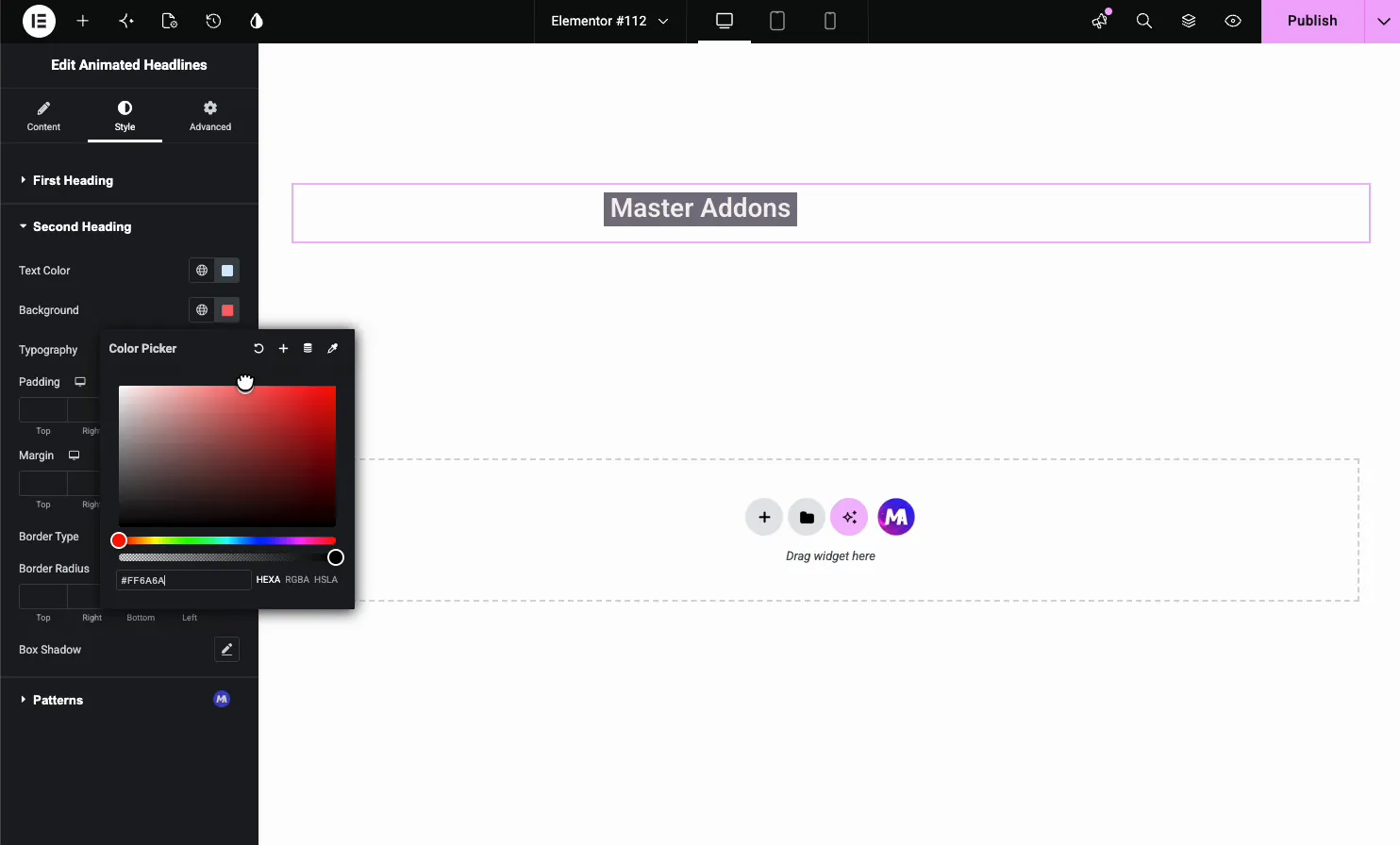
It has the same controls as the first heading, so you can set a different text color, a highlight background, typography, and a border for the part that moves.
Common use cases #
- Hero headlines that rotate through your main selling points.
- Landing pages cycling audiences or use cases (for bloggers, for shops, for agencies).
- Feature sections highlighting what a product does in a few rotating words.
- Portfolio intros with a typing effect on your role or skills.
- Announcement bars drawing the eye with a single animated word.
Tips for working with the Animated Headline widget #
- Keep rotating words similar in length. Big length jumps make the line shift as it animates.
- Set the delay to match reading speed. Around 2000 to 3000 ms lets people read each word.
- Contrast the animated word. A different color or highlight tells visitors which part moves.
- Match the preset to the tone. Typing suits a personal site; Rotate and Slide suit a bold hero.
- Set the right HTML tag. Use H1 for a page’s main headline so it stays correct for SEO.
Watch the video tutorial #
Prefer to follow along on screen? The video tutorial below walks through the Animated Headline element from start to finish, showing how each preset, word list, and style option works in the Elementor editor.
Frequently Asked Questions #
What is the Animated Headline widget in Master Addons?
It is an Elementor widget that builds a heading from a fixed first part and an animated second part. The second part rotates through a list of words with effects like rotate and loading bar (free) or typing and slide (Pro), all set from the Elementor panel with no code.
What animation styles does the Animated Headline widget include?
Ten presets. Rotate 1, Rotate 2, Rotate 3 and Loading Bar are free, and Typing, Slide, Clip, Zoom, Scale and Push need Master Addons Pro. Each changes how the rotating word enters and leaves, from a typewriter effect to a bar reveal or a spin.
How do I add or change the rotating words?
Open the Content tab and use the Second Headings repeater. Each item is one rotating word. Use Add Item to add words, the copy icon to duplicate one, and the X to remove it. The widget cycles through them in order.
Can I control how fast the words change?
Yes. The Animation Delay field in the Content tab sets how long each word shows before the next, in milliseconds. A value around 2000 to 3000 gives visitors time to read each word before it rotates.
Can I make a typing effect headline in Elementor?
Yes, with Master Addons Pro. Set the Style Preset to Typing and the rotating words type out character by character, like a typewriter, then delete and type the next word. It is a good fit for personal sites and portfolio intros.
Why is my animated headline not working?
Add at least two items in Second Headings, because a single word has nothing to rotate to. Presets marked (Pro) stay static unless Master Addons Pro is active. If the headline moves in the editor but not on the live page, exclude the Master Addons scripts from JavaScript combine or delay settings in your cache plugin, then clear the cache.
Wrapping up #
The Animated Headline widget turns a flat heading into a moving one: write the fixed part, list the words to rotate, pick a preset like Rotate or Loading Bar, then style both halves. For more heading widgets, see the Dual Heading widget and the Gradient Headline widget, browse the full Master Addons widgets and extensions, and check the pricing page for what each plan includes.


