
Elementor Entrance Animation: 70 Scroll Effects for Any Element
First impressions stick. Instead of letting your content just appear, make it arrive. The Entrance Animation extension, part of Master Addons Pro, adds motion to any Elementor element the moment it scrolls into view, with 70 effects to pick from: fades, slides, masks, rotations, zooms, flips, pulses and bounces. You set the duration, delay, easing and repeat count, so a heading can drift in gently while a row of feature icons pops in one after another. No CSS, no keyframes, just a few settings in the Advanced tab.
Use it well and an entrance animation pulls the eye down the page and makes the site feel alive on the first scroll. Use it on everything and it turns into noise. The video below covers the basics, and further down I get into the full effects list, how to apply one animation across a whole section, and how to get the timing right.
What Is an Entrance Animation?
An entrance animation is the motion an element makes as it comes onto the screen. The visitor scrolls, a heading or image or button hits the viewport, and it fades, slides, or bounces into place instead of having been sitting there the whole time. You will see them called entrance effects, scroll animations, or a website entry animation. Same idea each time: a static page that starts reacting as you move down it.
You can write all of this yourself with CSS animations. Then the keyframes are yours to maintain, and so is the responsive behavior on every screen size. The Master Addons animation toolkit moves that into the element settings, so you pick an effect from a dropdown and skip the code.
A library of 70 entrance effects
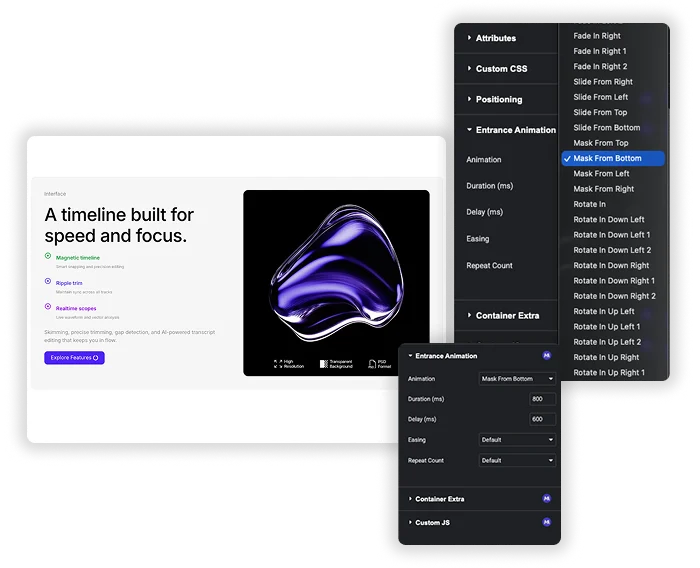
With 70 presets, there is a fitting way to introduce almost any section. Want it quiet? Fade In. Want energy? Bounce In or Jack In the Box. After something more deliberate? Flip In or Mask From. That spread lets you give sections their own character: calm and smooth for a mission statement, a bit playful for the features row.
- Fades: Fade In, plus Up, Down, Left and Right with numbered variations, for quiet arrivals.
- Slides and masks: Slide From and Mask From in all four directions.
- Rotations and flips: Rotate In toward each corner, and Flip In Up, Down, Left and Right.
- Zooms and scales: Zoom In, Scale Up and Scale Down, each with variations.
- Attention effects: Pulse In, Pulse Out, Shake, Bounce In and Jack In the Box for a hero or a CTA.
- Match the effect to the job: the loud ones on a call to action, a soft fade on body text.
- Preview before you commit: the editor plays the effect as soon as you pick it.
Duration, Delay, and Easing Control
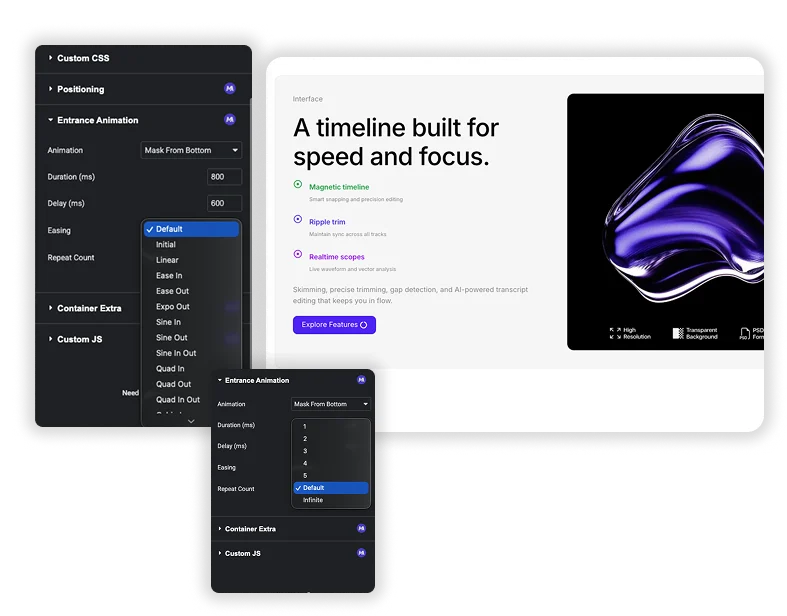
Timing is where most animations are won or lost, and this is more than an on/off toggle. Set the Duration in milliseconds to make a move quick and snappy or slow and drawn-out. Add a Delay so a row of items comes in one after another instead of all at once. Pick an Easing curve so the movement speeds up and slows down the way a real object would, rather than sliding at a flat, robotic pace.
- Set the speed: 500ms feels brisk, 1500ms feels relaxed. That one number changes the whole mood.
- Stagger a sequence: bump the Delay up a notch on each icon in a row and they pop in one by one.
- Pick the easing: Ease-Out (quick start, gentle stop) reads as natural for most entrances. It’s the one I reach for first.
- Repeat it: Repeat Count plays the effect 1 to 5 times, or on a loop.
Elementor's built-in entrance animation vs Master Addons
Elementor already lets you pick an entrance animation for free under Advanced, Motion Effects. That is fine for a simple fade. The Master Addons extension is for pages where you want finer control over how each element arrives.
| Elementor Motion Effects | Master Addons Entrance Animation | |
|---|---|---|
| Plan | Free | Master Addons Pro |
| Duration | Slow, Normal or Fast | Any value in milliseconds |
| Delay | Milliseconds | Milliseconds |
| Easing | Not available | 30 curves, from Linear to Back In Out |
| Repeat count | Not available | 1 to 5 times, or infinite |
| Different effect per device | Yes | No, one setting for all breakpoints |
| Effects | Elementor presets | 70 effects, including masks, flips and pulses |
How to Set a Default Entrance Animation for All Elements?
People ask this a lot: can you apply one entrance animation to everything at once in Elementor? Straight answer, Elementor core has no single global switch that animates every element on the site. What works in practice is to animate at the container or section level, then reuse those settings.
- Select the section or container instead of each widget inside it. Open Advanced → Master Addons Entrance Animation and choose your effect. The whole block then arrives together as it scrolls in.
- To reuse the same motion, right-click the element, hit Copy, then Paste Style onto the next section. The animation settings ride along with the style, so you set it once and paste it down the page.
- For a cascade rather than everything firing together, keep the effect the same and raise the Delay a little on each section as you go down.
That gets you a consistent entrance animation across all your elements without touching code, which is as close to a default as Elementor gives you.
Where Entrance Animations Help Most?
- Hero sections: a Fade In Up on the headline, then a short delay on the button under it.
- Feature rows: stagger the icons so they land one by one.
- Stats and counters: a Zoom In as the numbers scroll into view.
- Testimonials and logos: a soft fade so they don’t snap in abruptly.
- Calls to action: a Bounce In or Jack In the Box at the point where someone decides.
Entrance Animation is part of Master Addons Pro. For motion beyond the first scroll, look at Floating Effects, Reveal and Transforms, or browse the full Master Addons animation features.
Frequently Asked Questions For Entrance Animation
Will a lot of entrance animations slow down my website?
On a page with dozens of animated elements it can add some weight, but the effects are light to begin with. The real fix is restraint: animate the key sections and headlines, not every paragraph. A few well-placed ones barely register. If load time is on your mind, these tips to speed up Elementor sites help.
Why is my Elementor entrance animation not working?
It’s usually one of three things. The animation only fires the first time the element enters the viewport, so scroll down fresh to test it rather than scrolling back up. Make sure the effect is on the actual element and not an empty wrapper around it. And clear your caching plugin after you publish, since a cached page will serve the old version without the animation.
Can I use different animations on desktop and mobile?
Not with this extension. Its settings apply on every breakpoint, so pick an effect that still looks right on a small screen. Elementor’s own Motion Effects entrance animation can be set per device, which helps if a phone layout needs something calmer.
How is this different from Elementor's own entrance animations?
Elementor’s free editor has a basic Entrance Animation control under Advanced, Motion Effects, with a preset duration and a delay. This extension is part of Master Addons Pro and gives you 70 effects, duration and delay in milliseconds, 30 easing curves and a repeat count. For pacing, Ease Out suits most entrances.
Trending Elementor Widgets & Extensions
Build sophisticated websites in less time.

Glassmorphism

Container Extras

Patterns
![Master Addons Post/Page Duplicator extension for Elementor: MA Duplicator row link in the WordPress Pages list creating a Landing Page - [Duplicated #128] draft](https://d1asvmc6qcowgk.cloudfront.net/wp-content/uploads/2026/09/15102930/post-page-duplicator-768x403.webp)
Post/Page Duplicator
