
Elementor Tooltip Extension - Add Tooltips to Anything
Tooltips is a Pro extension. It adds a Tooltip panel to every Elementor widget, container, column and section. Select something that is already on your page, write the message, choose a placement and style it to match your site. If you want a new hint on an empty spot instead, use the standalone Tooltip widget, which comes with the free plugin.

What you can do with the Tooltips extension
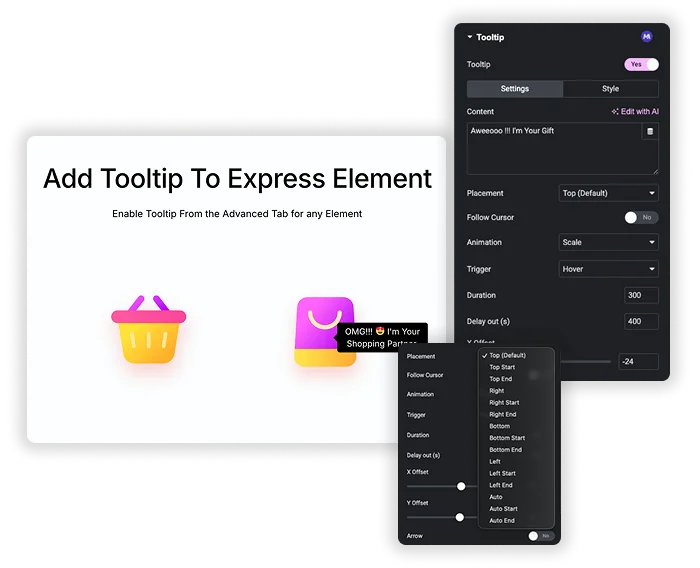
Positioning and interactive behavior
Place the bubble top, bottom, left, or right of any element. Trigger on hover or click. Add entrance animation (fade, scale), duration, and hide-delay. Or enable Follow Cursor so the tooltip travels with the mouse, which works well for maps, charts, and diagrams.
- Pin tooltips to any side so they never cover the content they explain.
- Follow Cursor turns images and diagrams into explorable, labeled surfaces.
- Animation and timing controls make each tooltip feel native to the interface.
Visual customization
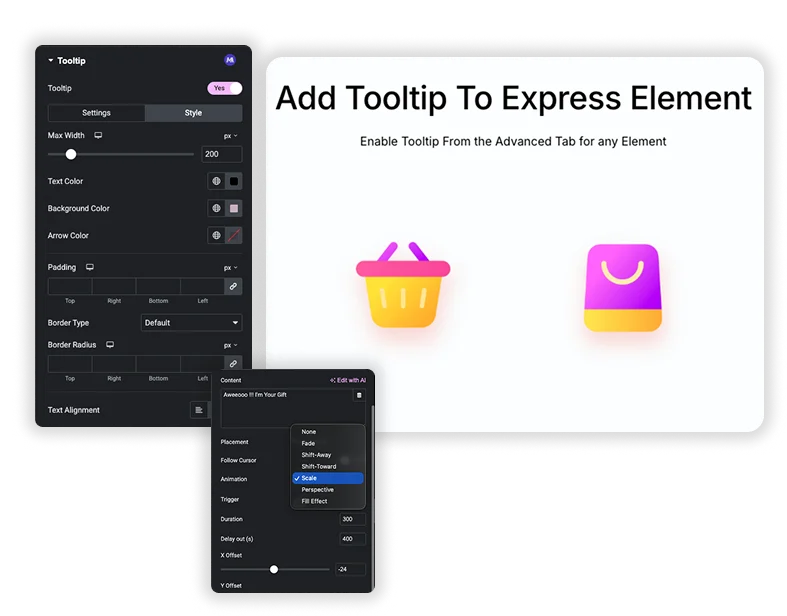
Replace browser defaults with tooltips you design yourself: text and background colors, padding, borders, border radius, arrow style and color, box shadow, and full typography control.
- Exact brand colors for background, text, and arrow.
- Borders, radius, and shadows that match the rest of your design system.
- Font family, size, and weight controls for readable microcopy.
Tooltips on any element, with dynamic content
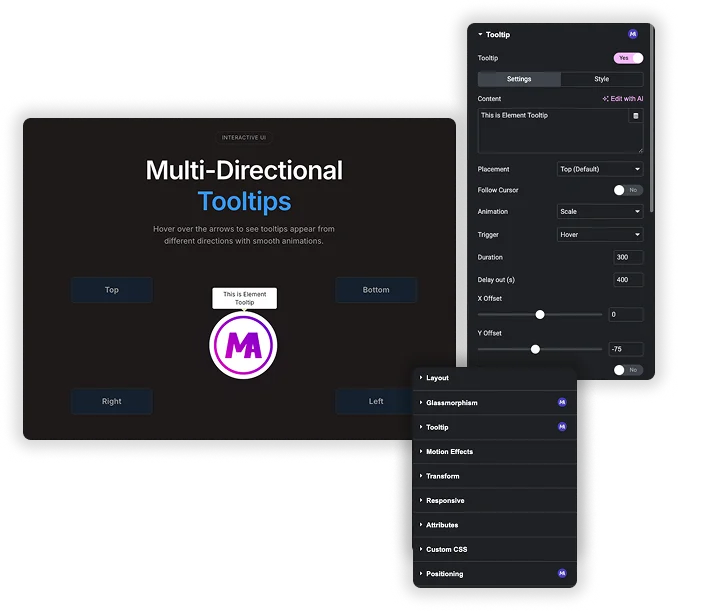
It works on buttons, icons, images, headings, containers, columns, sections and anything else you can select in the editor. The tooltip text field accepts Elementor dynamic tags, so a hint can pull in live data such as a price or a post date.
- Turn the extension on once and every element gets a Tooltip panel. You never add a separate widget for each hint.
- Each element keeps its own tooltip, so three cards in a row can each say something different.
- Dynamic tags keep hints current, for example live product details.
Extension or Element: which one do you need?
This page (Tooltips extension, Pro): the content already exists and you want to attach a hint to it. It works on any widget, column, section or container.
Tooltip element (free): you need a new hint on the page, and the widget supplies its own trigger text, icon or image.
Common use cases
- Icons and buttons: explain what an icon-only button does before the click.
- Images and diagrams: Follow Cursor labels on maps, floor plans, technical drawings.
- Headings and terms: define jargon inline without footnotes.
- Sections: Beta or “new” badges and feature-callout hints on whole blocks.
- WooCommerce: shipping, stock, or variant notes attached to the buy button.
How to add a tooltip to any Elementor widget
- Select anything. Click a widget, column, container or section in Elementor and open its Advanced tab to find the Tooltip section.
- Write and place. Enter the message, then set placement, trigger (hover, click or custom), animation, duration and Follow Cursor if you need it.
- Style it. Set colors, typography, padding, radius, arrow and shadow, then update the page.
- For a walkthrough with screenshots, read how to add a tooltip in Elementor.
Frequently Asked Questions For Tooltips
How is this different from the Tooltip widget?
Both have placement presets, hover or click triggers, animations and Follow Cursor. The difference is where the tooltip lives. The extension attaches one to content that is already on your page and needs Pro. The Tooltip element is a free standalone widget with its own trigger text, icon or image. Existing button, icon or section: use the extension. Empty spot that needs a hint: use the element.
How do tooltips behave on mobile?
Hover doesn’t exist on touch screens, so a tap acts as the trigger and a second tap elsewhere dismisses the bubble. Keep mobile tooltip text short, and prefer the click trigger for critical hints.
Are tooltips good for SEO and accessibility?
Tooltip text is in the HTML, so it’s crawlable. But never put essential information only inside a tooltip, since some screen-reader and keyboard flows may miss it. Use tooltips for supplementary help, and test with accessibility tools.
Will many tooltips slow down my page?
Each tooltip adds a small amount of HTML and CSS. Typical use, around 5 to 10 per page, has no noticeable impact. Dozens of heavy animated tooltips on one page can add up, so keep them concise.
What is Follow Cursor good for?
Explorable visuals: maps, product hotspots, charts, technical diagrams. The bubble follows the pointer so each area under the cursor gets its own live explanation.
Can I use dynamic content inside a tooltip?
Yes. Combine with dynamic tags to inject live data like prices, names, or dates so hints stay current without manual edits.
Trending Elementor Widgets & Extensions
Build sophisticated websites in less time.

Glassmorphism

Container Extras

Patterns
![Master Addons Post/Page Duplicator extension for Elementor: MA Duplicator row link in the WordPress Pages list creating a Landing Page - [Duplicated #128] draft](https://d1asvmc6qcowgk.cloudfront.net/wp-content/uploads/2026/09/15102930/post-page-duplicator-768x403.webp)
Post/Page Duplicator
