

You can import or insert an Elementor template in three ways: pull a ready-made page from the Master Addons library, insert a template into a page you’re already editing, or upload a JSON file. Inserting never wipes your page. Elementor adds the template as a new section at the bottom and leaves your existing content where it is.
The screenshots below come from Elementor 4.2 and Master Addons, both free unless a step says otherwise. If you still need something to import, the Master Addons template library has 500+ page templates, and 100 of them are free.
Table of Contents
Which method do you need?
| What you have | Method | Where it starts |
|---|---|---|
| Nothing yet, you want a finished page | 1. Import from the Master Addons library | Pages → MA Import |
| A page open in Elementor that needs a section or layout | 2. Insert from inside the editor | The folder or Master Addons icon on the canvas |
| A .json template file (or a .zip of several) | 3. Import the JSON file | Templates → Saved Templates, or the upload icon in the editor |
| A whole template kit ZIP from Envato or ThemeForest | Import it as a kit | The template kit import guide |
Before you start
You need the free Elementor plugin and the free Master Addons plugin, both active. Templates marked FREE in the library import without a license, and the ones marked PRO need Master Addons Pro. None of the steps below need Elementor Pro.
On a live site, keep in mind that Method 1 publishes the new page right away. Switch it to draft if visitors shouldn’t see it yet.
Method 1: Import a ready-made page from the Master Addons library
Use this when you want a finished page, such as a homepage, contact page or pricing page, without building it first. There’s no file to download.
Step 1: Open Import Pages
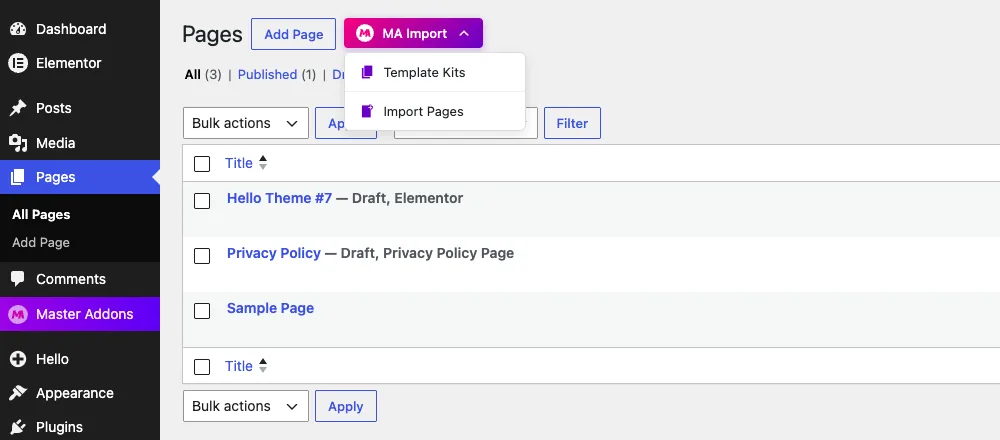
Go to Pages in your dashboard. Next to Add Page there’s an MA Import button. Click it and choose Import Pages. The other option, Template Kits, opens the kit library for importing a whole site.
Step 2: Find a template
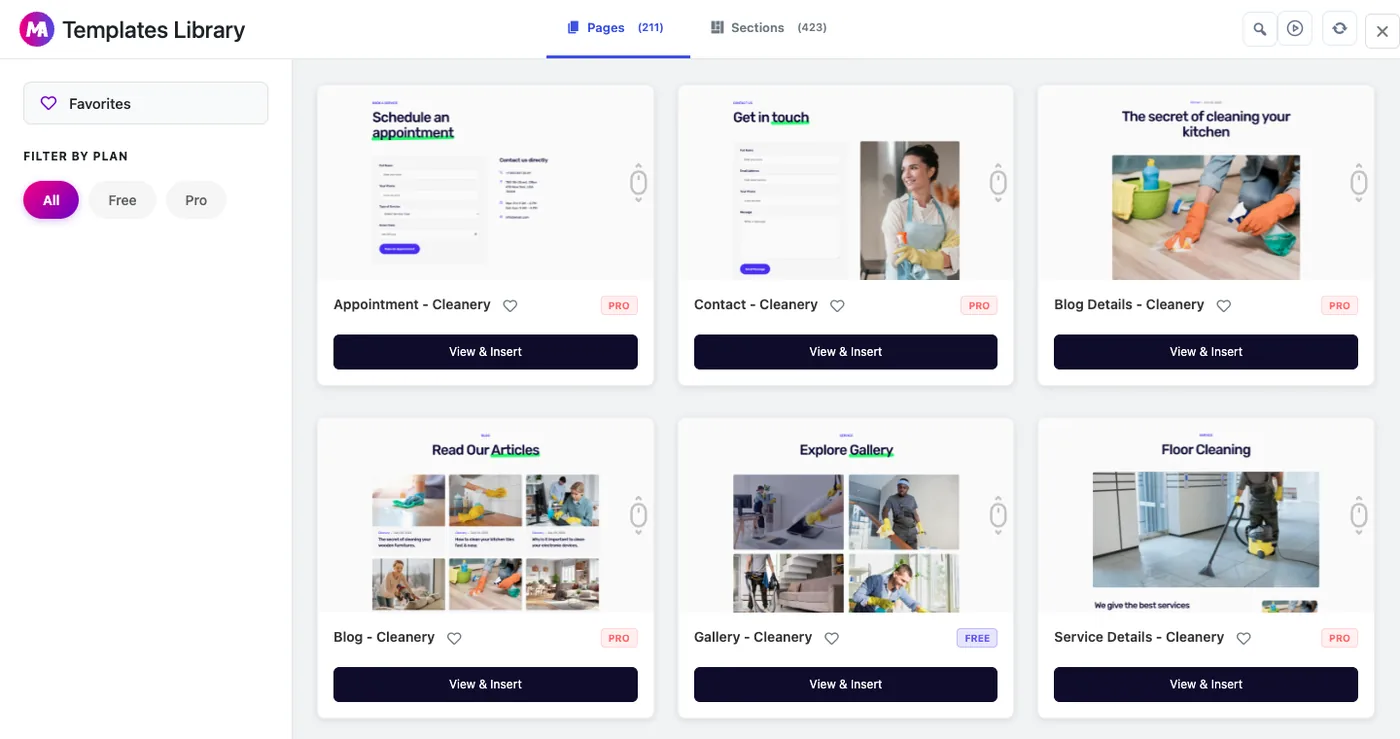
The library opens on the Pages tab, which lists 211 full pages at the time of writing, with 423 sections on the tab next to it. Use the Free and Pro filter on the left to narrow the list, and click the heart on any card to add it to Favorites.
Step 3: Preview it and insert the page
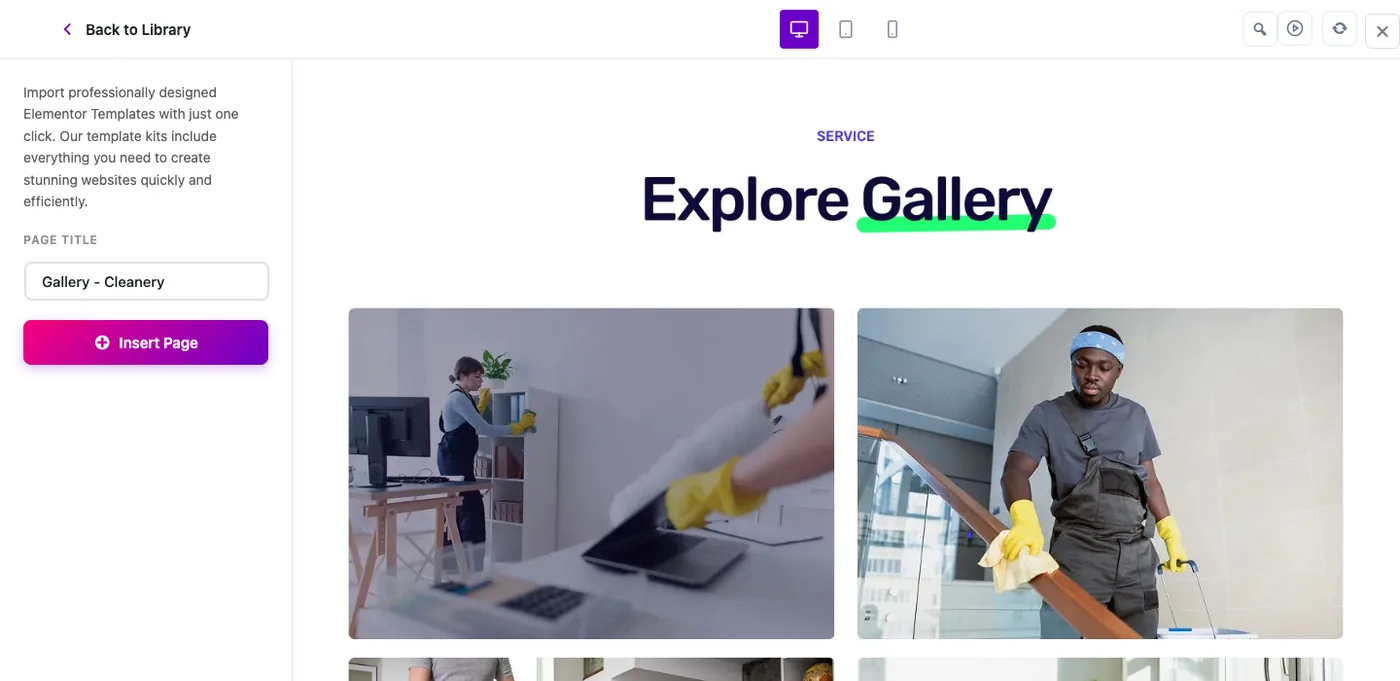
Click View & Insert on a card. The preview has desktop, tablet and mobile views, and a Page Title field on the left. Type the title the page should have on your site, then click Insert Page.
Step 4: Open it in Elementor
The importer creates the page, brings in the content and images, and shows a confirmation. Click Edit with Elementor to start swapping the demo text and photos, or View Page to look at it first.
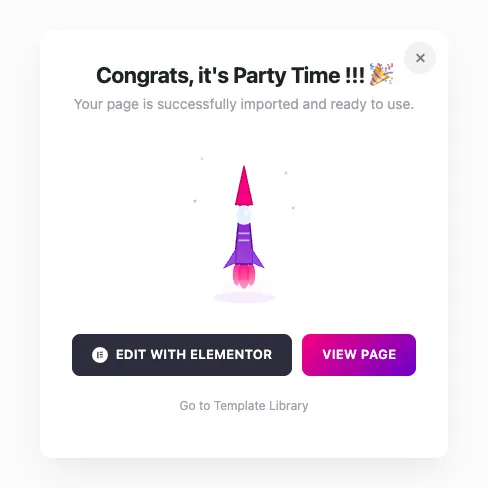
What happens after the import:
- The page is published straight away, so set it to draft if the site is live.
- A copy also goes into Templates → Saved Templates, so you can reuse the design on another page.
- The Pages screen gets an MA Imported filter that lists every page you brought in this way.
- Importing the same template twice adds a “2” to the second copy’s title.
You can browse the same library from Master Addons → Template Library in the dashboard. That screen adds separate tabs for headers and footers, and every card has its own Preview and Import buttons.
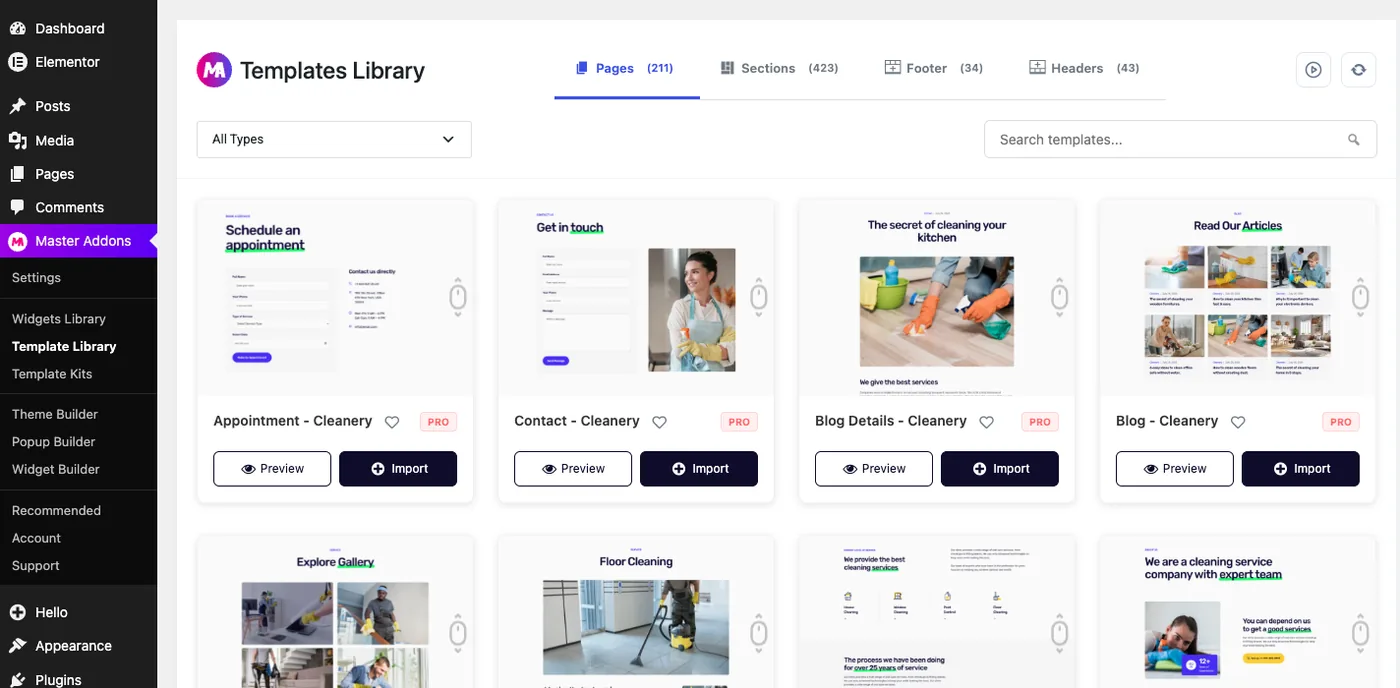
Method 2: Insert an Elementor template into a page you’re already editing
Open the page with Edit with Elementor and scroll to the empty drop area at the bottom of the canvas. It has four round buttons.
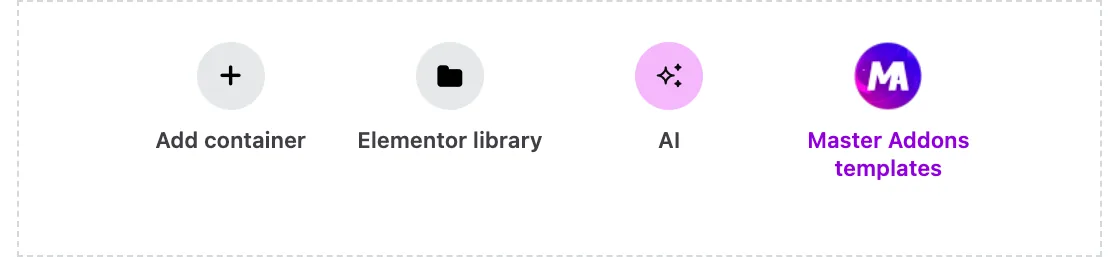
The folder icon opens Elementor’s own library, where every template you’ve saved or imported lives. The Master Addons icon opens the Master Addons template library without leaving the editor.
Insert from the Master Addons library
Click the Master Addons icon. The library has tabs for Ready Pages, Headers, Footers and Sections, along with a category filter and a search box.
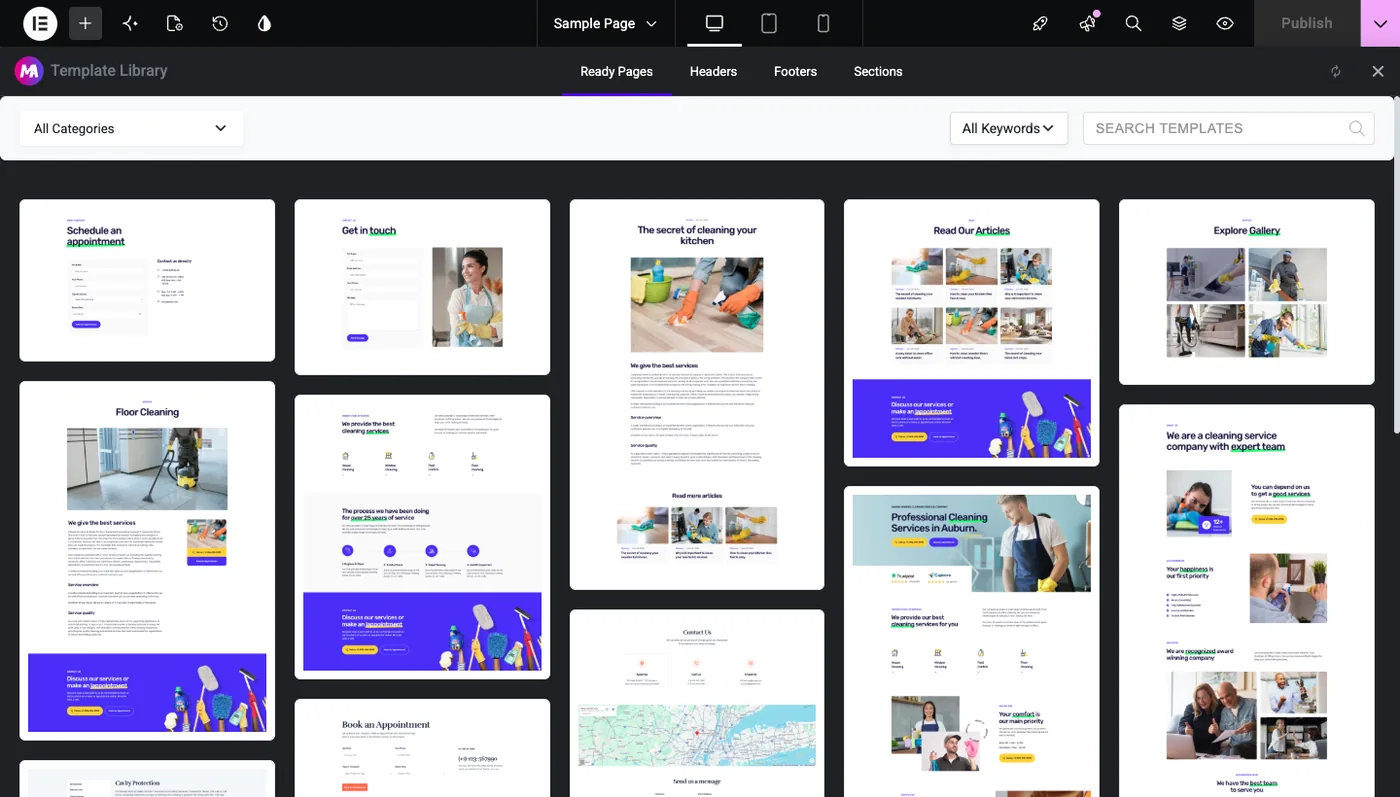
Click a design to preview it, then click Insert in the top-right corner.
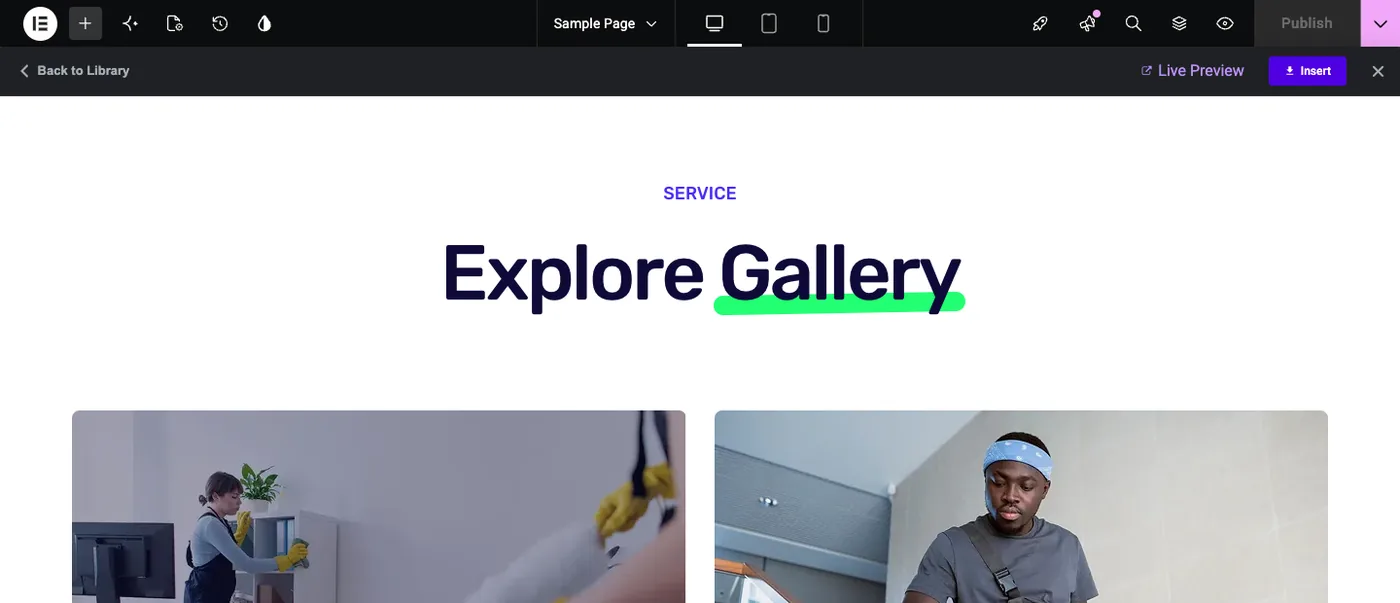
The template lands as a new section under your current content. To move it higher, drag it or reorder it in the Structure panel.
Insert one of your saved templates
Click the folder icon and open the Templates tab. It lists every template on your site with its type (page, section or container) and the date it was created. Hover over the one you want and click Insert.
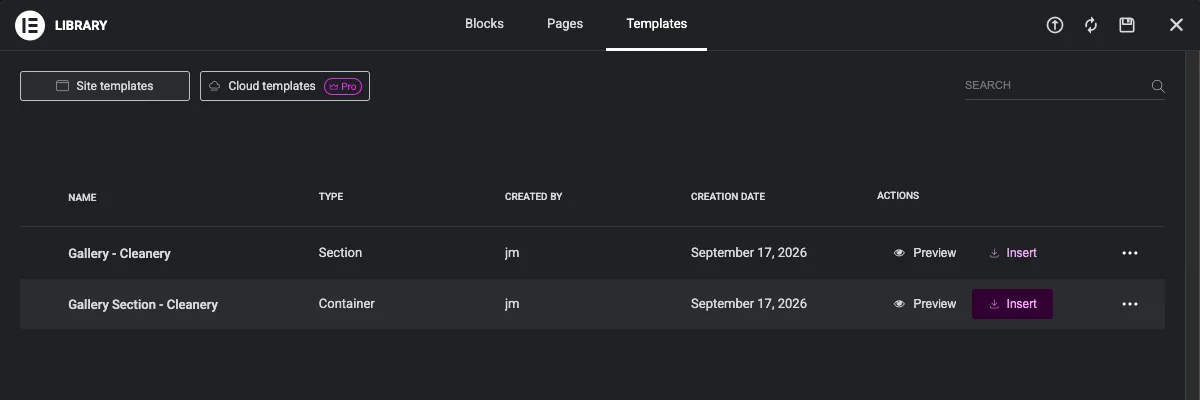
The same list is how you reuse your own work: save a section as a template on one page, then insert it on the next.
Method 3: Import an Elementor template JSON file
Elementor templates are shared as .json files, so a template you buy or export from another site will usually come in that format. Elementor accepts a single .json file or a .zip holding several.
Import from inside the editor
With a page open in Elementor, click the folder icon, then the upload icon (an arrow in a circle) at the top right of the library. Drag the file into the box or click Select File.
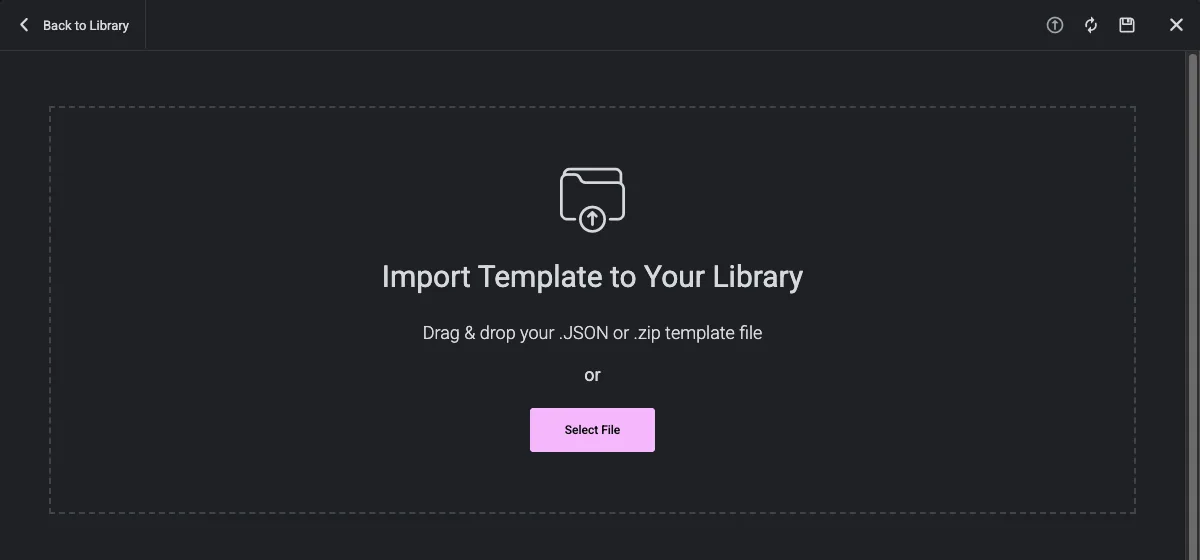
After the upload finishes, the template appears in the Templates tab, and you insert it like any saved template.
Import from the dashboard
To import without opening a page, go to Templates → Saved Templates and click Import Templates at the top. Choose the file and click Import Now. The template joins the list.
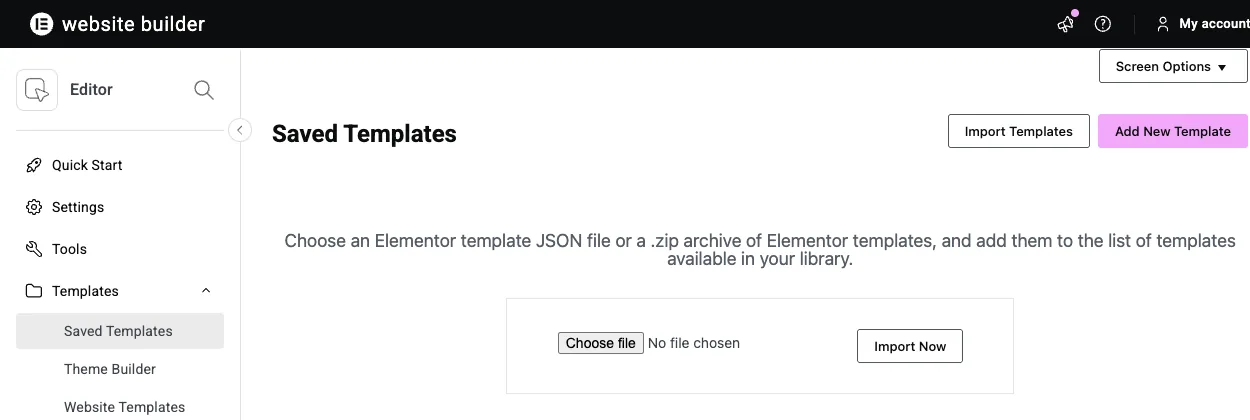
Export a template as JSON
To copy a template to another site, go to Templates → Saved Templates, hover over its row and click Export. The link carries the template type, for example Export Container or Export Section. Your browser downloads a .json file, which you can import on the other site with either option above. To turn a finished page into a template first, see how to save an Elementor page as a template.

Importing a whole template kit?
A template kit is a ZIP with every page of a site plus a header, a footer and global styles, and the template importer can’t handle it. For Master Addons kits, use Pages → MA Import → Template Kits. For kits from Envato Elements or ThemeForest, follow the Envato Elements template kit guide. If you relied on the old Envato Elements plugin, the Envato Elements plugin alternative post lists what replaces it. The ready-made kits are on the Elementor template kits page.
When the imported template doesn’t look right
Fonts or colors don’t match the preview
Elementor’s default fonts and colors are overriding the template. Turn on Disable Default Colors and Disable Default Fonts; this guide shows where both settings are.
Your theme’s header, footer or sidebar wraps around the page
Open Page Settings in Elementor and set the layout to Elementor Canvas for a standalone page, or Elementor Full Width if you want to keep your site header and footer.
Parts of the template are missing
The template uses a widget from a plugin that isn’t active on your site, usually Master Addons or Elementor Pro. Activate that plugin and reload the editor. The Master Addons widgets list has every widget with its name, so you can check which one the template needs.
The upload fails
Make sure the file is a template .json or a .zip of templates. A full template kit ZIP won’t import this way. Very large files can also go over your host’s upload size limit, and your host can raise it.
Frequently Asked Questions
Does inserting a template replace my existing content?
No. Elementor adds the template as a new section at the bottom of the page and keeps everything that was already there. Move or delete sections afterwards if you want the template to take over the page.
Do I need Elementor Pro to import templates?
No. Importing a JSON file, inserting saved templates and using the Master Addons library all work with free Elementor. Templates marked PRO in the Master Addons library need a Master Addons Pro license.
Where do imported Elementor templates go?
Imported and saved templates appear under Templates → Saved Templates in your dashboard and in the Templates tab of the editor’s library. Pages imported with MA Import also show up under Pages.
Can I import an Elementor template into an existing page?
Yes. Open the page in Elementor, click the folder or Master Addons icon at the bottom of the canvas, and insert the template. It’s added below your current content.
What file types can Elementor import?
The template importer takes a single .json file or a .zip that contains several .json templates. Full template kits need the kit importer.
Next step
Choose a page type in the Elementor page templates library and import it with Method 1. For single blocks instead of whole pages, the free Elementor section templates and hero section templates are good starting points. The 176 Pro templates come with the plans on the pricing page, and if something here didn’t work for you, contact us.
