

A flat background color does its job and disappears. A gradient that slowly drifts between colors makes the same section feel alive without adding a single image. The Animated Gradient BG extension in Master Addons Pro adds that effect to any container, section or column: pick your colors, set the angle and speed, and the background cycles through them on its own.
Here is the effect running on a live page. The section shifts through its color set while the content stays put:

What the Animated Gradient BG extension does #
Once enabled, containers, sections and columns get an Animated Gradient Background panel in their Style tab, right below the normal Background section. You load it with two or more colors, and the extension renders a gradient that animates between them in a loop. The angle, the total cycle time and the easing are yours to set.
A small script adds a gradient layer behind the content and animates it with CSS, so there is no video to host or image to compress, and the text on top stays selectable.
Before you start #
- WordPress with Elementor installed and active.
- Master Addons for Elementor installed and active. New to the plugin? Follow the installation guide first.
- A Master Addons Pro license, because Animated Gradient BG is a Pro extension.
How to enable the Animated Gradient BG extension #
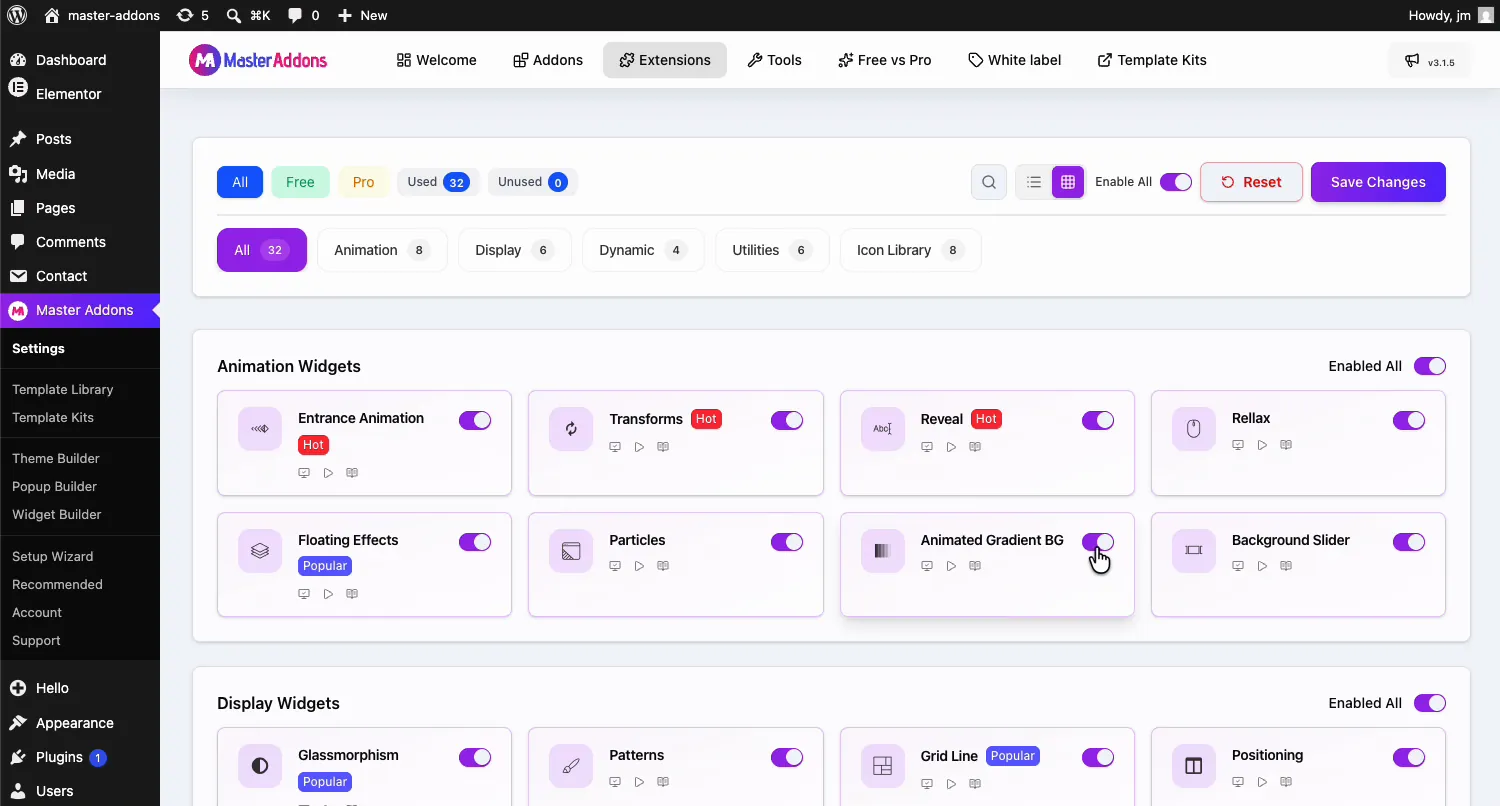
From your WordPress dashboard, go to Master Addons and open the Extensions tab. Animated Gradient BG sits in the Animation Widgets group, next to Particles and Background Slider. Click its toggle so it turns purple, then hit Save Changes and wait for the green “Settings saved successfully” notice.
Set up the gradient on a section #
Select the container or section in the Elementor editor and open the Style tab. The Animated Gradient Background section with the purple MA badge sits just below Background. Flip Enable Animated Gradient to Yes, and the controls appear while the canvas previews the effect live.
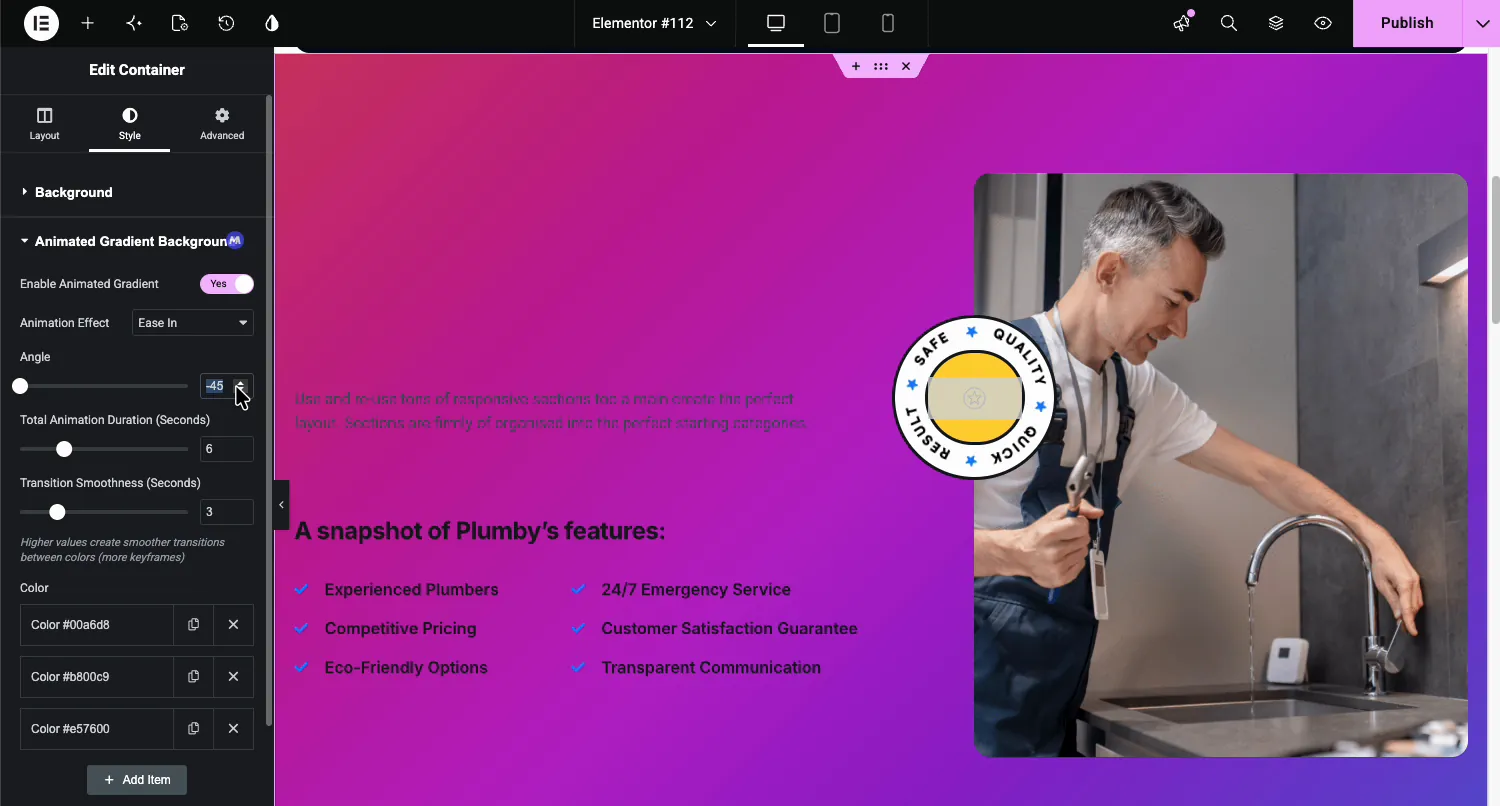
- Animation Effect: the easing of the color movement, Ease In in the demo.
- Angle: the direction of the gradient, -45 in the demo for a diagonal sweep.
- Total Animation Duration (Seconds): the time the gradient takes to drift across and back. The demo uses 6 seconds.
- Transition Smoothness (Seconds): shown in the panel with a default of 3, but in the current version it does not change the animation. Use the duration and Animation Effect to adjust the feel instead.
- Color: a repeater holding the gradient stops. Click Add Item for another color, or the X to drop one.
Pick the colors #
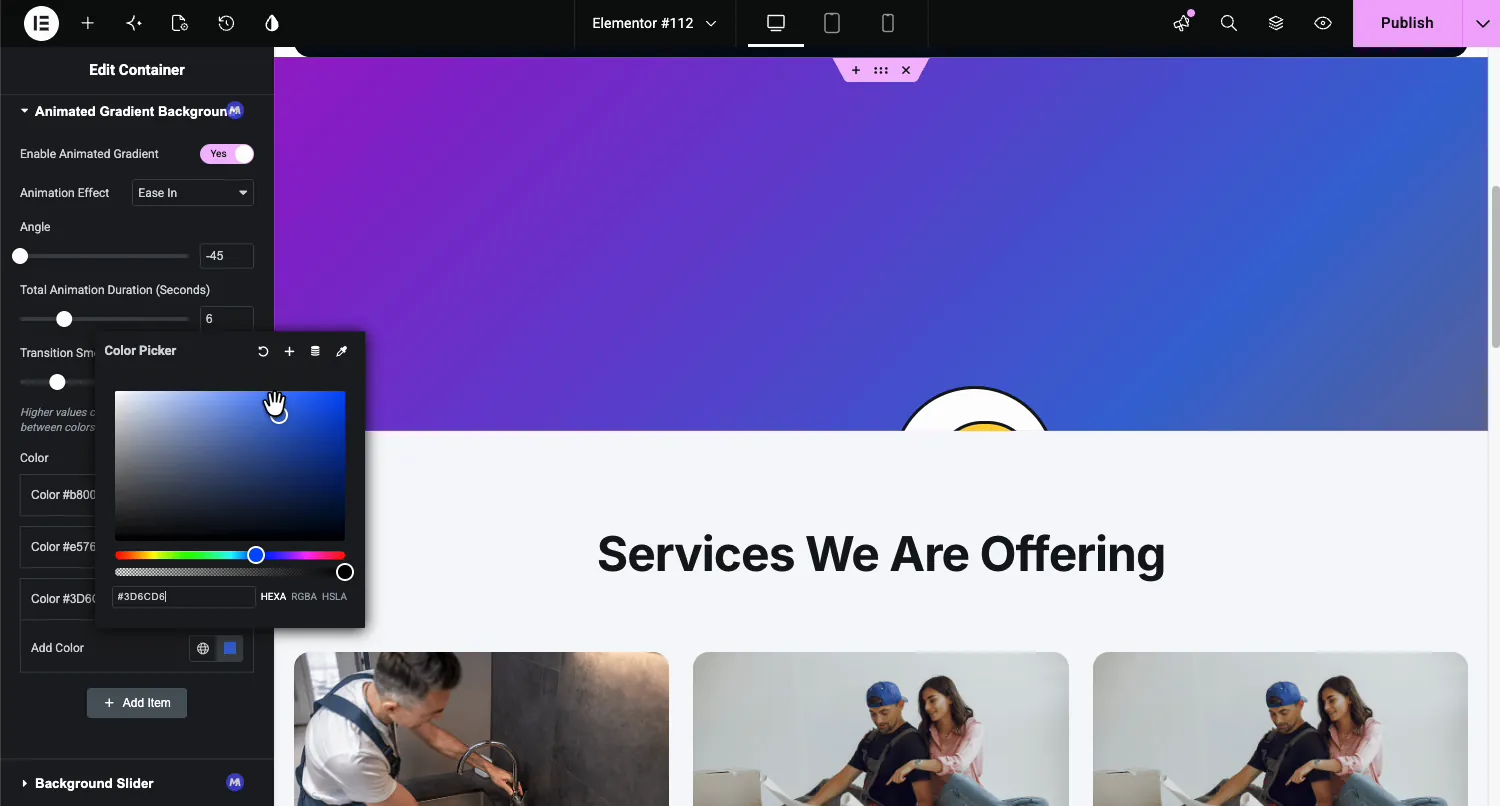
Each row in the Color list opens a standard picker. The demo starts with a cyan, purple, and orange set, then swaps stops in and out: remove one and the loop tightens, add a deep blue (#3D6CD6) and the cycle picks it up immediately. The live preview makes this the fun part; you watch the mood of the section change with every stop you touch.
Two or three colors in the same temperature range read as elegant. Five colors across the whole wheel read as a screensaver. Start small.
The result on the page #
Publish and watch the section breathe through its colors, as in the GIF at the top of this page. The full cycle takes whatever you set as the duration, then loops. Buttons, headings, and images sit on top unaffected.
One practical note: dark text stays readable on light gradient stops but can vanish on saturated ones. Check your headline against every color in the set, not just the first frame.
Where animated gradients work well #
- Hero sections. Motion above the fold without a heavy background video.
- Call-to-action bands. A shifting backdrop pulls the eye to the button riding on it.
- Coming soon and landing pages. A full-screen gradient carries a sparse page on its own.
- Portfolio and agency sites. Brand colors cycling through the header, without paying for a stock video.
- Pricing sections. A subtle gradient behind the highlighted plan separates it from the rest.
Video Tutorial #
Watch the gradient built from scratch, from enabling the extension to the finished moving background.
Frequently Asked Questions #
How do I add an animated gradient background in Elementor?
Enable the Animated Gradient BG extension in the Master Addons Extensions tab, select a container, section or column, and open the Style tab. Turn on Enable Animated Gradient in the Animated Gradient Background panel, add two or more colors, and the background starts cycling immediately.
How many colors can the gradient use?
As many as you add to the Color repeater. Each Add Item click creates another gradient stop, and the animation cycles through all of them within the total duration you set. Two to four colors covers most designs.
Can I control the speed of the gradient animation?
Yes. Total Animation Duration sets how many seconds one full cycle takes, from 1 to 20, and Animation Effect sets the easing. The Transition Smoothness slider does not affect the animation in the current version.
Does the animated gradient slow down my page?
The effect is a CSS animation set up by a small script rather than a video or image file, so there is very little extra to download. It is one of the lighter ways to put motion in a hero section.
Is the Animated Gradient BG extension free?
No. Animated Gradient BG is a Pro extension in Master Addons. Elementor has a free Gradient background type, but that gradient does not move.
Wrapping up #
The Animated Gradient BG extension turns a section background into slow-moving color: a color list, an angle, a duration and an easing. Keep the palette tight, check text contrast against every stop, and the section carries motion with zero asset weight. It pairs well with the Entrance Animation extension for content that arrives over the moving backdrop, the free Gradient Headline widget covers gradient text, and the full set of Master Addons widgets and extensions is one page away.


