

The Select2 field adds a searchable dropdown to a custom widget built with the Master Addons Widget Builder. Editors type to filter the list, and with Show Multiple turned on they can pick several options at once. Use it for long option lists or for tag-style choices where one answer isn’t enough.
Select2 is a Pro field. The free plugin includes a limited Widget Builder, and the full set of fields comes with Master Addons Pro.
What the Select2 field does #
- It adds a dropdown with a search box to your widget’s panel in Elementor.
- With Show Multiple off, the editor picks one option and your template gets that option’s key.
- With Show Multiple on, the editor picks any number of options, shown as removable tags, and your template gets a list of keys that you print with a
{% for %}loop. - Each option has a key and a label. Editors see the labels, and your HTML always receives the keys.
If you haven’t built a widget yet, read the Widget Builder overview first. For a short single-choice list without search, the plain Select field is simpler.
Before you start #
- WordPress with Elementor installed and active.
- Master Addons for Elementor and Master Addons Pro, both active. The installation guide covers setup.
- A widget open in the Widget Builder. The example in this guide is a “Portfolio Card” widget with a Text field for the project title and two Select2 fields: Project Type (one choice) and Project Tags (several choices).
How to add a Select2 field #
- Go to Master Addons > Widget Builder and open your widget.
- On the Content tab, add a section if there isn’t one yet.
- Type
selectin the field search box on the left. Select and Select2 come up. - Drag Select2 into the section. Its settings open in the left sidebar.
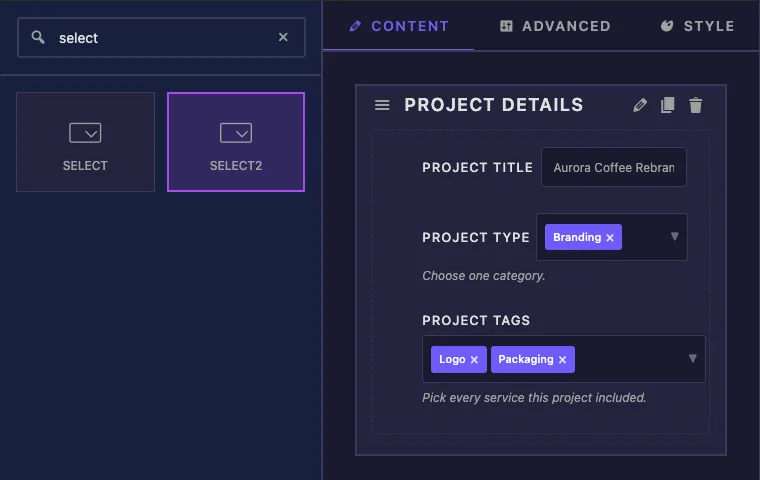
A new Select2 field starts with Show Multiple turned on and three sample options (value-1 to value-3). Replace them with your own before you write the template.
Select2 field options explained #
Here is the Project Type field, set up for a single choice:
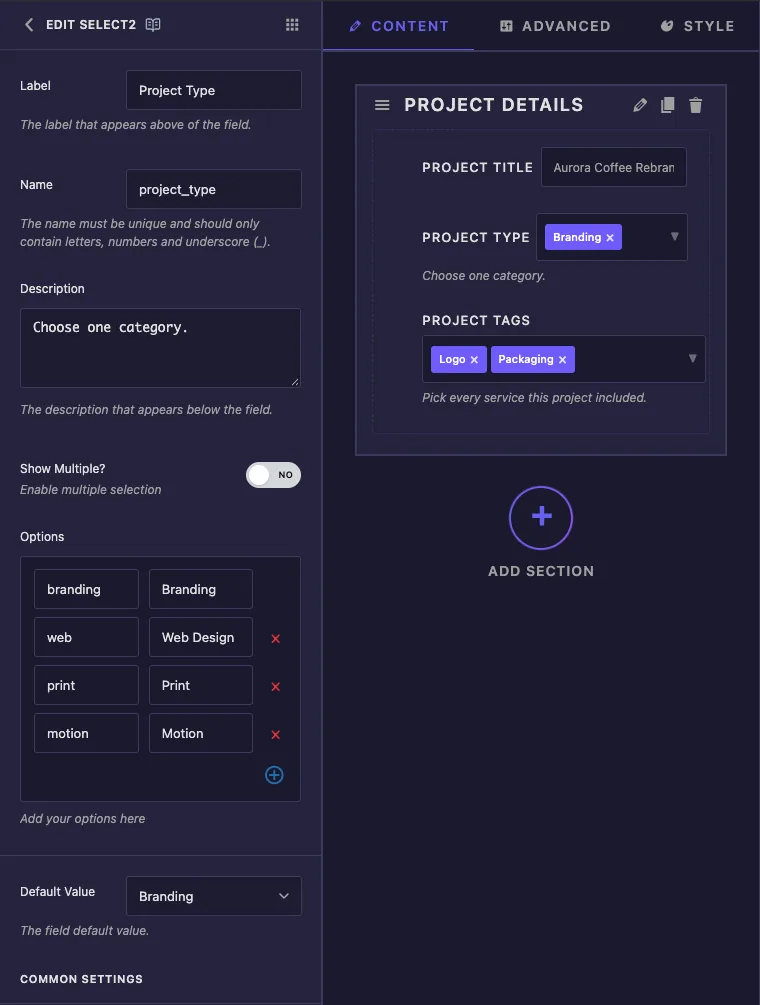
- Label is the text next to the control in Elementor, for example “Project Type”.
- Name is the field’s unique ID (letters, numbers and underscores only). It is also the token you use in the template, so
project_typebecomes{{project_type}}. - Description appears under the control in Elementor. Use it for a short hint such as “Choose one category.”
- Show Multiple? switches between one pick (No) and many picks (Yes). This changes what your template receives, so decide before you write the HTML.
- Options is the list of choices. The left box is the key your template gets (
branding,web). The right box is the label editors see (Branding, Web Design). Use the plus icon to add a row and the red cross to remove one. - Default Value is what’s selected when the widget is first added to a page. In single mode it’s a normal dropdown. If you leave it empty, the first option is selected.
Project Tags uses the same options with Show Multiple turned on. The Default Value box becomes a tag picker, so you can preselect more than one option. Leave it empty and the first option is preselected.
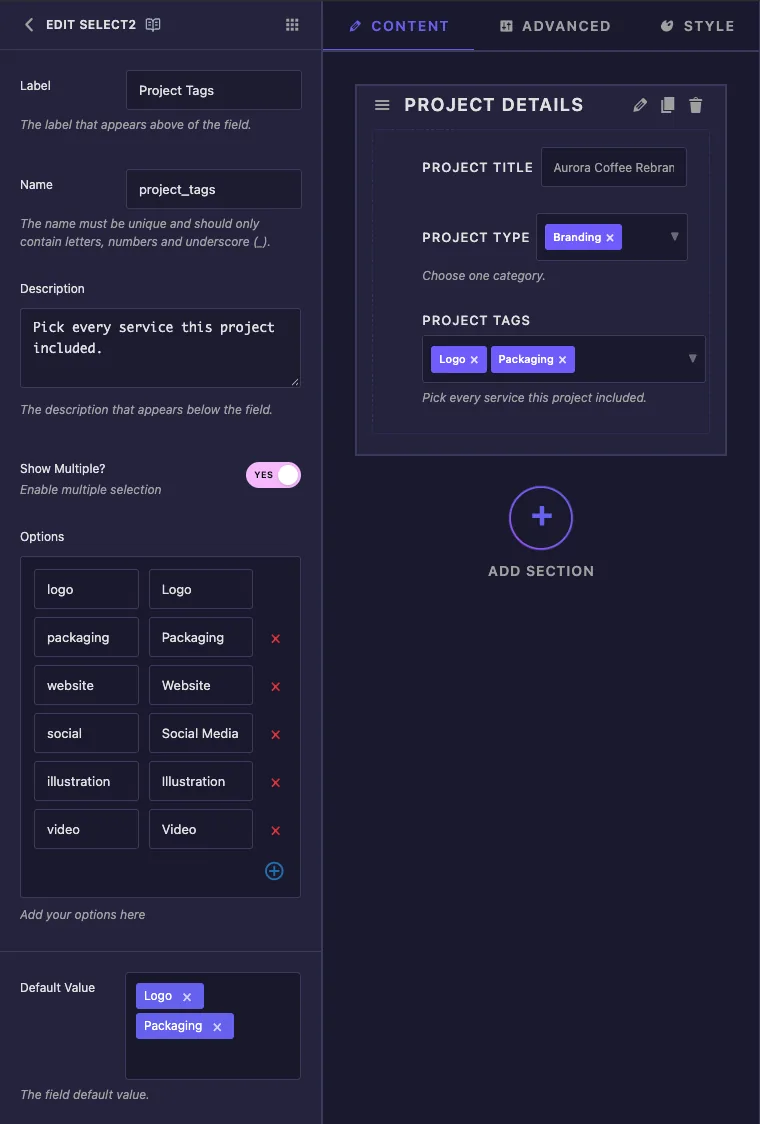
If the Default Value list still shows the old sample options after you edit Options, click Save Settings and open the field again.
Below Default Value you’ll find the common settings shared by most fields: Show Label, Label Block, Responsive Control, Dynamic Support, Frontend Available, Separator, Conditions and Control Classes. Label Block is worth turning on for a multiple field, since the control then gets the full panel width for its tags.
Use Select2 values in your template #
How you print the value depends on Show Multiple.
Single mode: print the key #
A single Select2 works like any other token. {{project_type}} prints the selected key, so you can use it as text or build a CSS class from it:
<article class="portfolio-card type-{{project_type}}">
  <span class="card-type">{{project_type}}</span>
With Branding selected, that renders type-branding and branding. You can also compare it: {% if project_type == 'web' %}...{% endif %}.
Multiple mode: loop over the keys #
A multiple Select2 holds a list, and {{project_tags}} on its own prints nothing. Loop over it instead:
<ul class="card-tags">
  {% for tag in project_tags %}
    <li class="card-tag">{{ tag }}</li>
  {% endfor %}
</ul>
The loop runs once for each picked option, in the order the editor picked them. Inside it, {{ tag }} is one key, and filters such as {{ tag|upper }} work too. The Twig syntax guide lists everything the template engine supports.
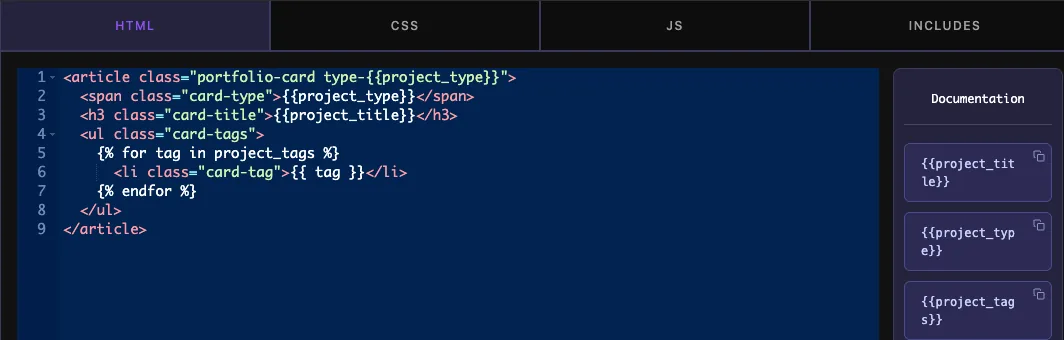
The Documentation panel next to the code editor lists a token for every field. Copying {{project_tags}} from there is fine for single fields, but a multiple field still needs the loop.
Click Save Settings when the template is done.
Use the Select2 control in Elementor #
Add the widget to a page, or reload the editor if the page was already open. Both Select2 controls appear on the Content tab with their defaults already selected.
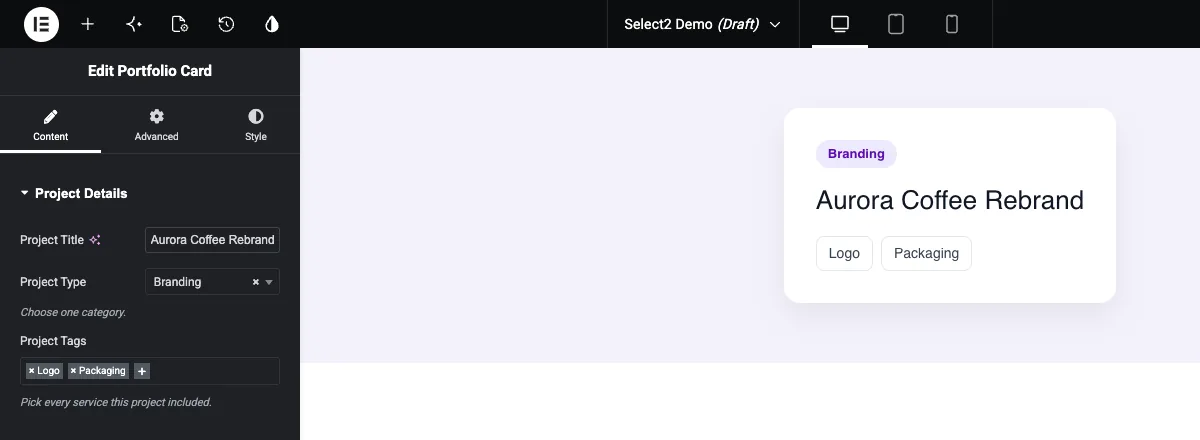
In the multiple control, click the plus button or the empty space after the tags and start typing. The list narrows as you type, and Enter adds the highlighted option. Each tag has a small cross that removes it.
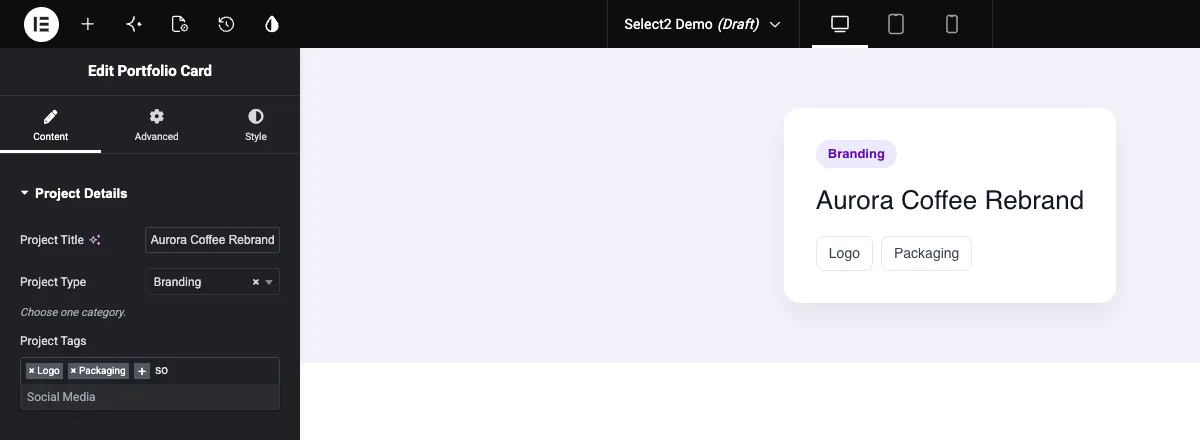
The single control opens a dropdown with its own search box. Pick an option, or use the cross next to the current value to clear it.
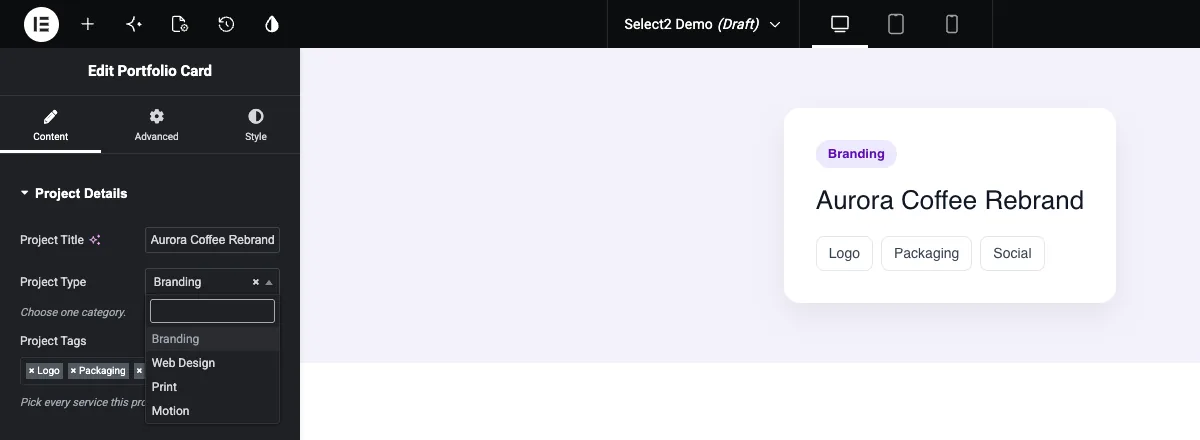
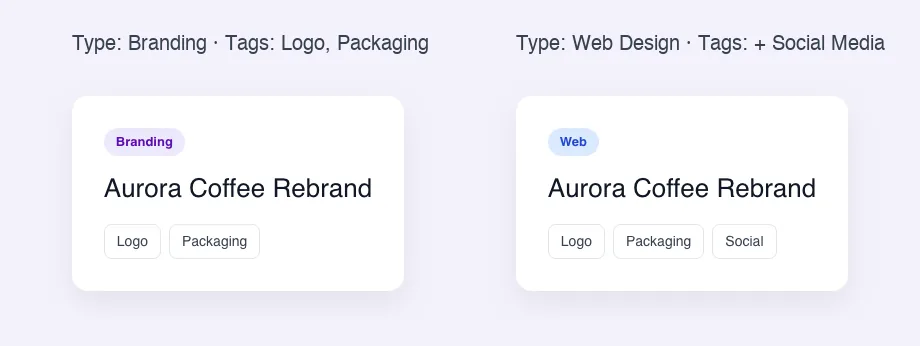
The canvas updates straight away. Notice that the panel shows labels (Web Design, Social Media) while the card prints keys (web, social):
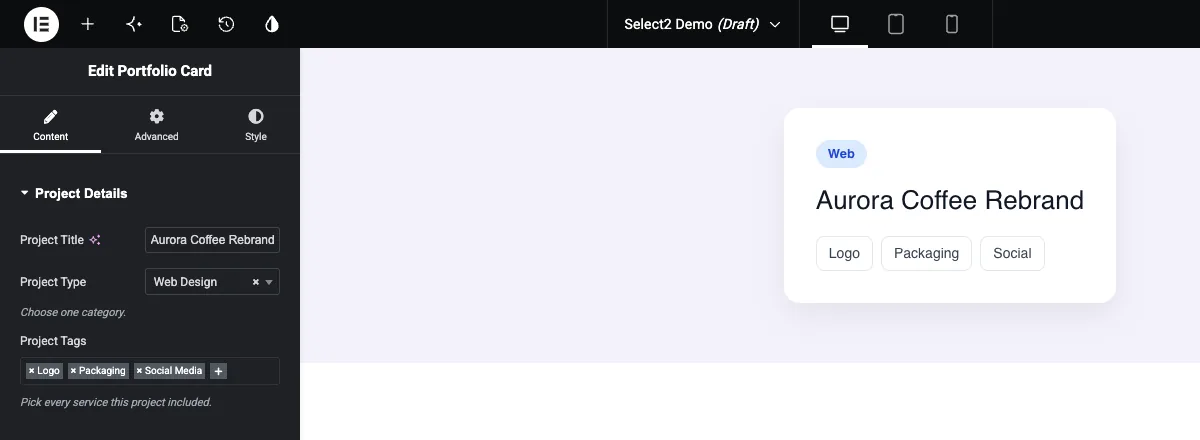
If you need the label text on the page, either make the key readable enough to display, or map it in the template:
{% for tag in project_tags %}
  <li class="card-tag">{% if tag == 'social' %}Social Media{% else %}{{ tag }}{% endif %}</li>
{% endfor %}
Common use cases #
- Tags or services on portfolio, case study and team cards.
- A category or style picker that adds a CSS class, such as
type-web. - Long lists like countries, industries or icon sets, where search saves scrolling.
- Feature lists on pricing or product cards, looped into list items.
Tips for working with the Select2 field #
- Decide on Show Multiple first. Switching it later means changing
{{field}}to a loop, or the other way round. - Write keys in lowercase with no spaces (
social,web). They end up in class names and comparisons. - Don’t rename keys after the widget is in use. Pages that already saved the old key won’t match the new one.
- Style the output with the key, for example
.type-web .card-type { ... }. - For a handful of icon buttons instead of a dropdown, use the Choose field.
Frequently Asked Questions #
Is the Select2 field free?
No. Select2 is one of the Pro fields in the Widget Builder, so Master Addons Pro has to be active before you can add it to a widget.
How do I show every value picked in a multiple Select2?
Loop over the field: {% for tag in project_tags %}{{ tag }}{% endfor %}, where project_tags is the field’s Name. The loop runs once per picked option.
Why does my Select2 token print nothing?
Show Multiple is probably on. A multiple field holds a list, and {{field_name}} can’t print a list. Use a {% for %} loop, or turn Show Multiple off if one choice is enough.
Does the template get the option label or the key?
The key. If the option web has the label Web Design, the template gets web. To print the label, use a readable key or map it with {% if %}.
What’s the difference between Select and Select2?
Both use key and label options. Select2 adds a search box and can hold several picks at once with Show Multiple. Use Select for short single-choice lists.
Wrapping up #
Add the Select2 field, set your keys and labels, and choose between one pick and many before you write the HTML. Print a single value with {{field_name}} and loop over a multiple one with {% for %}. For repeating groups of fields rather than a list of choices, look at the Repeater field, and check pricing for what each plan includes.


