







Free Elementor Blockquote Widget
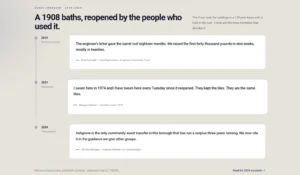
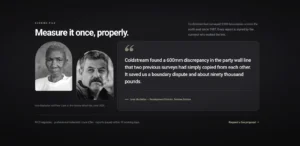
Blockquote is a free Master Addons widget for pull quotes. It outputs a real <blockquote> with the quote text, an optional author in a <cite> tag, large opening and closing quotation marks, and a small colored bar before the author name. Style the card with a color, gradient or image background, border, radius and padding, and set the quote and author typography separately. Use it for a single testimonial, a line from a case study, a mission statement or a pull quote inside a long article.
How to Add a Blockquote in Elementor
The widget comes with the free Master Addons plugin, so you only need Elementor and Master Addons.
- Install and activate Master Addons from WordPress.org.
- Edit your page with Elementor and search the widgets panel for Blockquote. Pick the one with the Master Addons badge.
- Type the quote in Content and the name in Quote Author.
- In Quote Symbols, choose which quote marks and the author bar to show.
- In Style, set the background, text color, typography, border and padding.
- Style the author and the author bar, then preview on desktop and mobile.
Every setting is covered in the Blockquote widget settings guide.

Quote Text and Author
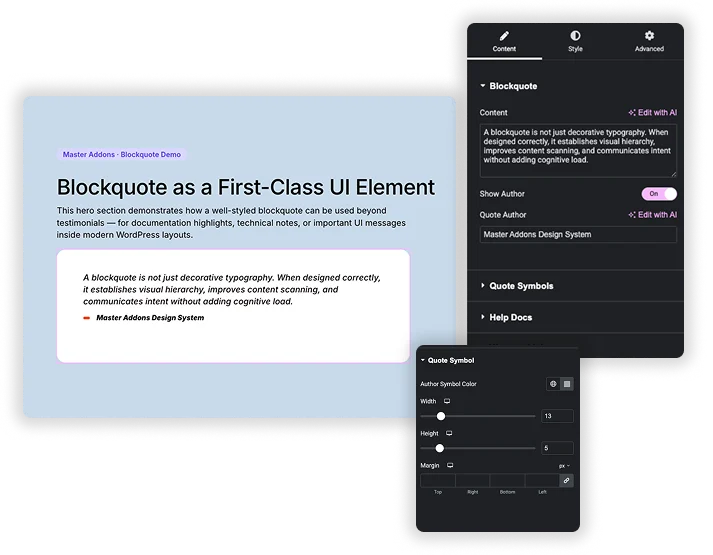
The Blockquote section has a Content box for the quote, a Show Author switch and a Quote Author field. The markup uses blockquote and cite tags, so browsers and screen readers treat it as a quotation rather than ordinary text.
- The author is a single line of text. Add a job title or company after the name if you need it.
- There is no author photo, star rating or link field. For those, use a testimonial widget.
- The quote text supports basic inline formatting.
Elementor Pro Blockquote vs Master Addons Blockquote
Elementor Pro has its own Blockquote widget. Free Elementor has no blockquote widget, only the Testimonial widget.
| Feature | Elementor Pro Blockquote | Master Addons Blockquote |
|---|---|---|
| Price | Needs Elementor Pro | Free with Master Addons |
| Looks | Border, Quotation, Boxed and Clean skins | One card style with start and end quote marks |
| Author | Author text | Author text with an optional colored bar |
| Tweet button | Yes, with label, username and link options | No |
| Background | Box background color and border | Color, gradient or image background, border, radius and padding |
| Hover styles | Box and border hover colors | None |
Elementor Pro has more skins and a click to tweet button. Master Addons is the free option with gradient and image backgrounds. For several quotes with photos, try the testimonial carousel guide or the free Team Slider. Also useful: Dual Heading.
Quote Marks and Author Bar
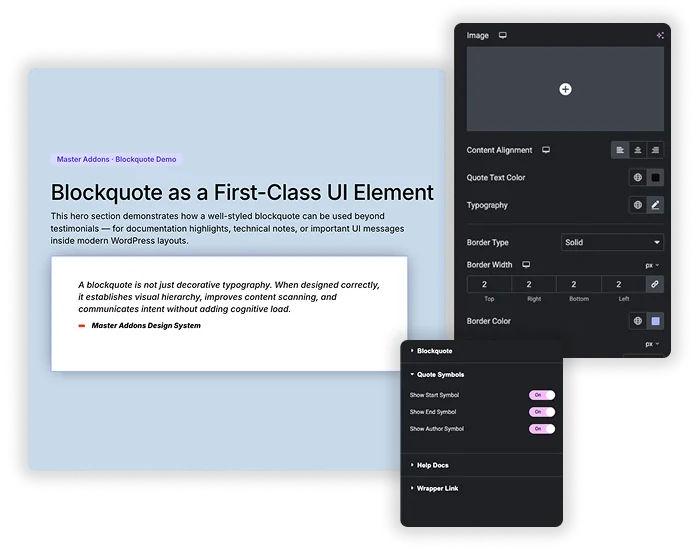
Quote Symbols has three switches: Show Start Symbol puts a large opening quotation mark in the top left corner, Show End Symbol puts a closing mark in the bottom right, and Show Author Symbol adds a short bar before the author. In Style, Quote Symbol sets the bar’s color, width, height and margin.
- The quotation marks are large, semi-transparent characters that follow the quote text color. They have no separate size or position controls.
- Turn both marks off for a clean card that relies on typography.
- The author bar defaults to orange, so match it to your brand color.


Card Background, Border and Typography
The Content style section sets the card: a color, gradient or image Background, Content Alignment (left, center or right), Quote Text Color and Typography, plus Border Type, width and color, Border Radius and Padding. An Authors heading below it sets the author color and typography.
- The default card is purple (#404ace) with white italic text, so change it to fit your page.
- Use generous padding so the quote marks do not touch the text.
- Font size and padding can be set per device in Elementor’s responsive mode.


Frequently Asked Questions For Blockquote
Is the Blockquote widget free?
Yes. Blockquote is part of the free Master Addons plugin on WordPress.org. Elementor’s own Blockquote widget needs Elementor Pro.
Can I remove the quotation marks?
Yes. In Quote Symbols, turn off Show Start Symbol, Show End Symbol or both. Show Author Symbol hides the small bar before the author name.
Can I use it for customer testimonials?
Yes, for a single quote with a name. Put the praise in Content and the customer name, role or company in Quote Author. There is no photo or star rating field, so for several reviews with photos use a testimonial or team carousel instead.
Can I change the size or color of the quote marks?
Not directly. The marks are large characters at low opacity that follow the quote text color, and they have no size or position controls. The author bar has its own color, width, height and margin in the Quote Symbol style section.
Trending Elementor Widgets & Extensions
Build sophisticated websites in less time.

Glassmorphism

Container Extras

Patterns
![Master Addons Post/Page Duplicator extension for Elementor: MA Duplicator row link in the WordPress Pages list creating a Landing Page - [Duplicated #128] draft](https://d1asvmc6qcowgk.cloudfront.net/wp-content/uploads/2026/09/15102930/post-page-duplicator-768x403.webp)
Post/Page Duplicator



