

A footer is one of the templates you can build with the Master Addons Theme Builder, and it works just like the header. You design it once in Elementor, then decide where it shows: across the entire site, everywhere except a few pages, or on a single landing page. This guide walks the whole process with a screenshot for each step.
What You Can Do with the Footer Builder #
- Design a custom footer in Elementor (logo, menu columns, contact info, copyright, social icons)
- Display it across your entire website
- Exclude specific pages so the footer doesn’t show there
- Apply a footer to a specific landing page only
Before You Start #
- Elementor installed and active (the free version works)
- Master Addons for Elementor installed and active (installation guide)
- Administrator access to your WordPress dashboard
Step 1: Create a Footer Template #
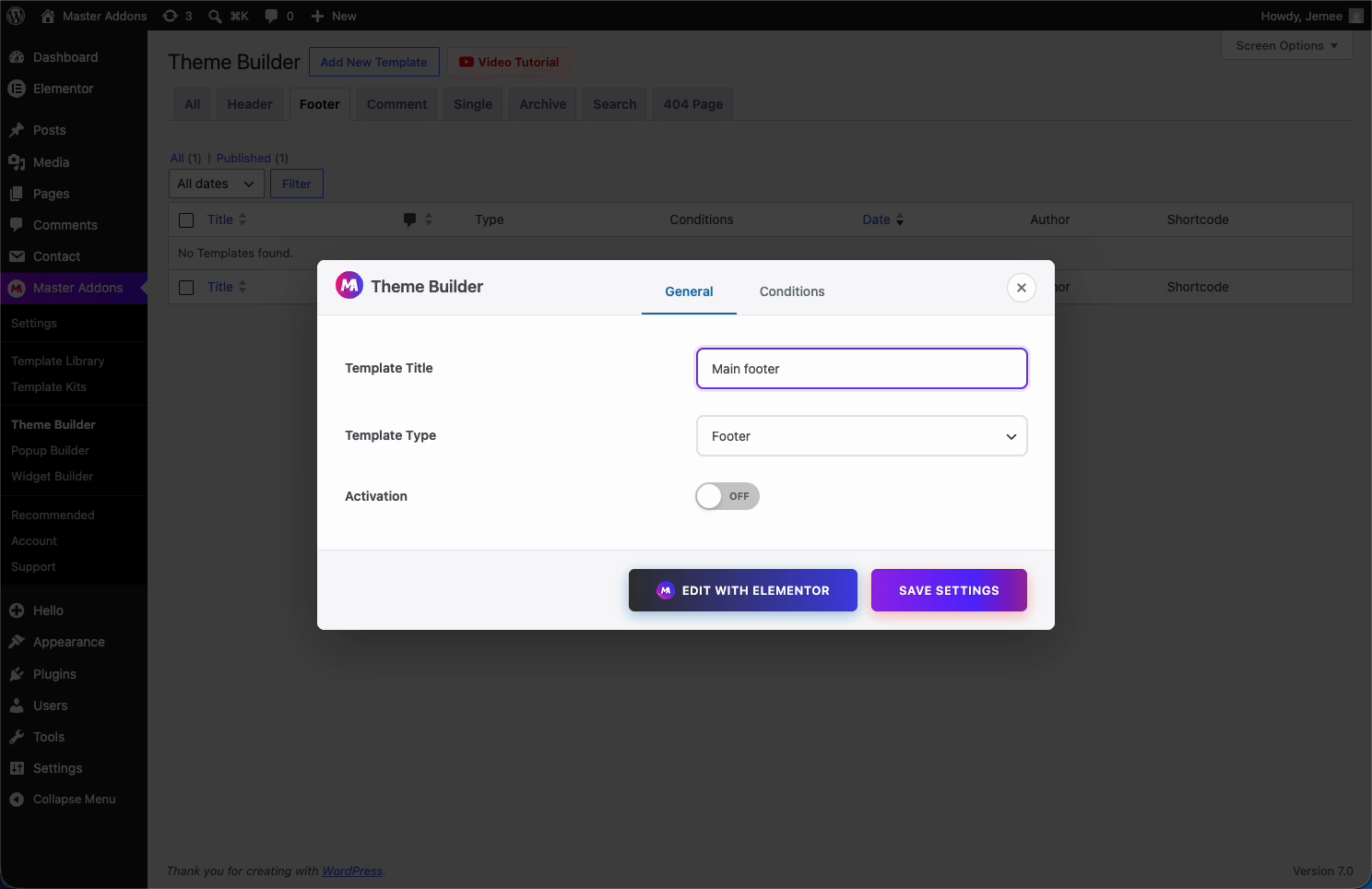
From your dashboard, go to Master Addons > Theme Builder and click Add New Template. In the popup, name the template (like “Main Footer”), set Template Type to Footer, then click Edit with Elementor.
Step 2: Design the Footer in Elementor #
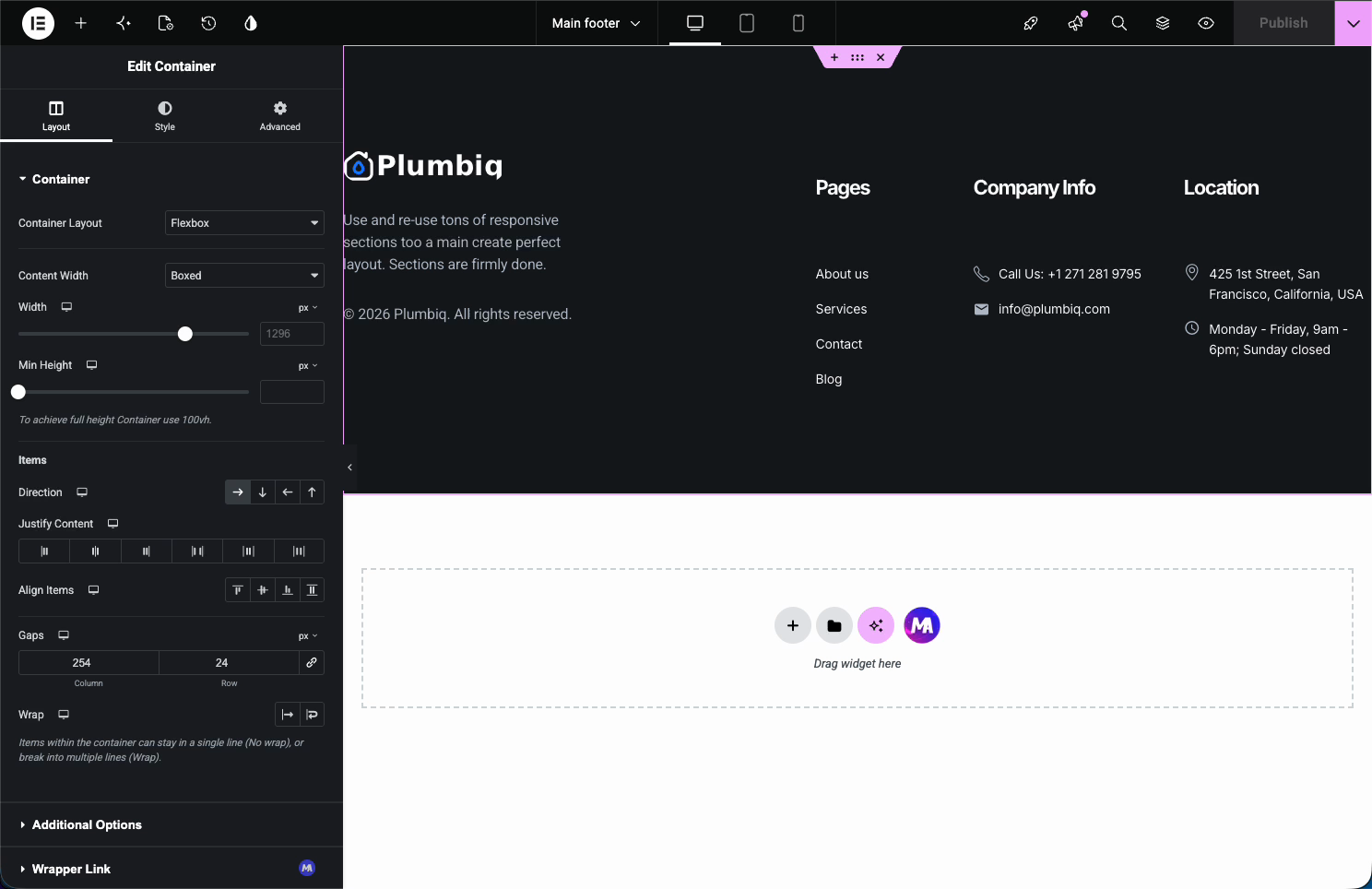
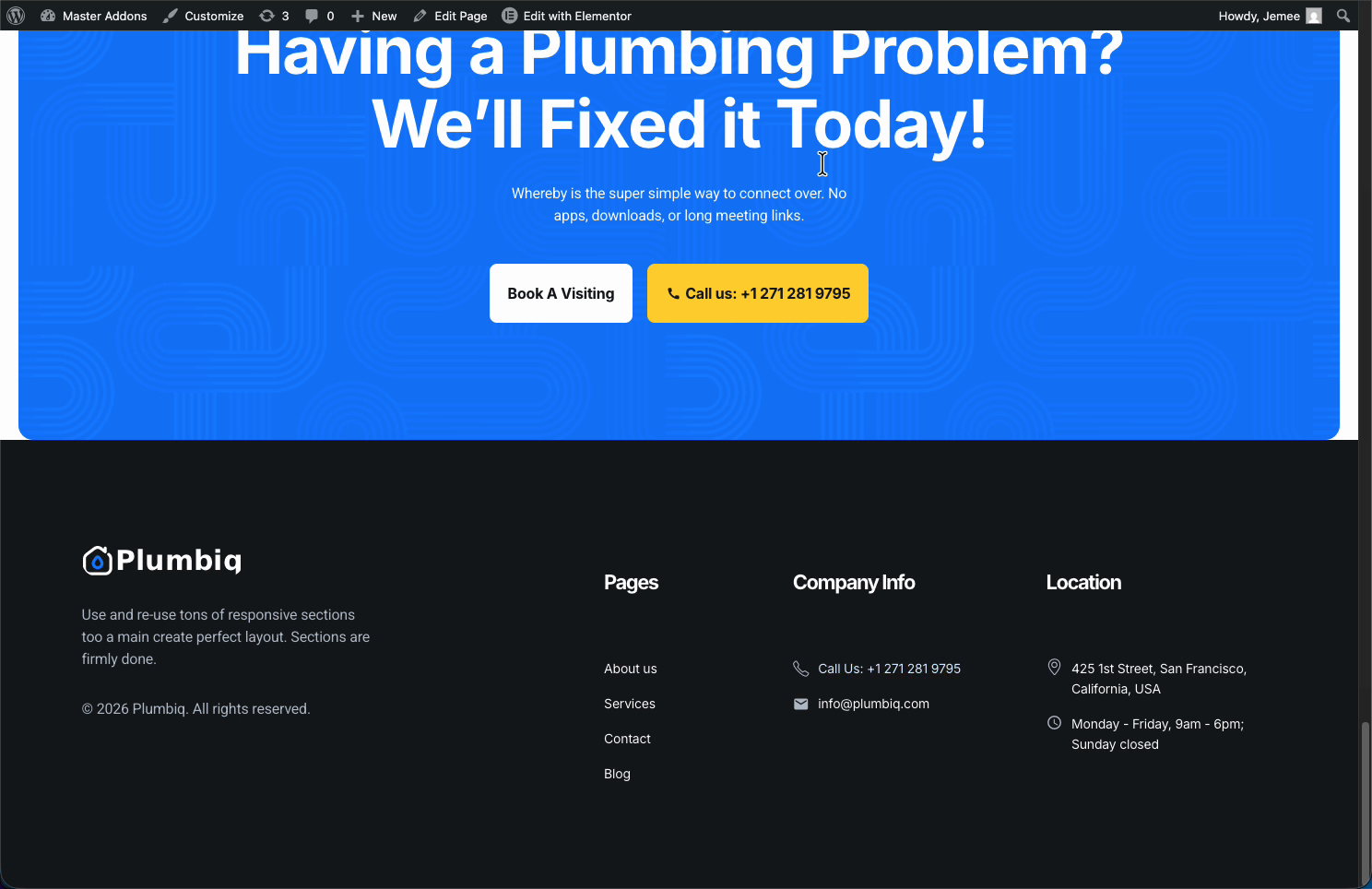
Now build the footer like any Elementor layout. Add your logo, menu columns, contact details, social icons, and a copyright line at the bottom. A Flexbox container with a few columns keeps everything aligned across the row.
Step 3: Set the Display Conditions #
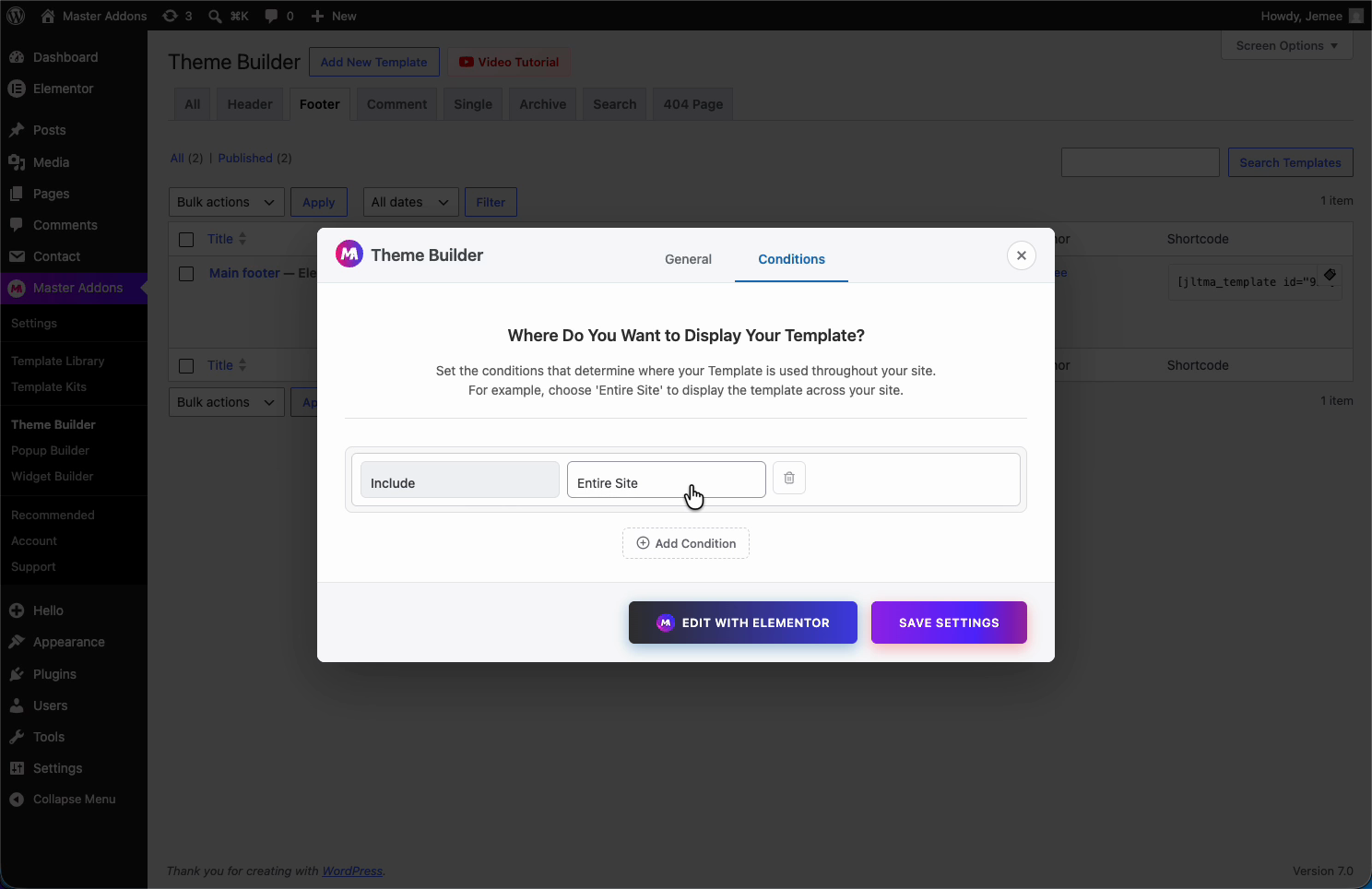
This is where you tell Master Addons where the footer should appear. Open the Conditions tab in the Theme Builder popup (you can also reach it later from the template list with Edit Conditions). Conditions use two types of rules: Include (show here) and Exclude (don’t show here).
Show the Footer on the Entire Site #
Set a single rule: Include > Entire Site. That puts the footer on every page and post, which is the usual choice for a site-wide footer.
Exclude a Specific Page #
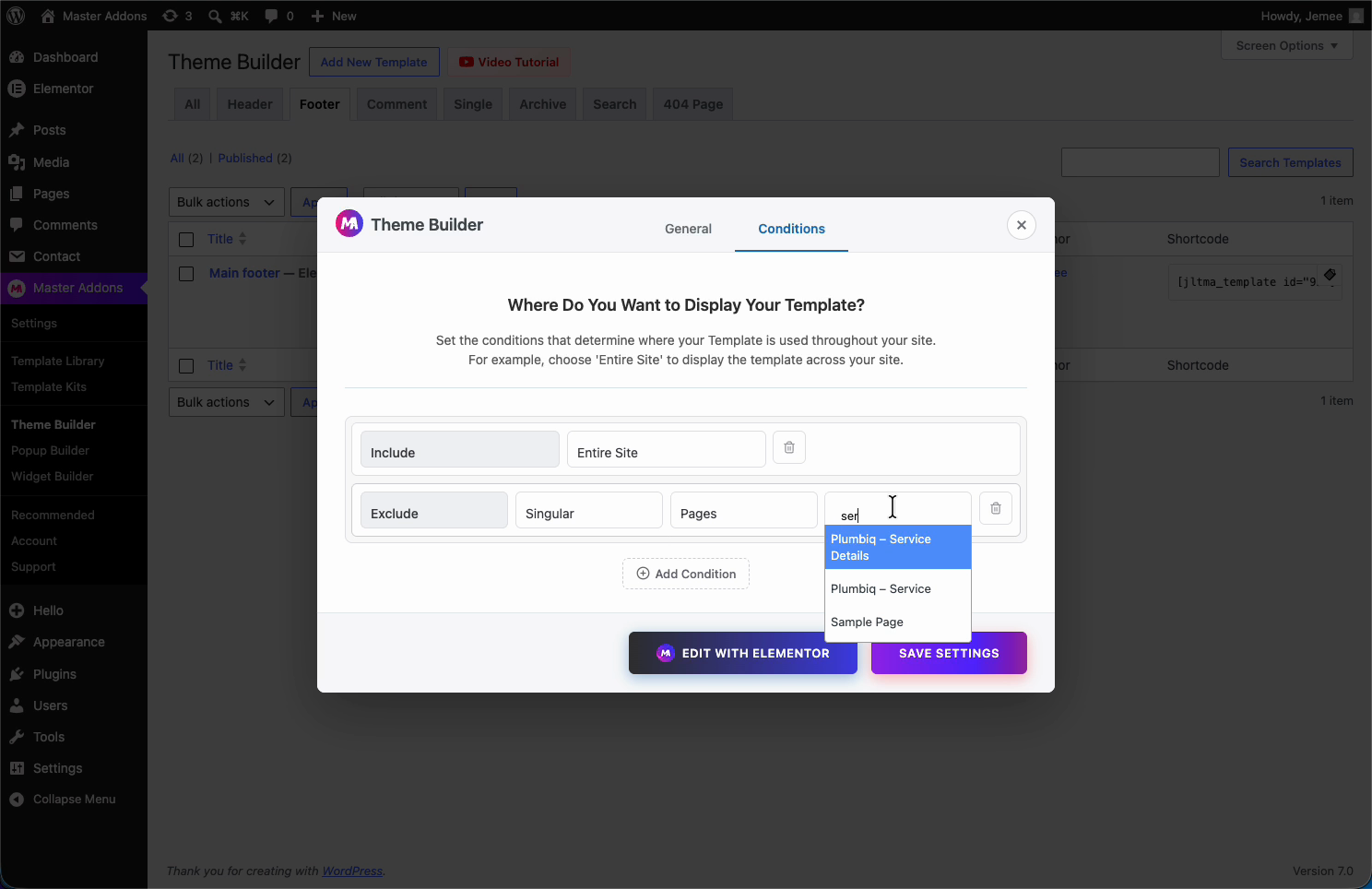
Want the footer everywhere except one page? Keep Include > Entire Site, then click Add Condition and set Exclude > Singular > Pages, then pick the page. The footer now shows site-wide but skips that page. Handy for a landing page that has its own footer or none at all.
Apply the Footer to One Landing Page Only #
For a footer that shows on a single landing page and nowhere else, skip “Entire Site” and set Include > Singular > Pages, then choose that page. Only the page you pick gets this footer. You can build a few different footers this way and point each at its own landing page.
Step 4: Save and Publish #
Once your conditions look right, click Save Settings (or publish from inside Elementor). The template list marks the footer as Active and shows its conditions, so you can confirm at a glance. Visit your site and the footer sits at the bottom of every page it’s set for.
Troubleshooting #
- Footer not showing? Check that the template is set to Active and that its conditions include the page you’re viewing.
- Two footers showing at once? Your theme’s own footer may still be active. Most “Hello”-style themes hide it automatically, but some themes need their footer turned off in the Customizer.
- Footer on a page you didn’t want? Add an Exclude condition for that specific page and save.
Frequently Asked Questions #
How do I create a custom footer in Elementor with Master Addons?
Go to Master Addons > Theme Builder, click Add New Template, set the type to Footer, and design it in Elementor. Then open the Conditions tab to choose where it shows and save.
Can I show a footer on the entire site?
Yes. In the Conditions tab, add a single rule: Include > Entire Site. The footer then appears on every page and post across your website.
How do I stop the footer from showing on one page?
Keep your Include rule, then add an Exclude condition: Exclude > Singular > Pages, and select the page. The footer shows everywhere except that page.
Can I use a different footer for a specific landing page?
Yes. Create a separate footer template and set its condition to Include > Singular > Pages, then pick the landing page. Only that page uses the footer, so each landing page can have its own.
Do I need Elementor Pro for the footer builder?
No. The Master Addons Theme Builder handles footers on top of the free version of Elementor, so you don’t need Elementor Pro to build and assign a custom footer.


