

Some visitors land on a page, read for a second, then stall. No scrolling, no clicking, they just sit there. An after inactivity popup waits out that quiet stretch and shows your offer once a visitor has gone idle for a set number of seconds. The Master Addons Popup Builder handles it with the After Inactivity trigger and one Inactivity Time setting. No code.
Here you’ll set a popup to open after a visitor has been idle for a number of seconds you choose. It’s the same Popup Builder that ships free with Master Addons for Elementor.
Before You Start #
- A popup already built in the Master Addons Popup Builder (see the popup settings guide to create one)
- Elementor installed and active
- Master Addons for Elementor installed and active (installation guide)
Step 1: Open Your Popup in Elementor #
Go to Master Addons → Popup Builder. Find the popup you want to trigger on inactivity, hover over its name, and click Edit with Elementor. The popup opens in the Elementor editor with the MA Popup Settings panel on the left.
Step 2: Set the Popup to Open After Inactivity #
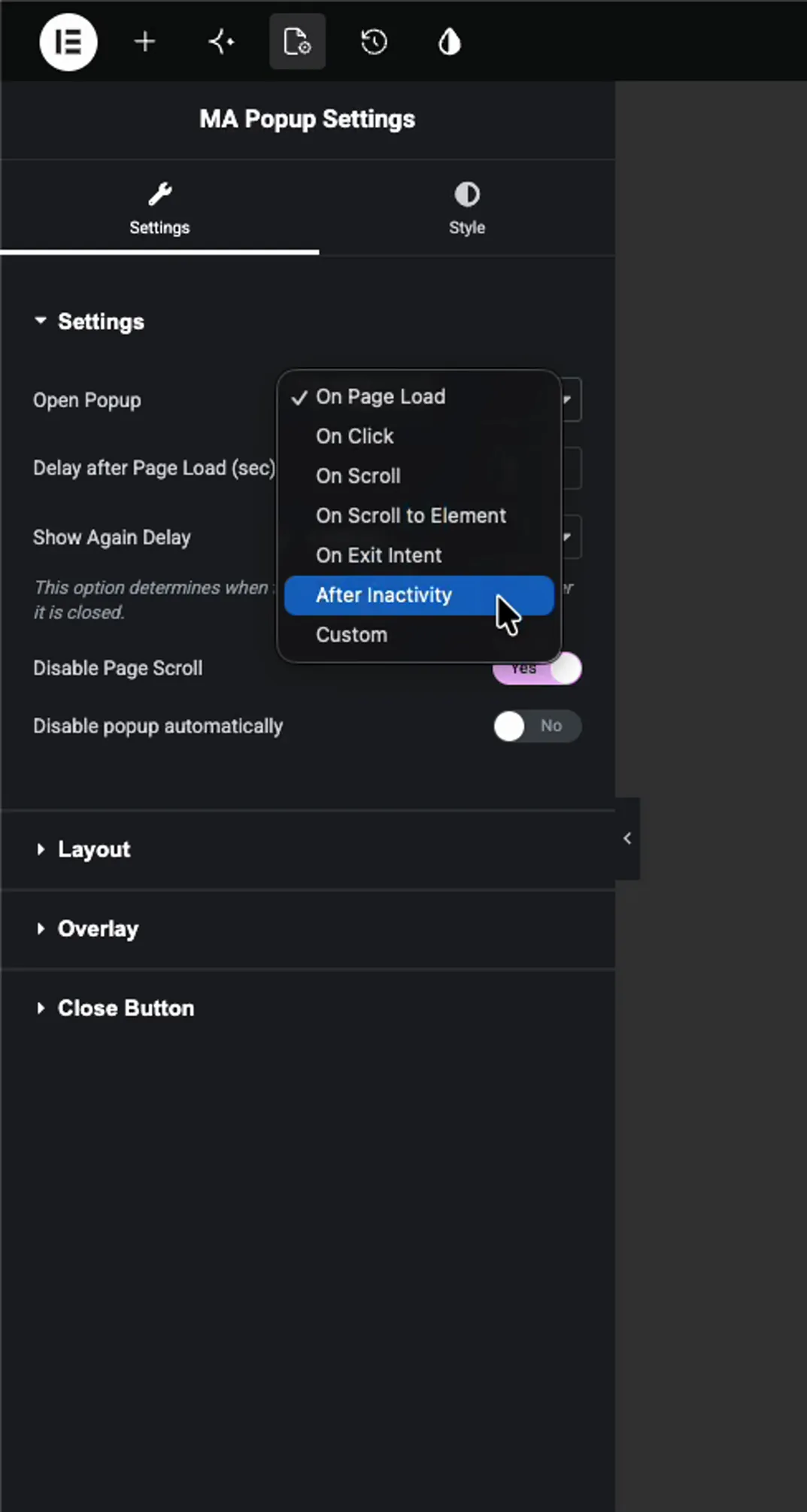
In the MA Popup Settings panel, open the Settings section and find the Open Popup dropdown. It starts on On Page Load. Switch it to After Inactivity.
The same dropdown holds the other triggers too: On Click, On Scroll, On Scroll to Element, On Exit Intent, and Custom. So you can swap the behaviour here later without rebuilding the popup.
Step 3: Set the Inactivity Time in Seconds #
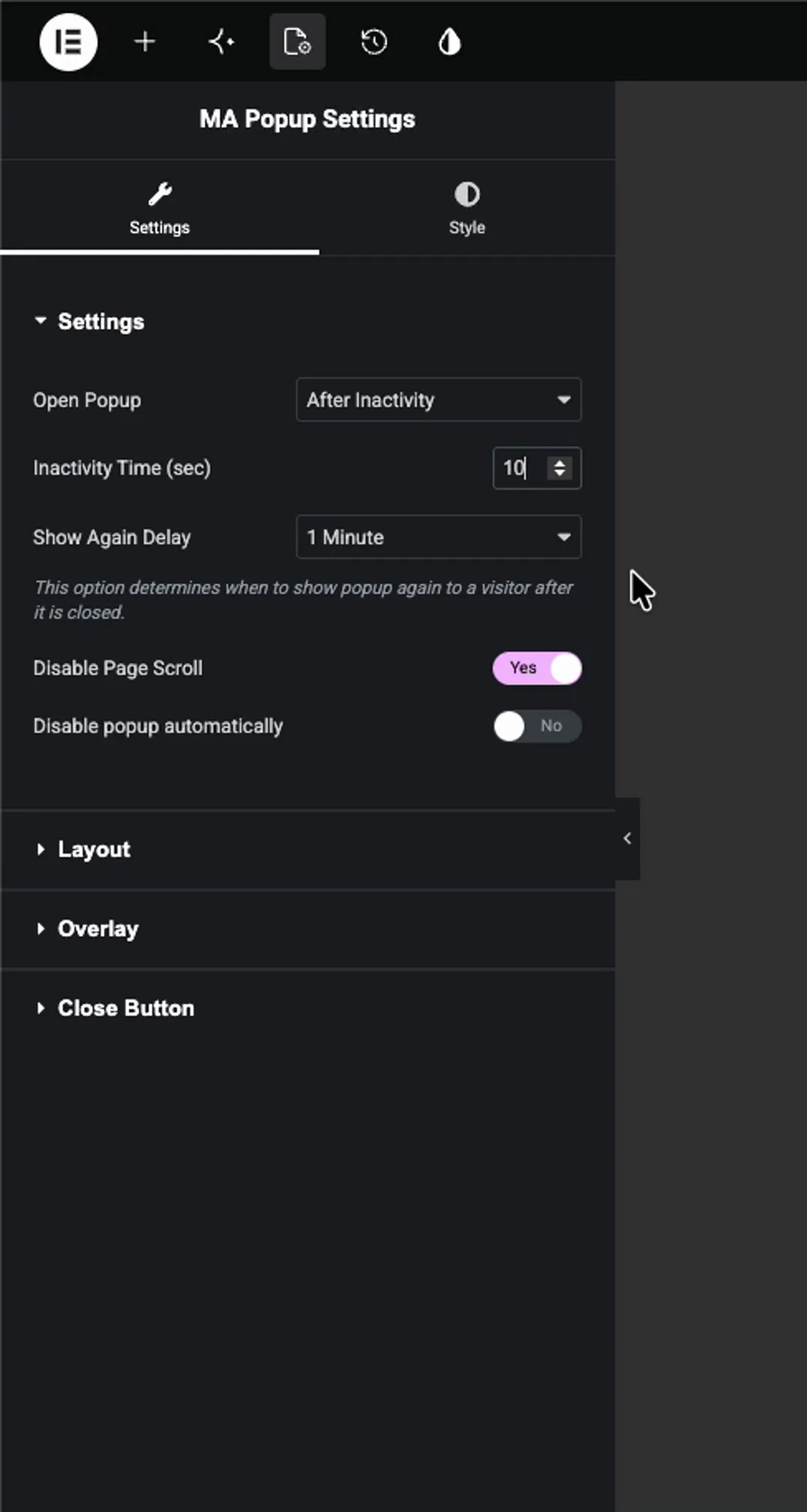
Once After Inactivity is selected, a new field shows up: Inactivity Time (sec). This is how many seconds a visitor has to sit idle, no scroll, no click, no mouse movement, before the popup fires. Type a number, or use the up and down arrows.
A short value like 5 seconds shows the popup quickly. Something like 10 to 15 gives the visitor a beat to start reading before it interrupts. Match the number to how long your content takes to scan, a long article can wait longer than a short landing page.
Step 4: Set the Show Again Delay #
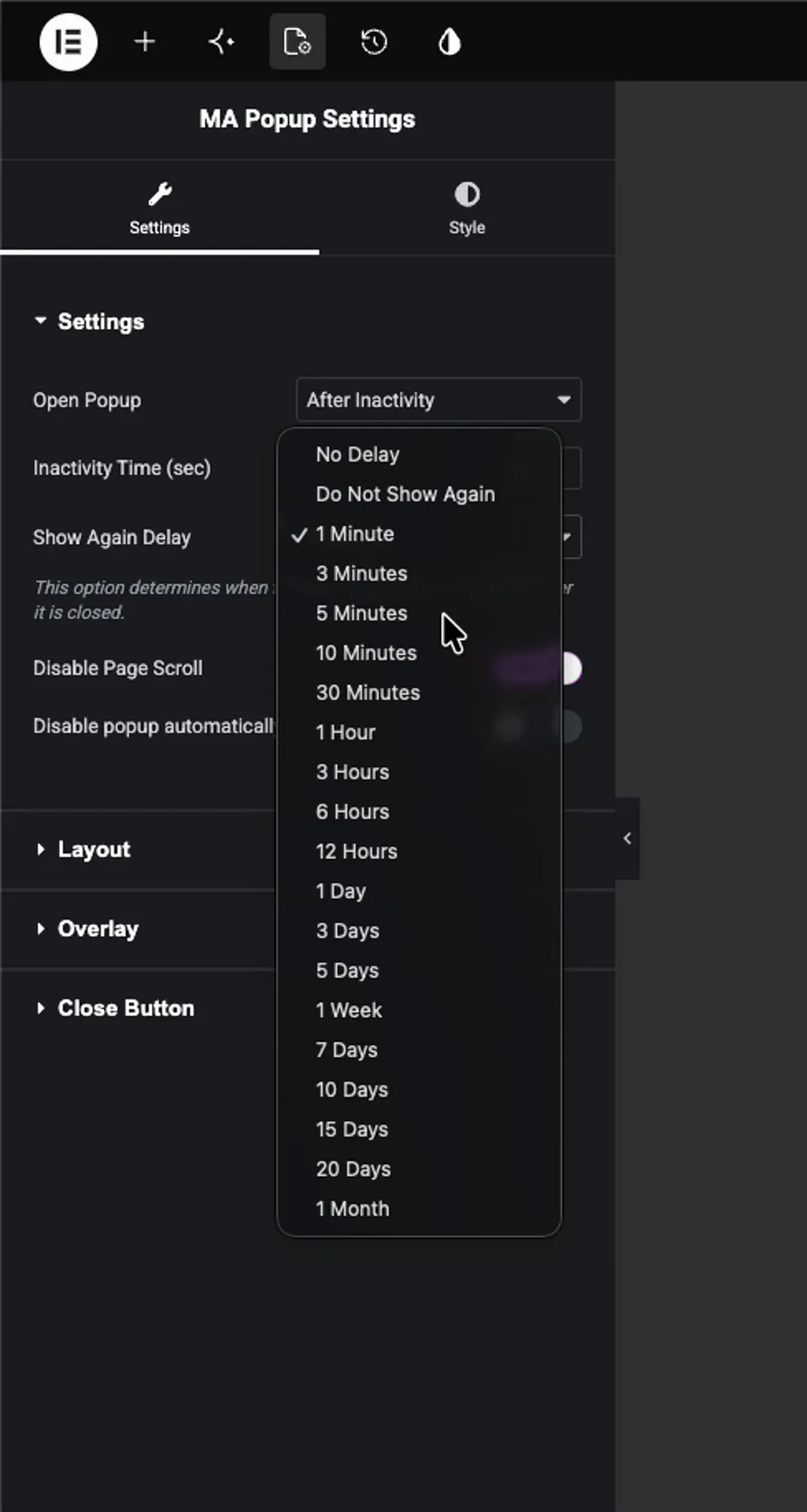
Right below that sits the Show Again Delay dropdown. It controls how long before the popup can come back after a visitor has seen it, so it isn’t firing every time they go idle.
The list runs from No Delay and Do Not Show Again through minutes, hours, and days. Use something short like 1 Minute while you’re testing, then bump it up to a few hours once the site is live.
Two related options sit in the same panel:
- Disable Page Scroll locks the background page while the popup is open.
- Disable popup automatically lets you set an end date so the popup stops showing on its own.
Click Publish (or Update) to save the popup.
Step 5: Test It on the Front End #
Open any page covered by the popup’s display conditions and view it on the front end. As long as you’re moving the mouse or scrolling, nothing happens, the visitor just sees your normal content.

Now stop. Hands off the mouse and keyboard. Once the idle time you set runs out, the popup slides in over the page on its own. It does the same thing on every page included in its display conditions.

Troubleshooting #
- Popup never appears? The timer resets on any mouse move, scroll, or key press. Sit completely still for the full count you set, even nudging the mouse starts it over.
- Fires too fast? Raise the Inactivity Time so the visitor gets longer to read before it shows.
- Shows once, then never again? That’s the Show Again Delay doing its job. Drop it to No Delay while testing so it reopens each time.
- Not showing on the page at all? Check that the popup’s Activation is on and its display conditions actually include the page you’re testing.
Frequently Asked Questions #
How do I open a popup after inactivity in Elementor?
Edit the popup in Elementor, open the MA Popup Settings panel, and set Open Popup to After Inactivity. Type the Inactivity Time in seconds. The popup fires once a visitor stays idle that long.
What does Inactivity Time (sec) mean?
It’s how many seconds a visitor must go without scrolling, clicking, or moving the mouse before the popup opens. At 10, the popup appears after 10 seconds of no activity. Any movement resets the timer.
What is a good inactivity time for a popup?
Around 10 to 15 seconds works for most pages. Long enough that an engaged reader isn’t interrupted, short enough to catch a visitor who has stalled or stepped away from the page.
Can I stop the popup from showing every time?
Yes. Use the Show Again Delay option below the Inactivity Time field to set how long before the popup can reappear after a visitor closes it, anywhere from one minute to a full month.
Do I need Elementor Pro for an inactivity popup?
No. The Master Addons Popup Builder works with the free version of Elementor, so the After Inactivity trigger and Inactivity Time setting work without Elementor Pro. The After Inactivity trigger itself needs Master Addons Pro, since the free plugin opens every popup on page load.


