

Paste code into a normal text widget and it strips the formatting, leaving an unreadable block. The Source Code widget, a Pro widget in Master Addons for Elementor, fixes that: it shows your code with proper syntax highlighting, line numbers, a language theme, and a copy button, so readers can grab a snippet with one click.
It is built for tutorials, documentation, and developer blogs, anywhere you need to show PHP, JavaScript, CSS, HTML, or another language cleanly. You paste the code, pick a language and theme, and set the copy button, all from the Elementor panel. Below is a run through every setting.
What the Source Code widget does #
The widget takes a block of code and renders it with color-coded syntax highlighting based on the language you choose. It can number the lines, apply one of several editor themes, and add a copy-to-clipboard button that confirms when the code has been copied.
It has three tabs: Content for the code, language, and copy button, Style for the container and button look, and Advanced for the usual Elementor options.
Before you start #
- WordPress with Elementor installed and active.
- Master Addons Pro installed with an active license, since Source Code is a Pro widget. New to the plugin? See the installation guide.
- The code snippet you want to display.
How to add the Source Code widget #
In the Elementor editor, open the Elements panel and search for Source Code, or scroll to the Master Addons section. Drag it onto your page. It loads with a sample snippet so you can see the highlighting right away.
Add your code and pick a language #
Open the Content tab. The Source Code section holds everything. Paste your snippet into the Source Code box, then set the language and theme above it.
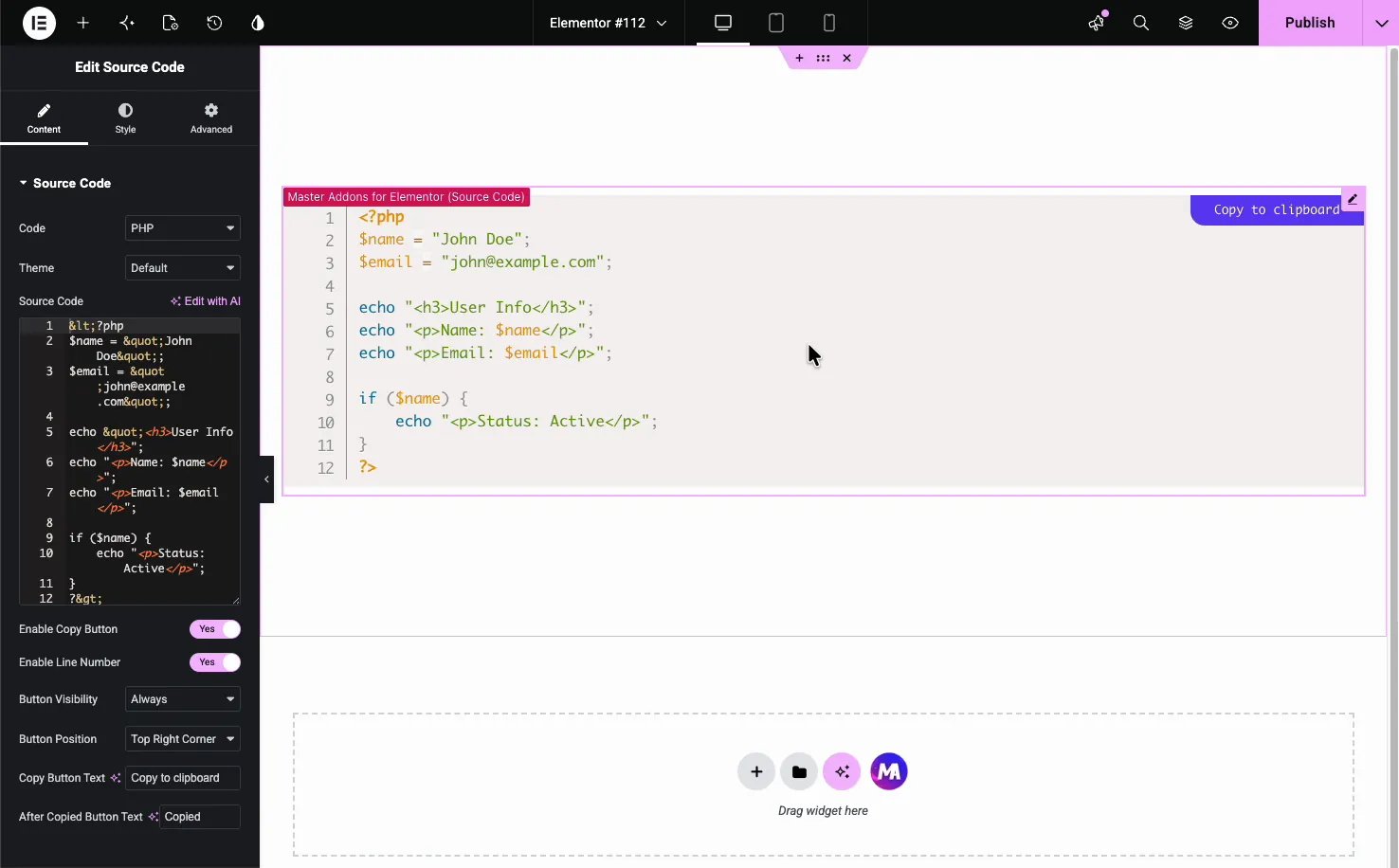
- Code: the language to highlight, one of 75, such as PHP, JavaScript, CSS, or HTML. This sets how the colors are applied.
- Theme: the color scheme for the block (covered below).
- Source Code: the snippet itself, with a Write with AI option if you need a quick example.
Choose a theme #
The Theme dropdown sets the color scheme of the code block. It includes Default, Dark, Funky, Okaidia, Twilight, Coy, Solarized light, Tomorrow, and a Custom option, so you can match the block to a light or dark page.
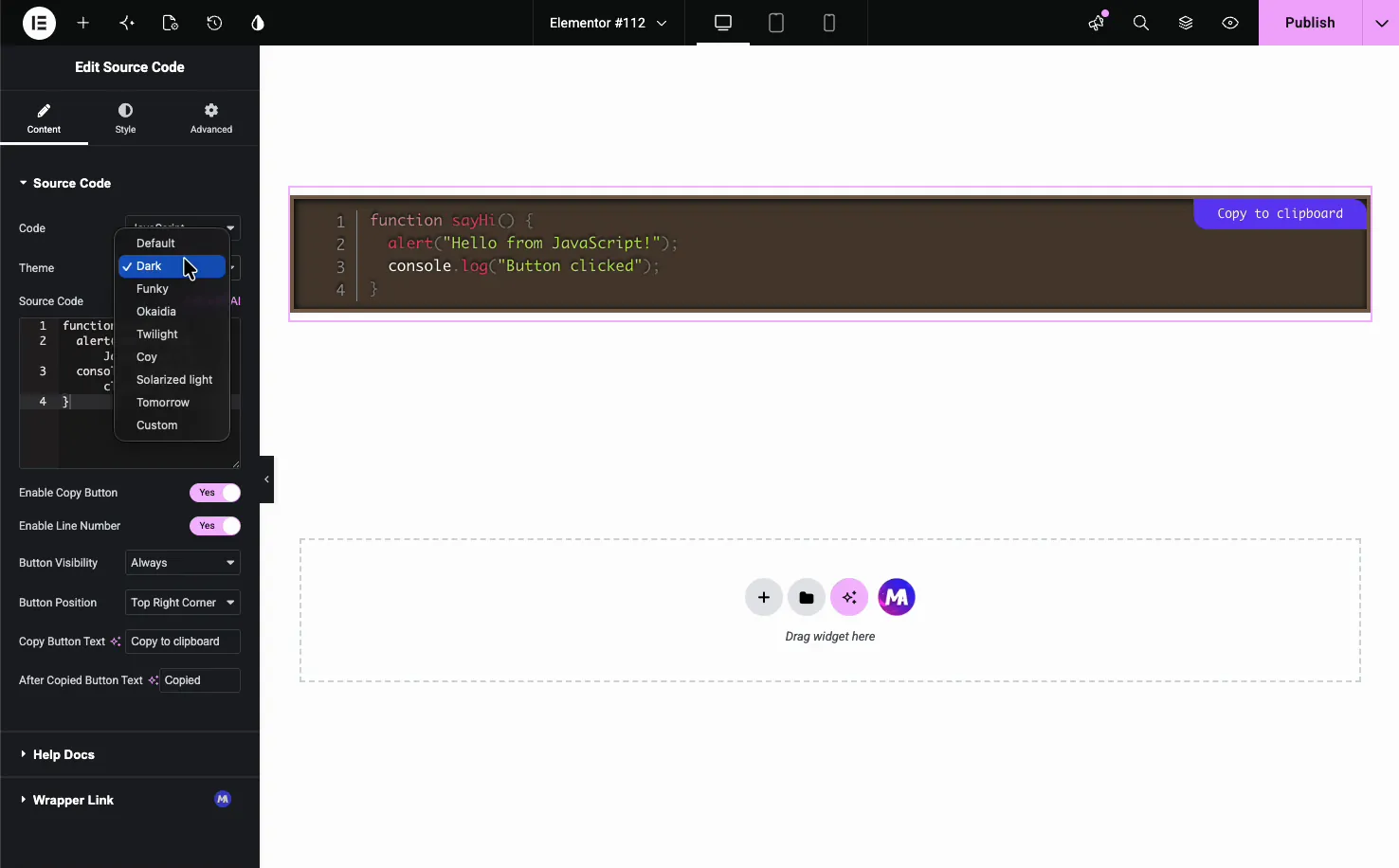
Switching the language and theme together gives each snippet the right look. Here is a JavaScript snippet on the Dark theme.
Set up the copy button #
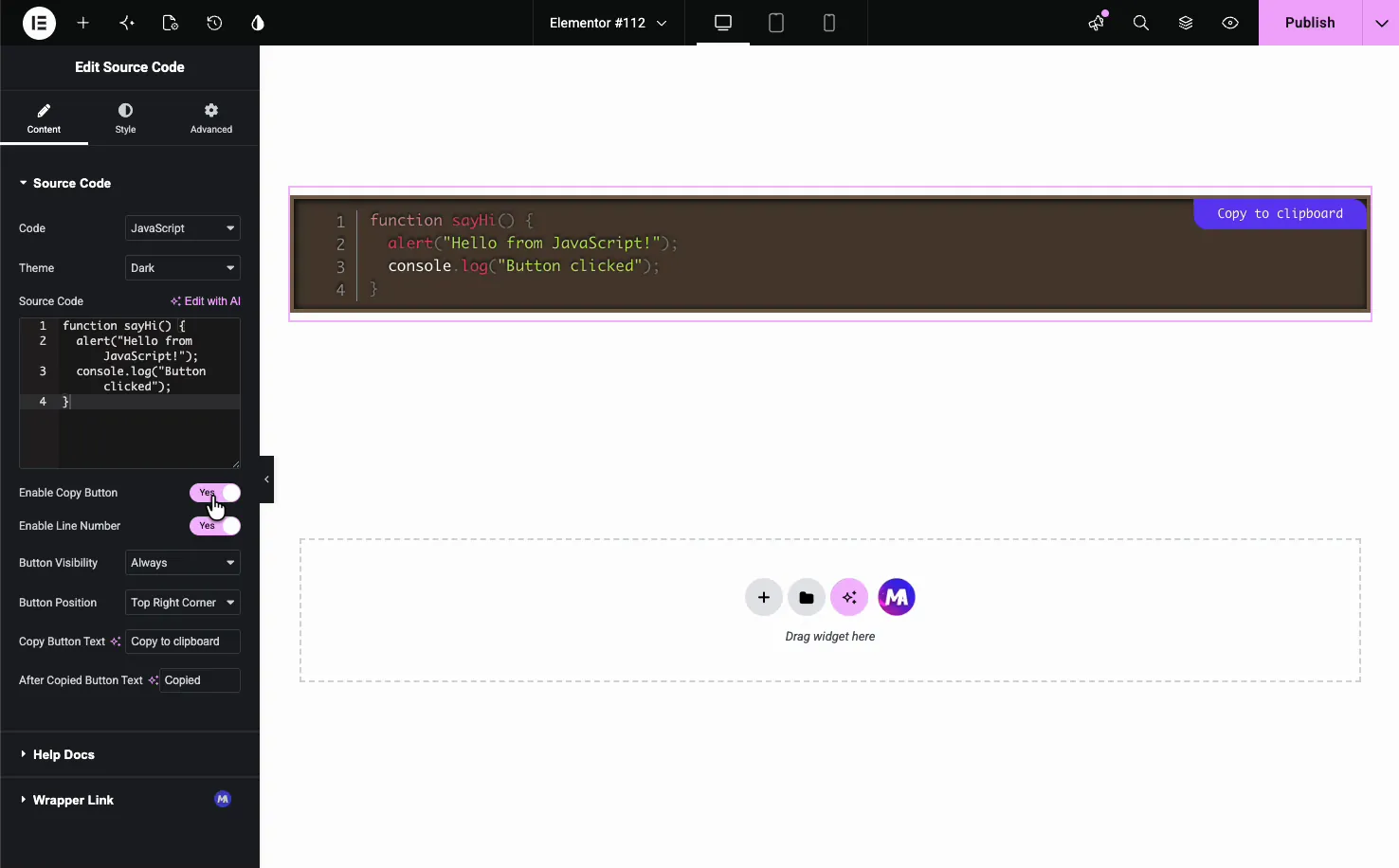
The copy button is what makes the widget useful for tutorials. Below the code box are the controls for it.
- Enable Copy Button: show or hide the copy-to-clipboard button.
- Enable Line Number: turn the line numbers on the left on or off.
- Button Visibility: show the button Always or only on hover.
- Button Position: place it in a corner, like the top right.
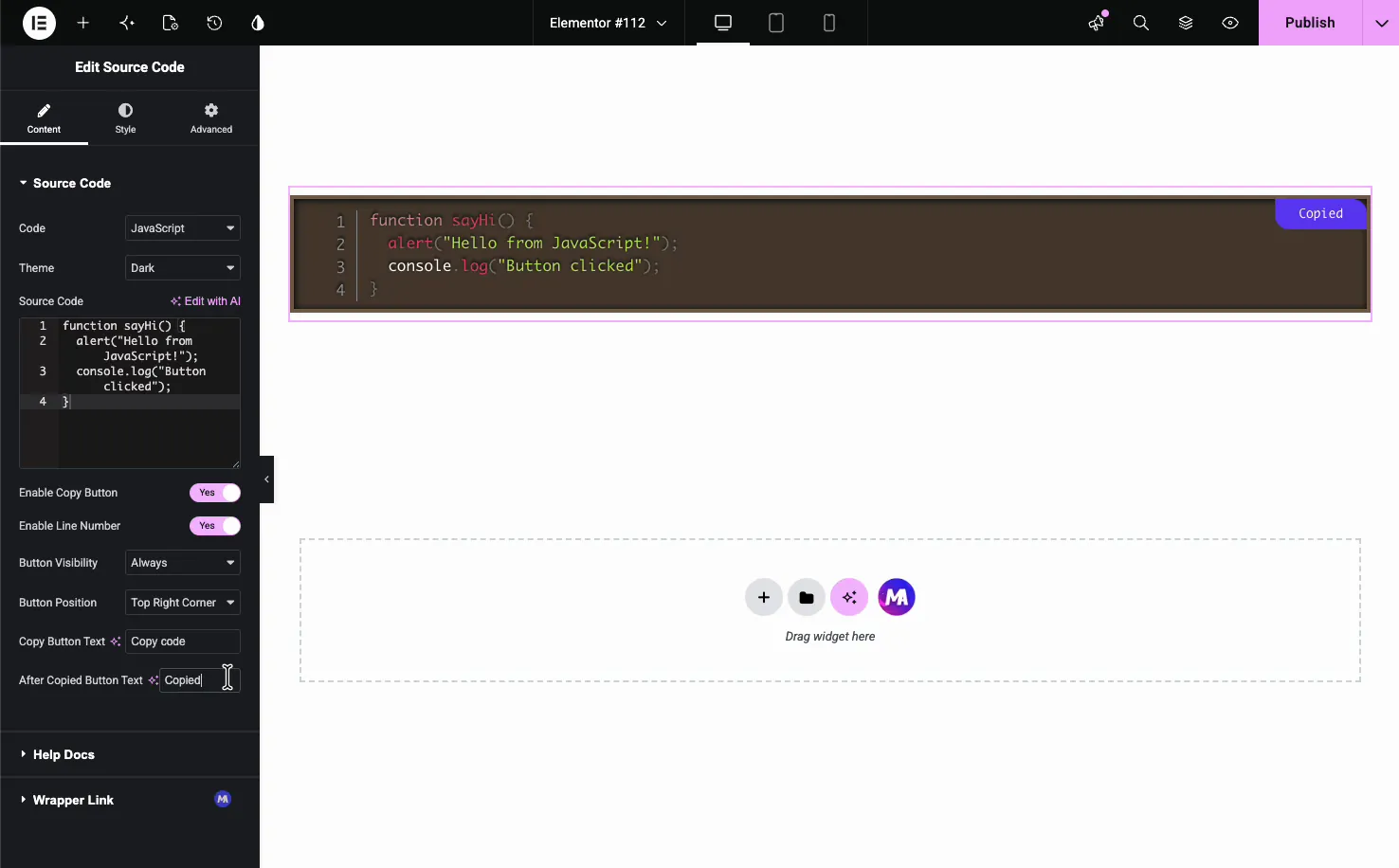
- Copy Button Text and After Copied Button Text: the label before and after a copy, such as Copy code and Copied.
When a visitor clicks the button, the label switches to your After Copied text to confirm the copy worked.
Style the code block #
The Style tab is split into Container and Button, plus Patterns when the free Patterns extension is switched on. The Container section controls the code block’s frame.
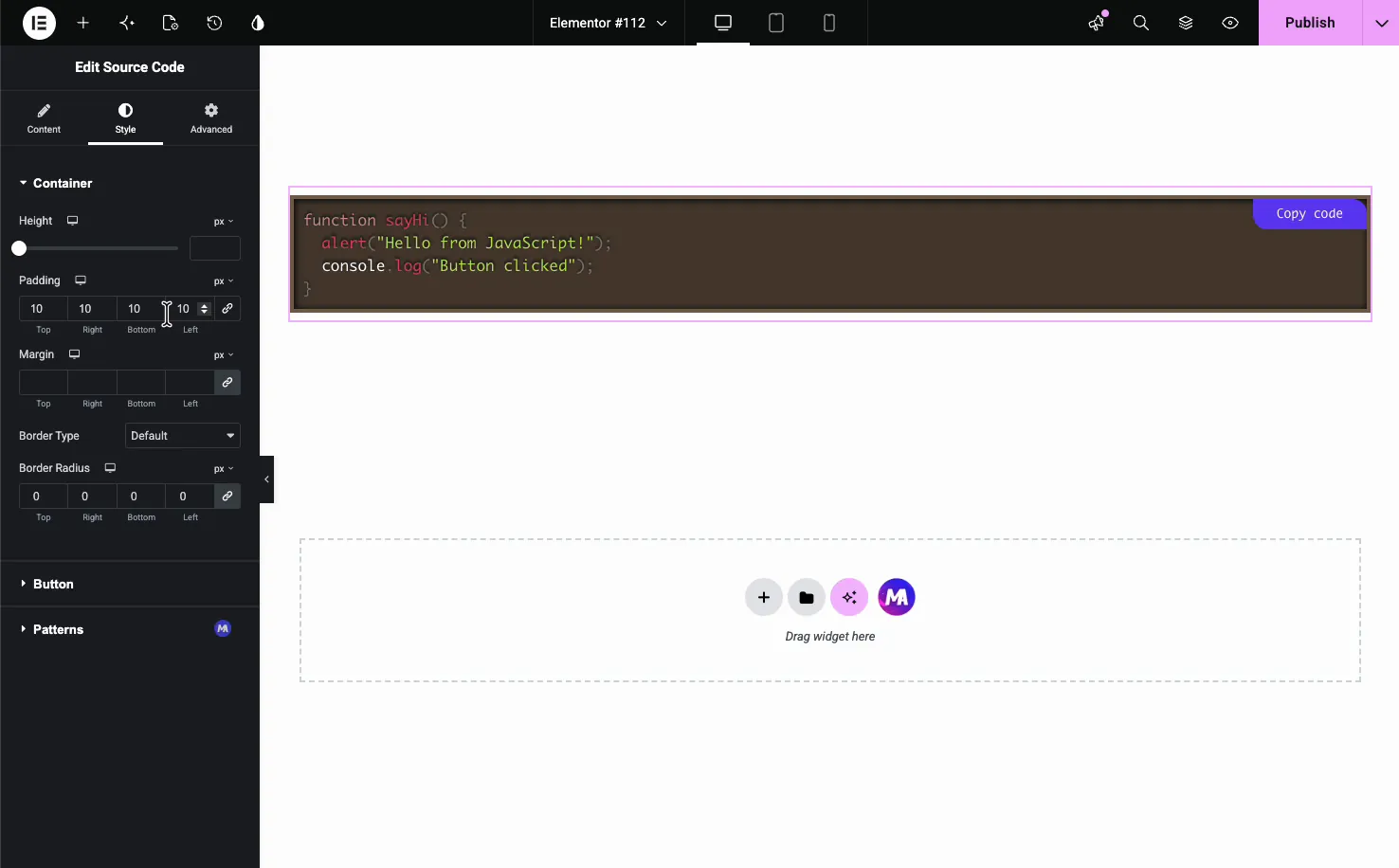
- Height: cap the block height and let long code scroll.
- Padding and Margin: spacing inside and around the block.
- Border Type and Border Radius: the outline and rounded corners.
- Custom theme only: background, typography, text color, and line number color. Custom shows the code in one color, without keyword highlighting.
The Button section styles the copy button: its typography, text color, background color, padding, border, and radius. There are no separate hover colors.
The result on the page #
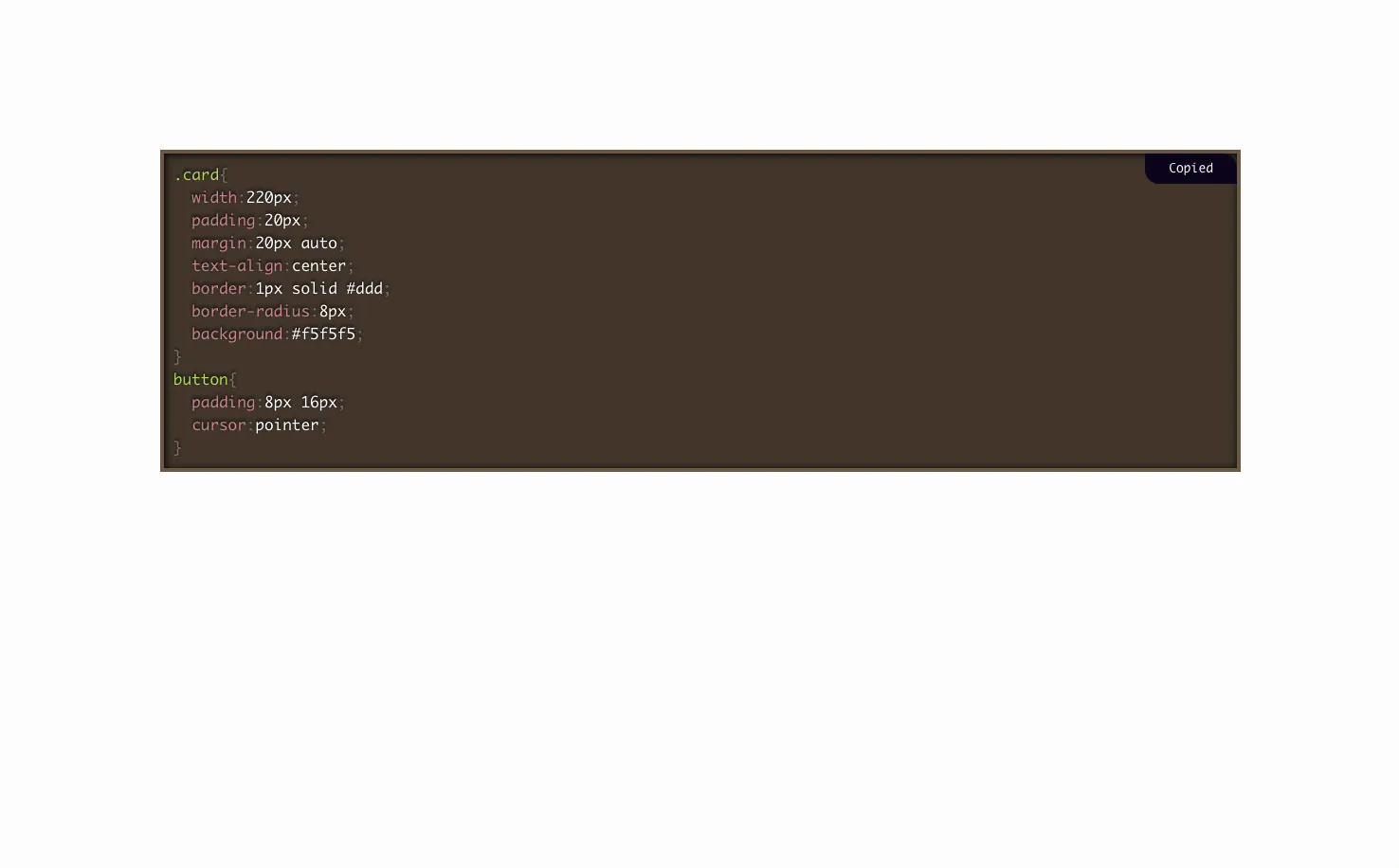
Publish or preview and the code renders highlighted, with line numbers and a working copy button. Below is a CSS snippet on the Dark theme with the button showing its Copied state.
Common use cases #
- Tutorials and how-to posts sharing code readers can copy.
- Plugin and theme documentation with config or hook examples.
- Developer blogs showing snippets in PHP, JavaScript, or CSS.
- Knowledge bases with copy-paste commands.
- Landing pages demonstrating an API call or embed code.
Tips for working with the Source Code widget #
- Match the language to the code. The right Code setting is what makes the highlighting accurate.
- Pick a theme that fits the page. Use a dark theme on dark sections and a light one on white pages.
- Keep the copy button visible. Set Button Visibility to Always for tutorials so readers spot it.
- Cap the height for long snippets. A fixed Height with scroll keeps a long block from taking over the page.
- Write clear button labels. Copy code and Copied tell readers exactly what happened.
Frequently Asked Questions #
What is the Source Code widget in Master Addons?
It is a Master Addons Pro widget for Elementor that displays code with syntax highlighting, line numbers, a language theme, and a copy-to-clipboard button. You paste a snippet, choose the language and theme, and set the copy button, all from the Elementor panel, with no plugins or shortcodes needed.
Which programming languages does it highlight?
You pick one of 75 languages in the Code dropdown, including PHP, JavaScript, CSS, HTML, Python, SQL, and YAML. The choice sets how the syntax colors are applied, so the snippet reads the way it would in a code editor.
Can readers copy the code with one click?
Yes. Turn on Enable Copy Button and a copy-to-clipboard button appears on the block. You set its position, when it shows, and the text before and after a copy, such as Copy code and Copied, which confirms the click worked.
Can I show line numbers in the code block?
Yes. The Enable Line Number toggle in the Content tab adds numbers down the left side of the block. They make it easy to reference a specific line in a tutorial, and you can turn them off for a cleaner look.
Can I change the color theme of the code?
Yes. The Theme dropdown offers Default, Dark, Funky, Okaidia, Twilight, Coy, Solarized light, Tomorrow, and Custom. Pick one to match a light or dark page, or use Custom to set your own background and text colors in the Style tab. Custom shows code in one color, without keyword highlighting.
Wrapping up #
The Source Code widget turns a raw snippet into a clean, highlighted block that readers can copy in one click. Paste your code, set the language and theme, switch on line numbers and the copy button, then style the container to match your page. For a comparison with Elementor Pro’s Code Highlight widget, see the Elementor code block widget page. For another way to present structured content, see the Dynamic Table widget, browse the full Master Addons widgets and extensions, and check the pricing page for what each plan includes.


