
Free Elementor Blog and Post Grid Widget
Blog Posts is a free Master Addons widget that shows posts, pages or any custom post type in a grid, list, masonry layout or carousel. Pick Classic or Cards, choose one of seven card styles or seven list styles, and set up to 4 columns per device. Filter the query by category, tag, author or excluded posts, add category filter tabs, and style the thumbnail, title, meta, content, Read More and pagination. It works with the free version of Elementor.

How to Add a Blog Post Grid in Elementor
You need Elementor and the free Master Addons plugin from WordPress.org.
- Check that Blog is switched on under Master Addons, Widgets.
- In the Elementor editor, search for Blog Posts and drag it onto the page.
- In Display Options, pick the Blog Layout, Blog Type and Number of Columns.
- Set Source, Post Type and Posts Per Page, then turn on Pagination if you need it.
- In Posts Settings, choose which meta and excerpt to show, and in Advanced Settings filter by category, tag or author.
- Style the thumbnail, title, meta and Read More in the Style tab.
For a full blog page walkthrough, read How to Create a Blog Page with Elementor. Every setting is listed in the Blog Posts widget settings.
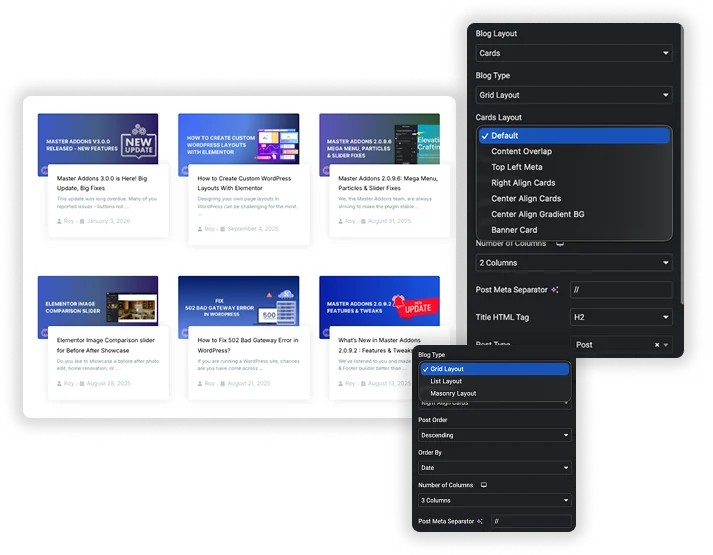
Grid, List, Masonry and Carousel Layouts
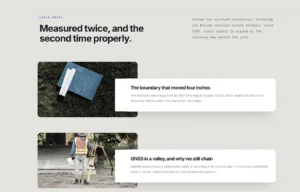
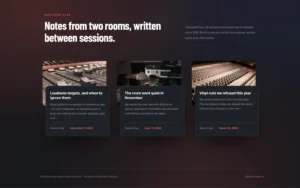
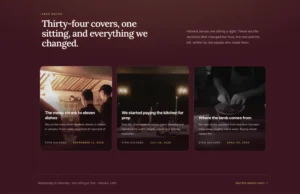
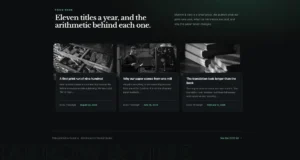
Blog Layout is Classic or Cards. Blog Type is Grid Layout, List Layout or Masonry Layout. Cards in a grid offer seven styles: Default, Content Overlap, Top Left Meta, Right Align Cards, Center Align Cards, Center Align Gradient BG and Banner Card. The list has seven more, from List Classic to List Thumbnail Background. Set Number of Columns from 1 to 4 for each device, and turn on Enable Carousel? to show the same posts as a slider.
To show posts on a dated vertical line, use the Post Timeline type in the Timeline widget. It needs Master Addons Pro.
- Rows Spacing, Columns Spacing and Content Alignment.
- Title HTML Tag and a custom Post Meta Separator.
- Carousel or Coverflow slider with autoplay, loop and six navigation types.
Post Query and Category Filter Tabs
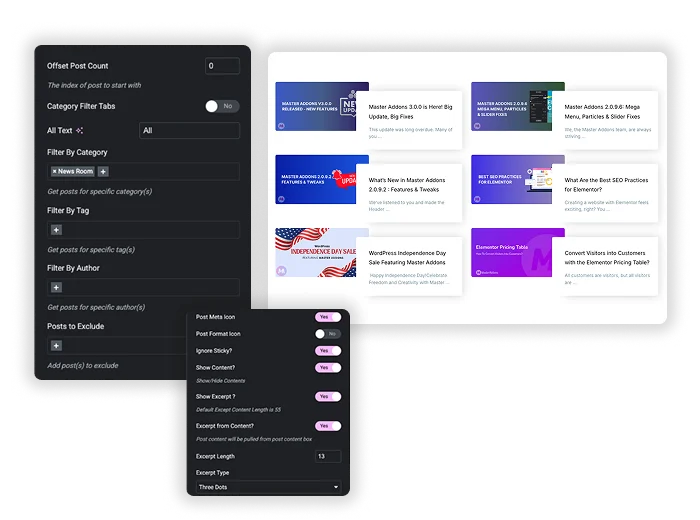
Set Source to Latest Posts to build your own query, or to Current Query on archive templates so the widget follows the category, tag, date or author being viewed. Pick the Post Type, Posts Per Page, Total Number of Posts, Post Order and Order By, which includes date, title, last modified, random and comment count. In Advanced Settings, filter by category, tag or author, exclude posts, offset the start and ignore sticky posts.
- Category Filter Tabs add clickable tabs above a grid or list. They filter the posts already on the page without reloading, and are not available with the carousel.
- Pagination shows numbered pages with your own Next and Previous text.
- Links in New Tab opens posts in a new browser tab.
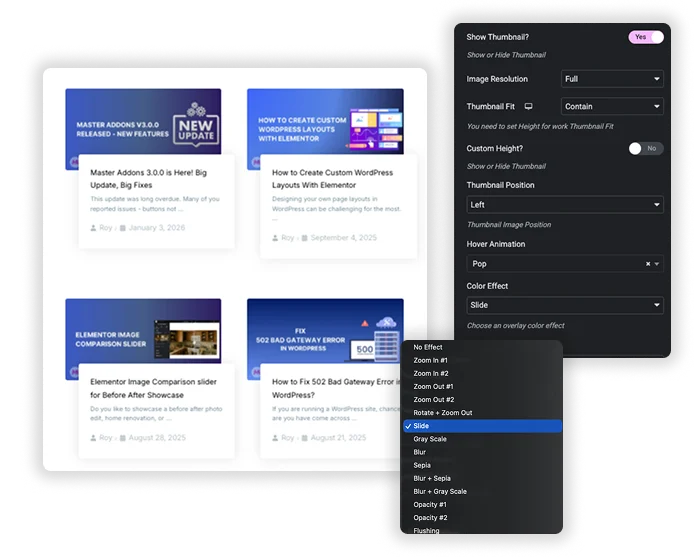
Thumbnail Effects and Post Meta
In Thumbnail Settings, choose the Image Resolution, a Thumbnail Fit of Landscape, Square, Cover, Fill or Contain, an optional min and max height, and the Thumbnail Position. Add an Elementor Hover Animation, one of 16 Color Effects such as Zoom In, Gray Scale, Blur, Sepia, Shine or Circle, and a Thumbnail Shape: Framed, Diagonal, Bordered, Gradient Bordered or Squares. The Style tab adds an overlay color and CSS filters.
- Show or hide the title, author, author avatar, date, categories, tags and comment count.
- Show full content or an excerpt with a set length, ending in three dots or a Read More link.
- Post meta icons and post format icons.
Blog Post Carousel
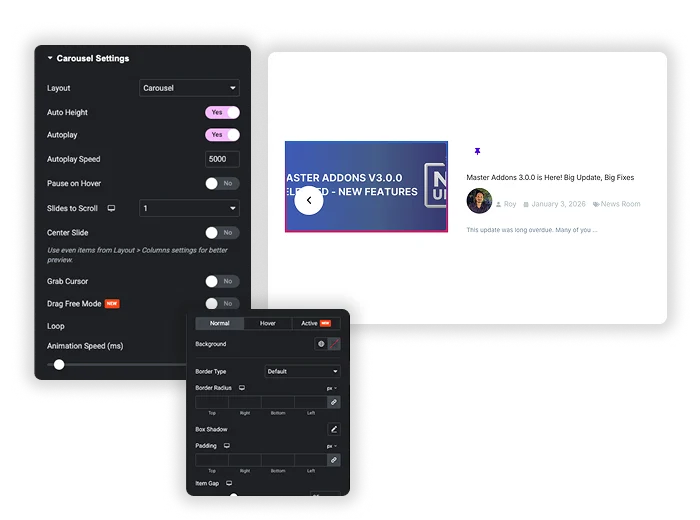
With Enable Carousel? on, the Carousel Settings give you a Carousel or Coverflow layout, Autoplay with speed, Pause on Hover, Slides to Scroll, Loop, Center Slide, Grab Cursor, Drag Free Mode and Animation Speed. The Navigation section offers Arrows and Dots, Arrows and Fraction, Arrows, Dots, Progress or None, with arrow placement inside or outside and a Hide Arrow on Mobile option.
- A “Latest posts” slider on the homepage.
- A related posts row filtered by tag at the end of an article.
- Normal, Hover and Active styles for each slide.
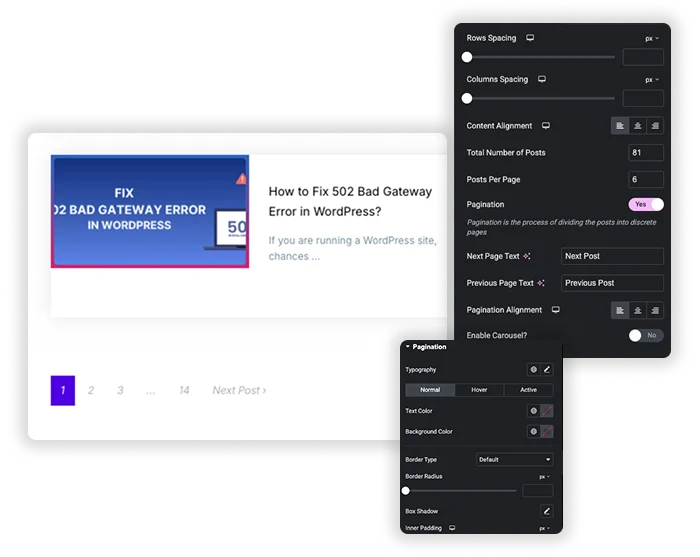
Pagination Styling
Turn on Pagination to split a grid or list into numbered pages, set the Next Page Text and Previous Page Text, and align the links left, center or right. The Pagination style section sets typography, text and background colors for normal, hover and active page numbers, plus border and radius. The widget has no Load More button or infinite scroll.
- Set Posts Per Page and a Total Number of Posts to limit how many pages appear.
- Give the current page number its own color.
- Match the page links to your buttons with border and radius settings.
Elementor Pro Posts vs Master Addons Blog Posts
Free Elementor has no posts widget. Elementor Pro has the Posts widget plus Loop Grid and Loop Carousel. Here is how they compare with this free widget.
| Feature | Elementor Pro | Master Addons Blog Posts |
|---|---|---|
| Price | Needs Elementor Pro | Free |
| Layouts | Classic, Cards or Full Content skins; Loop Grid uses your own card template | Classic or Cards in Grid, List or Masonry, with 7 card and 7 list styles |
| Columns | 1 to 6 | 1 to 4, per device |
| Carousel | Separate Loop Carousel widget | Enable Carousel? switch in the same widget |
| Pagination | Numbers, Previous/Next, Load on Click or Infinite Scroll | Numbered pages with Next and Previous text |
| Front-end filter | Taxonomy Filter widget for Loop Grid | Category Filter Tabs for the posts on the page |
| Thumbnail effects | CSS filters for normal and hover | 16 color effects, 5 shapes, hover animation and CSS filters |
| Archive templates | Current Query | Current Query |
Elementor Pro is the better choice when you need Load More, infinite scroll or a fully custom card built as a Loop template. Blog Posts suits free Elementor sites that want ready-made card styles, thumbnail effects and a carousel without extra widgets. For scrolling headlines, see the News Ticker widget.

Frequently Asked Questions For Blog
Is the Blog Posts widget free?
Yes. Blog Posts is part of the free Master Addons plugin, including the card and list styles, carousel, filter tabs and pagination, and it works with free Elementor.
Can I show a custom post type like portfolio or products?
Yes. Set Source to Latest Posts and pick any public post type in the Post Type dropdown. On archive templates, use Current Query instead so the widget follows the archive being viewed.
How do I make the grid work on phones?
Number of Columns can be set per device, so you can use 3 columns on desktop, 2 on tablet and 1 on mobile. Setting Thumbnail Fit to Cover with a fixed height keeps the images even.
What is the difference between Show Content and Show Excerpt?
Show Content turns the text area on or off. With Show Excerpt on, the widget shows a trimmed excerpt of the length you set (55 words by default) instead of the full text. Excerpts keep cards even in a grid.
How do the Category Filter Tabs work?
When enabled, tabs for the categories of the loaded posts appear above the grid or list. Clicking a tab filters those posts in place without reloading. It filters only the posts on the current page, and it is not available with the carousel.
Does the widget have Load More or infinite scroll?
No. Pagination uses numbered page links with Next and Previous text. If you need Load More or infinite scroll, Elementor Pro’s Posts widget offers both.
Can I use it on a category or archive template?
Yes. Set Source to Current Query and the widget shows the posts for the category, tag, date or author archive being viewed, using your chosen layout and styles.
Trending Elementor Widgets & Extensions
Build sophisticated websites in less time.

Glassmorphism

Container Extras

Patterns
![Master Addons Post/Page Duplicator extension for Elementor: MA Duplicator row link in the WordPress Pages list creating a Landing Page - [Duplicated #128] draft](https://d1asvmc6qcowgk.cloudfront.net/wp-content/uploads/2026/09/15102930/post-page-duplicator-768x403.webp)
Post/Page Duplicator
