
Contact Form 7 Elementor Widget: Style CF7 Without CSS
The Contact Form 7 widget in the free Master Addons plugin places any form you built in Contact Form 7 onto an Elementor page and lets you style it from the panel. Pick the form, choose a design variation, then set the container, title, fields, labels, submit button and error messages. Contact Form 7 still handles the fields and sends the email. Four design variations are free and seven more come with Master Addons Pro. You need the free Contact Form 7 plugin installed and at least one form created.

How to Add Contact Form 7 to Elementor
You need Elementor, the free Contact Form 7 plugin and the free Master Addons plugin.
- Install Contact Form 7 and create your form under Contact, Add New, with the fields and email settings you need.
- Install and activate Master Addons from WordPress.org.
- Edit your page with Elementor and search the widgets panel for Contact Form 7. Pick the one with the Master Addons badge.
- In Select Contact Form, choose your form.
- In Style, pick a Design Variation (Style One to Four are free).
- Adjust the container, fields, labels, button and errors, then submit a test message on the live page.
Every setting is covered in the Contact Form 7 widget settings guide.
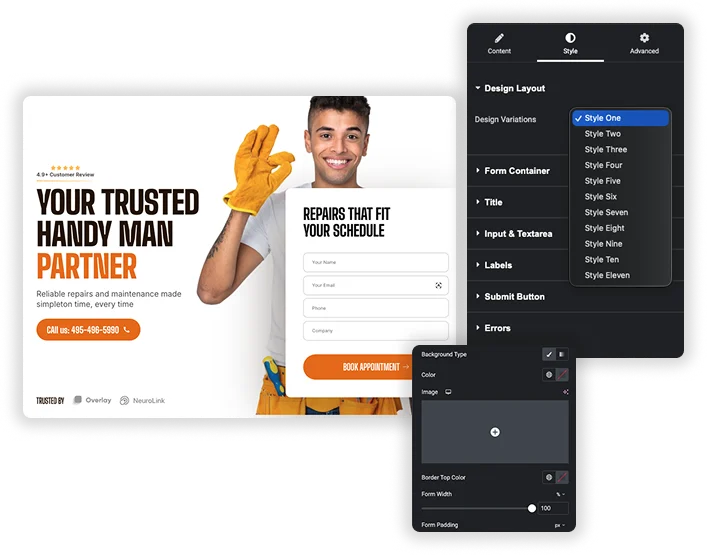
Design Variations: 4 Free, 7 Pro
In Style, Design Layout, choose a Design Variation. Style One to Style Four are in the free plugin. Style Five to Style Eleven need Master Addons Pro. Each variation styles the fields and button together, and you can change any part afterwards in the sections below.
- Every widget on the page can use its own variation, so a footer form and a contact page form can look different.
- Pick the form in the Content tab under Select Contact Form. The list shows the forms you created in Contact Form 7.
- If Contact Form 7 is not active, the widget shows a notice instead of a form.
Styling Contact Form 7: Widget vs CSS vs Elementor Pro Form
There are three common ways to get a good-looking form on an Elementor site. Here is how they compare.
| Master Addons CF7 widget | Custom CSS on CF7 | Elementor Pro Form widget | |
|---|---|---|---|
| Form builder | Contact Form 7 | Contact Form 7 | Built into Elementor Pro |
| Styling | Panel controls and 11 variations (4 free) | Write and maintain CSS | Panel controls |
| Cost | Free (7 variations need Pro) | Free | Needs Elementor Pro |
| Best for | Sites already using CF7 | Developers who want full control | Sites on Elementor Pro that want forms and actions in one place |
If you already have Contact Form 7 forms, the widget is the quickest way to make them match your design. If you use a different form plugin, see the Ninja Forms or Gravity Forms widgets, or the Mailchimp widget for signups.
Form Container and Title
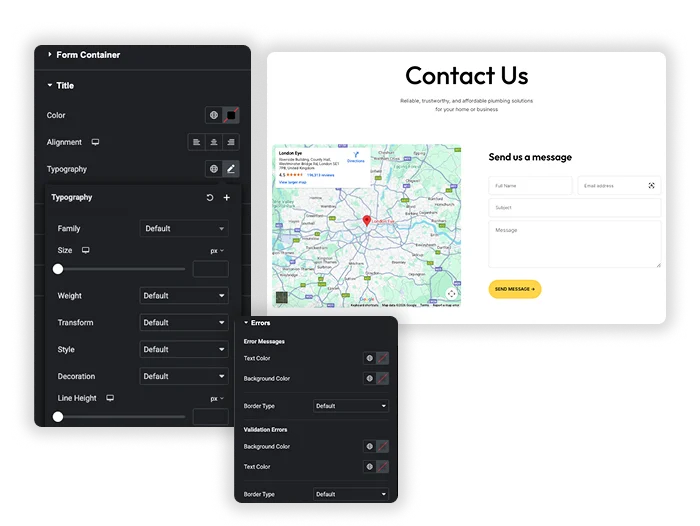
Form Container sets a color, gradient or image background, a Border Top Color, Form Width and Form Padding. The Title section sets the color, alignment and typography of a heading inside your form markup, if your form has one.
- Set Form Width below 100% to center a narrow form in a wide column.
- The top border color works as a simple accent above the form.
- Padding gives the form room inside a colored card.
Fields and Labels
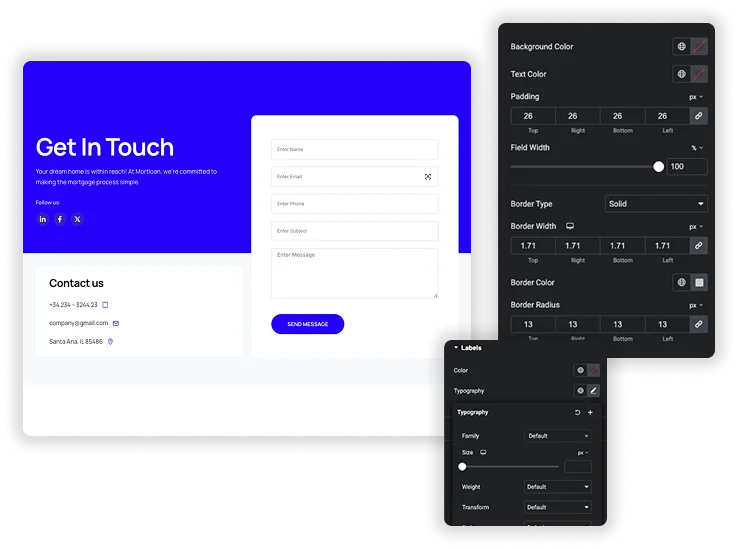
Input & Textarea sets the background color, text color, padding, Field Width, border and border radius for text fields, text areas and select menus. Labels has its own color and typography, so field names can stand apart from what visitors type.
- Field Width works in percent, handy for two-column layouts built in your CF7 form markup.
- Checkboxes, radio buttons and file inputs keep your theme or CF7 styling.
- Keep enough contrast between field background and text for accessibility.
Submit Button and Error Messages
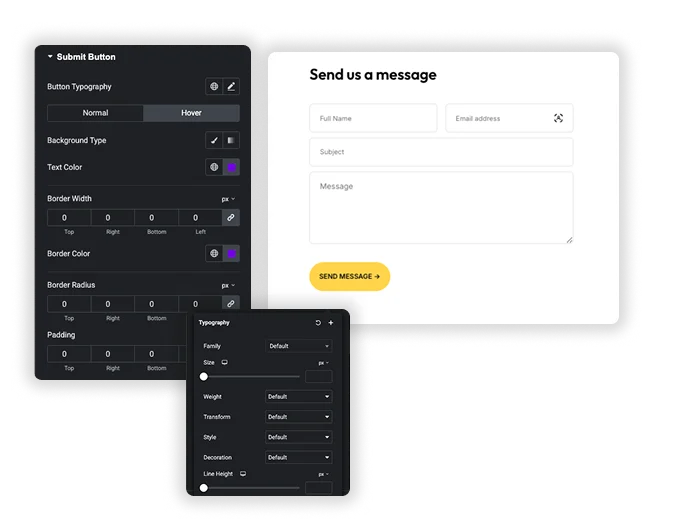
Submit Button has typography plus Normal and Hover tabs: background, text color and border color for Normal, and background and text color for Hover. Border width, border color, radius and padding are set below the tabs. The Errors section styles Error Messages under fields and Validation Errors for the whole form, and in the Content tab you can show or hide each of them.
- The default button is purple (#6e00e9) with white text, so set your brand colors.
- Hiding field errors makes the form tidier, but visitors then rely on the form-level message.
- There is no icon control for the button. To add one, see how to add a Font Awesome icon to the Contact Form 7 submit button.


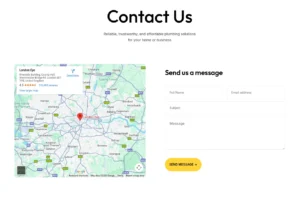

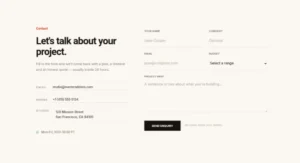

Frequently Asked Questions For Contact Form 7
How do I connect this to my existing Contact Form 7 forms?
In the Content tab, open Select Contact Form. It lists every form you created in Contact Form 7. Choose one and the widget displays it with your chosen design.
Will my form still send emails and work as configured in Contact Form 7?
Yes. The widget only changes how the form looks. Fields, email settings, messages and spam protection stay in Contact Form 7 and work as you set them up there.
Is the Contact Form 7 widget free?
Yes, the widget is part of the free Master Addons plugin, and Style One to Style Four are free. Style Five to Style Eleven need Master Addons Pro. Contact Form 7 itself is also free.
Do I need the Contact Form 7 plugin?
Yes. This widget styles Contact Form 7 forms, so the free Contact Form 7 plugin must be installed and active. Without it, the widget shows a “Contact Form 7 is Not Activated” notice.
What happens if I add a new field in the Contact Form 7 plugin?
Edit the form in Contact Form 7 and save. The widget shows the updated form, and your field and label styles apply to the new field because they target all text fields and labels. Refresh the Elementor editor if the preview does not update.
Do I need to know CSS to style my forms?
No for colors, borders, spacing and typography, which are all panel controls. Layout inside the form, such as putting two fields side by side, comes from your Contact Form 7 form markup.
Trending Elementor Widgets & Extensions
Build sophisticated websites in less time.

Glassmorphism

Container Extras

Patterns
![Master Addons Post/Page Duplicator extension for Elementor: MA Duplicator row link in the WordPress Pages list creating a Landing Page - [Duplicated #128] draft](https://d1asvmc6qcowgk.cloudfront.net/wp-content/uploads/2026/09/15102930/post-page-duplicator-768x403.webp)
Post/Page Duplicator
