

Numbers convince faster than sentences: 5.5K notifications delivered, 120M video views. The Counter Up widget in Master Addons for Elementor puts those stats in a row of cards that count up from zero when the page loads, each with an icon, a suffix like K+ or M+, and its own styling.
This guide builds a four-stat section from scratch: items, numbers, icons, layout, and the card styling, ending with the finished counters on the live page.
What the Counter Up widget does #
One widget holds a set of counter items. Each item is a stat: a number that counts up from zero when the page loads, a prefix or suffix around it, a title beneath it, and an optional icon or image on top. The widget arranges the items in columns and styles them as a group, so a stats band stays consistent without per-card fiddling.
Before you start #
- WordPress with Elementor installed and active.
- Master Addons for Elementor installed and active. New to the plugin? See the installation guide.
- The Counter Up widget enabled in the Master Addons option panel, under Basic Widgets.
- Your real numbers. A stats section with invented figures does more harm than no stats at all.
How to add the Counter Up widget #
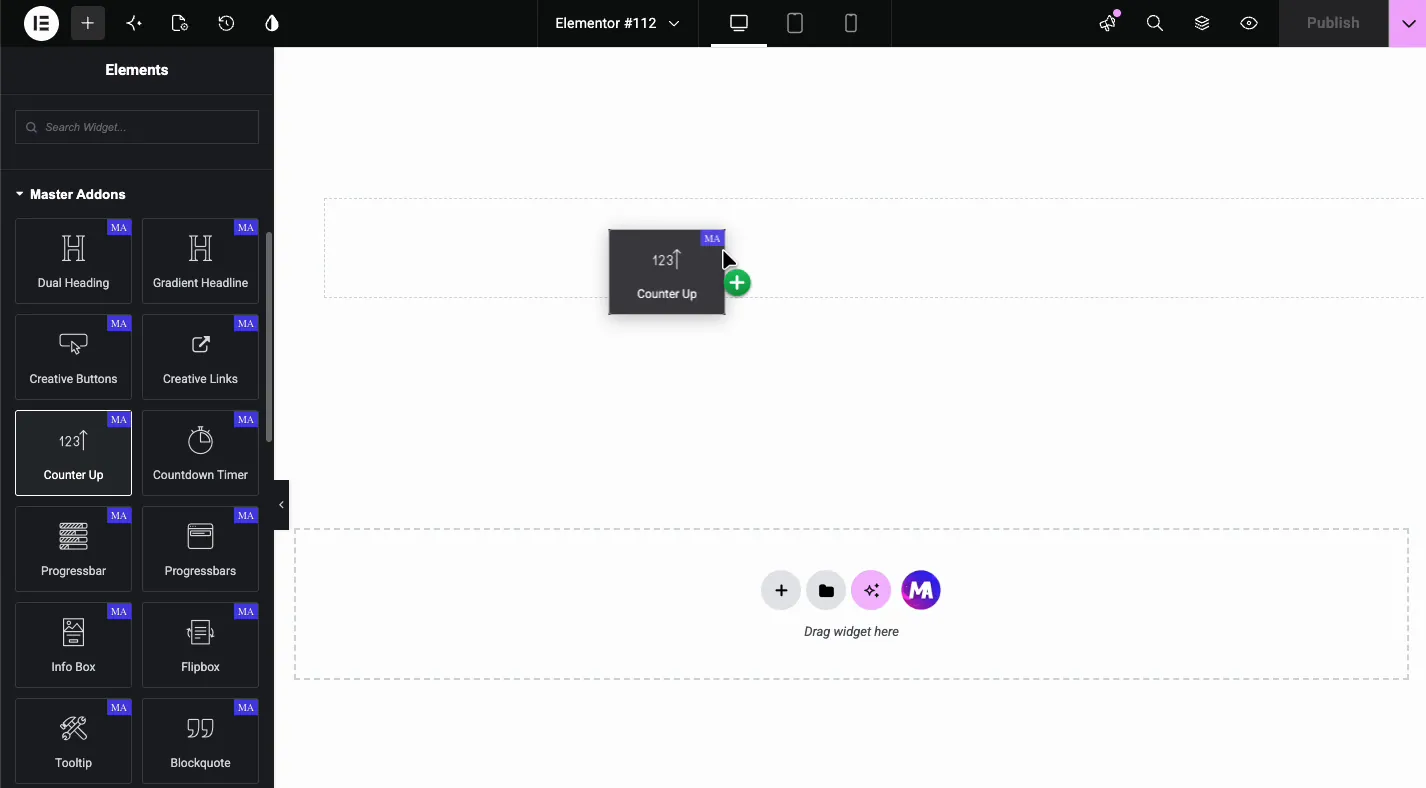
In the Elementor editor, search the Elements panel for Counter Up and drag it onto the page. It loads with sample items already counting on the canvas, so the animation is visible from the first second.
Set up each counter item #
Open Counter Up Content and click an item in the list. Each one carries the full set of per-stat controls:
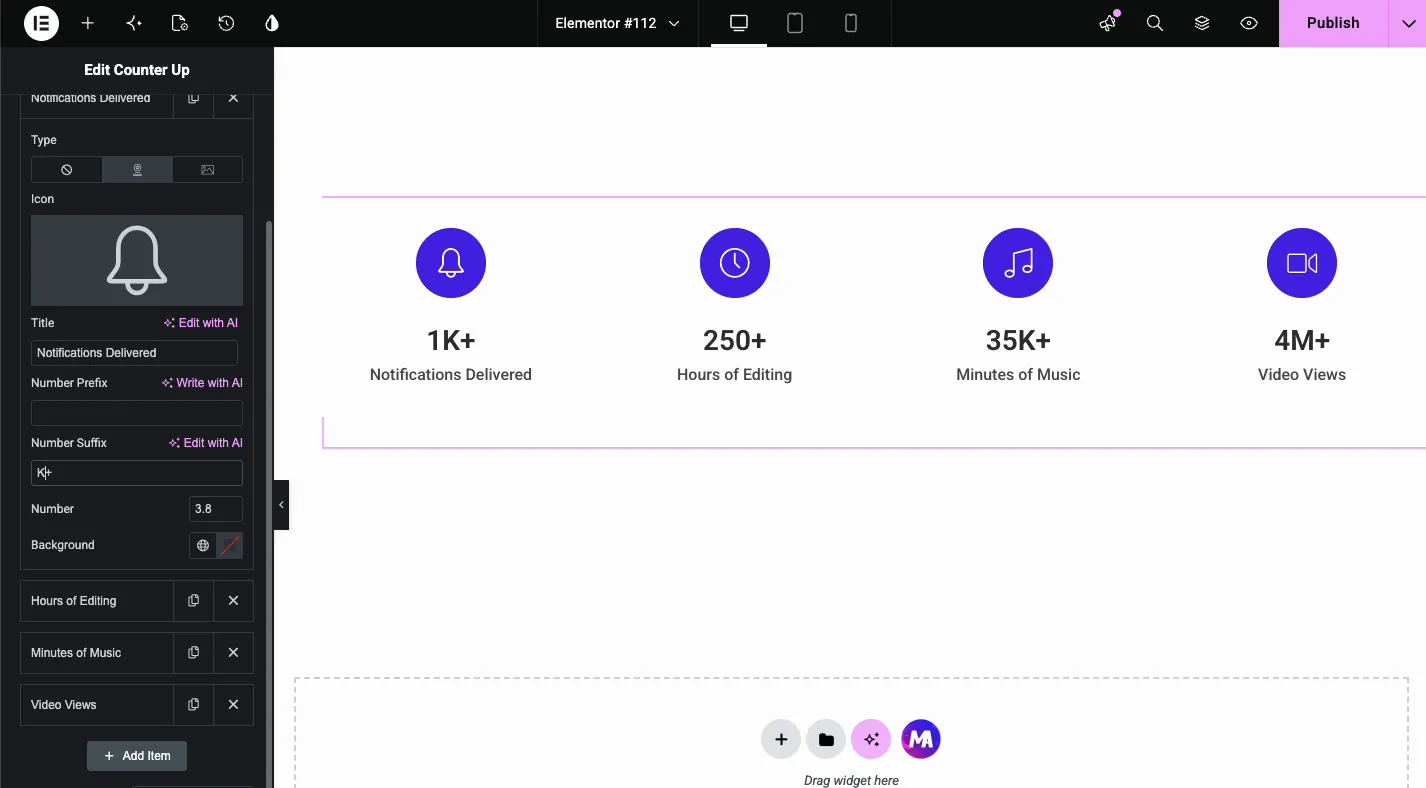
- Type: none, icon, or image on top of the stat. Icon opens the Elementor library; image opens the media library.
- Title: the label under the number, like “Notifications Delivered”.
- Number Prefix and Suffix: text around the number. A “$” prefix or a “K+” suffix turns 5.5 into $5.5 or 5.5K+.
- Number: the value the counter climbs to. Decimals work, so 5.5 with a K+ suffix reads 5.5K+.
- Background: a per-item card color, for when one stat should stand out.
The suffix trick keeps big numbers short: instead of animating to 120,000,000, the demo counts to 120 with an M+ suffix. The card stays cleaner, and nobody counts the zeros to check.
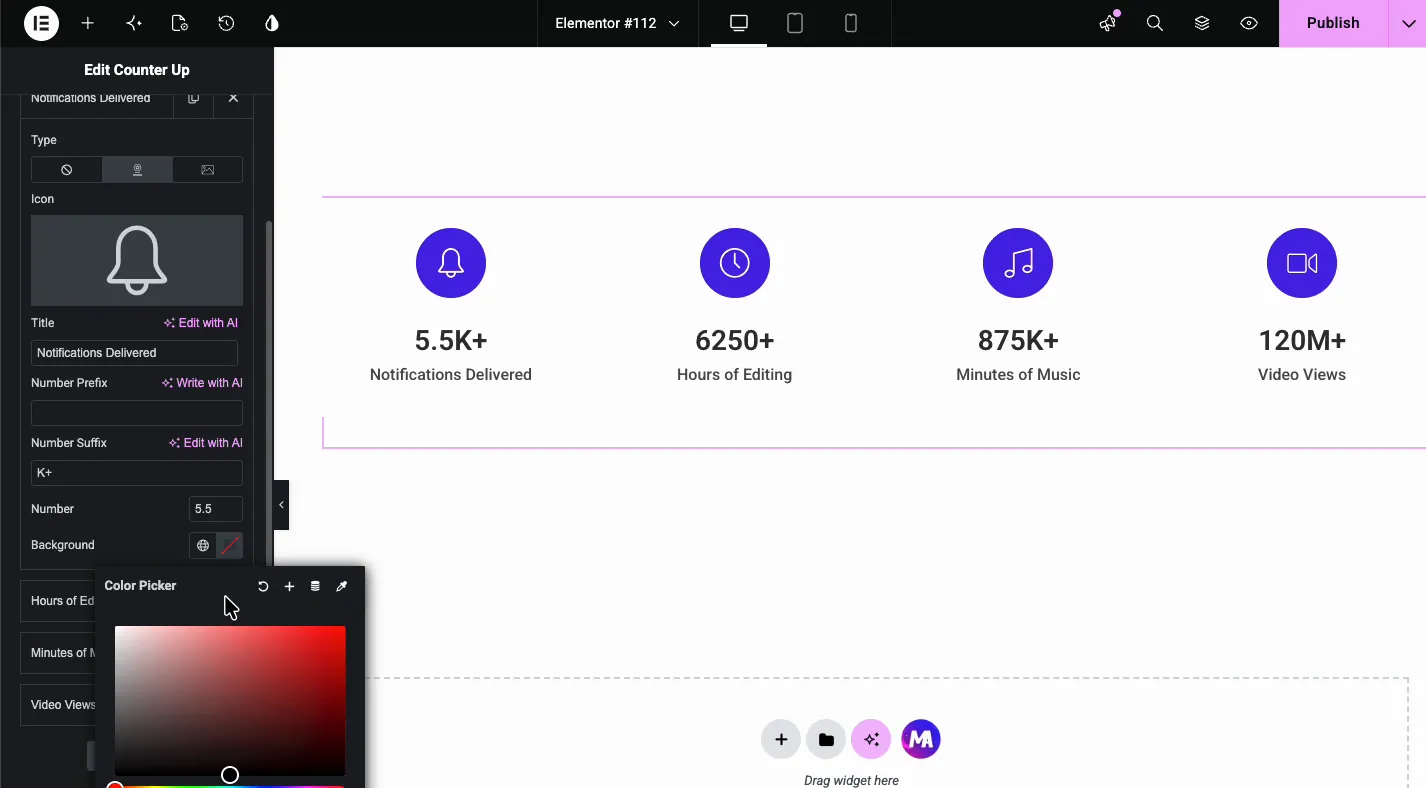
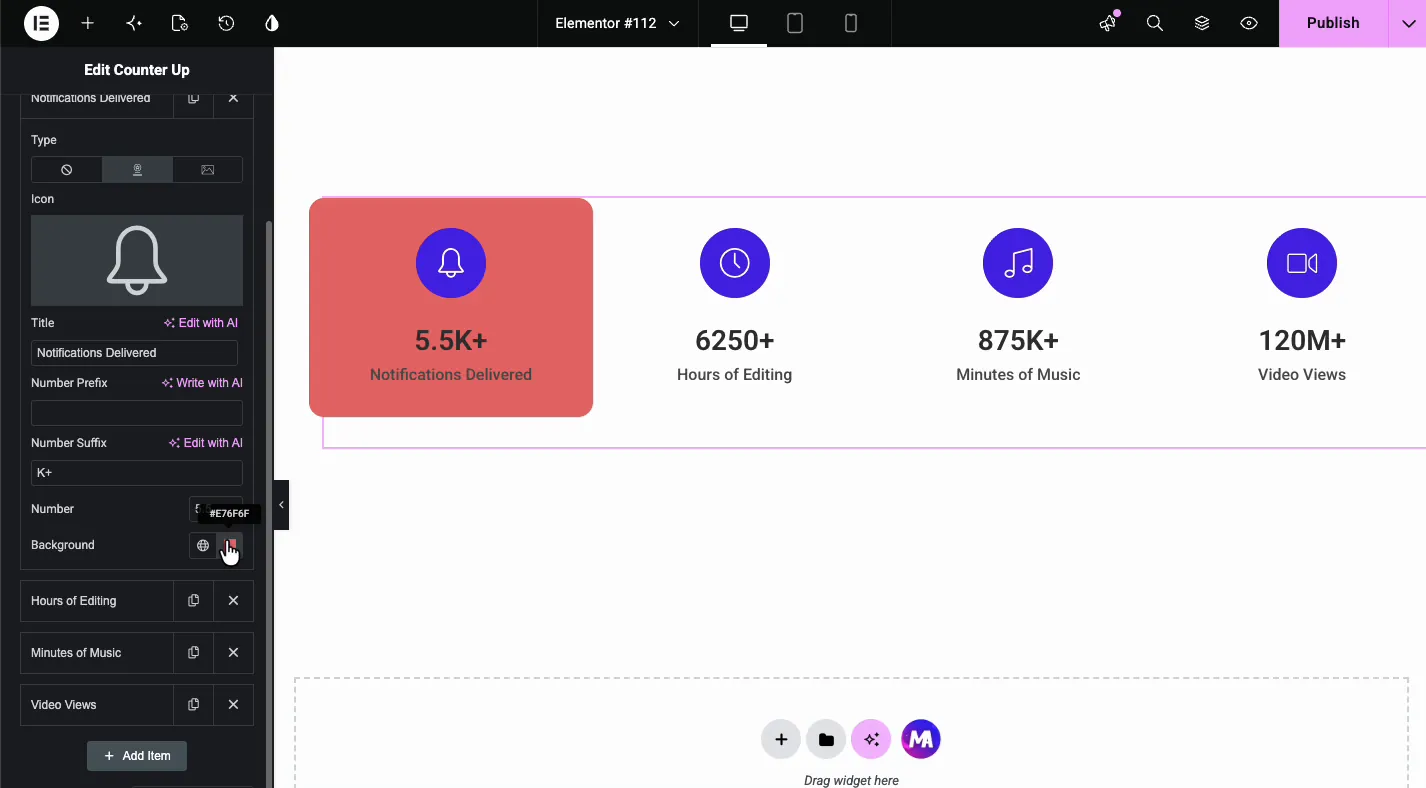
The per-item Background colors just that card. Useful for highlighting a headline stat, or skip it and let the shared box style handle all four:
Choose columns and content position #
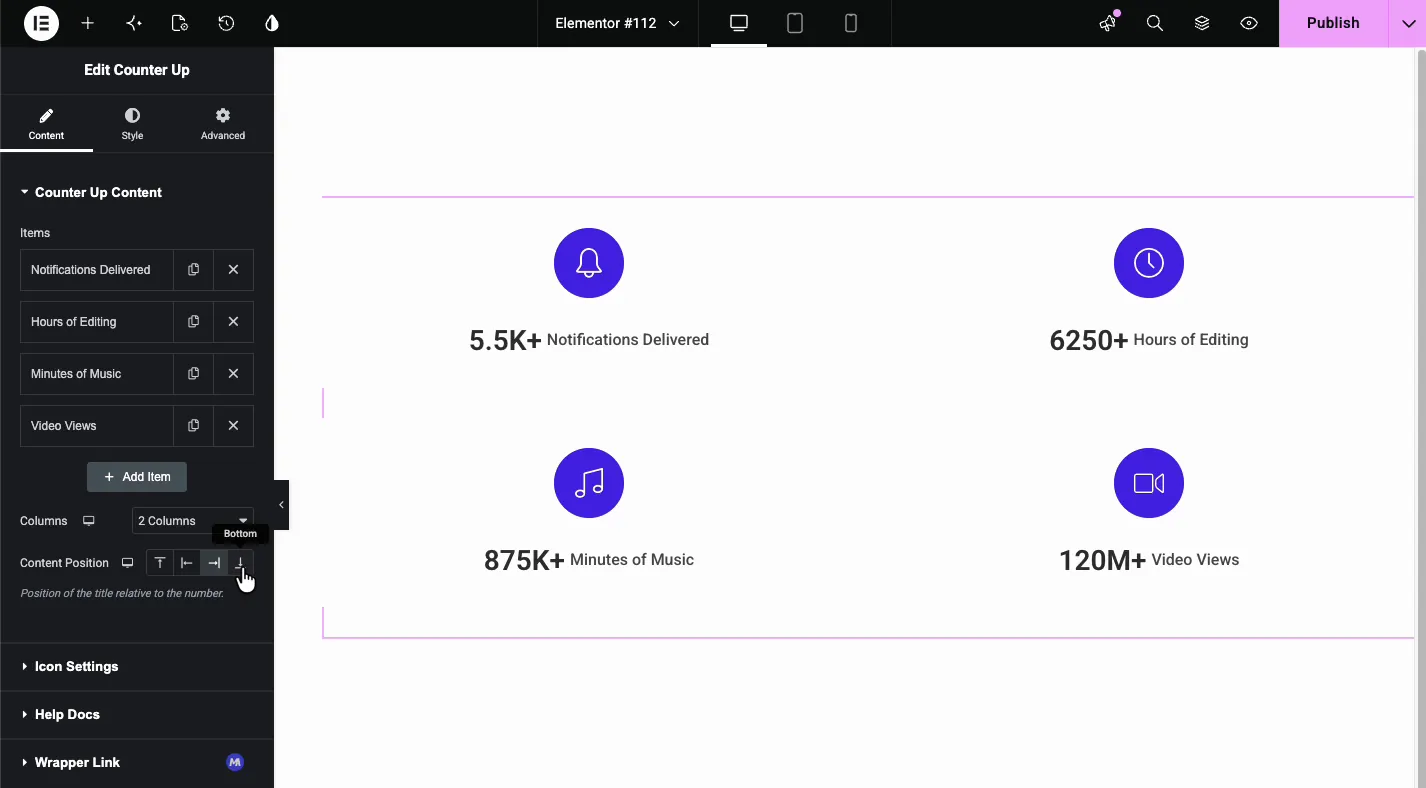
Below the item list, Columns sets how many counters share a row (1, 2, 3, 4 or 6), with a responsive toggle per device. Content Position places the title relative to the number: top, left, right, or bottom. The demo tries 2 columns with side-by-side number and title, then settles back on 4 columns stacked.
Tune the icons #
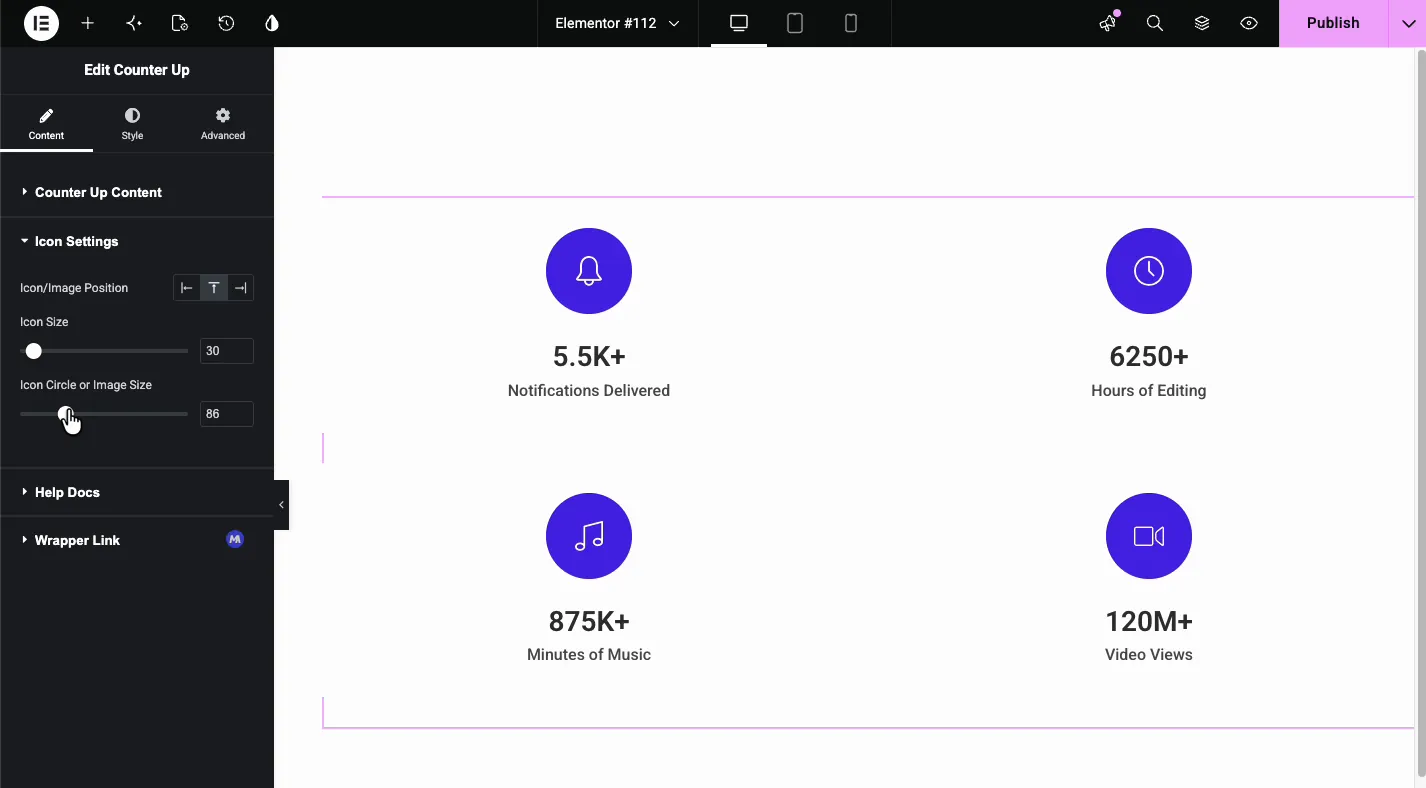
The Icon Settings section controls the icon block on every card: Icon/Image Position (left, top, or right of the stat), Icon Size, and Icon Circle or Image Size for the colored disc behind the glyph. The demo runs 30 pixel icons on 86 pixel circles.
Style the cards #
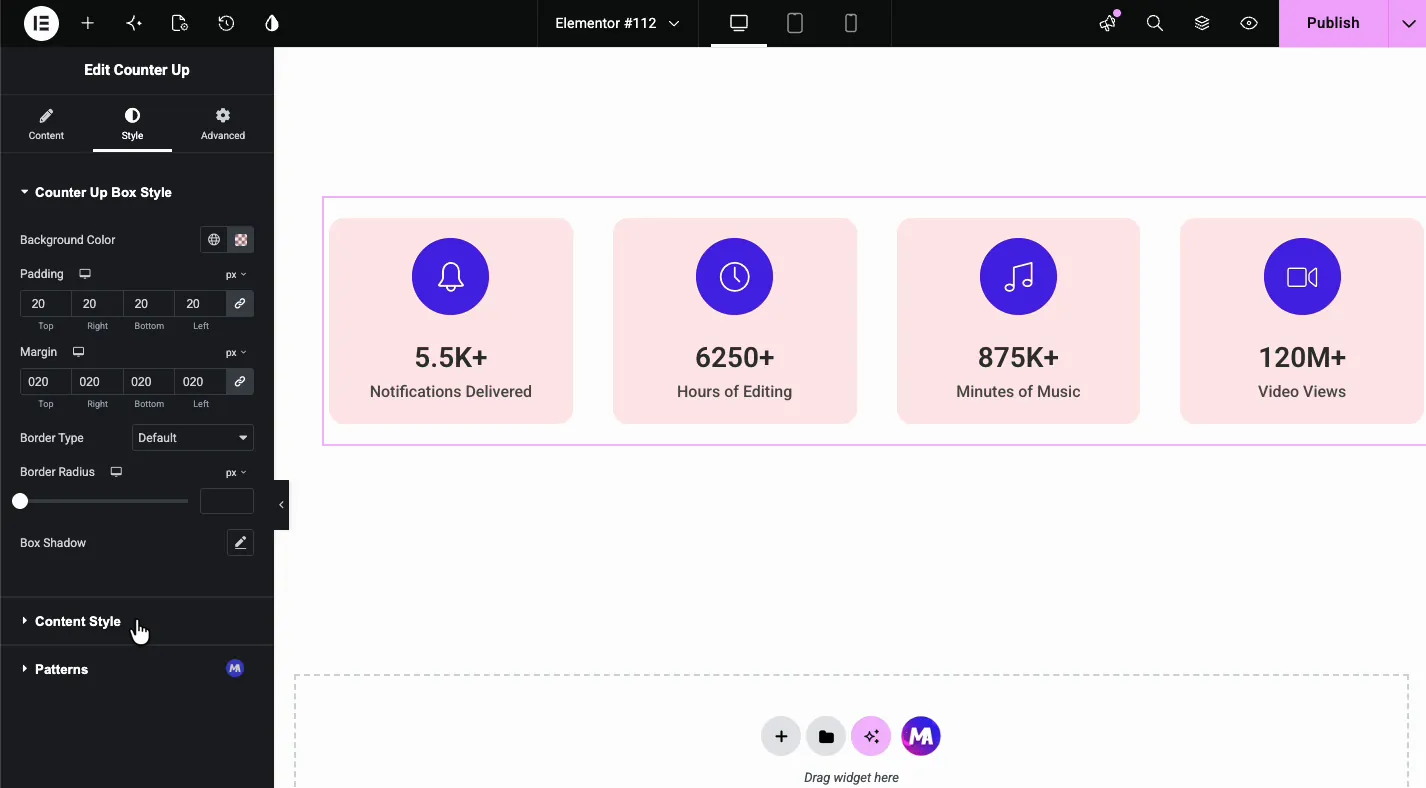
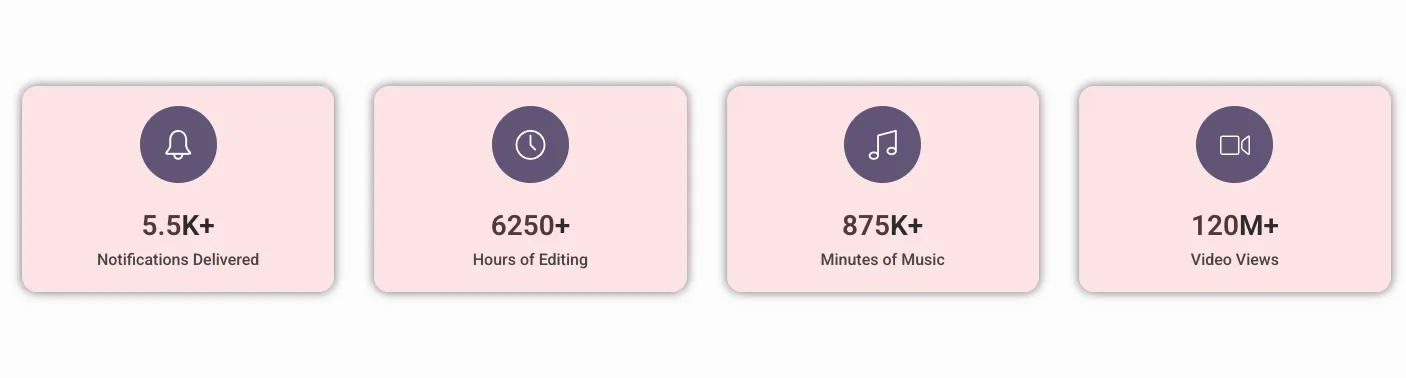
In the Style tab, Counter Up Box Style covers the shared card look: Background Color, Padding, Margin, Border Type, Border Radius, and Box Shadow. The demo lands on soft pink cards with 20 pixel padding and margin, which separates the four stats without hard borders.
Style the numbers, titles, and icons #
The Content Style section splits into four groups, one per element on the card:
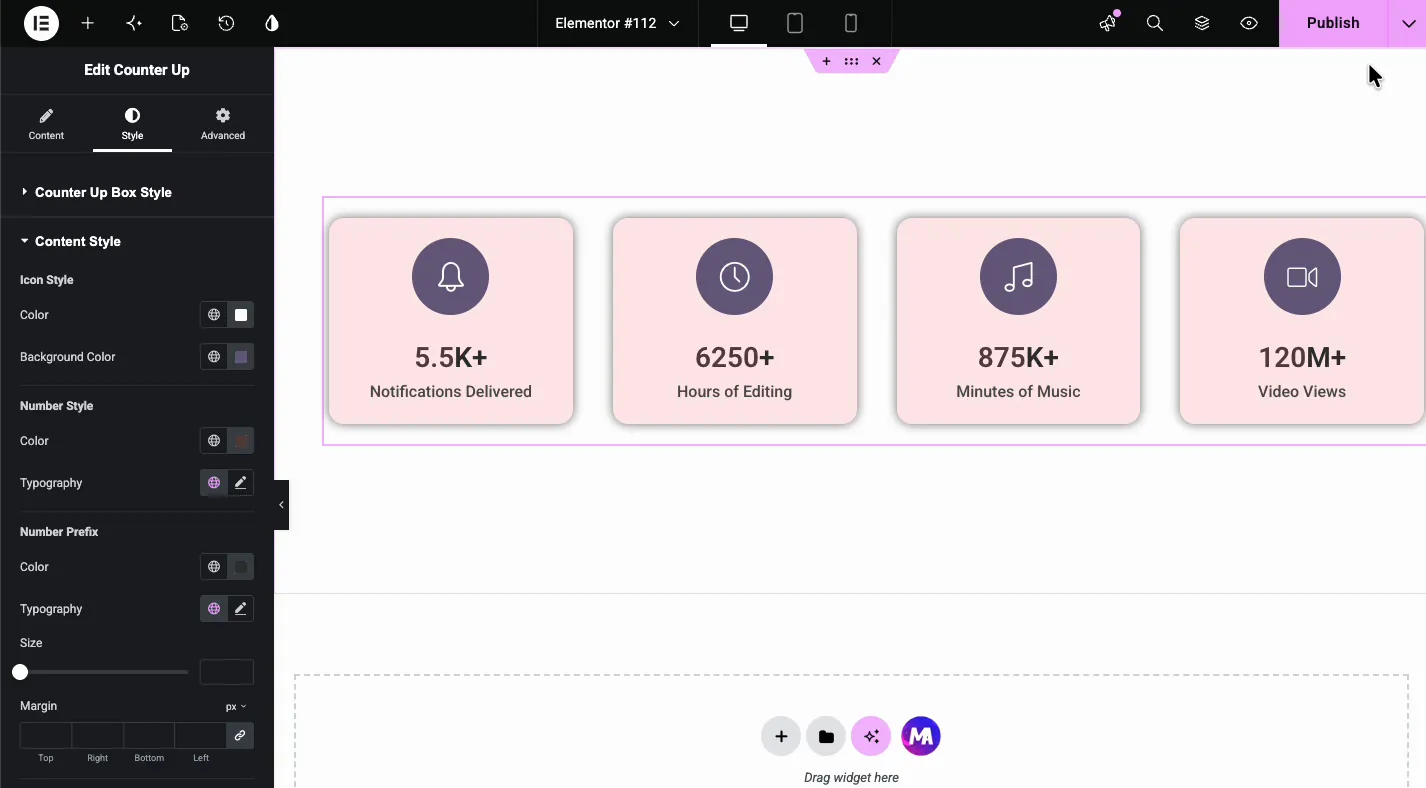
- Icon Style: the glyph color and the circle color behind it. The demo turns the circles deep purple with white icons.
- Number Style: color and typography for the stat itself, the biggest text on the card.
- Number Prefix: its own color, typography, size, and margin, so a currency symbol can sit smaller than the number.
- Title Style: color, typography, and margin for the label.
The result on the page #
On the live page the numbers count up from zero for about two seconds after the page loads, then settle on the final values. Here is the finished band:
Common use cases #
- Company stats bands: customers served, projects delivered, years in business.
- SaaS proof sections: users, uptime, integrations.
- Portfolio numbers: campaigns run, revenue generated, hours of editing.
- Nonprofit impact: meals delivered, volunteers, funds raised.
- Course and community pages: students, lessons, reviews.
Tips for better counters #
- Use suffixes for big numbers. Counting to 120 with an M+ suffix reads cleaner than counting to nine digits.
- Place counters high on the page. The count runs once when the page loads, so counters far below the fold may finish before anyone scrolls to them.
- Keep the set to three or four stats. Six counters compete; four get read.
- Lead with the strongest number. Visitors read left to right and may not finish the row.
- Match icon circles to your palette. The circle color is the most visible style choice on the card; the demo’s purple-on-pink works because both come from one palette.
- Check the mobile column count. Four columns on a phone squeezes the numbers; the responsive Columns control fixes it in one click.
Video Tutorial #
If you’d like to see the Counter Up widget in action, this video walks through the full setup, from the first item to the animated stats band on the live page:
Frequently Asked Questions #
What is the Counter Up widget in Master Addons?
It is an Elementor widget for animated stat sections. Each item holds a number that counts up from zero when the page loads, plus a prefix, suffix, title, and an optional icon or image. Columns, icon sizing, and card styling are shared across the set.
How do I show 120M+ instead of 120000000?
Set the Number to 120 and the Number Suffix to M+. The counter animates to 120 and displays 120M+. The same works for K+ thousands and decimal values like 5.5 with a K+ suffix.
Can each counter have its own icon and color?
Yes. Every item picks its own icon or image through the Type control, and each item has its own Background color. Shared icon size, circle size, and card styling come from Icon Settings and the Style tab.
When does the counting animation start?
The numbers count from zero to the value you set as soon as the page loads, over about two seconds. The animation plays once and does not wait for the widget to scroll into view.
Can I change how many counters sit in a row?
Yes. The Columns dropdown in Counter Up Content offers 1, 2, 3, 4 or 6 columns with a responsive toggle, so a four-column desktop band can drop to two columns on tablets and one on phones.
How is Counter Up different from the Elementor Counter widget?
Elementor Counter shows one number per widget and lets you set the starting number, duration and thousand separator, and it counts when the number scrolls into view. Counter Up holds many counters in one widget with icons, card styling and 1, 2, 3, 4 or 6 columns, and it counts once on page load.
Wrapping up #
The Counter Up widget turns plain numbers into a stats band that moves: per-item icons, prefixes, and suffixes, shared columns and card styling, and a count-up animation that draws the eye exactly once. Browse the full set of Master Addons widgets and extensions to see what else ships with the plugin. The Counter Up product page compares it with the Elementor Counter widget.


