

The Master Addons Widget Builder renders your widget’s HTML, CSS, and JavaScript through a Twig-syntax template engine. If you have touched Twig in Timber or Craft CMS, the syntax will feel familiar: {{ tokens }} print field values, {% if %} blocks show or hide markup, and {% for %} loops walk through repeater rows.
This is a safe subset built into the plugin, not the full Twig library. There is no eval and no compiled PHP behind it, and every printed value is escaped based on its field type. You get the parts of Twig that matter for widget templates, without the parts that could turn a page builder into a security problem.
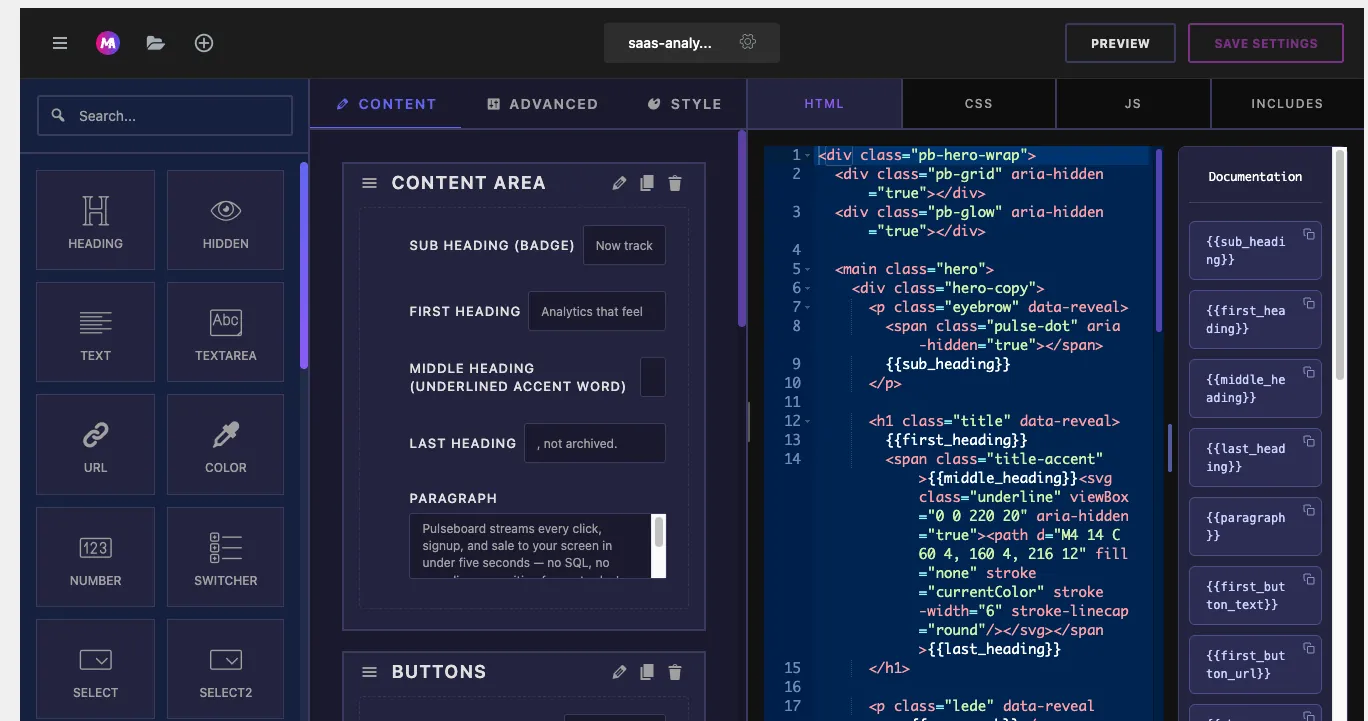
Where you write template code #
The Widget Builder editor has three code tabs, and the engine runs on all of them:
- HTML: your widget’s markup. Tokens, conditions, and loops all live here.
- CSS: your widget’s styles. Tokens work inside property values, so a Color field can feed
background:directly. - JS: optional JavaScript. Tokens work here too, which is handy for passing field values into a script.
Every control you add to the widget’s option panel becomes a template variable named after the field’s Name setting. Add a Text field named title and {{ title }} prints whatever the user typed. The Documentation sidebar next to the code editor lists the token for each field as you add it, so you never have to guess the spelling.
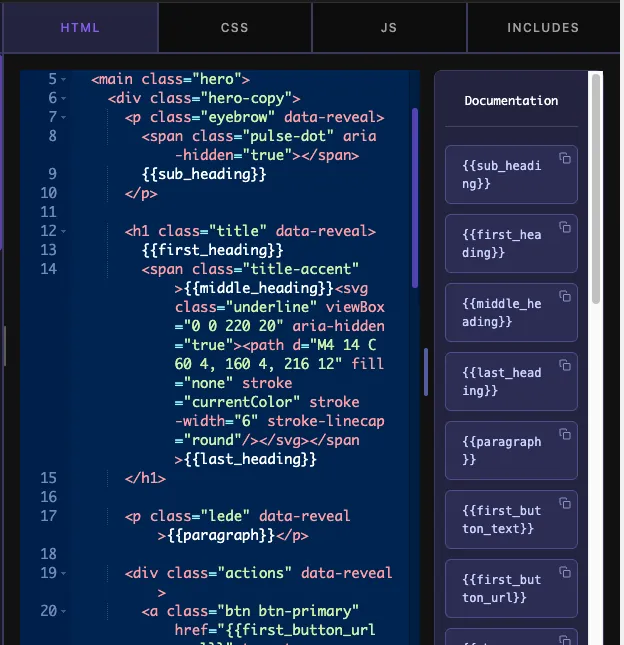
Note: the HTML template renders in every build, but the CSS and JS output ships with Master Addons Pro, same as the full Widget Builder itself.
Printing values with tokens #
The simplest template is markup plus tokens:
<div class="hero">
  <h2>{{ title }}</h2>
  <p>{{ description }}</p>
  <a href="{{ button_link }}">{{ button_text }}</a>
</div>
A few rules worth knowing:
- Dotted paths reach into structured values:
{{ item.name }}inside a loop, or{{ tabs.tab_1.person }}for a Tabs control. - Media fields print their URL. When a token holds an image or video array, the engine outputs the
urlpart automatically, so<img src="{{ photo }}">just works. - Escaping follows the field type. URL fields go through URL escaping, WYSIWYG and Code fields allow safe HTML, and everything else is HTML-escaped. You do not need to sanitize anything yourself.
Filters #
Append a filter to a token with the pipe character. The engine supports five:
{{ title|upper }}prints the value in UPPERCASE.{{ title|lower }}prints it in lowercase.{{ title|trim }}strips whitespace from both ends.{{ content|raw }}skips escaping and prints the value as-is.{{ content|e }}(or|escape) forces escaping back on after araw.
Treat |raw as a sharp tool. It exists for cases where a field intentionally holds markup, and using it on a plain text field means whatever a page editor types lands in your page unescaped. If the field is a WYSIWYG or Code type you rarely need raw at all, since those types already allow safe HTML tags through.
Conditional markup with if blocks #
An {% if %} block renders its contents only when the condition passes. This is the front-end partner of the panel-side Conditions option: Conditions hide the control in the Elementor panel, and the if block removes the matching markup from the page.
{% if show_badge %}
  <span class="badge">{{ badge_text }}</span>
{% endif %}
A bare variable is checked for truthiness, Twig style: empty strings, 0, empty lists, and unset values count as false. Since a Switcher field stores yes when on and an empty value when off, {% if show_badge %} is all you need for a toggle.
Full branching works too:
{% if layout == "card" %}
  <div class="item item--card">...</div>
{% elseif layout == "list" %}
  <div class="item item--list">...</div>
{% else %}
  <div class="item">...</div>
{% endif %}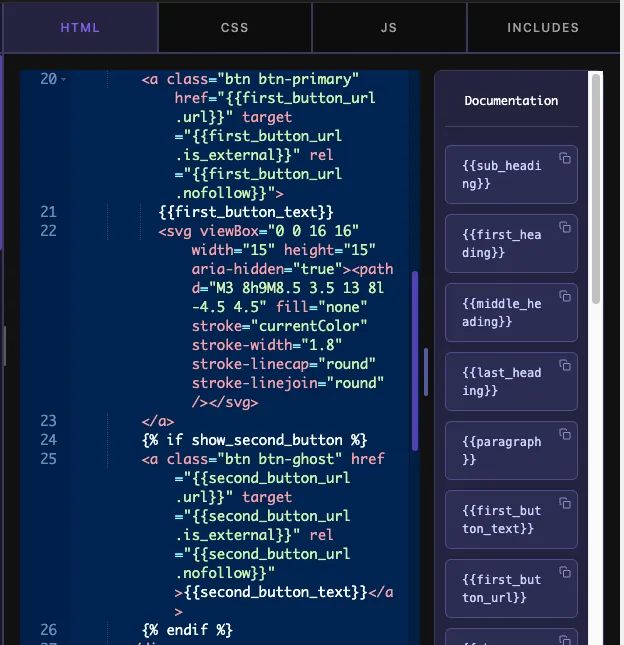
Operators you can use in conditions #
- Comparisons:
==,!=,>,<,>=,<=. Values compare as numbers when both sides are numeric, as text otherwise. - Logic:
and,or,not, written in lowercase words. - Literals: quoted strings (
"card"or'card'), numbers,true,false, andnull.
Combine them freely: {% if show_price and price > 0 %}, or {% if not hide_footer %}, or {% if plan == "pro" or plan == "agency" %}.
Looping through repeater rows #
The Repeater field is where {% for %} earns its keep. A repeater named menu_items with sub-fields dish, price, and photo renders like this:
<ul class="menu">
{% for item in menu_items %}
  <li class="menu__row">
    <img src="{{ item.photo }}" alt="{{ item.dish }}">
    <span class="menu__dish">{{ item.dish }}</span>
    <span class="menu__price">{{ item.price }}</span>
  </li>
{% endfor %}
</ul>
The loop variable (here item, but any word works) holds one row at a time, and each sub-field is available through a dotted path under the name you gave it. Conditions work inside loops, so per-row toggles are one nested block away:
{% for member in team %}
  <div class="member">
    <h3>{{ member.name }}</h3>
    {% if member.role %}<p class="role">{{ member.role }}</p>{% endif %}
  </div>
{% endfor %}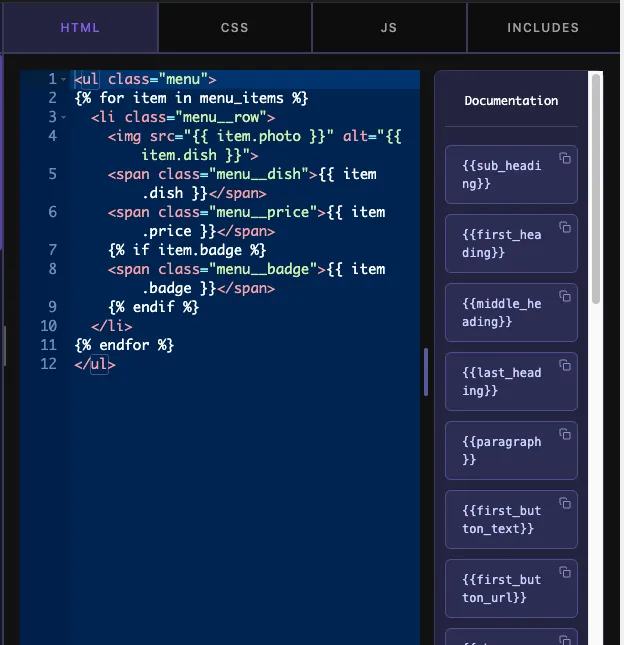
Reading Tabs and Popover fields #
Two structural controls expose their child values through special token shapes:
- Tabs: children are read with a three-part path:
{{ tabs_name.tab_name.field_name }}. A Tabs control namedtabswith atab_1tab holding apersonfield prints as{{ tabs.tab_1.person }}. No loop needed. - Popover Toggle: each field inside the popover gets a combined token: the toggle’s name, an underscore, then the field name. A popover named
overlaywith anopacityfield inside prints as{{ overlay_opacity }}.
Tokens in CSS #
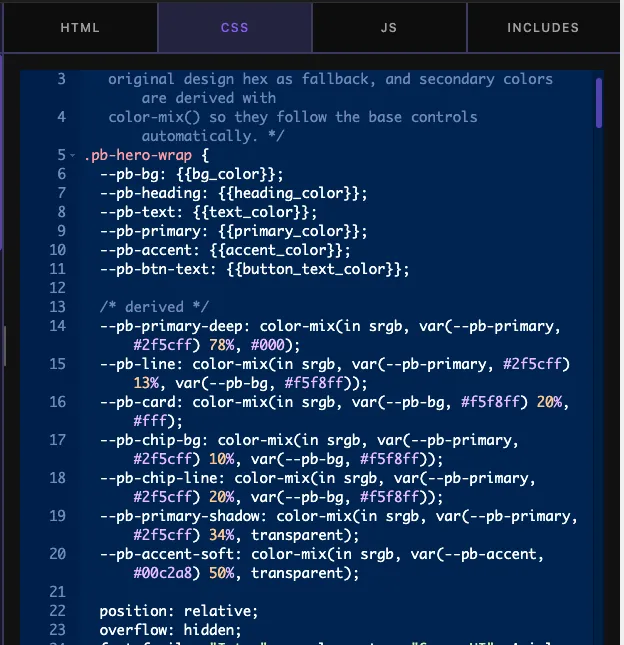
The CSS tab runs through the same engine, so style fields plug straight into property values:
.hero {
  background: {{ bg_color }};
  color: {{ text_color }};
}

{% if enable_shadow %}
.hero {
  box-shadow: 0 12px 32px rgba(0, 0, 0, 0.18);
}
{% endif %}
An if block around a whole rule is a clean way to ship optional styling: the rule only exists in the output when the toggle is on. A media field works here too, for example background-image: url("{{ hero_image }}");, since the token resolves to the file URL.
Tokens in JavaScript #
The JS tab lets you pass panel values into a script. Quote string values, and lean on truthiness for toggles:
var speed = {{ slide_speed }};
var autoplay = "{{ autoplay }}" === "yes";

if (autoplay) {
  startSlider(speed);
}
Values printed into JS are escaped like any other token, so a user cannot break out of your script by typing quotes into a text field.
Practical recipes #
A few patterns that come up in nearly every widget:
- Optional second button: wrap the whole anchor in
{% if second_button_text %}so the button disappears when the text field is empty. No switcher required. - Layout class from a Select: print the field straight into the class attribute:
<div class="pricing pricing--{{ layout }}">, then style each variant in CSS. - Fallback content:
{% if caption %}{{ caption }}{% else %}Untitled{% endif %}keeps the markup from rendering empty elements. - Numbered price tiers:
{% if price >= 100 %}<span class="premium-tag">Premium</span>{% endif %}reacts to a Number field’s value. - Uppercase labels:
{{ eyebrow|upper }}lets the CSS stay free oftext-transformwhen the design calls for caps in one spot only. - Repeater-driven galleries, menus, timelines, and testimonials: one
{% for %}loop plus a repeater replaces a fixed number of copy-pasted blocks.
What the engine does not support #
Knowing the edges saves debugging time. This is a deliberate subset, so a few full-Twig features are absent:
- No
{% set %}, macros, includes, or template inheritance. - No math inside expressions: compare values, but compute in CSS
calc()or in the JS tab. - No filters beyond
raw,escape/e,upper,lower, andtrim. - No
loop.indexor other loop metadata inside{% for %}. - No parentheses for grouping logic. Order your
and/orchains so they read correctly, or split into nestedifblocks.
If a template needs heavier logic than this, that is usually a sign to move the decision into the panel, for example a Select field whose options carry the values you were trying to compute.
Frequently Asked Questions #
Does the Widget Builder use the real Twig library?
No. It ships its own lightweight engine that follows Twig syntax: tokens, if blocks, for loops, and a small filter set. There is no eval and no compiled PHP, and output is escaped per field type, which makes templates safe by default.
Which Twig features does the Widget Builder support?
Output tokens with dotted paths, the raw, escape, upper, lower, and trim filters, if, elseif, and else branching, for loops over repeater rows, comparisons, and the and, or, and not operators. Set, macros, includes, and math expressions are not part of the subset.
How do I print a repeater field’s values?
Loop over the repeater by its field name: open with a for tag such as {% for item in menu_items %}, print each sub-field with a dotted token like {{ item.dish }}, and close with {% endfor %}. Sub-fields use the names you set in the repeater.
Why is my value showing HTML tags as text?
The field is being escaped as plain text. Store markup in a WYSIWYG or Code field, which allow safe HTML through automatically, or append the raw filter to the token if you fully trust the field’s content.
Do tokens work in the CSS and JS tabs?
Yes, the same engine renders all three tabs, so tokens, if blocks, and loops behave identically. Emitting the custom CSS and JS on the front end is a Master Addons Pro capability, while the HTML template renders in every build.
Wrapping up #
The Twig syntax engine is what connects Widget Builder fields to your markup: {{ tokens }} print panel values, {% if %} removes optional markup when it is switched off, and {% for %} lets one block of HTML serve an unlimited repeater. Start with plain tokens, add an if block for your first toggle, then graduate to loops when a design repeats. From there, the Repeater, Select, and Switcher fields cover most dynamic widgets you will ever need to build. New to the builder itself? The Widget Builder overview walks through the editor, and the pricing page shows what each plan includes.


