Master Addons
  • Widgets
    • Changelogs
      Source Code NEW PRO
      Caldera Forms
      Logo Slider
      Table of Contents
      Gravity Forms
      Transforms PRO
      Restrict Content PRO
      Pricing Table
      Ninja Form
      Mailchimp
      Tooltip
      Popup Trigger NEW PRO
      Which Element NEW
      Creative Button
      Creative Links NEW
      Domain Search HOT PRO
      Dual Heading HOT
      Flipbox
      Animated Gradient BG HOT PRO
      Image Hotspot PRO
      Infobox
      News Ticker PRO
      Particles
      Progress Bar
      Off-Canvas Content NEW PRO
      Reading Progress Bar HOT
      Custom JS
      Blockquote
      Counter Up
      Image Hover Effects
      Reveal NEW PRO
      Rellax PRO
      Positioning
      Image Comparison
      Tabs
      Toggle Content HOT PRO
      Post/Page Duplicator FREE
      Floating Effects PRO
      Mega Menu HOT
      Custom CSS HOT
      Gradient Headline
      Advanced Image
      Nav Menu
      Tooltips
      Comparison Table PRO
      Glassmorphism
      Featured Product PRO
      Image Carousel
      Gallery Slider NEW PRO
      Dynamic Tags NEW
      Countdown Timer
      Current Time
      Patterns
      Wrapper Link
      Timeline
      Team Member
      Contact Form 7
      Advanced Accordion
      Animated Headlines
      Blog
      Business Hours
      Call To Action
      Progress Bars
      Background Slider
      Team Slider
      Dynamic Table
      Grid Line PRO
      WP Forms
      Search
      We Form
      Entrance Animation NEW PRO
      Display Conditions PRO
      Filterable Image Gallery
      WP Forms
      Custom Breakpoints NEW
  • Features
    • Theme Builder

      Design site-wide templates for a consistent look across every page of your website.

      Popup Builder

      Create engaging popups, modals, and announcement bars - to capture leads.

      Widget Builder

      Expand Elementor with advanced custom widgets to build more dynamic layouts.

      Mega Menu Builder

      Create multi-column menus with icons and images for superior navigation.

      Custom Css

      Apply your own CSS for pixel-perfect styling beyond default design options.

      Dynamic Tags

      Insert dynamic content like post titles and custom fields directly into designs.

      Display Conditions

      Control element visibility based on user role, device, time, and other rules.

      Icons Library

      Choose from thousands of built-in icons to enhance visuals and consistency.

      Animation

      Add scroll, hover, entrance, and much more animations to bring designs to life.
  • Template Kits
    • Template Kits

      Professionally designed full-page template Kit. Import and customize in seconds.

      Ready Sections

      Pre-built content sections and rows. Drag, drop, and customize instantly.

      Ready Popups

      Different types of High-converting popup designs. Import and launch quickly.

      Elementor Page Templates

      Complete page layouts for any purpose. Start editing immediately.

      Ready Header

      Multiple modern header designs. Import and adapt to your brand.

      Ready Footer

      Fully designed footers for different websites. Add functionality and style in clicks.
  • Brands
    • WP Adminify

      WP Adminify

      Take control of your WordPress dashboard. Customize the admin experience.
      Admin Bar Editor

      Admin Bar Editor

      Customize the WordPress admin bar for a cleaner, more personalized workspace.
      Loginfy

      Loginfy

      Customize your WordPress login page with branding, styles, and security enhancements.

      Rolemaster Suite

      Manage user roles and permissions with precision for better security and workflow.
      Master Blocks

      Master Blocks

      Expand the Gutenberg editor with advanced custom blocks for more creative layouts.
      WP Spotlight

      WP Spotlight

      Instantly search and access admin features, posts, and settings from anywhere.
  • Themes
  • Help
    • Get Support
    • Documentation
    • Facebook Community
    • Changelogs
  • Blog
Pricing
🇺🇸EN
  • 🇺🇸EN
  • 🇸🇦AR
  • 🇧🇩BN
  • 🇩🇰DA
  • 🇩🇪DE
  • 🇪🇸ES
  • 🇫🇷FR
  • 🇮🇳HI
  • 🇰🇷KO
  • 🇵🇹PT
  • 🇷🇺RU
  • 🇨🇳ZH

Getting Started

  • Can’t see the Master Addon Element inside Elementor Page editor?
  • How To Apply For an Affiliate Account?
  • Active Pro version
  • Installing Plugin

Addons

  • Popup Trigger Widget Settings
  • Off-Canvas Content Widget Settings
  • Logo Slider Widget Settings
  • Progress Bars Widget Settings
  • Image Carousel Settings
  • Featured Product Widget Settings
  • Comparison Table Widget Settings
  • Source Code Widget Settings
  • Advanced Image Widget Settings
  • Gradient Headline Widget Settings
  • Gallery Slider Settings
  • Toggle Content Widget Settings
  • Info Box Widget Settings
  • Timeline Widget Settings
  • Dynamic Table Widget Settings
  • Mailchimp Widget Settings
  • Blockquote Widget Settings
  • Changelog Widget Settings
  • Countdown Timer Widget Settings
  • Current Time Widget Settings
  • Search Widget Settings
  • Filterable Image Gallery
  • Team Slider Widget Settings
  • Counter Up Widget Settings
  • Restrict Content Settings
  • Table of Contents Widget Settings
  • Image Hotspot Widget Settings
  • Image Comparison Widget Settings
  • News Ticker Widget Settings
  • Image Hover Effects
  • Tabs Settings
  • Pricing Table Widget Settings
  • Nav Menu Widget Settings
  • Domain Search Widget Settings
  • Flipbox Widget Settings
  • Tooltip Settings
  • Creative Links Widget Settings
  • Business Hours Widget Settings
  • Contact Form 7 Widget Settings
  • Creative Button Widget Settings
  • Animated Headlines Settings
  • Advanced Accordion Widget Settings
  • Call to Action Widget Settings
  • Progress Bar Widget Settings
  • Blog Posts Widget Settings
  • Team Member Widget Settings
  • Dual Heading Settings

Extensions

  • Icon Library Settings
  • Mega Menu Settings
  • Which Element Extension Settings
  • Post/Page Duplicator Extension Settings
  • Grid Line Extension Settings
  • Glassmorphism Extension Settings
  • Tooltip Extension Settings
  • Wrapper Link Settings
  • Floating Effects Extension Settings
  • Dynamic Tags Settings
  • Display Conditions Extension Settings
  • Entrance Animation Settings
  • Custom Breakpoints Settings
  • Animated Gradient BG Extension Settings
  • Reveal Extension Settings
  • Particles Extension Settings
  • Background Slider Extension Settings
  • Transforms Extension Settings
  • Rellax Extension Settings
  • Positioning Extension Settings
  • Custom CSS Settings

Widget Builder

  • Conditions
  • Twig Syntax
  • Settings Panel Introduction
  • Divider
  • Text Shadow
  • Select2
  • Border
  • Heading
  • Tabs
  • Repeater
  • Visual Choice
  • Background
  • Dimensions
  • Box Shadow
  • Slider
  • Icons
  • Gallery
  • Media
  • Popover Toggle
  • URL Field
  • Date Time
  • Typography
  • Font
  • Color Field
  • Choose
  • Select
  • Switcher
  • Hidden
  • Code
  • WYSIWYG
  • Textarea Field
  • Number
  • Text Field

Theme Builder

  • Comment Form
  • 404
  • Search
  • Archive
  • Single
  • Footer
  • Header

Popup Builder

  • How to Open a Popup After Inactivity in Elementor
  • How to Show an Exit Intent Popup in Elementor
  • How to Open a Popup on Scroll to a Specific Element in Elementor
  • How to Open a Popup on Scroll in Elementor
  • How to Open a Popup on Click in Elementor
  • How to open a popup on page load?
  • Popup Settings & Options

Template Kit

  • How to Import Template Kits in Master Addons
  • How to Disable Elementor Default Fonts and Colors
  • Import Elementor Template Kits
View Categories
  • Home
  • Docs
  • Extensions
  • Icon Library Settings

Icon Library Settings

Roy Jemee
Updated on September 24, 2026

5 min read

What is Icon Library Settings? The Icon Library extension in Master Addons adds eight icon packs to Elementor's Icon Library popup. This guide covers turning the packs on, picking and styling an icon in a widget, and fixing common problems. For an overview of every pack and what each one…

The Icon Library extension in Master Addons adds eight icon packs to Elementor’s Icon Library popup. This guide covers turning the packs on, picking and styling an icon in a widget, and fixing common problems. For an overview of every pack and what each one suits, see the Elementor icon library page.

Before you start #

You need Elementor and Master Addons installed and active. Feather Icons, Remix Icons and Teeny Icons are Pro packs, so they appear only when Master Addons Pro is active with a valid license.

Step 1: Turn on the icon packs #

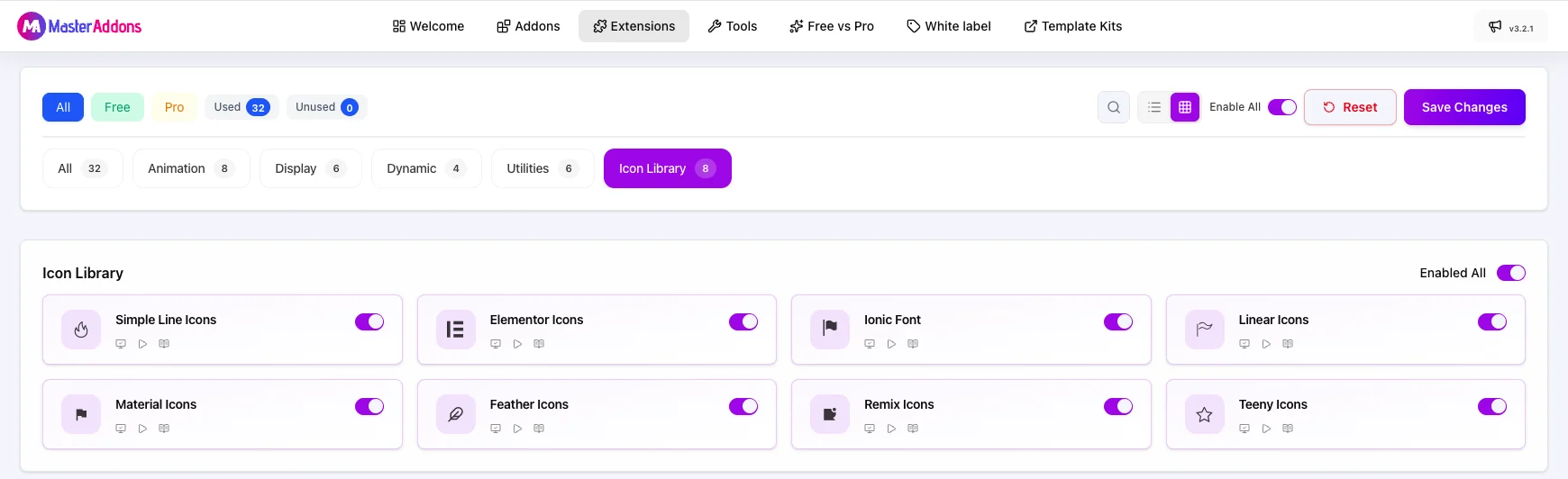
  1. In your WordPress dashboard, go to Master Addons > Settings.
  2. Open the Extensions tab.
  3. Click the Icon Library filter to show only the icon packs.
  4. Switch on the packs you want. The Enabled All switch turns all eight on or off at once.
  5. Click Save Changes.
Master Addons Extensions tab filtered to Icon Library, showing switches for all eight icon packs

The settings card calls one pack “Ionic Font”. In the Elementor popup the same pack is listed as “Iconic Font Icons”. It is the Iconic Font set by iconmonstr.

Only switch on the packs you plan to use. A pack that is off does not appear in the popup, and its font files are not loaded in the editor.

Step 2: Open the Icon Library in a widget #

  1. Edit a page with Elementor.
  2. Add any widget that has an icon field, such as Icon, Icon Box, Icon List, Button or Social Icons.
  3. In the Content tab, hover over the icon preview and click Icon Library.
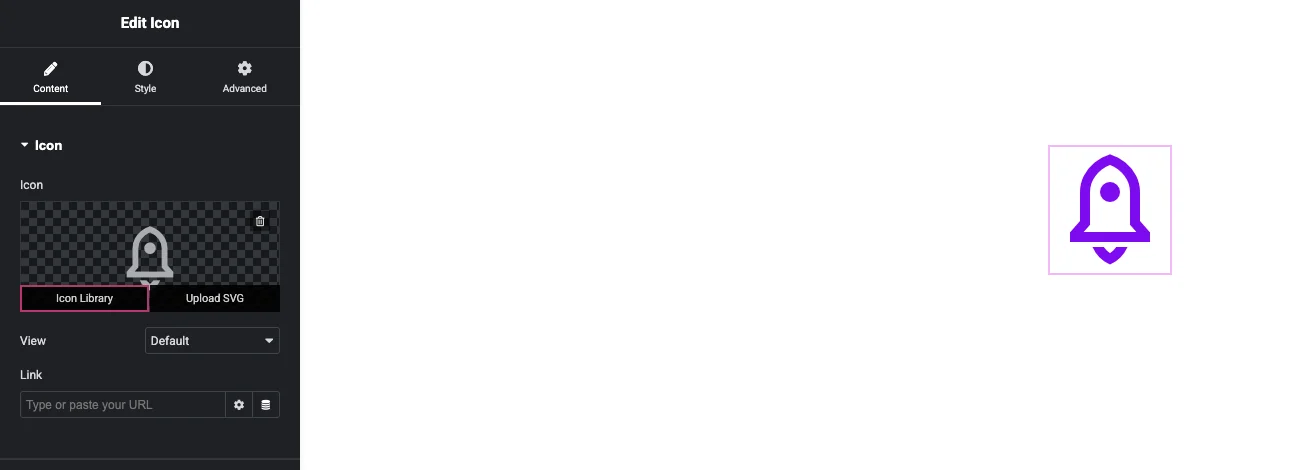
Elementor Icon widget panel with the Icon Library button highlighted on the icon preview

Step 3: Choose a pack under My Libraries #

The popup lists Elementor’s Font Awesome sets at the top. The Master Addons packs sit below them under My Libraries, and each one has a small “M” badge. Click a pack to browse its icons.
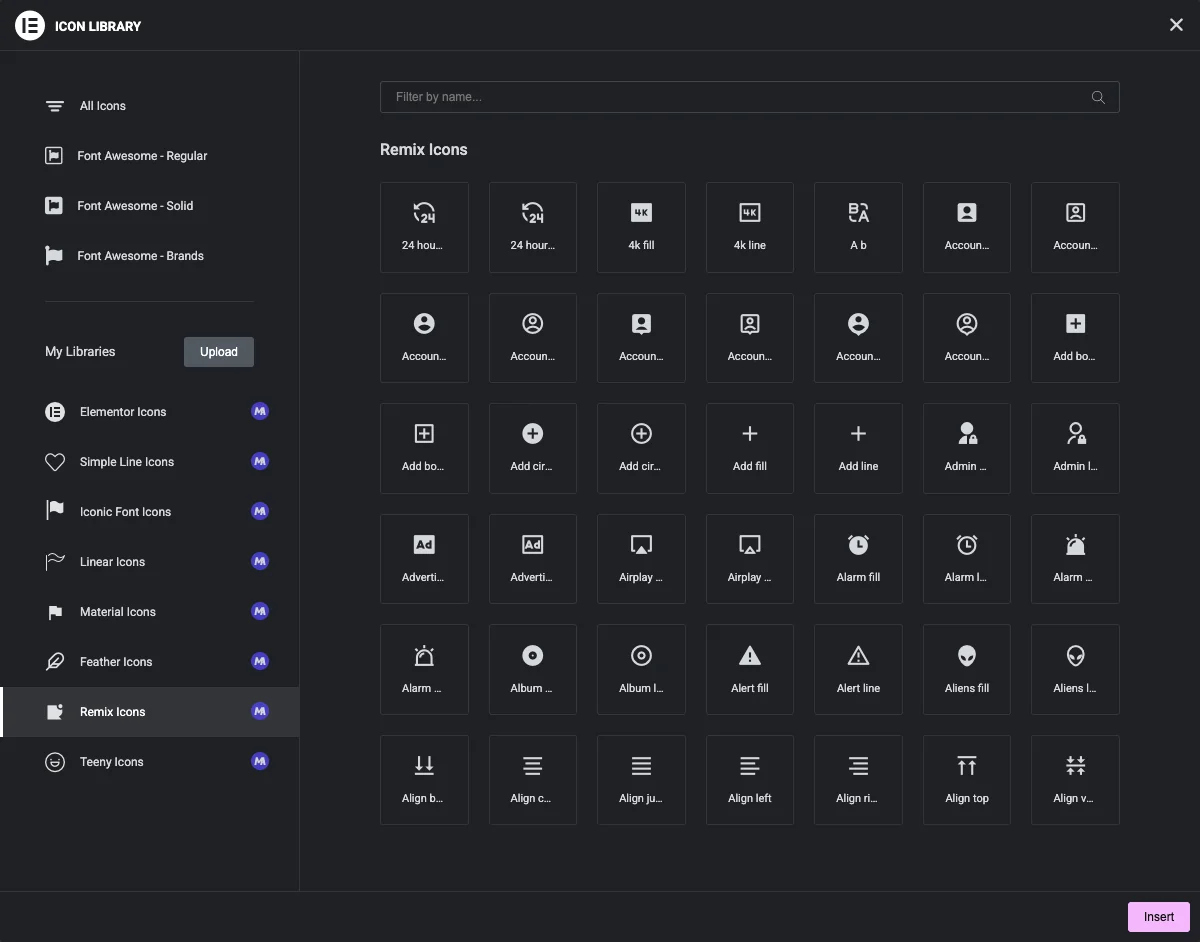
Elementor Icon Library popup showing the eight Master Addons packs under My Libraries, with Remix Icons open

Step 4: Search across every pack #

Click All Icons and type a word in the Filter by name box. The results include Font Awesome and every Master Addons pack you have switched on. Searching for “rocket”, for example, returns icons from Font Awesome, Simple Line Icons, Iconic Font Icons, Linear Icons and Remix Icons.
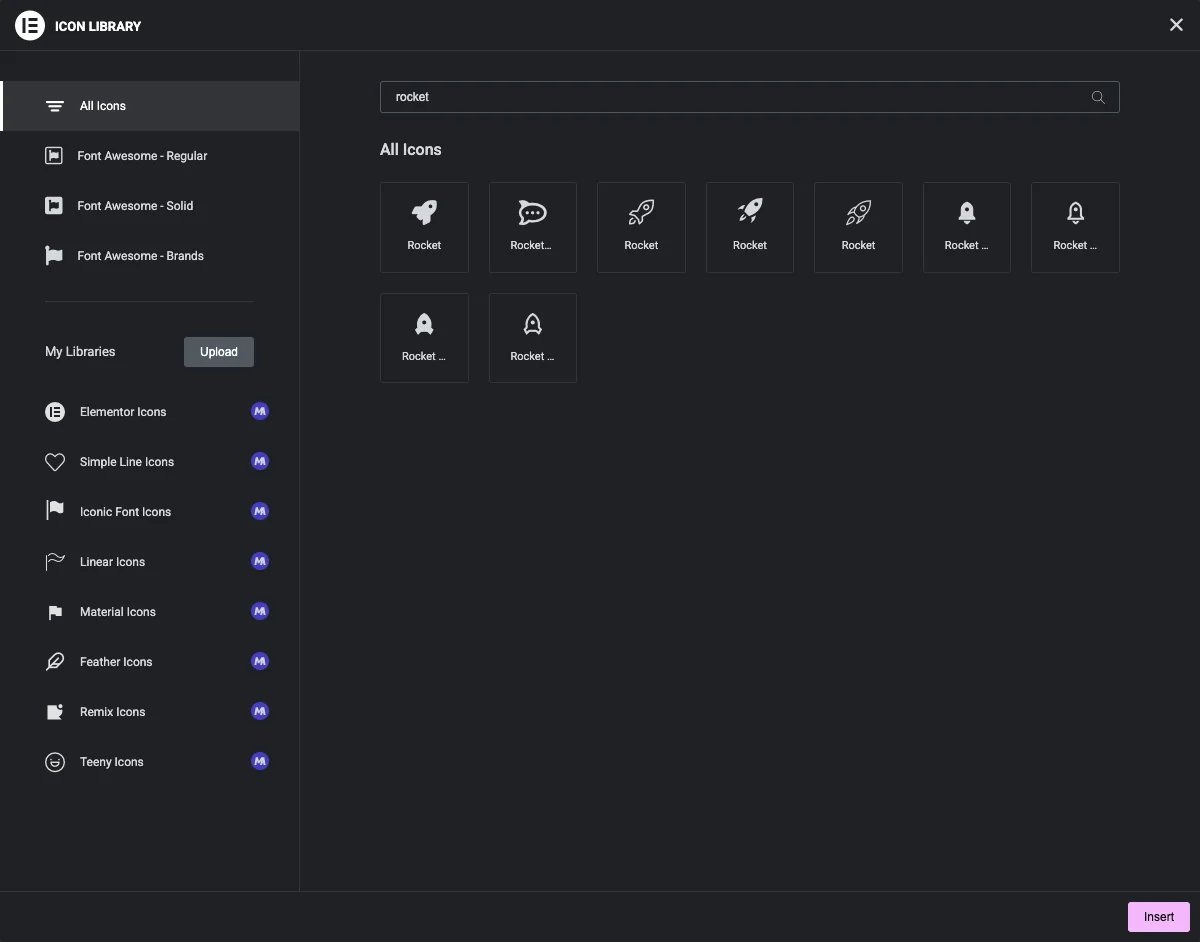
Search results for rocket in the All Icons view, with matches from several icon packs

Step 5: Insert the icon #

Click the icon you want so it is selected, then click Insert. The icon appears in the widget straight away.
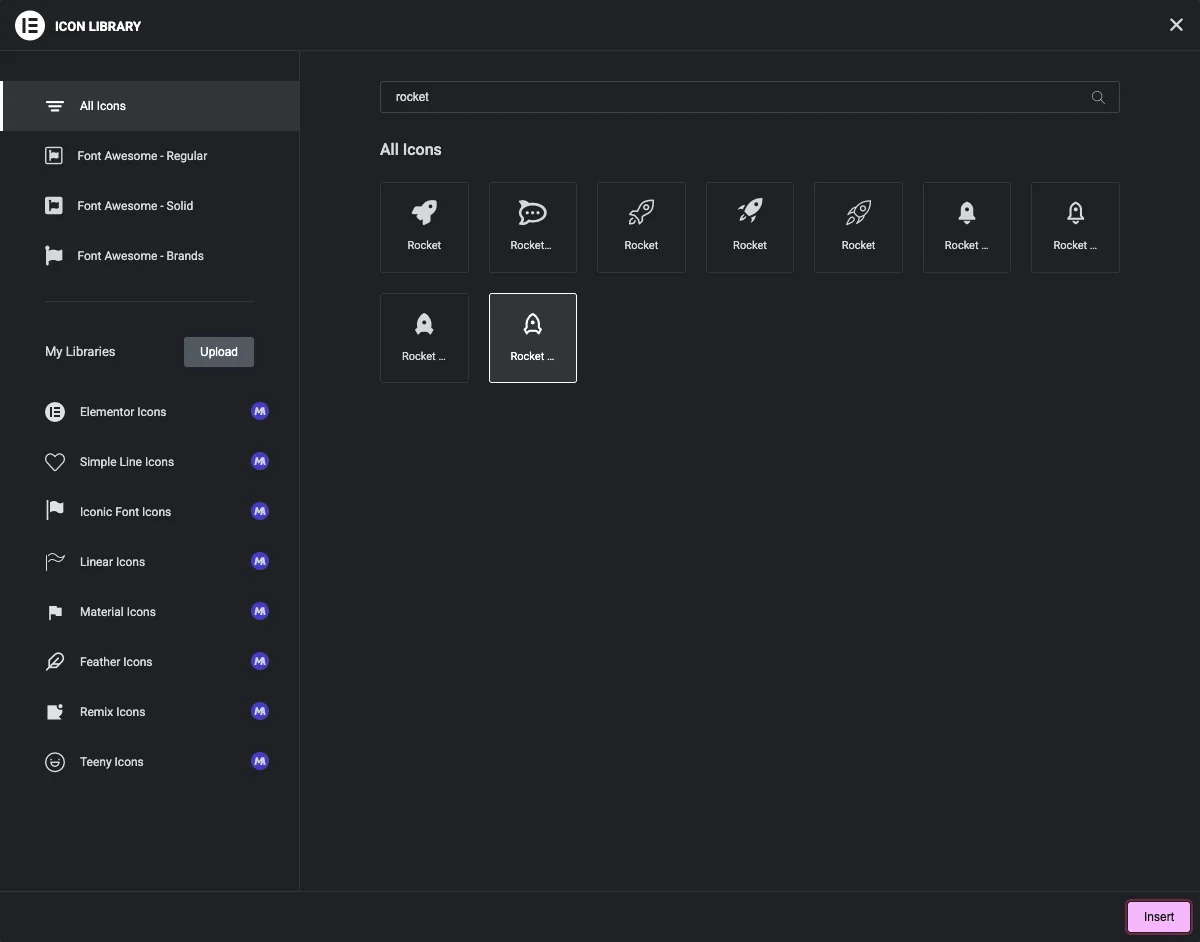
A Remix rocket icon selected in the Icon Library popup with the Insert button highlighted

Step 6: Style the icon #

Icons from these packs use the widget’s normal style controls. Open the Style tab and expand the Icon section to set the primary color, size and rotation. Use the Hover tab to change the color on hover.
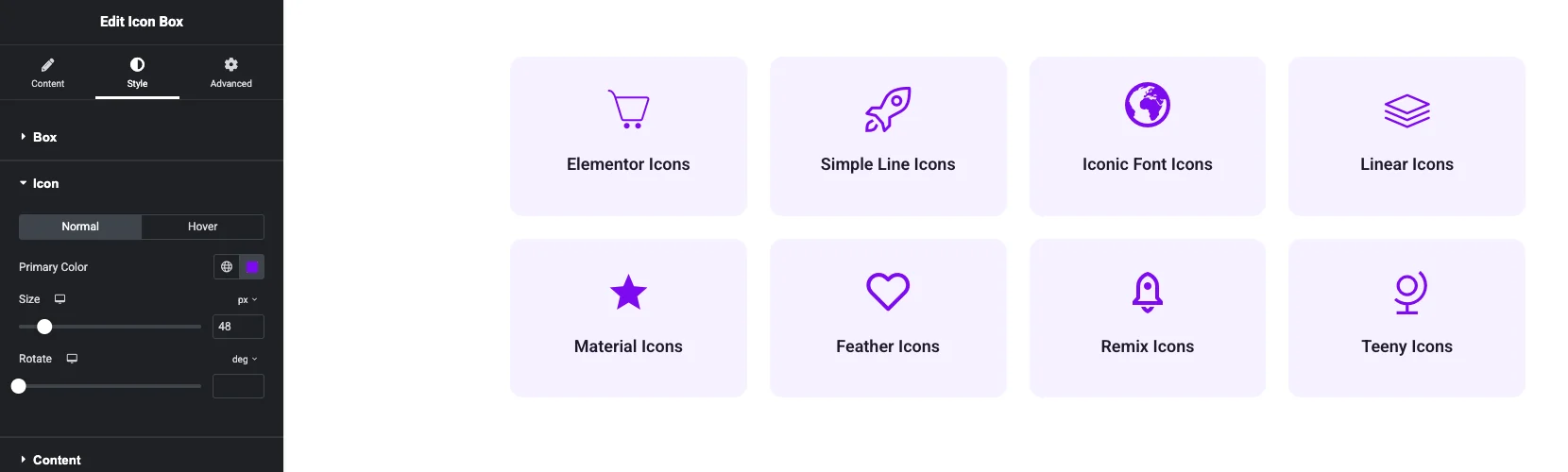
Icon Box Style tab with the Icon section open next to icon boxes that use each of the eight packs

The example below uses one icon from each pack in Icon Box widgets with the same color and size.
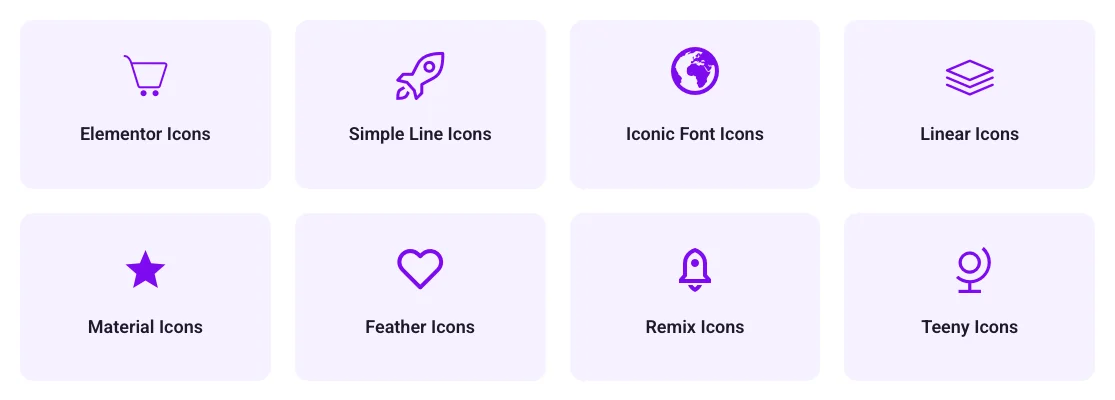
Eight icon boxes, one icon from each pack: Elementor Icons, Simple Line Icons, Iconic Font Icons, Linear Icons, Material Icons, Feather Icons, Remix Icons and Teeny Icons

Icon pack reference #

Name in settingsName in the popupIconsCSS class prefixPlan
Elementor IconsElementor Icons398eicon-
Simple Line IconsSimple Line Icons189icon-
Ionic FontIconic Font Icons300im-
Linear IconsLinear Icons170lnr-
Material IconsMaterial Icons1,144jltma-material-icon-
Feather IconsFeather Icons272jltma-feather-icon-Pro
Remix IconsRemix Icons2,271jltma-ri-Pro
Teeny IconsTeeny Icons600jltma-ti-Pro

Each icon is output as an <i> element with the pack class and the icon class, for example <i class="jltma-ri jltma-ri-rocket-2-line"></i>. You can target these classes in custom CSS.

What each pack looks like #

Elementor Icons #

Elementor’s own icon font: the 398 glyphs the Elementor editor uses for text formatting, layout and widget symbols. Pick it when you want icons that match the Elementor interface.
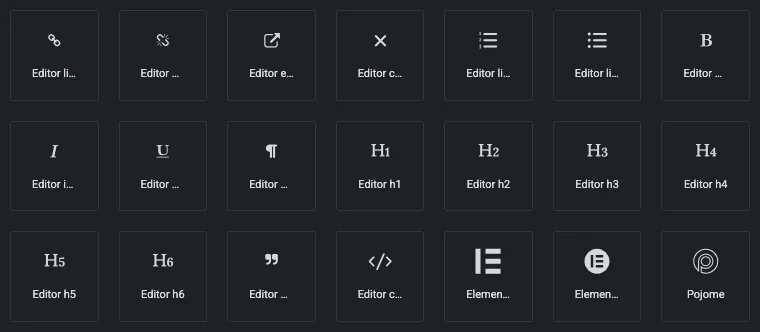
Elementor Icons pack in the Icon Library popup

Simple Line Icons #

189 thin outline icons for people, phones, maps, navigation and other everyday symbols. The light stroke works well in minimal layouts.
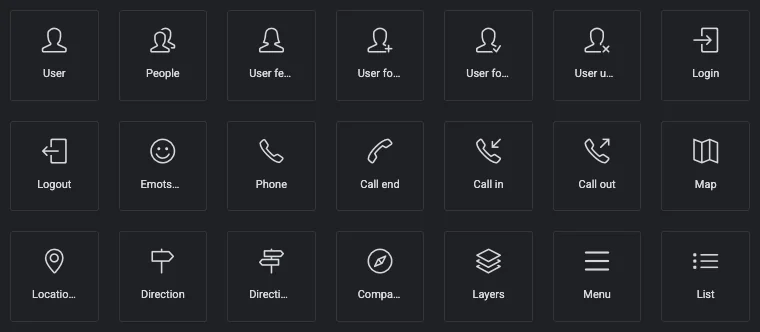
Simple Line Icons pack in the Icon Library popup

Iconic Font Icons #

iconmonstr’s Iconic Font, with 300 solid icons. Arrows, angles and carets make up a large part of the set, most in both a plain and a circled version.
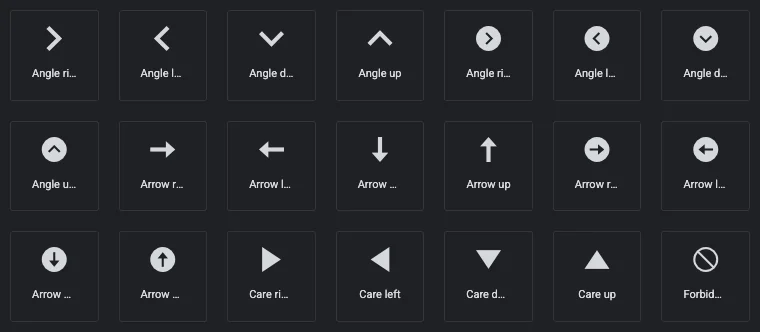
Iconic Font Icons pack in the Icon Library popup

Linear Icons #

170 line icons from Linearicons, including home, cloud, lock, cog and heart.
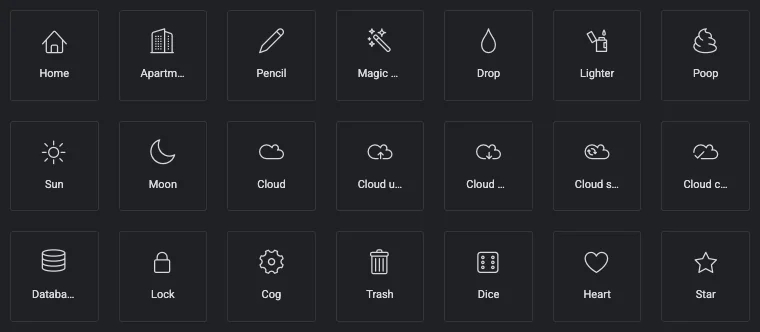
Linear Icons pack in the Icon Library popup

Material Icons #

Google’s Material Icons: 1,144 filled icons in the Material Design style, covering alerts, media controls and common interface actions.
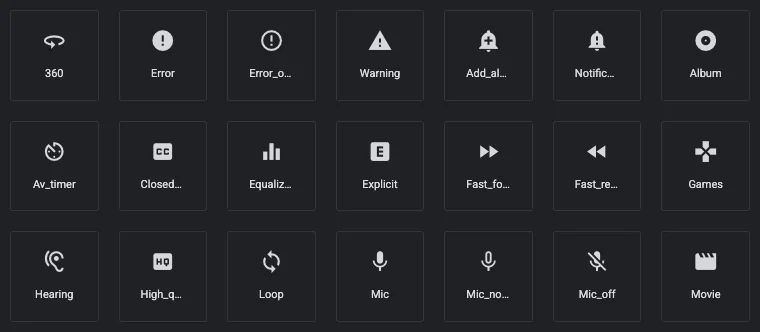
Material Icons pack in the Icon Library popup

Feather Icons (Pro) #

272 icons drawn on a 24 px grid with a light, even stroke and rounded ends.
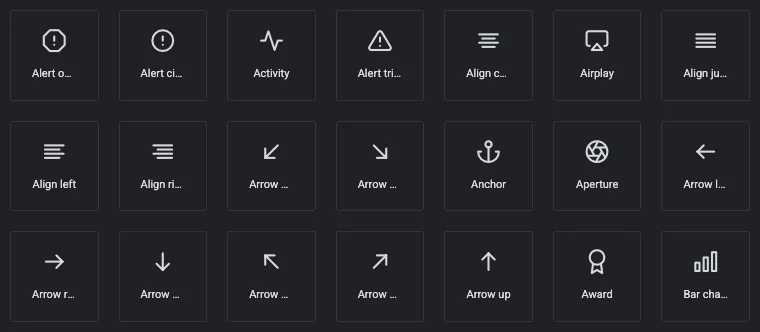
Feather Icons pack in the Icon Library popup

Remix Icons (Pro) #

The largest pack, with 2,271 icons. Most shapes come in a line version and a fill version, so you can switch from outline to solid on hover or to mark an active item.
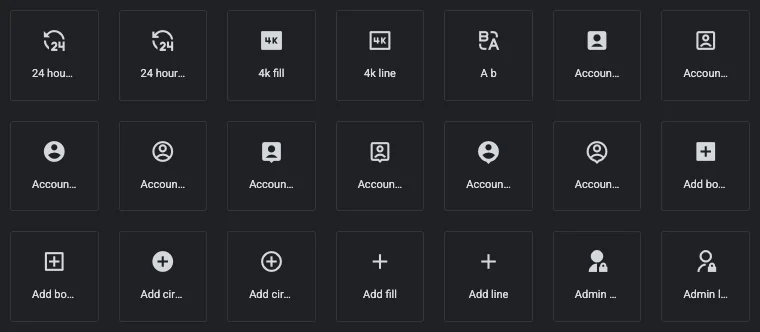
Remix Icons pack with line and fill versions in the Icon Library popup

Teeny Icons (Pro) #

600 small, minimal outline icons designed to stay clear at small sizes.
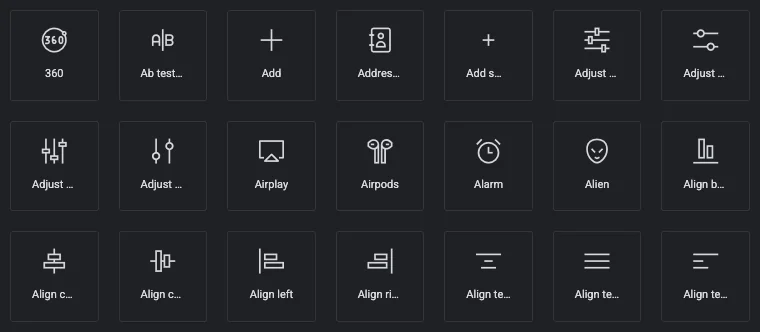
Teeny Icons pack in the Icon Library popup

Using the packs in Widget Builder #

The same packs are available in the icon picker of Widget Builder’s Icons control. See Icons control in Widget Builder for setup.

Troubleshooting #

A pack is missing from the popup #

Check that its switch is on under Master Addons > Settings > Extensions > Icon Library, click Save Changes, then reload the Elementor editor.

Feather, Remix or Teeny Icons are missing #

These packs need Master Addons Pro with an active license. Check the license under Master Addons > Account.

Icons show as empty squares or do not appear on the page #

Go to Elementor > Tools > General and click Clear Files & Data under Elementor Cache. Then clear any caching plugin and your CDN. If your fonts are served from a CDN on another domain, make sure it allows cross origin requests for font files.

Turning a pack off #

Before you switch a pack off, check that no page uses icons from it.

Video walkthrough #

Related #

  • Elementor icon library by Master Addons: all eight packs and what each one suits
  • Icons control in Widget Builder
What are your Feelings

Share This Article :

  • Facebook
  • X
  • LinkedIn
  • Pinterest
Still stuck? How can we help?

How can we help?

Updated on September 24, 2026
Custom CSS SettingsMega Menu Settings
Table of Contents
  • Before you start
  • Step 1: Turn on the icon packs
  • Step 2: Open the Icon Library in a widget
  • Step 3: Choose a pack under My Libraries
  • Step 4: Search across every pack
  • Step 5: Insert the icon
  • Step 6: Style the icon
  • Icon pack reference
  • What each pack looks like
    • Elementor Icons
    • Simple Line Icons
    • Iconic Font Icons
    • Linear Icons
    • Material Icons
    • Feather Icons (Pro)
    • Remix Icons (Pro)
    • Teeny Icons (Pro)
  • Using the packs in Widget Builder
  • Troubleshooting
    • A pack is missing from the popup
    • Feather, Remix or Teeny Icons are missing
    • Icons show as empty squares or do not appear on the page
    • Turning a pack off
  • Video walkthrough
  • Related

Join 30,000+ Web Creators Who Trust Master Addons

Get all the premium widgets and templates you desire, built with clean code that keeps your site fast. Ditch the bloat, not the features.

Try Live Demo
Join The Community
Master Addons for Elementor
Master Addons Logo

80+ Premium Widgets & Lifetime Updates – Build Beyond Limits. An Exclusive Creation by Pixar Labs

Facebook-f Twitter Youtube Wordpress
Features
  • Template kits
  • Template Library
  • Widget Builder
  • Theme Builder
  • Mega Menu Builder
Support
  • Support Forum
  • Contact US
  • Join Community
  • Blog
  • Video Reviews
Resources
  • My Account
  • Changlogs
  • Documentation
  • Video Tutorials
  • Toolz.dev
Navigate
  • Apply for Affiliate
  • Terms of Use
  • Refund Policy
  • Privacy Policy
  • About Us