

Table of Contents
Free Elementor does not include a popup builder. The Popup Builder is an Elementor Pro feature. To get popups without paying for Pro, install the free Master Addons Popup Builder, design the popup inside the normal Elementor editor, set it to open on page load, and publish. That path is free, it works on the free version of Elementor, and it takes about five minutes.
This guide walks the whole thing, with screenshots taken on Elementor 4.2.4 and Master Addons 3.2. It also covers the parts most tutorials skip: which triggers are actually free, how to keep a popup off every page when page targeting is a Pro feature, and the JavaScript API that replaces elementorProFrontend.modules.popup.showPopup when you do not have Pro.
Does Elementor free have a popup builder?
No. Elementor’s own popup builder ships with Elementor Pro only. Install free Elementor and there is no Popups item anywhere in the menu, and the elementor/popup/show event does not exist on the page.
You have three ways out:
| Option | Popup builder? | Cost | Design tool |
|---|---|---|---|
| Elementor (free) | No | Free | n/a |
| Elementor Pro | Yes | Paid, yearly | Elementor editor |
| Master Addons (free) | Yes | Free | Elementor editor |
| Standalone popup plugin | Yes | Usually freemium | Its own interface |
Master Addons is the option covered here because the popup is built in the same Elementor canvas you already use, so there is no second editor to learn. It is a free plugin on WordPress.org running on 30,000+ sites, and the Popup Builder comes with the free download.
If you would rather compare several tools first, we keep a separate roundup of the best popup builder plugins for WordPress.
What the free popup builder actually gives you
The split below was checked control by control in the plugin, so you can see where the free version stops before you start building.
| Feature | Free | Master Addons Pro |
|---|---|---|
| Unlimited popups | Yes | Yes |
| Design in the Elementor editor | Yes | Yes |
| 25 ready-made popup templates | Yes | Yes |
| On Page Load trigger, with a delay in seconds | Yes | Yes |
| On Click, On Scroll, On Scroll to Element, Exit Intent, After Inactivity, Custom | No | Yes |
| Layout: modal, notification bar, fullscreen | Yes | Yes |
| 9 positions and 70 entrance animations | Yes | Yes |
| Overlay colour, close button, popup styling | Yes | Yes |
| Show again delay | Up to 5 minutes | Up to 1 month, plus Do Not Show Again |
| Display condition: Entire Site | Yes | Yes |
| Conditions for front page, single posts, pages, archives, search, 404 | No | Yes |
| Exclude rules and multiple conditions | No | Yes |
| Shortcode placement | Yes | Yes |
| Close on ESC key | No | Yes |
| Auto-disable the popup on a date | No | Yes |
So the free version gives you a real popup with real design control. What it does not give you is trigger variety and page-level targeting. Both of those have workarounds, and both are covered below.
How to add a popup in Elementor for free, step by step
Step 1: Install Elementor and Master Addons
From the WordPress dashboard go to Plugins → Add Plugin, search for Elementor, install and activate it. Then search for Master Addons for Elementor and do the same. Elementor Pro is not needed at any point.
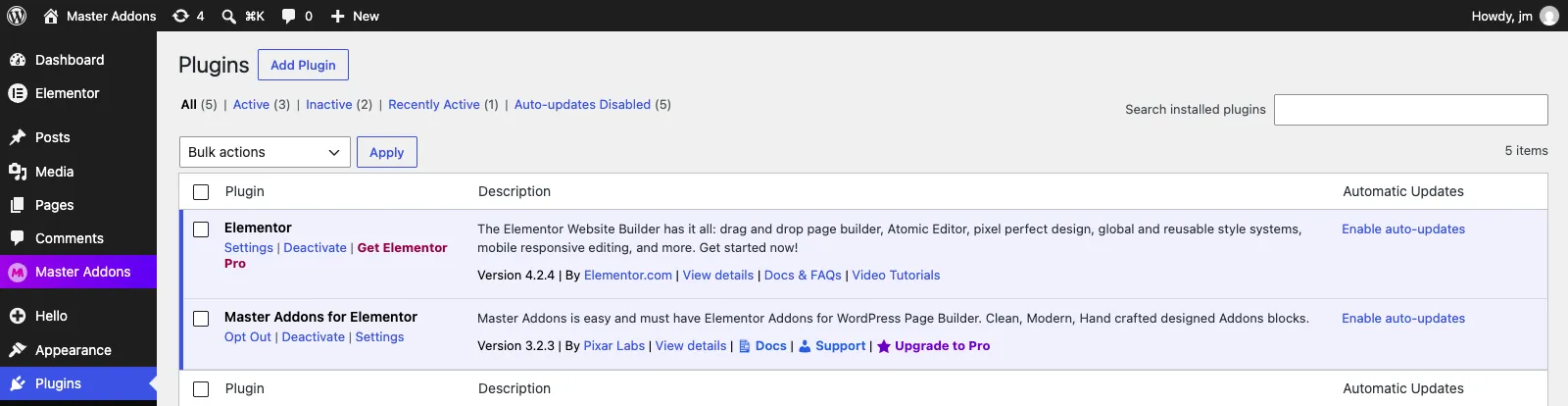
The Get Elementor Pro link in that screenshot is the giveaway that this is the free build. Everything below was done on exactly that setup. Full install notes live in the installation docs.
Step 2: Open Master Addons → Popup Builder
Activating the plugin adds a Master Addons item to the WordPress sidebar. Open it and click Popup Builder.
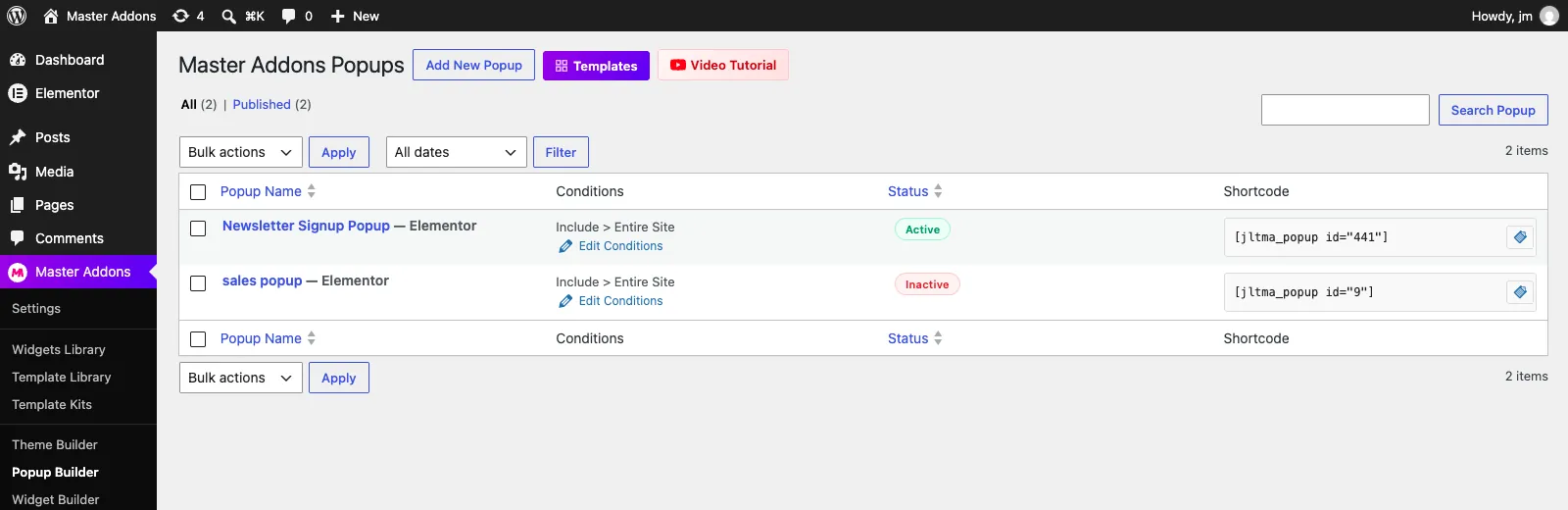
This list is more useful than it looks. Each row shows the popup’s display condition, whether it is Active or Inactive, and the shortcode you can use to drop it on a single page. Keep that shortcode column in mind, it solves the free page-targeting problem later.
Step 3: Name the popup and switch Activation on
Click Add New Popup. A small dialog opens with two fields.
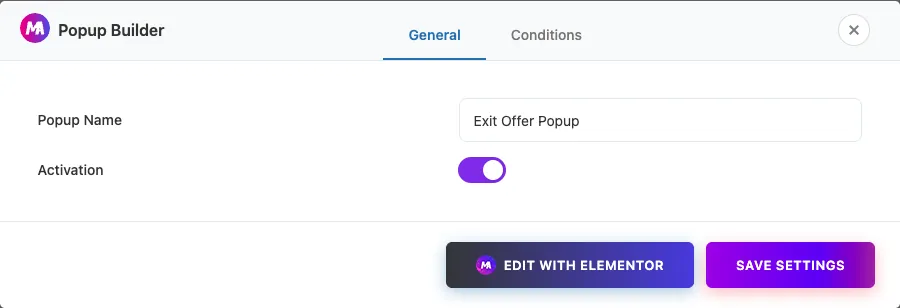
Give it a name you will recognise in six months, then turn Activation on. A popup left inactive never renders on the front end, even if you publish it and even if you place it by shortcode. This is the single most common reason a finished popup shows nothing.
Step 4: Set where the popup appears
Switch to the Conditions tab in the same dialog.
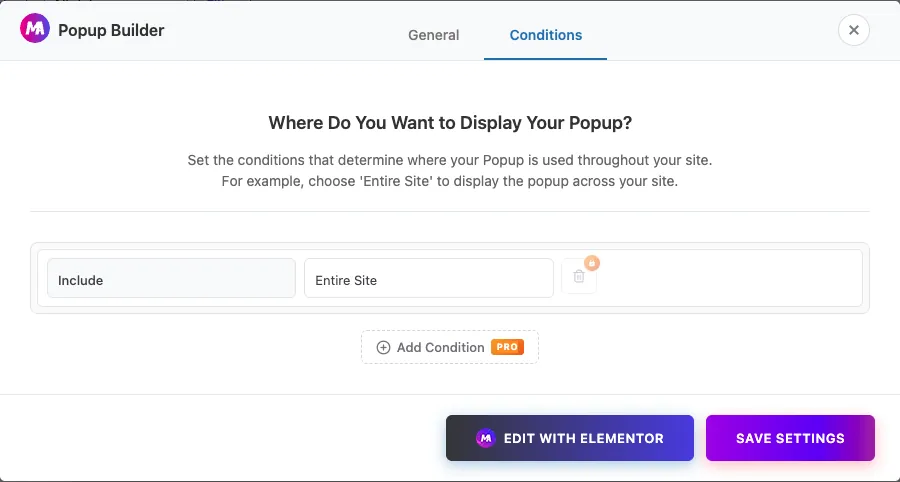
On the free version you get one rule: Include → Entire Site. The other rules (Front Page, Singular, Archive, Search, 404), the Exclude type, and the Add Condition button are Pro. If you want the popup on one page only and you are staying free, skip ahead to the shortcode method.
Now click Edit with Elementor.
Step 5: Start from a template or a blank canvas
The editor opens with an empty popup frame. In the drop area there is a purple Master Addons button next to Elementor’s own add buttons. Click it to open the popup template library. You can look through the designs first on the Elementor popup templates page.
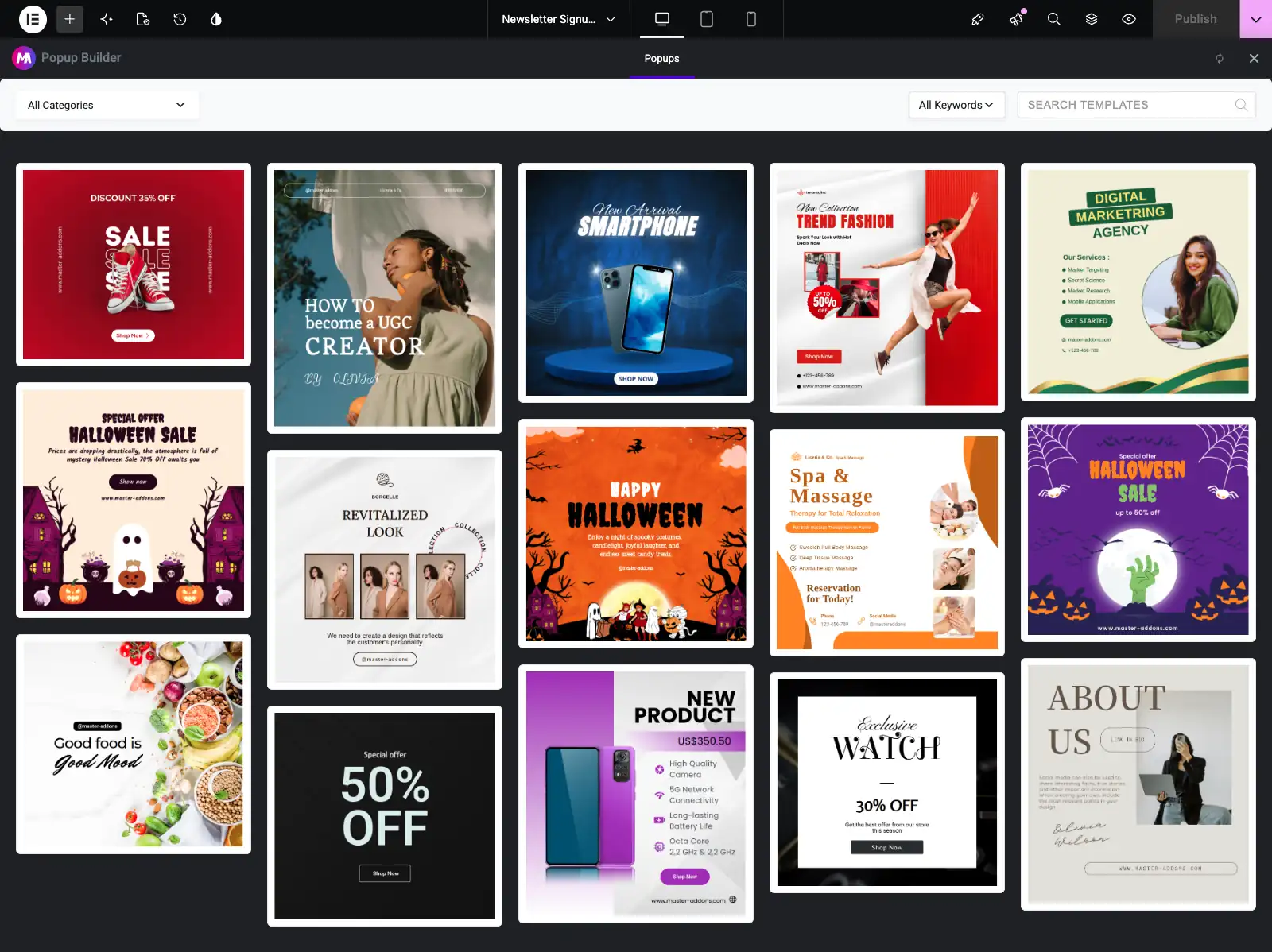
There are 25 popup designs in there, all of them available on the free plugin, covering sales, product launches, seasonal offers, coming soon and about pages. Hover a card and click Insert to import it. Everything imports as normal Elementor elements, so you can rewrite the text and swap the colours straight away.
The same library idea runs across the plugin. If you want ready-made pages too, the Master Addons template library has Elementor page templates as well.
Step 6: Design the popup
Prefer to build your own? Drag widgets onto the canvas the way you would on any page. Heading, Text Editor and Button cover a typical opt-in.
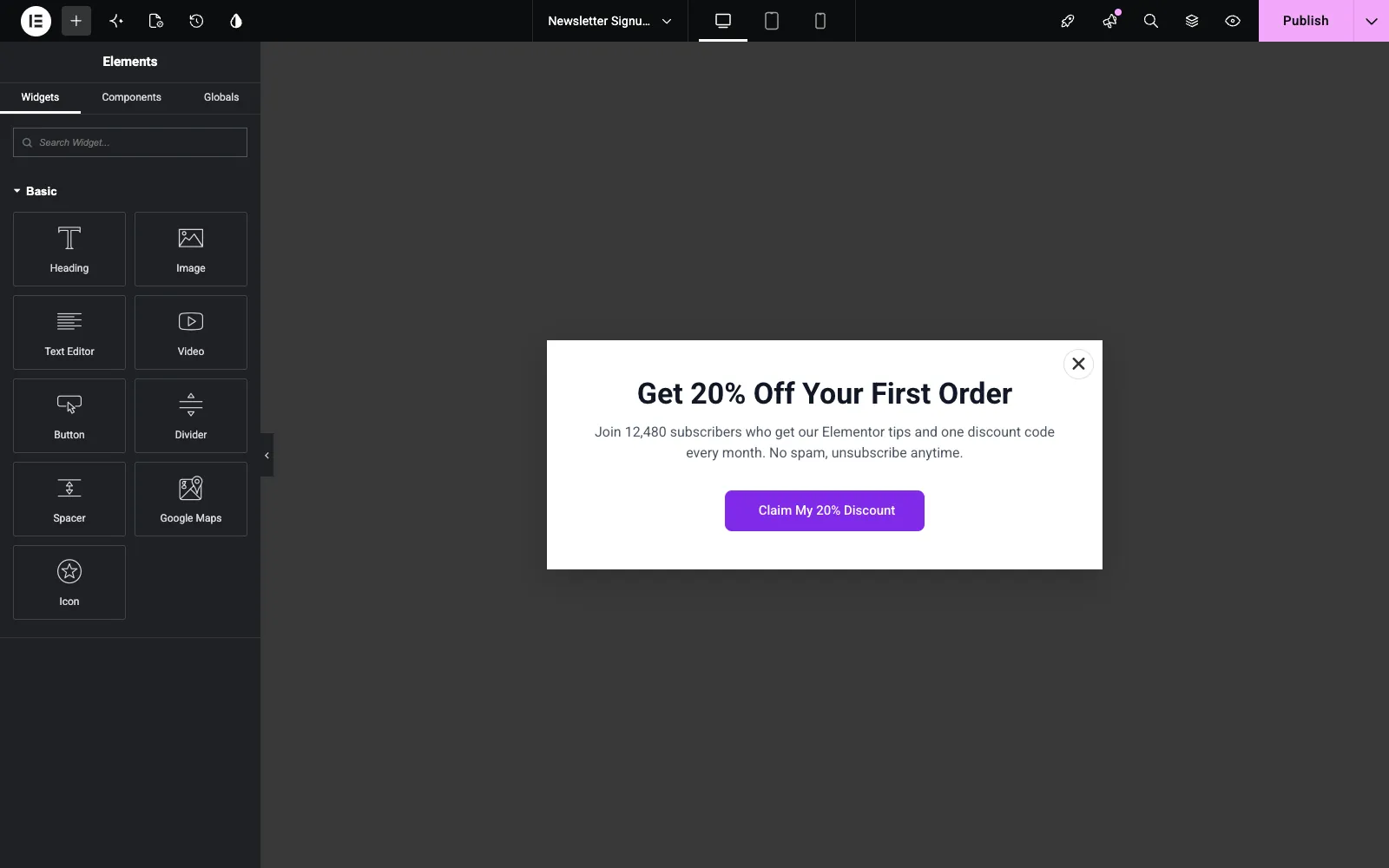
A few things worth doing here:
- Keep the copy to one promise. A headline, one line of support text, one button.
- Check the tablet and mobile views with the device icons at the top. A 640px popup is fine on a laptop and cramped on a phone.
- For email capture, drop in a form widget from whichever form plugin you already run. Contact Form 7 and MC4WP both work inside the popup.
- All 80+ Master Addons widgets are available inside the popup too, so countdown timers and pricing tables work the same as on a page.
Step 7: Choose the trigger
Click MA Popup Settings in the top toolbar. It is the fourth icon from the left, the one that looks like a document with a gear. Older tutorials point at a gear in the bottom-left corner, which is where it lived before Elementor 4.
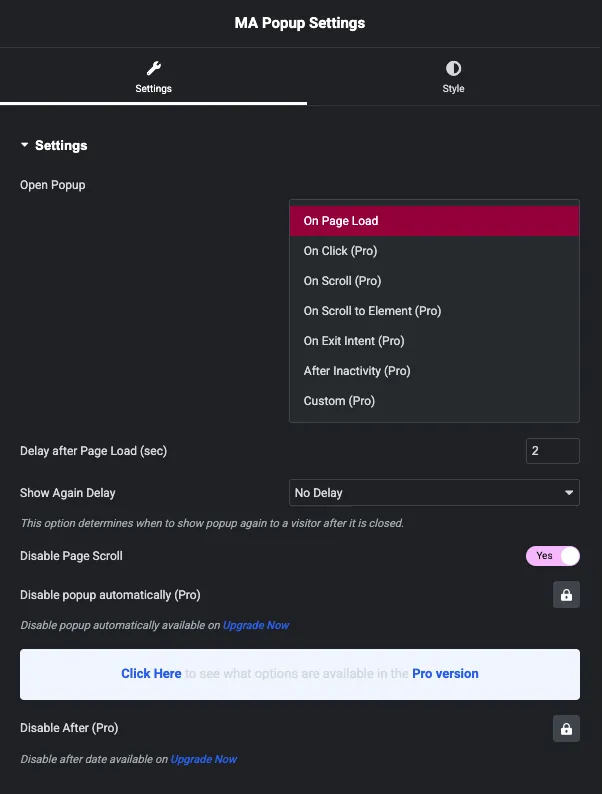
Seven triggers are listed. On Page Load is the free one, and Delay after Page Load (sec) accepts anything from 0 to 60 in steps of 0.1. Two to three seconds is a sensible starting point. Firing instantly annoys people on slow connections, and anything past ten seconds usually misses the visitor entirely.
Below it, Show Again Delay controls how long to wait before showing the popup again to someone who closed it. Free gives you No Delay, 1, 3 and 5 minutes. Pro extends that to hours, days, a month, and Do Not Show Again.
Disable Page Scroll is free and defaults to Yes, which locks the page behind the popup.
Step 8: Set the layout, position and animation
Open the Layout section in the same panel. All of it is free.
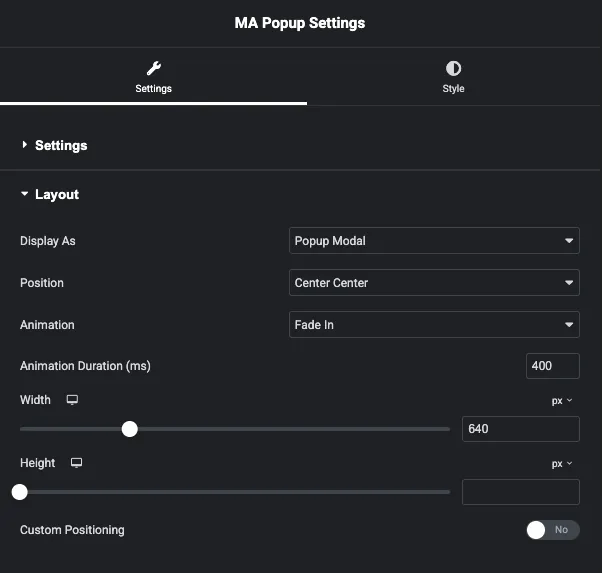
Display As switches the popup between three shapes:
- Popup Modal: the centred box most people mean by popup.
- Notification Bar: a strip pinned to the top of the page, good for announcements and shipping offers.
- Fullscreen: takes over the viewport, best for a single strong offer.
Modal layouts then get nine positions, from Center Center to Bottom Right, and roughly 70 entrance animations. Fade In at 400ms is the safe default. The popup settings reference lists every control if you want the full map.
Step 9: Publish and test it on the front end
Hit Publish, then open your site in a private window. Here is the popup firing two seconds after page load, on free Elementor with only the free Master Addons plugin active.
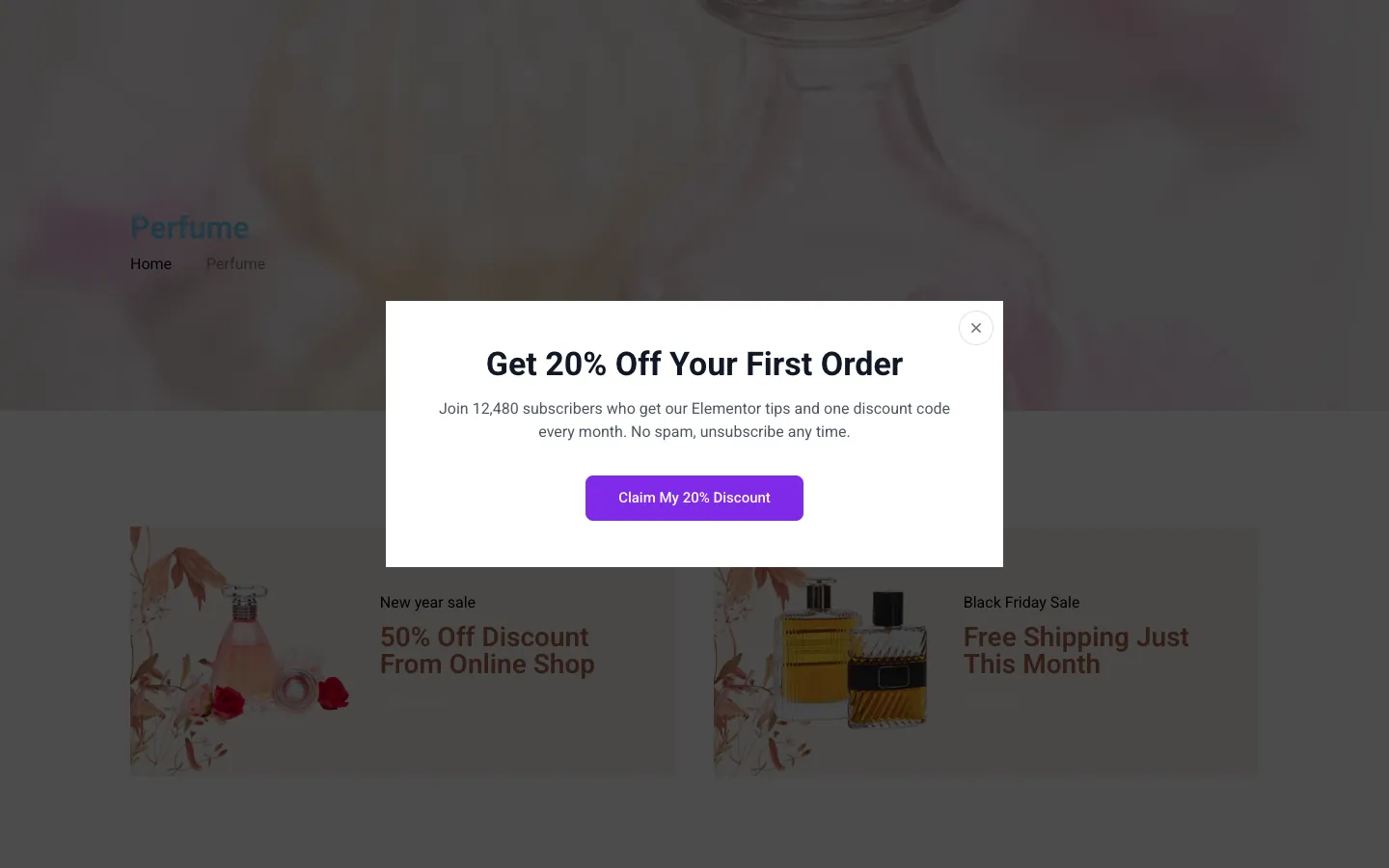
Test in a private window rather than the editor preview. The editor deliberately suppresses popups, and a normal browser tab may be serving you a cached page.
Show a popup on one page only, for free
Page-level display conditions are Pro. The shortcode is free, and it reaches the same result from the other direction.
Every popup in the Popup Builder list carries a shortcode like . Paste it into a page, a post, a widget area or a Shortcode widget in Elementor, and that popup loads on that page alone. Placing it this way skips display conditions entirely.
Two rules to know:
- The popup must be published and its Activation toggle must be on. An inactive popup renders nothing, shortcode or not.
- The shortcode outputs no visible markup where you paste it. The popup is printed in the footer and opens according to its trigger.
So a free, page-specific popup looks like this: leave the condition on Entire Site and drop the shortcode on the one page that should have it.
The seven popup triggers, and which ones you get free
| Trigger | Plan | What it does | Best for |
|---|---|---|---|
| On Page Load | Free | Opens after a delay of 0 to 60 seconds | Welcome offers, announcements, cookie notices |
| On Click | Pro | Opens when a CSS selector is clicked | Video lightboxes, size guides, login forms |
| On Scroll | Pro | Opens at a scroll percentage you set | Content upgrades partway through a post |
| On Scroll to Element | Pro | Opens when a given selector scrolls into view | Offers tied to one section of a long page |
| On Exit Intent | Pro | Opens when the cursor leaves the viewport | Cart abandonment, last-chance discounts |
| After Inactivity | Pro | Opens after 1 to 300 seconds of no activity | Re-engaging a visitor who stopped reading |
| Custom | Pro | Opens on a CSS selector you define | Anything the other six do not cover |
Exit Intent is desktop-only by nature. Phones have no cursor to leave the window, so there is nothing for the trigger to detect. Test it on a desktop browser before filing a bug.
The free On Page Load trigger has its own setup doc if you want the short version.
How to trigger an Elementor popup on a button click
This is the most requested trigger after page load, and it is the one people most often try to fake with JavaScript. With Master Addons Pro it is a text field.
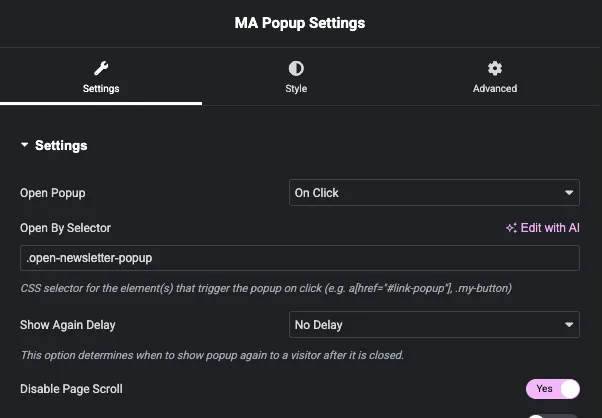
- Design and save the popup as usual.
- In MA Popup Settings, set Open Popup to On Click.
- In Open By Selector, type the selector including the dot, for example
.open-newsletter-popup. - Edit the button that should open it. Go to Advanced → CSS Classes and type
open-newsletter-popup, this time without the dot. - Update both, then test on the front end.
The dot mismatch in steps 3 and 4 causes most of the “my click trigger does nothing” reports we see. The trigger field takes a CSS selector, the Elementor field takes a class name.
The selector is not limited to buttons. Any element you can give a class to works: a container, a heading, an icon, an image. You can also target an existing link with an attribute selector such as a[href="#pricing-popup"]. There is a related Popup Trigger widget for placing close and redirect actions inside the popup itself.
Without Pro, four lines of JavaScript do the same job. That code is in the next section.
The elementor/popup/show event, and what replaces it without Pro
elementorProFrontend.modules.popup.showPopup and the elementor/popup/show event both belong to Elementor Pro. The popup module registers itself on the elementorProFrontend object, so on a free install that object is undefined and the event never fires. No snippet brings it back, because the code that would emit it is in the Pro plugin.
The free Master Addons plugin ships its own API that covers the same ground.
Master Addons exposes a global called JltmaPopups on any page where a popup is present. Here is the mapping:
| Task | Elementor Pro | Master Addons (free) |
|---|---|---|
| Open a popup by ID | elementorProFrontend.modules.popup.showPopup({id: 441}) | JltmaPopups.openPopup($popup, settings) |
| Close a popup | elementorProFrontend.modules.popup.closePopup({id: 441}, event) | JltmaPopups.closePopup($popup) |
| Read a popup’s settings | Internal | JltmaPopups.getLocalStorage(441) |
| Get the ID from an element | Internal | JltmaPopups.getID($popup) |
| Add your own trigger type | Not exposed | JltmaPopups.registerTrigger(name, handler) |
Each popup is printed with the DOM id jltma-popup-id-<post ID>. The post ID is the number in the shortcode on the Popup Builder list screen. To open popup 441 from your own code:
jQuery(function ($) {
  var $popup   = $('#jltma-popup-id-441');
  var settings = JltmaPopups.getLocalStorage(441);

  JltmaPopups.openPopup($popup, settings);
});
To wire that to a click, which is the free stand-in for the On Click trigger:
jQuery(function ($) {
  $(document).on('click', '.open-newsletter-popup', function (e) {
    e.preventDefault();

    var $popup   = $('#jltma-popup-id-441');
    var settings = JltmaPopups.getLocalStorage(441);

    JltmaPopups.openPopup($popup, settings);
  });
});
And to close it again:
JltmaPopups.closePopup(jQuery('#jltma-popup-id-441'));Three things to watch:
getLocalStorage()returnsfalseuntil the popup has initialised on the page, which happens on DOM ready. Run your code insidejQuery(function ($) { ... })and you are fine.- The popup has to be on the page for any of this to work. Either its condition includes the page, or you placed it with the shortcode.
- The script is skipped inside the Elementor editor on purpose, so test on the front end.
Why elementor/popup/show fires twice
On Elementor Pro, the handler running twice almost always means it got bound twice: once on elementor/frontend/init and again in a snippet or a theme file, or once per popup instance when several are present. Guard it with a flag, or bind with .off('elementor/popup/show').on(...) before rebinding. Elementor’s own popup events documentation lists the full event signature.
The Master Addons equivalent has no document event to double-bind, so the problem does not carry over. You call openPopup() directly at the moment you want the popup open.
Why your Elementor popup is not showing
In rough order of how often each one turns out to be the cause:
- Activation is off. Open Master Addons → Popup Builder and check the Status column. Inactive means nothing renders anywhere, shortcode included.
- The popup is still a draft. Saving the design in Elementor is not the same as publishing the popup.
- You are testing in the editor preview. Popups are suppressed there by design. Use a private window.
- Cache. Purge the caching plugin and the CDN, then reload in a private window. A cached HTML page will not contain a newly published popup.
- Show Again Delay already fired. Once you close the popup, the plugin stores a timestamp in browser storage. Clear site data or switch browsers when testing repeatedly.
- Dot mismatch on a click selector. The trigger field wants
.my-class, the Elementor CSS Classes field wantsmy-class. - Exit intent on a phone. There is no cursor, so nothing fires. Desktop only.
Master Addons vs Elementor Pro popups
| Elementor Pro popups | Master Addons free | Master Addons Pro | |
|---|---|---|---|
| Price | Paid, yearly | Free | From $39/year or $129 lifetime |
| Works on free Elementor | No | Yes | Yes |
| Visual editor | Elementor | Elementor | Elementor |
| Popup templates | Included | 25 | 25 |
| Page load trigger | Yes | Yes | Yes |
| Click, scroll, exit intent, inactivity | Yes | No | Yes |
| Page-level display rules | Yes | Shortcode placement | Yes |
| Notification bar and fullscreen layouts | Via settings | Yes | Yes |
| JS API for opening popups | Yes | Yes | Yes |
| Comes with a widget library | Yes | 80+ widgets | 80+ widgets |
If popups are the only Pro feature you want, the free Master Addons builder plus a shortcode covers it. If you want exit intent or click triggers without writing JavaScript, compare the Master Addons pricing against an Elementor Pro renewal, since the Master Addons licence also brings the Theme Builder and Widget Builder with it.
Frequently asked questions
Does Elementor free have a popup builder?
No. Elementor’s popup builder is a Pro feature and there is no Popups menu on the free version. To add popups on free Elementor, install a free third-party popup builder such as Master Addons, or upgrade to Elementor Pro.
How do I create a popup in Elementor for free?
Install the free Master Addons plugin, go to Master Addons → Popup Builder, click Add New Popup, name it, switch Activation on, click Edit with Elementor, design it, set the trigger to On Page Load, and publish. No Elementor Pro licence is required.
Can I use the elementor/popup/show event on free Elementor?
No. That event and the elementorProFrontend object exist only in Elementor Pro. On free Elementor with Master Addons, use the JltmaPopups global instead: read the settings with JltmaPopups.getLocalStorage(id) and open the popup with JltmaPopups.openPopup($popup, settings).
How do I trigger an Elementor popup on a button click for free?
Two ways. With Master Addons Pro, set the trigger to On Click and enter a CSS selector such as .open-popup, then add that class to the button’s Advanced CSS Classes field. On the free plugin, bind a click handler that calls JltmaPopups.openPopup() for that popup’s ID.
Can I show a popup on only one page without Pro?
Yes. Copy the popup’s shortcode from the Popup Builder list, for example , and paste it on the page that should have it. Shortcode placement ignores display conditions, so the popup loads on that page alone.
Can I make an exit intent popup in Elementor for free?
Not with the free plugin. Exit Intent is a Master Addons Pro trigger, along with On Click, On Scroll, On Scroll to Element, After Inactivity and Custom. The free version covers On Page Load with a delay of up to 60 seconds.
Why is my Elementor popup not showing on the front end?
Check the Activation toggle first, then confirm the popup is published rather than saved as a draft. After that, clear your cache and test in a private window, since the editor preview suppresses popups and a cached page will not include a new one.
Are the Master Addons popup templates free?
Yes. All 25 popup designs in the template library import on the free plugin, with no trial limit and no watermark. They cover sales, product launches, seasonal offers, coming soon pages and more.
How do I change a popup’s display conditions later?
Go to Master Addons → Popup Builder and click Edit Conditions on the popup’s row. Change the rule and save. The design and the trigger settings stay exactly as they were.
Is a popup maker free?
Most popup plugins have a free tier, but they usually cap triggers, targeting rules or templates. Master Addons gives you the full editor, all 25 templates and the page load trigger for free, with the other six triggers and page-level targeting in Pro.
Related reading
- Master Addons Popup Builder, the feature page with every setting listed
- Best popup builder plugins for WordPress, if you want to compare tools
- Popup settings and options, the full control reference
- Master Addons on WordPress.org, download and support forum
