

主插件 小部件生成器 通过 a 渲染小部件的 HTML、CSS 和 JavaScript Twig-语法模板引擎。如果你在木材或工艺CMS中触摸过Twig, 语法会让人感觉很熟悉: {{ tokens }} 打印字段值, {% if %} 块显示或隐藏标记,以及 {% for %} 循环穿过中继器行。
这是插件中内置的安全子集,而不是完整的 Twig 库。它后面没有 eval,也没有编译的 PHP,并且每个打印值都根据其字段类型转义。您将获得 Twig 中对小部件模板重要的部分,而不会将页面生成器变成安全问题的部分。
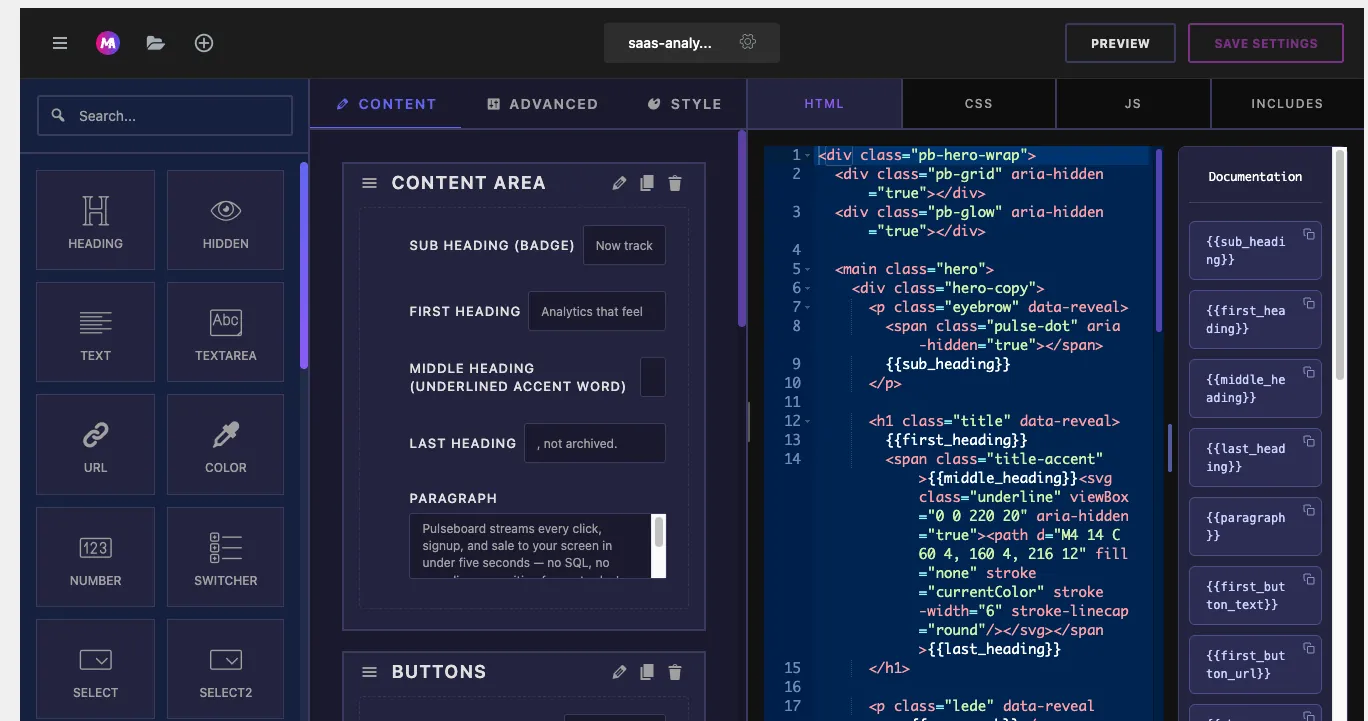
您在何处编写模板代码 #
Widget Builder 编辑器具有三个代码选项卡, 引擎运行在所有这些选项卡上:
- html: widget 的标记。令牌、条件和循环都住在这里。
- 中文: widget 的样式。代币在属性值内工作,因此颜色字段可以供稿
background:直接。 - js: javascript。tokens 也可以在这里工作,这对于将字段值传递到脚本中非常方便。
Widget 的选项面板中添加的每个控件都变成了一个以字段命名的模板变量 名字 设置。添加一个 文本字段 名字 title 並 {{ title }} prints 用户输入的任何内容,代码编辑器旁边的文档侧边栏列出了每个字段的令牌,因为您添加它,因此您永远不必猜测拼写。
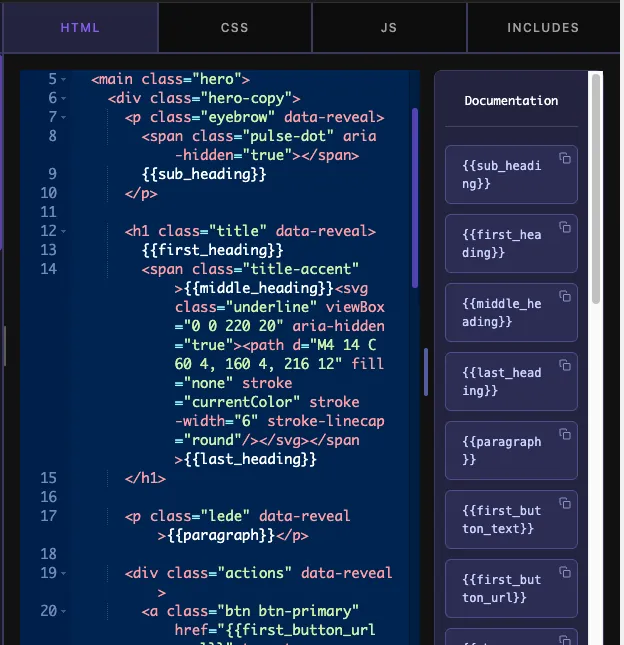
注意:HTML 模板在每个版本中都会渲染,但 CSS 和 JS 输出会附带 硕士插件专业版的,与完整的小部件生成器本身相同。
使用代币打印值 #
最简单的模板是标记加代币:
<div class="hero">
  <h2>{{ title }}</h2>
  <p>{{ description }}</p>
  <a href="{{ button_link }}">{{ button_text }}</a>
</div>
一些值得了解的规则:
- 点状路径 达到结构化值:
{{ item.name }}在循环内,或者{{ tabs.tab_1.person }}对于选项卡控件。 - 媒体字段打印他们的 URL。 当令牌保存图像或视频阵列时,引擎输出
url自动分部,所以<img src="{{ photo }}">只是工作。 - 逃逸遵循字段类型。 URL 字段经过 URL 转义,所见即所得和代码字段允许安全的 HTML,其他都是 HTML 转义的,你不需要自己清理任何东西。
过滤器 #
在带有管道字符的令牌上附加过滤器。发动机支持五个:
{{ title|upper }}以大写形式打印该值。{{ title|lower }}用小写打印它。{{ title|trim }}从两端剥离空白。{{ content|raw }}跳过转义并按原样打印值。{{ content|e }}(或x),在2019年1月17日,在2019年1月1日,在|escape) 部队在 a 后逃回raw.
對 |raw 为利器。它存在于一个字段故意持有标记的情况,并且在纯文本字段上使用它意味着页面编辑器在您的页面中键入的任何内容都不会转义。如果该字段是所见即所得或代码类型,您很少需要 raw 根本不允许这些类型通过安全的 HTML 标签。
有条件标记为 if 块 #
安静 {% if %} block只有在条件通过时才会渲染其内容,这是面板端条件选项的前端合作伙伴:条件将控件隐藏在elementor面板中,并且 if block 从页面中删除匹配标记。
{% if show_badge %}
  <span class="badge">{{ badge_text }}</span>
{% endif %}
检查裸变量是否真实,Twig 样式:空字符串, 0、空列表、未设置值算作假,由于 a 开关器字段 商店 yes 打开时和关闭时为空值, {% if show_badge %} 是你需要切换的一切。
全分支也有效:
{% if layout == "card" %}
  <div class="item item--card">...</div>
{% elseif layout == "list" %}
  <div class="item item--list">...</div>
{% else %}
  <div class="item">...</div>
{% endif %}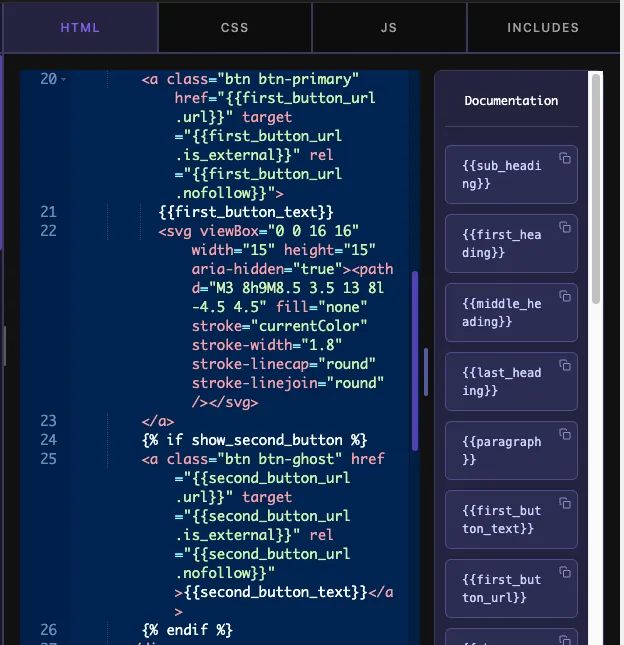
您可以在条件下使用的操作员 #
- 比较:
==,!=,>,<,>=,<=.当两边都是数字时,值作为数字进行比较,否则作为文本。 - 逻辑:
and,or,not的,用小写的文字写成。 - 文字: 引用的字符串 (
"card"或'card'),数字,true,false、和null.
自由组合它们: {% if show_price and price > 0 %}、或者 {% if not hide_footer %}、或者 {% if plan == "pro" or plan == "agency" %}.
循环通过中继器行 #
的 中继器场 是在哪里 {% for %} 赚取它的保留。一个名为的中继器 menu_items 与子字段 dish, price、和 photo 渲染如下:
<ul class="menu">
{% for item in menu_items %}
  <li class="menu__row">
    <img src="{{ item.photo }}" alt="{{ item.dish }}">
    <span class="menu__dish">{{ item.dish }}</span>
    <span class="menu__price">{{ item.price }}</span>
  </li>
{% endfor %}
</ul>
循环变量(此处) item的,(但任何单词都有效)一次持有一行,并且每个子字段都可以通过您给它的名称下的虚线路径。条件在循环内工作,因此每行切换距离一个嵌套块:
{% for member in team %}
  <div class="member">
    <h3>{{ member.name }}</h3>
    {% if member.role %}<p class="role">{{ member.role }}</p>{% endif %}
  </div>
{% endfor %}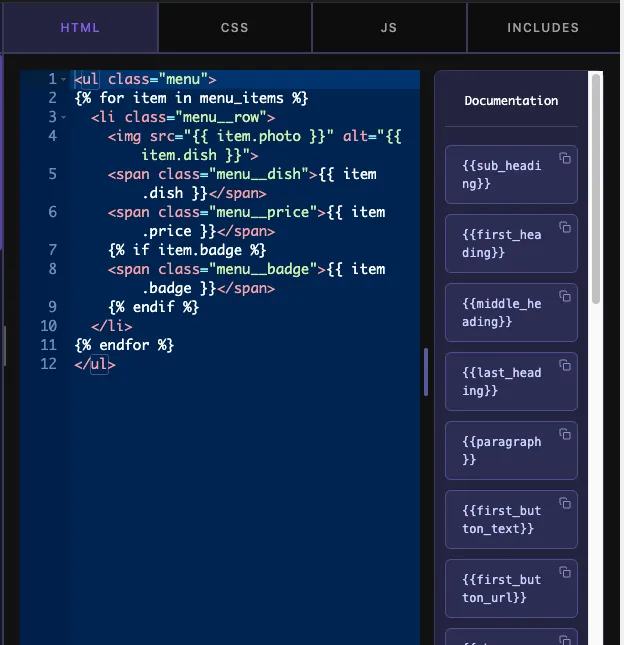
阅读选项卡和弹出窗口字段 #
2个结构控件通过特殊的令牌形状暴露了他们的子值:
- 选项卡: 孩子们通过三部分路径来阅读:
{{ tabs_name.tab_name.field_name }}。 一个名为 Tabs 的控件tabs着一个tab_1拿着一个选项卡person字段打印为{{ tabs.tab_1.person }}。不需要循环。 - 弹出切换: popover 内部的每个字段都得到一个组合的令牌:toggle 的名称,一个下划线,然后是字段名称。一个 popover,命名为
overlay与一个opacity打印内部字段为{{ overlay_opacity }}.
CSS 中的代币 #
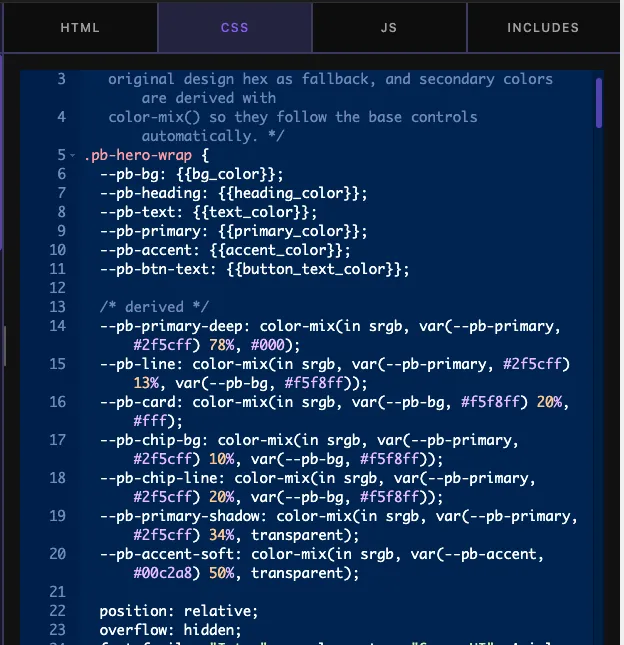
CSS 选项卡通过相同的引擎运行, 因此样式字段直接插入属性值:
.hero {
  background: {{ bg_color }};
  color: {{ text_color }};
}

{% if enable_shadow %}
.hero {
  box-shadow: 0 12px 32px rgba(0, 0, 0, 0.18);
}
{% endif %}
安静 if block around an least rule 是一种运送可选样式的干净方式:该规则仅存在于切换开启时的输出中。例如,媒体字段也在这里工作 background-image: url("{{ hero_image }}");(如 10) 中,因为令牌解析为文件 URL。
JavaScript 中的令牌 #
JS 选项卡, 让您将面板值传递到脚本中。引用字符串值, 并依靠真值进行切换:
var speed = {{ slide_speed }};
var autoplay = "{{ autoplay }}" === "yes";

if (autoplay) {
  startSlider(speed);
}
JS 中打印的值会像其他任何令牌一样转义,因此用户无法通过将引号输入文本字段来跳出脚本。
实用食谱 #
几乎每个小部件中都会出现一些模式:
- 可选的第二个按钮: 将整个锚包裹起来
{% if second_button_text %}所以当文本字段为空时按钮就会消失。不需要切换器。 - 选择中的布局类: 将字段直接打印到类属性中:
<div class="pricing pricing--{{ layout }}">然后在 CSS 中对每个变体进行样式处理。 - 回退内容:
{% if caption %}{{ caption }}{% else %}Untitled{% endif %}防止标记呈现空元素。 - 编号价格等级:
{% if price >= 100 %}<span class="premium-tag">Premium</span>{% endif %}number 字段的值做出反应。 - 大写标签:
{{ eyebrow|upper }}让 CSS 保持免费text-transform当设计只需要一个位置的盖子时。 - 中继器驱动的图库、菜单、时间表和推荐: 一
{% for %}loop 加上一个中继器,替换固定数量的复制粘贴块。
发动机不支持什么 #
知道边可以节省调试时间,这是一个刻意的子集,因此缺少一些全 Twig 功能:
- 否
{% set %}的、宏、包含、或模板继承。 - 表达式内没有数学:比较值,但用 CSS 计算
calc()或 JS 选项卡中。 - 没有滤镜超出
raw,escape/e,upper,lower、和trim. - 否
loop.index或者内部的其他循环元数据{% for %}. - 没有分组逻辑的括号。订购您的
and/or链子,这样它们就可以正确读取,或者分裂成嵌套的if块。
如果模板需要比这更重的逻辑,这通常是将决策移至面板中的符号,例如选择字段,其选项包含您尝试计算的值。
常见问题 #
Widget Builder 使用真正的 Twig 库吗?
No。Twig语法后自带轻量级引擎:令牌,if块,for循环,还有一个小过滤器集,没有eval,没有编译的PHP,每个字段类型都转义输出,默认情况下模板安全。
Widget Builder 支持哪些 Twig 功能?
Output 带有虚线路径的令牌,raw、escape、上、下和修剪过滤器,if、elseif 和 else 分支,用于循环在中继器行、比较和 和、or、而非运算符集、宏、包含和数学表达式不是子集的一部分。
如何打印中继器字段的值?
按字段名称循环中继器:用 for 标签打开,例如 {% for item in menu_items %}、用点状令牌打印每个子字段 {{ item.dish }}并且与接近 {% endfor %}。子字段使用您在中继器中设置的名称。
为什么我的值将 HTML 标签显示为文本?
该字段正在以纯文本形式转义。将标记存储在所见即所得或代码字段中,这些字段允许自动通过安全 HTML,或者如果您完全信任该字段的内容,则将原始过滤器附加到令牌中。
CSS 和 JS 选项卡中令牌是否有效?
是的,同一个引擎渲染所有三个选项卡,因此令牌、如果块和循环的行为相同。在前端发射自定义 CSS 和 JS 是 Master Addons Pro 功能,而 HTML 模板在每个构建中都会渲染。
包裹起来 #
Twig语法引擎是将小部件生成器字段连接到您的标记的内容: {{ tokens }} 打印面板值, {% if %} 关闭时删除可选标记,并且 {% for %} 让一个 HTML 块服务于无限的中继器。从普通令牌开始,添加一个 if 块供您第一次切换,然后在设计重复时毕业到循环。从那里, 中继器, 选择、和 切换器 字段涵盖了您需要构建的大多数动态小部件。对构建器本身来说是新的? 小部件生成器概述 穿过编辑器,然后 定价页面 显示每个计划包含的内容。


