

Table of Contents
Once you have a page you are happy with, you should not have to build it twice. Elementor lets you save any page as a template, then insert it on another page, another site or hand it to a client. The same saved template can be exported as a .json file, which is how most Elementor designs travel between sites. If you would rather skip the building part altogether, the Master Addons library of Elementor page templates has 211 ready-made designs you can import in a couple of clicks.
This guide covers the whole loop: save a page as a template, save a single section, find your saved templates, export one as JSON, and bring it into a second site. Every screenshot comes from Elementor 4.2 with the free Master Addons plugin active. If you are going the other direction and need to bring a template in, the Elementor template import guide walks through all three import routes.
The short version
To save an Elementor page as a template, open the page in Elementor, click the arrow next to Publish, choose Save as Template, give it a name and click Save. To export it, open the library (the folder icon), find the template on the Templates tab, open the three-dot menu and click Export. Your browser downloads a .json file you can import on any other WordPress site running Elementor.
Which method do you need?
| What you want to reuse | Method | Where it starts |
|---|---|---|
| A whole page layout | Save as Template | The arrow beside the Publish button |
| One section, container or widget | Right-click the element | Save as a template in the context menu |
| A design you need on a different site | Export as JSON | Templates tab, three-dot menu, Export |
| The entire site, including header, footer and global colors | Export a website template | Elementor, Tools, Website Templates |
| A kit you bought from Envato or ThemeForest | Kit import, which is a different screen | The template kit import guide |
Before you start
You need the free Elementor plugin. Saving, exporting and importing templates are all part of it, so none of the steps below need Elementor Pro. Two options in the save dialog do need a paid plan, and I have flagged them where they appear.
Name templates the way you would name a file you have to find in six months. “Perfume Landing Page” beats “Page copy 2” once the list runs to forty rows.
How to save an Elementor page as a template
Open the page you want to reuse with Edit with Elementor. In the top bar, next to the Publish (or Update) button, there is a small arrow. Click it.

The menu has three items. Pick Save as Template.
Name the template and choose where it goes
Elementor opens a dialog titled “Save this Page to your library” with a name field and two destinations.
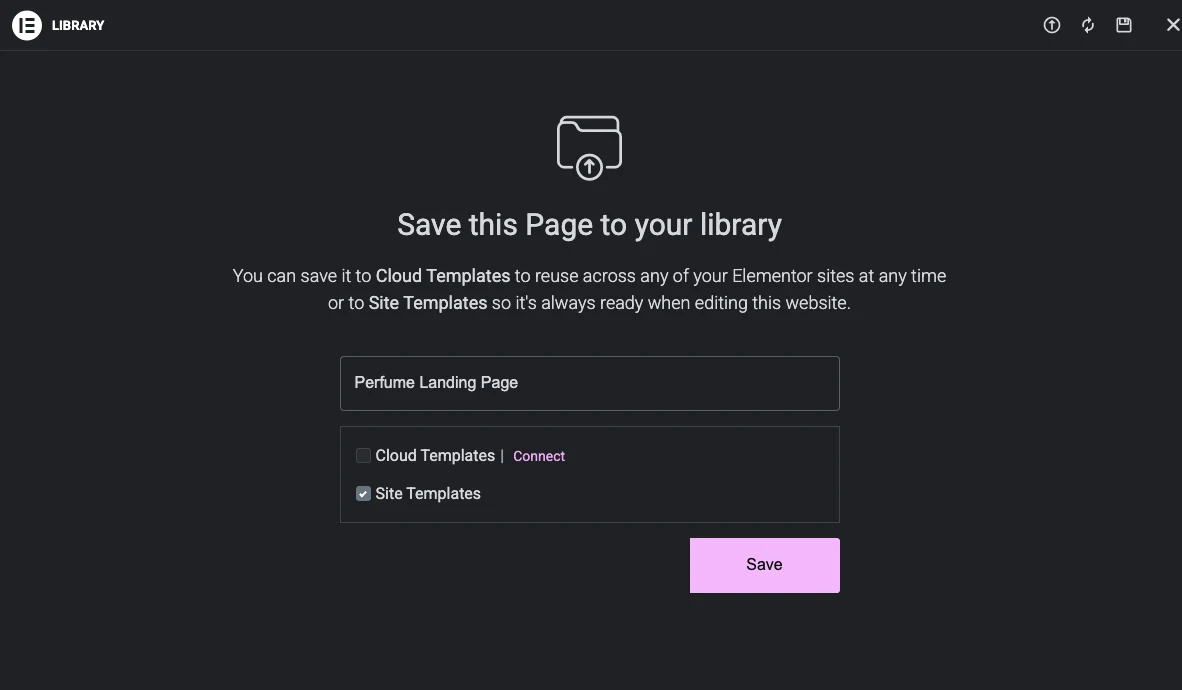
Site Templates stores the template in this site’s database. It is ticked by default, it is free, and it is what you want when the design only has to exist here. Cloud Templates stores the template in your Elementor account instead, so it is available on every site you connect. That one needs a paid plan, which is why the dialog puts a Connect link beside it.
Type a name, leave Site Templates ticked and click Save. Elementor saves the layout and drops you into the library on the Templates tab, with your new template in the list.
The page itself is untouched. The original stays published as it was, and the template is a separate copy filed under Templates, Saved Templates.
Save one section instead of the whole page
Often the piece worth keeping is smaller than a page. A pricing block or a testimonial row is worth saving on its own, so you can drop it into any page later.
Right-click the section, container or widget on the canvas and choose Save as a template.

The same dialog appears, this time saying “Save this Section to your library”. The saved template records its own type, so the list shows Page, Section or Container next to each name. That type matters later: Elementor inserts a Section template inside your page, while a Page template brings the whole layout with it.
This is how you end up with your own parts library. Save a block the first time you build it, and the next page starts further along. For a head start, the free Elementor section templates pack and the hero section templates are both built to be saved and reused this way.
Where your saved templates live
Two places, showing the same list.
Inside the editor
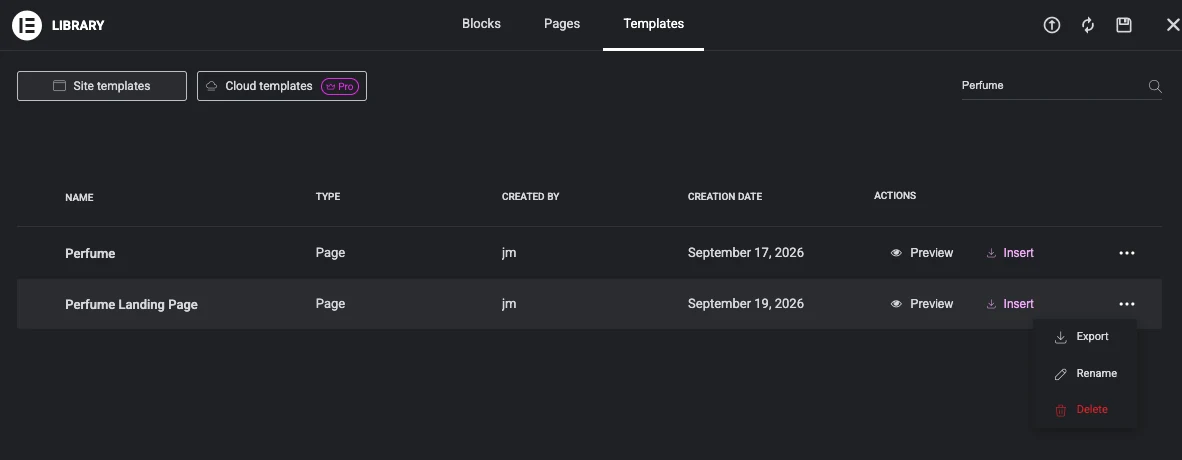
With any page open in Elementor, click the folder icon in the empty drop area at the bottom of the canvas, then open the Templates tab. Every template you have saved or imported is here, with its type, author, creation date, and Preview and Insert buttons.
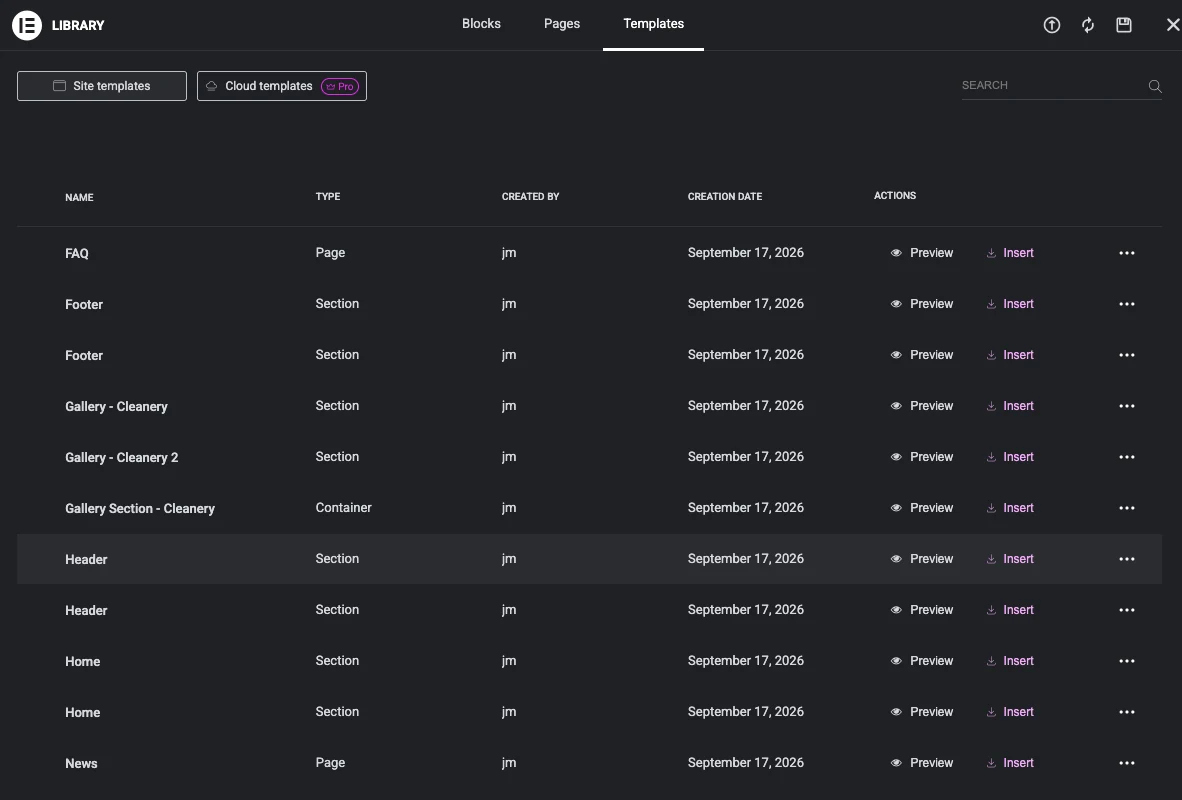
Click Insert and the template is added to the page you are editing. It lands as a new section below whatever is already there, so nothing gets wiped.
In the WordPress dashboard
Go to Templates, Saved Templates. Same templates in WordPress list view, with tabs across the top for Page, Section, Container and the rest.
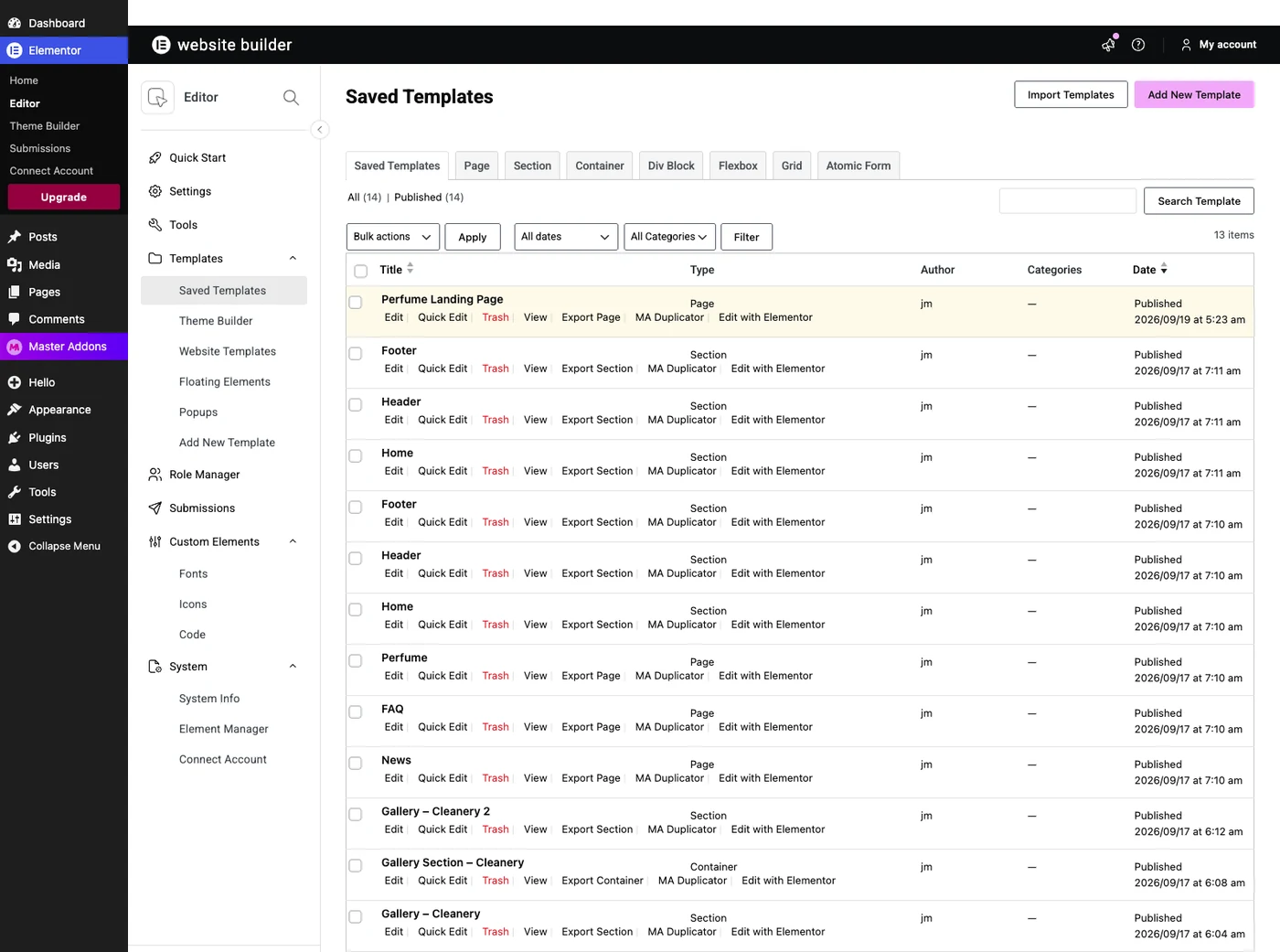
Hover a row and the actions appear: Edit, Quick Edit, Trash, View and an Export link. The Export link is labeled with the template’s type, so you will see Export Page on a page template and Export Section on a section.
How to export an Elementor template as a JSON file
You can export from either place, and the file is the same.
From the editor
Open the library, go to the Templates tab, find the template and click the three dots at the end of its row. The menu has Export, Rename and Delete.
From the dashboard
In Templates, Saved Templates, hover the row and click Export Page (or Export Section).
What is inside the .json file
I exported the seven-section page from the screenshots above and opened the file. It is 113 KB of JSON with five top-level keys:
{
  "content": [ ... 7 sections ... ],
  "page_settings": [],
  "version": "0.4",
  "title": "Perfume Landing Page",
  "type": "page"
}
content holds the structure: every section, column, widget and setting, nested the way it sits on the page. type tells the importer whether this is a page, a section or a container.
That file also contained 12 image URLs and no embedded image data. Your photos are not inside the JSON. They are referenced by their address on the site you exported from, and on import Elementor fetches each one from that address and copies it into the new site’s media library. The source site has to still be online and its images still publicly reachable, or the template arrives with empty image slots.
Import the JSON on the other site
On the receiving site, go to Templates, Saved Templates and click Import Templates. Elementor accepts a single .json file or a .zip containing several.
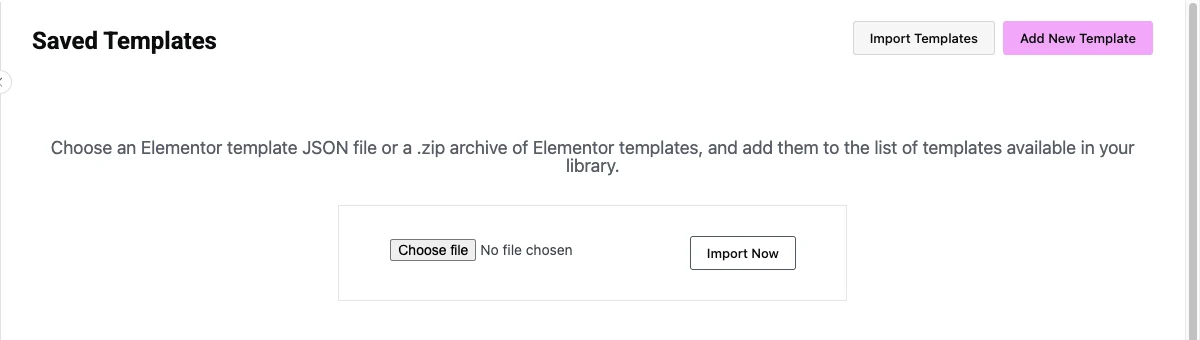
Choose the file, click Import Now, and the template joins the list. From there you insert it into a page like any other saved template. You can also import from inside the editor using the upload icon at the top of the library. The full import guide covers both routes and the errors that come with them.
Saving a page vs exporting the whole site
A saved template carries one layout. It does not bring your global colors, fonts, header, footer or site settings, which is why an imported page can look close without looking identical.
When you want all of that, use a website template. Go to Elementor, Tools, Website Templates.
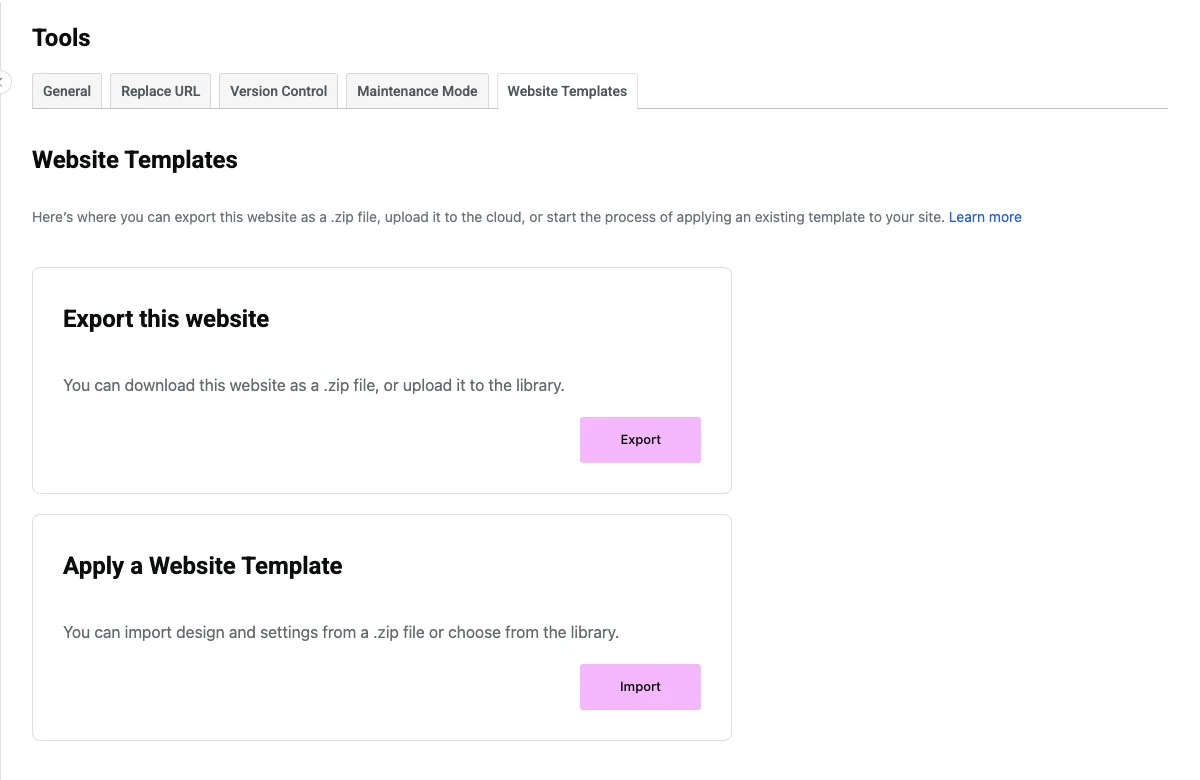
Export this website downloads a .zip with your templates, content and design settings in it. Apply a Website Template takes one back in. This is the same mechanism behind the ready-made Elementor template kits. Use it when you are cloning a whole build. For a single page, the JSON export is lighter.
When the imported template does not look right
Images are missing or broken
The source site is offline, the images were deleted, or the site is behind a login or a firewall. Elementor could not fetch them at import time. Put the original site back up and re-import, or upload the images by hand on the new site.
Fonts and colors do not match
Your theme’s defaults are overriding the template. Turn on Disable Default Colors and Disable Default Fonts in Elementor’s settings; this doc shows where both switches are.
Part of the layout is missing
The template uses a widget from a plugin that is not active on the new site. Activate the same plugin and reload the editor. The Master Addons widget list is a quick way to check which widget a design needs by name.
The upload is rejected
Template imports take a .json file or a .zip of templates. A website template .zip is a different format and will not go through this screen; use Tools, Website Templates for those. Large files can also hit your host’s upload limit, which your host can raise.
Your theme header and footer wrap around the page
Open Page Settings in Elementor and switch the page layout to Elementor Canvas for a standalone page, or Elementor Full Width if you want to keep the site header and footer. If you would rather design those parts yourself, the free Elementor theme builder handles headers, footers and archives.
A faster route: start from a template someone already built
Saving your own templates pays off once you have a design worth keeping. Until then, importing a finished one is quicker.
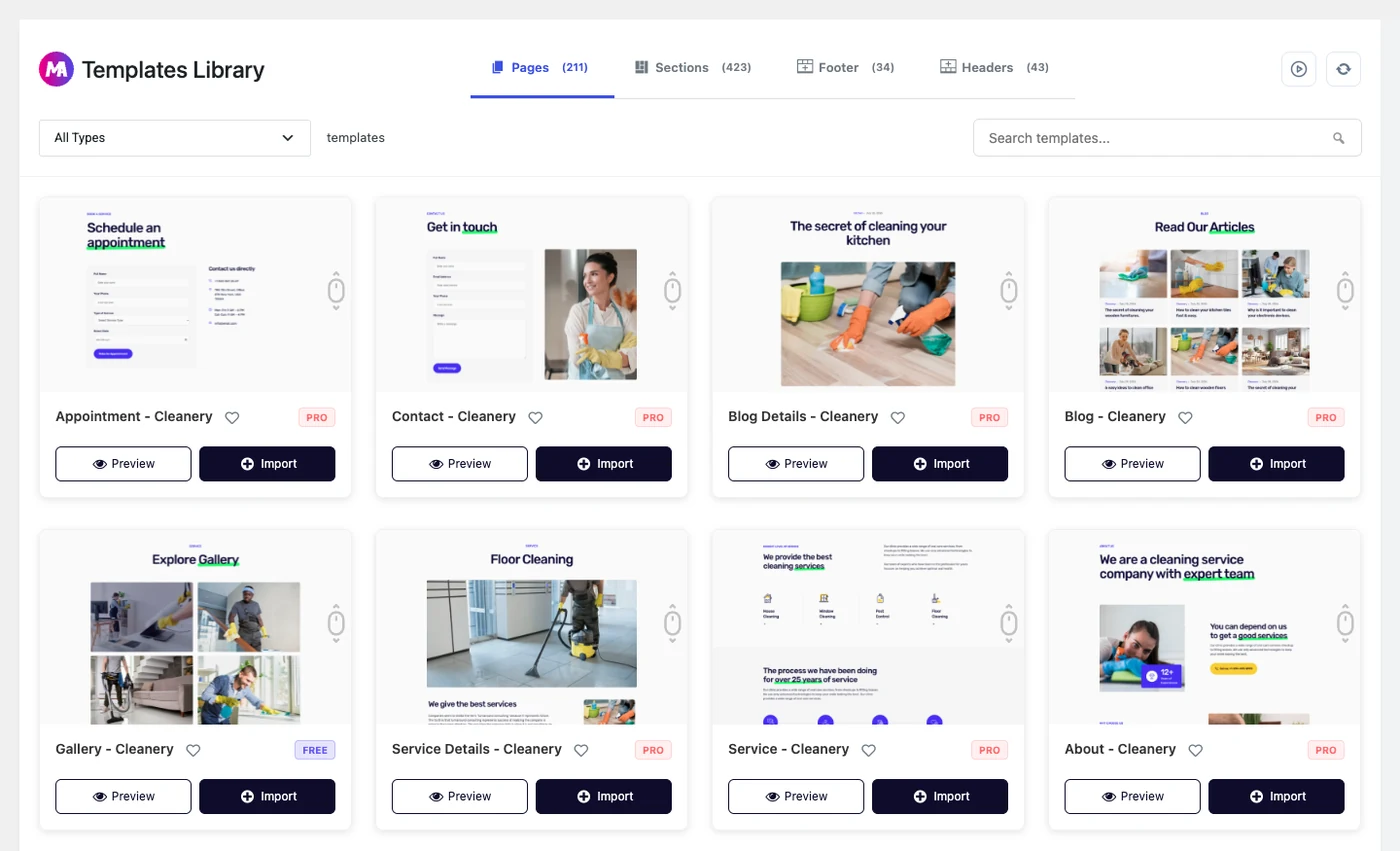
Master Addons ships a library of 211 page templates, 423 sections, 43 headers and 34 footers inside the plugin, so you import with a click instead of hunting for a JSON file. 35 of the page templates are free; the rest come with Master Addons Pro. Import one, edit it, then save your edited version as a template using the steps above, and you have your own starting point for the next project. The full catalog is on the Elementor page templates page.
Frequently Asked Questions
How do I save an Elementor page as a template?
Open the page in Elementor, click the arrow next to the Publish button, choose Save as Template, type a name and click Save. The template is stored under Templates, Saved Templates and can be inserted into any other page on the site.
Do I need Elementor Pro to save a page as a template?
No. Saving, exporting and importing templates all work in free Elementor. Only Cloud Templates, which sync your templates across sites through your Elementor account, need a paid plan.
Where are Elementor saved templates stored?
In your WordPress database, as a custom post type. You see them at Templates, Saved Templates in the dashboard, and on the Templates tab of the library inside the editor. Both lists show the same templates.
How do I export an Elementor page as a JSON file?
Save the page as a template first, then open Templates, Saved Templates, hover the template’s row and click Export Page. Your browser downloads a .json file that you can import on any site running Elementor.
Does the exported JSON include my images?
No. The file stores image URLs, not the image files. On import, Elementor downloads each image from the original site and adds it to the new media library, so the source site needs to be online and its images publicly reachable.
What is the difference between a saved template and a website template?
A saved template is one layout: a page, a section or a container. A website template is a .zip of the whole site, including global colors, fonts, header, footer and settings. Use Elementor, Tools, Website Templates for the second one.
Next step
Save one page you already like as a template, export it, and keep the JSON with your project files. It takes about two minutes, and the design then survives a theme change or a move to a new host. When you need a new page rather than a copy of an old one, browse the Elementor page templates library, or read how to import an Elementor template for the three ways to bring one in.
Related reading: free Elementor section templates, how to import an Envato Elements template kit, and how to build a one-page website with Elementor.
