Key Takeaways
- These 10 content toggle examples for Elementor are live demos built with the Master Addons Toggle Content widget, and each one switches between two versions of the same section.
- A content toggle works best when both options share one layout and only the details change, such as monthly and annual prices or metric and imperial measurements.
- Pricing is the most common content toggle example, and two of the ten demos are billing switches, one labelled Monthly and Annual and one labelled Billed Monthly and Billed Yearly.
- Content toggles also suit non-pricing content, including spec tables, quarterly results, lunch and dinner menus, and messages written for two audiences.
- Each option in the Toggle Content widget holds text from the editor or a saved Section, Page or Widget template, so any Elementor layout can sit behind the switch.
The content toggle examples for Elementor that work best show the same kind of content on both sides of the switch. The plans stay the same and the price changes. The table stays the same and the units change. Below are ten live demos that follow that rule, with what each one switches and when to use the pattern.
All ten were built with Toggle Content, the content toggle widget in Master Addons Pro. Click any demo link to try the switch yourself.
Table of Contents
What makes a good content toggle
A content toggle is worth using when a visitor needs one of two versions and never both at once. If people would want to read both sides together, put them side by side.
| Pattern | Left option | Right option | Example below |
|---|---|---|---|
| Billing period | Monthly | Annual | 1, 2 |
| Units | Metric | Imperial | 4 |
| Data scope | Own operations | Supply chain | 5 |
| Audience | As a team | On your own | 7 |
| Time period | Q3 | Q4 | 6 |
| Process | Made to order | In stock | 8 |
| Category | Residential | Civic | 9 |
| Time of day | Lunch | Dinner | 10 |
| Plan scope | Single | Unlimited | 3 |
Pricing toggle examples
Pricing is where most people first meet a content toggle. Two billing periods share the same plans, so a switch halves the number of cards on the page.
1. Billing Switch Pricing Cards
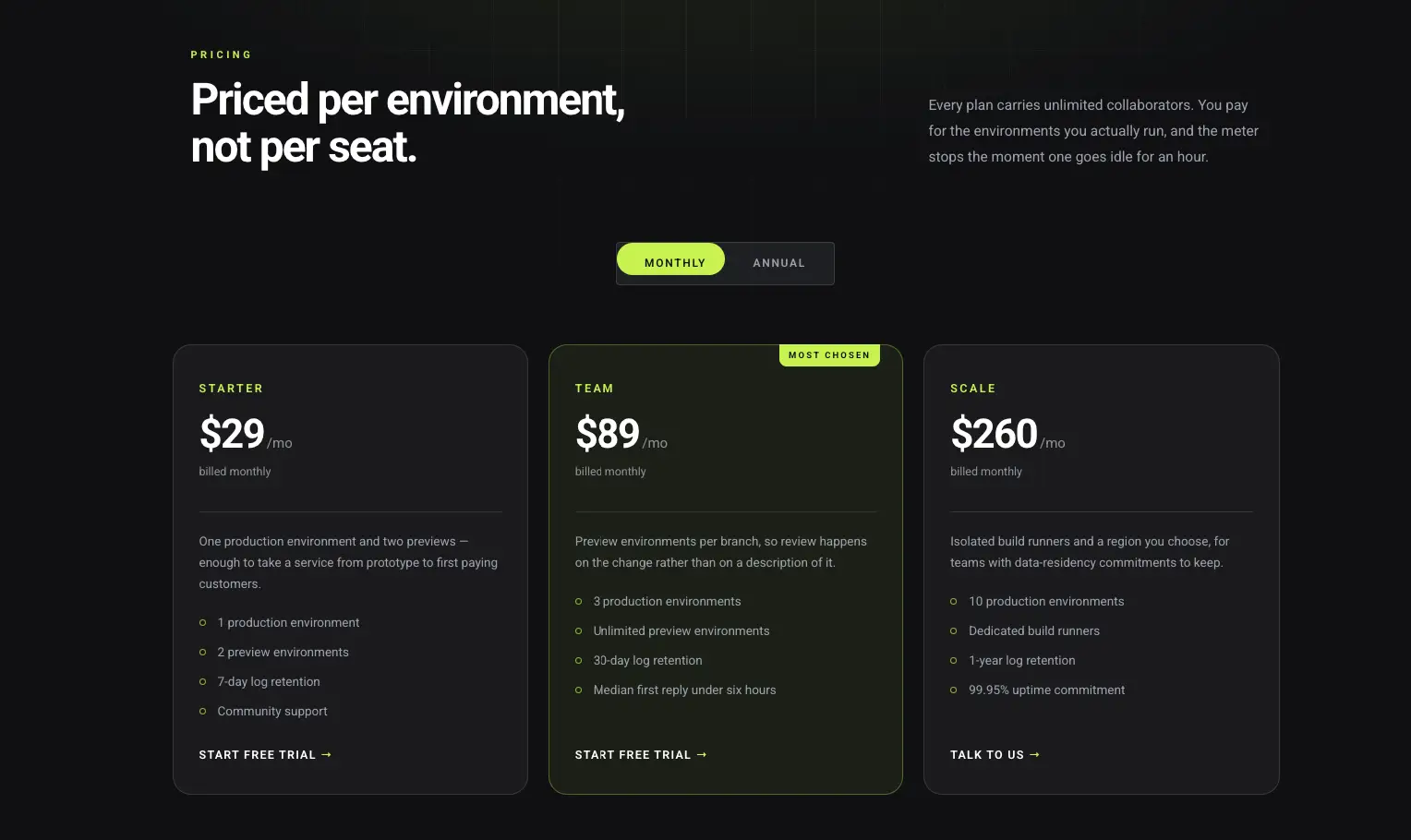
A Monthly and Annual switch sits above Starter, Team and Scale cards. On Annual, each card shows the lower monthly rate and a line with the yearly total and the saving. The middle plan carries a Most Chosen label on both sides.
Use it for: SaaS and subscription pricing. Open the Billing Switch demo.
2. Toggle Content with Pricing
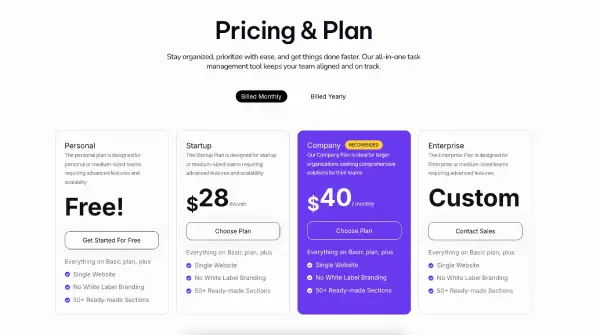
This one uses the labels Billed Monthly and Billed Yearly above Personal and Startup plans. Each option holds a full set of pricing tables, so the whole row changes with one click.
Use it for: pricing pages built from Pricing Table widgets. Open the pricing demo.
3. Toggle Content Rounded
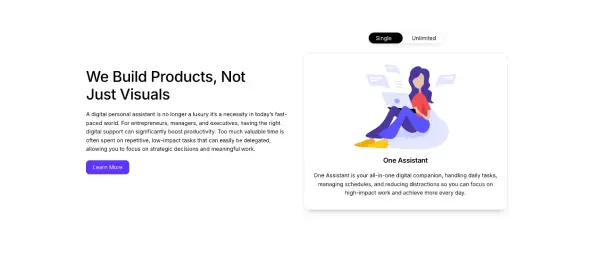
A rounded switch moves between a Single plan and an Unlimited plan, each with its own heading and description. The two sides differ by scope, so the switch is not tied to a billing period.
Use it for: plans that differ by scope, such as single and unlimited. Open the Rounded demo.
Table and data toggle examples
Tables are the second natural fit. The rows and columns stay put and the numbers change, so visitors keep their place when they flip the switch.
4. Unit Switch Spec Table
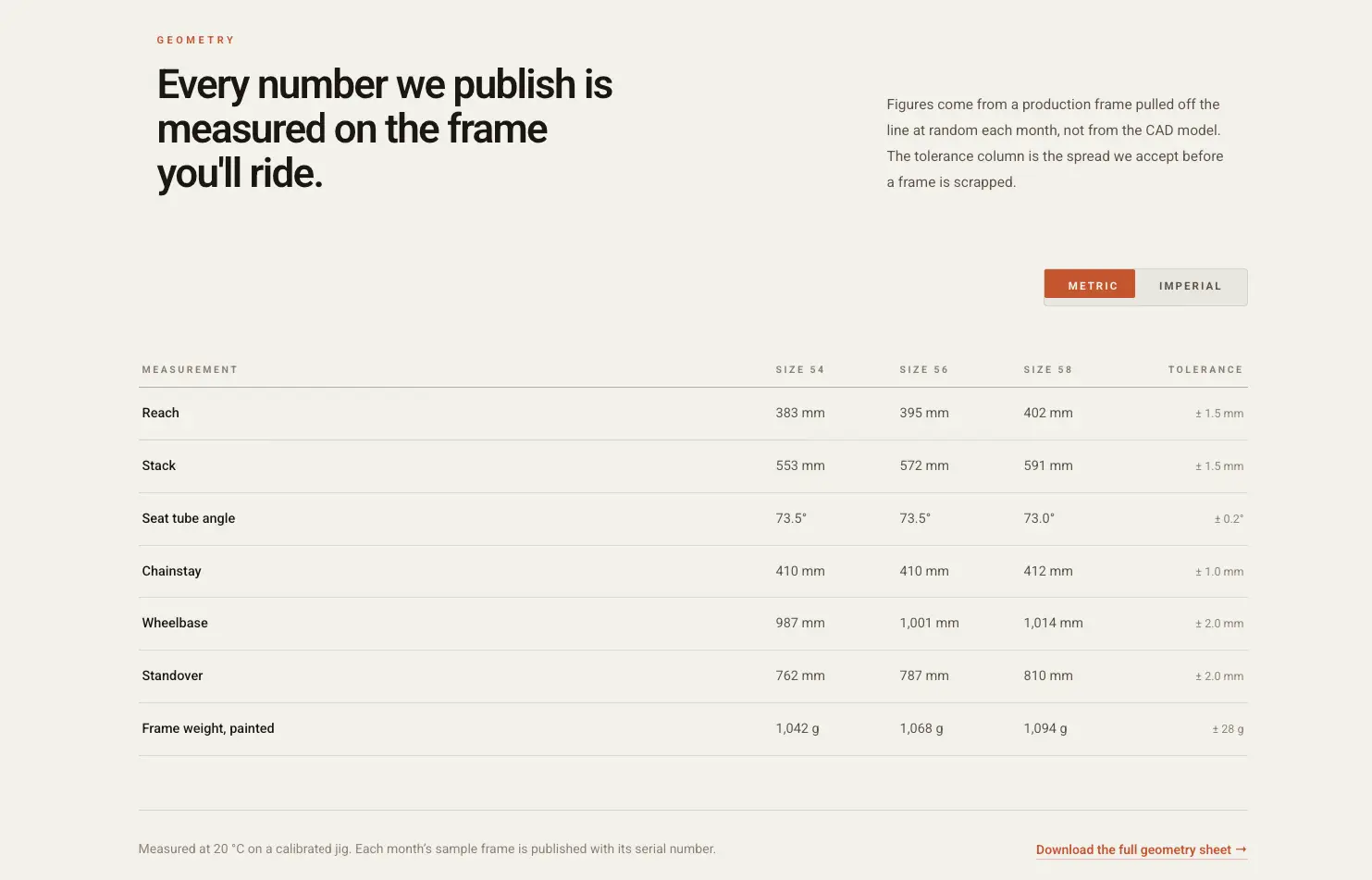
A bike geometry table switches between Metric and Imperial. Reach, stack and the other measurements are listed for three frame sizes, with a tolerance column. Buyers in different countries each get numbers they can read.
Use it for: product specs, size charts and recipes. Open the Unit Switch demo.
5. Data Switch Benchmark Table
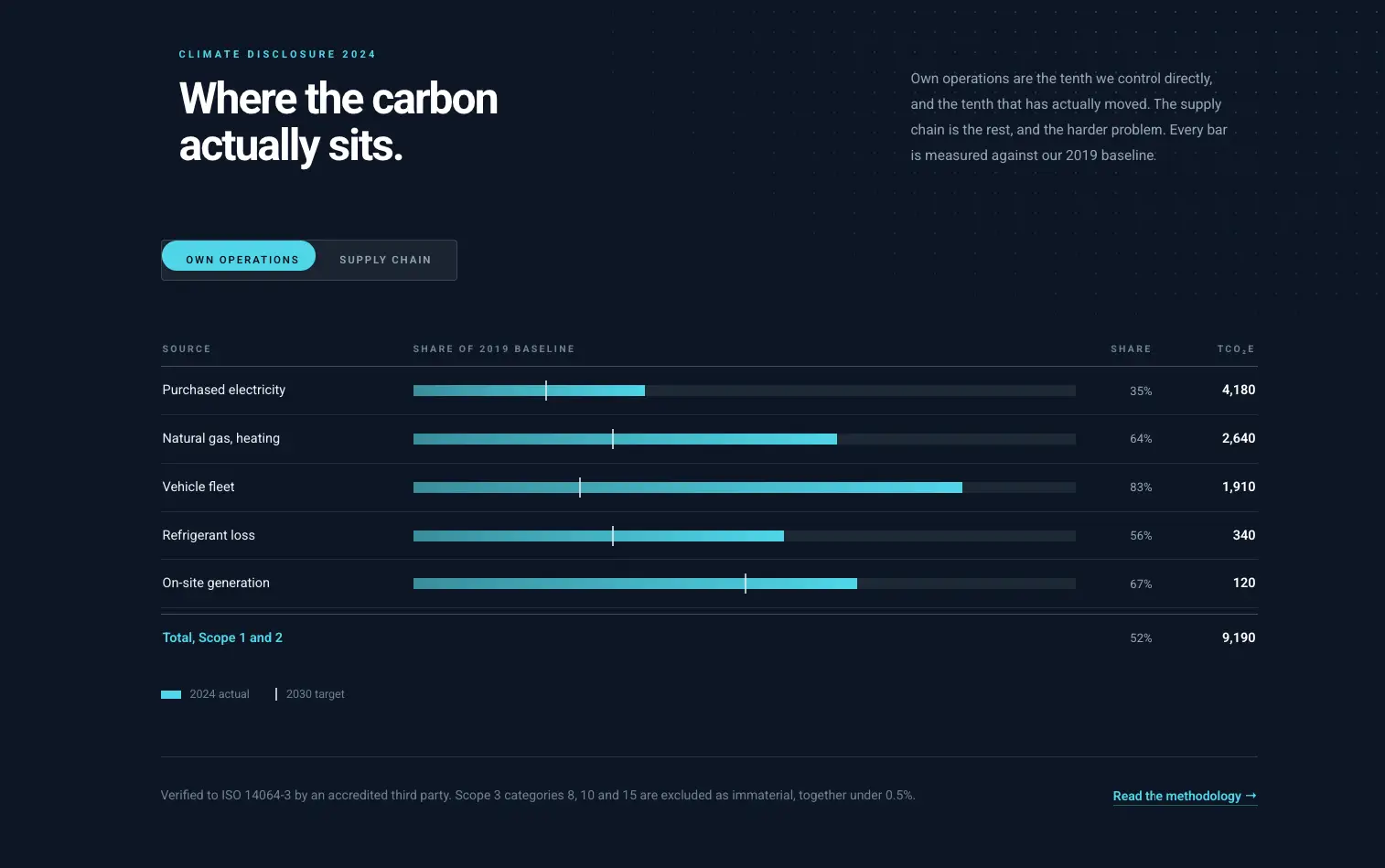
An emissions report switches between Own operations and Supply chain. Each side lists sources, their share of the baseline and the tonnage. Two tables that would fill a screen each now share one.
Use it for: reports, benchmarks and before and after figures. Open the Data Switch demo. If the data never changes with a click, a plain table widget is simpler.
6. Quarter Switch Metrics Bento
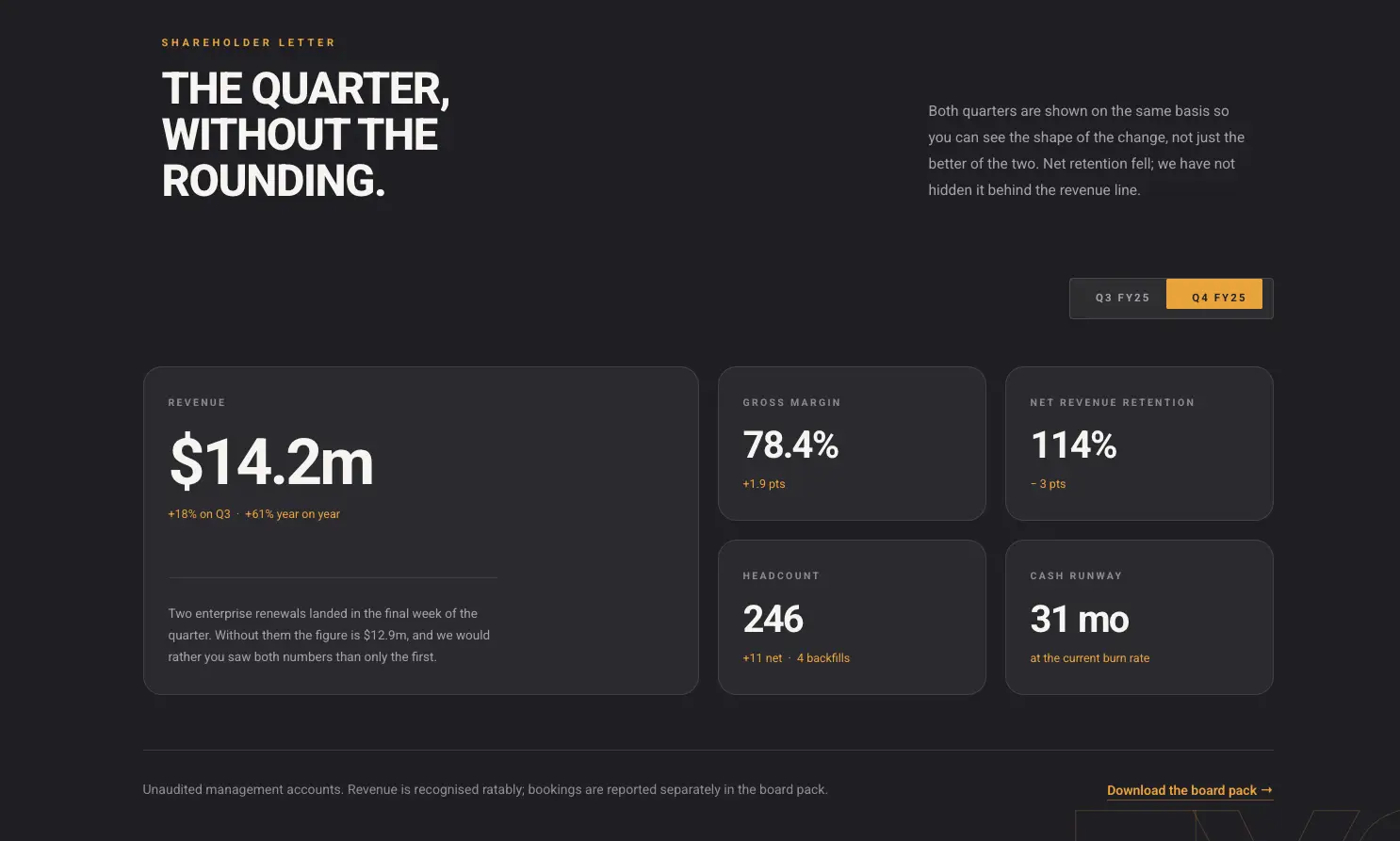
A bento grid of results switches between Q3 and Q4. Revenue, growth and the notes under each figure all change together. It reads like a dashboard and takes the space of one.
Use it for: investor updates, annual reports and monthly stats. Open the Quarter Switch demo.
Want all ten in one place? The Toggle Content widget page has a viewer that loads every demo, plus the widget’s full settings.
Audience and category toggle examples
The last group switches the message. Each side is written for a different reader or covers a different category.
7. Audience Switch Feature Panel
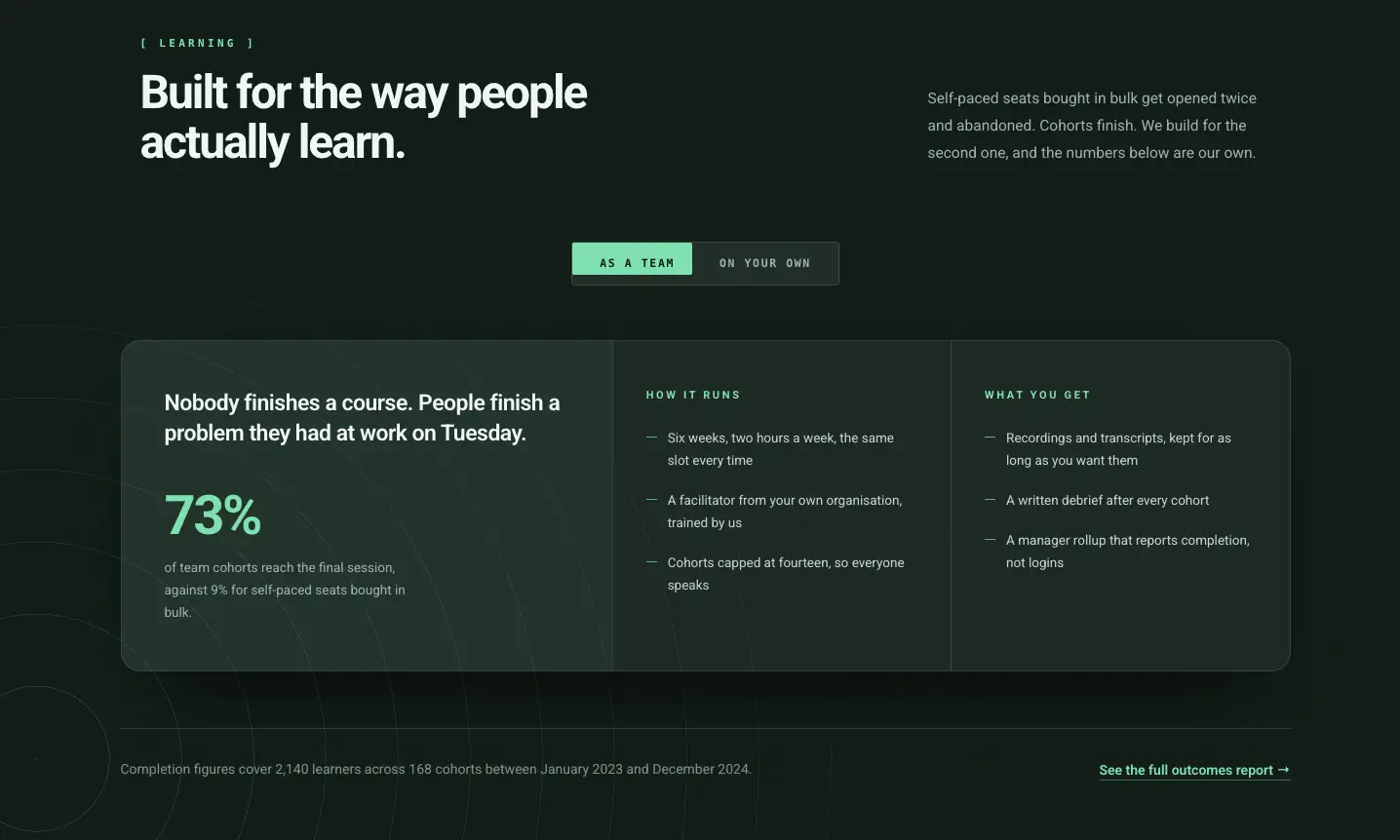
A course page switches between As a team and On your own. Each side has its own headline, proof point and feature list. Visitors pick the version that describes them and skip the rest.
Use it for: products sold to both companies and individuals. Open the Audience Switch demo.
8. Order Route Step Timeline
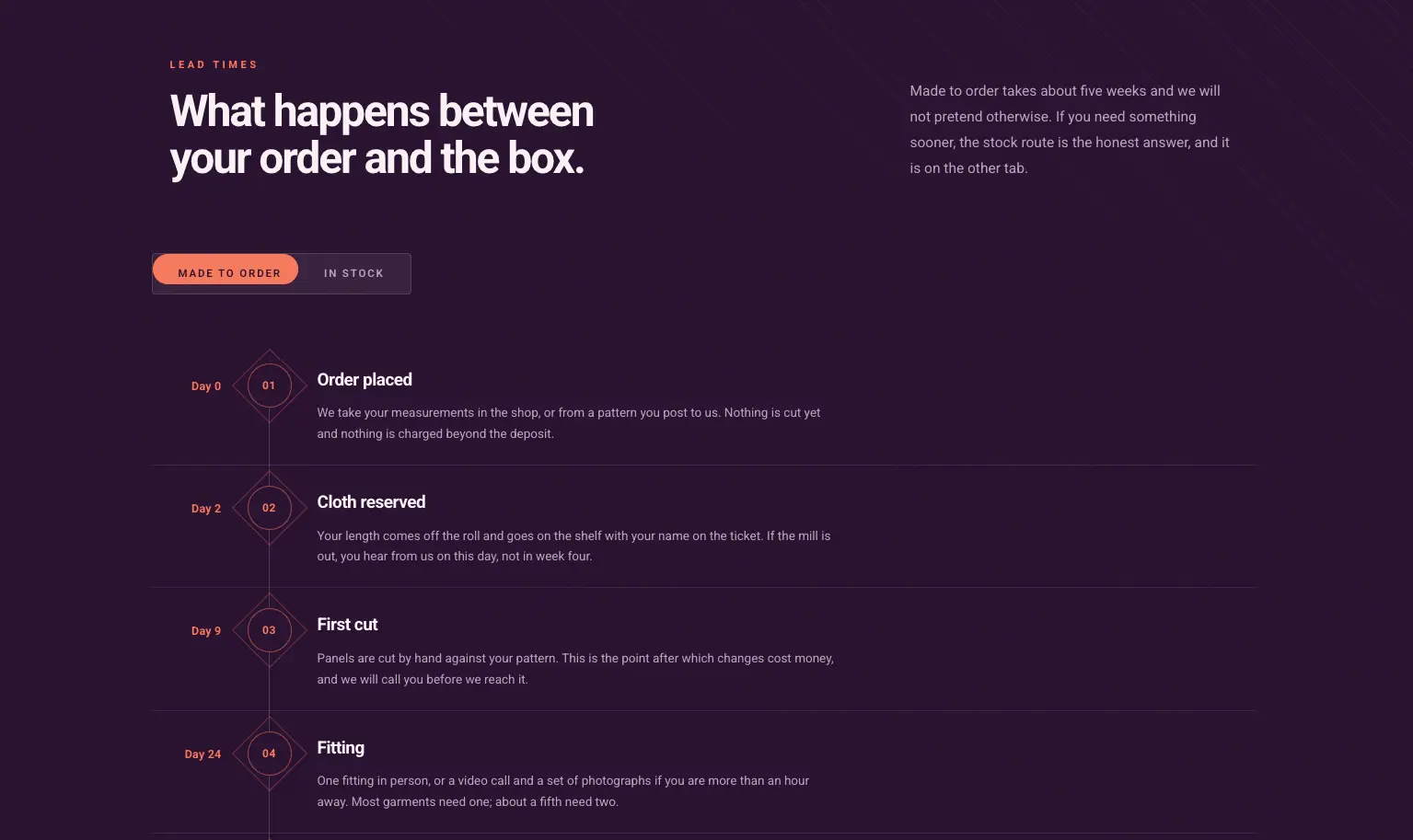
A numbered step list switches between Made to order and In stock. The steps and the wait differ on each route, and the layout stays the same. It answers “what happens after I order?” for both kinds of buyer.
Use it for: shipping, onboarding and any process with two paths. Open the Order Route demo. For a single dated sequence, the Timeline widget is the better fit.
9. Project Switch Overlay Card
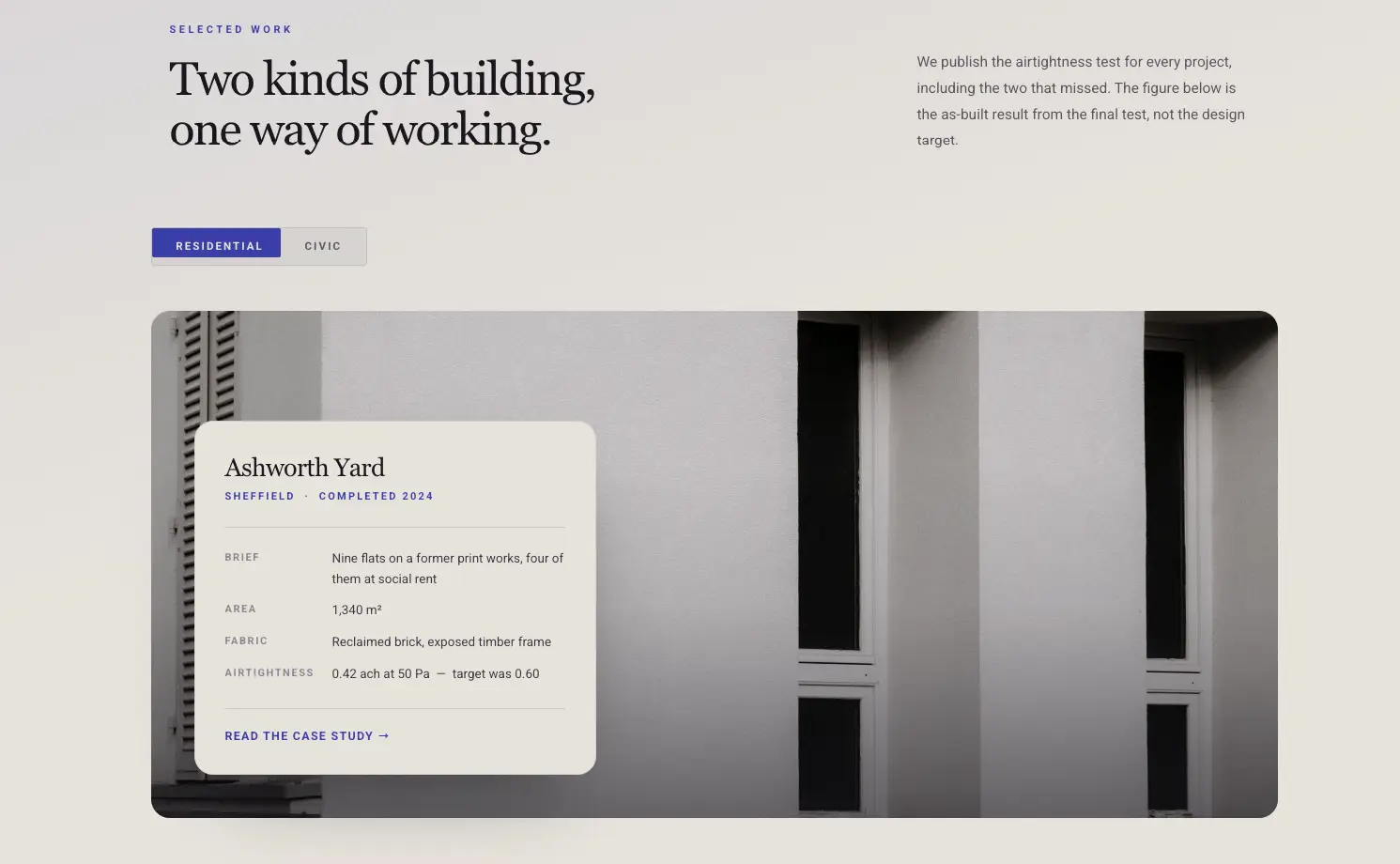
An architecture studio switches a large project card between Residential and Civic. Each side has its own photo, location, year and brief. Two case studies fit where one would normally go.
Use it for: portfolios with two lines of work. Open the Project Switch demo.
10. Service Switch Menu List
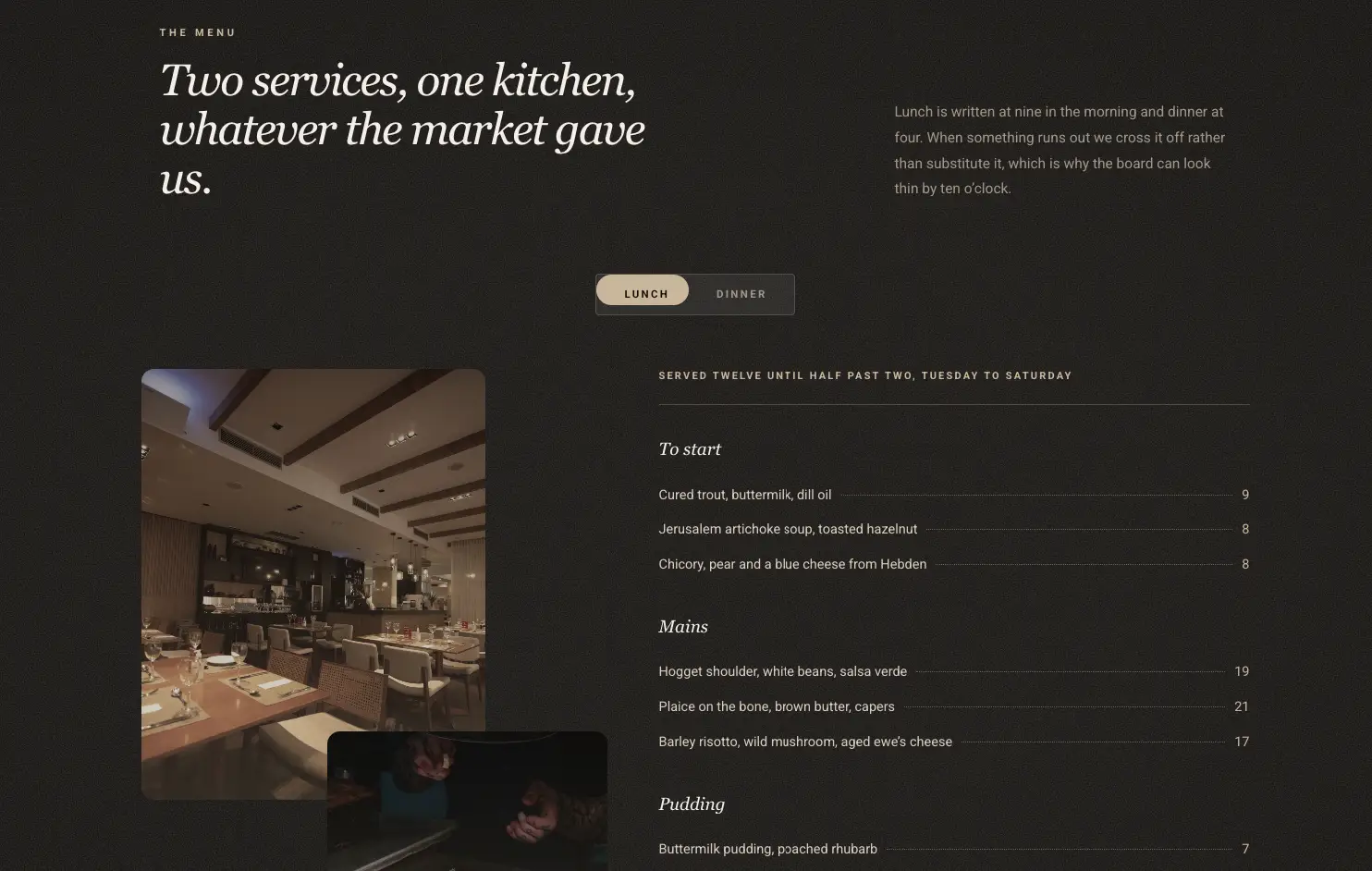
A restaurant menu switches between Lunch and Dinner. Serving hours sit under the switch, and the dishes and prices change with it. Guests see the menu for the meal they are planning.
Use it for: restaurants, salons and any business with two service lists. Open the Service Switch demo.
How to build one of these examples
Each example is a Toggle Content widget with two items. Build the first version of your section, copy it, change the details and put one version in each item.
- Drag Toggle Content onto the page and name the two items in the Elements list.
- For short content, leave Type on Content and write in the editor.
- For a full layout, set Type to Template and pick a saved template for each item.
- Set Active Index in Toggle Settings to choose the option that shows first.
- Style the switch in the Toggler, Indicator and Labels sections of the Style tab.
The pricing version has a few extra steps, which we cover in how to add a monthly and yearly pricing toggle in Elementor. The full list of settings is in the Toggle Content documentation.
Frequently asked questions
What is a content toggle in Elementor?
A content toggle is a widget with a switch and two or more labels. Clicking a label shows that option’s content and hides the others. Elementor does not include one, so it comes from an addon such as Master Addons Pro, where the widget is called Toggle Content.
What can I put inside a content toggle?
In Toggle Content, each option holds either text from the built-in editor or a saved Elementor template. Because a template can contain any widgets, the option can be a pricing table, a data table, a form, an image gallery or a whole section.
Can a content toggle have three options?
Yes. Click Add Item in the Elements list to add a third or fourth option. A switch reads best with two or three labels. For more than that, tabs are usually easier for visitors to scan.
Are these content toggle demos available as templates?
The demos are shown in the template viewer on the Toggle Content widget page, where you can open each one. They were built with the Toggle Content widget, which is part of Master Addons Pro.
Final thoughts
The ten content toggle examples above cover three jobs: switching a price, switching a set of numbers and switching a message. In every one, the layout holds still and only the details move, so the switch is easy to follow.
Try them on the Toggle Content widget page, then build your own with two versions of a section you already have.
Related reading