

Key Takeaways
- An Elementor pricing toggle is built from two parts: two sets of pricing tables, one monthly and one yearly, and a switch widget that shows one set at a time.
- Elementor Pro’s Price Table widget has no monthly and yearly switch, so the toggle comes from a content toggle widget or from pricing tables placed inside the Tabs widget.
- The Master Addons Toggle Content widget loads a saved template into each option, using the Type control set to Template and a Template Type of Section, Page or Widget.
- On Elementor sites that use containers, save each set of pricing tables as a Page template, because the Section list in Toggle Content only shows templates saved with the Section type.
- The Active Index setting in Toggle Content decides which billing period visitors see first, with 1 for the first option and 2 for the second.
To add an Elementor pricing toggle, build your monthly plans and your yearly plans as two saved templates, then load both into a content toggle widget. Visitors click Monthly or Yearly and the prices swap in place. The page stays one screen tall, and nobody has to read six pricing columns at once.
This tutorial uses the Pricing Table and Toggle Content widgets from Master Addons, and it ends with a no-addon route through the Tabs widget. Everything was tested on Elementor 4.3.
Table of Contents
What you need before you start
You need Elementor, a pricing table widget and a widget that switches content. Elementor Pro has a Price Table widget, but neither Elementor nor Elementor Pro has the switch.
- Pricing tables. This guide uses the Pricing Table widget from Master Addons. Elementor Pro’s Price Table or plain containers with headings work too.
- The switch. This is Toggle Content, which is part of Master Addons Pro.
- Your prices. Decide the yearly discount first. Two months off, which is about 17 percent, is a common choice.
How to add a pricing toggle in Elementor
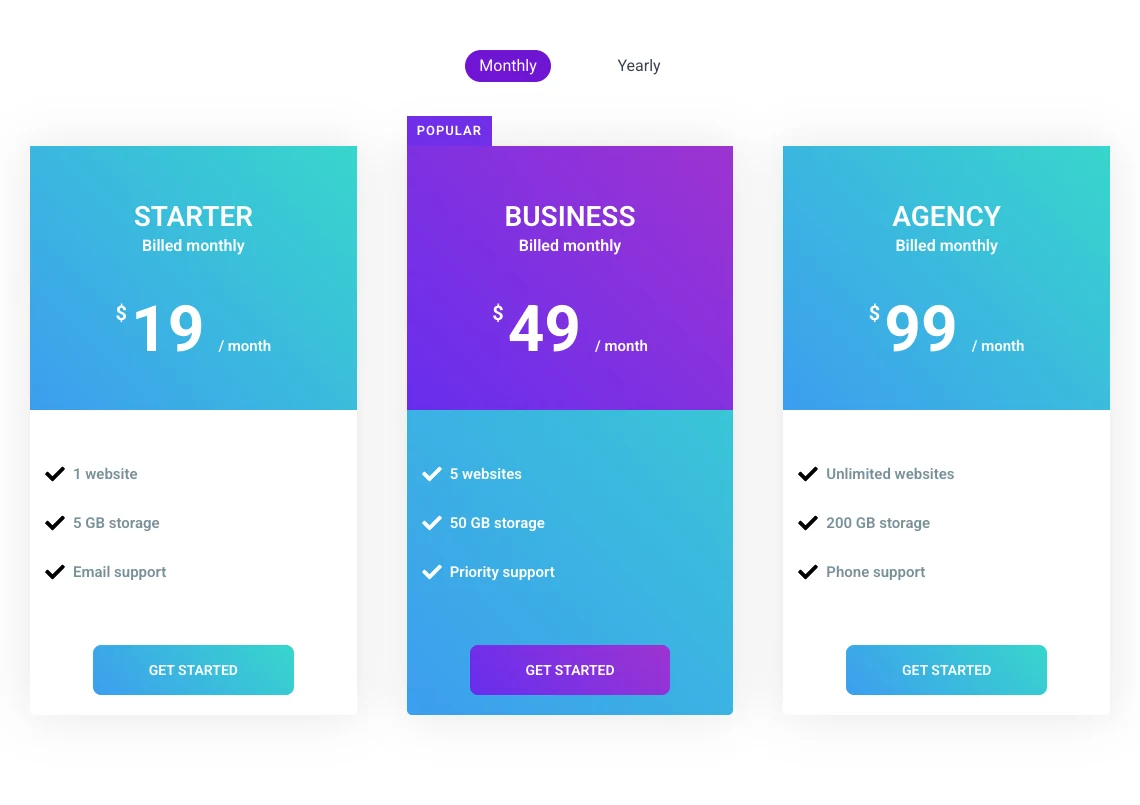
The whole build takes five steps: make the monthly plans, save them, make the yearly plans, save those, then connect both to the toggle.
Step 1: Build the monthly plans
Create a new page, or open a blank draft, and edit it with Elementor. Add a container with three columns and drag one Pricing Table widget into each. Fill in the plan name, the price, the billing text and the feature list.
Build one plan fully, then duplicate it twice and change the details. That keeps the feature rows lined up. Turn on Highlight Table? and the ribbon for the plan you want people to choose.
Step 2: Save the monthly plans as a template
Click the arrow next to the Publish button and choose Save as Template. Name it Monthly Pricing Plans and save it.
Saving this way creates a Page template. That matters, because Toggle Content lists templates by type. Its Section list only shows templates that were saved with the Section type. On a site that uses containers, right-clicking a container and saving it creates a Container template, and that one does not appear in the Section list. A Page template always shows under Page.
Step 3: Build and save the yearly plans
Stay on the same draft. Change each price to the yearly rate and change the billing text to Billed yearly. Then use Save as Template again and name this one Yearly Pricing Plans.
You now have two templates with the same layout and different numbers. You can delete the draft page.
Step 4: Add Toggle Content and connect the templates
Open your real pricing page in Elementor. Search the widget panel for Toggle Content and drag it to where the plans should appear. If you do not have a pricing page yet, start from one of these Elementor pricing page templates.
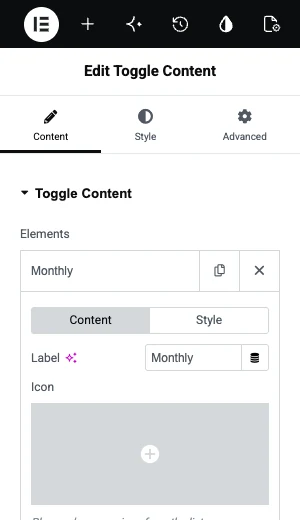
- In the Elements list, click the first item and change its Label to Monthly.
- Set Type to Template.
- Set Template Type to Page.
- In Choose page, pick Monthly Pricing Plans.
- Click the second item, label it Yearly and pick Yearly Pricing Plans the same way.
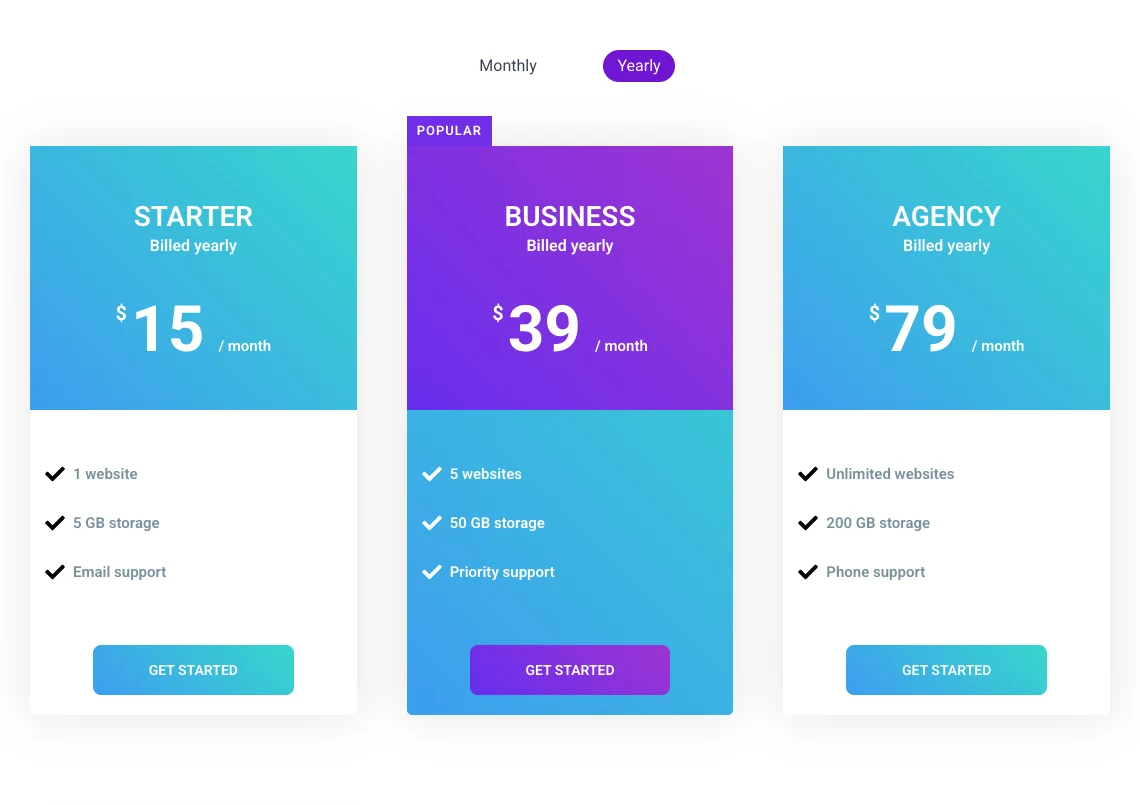
Update the page and open it on the front end. Click Yearly and the three tables change to the yearly prices.
Step 5: Set the default option and style the switch
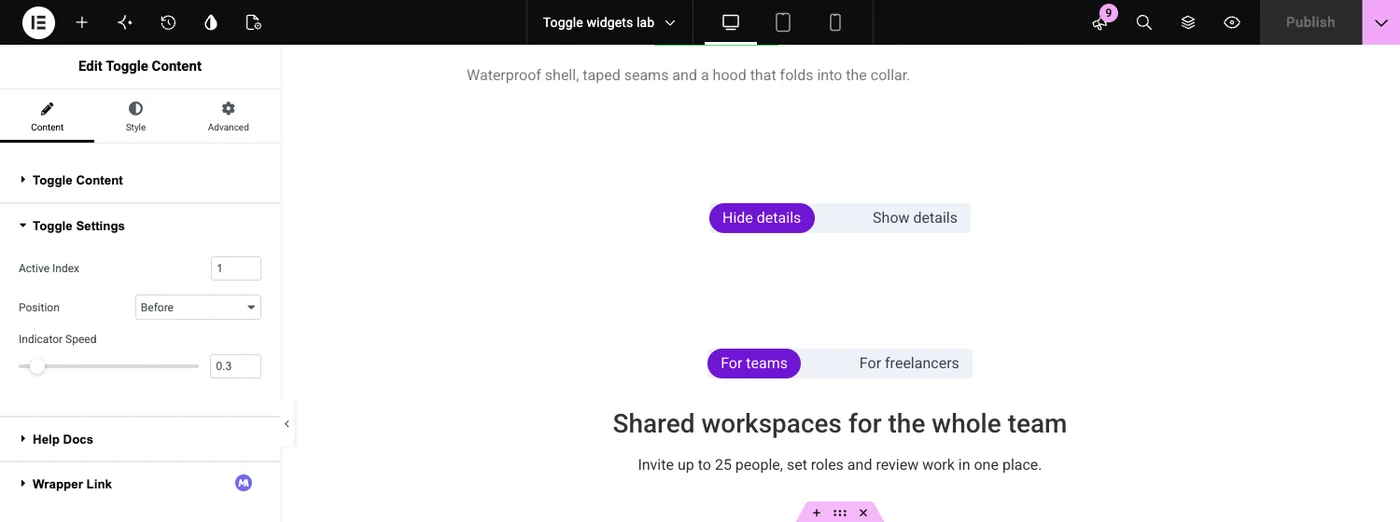
Open Toggle Settings in the Content tab. Active Index picks the option that shows when the page loads, 1 for Monthly and 2 for Yearly. Position puts the switch before or after the tables, and Indicator Speed sets how fast the highlight slides, 0.3 seconds by default.
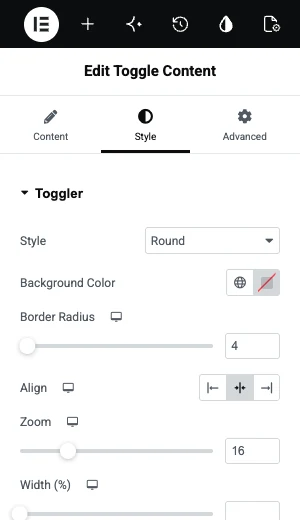
Then go to the Style tab. The Toggler section has the switch shape (Round or Square), background colour, alignment, Zoom for size and Width. The Indicator and Labels sections below it set the highlight colour and the label colours for the normal and active states.
Need the tables first? The Elementor Pricing Table widget page shows its five layouts, ribbons, sale prices and feature tooltips.
Video tutorial
This video shows the Toggle Content widget being added and set up in the Elementor editor.
A pricing toggle without an addon
You can build a pricing switch with Elementor’s own Tabs widget, because each tab accepts any widget inside it. Visitors see two tab titles where an addon shows a sliding switch, and the prices swap the same way.
- Drag the Tabs widget onto the page and delete the third tab.
- Rename the two tabs Monthly and Yearly.
- Click the Monthly tab and build your pricing columns inside its content area.
- Duplicate that container into the Yearly tab and change the prices.
- In the Style tab, centre the tab titles and round their corners so they read as a switch.
The trade-off is upkeep. Both sets of tables live on the page itself, so the editor gets long, and you cannot reuse the same sets on another page the way you can with templates.
| Toggle Content with templates | Tabs widget | |
|---|---|---|
| Looks like | A sliding switch with an indicator | Two tab titles |
| Where the tables live | In saved templates | Inside the tabs on the page |
| Reuse on other pages | Yes, pick the same templates | Copy and paste the widget |
| More than two options | Yes, add items | Yes, add tabs |
| Needs | Master Addons Pro | Elementor only |
Five things that make a pricing toggle work
A pricing toggle only helps if visitors understand it in a second. These five habits cover most of that.
- Say the saving in words. Put “Billed yearly, two months off” under the price. A switch alone does not tell people why yearly is better.
- Keep the layout identical. Same plans, same order, same feature rows in both sets. Only the numbers should move when the switch flips.
- Choose the default on purpose. Set Active Index to the billing period you want most people to buy.
- Check it on a phone. In the Labels style section, Stack On can stack the labels on mobile if they do not fit in a row.
- The switch does not save a choice. Every visit starts on the default option, so point each button at the checkout link for its own billing period.
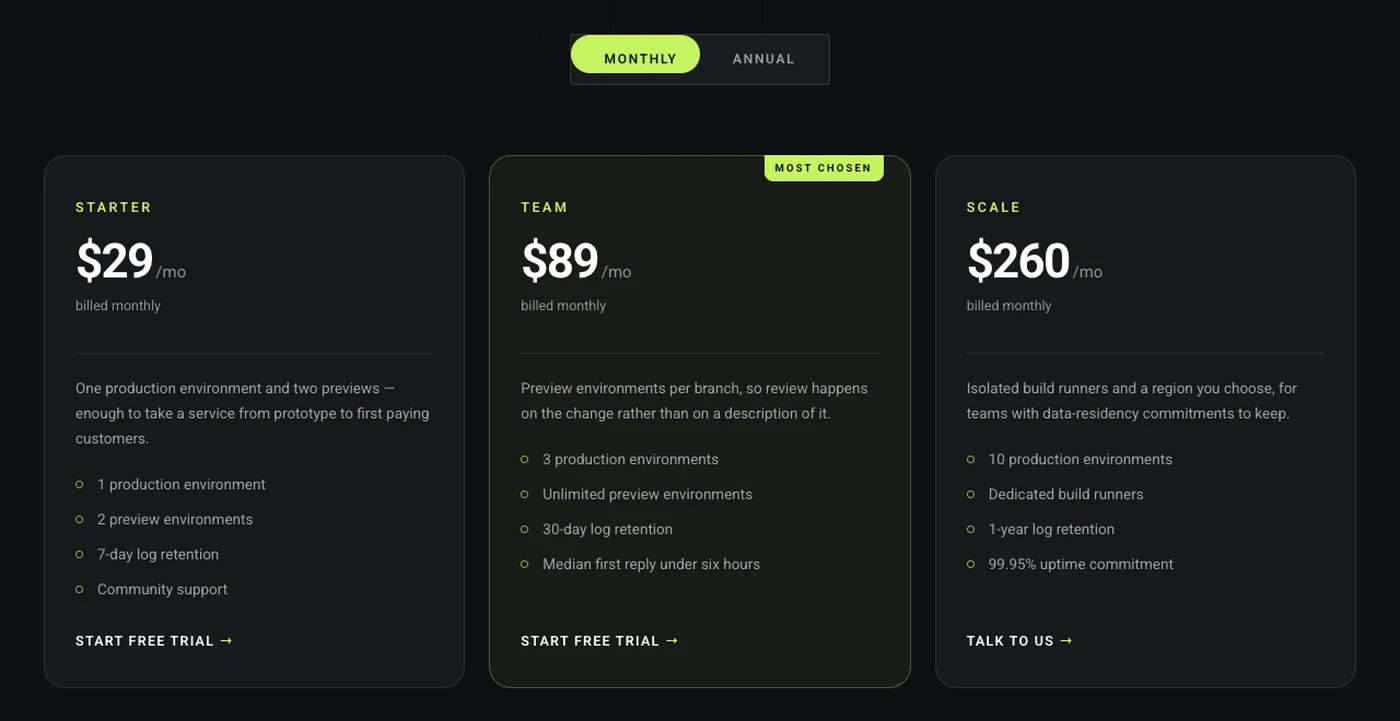
For layout and copy advice on the tables themselves, see our Elementor pricing table tips. If your plans differ by features more than by price, a comparison table under the toggle helps people check the details.
Frequently asked questions
Does the Elementor Price Table widget have a monthly and yearly toggle?
No. The Price Table widget in Elementor Pro shows one price per table and has no billing switch. To toggle between monthly and yearly prices, place two sets of tables inside the Tabs widget or load them into a content toggle widget from an addon.
Can I add a pricing toggle in Elementor without a plugin?
Yes. Use the Tabs widget, name the tabs Monthly and Yearly, and build a set of pricing columns inside each tab. It shows tab titles where an addon shows a sliding switch, and visitors still see one set of prices at a time.
Why is my saved template missing from the Toggle Content list?
Toggle Content lists templates by type. A container saved on its own is stored as a Container template, which the Section list does not show. Save the layout with Save as Template from the Publish arrow, which creates a Page template, and set Template Type to Page.
Can the pricing toggle have three options, such as monthly, yearly and lifetime?
Yes. Click Add Item in the Elements list of Toggle Content and connect a third template. With three or more options, visitors click the label they want, and clicking the active label moves to the next one.
Does Google see both sets of prices?
Yes. Toggle Content prints every option in the page HTML and shows one at a time, so both the monthly and the yearly prices are in the source. Make the version you care about most the default option.
Final thoughts
An Elementor pricing toggle needs two saved templates and one switch. Build the monthly plans, save them as a Page template, repeat for yearly, then load both into Toggle Content and set Active Index.
The Toggle Content widget page has a live billing switch demo to click before you build your own.
Related reading
