

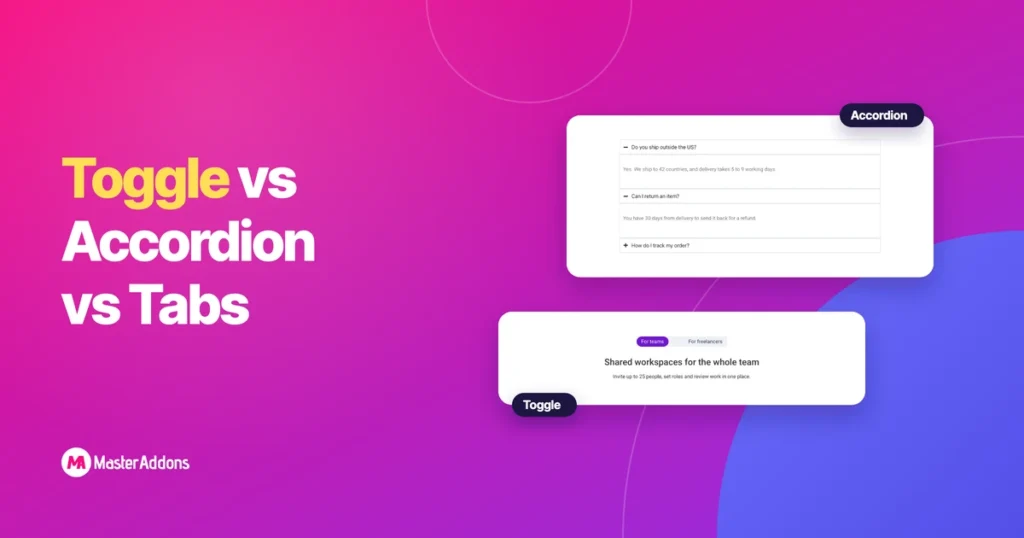
Key Takeaways
- In the Elementor toggle vs accordion comparison, the only functional difference is how many items stay open: an accordion keeps one item open, and a toggle lets several stay open at once.
- Elementor 4.3 hides the Toggle widget from the widget panel, and the Accordion widget covers both behaviours through Max Items Expanded, which is set to One or Multiple.
- Elementor Tabs show a row of titles above a single content area, and each tab can hold any widget, which suits three to six sections of similar weight.
- A content switcher, also called a content toggle, replaces one whole block with another when a visitor clicks a switch, and neither Elementor nor Elementor Pro includes one.
- The Master Addons Toggle Content widget is a Pro content switcher with two or more options, each holding text or a saved Section, Page or Widget template.
The difference between an Elementor toggle and an accordion is how many items can be open together. An accordion closes the open item when you click another. A toggle leaves it open. Tabs and content switchers are different tools again: they swap what is shown in a fixed space, where an accordion and a toggle expand downwards.
This comparison covers all four, shows where the Toggle widget went in current Elementor versions, and ends with a table for choosing between them.
Table of Contents
Toggle vs accordion vs tabs vs content switcher at a glance
All four widgets hide content until a visitor asks for it. They differ in what the visitor clicks and what happens next.
| Accordion | Toggle | Tabs | Content switcher | |
|---|---|---|---|---|
| What visitors click | A title in a stack | A title in a stack | A tab title in a row | A label on a switch |
| What happens | The item opens, the previous one closes | The item opens, the others stay as they are | The content area changes | The whole block is replaced |
| Items open at once | One | Any number | One | One |
| Page height | Changes on click | Changes on click | Mostly fixed | Mostly fixed |
| Typical number of items | 4 to 12 | 3 to 8 | 3 to 6 | 2 or 3 |
| Best for | FAQs | Details people compare | Features, specs, reviews | Monthly and yearly pricing |
| In Elementor | Accordion widget | Accordion widget, Max Items Expanded set to Multiple | Tabs widget | Not included, needs an addon |
Elementor Accordion: one answer at a time
An accordion is a stack of titles where only one item is open at a time. Click a second title and the first one closes. That keeps the page short, which is why accordions are the usual choice for FAQs.
In Elementor 4.3, each accordion item is a container, so it accepts any widget and is no longer limited to text. The settings that control its behaviour sit in the Interactions section of the Content tab:
- Default State: First expanded or All collapsed.
- Max Items Expanded: One or Multiple.
- Animation Duration: how long an item takes to open, 400 ms by default.
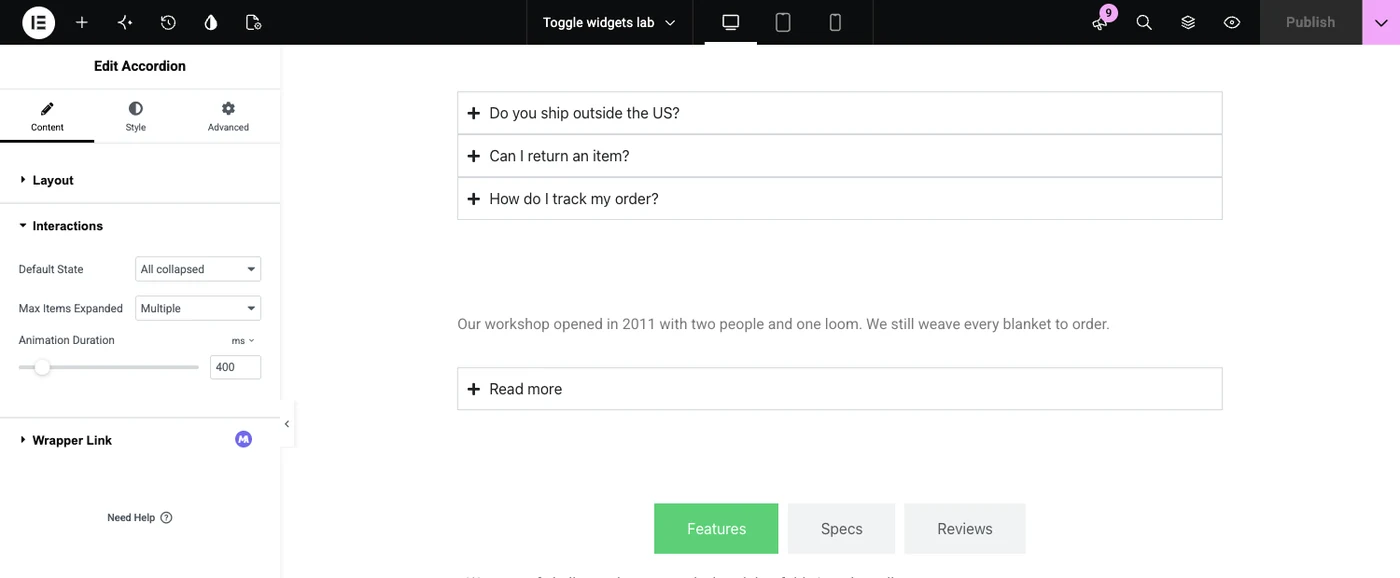
The Layout section also has a FAQ Schema switch, which adds FAQ structured data for the items. If you want more title styles and icons, look at the Advanced Accordion widget.
Elementor Toggle: several answers open together
A toggle looks like an accordion, and the difference is that each item opens and closes on its own. A visitor can open the first, third and fourth items and read them together.
Elementor used to ship Toggle as its own widget. In Elementor 4.3 it is hidden from the widget panel. Type “toggle” in the search box and you get Tabs and Accordion, because the Accordion widget now does both jobs.
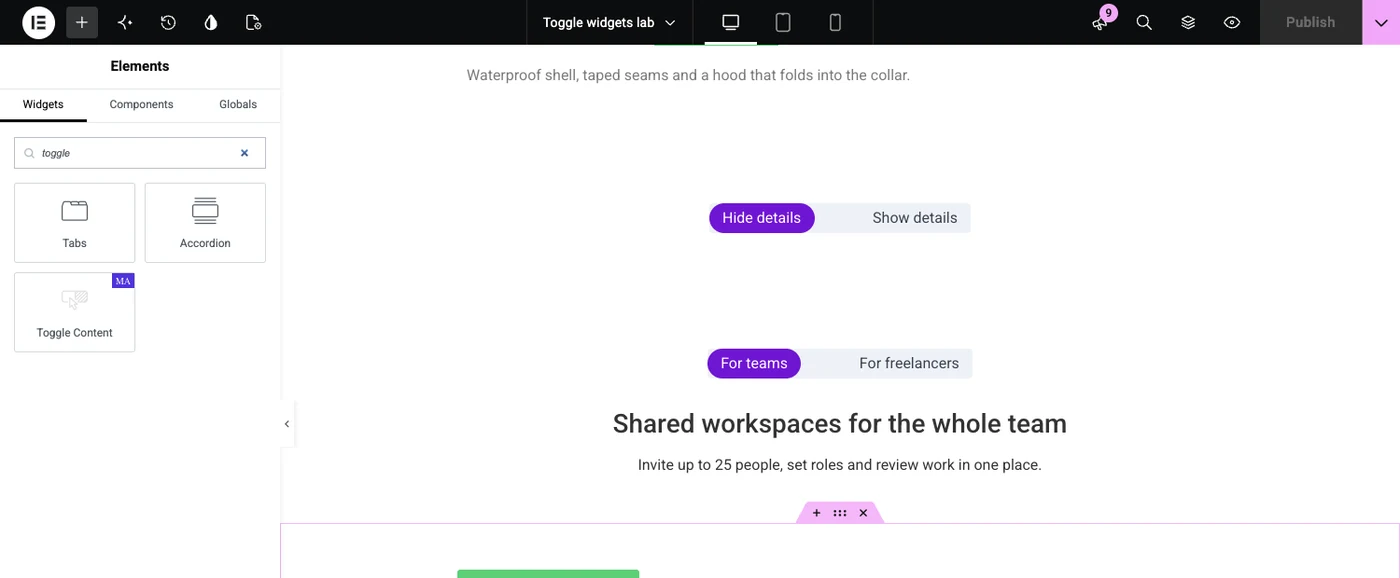
To get toggle behaviour today, add an Accordion widget and set Max Items Expanded to Multiple. Set Default State to All collapsed if every item should start closed, which is how the old Toggle widget loaded.
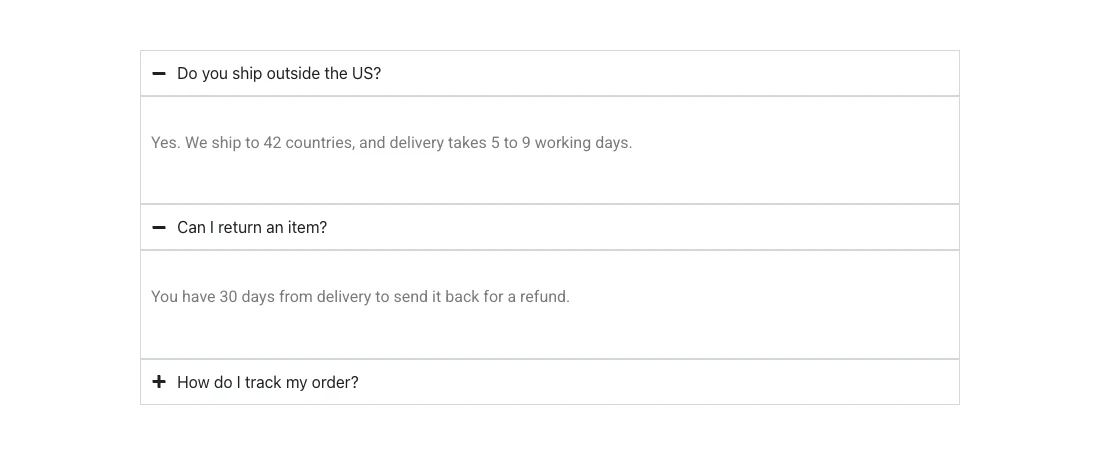
Elementor’s Toggle widget documentation still describes the old widget. For new work, use Accordion.
Elementor Tabs: sections side by side
Tabs put the titles in a row and show one content area under them. Clicking a title changes what is in that area, and the page height stays roughly the same.

Tabs work when the sections are equal partners. A product page with Features, Specs and Reviews is the classic case. Visitors see every title at once, so they know what is available before they click.
They stop working when there are too many. Past six titles, the row wraps on desktop and gets crowded on phones. For image or icon tab titles and vertical layouts, see the Advanced Tabs widget.
Content switcher: swap one block for another
A content switcher is a small switch with two or three labels that replaces one whole block with another. It is also called a content toggle, and it is the widget behind the Monthly and Yearly switch on pricing pages.
Tabs organise different topics. A switcher shows two versions of the same thing, such as the same plans at two prices or the same product in two unit systems.


Elementor and Elementor Pro do not include a content switcher. The Toggle Content widget in Master Addons Pro is one. Each option holds text or a saved template, the switch can be round or square, and Active Index sets which option loads first.
See a content switcher in action. The Toggle Content page has ten clickable demos, including a billing switch and a metric and imperial spec table.
Which one should you use?
Choose by the content. Ask how many pieces there are and whether visitors need to see more than one at a time.
| Your content | Use |
|---|---|
| Ten support questions with short answers | Accordion |
| Shipping, returns and sizing details that buyers read together | Toggle (Accordion with Multiple) |
| A long biography with a short intro | One-item accordion as a Read More link |
| Features, specifications and reviews for one product | Tabs |
| Monthly and yearly prices for the same plans | Content switcher |
| One section written for agencies and again for freelancers | Content switcher |
| Content only logged-in users should see | None of these. Use display conditions. |
All four widgets let the visitor decide what to look at. If the site should decide, by login status, date or user role, that is what display conditions in Elementor are for.
If you came here looking for a button that flips a switch, our guide to creating a toggle button in Elementor has the steps for each type.
Do hidden panels hurt SEO?
No, as long as the hidden content is in the page HTML. Accordion items, tab panels and switcher options are all printed in the source and hidden with CSS, so search engines can read them.
Put the content that matters most in the item that is open by default, because visitors see it first. Do not hide your main answer behind a click if the page exists to give that answer.
Frequently asked questions
What is the difference between accordion and toggle in Elementor?
An accordion allows one open item, so opening a new one closes the last. A toggle lets several items stay open together. In current Elementor versions both come from the Accordion widget, and the Max Items Expanded setting (One or Multiple) switches between them.
Why is the Toggle widget missing in Elementor?
Elementor hides the Toggle widget from the panel in current versions because the Accordion widget does the same job. Add Accordion, open the Interactions section and set Max Items Expanded to Multiple to get items that open and close independently.
Should I use tabs or an accordion?
Use tabs for three to six sections of equal weight that visitors pick between, such as Features, Specs and Reviews. Use an accordion for longer lists of short answers, such as an FAQ, where a row of tab titles would not fit.
Is a content switcher the same as tabs?
They work in a similar way, since both swap the content in one area. The purpose differs. Tabs separate different topics, and a content switcher shows two or three versions of the same content, such as monthly and yearly prices, behind a compact switch.
Does Elementor have a content switcher?
No. Neither Elementor nor Elementor Pro includes a content switcher or content toggle widget. You can approximate one with the Tabs widget, or add one from an addon such as Master Addons Pro, where it is called Toggle Content.
Final thoughts
Elementor toggle vs accordion is decided by one setting, Max Items Expanded, since both now live in the Accordion widget. Tabs and content switchers solve a different problem: they change what fills a fixed space. Tabs suit several topics, and a switcher suits two versions of one thing.
For that last case, the Toggle Content widget is the content switcher in Master Addons Pro.
Related reading
