


Key Takeaways
- An Elementor carousel lightbox is switched on in the Image Carousel widget by setting Link to Media File and Lightbox to Yes.
- The Elementor lightbox shows a slide counter, fullscreen, zoom, share and close buttons, with the image title under the photo.
- Colors and buttons for the Elementor lightbox are set once for the whole site in Site Settings, under Lightbox.
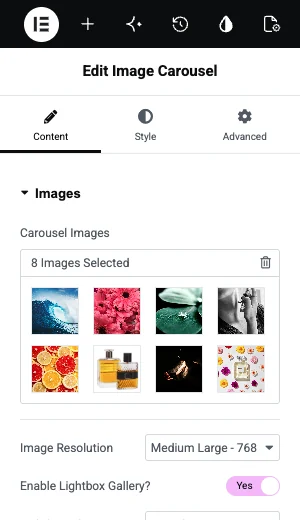
- The Master Addons Image Carousel has Enable Lightbox Gallery on by default and offers two libraries, Fancybox and Elementor.
- The Fancybox lightbox adds a slideshow button and a thumbnails panel, and shows the image title with its media library caption.
An Elementor carousel lightbox lets a visitor click a slide and see the image at full size over the page, then step through the rest without leaving. Elementor’s own Image Carousel can do it, although the setting is easy to miss because it sits under Link.
Below are the steps for the built-in lightbox, where to style it, and what changes when you use a carousel with Fancybox. Both were opened and checked on Elementor 4.3.
Table of Contents
Turn on the lightbox in Elementor’s Image Carousel
The lightbox is a link type, so it is set where the link is.
- Select the Image Carousel widget.
- In the Content tab, set Link to Media File.
- A Lightbox dropdown appears under it. Set it to Yes.
- Update the page and click a slide on the front end.
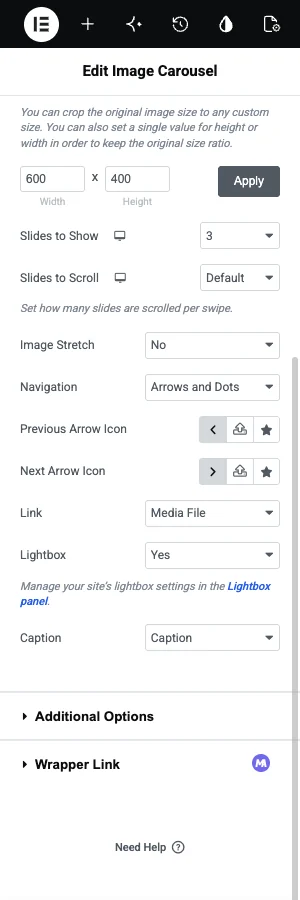
Lightbox has three values. Default follows the site-wide setting, Yes forces it on for this widget and No turns it off, in which case the click opens the image file in the browser.
What the Elementor lightbox shows
The image opens on a dark overlay with arrows on both sides. The top bar has a counter on the left, such as 1 / 8, and four buttons on the right: fullscreen, zoom, share and close. The image title sits under the photo.
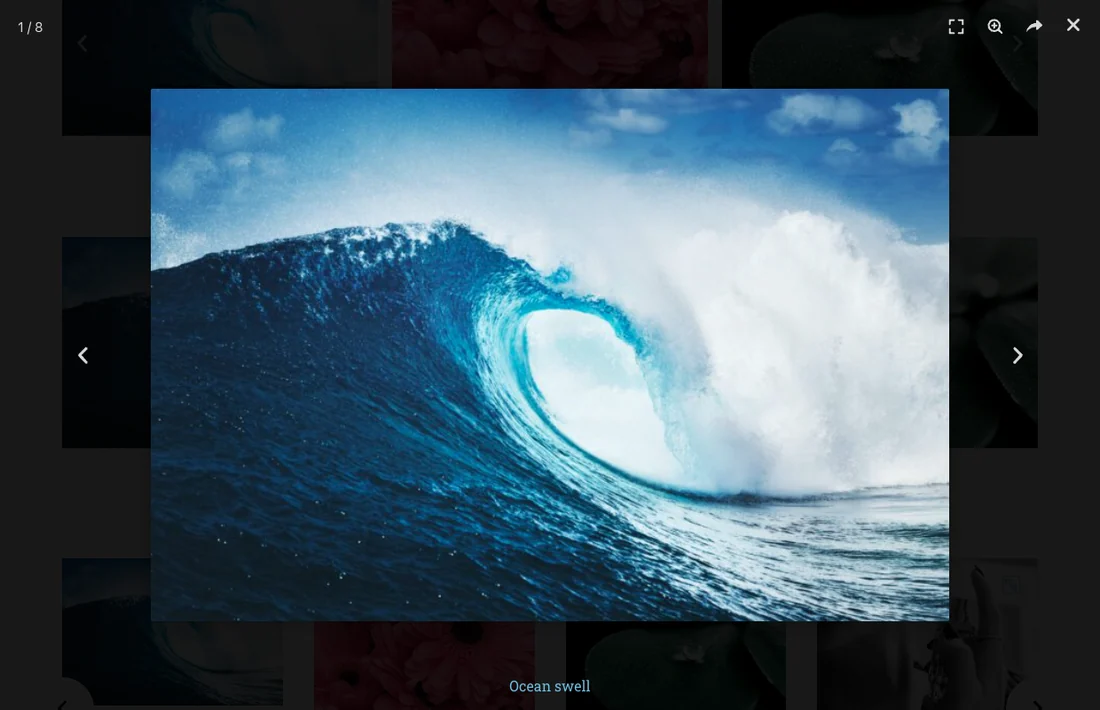
All the images in the carousel belong to one slideshow, so the arrows and the keyboard arrow keys move through the whole set.
The lightbox loads the full-size file, whatever Image Resolution the carousel uses. A carousel of 300px thumbnails can still pull 5MB originals when opened. Compress the originals before you upload them.
Style the Elementor lightbox
The lightbox has no settings in the widget. It is styled once for the whole site.
- In the Elementor editor, open Site Settings.
- Choose Lightbox.
- Switch the counter, fullscreen, zoom and share buttons on or off, and choose what the title and description show.
- Set the background color, the color of the icons and text, and the size of the toolbar and navigation icons.
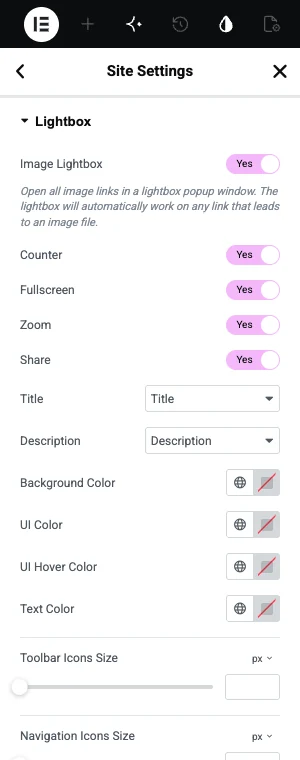
Because these are site settings, every lightbox on the site changes together: carousels, galleries and single images. That keeps things consistent, and it means one carousel cannot have a different lightbox from the next.
A carousel with a Fancybox lightbox
The Master Addons Image Carousel treats the lightbox as the main click action. Enable Lightbox Gallery? is on when you add the widget, and Lightbox Library lets you choose Fancybox or Elementor. Fancybox is the default.
When we opened it on the test page, the Fancybox toolbar had zoom, start slideshow, thumbnails and close, with previous and next arrows. Under the photo it showed the image title as a heading and the media library caption as a second line.
This lightbox is styled in the widget. The Style tab has a Lightbox section for the preview icon on each slide, the overlay, and the typography, color and spacing of the Caption Title and Caption Subtitle. You can give two carousels on the same page different lightbox styling.
Want the lightbox on from the start? The Image Carousel widget opens every image in Fancybox or the Elementor lightbox, with its title and caption.
This widget has no link field, so a slide always opens the lightbox or does nothing. If slides need to go to other pages, see image carousel with custom links.
Elementor lightbox vs Fancybox
| Elementor lightbox | Fancybox in the Master Addons Image Carousel | |
|---|---|---|
| Turned on with | Link: Media File, Lightbox: Yes | On by default |
| Toolbar | Counter, fullscreen, zoom, share, close | Zoom, slideshow, thumbnails, close |
| Text under the image | Title, with an optional description | Image title and caption |
| Thumbnails panel | No | Yes |
| Auto slideshow | No | Yes |
| Share button | Yes | No |
| Styled in | Site Settings, for the whole site | The widget’s Style tab |
When the lightbox does not open
- Link is still None. The Lightbox dropdown only appears after Link is set to Media File.
- Lightbox is Default and the site setting is off. Check Image Lightbox in Site Settings, Lightbox, or set the widget to Yes.
- The image opens in a new page. Lightbox is set to No, or another plugin’s lightbox script has taken over the link.
- Nothing happens after a caching change. JavaScript delay or combine settings can stop the lightbox script from loading. Exclude Elementor’s scripts from those settings. The steps are in our Swiper slider troubleshooting guide.
- Two lightboxes open. A theme or gallery plugin is adding its own. Turn one of them off.
Frequently asked questions
How do I add a lightbox to an Elementor image carousel?
Select the Image Carousel widget, set Link to Media File and set the Lightbox dropdown that appears to Yes. Each slide then opens at full size over the page, with arrows to move through the other images.
Where are the Elementor lightbox settings?
In Site Settings, under Lightbox. There you switch the counter, fullscreen, zoom and share buttons, choose the title and description, and set the colors and icon sizes. The settings apply to every lightbox on the site.
Can I show captions in the Elementor lightbox?
Yes. The lightbox shows a title and can show a description, both taken from the image in the media library. Choose which field each one uses in Site Settings, Lightbox.
Does Elementor use Fancybox?
No. Elementor has its own lightbox. Fancybox is a separate lightbox library that some addon widgets include. The Master Addons Image Carousel lets you choose between Fancybox and the Elementor lightbox.
Does the lightbox slow the page down?
The lightbox script is small. The weight comes from the images, because the lightbox loads the full-size file. Keep originals compressed, and a visitor only downloads the large version of the images they open.
Final thoughts
An Elementor carousel lightbox takes two settings in the built-in widget: Link set to Media File and Lightbox set to Yes. Style it in Site Settings and it will match every other lightbox on the site.
If you want thumbnails, a slideshow button and styling per carousel, the Master Addons Image Carousel has Fancybox built in. The full widget setup is in how to create an image carousel in Elementor.
Related reading
