

Key Takeaways
- Elementor Media Carousel is an Elementor Pro widget, and it shows as locked in the widget panel on a site without Elementor Pro.
- The Elementor Media Carousel has three skins: Carousel, Slideshow and Coverflow, and each slide can be an image or a video.
- Every Media Carousel slide has its own Link field, which Elementor’s basic Image Carousel does not offer.
- Elementor’s Image Carousel covers the Carousel skin for images, with captions and a lightbox, and it is part of the core plugin.
- The Master Addons Image Carousel has a Coverflow layout with Rotate, Stretch, Modifier and Depth sliders, and it does not need Elementor Pro.
The Elementor Media Carousel is the widget most tutorials reach for when they show a coverflow effect, a slideshow with thumbnails, or a carousel that mixes photos and videos. It is also an Elementor Pro widget, so on a site without Pro it shows in the panel with a padlock.
This post goes through the widget skin by skin, using its settings in Elementor 4.3. It then covers what does each job if you do not have Elementor Pro, and where nothing fully replaces it.
Table of Contents
What is the Elementor Media Carousel?
Media Carousel is one of the carousel widgets in Elementor Pro, next to Loop Carousel, Testimonial Carousel, Slides and the nested Carousel. Its slides are separate items. For each one you choose a type, Image or Video, then add the image and, for a video, the video link.
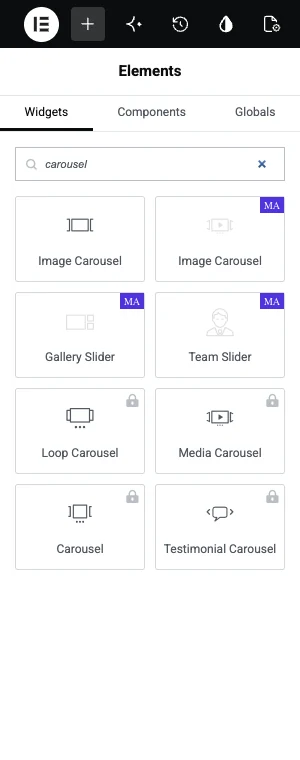
Elementor’s basic Image Carousel is different. It takes one gallery, shows images only, and belongs to the core plugin.
The three skins of the Media Carousel
The Skin setting changes the whole layout, so it is the first thing to choose.
| Skin | What it looks like | Typical use |
|---|---|---|
| Carousel | A row of slides, with Slides Per View from 1 to 10 and an effect of Slide, Fade or Cube | Photo strips, logo rows, product shots |
| Slideshow | One large slide with a strip of thumbnails under it | Product galleries, property tours |
| Coverflow | The centre slide faces forward and the others angle away | Portfolios, featured work |
The Slideshow skin has its own settings for the thumbnail strip: how many thumbnails show and their ratio, from 1:1 to 21:9.
Settings worth knowing
- Slide type. Each slide is an Image or a Video with a Video Link. Video slides open in the lightbox.
- Link per slide. Every slide has its own Link field. This is the built-in way to send each image to a different URL.
- Pagination. None, Dots, Fraction or Progress, with arrows as a separate switch.
- Overlay. A hover overlay that shows Text or an Icon. The text comes from the image’s Title, Caption or Description, and the overlay has six animations.
- Movement. Autoplay, Autoplay Speed, Infinite Loop, Pause on Hover, Centered Slides and Slides to Scroll.
- Image Fit. Cover, Contain or Auto, with a Height setting. Slides share one height, so mixed photos do not come out uneven.
Media Carousel vs Image Carousel
| Image Carousel (Elementor core) | Media Carousel (Elementor Pro) | |
|---|---|---|
| Slides come from | One gallery | Separate items |
| Video slides | No | Yes |
| Layouts | Slide, or Fade with one slide | Carousel, Slideshow and Coverflow skins |
| Thumbnails | No | Yes, in the Slideshow skin |
| Navigation | Arrows and dots | Arrows, dots, fraction or progress |
| Text | Caption under the slide | Overlay on hover |
| Links | One URL for all slides | A link per slide |
Alternatives without Elementor Pro
No single widget outside Elementor Pro copies all three skins. Split the job by skin and most of it is covered.
For the Carousel skin: Elementor’s Image Carousel
For a row of images, the core Image Carousel is enough. It has Slides to Show per device, arrows and dots, autoplay, an infinite loop, captions and the Elementor lightbox. It cannot show videos, fractions or a progress bar.
For the Coverflow skin: Master Addons Image Carousel
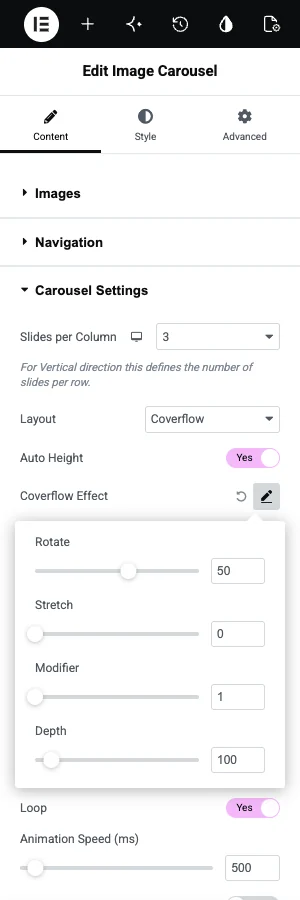
The Master Addons Image Carousel has a Layout setting with two choices, Carousel and Coverflow. Coverflow opens a popover with four sliders: Rotate, Stretch, Modifier and Depth.
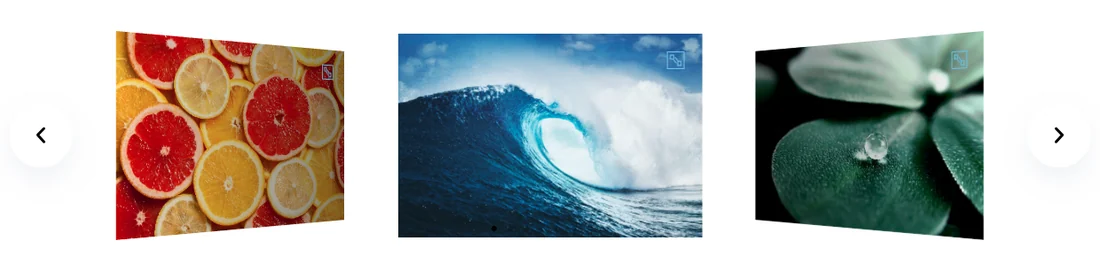
The same widget also has Fraction and Progress navigation, a scrollbar, and a choice of Fancybox or the Elementor lightbox.
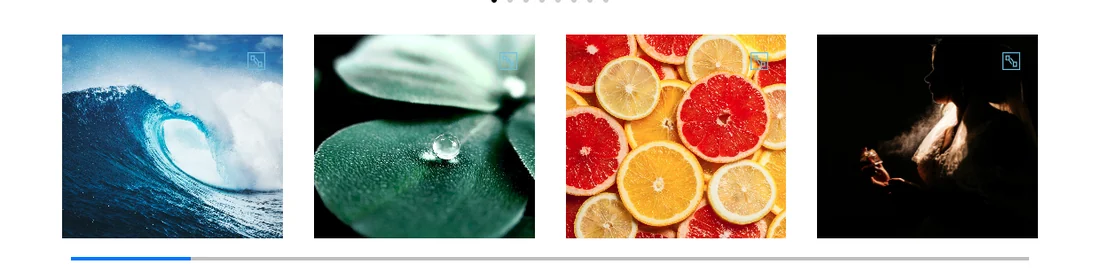
It also leaves some things out. It takes images only, so there are no video slides. It has no link per slide and no caption on the slide. Images open in the lightbox with their title and caption. More coverflow options, including flip and arc styles, are in our Elementor 3D carousel guide.
Only after the coverflow look? The Image Carousel widget page has a live coverflow carousel you can drag.
For the Slideshow skin: Gallery Slider
A large preview with a thumbnail strip is what the Master Addons Gallery Slider does. It needs Master Addons Pro, so this one is a swap of one paid plan for another. If you are choosing between the two plans for this layout alone, compare what else each plan gives you.
For video slides
None of the image carousels above play video in a slide, so this is the one real gap. Two workarounds exist. One is a carousel of poster images that open the video in a lightbox, which our Elementor video carousel guide walks through. The other is a carousel that holds a Video widget in each slide, and that again needs Elementor Pro.
Which one should you use?
| You need | Use |
|---|---|
| A simple row of photos with captions | Elementor Image Carousel |
| Coverflow, a fraction counter or a progress bar | Master Addons Image Carousel |
| A big preview with thumbnails | Media Carousel (Elementor Pro) or Gallery Slider (Master Addons Pro) |
| Photos and videos in one carousel | Media Carousel (Elementor Pro) |
| A different link on every slide | Media Carousel (Elementor Pro) or the Master Addons Logo Slider |
If you already pay for Elementor Pro, use Media Carousel. It is a capable widget and you have it. The alternatives matter when a coverflow or a progress bar is the only reason you were thinking about upgrading.
Frequently asked questions
Is the Elementor Media Carousel free?
No. Media Carousel is part of Elementor Pro. Elementor’s core plugin includes the Image Carousel widget, which builds a basic image slider with arrows, dots, captions and a lightbox.
What is the difference between Media Carousel and Image Carousel in Elementor?
Image Carousel shows one gallery of images in a row. Media Carousel builds slides one by one, accepts videos as well as images, adds Slideshow and Coverflow skins, and lets every slide have its own link.
How do I get a coverflow carousel in Elementor without Pro?
Use a carousel addon with a coverflow layout. In the Master Addons Image Carousel, set Layout to Coverflow in Carousel Settings and adjust Rotate and Depth in the Coverflow Effect popover.
Can the Elementor Media Carousel show videos?
Yes. Set a slide’s Type to Video and paste a Video Link. The slide shows its image as a poster, and the video plays in the lightbox when a visitor clicks it.
Does the Media Carousel have thumbnails?
Only in the Slideshow skin. That skin shows one large slide with a row of thumbnails under it, and has settings for the number of thumbnails and their ratio.
Final thoughts
The Elementor Media Carousel is the most complete image and video carousel in Elementor, and it comes with Elementor Pro. Without Pro, the core Image Carousel handles plain rows of photos and the Master Addons Image Carousel adds coverflow, fraction and progress navigation.
Video slides and a link on every slide are the two jobs that still point back to Media Carousel.
Related reading
