


Key Takeaways
- The Custom URL option in Elementor’s Image Carousel is a single link field, so an Elementor image carousel custom link sends every slide to the same address.
- Text under each slide comes from the Caption setting in Elementor’s Image Carousel, which reads the Title, Caption or Description of each image from the media library.
- Elementor’s Media Carousel, an Elementor Pro widget, has a Link field on every slide, so each image can go to a different URL.
- The Master Addons Logo Slider has a Link field on each item, and it works for any image, not only logos.
- The Master Addons Image Carousel has no link field and shows no caption on the slide. It shows the image title and caption in the lightbox.
An Elementor image carousel custom link is easy to add and often does less than people expect. The built-in widget has one link field for the whole carousel, and the text under each slide is not typed in the widget at all.
This guide shows where both settings are, what the page really outputs, and three ways to give each image its own link. We checked the output on Elementor 4.3.
Table of Contents
Links and text at a glance
| Widget | Text on the slide | Link per image | Plan |
|---|---|---|---|
| Elementor Image Carousel | Yes: title, caption or description | No, one URL for all slides | Elementor core |
| Elementor Media Carousel | Yes, as a hover overlay | Yes | Elementor Pro |
| Master Addons Image Carousel | No, text shows in the lightbox | No | Master Addons |
| Master Addons Logo Slider | Yes: brand name and description on hover | Yes | Master Addons |
How to add text to an Elementor image carousel
The text is a caption, and the widget reads it from the media library. There is no text box per slide.
- Select the Image Carousel widget.
- In the Content tab, find Caption and choose Title, Caption or Description.
- Click the gallery to open the media library, select an image and fill in the matching field on the right.
- Repeat for each image, then save the gallery.
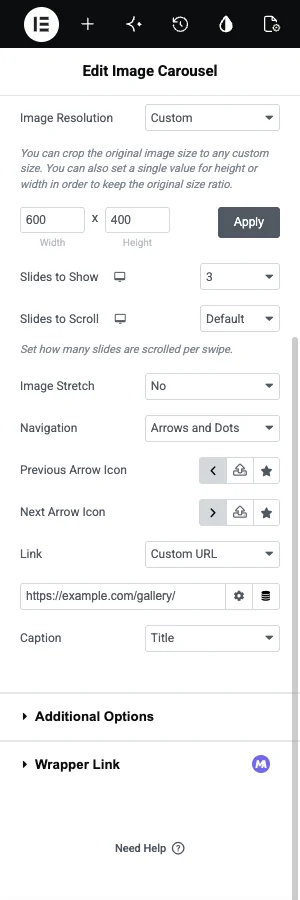

Style the text in the Style tab under Caption: alignment, color, typography and spacing. Because the text belongs to the image, the same caption follows that image into any other gallery that uses it.
A caption cannot hold a heading and a paragraph over the image. For that, use a widget built for text on images, such as Image Hover Effects.
How to add a custom link
- Select the Image Carousel widget.
- Set Link to Custom URL.
- Paste the address in the field that appears.
The Link dropdown has three choices: None, Media File and Custom URL. Custom URL gives you one field. We looked at the HTML of our test carousel, and all eight slides pointed at the same address.
So the built-in link suits a carousel that leads to one place, for example a row of project photos that all open the portfolio page.
How to give each image a different link
You need a widget that stores a link with every slide. There are three practical options.
Option 1: Elementor Media Carousel (Elementor Pro)
Media Carousel builds its slides from a repeater, not a gallery. Each slide has its own image and its own Link field. If you already have Elementor Pro, this is the direct answer.
Option 2: Master Addons Logo Slider
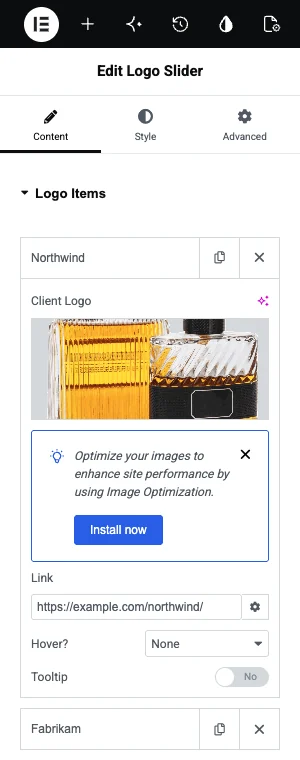
The Logo Slider is also built from separate items. Each one has a Client Logo image, a Link, and optional hover content: a brand name and description, or a second image. Nothing limits it to logos. Use it for partner badges, product tiles or category images that each go somewhere different.
Setup is covered in our Elementor logo carousel guide.
Option 3: A carousel of widgets
Elementor Pro’s Carousel widget and Loop Carousel hold other widgets or post templates in each slide. Put an Image widget in every slide and give each its own link. It takes longer to build, and it lets you add a heading and a button under each image. Our Loop Carousel guide explains that route.
Want a photo carousel that opens images instead of linking away? The Image Carousel widget opens each image in a lightbox with its title and caption.
Text in the lightbox
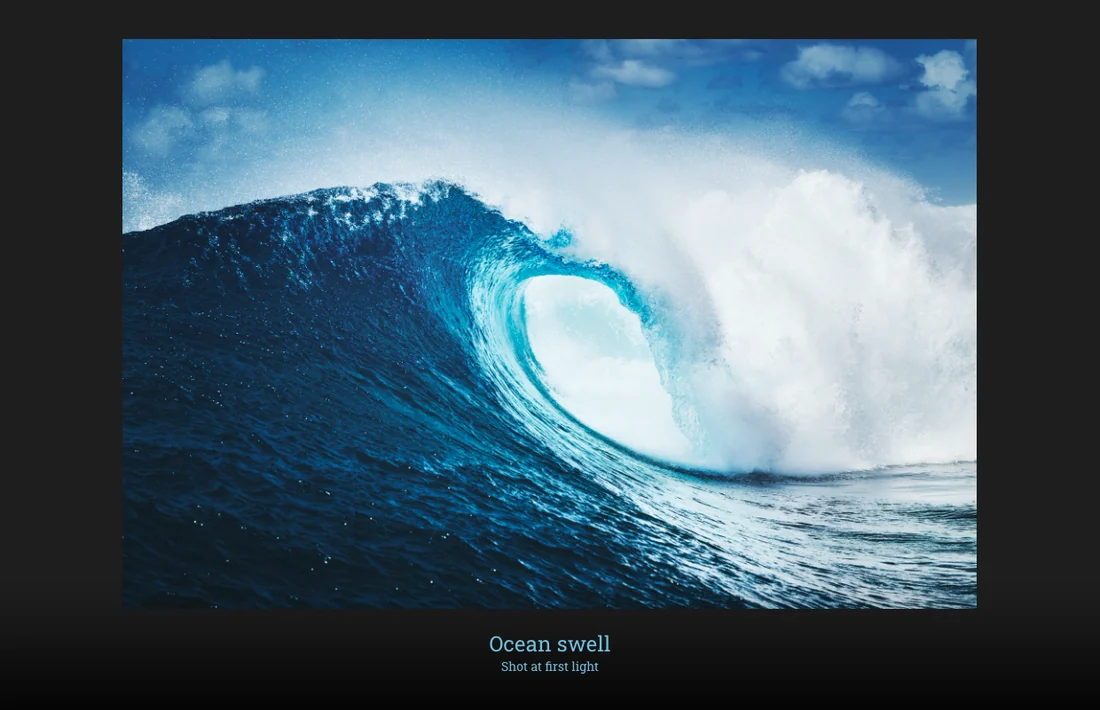
There is a second place for text: the lightbox. Set Link to Media File in Elementor’s carousel and the image title appears under the photo when it opens.
The Master Addons Image Carousel works this way by design. It has no caption on the slide and no link field. A click opens the image in Fancybox or the Elementor lightbox, with the image title as a heading and the media library caption under it. Both are styled in the widget’s Lightbox section.
That fits galleries where the photo is the content. For slides that must send people to other pages, use one of the three options above.
Frequently asked questions
Can each image in an Elementor image carousel have a different link?
Not in the built-in Image Carousel. Its Custom URL field holds one address, and every slide uses it. For a link per image, use Elementor Pro’s Media Carousel, the Master Addons Logo Slider, or a carousel that holds an Image widget in each slide.
How do I add text to an Elementor image carousel?
Set Caption in the widget’s Content tab to Title, Caption or Description, then fill in that field for each image in the media library. The text appears under each slide and is styled in the Style tab.
Why do all my carousel images link to the same page?
Because Custom URL is one field for the whole widget. Elementor does not read a separate link from each image. Switch to a widget whose slides are separate items, each with its own Link field.
Can I put a button on each carousel slide?
Not with an image carousel. Build the slides from widgets with Elementor Pro’s Carousel or Loop Carousel, and add an Image, a Heading and a Button to each slide.
Do captions help SEO?
Captions are visible text next to the image, and search engines can read them. Alt text matters more for the image itself. Write the alt text for someone who cannot see the photo, and use the caption for what a visitor should know.
Final thoughts
An Elementor image carousel custom link is one URL for every slide, and its text is a caption stored with each image. That covers a simple gallery. When each image needs its own destination, build the row from separate items with Media Carousel or the Logo Slider.
For photo galleries that should open in a lightbox, see the Image Carousel widget, and for the basic setup read how to create an image carousel in Elementor.
Related reading
