

Key Takeaways
- These eight Elementor timeline examples are all built with one widget, the Master Addons Timeline widget, and each one has a live demo page you can open.
- Six of the eight timeline designs are vertical and two are horizontal carousels, which matches how the layouts are used: vertical for long stories and horizontal for short sequences.
- The vertical examples use three of the Timeline widget’s four alignments: Center for alternating cards, Left for a one-sided list and Right for a mirrored one-sided list.
- Most of the visual difference between the eight designs comes from four Style sections in the Timeline widget: Cards, Dates, Line and Points.
- Elementor and Elementor Pro do not include a timeline widget, so any Elementor timeline template depends on an addon being installed.
Good Elementor timeline examples are hard to find, because most demos are three grey cards with lorem ipsum. The eight designs below use real stories: an organ rebuild, a bridge span, a clinical trial, a bakery’s first year. All of them are built with the Master Addons Timeline widget and each has a live demo.
For every example you get what it is good for, what makes the design work, and the settings behind it, so you can use it as a template for your own page. If you have not built a timeline before, start with how to create a timeline in Elementor.
Table of Contents
The eight timeline examples at a glance
Pick by layout first, then by mood. This table shows which Elementor timeline design fits which job.
| # | Design | Layout | Images | Good for |
|---|---|---|---|---|
| 1 | Alternating Rebuild | Vertical, center | No | Project logs, restorations |
| 2 | Arch Image Field | Vertical, one side | Yes, arched | Seasonal or yearly notes |
| 3 | Right Aligned Investigation | Vertical, right | No | Chronologies, case files |
| 4 | Horizontal Fabrication | Horizontal carousel | Yes | Production stages |
| 5 | Split Card Week | Vertical, single column | No | Week by week schedules |
| 6 | Alternating Arch Media | Vertical, center | Yes, arched | Brand and founder stories |
| 7 | Light Card Trial | Vertical, one side | No | Research and process milestones |
| 8 | Horizontal Year | Horizontal carousel | No | History by year |
1. Alternating Rebuild Timeline
This is the classic Elementor vertical timeline: cards alternate left and right of a center line, with a numbered point and a date for each stage. The demo tells the story of a pipe organ rebuilt over three years.
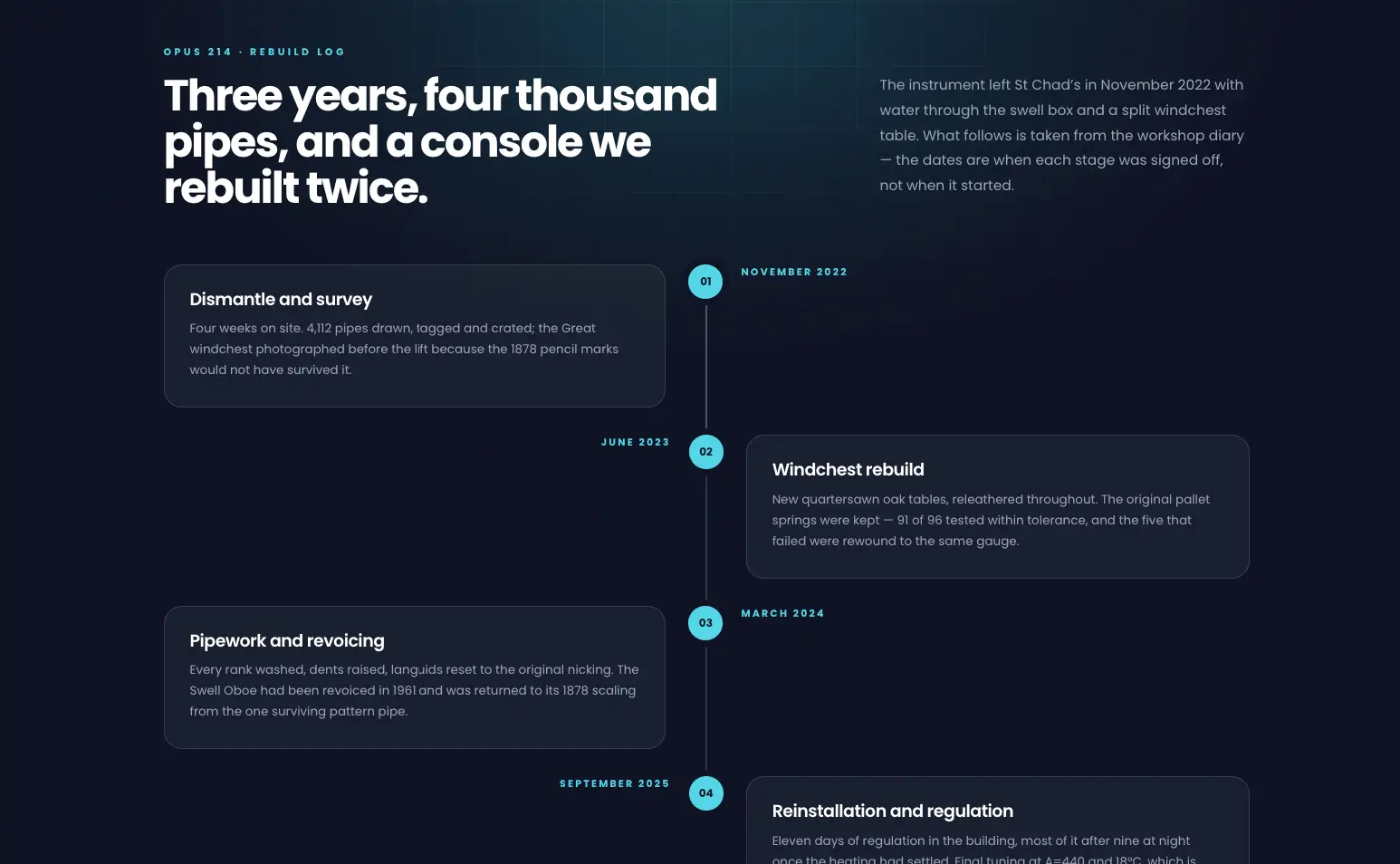
Use it for restorations, construction diaries, or any project with clear stages. The numbers give the order even before you read a date. To build it, use Horizontal Align set to Center, a thin Line, small Points, and a card background only slightly lighter than the page.
Open the Alternating Rebuild demo
2. Arch Image Field Timeline
A one-sided timeline on a cream background, where each entry has an arch-shaped photo beside the text. The demo follows ten winters of hedge laying on a farm.
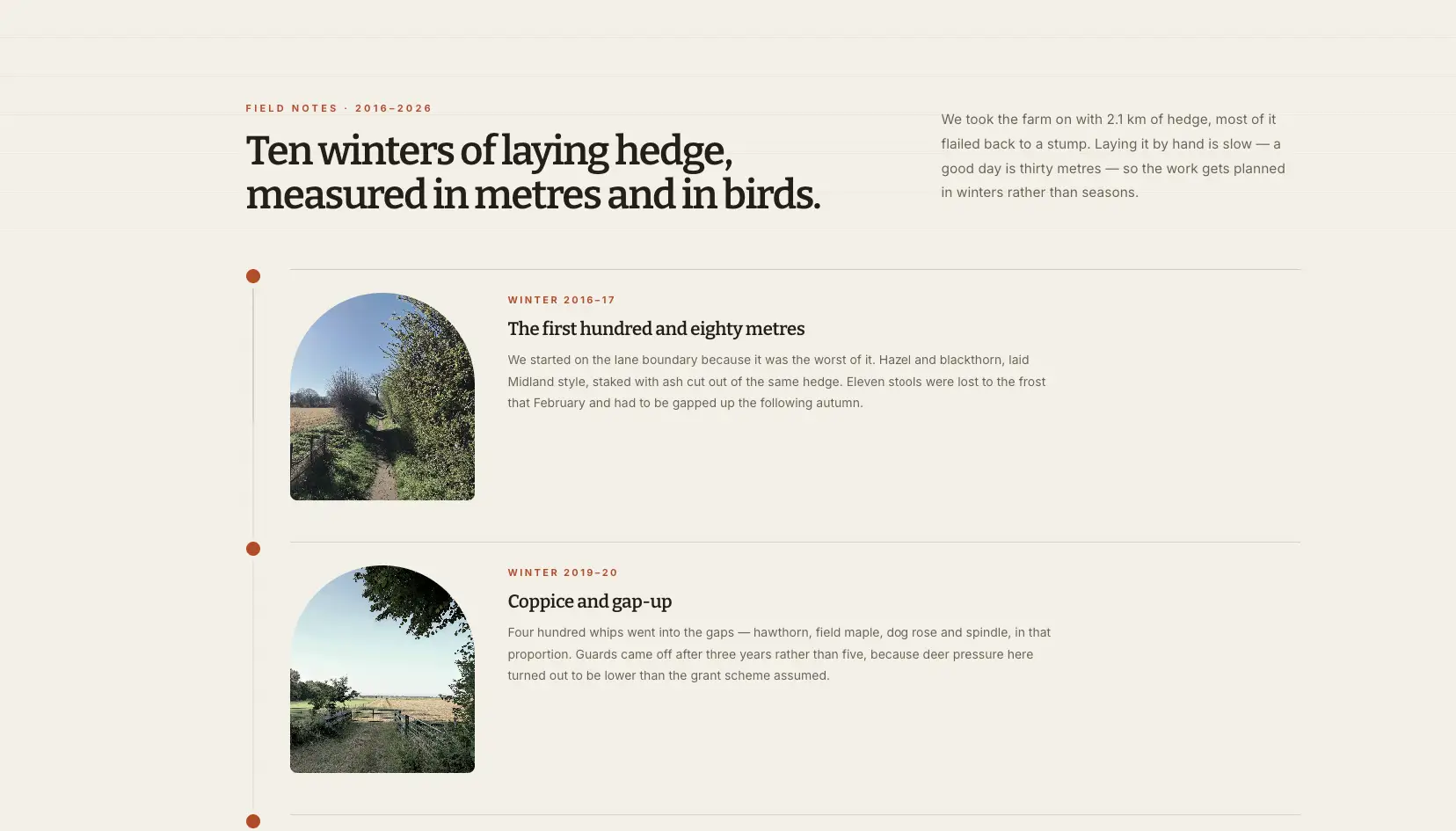
Use it for field notes, seasonal work, travel journals, or anything photo-led. The arch crop makes ordinary photos look deliberate. To build it, use a one-sided alignment, and a large radius on the top corners only in Style, Images, Border Radius.
Open the Arch Image Field demo
3. Right Aligned Investigation Timeline
Here the line runs down the right edge and the cards sit to its left, with right-aligned text. It is the mirror of the usual layout. The demo is the chronology of a two-year information request.
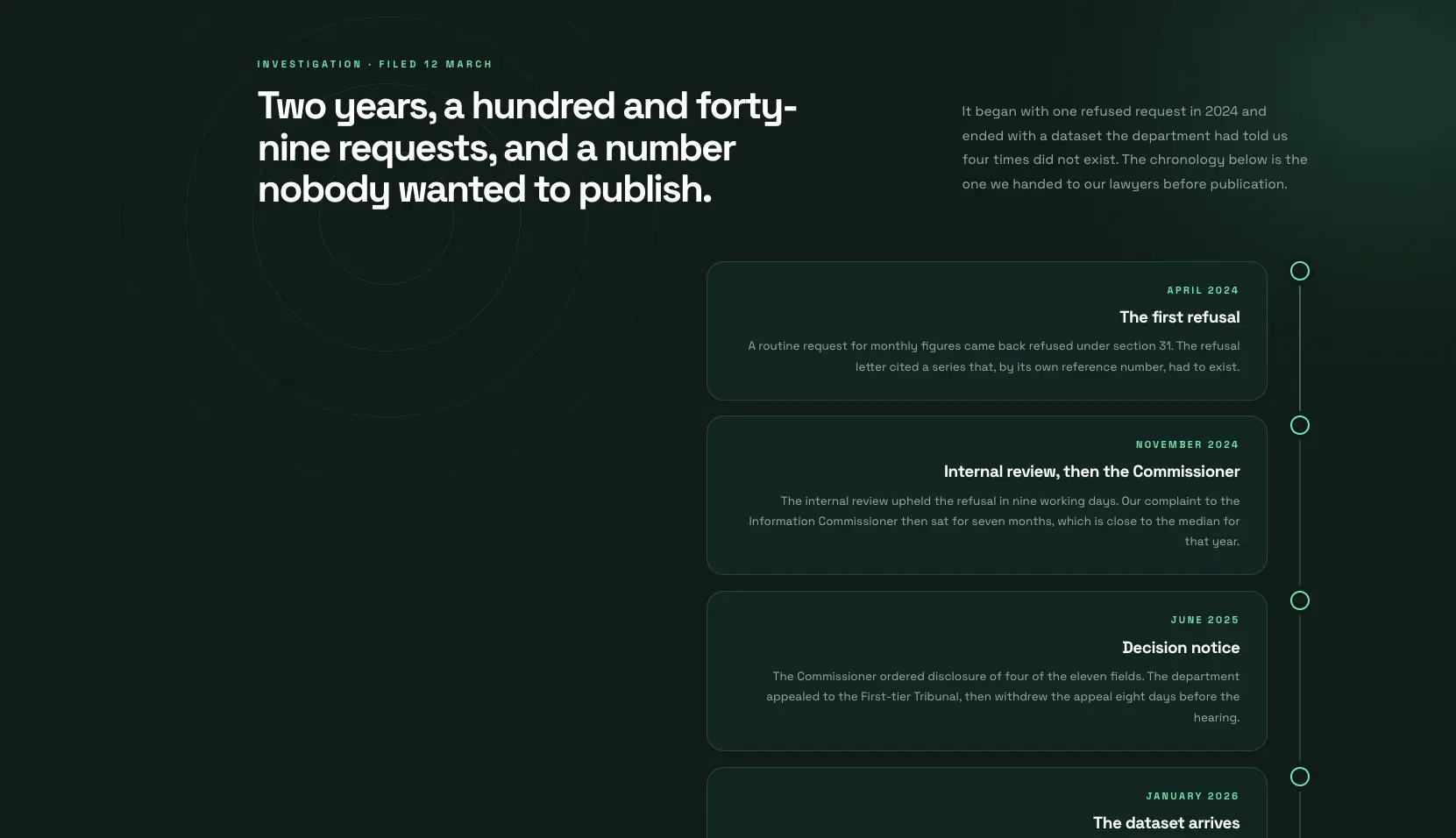
Use it for investigations, legal or compliance chronologies, or case studies. An unusual alignment makes a text-only timeline look designed. To build it, use Horizontal Align set to Right, Points with a border and no fill.
Open the Right Aligned Investigation demo
4. Horizontal Fabrication Timeline
The first of two horizontal examples. Month labels sit above lime green points, and image cards slide beneath them with round arrow buttons. The demo covers a bridge span fabricated in five stages.
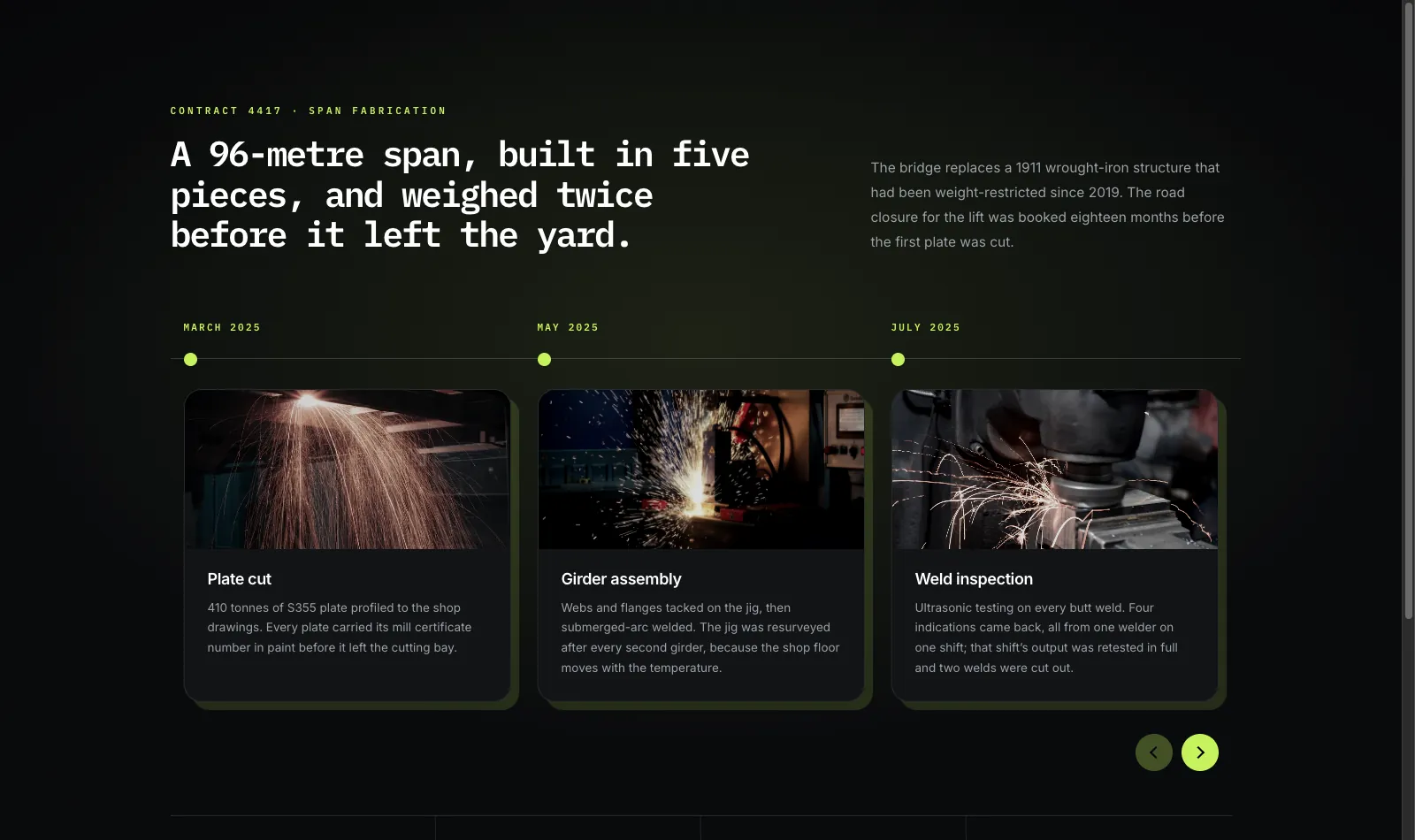
Use it for manufacturing or production stages, or a five-step process. Photos carry each stage, and the text stays to three lines. To build it, use Timeline Style set to Horizontal Timeline, Navigation set to Arrows, and an image in each item’s Media tab.
Open the Horizontal Fabrication demo. The carousel controls are explained in how to create a horizontal timeline in Elementor.
5. Split Card Week Timeline
A single centered column of white cards. Each card is split in two: a narrow strip with the week on the left and the content on the right. The demo is a museum rehang planned week by week.
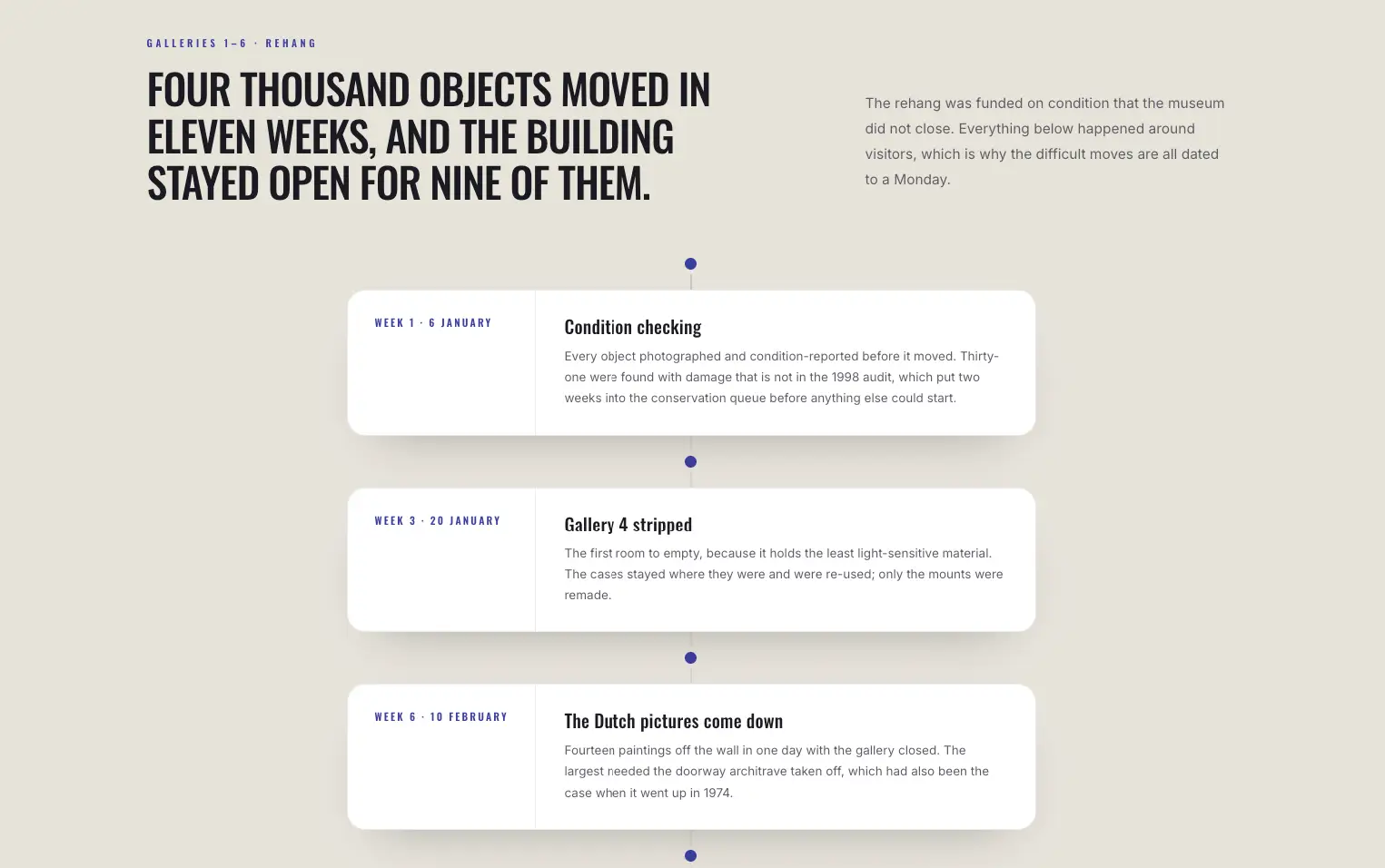
Use it for schedules, sprint plans, or course outlines. The label column lines up down the page, so you can scan the weeks without reading the cards. To build it, use a Custom Label on every item (“Week 1 · 6 January”) instead of a date, light cards with a soft shadow.
6. Alternating Arch Media Timeline
Alternating cards again, this time with black and white photos cropped to an arch on top of each card. The demo is a bakery’s first year, starting from one oven and a bank loan.
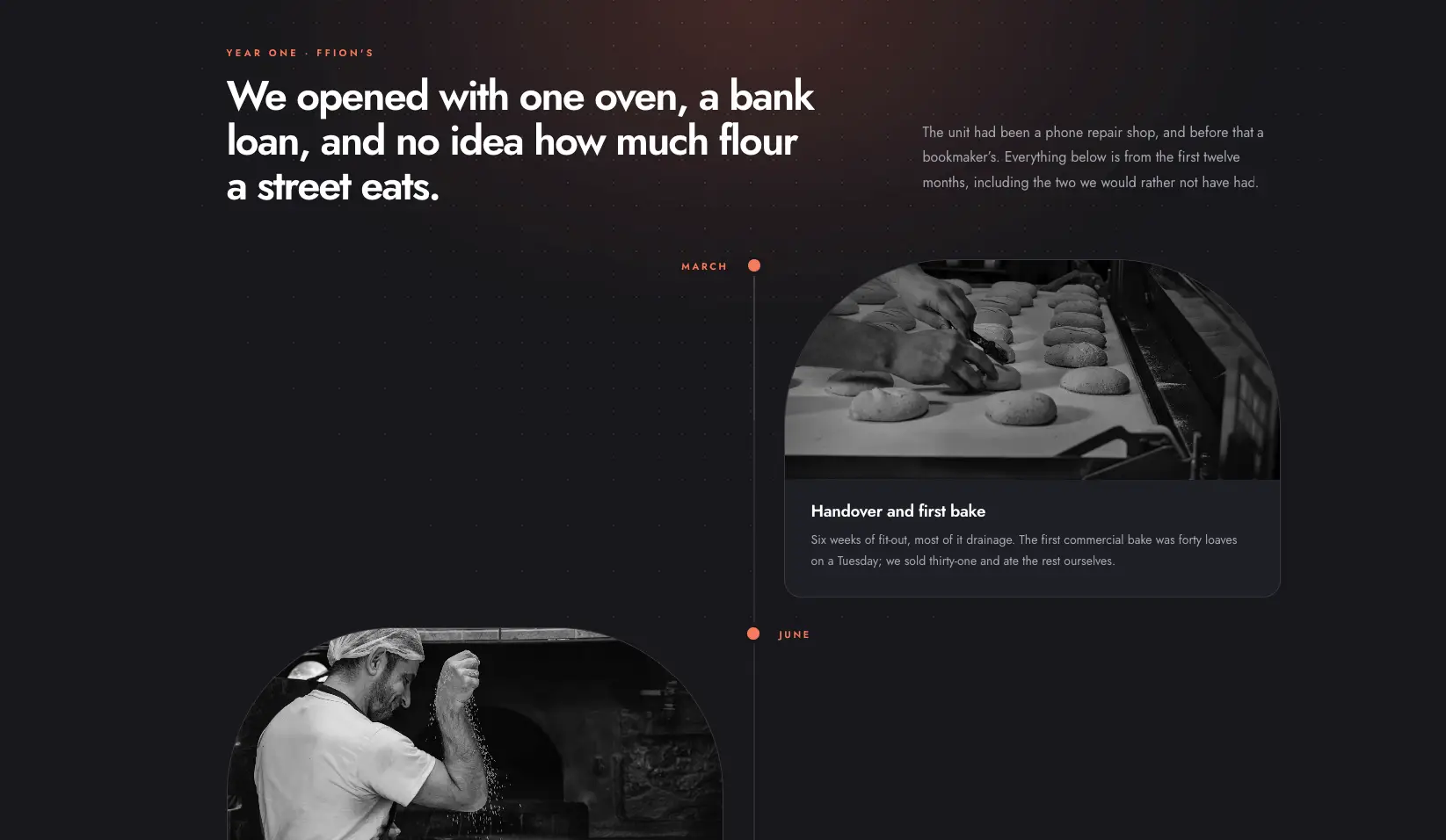
Use it for About pages, founder stories, or an Elementor history timeline for a small business. One accent color and monochrome photos make mixed-quality pictures look like a set. To build it, use Horizontal Align set to Center, an image per item, the same accent in Dates and Points.
Open the Alternating Arch Media demo
7. Light Card Trial Timeline
Light cards on a deep purple background, all on one side of the line, with amber points. The demo tracks a clinical trial from funding to a protocol amendment.
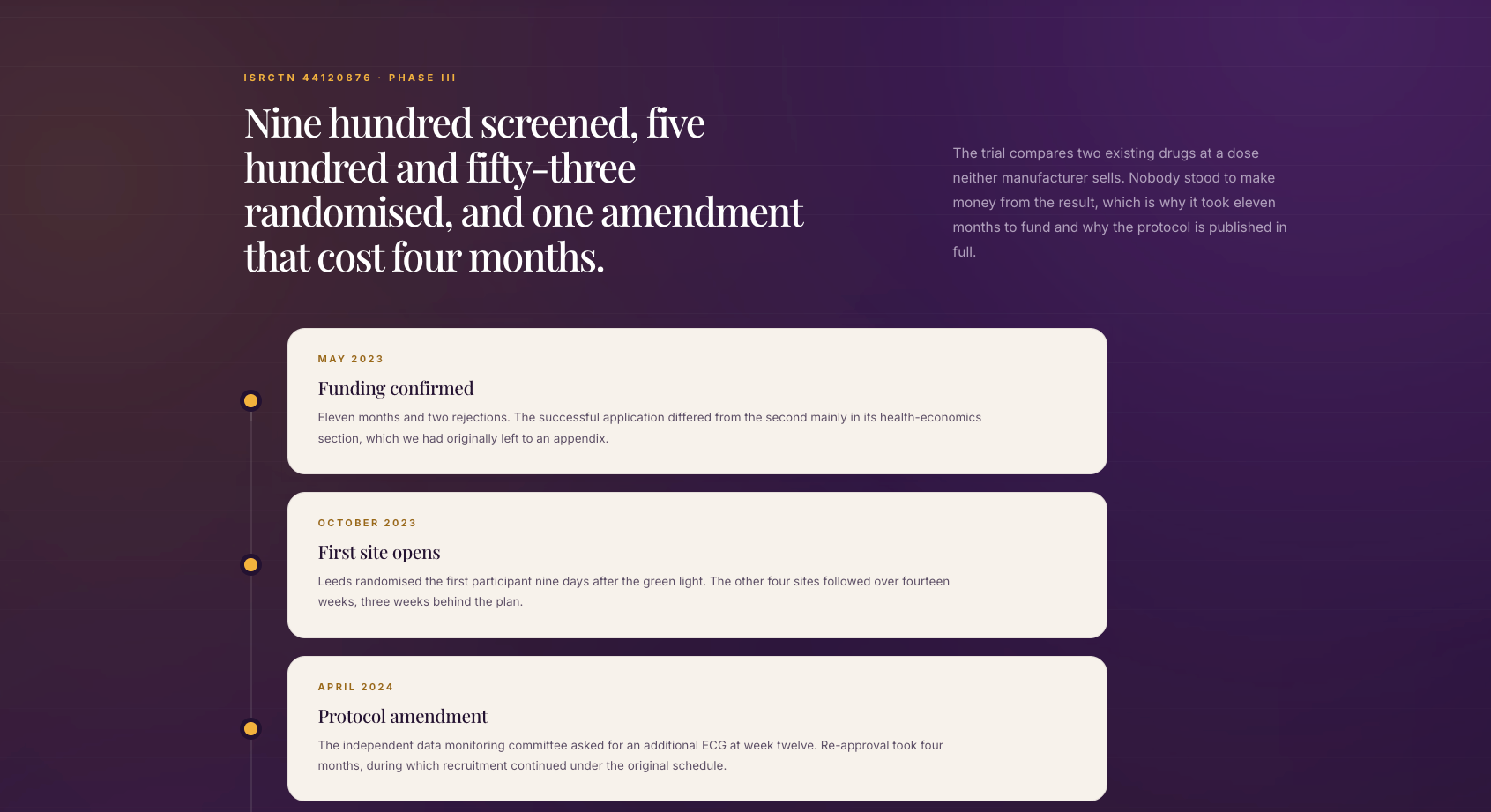
Use it for research milestones, funding rounds, or approval processes. The contrast between card and background does the work, so the cards need no border or shadow. To build it, use Horizontal Align set to Left, a light Cards background, small filled Points.
Open the Light Card Trial demo
8. Horizontal Year Timeline
The second horizontal design puts large years above the line (1982, 1986, 1989) with a short card under each. The demo is sixteen years of lighthouse automation, and it pairs the timeline with a before and after table.
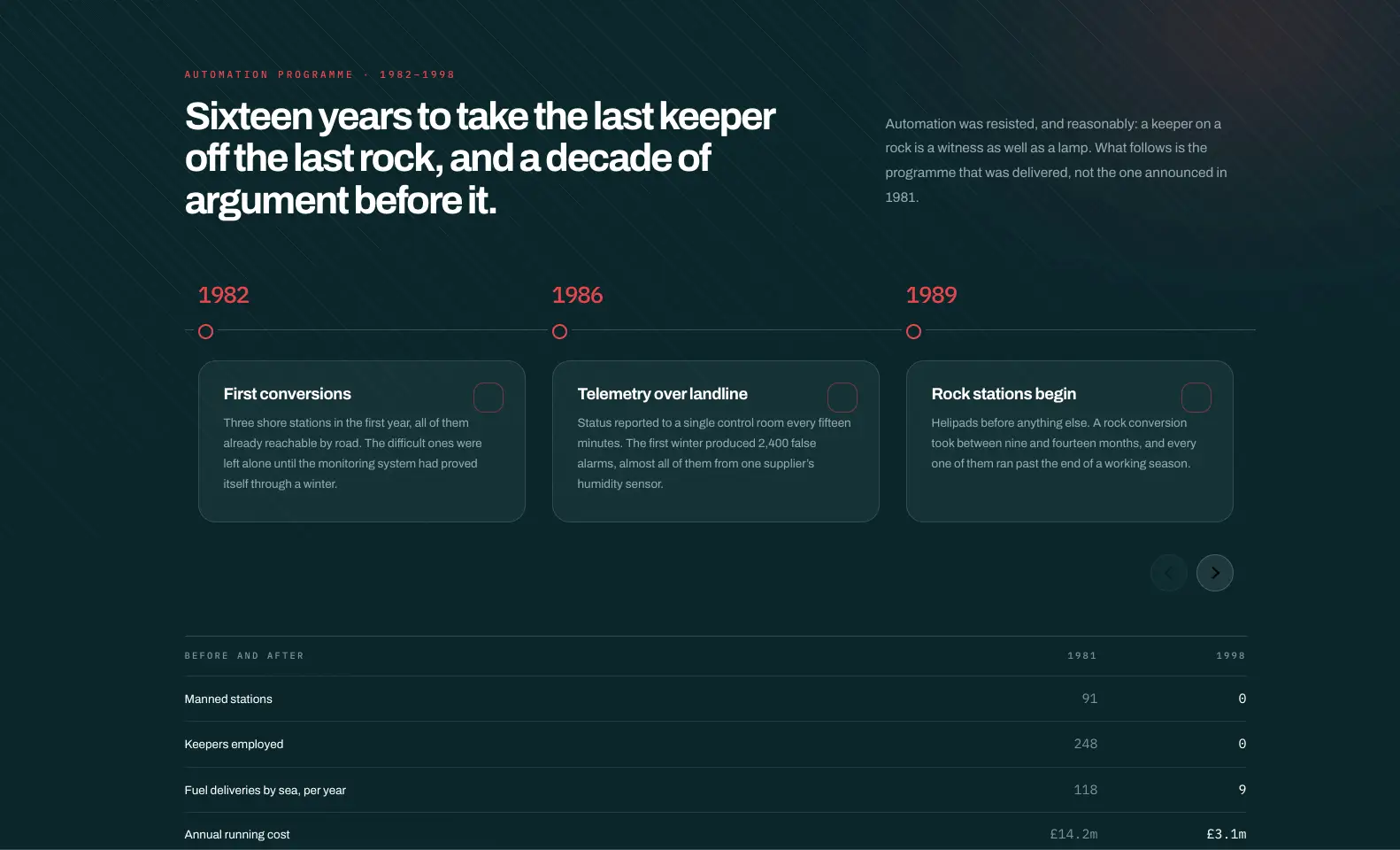
Use it for company history by year, product generations, or anniversaries. The year is the biggest text on screen, which is what people look for in a history. To build it, use Horizontal Timeline, a Custom Label holding only the year, and large Dates typography in an accent color.
Want all sixteen? The demo viewer on the Elementor Timeline widget page holds these eight plus eight more, including a changelog, a roadmap and an event agenda.
How to use these as templates
You can rebuild any of these Elementor timeline templates in a few minutes, because the differences are all in the settings. For a full page to put one on, see the Elementor page templates.
- Add the Timeline widget and enter your own items: a date or label, a heading, a short description and an optional image.
- Choose the layout. Timeline Style picks vertical or horizontal, and Style, Layout, Horizontal Align picks Left, Center, Overlay or Right.
- Match the colors. Set the page or container background first, then Cards, Dates, Line and Points.
- Check the Focused state. Each example gives the entry in view a slightly different card or point so the reader keeps their place.
- Look at it on a phone. Vertical timelines move to one side on small screens, and horizontal ones show fewer cards.
Showing posts on a timeline has its own guide: how to show blog posts on a timeline in Elementor.
Also read: 20 Elementor slider templates, which include a timeline slider with real spacing between years.
Frequently asked questions
Does Elementor come with timeline templates?
No. Elementor and Elementor Pro have no timeline widget, so their template library has no true timeline either. Timeline templates for Elementor always rely on an addon widget or on custom CSS.
Which timeline layout is best for a company history?
An alternating vertical timeline suits a long history with photos, such as example 6. For a short history with five or six main years, a horizontal year timeline like example 8 takes less space.
Can I use these timeline designs with any theme?
Yes. The designs are made in the Elementor editor with the Timeline widget’s own style controls, so they do not depend on a theme. Fonts follow your site’s global typography unless you set them in the widget.
How many items should a timeline have?
Four to eight is a comfortable range. Under four, a simple list is clearer. Over ten, split the timeline by year or decade, or shorten each card to a heading and one line.
Final thoughts
These eight Elementor timeline examples cover the layouts most sites need: two alternating designs, three one-sided ones, a single-column schedule and two horizontal carousels. They all come from one widget, and the differences sit in four Style sections: Cards, Dates, Line and Points.
Open the demos, pick the closest one, and build your version with the Timeline widget.
Related reading
