

Key Takeaways
- An off-canvas menu is a navigation panel that sits outside the visible page and slides in from an edge when a visitor clicks a button, then closes with a close icon, an overlay click or the Esc key.
- Free Elementor has no off-canvas widget; Elementor Pro added an Off-Canvas widget in version 3.22, and it needs the Flexbox Containers and Nested Elements features switched on before it works.
- The Elementor Pro Off-Canvas widget builds its content inside the widget, can be opened by any button or link through the Off-Canvas action, and positions the panel with Start, Center or End on each axis.
- The Master Addons Pro Off-Canvas Content widget opens a saved Elementor template from its own button, with Right, Left, Top, Bottom, Middle or Relative positions and a Cover or Push entrance type.
- The Hamburger layout of the Master Addons Nav Menu widget, labeled Pro, has an Offcanvas type with a Left or Right position and a Canvas Width, so a menu-only panel needs no saved template.
An Elementor off canvas menu is a navigation panel hidden beyond the edge of the screen until a visitor clicks a hamburger or a button, at which point it slides in over the page or pushes the page aside. Free Elementor has no widget for it. Elementor Pro has had one since version 3.22, and addons such as Master Addons add their own.
This guide builds the menu three ways: with the Elementor Pro Off-Canvas widget, with a popup template, and with the Master Addons Pro Off-Canvas Content widget, plus the Nav Menu widget’s Hamburger layout when all you need is the menu. Each method lists the plan it needs, and a decision table at the end compares them.
Table of Contents
What an off-canvas menu is
An off-canvas menu is a menu that lives off the canvas, outside the part of the page a visitor can see. It stays hidden until something opens it, usually a hamburger icon in the header, and then it slides in from the left, the right, the top or the bottom. The page behind it is either covered, with an overlay dimming the rest of the screen, or pushed sideways to make room. Closing it works the same way on most sites: a close icon, a click on the overlay, or the Esc key.
The pattern comes from mobile apps, where there is no room for a row of links. On a WordPress site the desktop header keeps its normal menu and phones get one icon that opens the full list. The panel can hold more than links; a logo, a phone number and a button fit in the same space, which is why the examples below include a contact panel and a promo bar. A popup differs in where it sits: in the middle of the screen as an interruption, while an off-canvas panel is anchored to an edge. The off-canvas vs popup comparison covers that choice, and the side menu guide covers a panel that stays open as a sidebar.
Does Elementor have an off-canvas menu?
Free Elementor doesn’t. The free plugin has no off-canvas module, and searching “off canvas” in the editor panel returns nothing. Elementor Pro added its own Off-Canvas widget in Pro 3.22, and it only works once two features are switched on in Elementor’s settings: Flexbox Containers and Nested Elements. A site still on sections and columns needs to move to containers first. That leaves the native widget with Elementor Pro, a popup from Elementor Pro or Master Addons, or the Master Addons Pro Off-Canvas Content widget.
Method 1: the Elementor Pro Off-Canvas widget
The Elementor Pro Off-Canvas widget holds the panel content inside itself and opens from any button or link on the page. The trigger is separate from the panel, so a hamburger icon in the header and a text link in the footer can open the same panel.
- Switch on the two features. In Elementor’s settings, turn on Flexbox Containers and Nested Elements.
- Add the widget. Edit your header template, search for Off-Canvas in the Elementor Pro widgets and drag it in. The content is built inside the widget in Editing Mode, so drop a Nav Menu, a logo and anything else the panel should hold straight into it.
- Position it. The widget positions the panel with horizontal and vertical Start, Center or End. Horizontal Start gives a left panel, End a right panel, and Center on both axes a centered layer.
- Add a trigger. Select the button or icon that should open the panel and give its link the Off-Canvas action, pointing at the widget.
- Set the animations and closing. The widget has entrance and exit animations. Overlay-click and Esc closing can each be turned off, and it can lock page scroll while the panel is open.
Elementor’s own Off-Canvas widget help page covers every control. The widget has no built-in header with a title and close icon, so you add a close button yourself, and “open by default” is not a widget setting. The Elementor header templates post has header layouts with a hamburger slot ready for this.
Method 2: a popup used as a menu
A popup is the second route: build a popup template with a menu inside it and make a header icon open it. With Elementor Pro, create the popup, add a Nav Menu widget set to a vertical layout, and set its display conditions. Elementor Pro popups can be opened from any link or button, so the hamburger icon gets a link that opens the popup. The full-screen menu guide uses this method for a layer over the whole page.
With the Master Addons Popup Builder, the popup is set up in the Master Addons admin screens, with 25 popup templates to start from and display conditions in the admin dialog. Display As offers Popup Modal, Notification Bar and Fullscreen; pick Fullscreen for a layer that covers the page or Popup Modal for a smaller box. Of the seven triggers (On Page Load, On Click, On Scroll, Scroll to Element, Exit Intent, After Inactivity and Custom), a menu needs On Click, which is a Pro trigger. On Page Load is the only one outside Pro, and it opens the popup by itself on every page load, which is no use for a menu. The Popup Trigger widget can close a popup but can’t open one.
The popup method has no push option, because a popup sits over the page and never moves it. You also manage which pages show the menu in the popup’s conditions, not in the header template.
Method 3: the Master Addons Off-Canvas Content widget
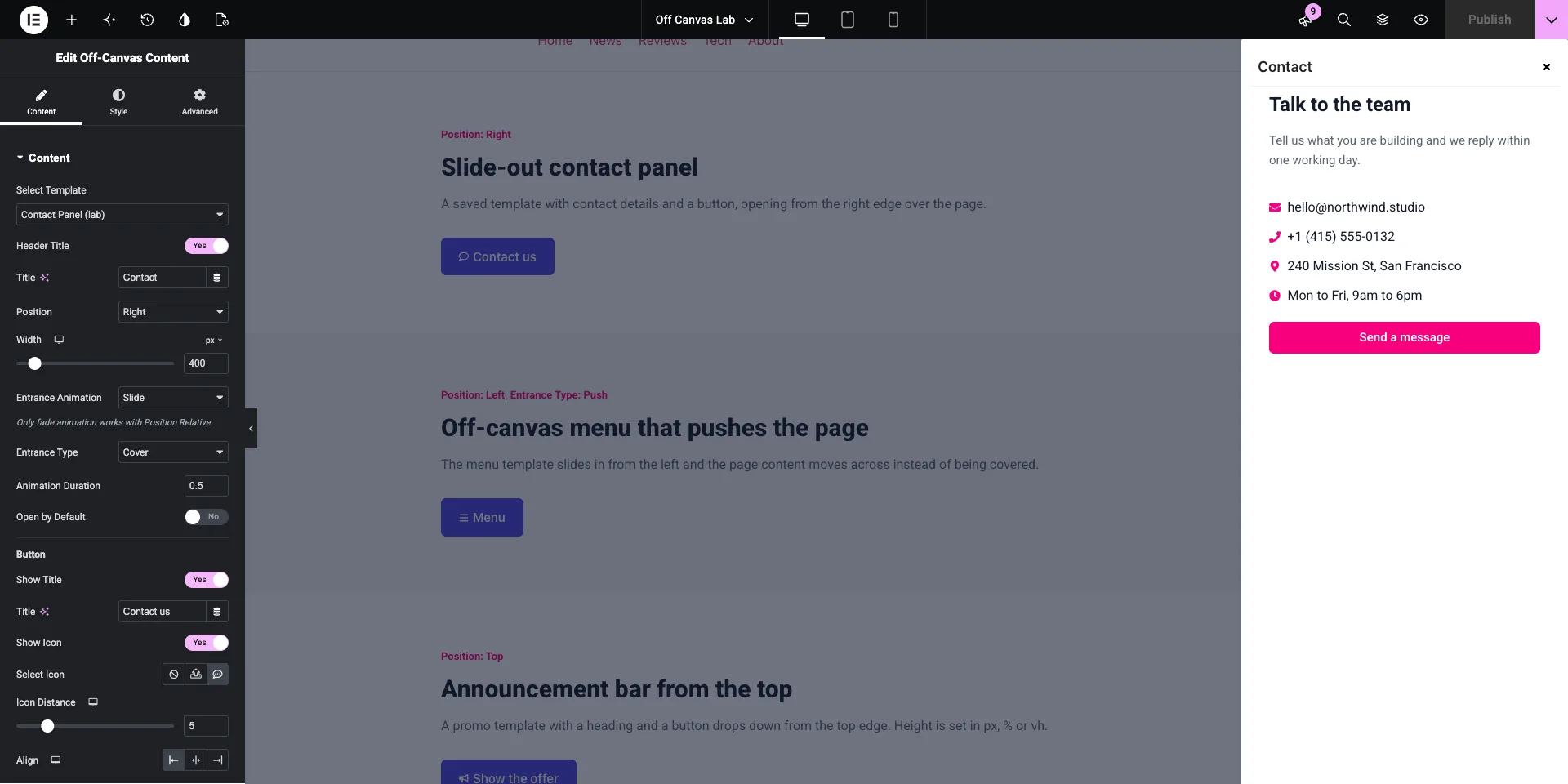
The Off-Canvas Content widget is a Master Addons Pro widget that places a button on the page and opens a panel showing a saved Elementor template. The menu is built once as a template and reused on any page or header that carries the button. The steps match Master Addons 3.2.6 with Elementor 4.3.5.
- Save the menu as a template. Go to Templates, create a saved template and open it in Elementor. Add the Master Addons Nav Menu widget, set its Layout to Vertical and pick your WordPress menu. Add a logo, contact lines and a button if the panel should hold more than links, then publish.
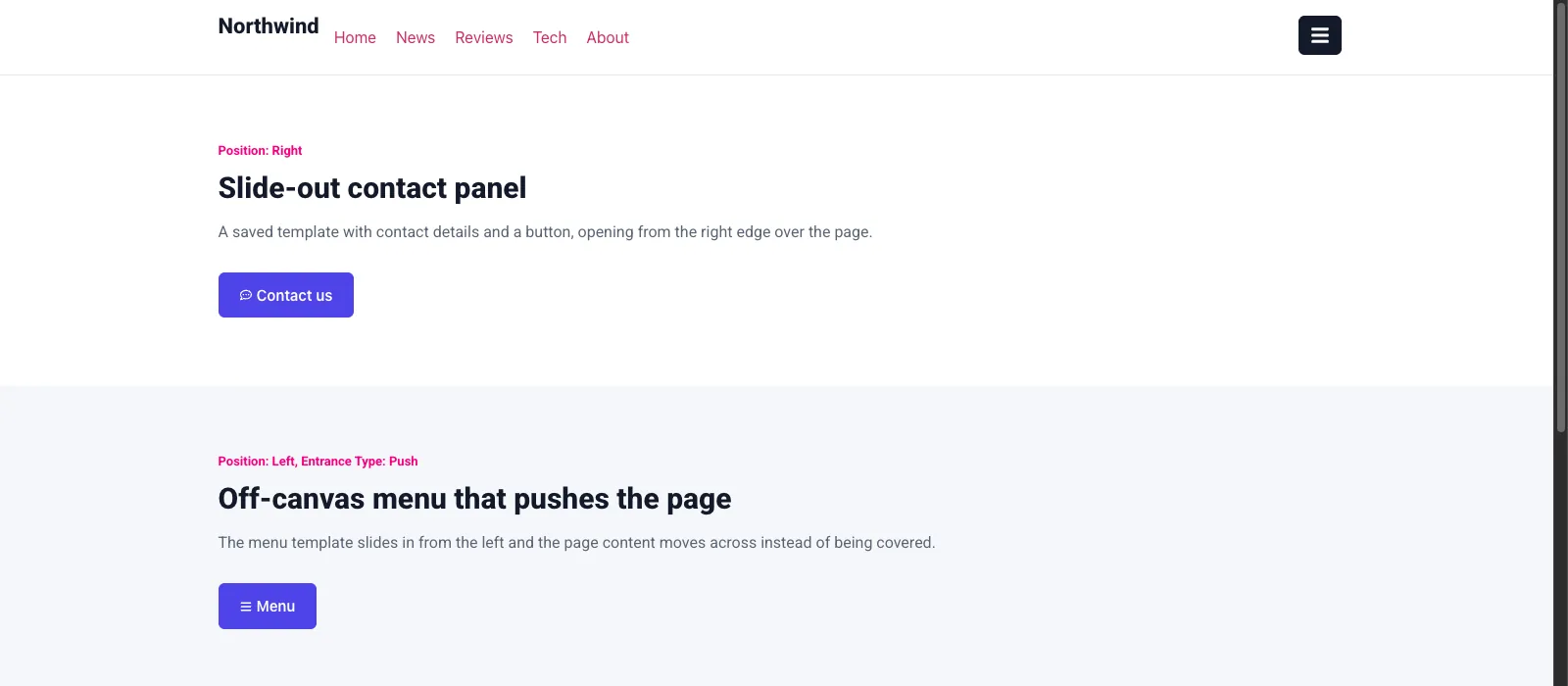
- Add the widget to the header. Edit the header template (the Master Addons Theme Builder header builder doesn’t need Pro, so the widget is the only Pro part here). Search for Off-Canvas Content and drag it where the hamburger should sit.
- Select the template. In the Content tab, open Select Template and choose the menu template. The dropdown lists every item in the Elementor library except kits, so page, section and container templates all appear.
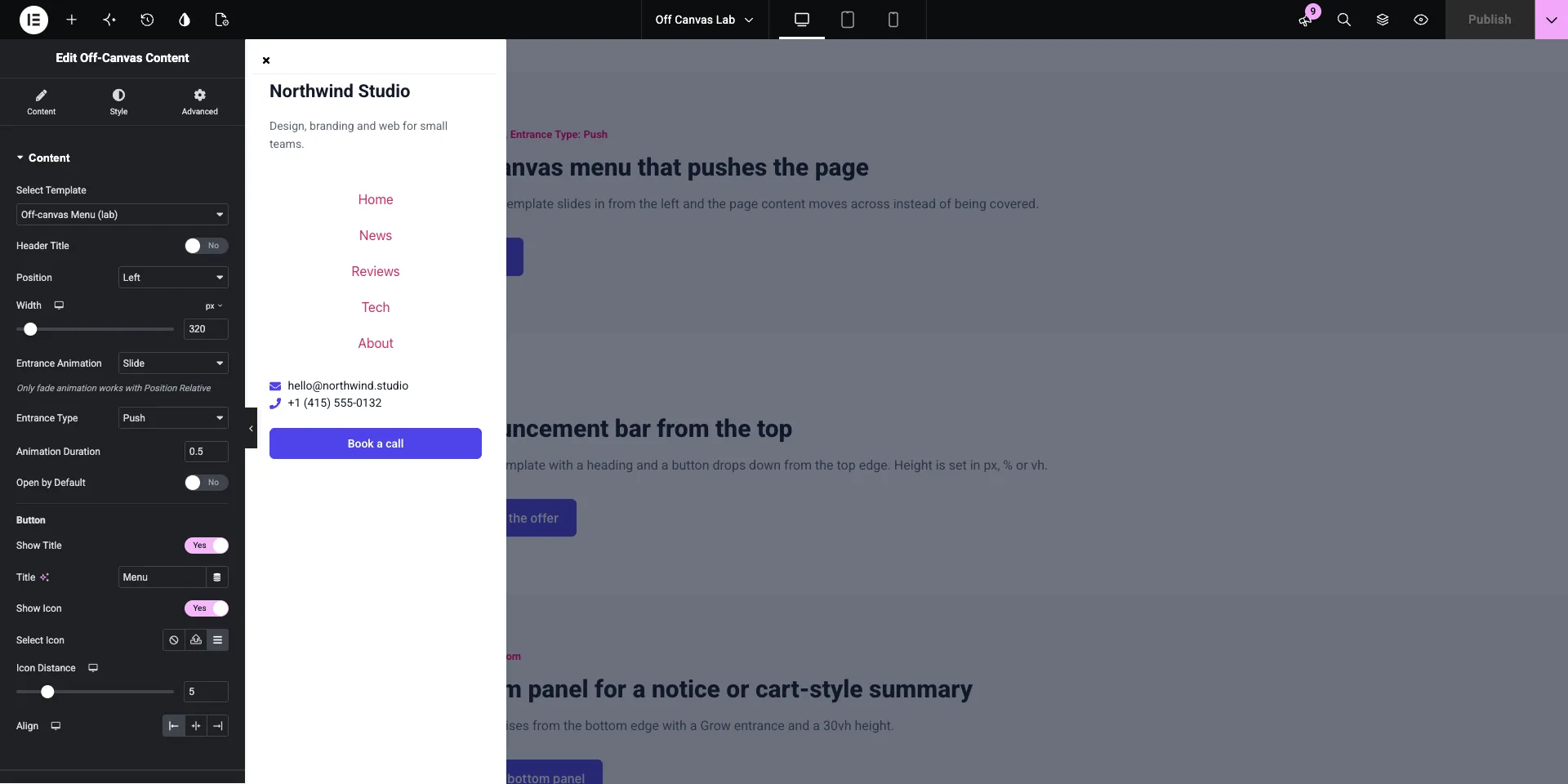
- Set the position and width. Position defaults to Right; pick Left or Right. Width defaults to 300 px and takes px, % or vw. About 320 px suits a menu with a logo and a button, and the value is responsive.
- Choose the entrance. Entrance Animation offers Fade (the default), Slide and Grow; Slide is the usual pick for a menu. Entrance Type offers Cover (the default) or Push and shows only for Top, Left and Right. Animation Duration defaults to 0.6 seconds.
- Make the button a hamburger. In the Button group, turn Show Title off and keep Show Icon on with the default bars icon. Header Title is on by default with the text “Offcanvas”; change it or switch it off so the template’s own logo leads.
- Hide it on desktop if needed. If the desktop header keeps its horizontal menu, use Elementor’s responsive visibility in the Advanced tab to show the widget on tablet and mobile only.
Cover or Push
Cover slides the panel over the page and dims what is behind it. Push moves the page content sideways (left or right) or down (top) by the panel size, so nothing is covered. When people ask for a menu that shifts the page, Push is the setting they want.
How it closes and what it cannot do
Visitors close the panel with the X icon, a click on the overlay or the Esc key, and Enter or Space on the focused close control also closes it. While a panel is open, a body class locks page scroll, and the button carries aria-expanded and aria-controls.
Keep three limits in mind. The panel opens only from the widget’s own button, so there is no option to open it from an existing header icon, a menu link or a CSS selector; if your header already has a hamburger from another widget, replace it with this one. The template is rendered into the page on load and hidden, not loaded on click, so keep the menu template light. And there is no WordPress menu picker inside the widget; the menu goes into the template first. The Off-Canvas Content documentation lists every control in the Content and Style tabs.
Want to try the panel before building the template? The Off-Canvas Content widget page has a live demo, the full comparison with the Elementor Pro widget and the setup steps for a menu.
The Nav Menu Hamburger layout for a menu-only panel
If the panel will hold nothing except the menu, the Master Addons Nav Menu widget gets there without a saved template. Its Layout control offers Horizontal, Vertical and Hamburger. The Hamburger layout is labeled Pro in the panel and has three types: Default, which drops the menu in under the icon, plus Popup and Offcanvas. Offcanvas gives you a Left or Right position and a Canvas Width setting. Pick Offcanvas, set the width, and the widget draws both the icon and the panel from the WordPress menu you selected.
The catch is that the Hamburger Offcanvas type shows the menu and nothing else. If the panel should also show a logo, a phone line or a button, the Off-Canvas Content widget with a template is the right tool, and the Vertical layout of the same Nav Menu widget, with its Normal, Toggle, Accordion and Side types, goes inside that template.
For a mega menu, the Master Addons Mega Menu extension has off-canvas, dropdown and full-screen modes on mobile. On free Elementor with no Pro plan from anyone, the nav menu without Elementor Pro post covers the menu widgets that work there, and the hamburger menu post compares the four mobile approaches side by side.
Off-canvas menu examples
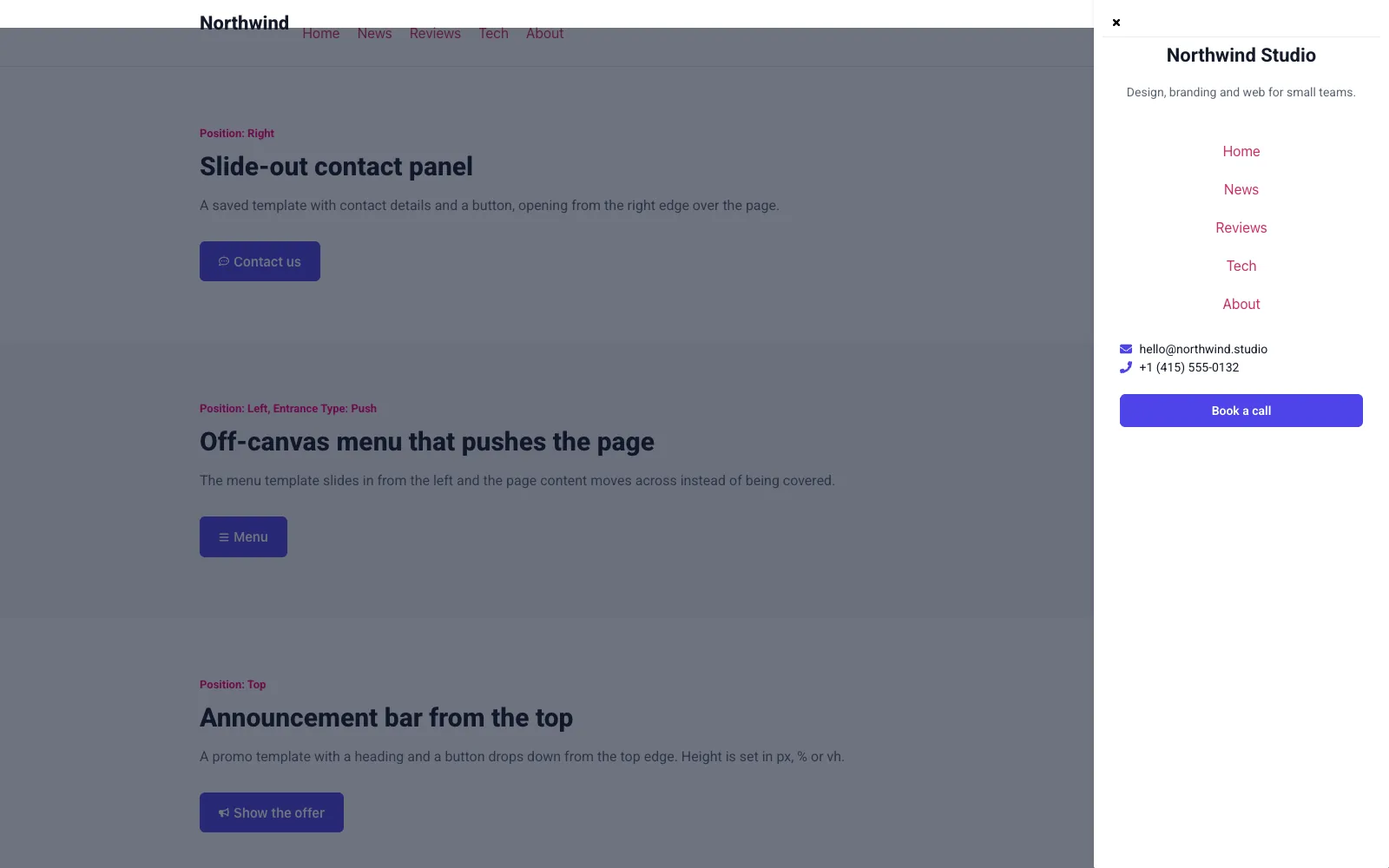
The screenshots come from a lab page for a small design studio called Northwind Studio, with one saved template and one Off-Canvas Content widget per scenario.
Mobile menu with push
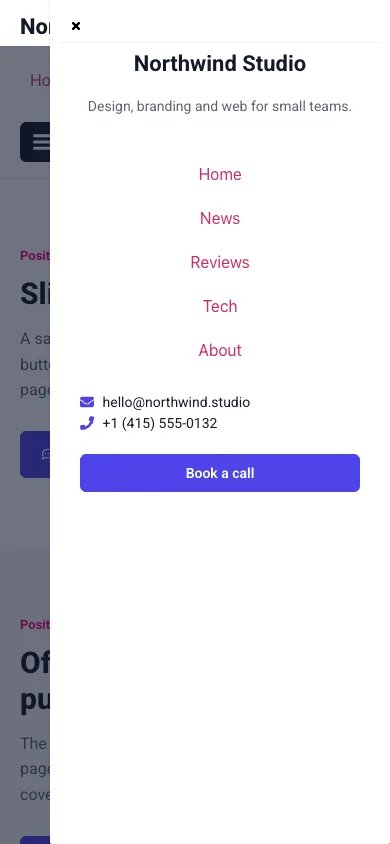
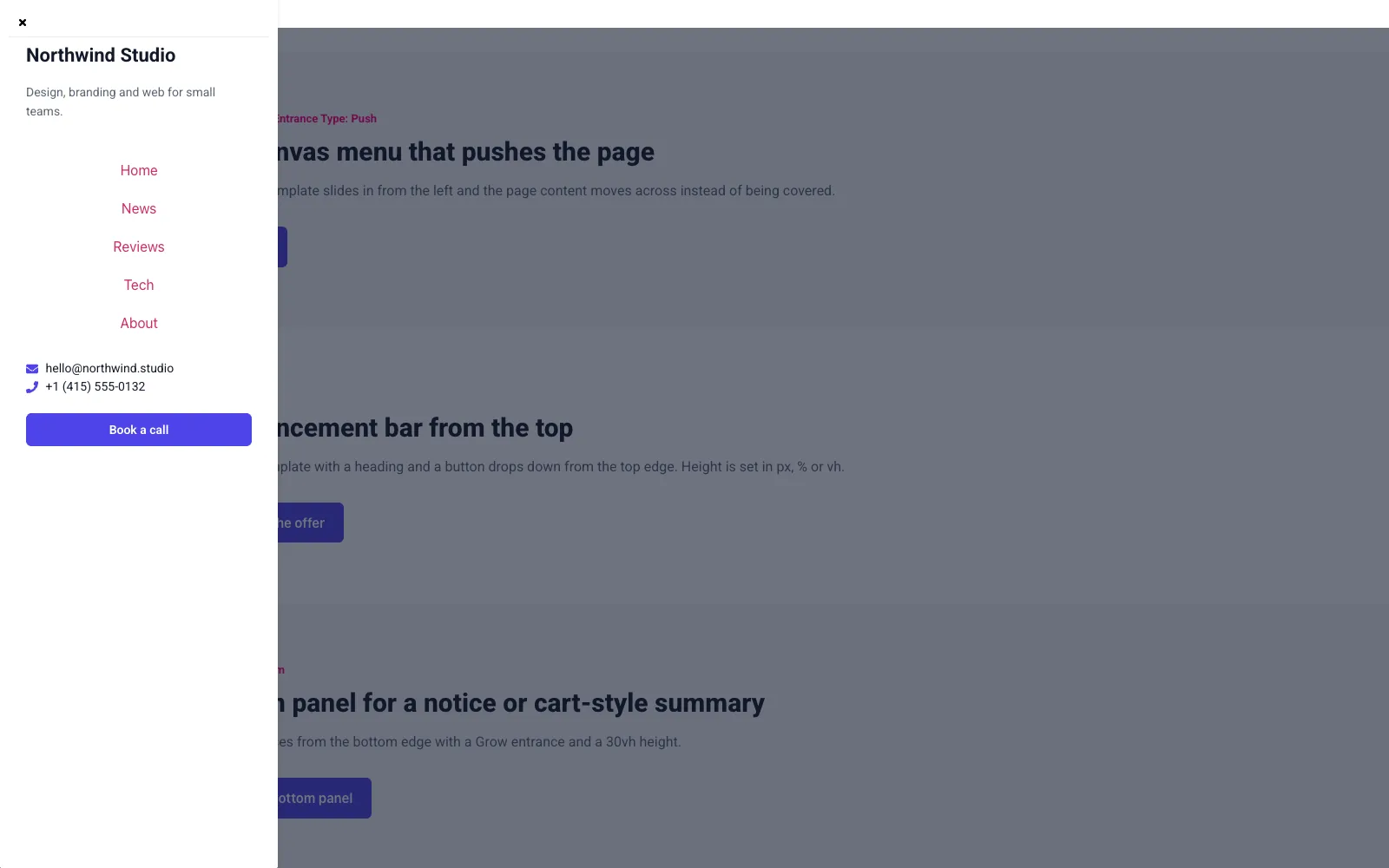
A 320 px menu template on the Left with Entrance Type Push. The template holds the studio name, a one-line description, five menu links from the Nav Menu widget set to Vertical, an email, a phone number and a Book a call button. When it opens, the page slides right by 320 px.
Contact panel
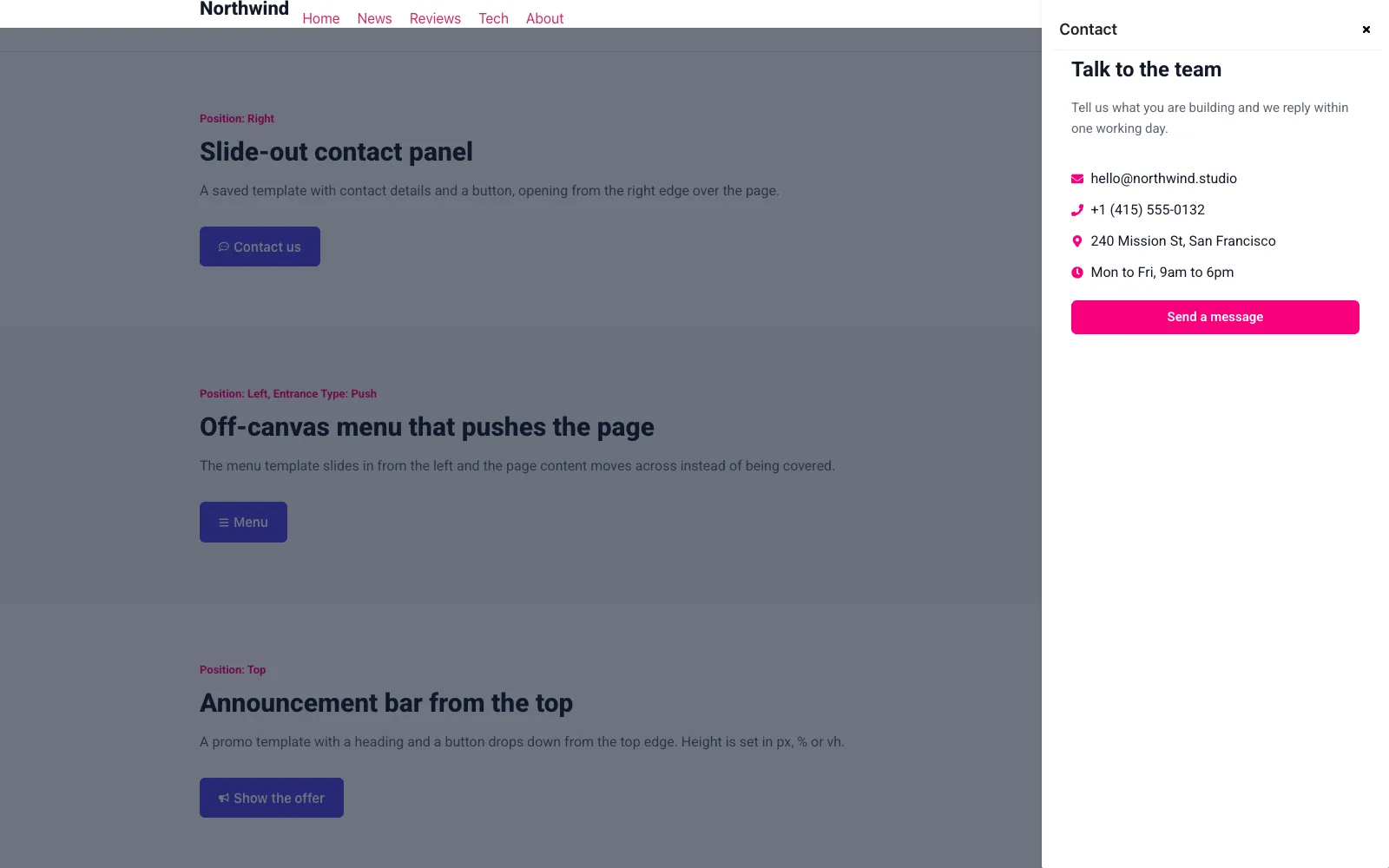
A 400 px panel on the Right with Cover, Slide and a 0.5 second duration, opened from a “Contact us” text button instead of a hamburger. Header Title is on with the text “Contact”, and the template holds a heading, a line of copy, four contact lines with icons and a Send a message button.
Promo bar
A 110 px announcement bar across the Top with the text “Autumn sale: 30% off every plan until Sunday” and a See the deals button. Top and Bottom positions take a Height in px, % or vh instead of a width, and Top also supports Push, so the bar can push the page down instead of sitting on top of the header.
Full-screen navigation
The Middle position with a Width of 100vw, a Height of 100vh and the Fade entrance turns the menu template into a layer over the whole page, with the five links centered and a contact line below. The widget’s base CSS caps the panel at 90% of the viewport width and height, so a Middle panel set to 100vw by 100vh renders at 90%. One Custom CSS rule on the page fixes it: .jltma-offcanvas-wrap .jltma-offcanvas-content{max-width:100% !important;max-height:100% !important}. The full-screen menu guide builds this one step by step.
Which method should you use?
Two things decide it: the plan you already pay for and what should open the panel.
| Factor | Elementor Pro Off-Canvas widget | Popup used as a menu | Master Addons Off-Canvas Content |
|---|---|---|---|
| Plan needed | Elementor Pro 3.22 or later, with Flexbox Containers and Nested Elements on | Elementor Pro, or Master Addons Pro for the Popup Builder’s On Click trigger | Master Addons Pro |
| Where the content lives | Built inside the widget in Editing Mode | A popup template | A saved Elementor template (page, section or container) |
| What opens it | Any button or link through the Off-Canvas action | Any link or button (Elementor Pro) or the On Click trigger (Master Addons Pro) | The widget’s own button only |
| Push option | Entrance and exit animations only | No, the popup overlays the page | Yes, for the Top, Left and Right positions |
| Mobile | Show the trigger per device with responsive visibility | Display conditions decide which pages carry it | Responsive Width, plus responsive visibility on the widget |
Elementor Pro wins when any link on the page should open the panel or when you want exit animations. A popup fits when you already run one builder and want display conditions per page. Master Addons Off-Canvas Content fits when one template should appear behind a ready-made button on many pages, when you want Push, or when the panel holds more than a menu. The off-canvas widget roundup covers the other addons that ship one.
Frequently asked questions
What is an off-canvas menu in WordPress?
An off-canvas menu is a navigation panel hidden beyond the edge of the screen until a visitor clicks a button, usually a hamburger icon. It slides in from the left, right, top or bottom, covering the page with an overlay or pushing it aside, and closes with a close icon, an overlay click or the Esc key.
Does free Elementor have an off-canvas menu?
No. The free Elementor plugin has no off-canvas module. Elementor Pro added an Off-Canvas widget in version 3.22, and it needs the Flexbox Containers and Nested Elements features switched on. Addons such as Master Addons add their own off-canvas widget in their Pro plans.
Can I open the Master Addons off-canvas panel from my own header icon?
No. The Off-Canvas Content widget opens its panel only from its own button, so there is no option to attach it to an existing icon, a menu link or a CSS selector. Replace the old icon with the widget’s button, set Show Title off and Show Icon on, and style it in the Style tab.
How do I make the off-canvas menu push the page instead of covering it?
In the Off-Canvas Content widget, set Entrance Type to Push. The page content then shifts left, right or down by the panel size. Push shows only for the Top, Left and Right positions; Cover, the default, slides the panel over the page and dims it with the overlay.
Which is better for a mobile menu, off-canvas or popup?
An off-canvas panel anchored to an edge reads as navigation and can push the page, so it is the usual choice for a mobile menu. A popup opens in the center, carries its own display conditions and can’t push, which suits a menu that should appear only on certain pages.
Final thoughts
Free Elementor has no off-canvas menu, so your first choice is the plan. Elementor Pro 3.22 and later ships an Off-Canvas widget that any button or link can open, once Flexbox Containers and Nested Elements are on. A popup from Elementor Pro or the Master Addons Popup Builder, with its Pro On Click trigger, works as a menu on any page. The Master Addons Pro Off-Canvas Content widget opens a saved template from its own button, with six positions, a width of about 320 px for a menu, Slide for the entrance and Cover or Push for the page behind it. Build the template with the Nav Menu widget set to Vertical, drop the widget into the header, and the same panel opens on every page. The Off-Canvas Content widget page has the live demo if you want to see it first.
Related reading
