


Key Takeaways
- Elementor has no one-click button to duplicate a page, so the built-in route is to save the page as a template and insert that template into a new page.
- The Master Addons Post/Page Duplicator adds an MA Duplicator link to every row on the WordPress Pages screen and creates the copy as a draft named with the original page ID.
- Copy All Content in the Elementor right-click menu copies every section of a page but leaves out page settings such as the page layout and the title.
- To duplicate an Elementor page on another website, export it from Templates, Saved Templates as a JSON file and import that file on the second site.
- An exported Elementor JSON file holds image URLs and not the image files, so the original site has to stay online while the second site imports it.
To duplicate a page in Elementor, either clone it from the WordPress Pages screen with a duplicator, or save it as a template and insert that template into a new page. Elementor does not ship a Duplicate Page button of its own, which is why this simple job sends so many people to a search engine.
There are four ways to do it, and one of them also carries a page to a different site. Every step was checked on Elementor 4.3.4 with WordPress 7.1 and Master Addons 3.2.3, and none of them need Elementor Pro.
Table of Contents
Which method should you use?
Use a duplicator when you want an exact copy on the same site, and a template or JSON file when the copy has to travel.
| Method | Best for | Copies page settings | Works across sites | Clicks |
|---|---|---|---|---|
| MA Duplicator link | An exact copy on the same site | Yes | No | 1 |
| Save as Template | A layout you will reuse many times | Yes, if you apply them on insert | Yes, through export | 6 |
| Copy All Content | Moving content into a page that already exists | No | Yes, with Paste from other site | 4 |
| JSON export and import | Copying a page to another website | Yes | Yes | 8 |
Method 1: Duplicate a page in one click
The fastest way to duplicate an Elementor page is a duplicate link on the WordPress Pages screen. WordPress and Elementor do not add one, so it comes from a plugin. Master Addons includes it as the Post/Page Duplicator extension.
- Go to Pages in your WordPress dashboard.
- Hover over the page you want to copy.
- Click MA Duplicator in the row of links under the title.

The list reloads with the copy at the top. It is saved as a draft and named after the original with its ID, for example “Cleanery Gallery – [Duplicated #1200]”. The Elementor layout, widgets and page settings come across, so the draft opens in the editor looking the same as the source.

Because the copy is a draft, nothing changes on the live site until you publish it. Rename it and set a new URL slug first. The same link appears on posts, and the extension also duplicates WooCommerce products.
Want the one-click version? The Post/Page Duplicator extension in Master Addons adds the duplicate link to pages, posts and products.
Method 2: Save the page as a template
Saving the page as a template is the method Elementor itself documents, and it needs no extra plugin. It takes more clicks, but the template stays in your library, so you can stamp out the same page again next month.
- Open the page with Edit with Elementor.
- Click the arrow next to the Publish button in the top bar and choose Save as Template.

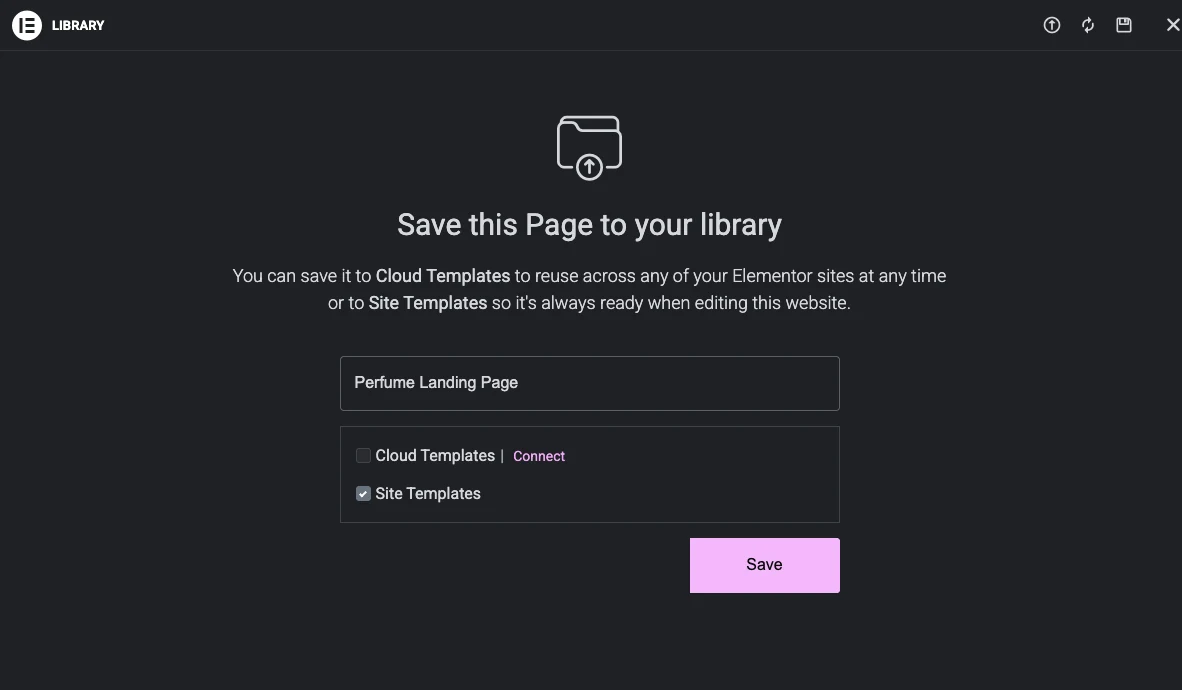
- Name the template, leave Site Templates ticked and click Save.
- Create a new page under Pages, Add Page and open it in Elementor.
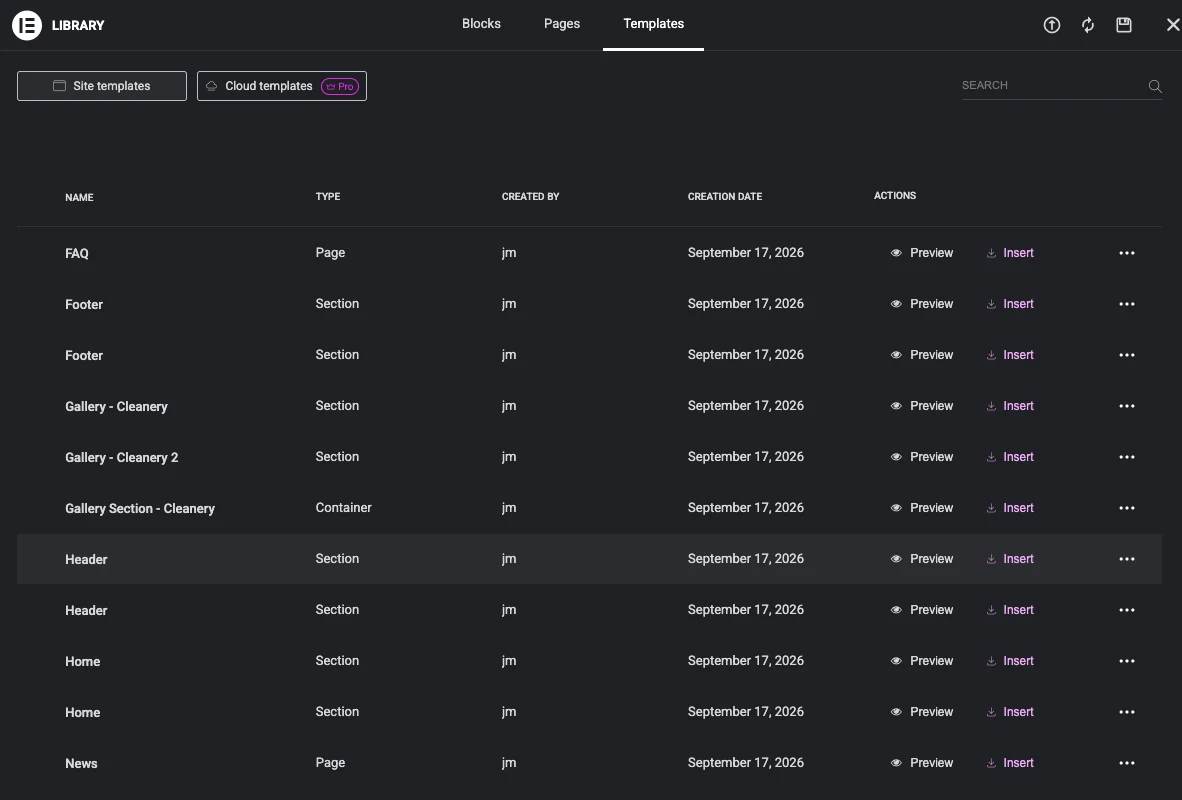
- Click the folder icon in the empty drop area to open the library, then switch to the Templates tab.
- Find your template and click Insert. When Elementor asks whether to apply the page settings too, choose yes if you want the same layout and background.
The full walkthrough, including saving a single section, is in our guide on how to save an Elementor page as a template. Elementor’s own steps are in its help article on duplicating a page.
Method 3: Copy All Content and paste
Copy All Content is the quickest built-in way to move a whole layout into a page that already exists. It skips the library, so nothing is left behind to tidy up.
- Open the source page in Elementor and scroll to the bottom.
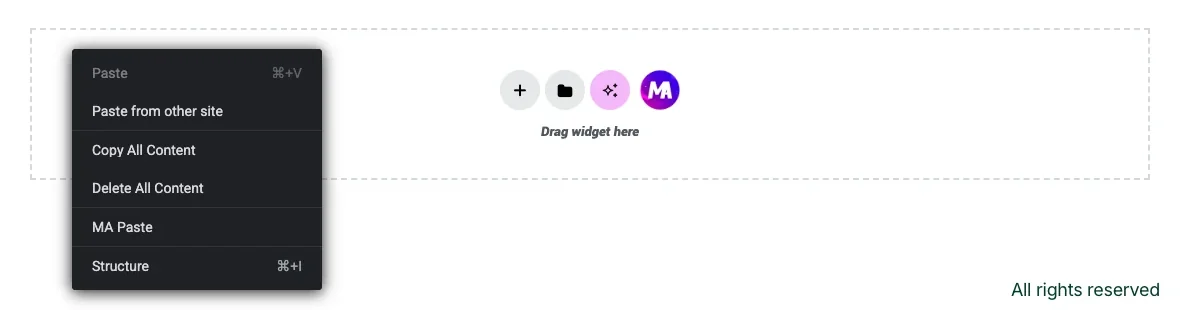
- Right-click the dashed drop area that holds the plus and folder icons.
- Choose Copy All Content.
- Open the target page in Elementor, right-click its drop area and choose Paste.
The copy holds sections and widgets only, so the page layout, the hidden title setting and any page-level custom CSS stay behind. The clipboard also lives in your browser, so paste before you close it.
If the pasted page shows your theme header where the original had none, the page layout did not come across. Set it again under Page Settings.
Method 4: Duplicate a page to another site
To copy an Elementor page to another website, export it as a JSON file and import the file on the second site. It works even when the two sites are on different hosts or logins.
- Save the page as a template (Method 2, steps 1 to 3).
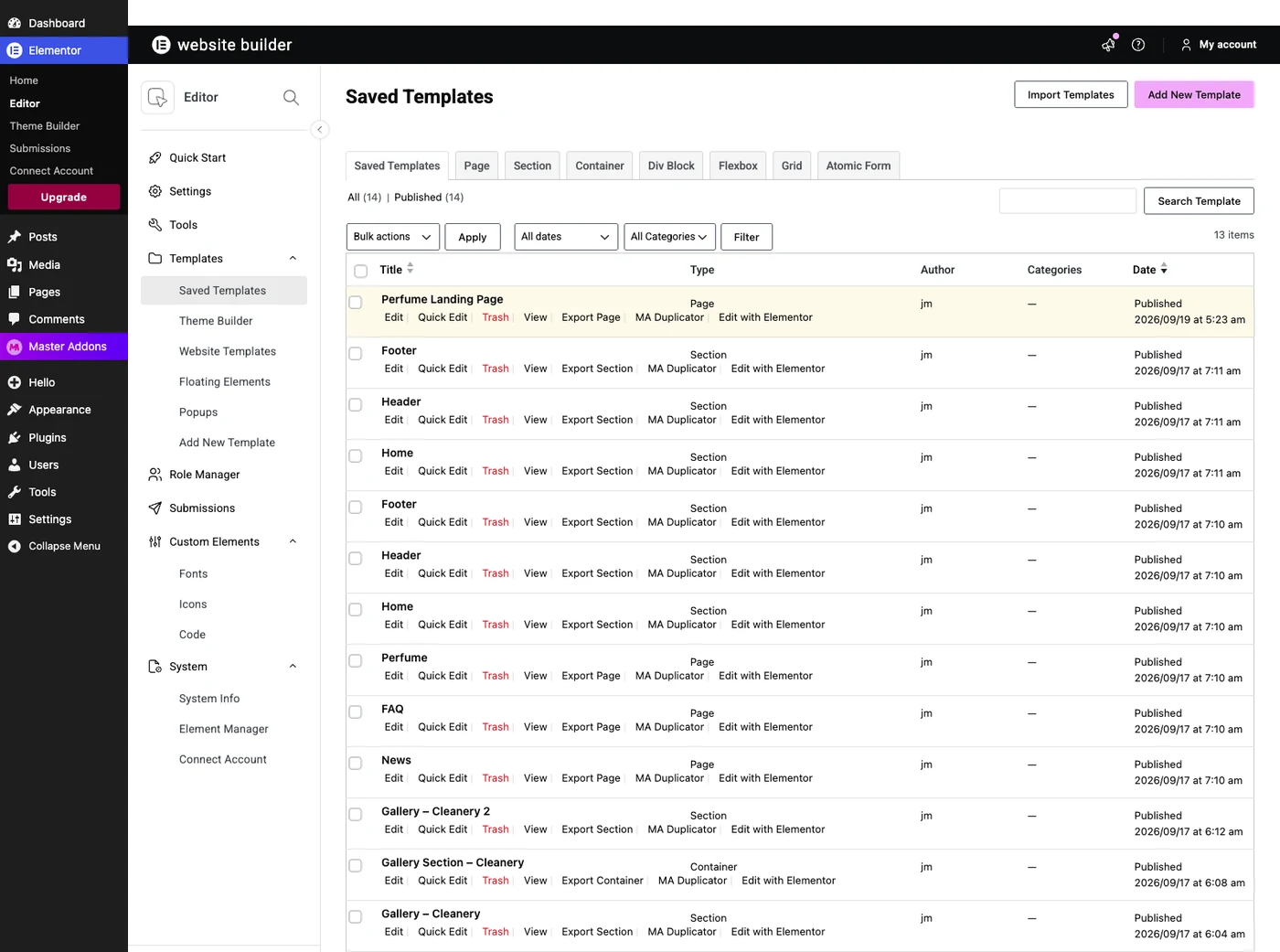
- In the dashboard, go to Templates, Saved Templates.
- Hover over the template and click Export Page. Your browser downloads a
.jsonfile.
- On the second site, open Templates, Saved Templates and click Import Templates.
- Choose the JSON file and click Import Now.
- Create a page, open the library, and insert the template from the Templates tab.
The JSON file stores the layout and the addresses of your images. The image files are not inside it. The second site downloads them from the first during import, so keep the original site online and public until the import finishes. Fonts and global colors come from the second site’s own settings, which is why a copied page can look slightly different at first.
For a quick one-off, the right-click menu also has Paste from other site. Copy a section or the whole page on site one, open site two in the same browser, right-click the drop area, choose Paste from other site and press Ctrl+V (Cmd+V on a Mac) when prompted.
Every import route is covered in how to import an Elementor template. To move the whole site, with header, footer and global styles, use the export tool under Elementor, Tools, Website Templates.
What to fix after you duplicate a page
A duplicated page is an exact copy, which causes trouble once it goes live. Two published pages with the same text compete with each other in search. Work through this list before you hit Publish.
- Title and slug. Remove the “[Duplicated #…]” part and write a URL that describes the new page.
- SEO title and meta description. Rewrite both in your SEO plugin, because a copied description points searchers at the wrong page.
- Headings and body text. Change the H1 and enough of the copy that the page has its own reason to exist.
- Forms and buttons. Check where each form sends its entries and where each button links.
- Display rules. If the original was targeted by a popup or a header rule, add the new page to that rule or it will go without.
When a template beats a duplicate
Duplicate when you need the same page again. Start from a template when you need a different page that only matches in style. Copying your About page to build a Pricing page means deleting most of what you just copied.
The Master Addons library has 211 Elementor page templates sorted by page type, so a pricing, contact or 404 page arrives already shaped for its job. For single bands such as a testimonial row, the Elementor section templates are a better fit, and the Elementor template kits bring a whole site in one style.
Frequently asked questions
Can I duplicate a page in Elementor?
Yes. Elementor has no Duplicate Page button, but you can save the page as a template and insert it into a new page, or right-click and use Copy All Content. A duplicator such as the Master Addons Post/Page Duplicator adds a one-click link on the Pages screen.
How do I copy an Elementor page to another site?
Save the page as a template, then go to Templates, Saved Templates and click Export Page to download a JSON file. On the other site, click Import Templates, upload the file and insert the template into a new page. Keep the first site online so the images can transfer.
How do I duplicate multiple Elementor pages at once?
Elementor has no bulk duplicate. For a handful of pages, click the duplicate link on each row. For a whole site, export it under Elementor, Tools, Website Templates and import the ZIP file on the new site, which copies pages and site settings together.
Does duplicating an Elementor page copy its SEO settings?
A page duplicator copies the post meta, which usually includes the SEO title and description, so rewrite both on the copy. Save as Template and Copy All Content carry the design only, so the new page starts with empty SEO fields.
Why is the duplicate link not showing on my pages?
The link comes from a plugin, so it disappears when the duplicator is switched off or your user role cannot edit pages. In Master Addons, check that the Post/Page Duplicator extension is enabled in the plugin settings, then reload the Pages screen.
Final thoughts
There are four ways to duplicate an Elementor page, and the right one depends on where the copy is going. The MA Duplicator link takes one click and makes a draft on the same site. Save as Template takes about six clicks and leaves you with a reusable layout. Copy All Content moves the sections without the page settings. A JSON export carries the page to another website.
Whichever you use, change the title, slug and SEO fields before publishing. If you would rather start from a finished design than copy an old one, browse the Elementor page templates.
Related reading
