


Key Takeaways
- Elementor and Elementor Pro have no news ticker widget; the nearest core options are the Loop Carousel on Pro plans and the Horizontal Scroll motion effect, and neither one reads your posts or a feed.
- An Elementor news ticker from the Master Addons News Ticker widget takes its headlines from a post query (any public post type, filtered by category or tag) or from an RSS feed URL.
- The News Ticker widget has three scroll types, Horizontal, Vertical and Horizontal Scroll, with Autoplay Interval, Pause on Hover and an Animation Speed between 100 and 5000 milliseconds.
- RSS mode fetches the feed on the server and caches the items for one hour, so visitors never wait on the other site, and Limit Posts caps the strip at 30 items.
- The usual home for a news ticker is a full-width container at the top of a header template built in the Master Addons Theme Builder, which puts the bar on every page.
- The News Ticker widget is part of Master Addons Pro; HT Mega ships a free ticker that reads posts only and scrolls vertically only.
An Elementor news ticker is a slim bar that moves your latest headlines across the page with a label such as Breaking News in front of them. Elementor does not ship one. The free plugin has nothing close, and Elementor Pro’s Loop Carousel and Horizontal Scroll effect can move content but can’t read posts or feeds, so you need an addon for the ticker.
This guide adds one with the News Ticker widget from Master Addons, first from your own blog posts and then from an RSS feed, with the settings shown at each step. After that comes the header placement most news sites use, a short list of what the widget can’t do yet, and a free alternative if you only need posts in a vertical strip.
Table of Contents
Why Elementor has no news ticker of its own
Neither Elementor nor Elementor Pro includes a ticker, marquee or breaking news widget. Search the editor panel for “ticker” and the list is empty. People usually try two core features instead, and both of them move content around without fetching a single headline.
The Loop Carousel, available on Elementor Pro plans, can show posts in a sliding row of cards. It has no one-line layout, no label slot and no continuous marquee motion. The Horizontal Scroll motion effect moves an element sideways as the visitor scrolls the page, so it stops the moment they stop scrolling. You can also build a pure CSS strip in an HTML widget, which the Elementor marquee guide covers, but that strip only shows text you type in.
A news ticker needs a source. It should read your newest posts or a feed, print each headline as a link, and update on its own when something new goes live. That’s what the News Ticker widget adds to the editor. It sits in the Master Addons group of widgets and is part of Master Addons Pro.
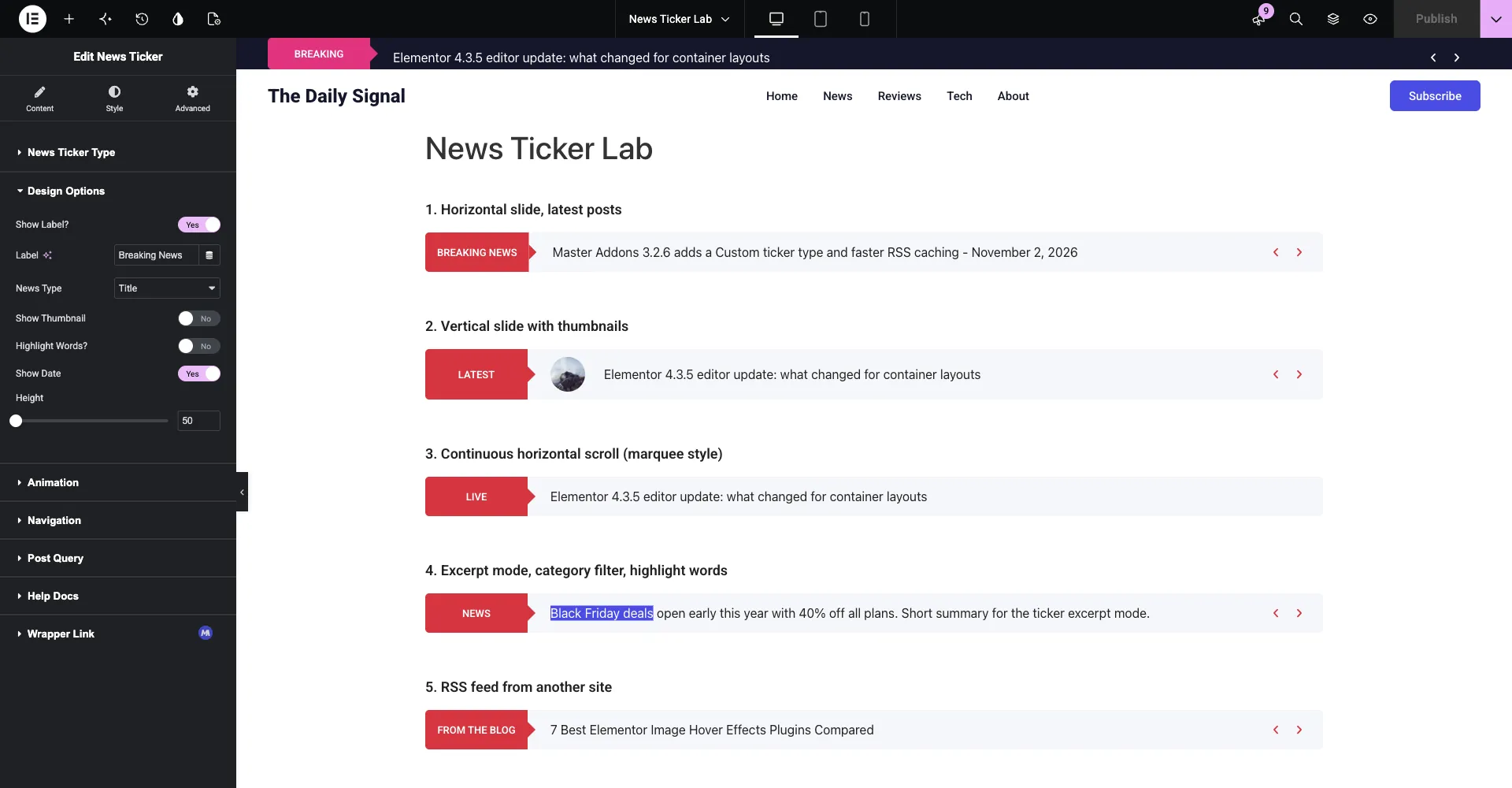
How to add a news ticker from your blog posts
A post ticker takes about five minutes. Install and activate Master Addons with the Pro plugin, open the page in Elementor, and follow the steps. The settings paths below match the widget panel in Master Addons 3.2.6.
- Add the widget. In the editor panel, search for News Ticker and drag it into a full-width container where the bar should sit, for example straight under the header or above a post grid.
- Keep the type on Content. Open News Ticker Type and leave Ticker Type set to Content. The RSS Feed option in the same dropdown is covered in the next section.
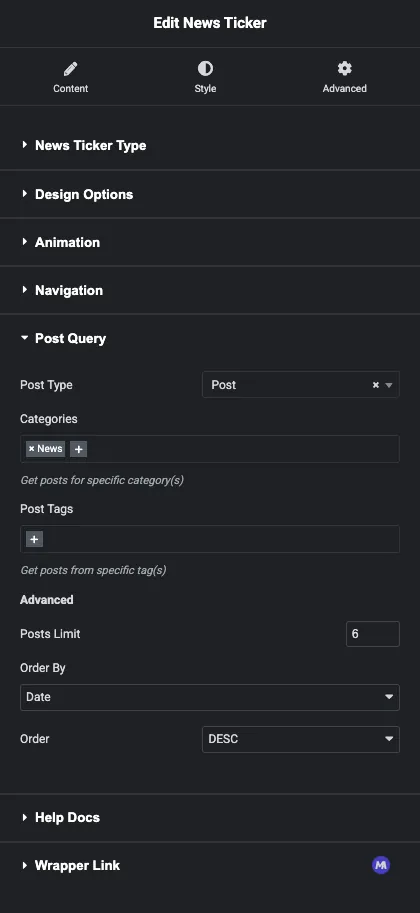
- Pick the posts. Open Post Query. Post Type is set to Post by default and lists every public post type on the site, so a shop can run product headlines. Choose the Categories or Post Tags the bar should pull from, set Posts Limit (default 5), then Order By date, title or comment count and the order direction.
- Set the label and the text. Open Design Options. Show Label is on and reads Breaking News; change the text to Latest, Live or whatever fits. Set News Type to Title or Excerpt, and switch on Show Thumbnail or Show Date if you want them beside each headline. Height starts at 50 px.
- Choose how it moves. Under Animation, Scroll Type offers Horizontal, Vertical and Horizontal Scroll. Leave Autoplay on, set the Autoplay Interval (3000 ms by default) and keep Pause on Hover on so a reader can finish a headline before it moves.
- Style and publish. In the Style tab, color the label background, the headline text and the arrows, then publish. From now on the bar picks up each new post in the chosen categories without any edits.
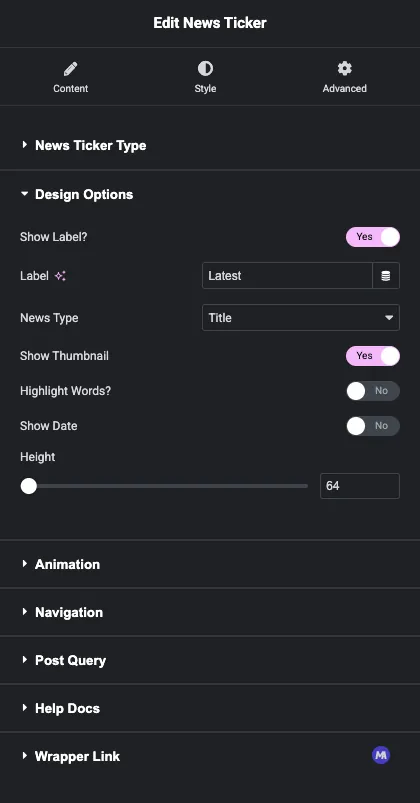

Highlight Words is the one option in that panel worth explaining. Switch it on and the first few words of every headline get their own color and background, set under Style > Content > Highlight. Words to Highlight runs from 1 to 10 and defaults to 2, which is enough to make “Black Friday” or “Just in” stand out at the start of a line.
How to add an RSS news ticker
The same widget reads an RSS feed from any site, which makes it a WordPress news ticker for headlines you do not publish yourself: an industry news site, a partner blog, your own second site or a YouTube channel feed. Compared with the post ticker, only the source changes.
- Add the News Ticker widget as before, or select the one you already have.
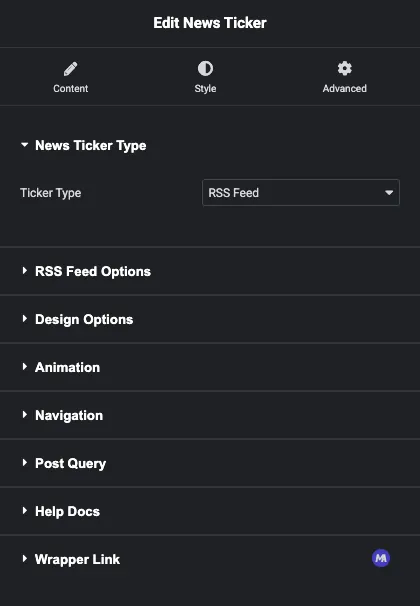
- Open News Ticker Type and set Ticker Type to RSS Feed. The Post Query section disappears and RSS Feed Options appears in its place.
- Paste the feed address into RSS Feed URL. For a WordPress site that is the site address followed by
/feed/, for examplehttps://master-addons.com/feed/. - Set Limit Posts, which runs from 1 to 30 and starts at 5.
- Change the label in Design Options to something that fits an external source, such as “From the blog” or the site’s name, and publish.
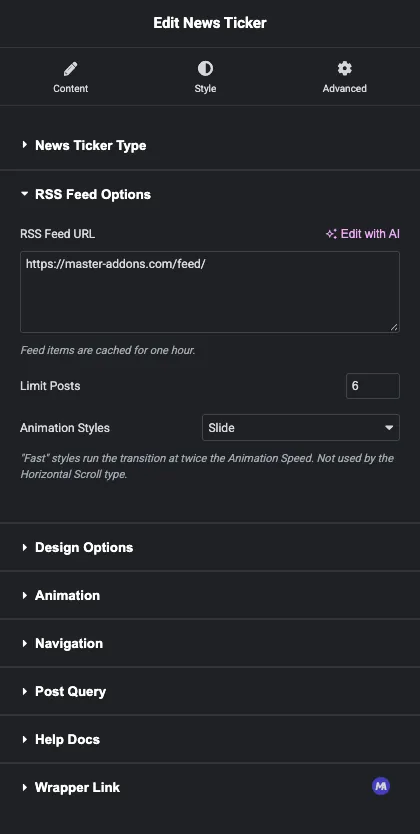

The feed is fetched on the server with the same function WordPress uses for its own RSS block, and the items are stored for one hour. Visitors get the cached list, so a slow or offline feed never holds up your page, and a headline published on the other site shows up on yours within the hour. If you need to force a refresh while testing, save the page again after the hour has passed or clear the site’s transients.
Thumbnails and the date work in RSS mode too when the feed carries them. Excerpt mode prints the feed’s description for each item, trimmed to the bar height, so Title mode is the safer choice for a feed you do not control. The RSS feed in Elementor guide compares this ticker with the core RSS block and embed services if a list suits your page better than a strip.
Horizontal, vertical or continuous scroll
The Animation section decides how the bar moves, and each Scroll Type suits a different spot on the page.
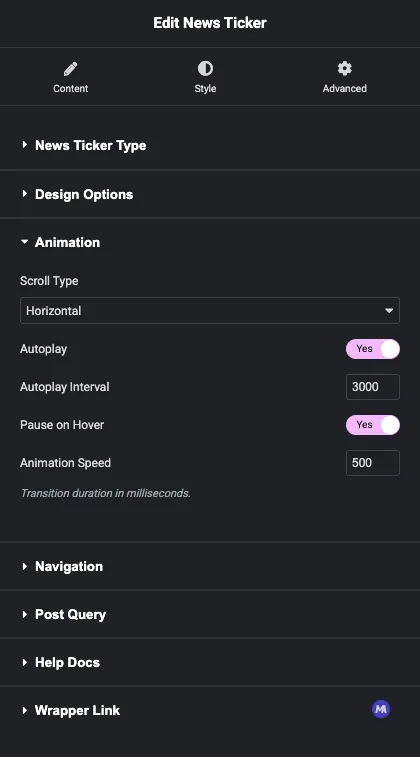
- Horizontal slides one headline in from the side, holds it for the Autoplay Interval, then slides the next one in. It reads like a slideshow and fits a slim bar under the header where one headline at a time is enough.
- Vertical rolls each headline upward into the same slot. It fits a sidebar or a narrow column best, and it works well with Show Thumbnail because the slot is tall enough for a small image.
- Horizontal Scroll is the continuous marquee: every headline moves across the bar without stopping, and Animation Speed controls how fast. It looks like a broadcast ticker and suits a wide bar in the hero or the footer.

Animation Speed is the transition time in milliseconds, from 100 to 5000, with 500 as the default. Horizontal and Vertical use it for the slide; Horizontal Scroll uses it for the marquee pace, so a higher number there means a slower, easier read. Pause on Hover applies to all three, and the Navigation section lets you move the arrows to the left, both sides, top or bottom, or hide them for the marquee where they add nothing.
Put the ticker in the header
Most sites want the news ticker on every page. A header template does that, and you only place the widget once. The header builder in the Master Addons Theme Builder is free, so the only Pro part of the setup is the ticker itself.
- Go to Master Addons > Theme Builder and add a new Header template. Set the display condition to Entire Site and activate it.
- Edit the template with Elementor. Add a full-width container at the very top, give it a dark background and a little side padding, and drop the News Ticker into it.
- Set the label color to your accent, the headline text to white, and the Height to 40 px so the bar stays slim.
- Add the logo, menu and button row in a second container below it, or paste one of the Elementor header templates that already have a top bar.
- Save. The bar now appears above the menu on every page the template covers.
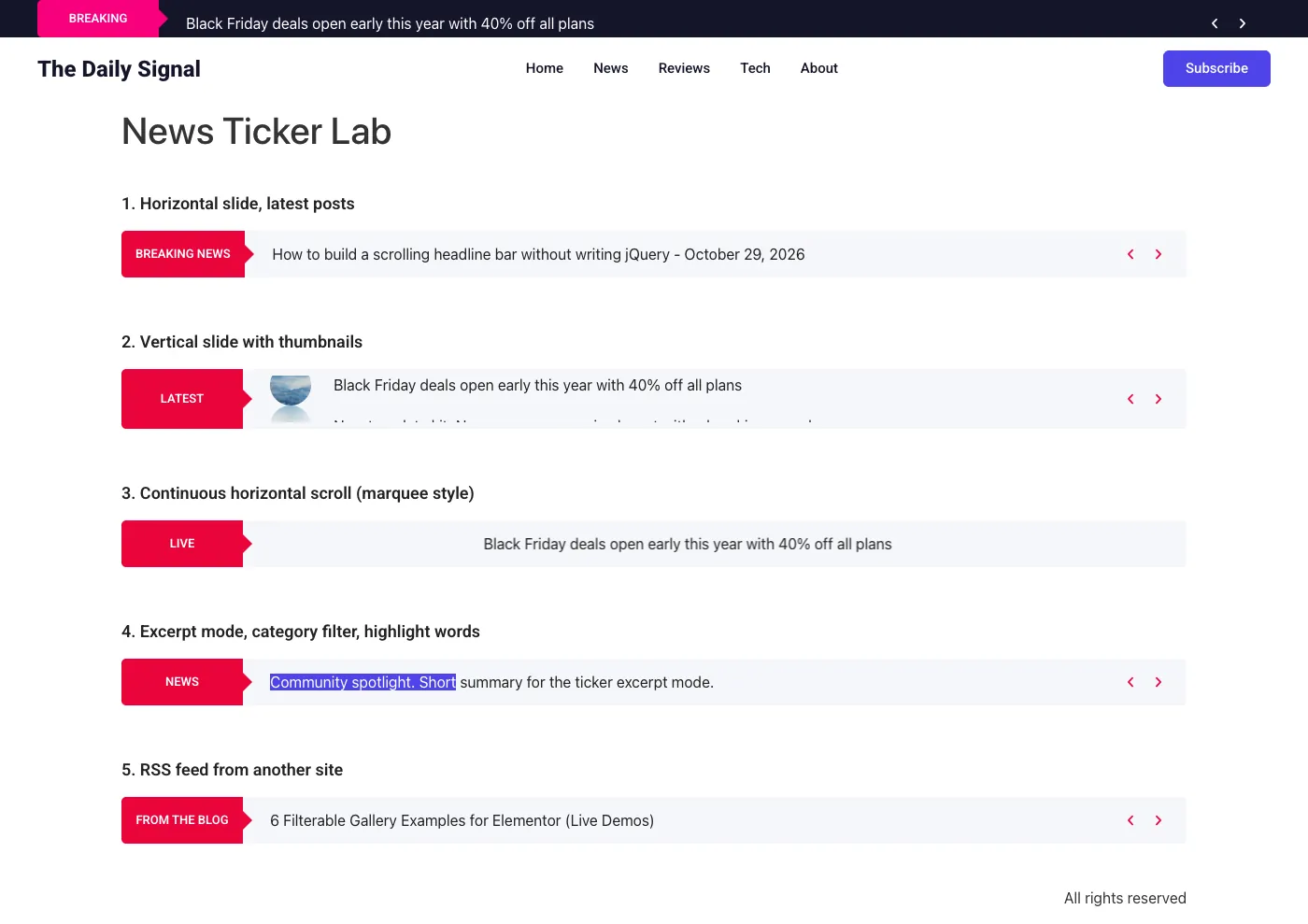
If the header is sticky, the ticker scrolls with it, which keeps the newest headline in view on long reads. The sticky header tutorial shows the setting. A hero is the other common spot on a magazine home page: a Horizontal Scroll ticker under the headline keeps the latest posts moving without pushing the page down, and it pairs well with the Blog widget for the post grid beneath it. For a fixed notice instead of moving headlines, the announcement bar guide covers the text-bar version of the same top strip.
Want to see the ticker before you build it? The News Ticker widget page has a live post ticker and an RSS ticker, plus the full list of what the widget can and cannot do.
What the widget does not do
Two things people ask for are not in the News Ticker widget today. It has no field for typed headlines, so you cannot enter “Office closed on Friday” as an item; every line comes from a post or a feed. And it has no typing effect, where letters appear one by one.
For a fixed notice, you have two workarounds. Put a Text Editor widget in the same bar beside the ticker, which is what most announcement bars are anyway. Or publish the notice as a post in a category the ticker reads, which gets it into the moving strip and gives it a page of its own. If you need typed items and a feed in one widget, the news ticker widget comparison lists which addons offer both and what each one charges.
A free alternative for posts only
If your bar only ever needs your own posts, and a vertical roll is fine, the News Ticker widget in the free HT Mega plugin does the job without a paid plan. It has a Post Type select, author and category filters, a Breaking News style label with an icon, a date switch and seven styles. The limits are the source and the motion: it reads posts only, with no RSS and no custom text, and its Direction setting offers Up or Down with no horizontal or marquee option. HT Mega has 60,000+ active installs on wordpress.org.
Master Addons covers the horizontal and continuous scroll types, the thumbnails and the RSS source, which is why this guide uses it. It also brings 80+ other widgets to the editor, listed on the widgets and extensions page, with plans on the pricing page. The WordPress news ticker guide covers shortcode plugins that work outside Elementor if your theme does not use it.
Frequently asked questions
Does Elementor have a news ticker widget?
No. Neither the free plugin nor Elementor Pro includes a ticker or marquee widget. The Loop Carousel on Pro plans slides post cards and the Horizontal Scroll motion effect moves an element as the page scrolls, but neither prints headlines in a one-line strip. A ticker comes from an addon such as the Master Addons News Ticker widget.
Can an Elementor news ticker show posts from one category only?
Yes. In the News Ticker widget, open Post Query and choose the categories or tags to include. Posts Limit sets how many headlines rotate, and Order By sorts them by date, title or comment count.
Can the ticker read an RSS feed from another website?
Yes. Set Ticker Type to RSS Feed, paste the feed URL and set Limit Posts, up to 30. The feed is fetched on the server and cached for one hour, so the page never waits on the other site and new items appear within the hour.
How do I make the news ticker scroll continuously like a TV ticker?
Under Animation, set Scroll Type to Horizontal Scroll. Every headline then moves across the bar without pausing, and Animation Speed controls the pace. Horizontal and Vertical instead show one headline at a time and hold it for the Autoplay Interval.
Is the News Ticker widget free?
The News Ticker widget is part of Master Addons Pro. The header builder in the Master Addons Theme Builder is free, so you can prepare the header template first and add the ticker once Pro is active. HT Mega offers a free ticker that reads posts only and scrolls vertically only.
Final thoughts
Since Elementor has no news ticker, you’re really choosing a widget by its source. The Master Addons News Ticker reads any public post type with category and tag filters or any RSS feed URL cached for one hour, prints up to 30 items with a label, thumbnail and date, and moves them with Horizontal, Vertical or Horizontal Scroll motion. It cannot take typed headlines, so pair it with a Text Editor widget for fixed notices.
Build the header template first, drop the ticker in a full-width top container, and every page gets the bar. The News Ticker widget page has both tickers running live if you want to see the result before you start.
Related reading
