

Key Takeaways
- Elementor scroll effects in the stock editor are six controls under Advanced > Motion Effects > Scrolling Effects (Vertical Scroll, Horizontal Scroll, Transparency, Blur, Rotate and Scale), and each one moves a single element.
- The Scrolling Effects controls are an Elementor Pro feature, and the free Elementor 4.3.2 plugin does not contain them.
- The 16 image scroll effects on this page are Master Addons Widget Builder widgets that pin a full-screen stage and animate a whole set of images against the scroll position, including a 3D cube, a page-turning book and a stacking card deck.
- Each of the 16 scroll widgets has its own zip download holding one JSON file and a README, and the JSON is imported through Master Addons > Widget Builder > Import Widget, which accepts .json files only.
- Every one of the 16 widgets includes a prefers-reduced-motion rule, so visitors who turn motion off in their operating system get a still layout instead of the animation.
Elementor scroll effects, as most people meet them, are the Scrolling Effects controls in the Motion Effects panel: vertical scroll, horizontal scroll, transparency, blur, rotate and scale. Each one nudges a single image or heading as the page moves, and that is as far as they go. Pinning a section while a cube turns inside it is beyond them.
This post shows 16 image scroll animations that work at that larger scale. Each one is a ready-made widget for the Master Addons Widget Builder with a live demo you can open before installing anything. Below you will find what each effect does, which kind of site it suits, how to import the set, and what to check for speed and accessibility.
Table of Contents
What Elementor scroll effects can do on their own
Elementor’s own scrolling effects change one property of one element as the visitor scrolls. You select a widget or container, open Advanced > Motion Effects, switch on Scrolling Effects, and pick from six options. Elementor’s Motion Effects help page lists them as Vertical Scroll, Horizontal Scroll, Transparency, Blur, Rotate and Scale.
These controls belong to Elementor Pro. We checked the free Elementor 4.3.2 plugin and the scrolling controls are not in it.
A scrolling effect only knows about its own element and the viewport. It has no way to hold a section in place while the content inside it changes, and it cannot coordinate ten images so they arrive in order. Parallax on a hero image is easy to set up this way. A photo that breaks into puzzle pieces and reassembles as you read needs a custom widget, which is what the rest of this post covers.
If plain parallax is all you need, the Rellax extension in Master Addons handles it, and our animation overview covers entrance and floating effects.
What you need to run these widgets
You need Elementor, Master Addons and the Widget Builder. The free Elementor plugin is enough on the Elementor side, because none of these designs use Elementor Pro widgets or its Motion Effects panel.
The widgets are imported and edited in the Widget Builder, which is a Master Addons Pro feature. Plans are on the pricing page. Every design below has its own download link next to its live demo, and there is no email gate.
You will also want your own images. The demos use public domain and openly licensed photographs, and each widget has image fields or a repeater, so swapping them takes a few minutes.
The live demos need nothing installed. Open one and scroll it at a couple of window sizes, which is the quickest way to tell whether a motion style fits your content.
Want to build your own scroll widget? The Master Addons Widget Builder turns HTML, CSS and JavaScript into an Elementor widget with its own Content and Style controls.
16 image scroll effects for Elementor
The 16 image scroll effects fall into five groups: pinned reveals, 3D objects, card decks, endless galleries, and index or shop layouts. Most of them use the same foundation. The widget gives itself a tall runway, pins a one-screen stage inside it with sticky positioning, and reads how far you have scrolled through the runway to drive the animation. Scroll back up and everything plays in reverse.
Pinned image reveals
These four hold a frame still and change what is inside it. They suit long-form pages where each picture comes with a paragraph.
1. Aperture Index
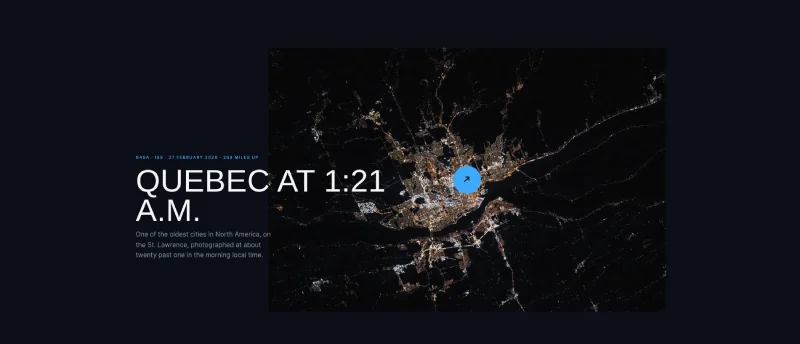
Each entry starts as a thin horizontal band and opens to a full photograph as it reaches the middle of the screen, the way a leaf shutter opens. The title sits across the image and the entries alternate left and right down the page. The frame stays pinned while its text scrolls past, then lets go.
It is an image reveal on scroll with a dark ground, so it flatters night photography and product shots on black. Four to six entries is the comfortable range.
2. Shingle Frame
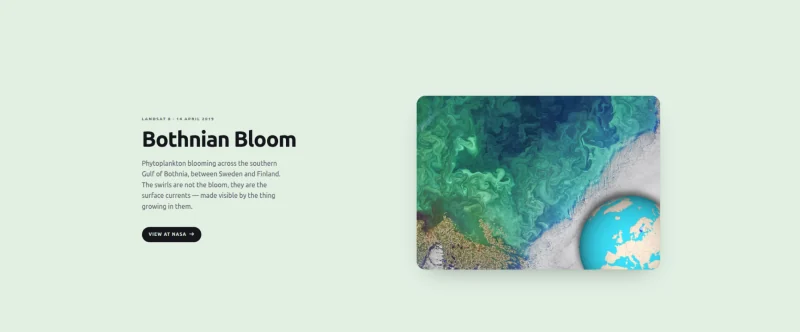
One frame stays fixed on the right while the copy scrolls on the left. As each new block of text arrives, its picture slides over the previous one inside the same frame, like shingles on a roof. The page background changes colour with every picture.
The colour shift tells the reader a new chapter has started, so you can drop the dividers and sub-headings. Use it for case studies and feature tours with four or five items that each deserve a paragraph.
3. Dovetail Chapters
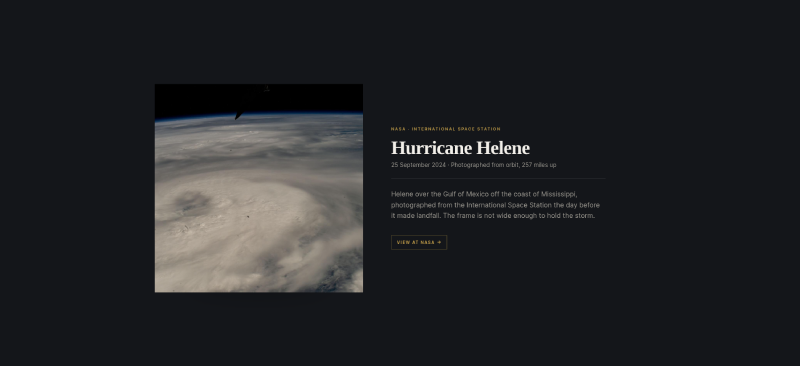
Every chapter holds a picture cut into interlocking jigsaw pieces. They begin scattered and rotated. Scrolling walks them home, and the caption appears once the picture is whole.
The position of every piece is calculated from the scroll offset, so the animation never runs ahead of the reader or lags behind. It works well for storytelling pages with two to four big images. I would not go past four, because the trick wears thin.
4. Weft Grid
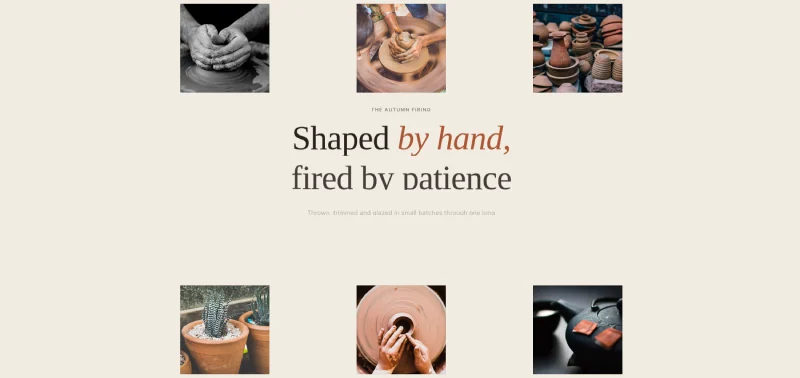
The section opens on one photograph at full bleed. Scroll, and it shrinks into its place in a three-column grid while the other pictures fly in around it. Keep scrolling and the rows part to make room for a headline and a button.
This is a strong hero for a shop or studio home page, because it moves from one big picture to the full collection to a call to action in a single section. For static alternatives, see our Elementor hero section templates.
3D scroll effects
These four use CSS 3D transforms and perspective, and the scroll position drives them. If you want 3D that plays on a timer or responds to arrows, our guide to the Elementor 3D carousel covers that side.
5. Facet Cube
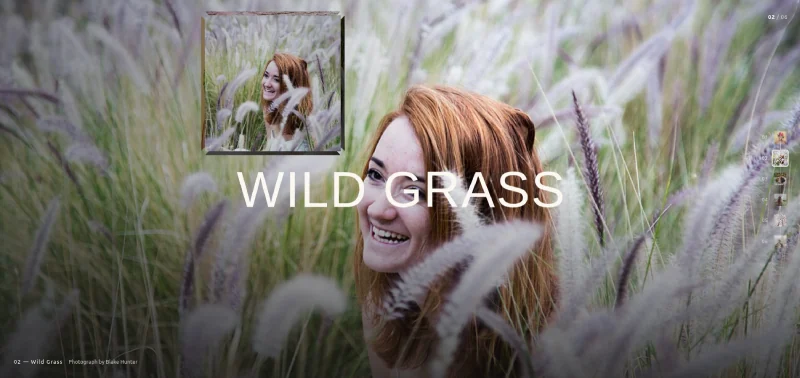
Six photographs sit on the six faces of a cube. The cube turns one face per stretch of scroll while the photograph you are facing spreads across the whole background. A rail of thumbnails on the right shows where you are and lets you jump to any face.
Six is the hard limit, since a cube has six sides. That makes it a neat fit for a short portfolio set or a six-product range.
6. Orbit Tube
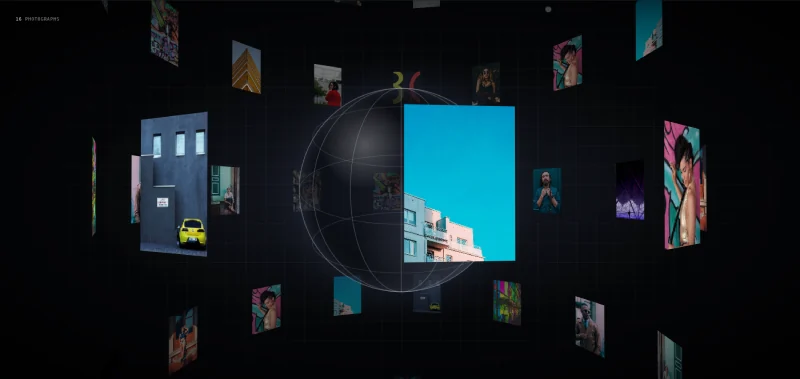
Rings of photo cards stand around a vertical axis, stacked one above another to form a tube. You view it from just outside, so the near wall passes large across the screen and the far wall shows small and dim through the gaps. A glass globe sits on the axis in the demo, and the widget offers other centre objects, including an orb, an atom, a ringed planet, a wire cube, an image or an icon.
It needs plenty of images to read as a tube, so think galleries of sixteen or more.
7. Easel Rack
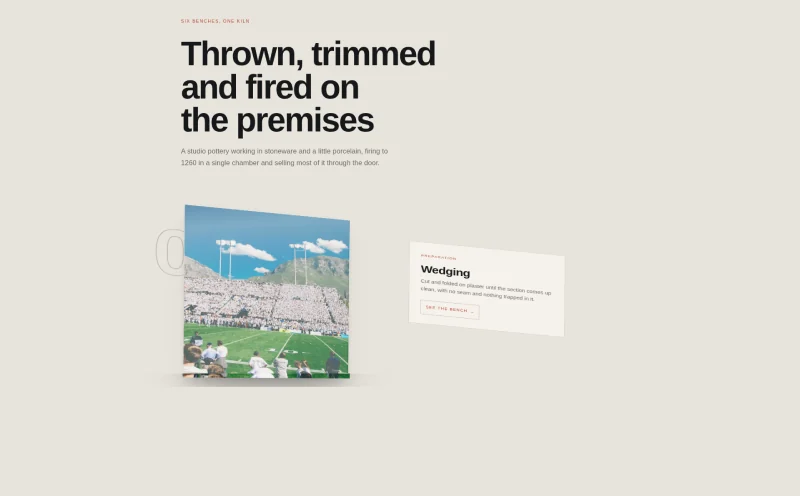
Easel Rack is a scroll gallery that stands in depth. Each picture is a plate turned away from you until the scroll brings it level with the middle of the screen, where it swings round to face you. Captions sit beside the plates and the items zigzag left and right.
The demo walks through six stages of a pottery studio, and that is the natural use for it: process steps or a numbered list of services.
8. Quire Book
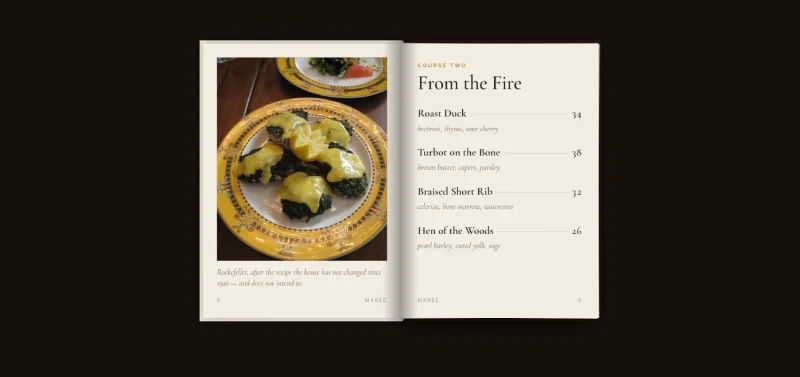
A closed book opens as you scroll, then turns one page at a time. Each sheet is printed on both sides and pivots on the spine, so you see the back of a page as it goes over. Scroll up and the book shuts again.
The demo is a restaurant menu with a photograph on the left page and dishes on the right. It also suits lookbooks and brochures. With JavaScript off, the pages fall back to a plain column in reading order, so nothing is hidden from search engines or screen readers.
Card decks
9. Riffle Deck
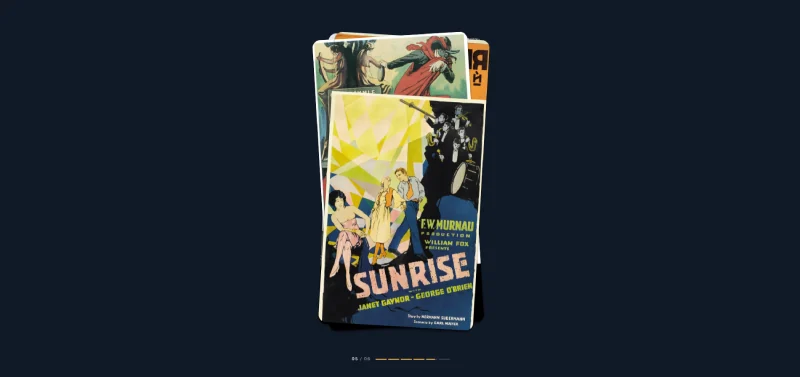
This is the stacking cards on scroll pattern, done with portrait cards. Each scroll step lays the next card on top of the pile at a slight angle. The background colour shifts to match each card, and a small progress bar counts through the set.
Portrait images work best: posters, book covers, packaging, app screens. Six to eight cards is about right.
10. Shatter Deck
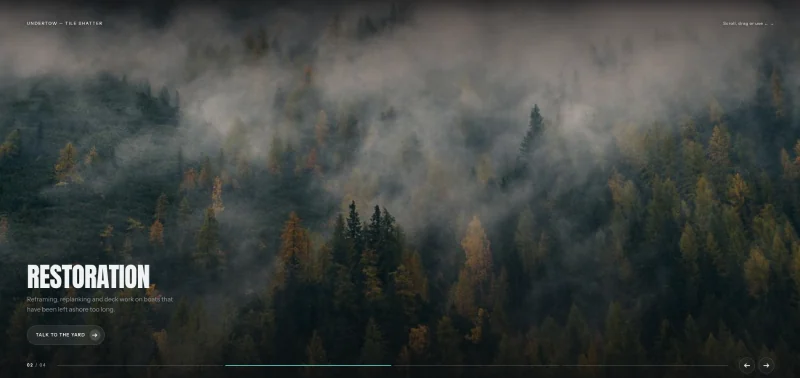
Shatter Deck is a full-frame deck of photographs, each with a caption and a button, and two arrows to move through them. Moving between images cuts the picture into a grid of small tiles, scatters them, and brings them back together as the next photograph.
Out of the box you move through it with the arrows, a horizontal drag or the arrow keys once the deck has focus. The page keeps its normal vertical scroll. Switch on the Scroll to Scrub control and the scroll drives the transition instead. With reduced motion enabled, the tiles stop flying and the deck cross-fades.
Endless scroll galleries
These three loop. There is no first or last picture, which suits browsing more than reading.
11. Salon Hang
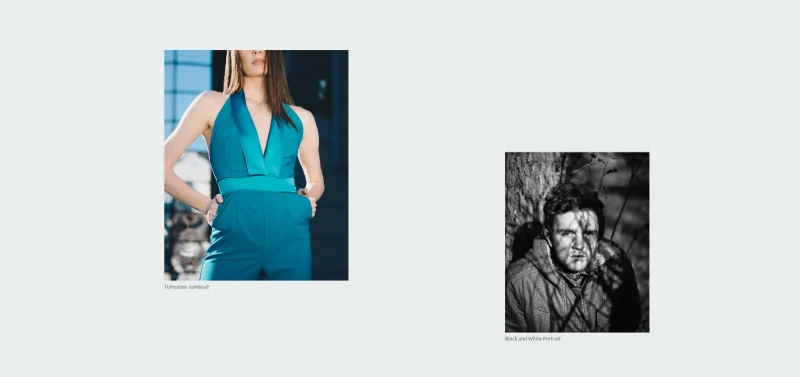
Salon Hang is a wall with no top and no bottom. Pictures hang in one column, pushed left and right of centre by different amounts and cut to different widths, the way a salon hang crowds a gallery wall. After the last picture comes the first again. Click a picture and it grows into its own page with a caption and a Back button.
Use it for photography portfolios where the order does not matter and each image deserves a closer look.
12. Filament Thread
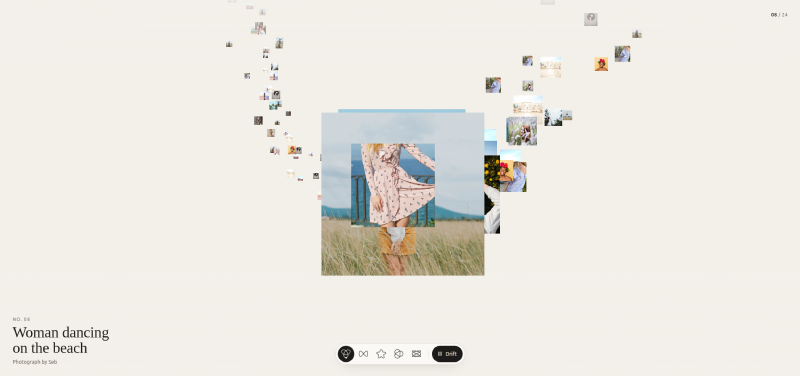
Photographs the size of postage stamps are strung along a closed thread that winds across the screen. You travel along the thread by scrolling. Wherever it passes the middle of the stage, the pictures swell up as if under a loupe, and a caption names the one in front. Click a photograph to open it.
It is the best of the sixteen for large archives, because small thumbnails mean a lot of pictures fit on screen at once. Without JavaScript the widget shows every photograph in a plain grid.
13. Reel Portraits
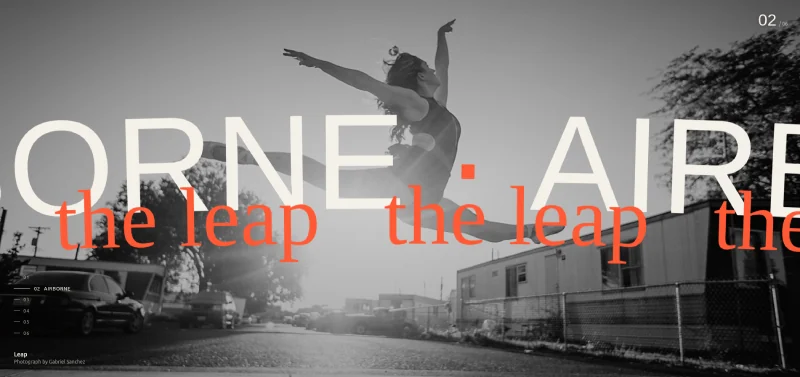
Reel Portraits shows full-screen portraits one at a time, on a loop. Each carries a single word set very large across it, running sideways along a curve like type on a turning drum, with a handwritten line crossing it the other way. The photograph moves with a parallax drift behind the type, and a numbered index sits low on the left.
It is the loudest design of the sixteen, and it suits fashion and editorial sites. Give it five or six strong images and one word each.
Indexes and shop layouts
14. Bellows Index
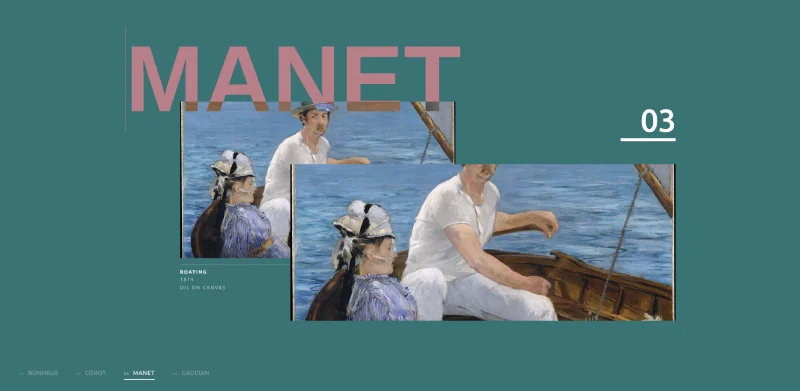
Bellows Index shows a body of work one entry at a time. Each has a large heading, two overlapping plates of the same picture and a caption, and the whole page takes a new colour for every entry. The heading is set in a variable font, and the widget writes scroll pressure onto its width axis, so the word stretches and settles as you move.
It reads best with four to eight entries. Try it for an exhibition or a set of featured projects.
15. Tide Index
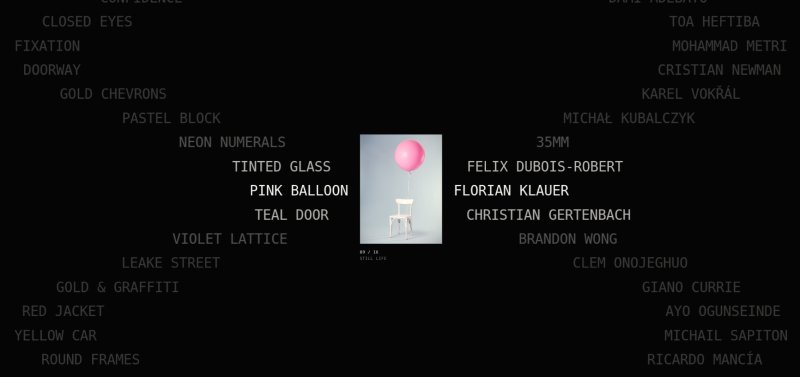
Tide Index has two columns that move against each other. Titles run down the left and the people who made them down the right. As you scroll, each line slides sideways on a wave, the left column one way and the right its mirror, while a photograph for the current row sits between them.
This one is led by type, with the image in a supporting role. It suits credit lists and long project indexes.
16. Swatch Shop
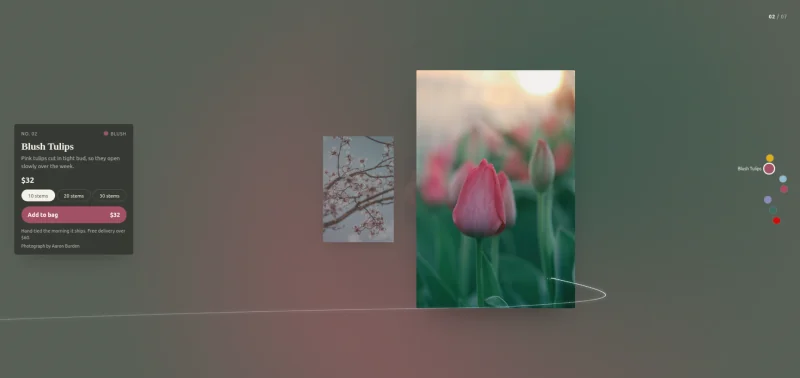
Swatch Shop is a corridor of product photographs that you walk down by scrolling. While a product is in front, the whole room takes its colour, and a card beside it shows the name, a short description, the price, size options and a button. A column of colour dots on the right marks your place.
It is built for small catalogues: florists, ceramics, candles, prints. Seven products fill the demo.
All 16 scroll effects at a glance
Use this table to match a scroll effect to the content you have. Item counts are what the layout handles comfortably.
| Widget | Scroll effect | Best for | Items |
|---|---|---|---|
| Aperture Index | Image opens from a band as it enters view | Dark photo essays | 4 to 6 |
| Shingle Frame | Pictures overlap in a fixed frame, page colour changes | Case studies, feature tours | 4 to 5 |
| Dovetail Chapters | Jigsaw pieces assemble | Storytelling pages | 2 to 4 |
| Weft Grid | Full-bleed photo becomes a three-column grid | Home page heroes | 12 |
| Facet Cube | 3D cube turns one face per scroll step | Short portfolios | 6 |
| Orbit Tube | Rings of cards rotate around an axis | Large galleries | 16 or more |
| Easel Rack | Plates swing to face the reader | Process steps | 4 to 8 |
| Quire Book | Book opens and pages turn | Menus, lookbooks | 3 to 6 spreads |
| Riffle Deck | Cards stack on scroll | Posters, covers, app screens | 6 to 8 |
| Shatter Deck | Image breaks into tiles and re-forms | Full-width sliders | 3 to 6 |
| Salon Hang | Looping wall, pictures open into a page | Photography portfolios | 10 or more |
| Filament Thread | Thumbnails travel along a thread | Archives | 20 or more |
| Reel Portraits | Full-screen portraits with curved type | Fashion, editorial | 5 to 6 |
| Bellows Index | One entry at a time, heading reacts to scroll | Exhibitions, collections | 4 to 8 |
| Tide Index | Two columns slide on a wave | Credits, long indexes | 15 or more |
| Swatch Shop | Product corridor, room changes colour | Small catalogues | 5 to 8 |
Download the 16 scroll effect widgets
Each widget is a separate zip, so you only download the ones you plan to use. Every zip holds two files: the widget’s JSON and a README that lists its controls.
| Widget | Demo | Zip |
|---|---|---|
| Aperture Index | Live Demo | Download |
| Bellows Index | Live Demo | Download |
| Dovetail Chapters | Live Demo | Download |
| Easel Rack | Live Demo | Download |
| Facet Cube | Live Demo | Download |
| Filament Thread | Live Demo | Download |
| Orbit Tube | Live Demo | Download |
| Quire Book | Live Demo | Download |
| Reel Portraits | Live Demo | Download |
| Riffle Deck | Live Demo | Download |
| Salon Hang | Live Demo | Download |
| Shatter Deck | Live Demo | Download |
| Shingle Frame | Live Demo | Download |
| Swatch Shop | Live Demo | Download |
| Tide Index | Live Demo | Download |
| Weft Grid | Live Demo | Download |
Unzip a file before you import it. The Widget Builder importer reads .json files and will not accept the zip itself.
How to import a scroll widget into Elementor
You import each widget through the Master Addons Widget Builder, then drag it onto a page like any other Elementor widget. The whole thing takes about two minutes per design.
- Download the widget you want and unzip it. Inside is a file named like
widget-facet-cube.json, plus a README. - In your WordPress dashboard, go to Master Addons > Widget Builder and click Import Widget.
- Drag one .json file onto the upload area, or click Browse files and pick it. The importer takes one file at a time, so repeat this for each design you want.
- Open any page in Elementor and search the widget panel for the design’s name, for example “Facet Cube”. Drag it into a full-width container.
- Replace the demo images and text in the Content tab, then set colours and typography in the Style tab.
These files do not go through Elementor’s own Templates > Import screen. That importer is for page and section templates, which we cover in how to import an Elementor template. The pinned widgets also need room. Put them in a container set to full width with no padding, or the stage will sit inside a narrow column and look cramped.
Also read: How to Add GSAP Animation in Elementor, if you would like to write your own scroll-triggered animation from scratch.
Image scroll widget vs image scroll effect
An image scroll widget and an image scroll effect are two different things, and the names cause confusion. In most Elementor addons, “Image Scroll” means a tall screenshot inside a fixed frame that slides up when you hover over it. Theme shops use it to preview a long page in a small box.
An image scroll effect is animation tied to the page scroll: images that reveal, stack, turn or travel as the visitor moves down the page. Everything in this post is the second kind. If the hover preview is what you came for, you need an addon with an Image Scroll widget, because none of these 16 do that.
Scrollytelling in Elementor
Scrollytelling is a page where scrolling advances a story: a visual stays pinned while the text beside it moves on, and the visual changes at each step. Elementor can do a basic version with a sticky column. The harder part is making the visual respond to exactly where the reader is.
Three of these widgets are built for it. Shingle Frame pairs each paragraph with a picture that replaces the last, Dovetail Chapters assembles one picture per chapter as you read, and Quire Book turns a page for every section. For a longer story, stack two of them on one page with ordinary text sections in between, so the reader gets a rest from the motion.
Do scroll effects slow down your site?
Scroll effects slow a site down when they are built carelessly, and the usual culprits are oversized images and animations that change layout on every frame. These widgets avoid the second problem. They animate with CSS transforms and opacity, which the browser can hand to the graphics card, and they use an IntersectionObserver to know when the widget is on screen.
Image weight is up to you, since a widget that shows twelve photographs will load twelve photographs. Export them as WebP, size them to the largest dimension they appear at, and keep each under about 150 KB.
On accessibility, all 16 widgets carry a prefers-reduced-motion rule. A visitor who has asked their device for less motion gets a still layout: Weft Grid shows its finished grid with the text over it, and Shatter Deck cross-fades. Shatter Deck is also a real tab stop, so the arrow keys work once it has focus and do not hijack the page otherwise.
For phones, several designs include their own narrow-screen layout. Facet Cube moves its thumbnail rail to a row at the foot of the stage, and Reel Portraits turns its index into a row of numbers. Still, test the widget you choose on a real phone before you publish. Tall pinned sections feel longer under a thumb than under a mouse wheel. If your site uses non-standard breakpoints, our guide to Elementor breakpoints explains how to adjust them.
I would use one pinned scroll effect per page, two at most. Each pinned stage adds scroll distance, and a visitor who has to scroll through three of them in a row will feel it.
Frequently asked questions
Are Elementor scrolling effects free?
No. The Scrolling Effects controls under Advanced > Motion Effects are part of Elementor Pro, and the free Elementor plugin does not include them. The 16 widgets on this page do not depend on Elementor Pro. They run on free Elementor with the Widget Builder from Master Addons Pro.
How do I add scroll effects in Elementor?
With Elementor Pro, select an element, open Advanced > Motion Effects, turn on Scrolling Effects and choose Vertical Scroll, Horizontal Scroll, Transparency, Blur, Rotate or Scale. For effects that pin a section or animate several images together, import a ready-made scroll widget through Master Addons > Widget Builder > Import Widget.
Why are my Elementor scroll effects not working?
The common causes are a caching or optimisation plugin delaying JavaScript until the first interaction, a parent container with overflow set to hidden (which breaks sticky positioning), and the widget sitting in a boxed column that is too narrow. Clear the cache, set the container to full width, and remove overflow hidden from its parents.
Do I need Elementor Pro for these 16 scroll widgets?
No. None of them use Elementor Pro widgets or the Motion Effects panel, so free Elementor is enough. What you do need is Master Addons Pro, because the widgets are imported and edited in its Widget Builder.
What is the difference between a scroll-triggered and a scroll-linked animation?
A scroll-triggered animation starts once when an element enters the screen and then plays on its own clock, like a fade-in. A scroll-linked animation follows the scroll position continuously, so it pauses when you stop and reverses when you scroll up. Most of the 16 effects here are scroll-linked.
Can I use more than one scroll effect on a page?
Yes, and each widget keeps its animation to its own section. Limit yourself to one or two pinned effects per page, with normal content between them. Every pinned stage adds scroll distance, and too many in a row make a page feel slow even when it loads fast.
Do these scroll effects work with GSAP or ScrollTrigger?
They do not need either. Each widget ships its own CSS and JavaScript and loads no animation library. If your site already runs GSAP for other sections, the two can sit on the same page, since the widgets only touch their own markup.
Final thoughts
Elementor’s built-in scroll effects give you six ways to move one element, and they live in Elementor Pro. The 16 widgets here cover the ground beyond that: four pinned reveals, four 3D pieces, two card decks, three endless galleries and three index or shop layouts, each with a live demo and a reduced-motion fallback.
To choose one, count your images and decide whether their order matters, then pick from the table above. You can change any of these designs, or build a new one, in the Widget Builder.
Related reading
- Elementor Image Box: 16 Designs With Live Demos & Download
- 20 Elementor Slider Templates: Coverflow, Timeline, Testimonial and More
- Elementor 3D Carousel: Coverflow, Flip, Arc and Orbit
- 4 Elementor Animation Effects Extension Without Code
- Elementor Marquee: Infinite Scrolling Text, Logos and Tickers
- Elementor Timeline widget: cards slide in and the line fills on scroll
