

Key Takeaways
- TablePress works with Elementor in two ways: a widget named TablePress table that TablePress 3.4 adds to the Elementor panel, and the shortcode [table id=1 /] placed in the Shortcode widget.
- The TablePress table widget in Elementor has a Table dropdown and a Configuration parameters field, and it has no Style tab.
- TablePress turns on sorting, search and pagination for visitors by default, with 10 rows per page.
- Horizontal Scrolling is off by default in TablePress, so a five-column table overflows on a 390px phone until you tick it in the table’s settings.
- For a short table that should be edited and styled inside Elementor, a table widget such as Master Addons Dynamic Table is less work than TablePress.
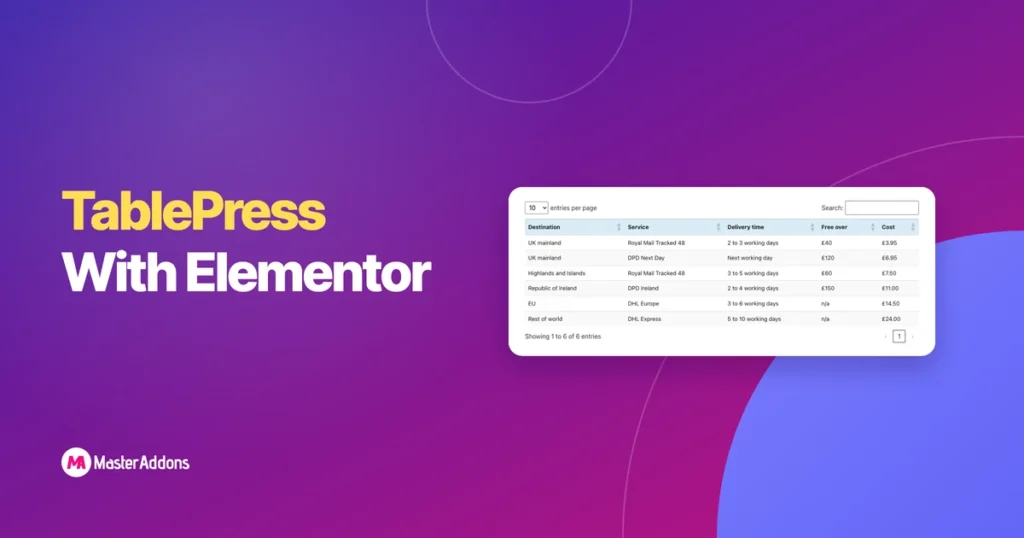
TablePress and Elementor work together without any bridge plugin. You build the table in TablePress, then place it on an Elementor page with the TablePress table widget or with a shortcode. The table keeps its sorting, search and pagination.
This guide covers both methods, styling and the setting that fixes wide tables on phones. It also says when a plain table widget is the better choice. Everything here was tested with TablePress 3.4 and Elementor 4.3.
Table of Contents
Step 1: Create or import the table in TablePress
The table itself is made outside Elementor, on the TablePress screens in the WordPress dashboard.
- Install and activate TablePress from Plugins, Add New.
- Open TablePress in the dashboard menu.
- To type a table, click Add New, enter a name, set the number of rows and columns, and fill in the cells.
- To bring in a spreadsheet, click Import, choose File Upload, select the file, keep Add as new table and click Import.
- Note the table’s ID. The first table is ID 1.
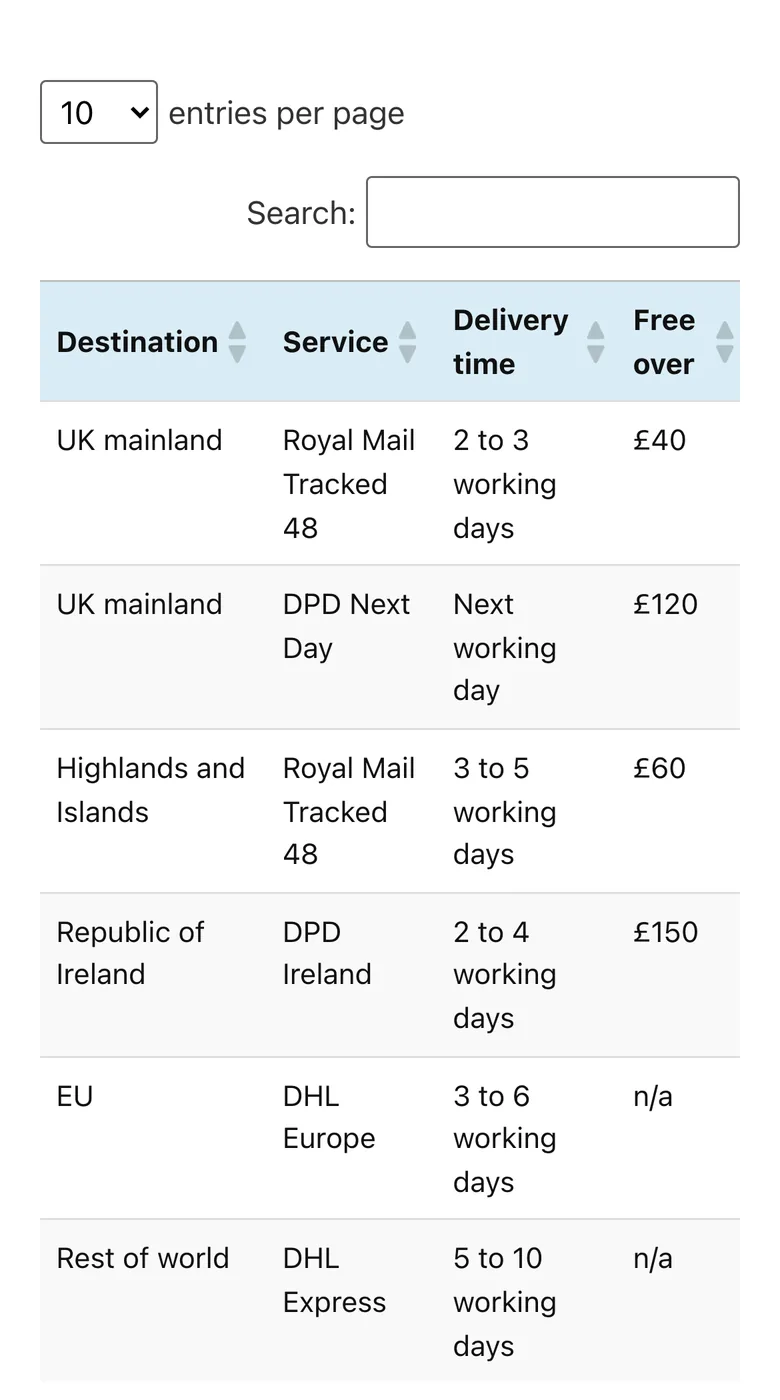
TablePress imports Excel, CSV, HTML and JSON files. We imported a six-row CSV of shipping rates, and it arrived with the first row already set as the header.
Step 2: Add it with the TablePress table widget
TablePress registers its own Elementor widget, so this method needs no shortcode.
- Edit your page with Elementor.
- Search the widget panel for TablePress table.
- Drag the widget into a container.
- Open the Table dropdown and pick your table. Tables are listed by ID and name.
- Publish the page.
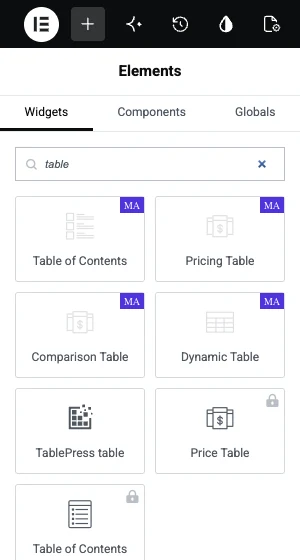
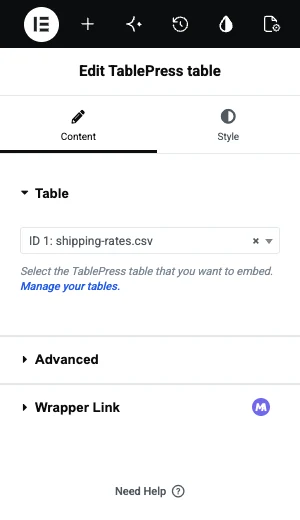
The Advanced section under the dropdown holds one field, Configuration parameters. It accepts the same parameters you would put in a shortcode, for cases where one page should show the table with different options.
Or add it with a shortcode
The shortcode does the same job and works anywhere shortcodes do.
- Drag Elementor’s Shortcode widget into a container.
- Type
[table id=1 /], replacing 1 with your table’s ID. - Click Apply to load the preview.
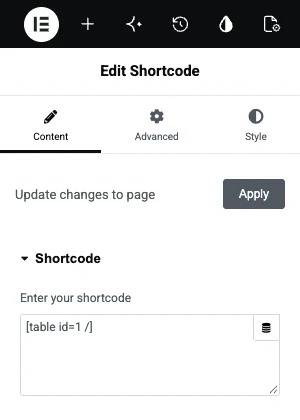
On our test page the widget and the shortcode printed the same table. Use the widget when you can, because picking from a dropdown avoids typos in the ID.
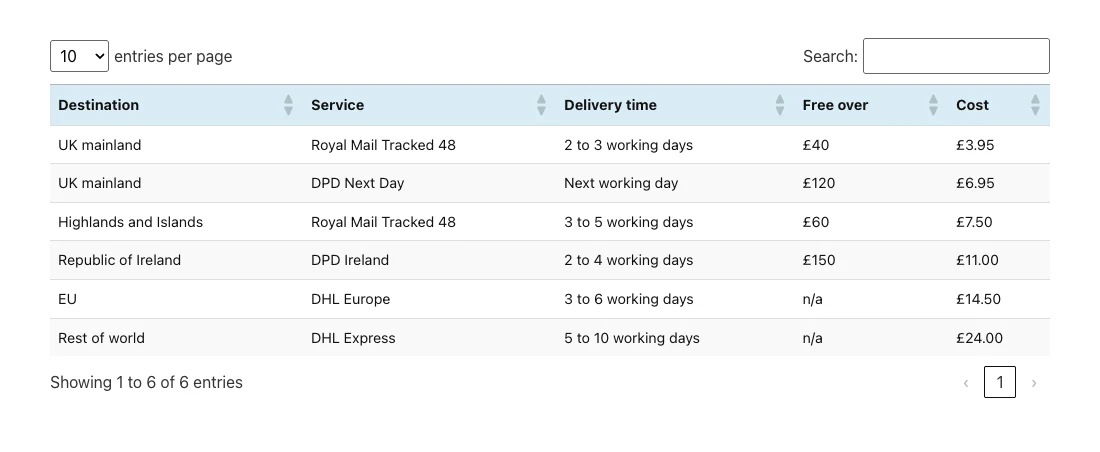
Sorting, search and pagination
These are switched on for every new table. You change them per table, in the box named Table Features for Site Visitors on the table’s edit screen.
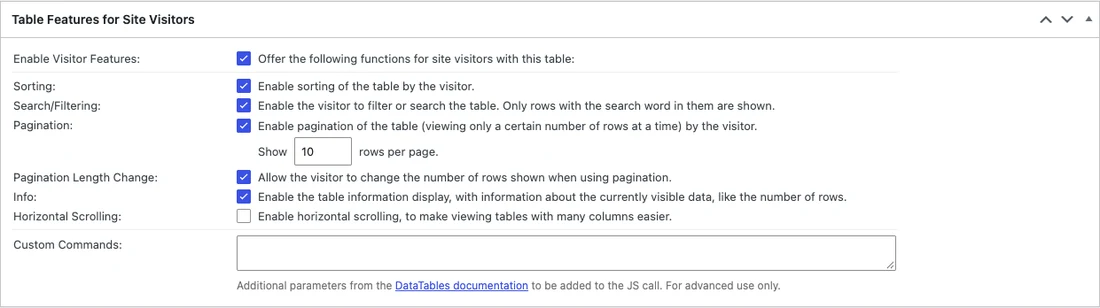
| Setting | What it does | Default |
|---|---|---|
| Sorting | Visitors click a header to sort by that column | On |
| Search/Filtering | Adds a search box that filters rows | On |
| Pagination | Shows a set number of rows per page | On, 10 rows |
| Pagination Length Change | Lets visitors change the rows per page | On |
| Info | Shows “Showing 1 to 6 of 6 entries” | On |
| Horizontal Scrolling | Scrolls wide tables inside their box | Off |
For a table with six rows, search and pagination are clutter. Untick them and the table shows as a plain grid.
Styling a TablePress table in Elementor
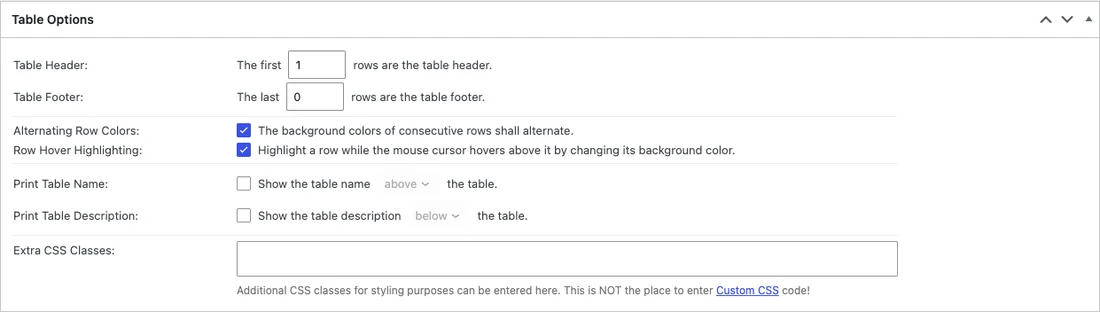
The TablePress table widget has no table styling controls in Elementor, so the look is set in three other places.
- Table Options on the table’s edit screen: which rows are the header and footer, Alternating Row Colors, Row Hover Highlighting, and an Extra CSS Classes field.
- Custom CSS for colors, fonts and borders. TablePress gives every table a class based on its ID, so you can target one table.
- The widget’s Advanced tab in Elementor for margin, padding and width around the table.
A short CSS example that restyles the header of table 1:
.tablepress-id-1 thead th {
  background: #101223;
  color: #ffffff;
}
.tablepress-id-1 tbody td {
  padding: 12px 16px;
}
Paste it into Appearance, Customize, Additional CSS, or into any custom CSS box your setup has. Elementor Pro has one per element, and the Master Addons Custom CSS extension adds one as well.
Fix the table on phones
On a 390px wide phone our five-column table ran past the right edge of the screen, and the last column could not be read.
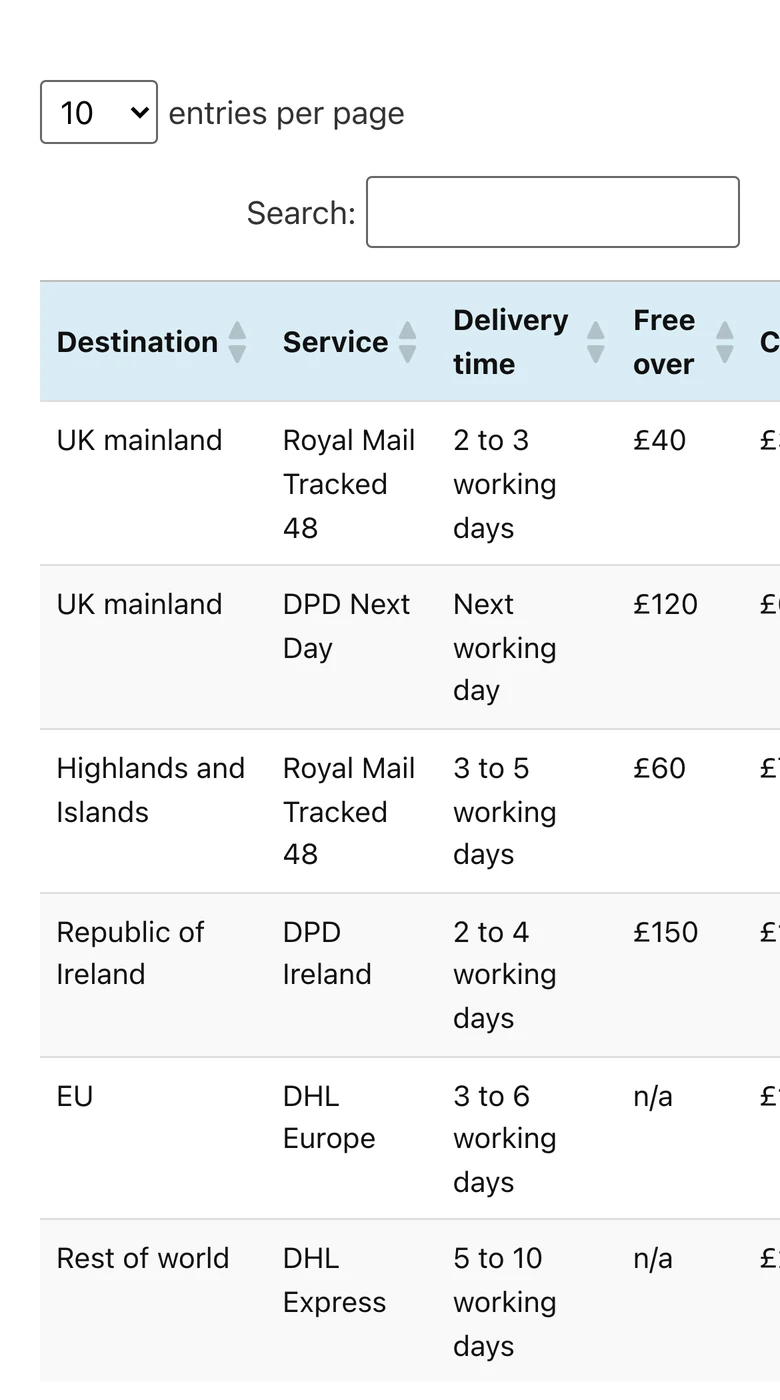
- Edit the table in TablePress.
- Under Table Features for Site Visitors, tick Horizontal Scrolling.
- Click Save Changes and reload the page on your phone.
TablePress also sells a Responsive Tables feature in its Pro plan ($89 a year when we checked), with modes that stack or collapse rows on small screens. Other ways to handle wide tables are in our guide to responsive tables in Elementor.
When a table widget is the better choice
TablePress is built for data. For a small table that is really part of the page design, it adds steps: a second admin screen, CSS in another place, and a plugin to keep updated.
| Your table | Better tool |
|---|---|
| More than about 30 rows, or it comes from Excel or CSV | TablePress |
| Visitors need to sort, search or page through it | TablePress |
| Under 30 rows, typed by hand, styled to match the page | A table widget |
| Cells need icons or images, or merged cells | A table widget |
| Rows should stack into cards on phones without a paid plan | A table widget |
Only need a small table? The Dynamic Table widget builds it in the Elementor panel, with a Style tab and rows that stack on phones.
Dynamic Table has no sorting, search or import, so use TablePress for data and the widget for layout tables such as a timetable or a spec sheet. The other options are compared in our Elementor table plugins roundup.
Frequently asked questions
Does TablePress work with Elementor?
Yes. TablePress 3.4 adds a TablePress table widget to the Elementor panel, and its shortcode works in Elementor’s Shortcode widget. No extra plugin is needed to connect them.
How do I add a TablePress table to an Elementor page?
Create the table in TablePress, edit the page with Elementor, search for the TablePress table widget, drag it in and choose your table in the Table dropdown. You can also paste [table id=1 /] into the Shortcode widget, using your table’s ID.
Is TablePress free?
The TablePress plugin on WordPress.org is free and includes import, export, sorting, search and pagination. Paid Pro and Max plans add features such as Responsive Tables, fixed rows and columns, and automatic imports.
How do I style a TablePress table in Elementor?
The Elementor widget has no table styling controls. Set stripes and hover highlighting in the table’s Table Options, and change colors and fonts with custom CSS that targets the table’s class, for example .tablepress-id-1.
Why is my TablePress table cut off on mobile?
Horizontal Scrolling is off by default, so wide tables overflow the screen. Edit the table, tick Horizontal Scrolling under Table Features for Site Visitors and save. The table then scrolls sideways inside its own box.
Final thoughts
TablePress and Elementor fit together well for data tables: import the file, drop in the TablePress table widget, and remember to turn on Horizontal Scrolling for phones. Styling takes a little CSS because the widget has no Style tab.
For short tables that should look like part of the page, Dynamic Table keeps the cells and the styling inside Elementor.
Related reading
